
Setting up SEO for Views with Yoast SEO
With Yoast SEO and Social Sharing & SEO active, the Yoast SEO box on each View has a Single Entry Settings tab. Its fields accept merge tags, so each entry page gets its own title and meta description, and its own text when someone shares it.
Note: With Yoast SEO 28.7 or newer, use Social Sharing & SEO 3.5.1 or later. Older versions of Social Sharing & SEO show a critical error in place of the View editor.
Give each entry page its own title and description #
- Edit the View.
- In the Yoast SEO box, open the Single Entry Settings tab.
- In SEO Title (Single Entry), enter the title. To add a field’s value, click Insert merge tag at the right of the box, or type the merge tag, such as
{Name:1}. - In Meta Description (Single Entry), enter the description the same way.
- Click Update.
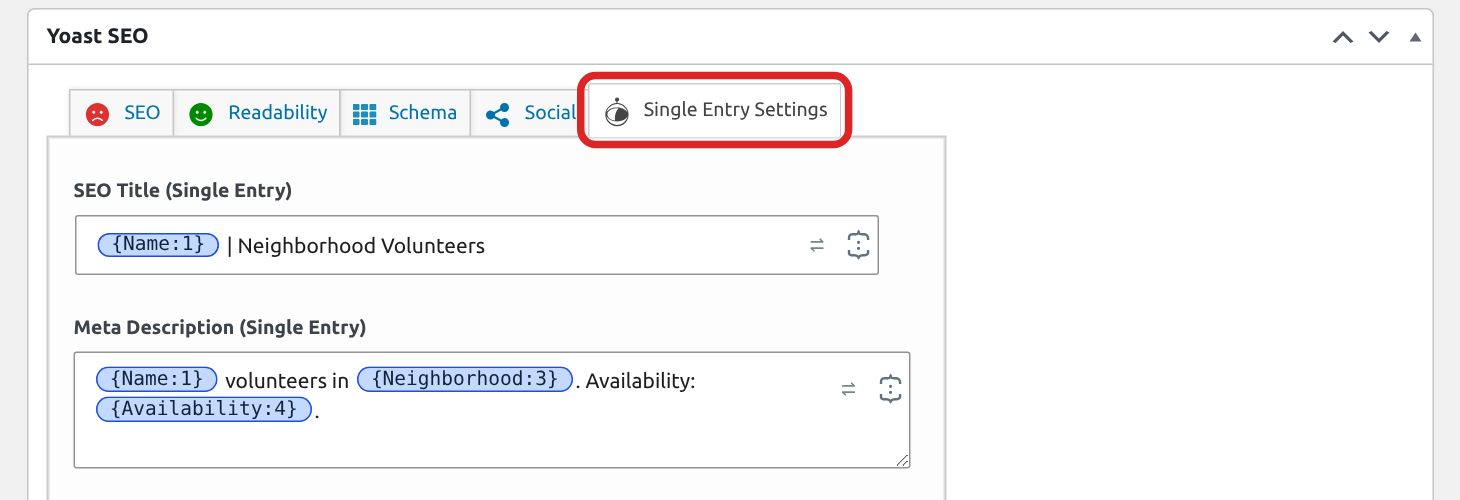
With {Name:1} | Neighborhood Volunteers as the title, the entry for Maya Okafor gets the title “Maya Okafor | Neighborhood Volunteers”. The title and description apply to the entry’s page under any page that embeds the View, and at the View’s own URL.
Set the text and image for shared links #
To give entries their own text when someone shares them, fill in the Facebook and X (Twitter) title and description fields on the same tab. These fields accept merge tags too.
X (Twitter) Image (Single Entry) sets the picture that X shows. Click Choose Image to pick one from the Media Library, or enter a File Upload field’s merge tag, such as {Project photo:5}, so that each entry shares its own photo.
An entry with no file in that field gets no X image tag, so X uses the page’s Open Graph image (og:image) when there is one. Under a page that embeds the View, that can be the page’s featured image. The Site image under Yoast SEO, then Settings, then Site basics is used on any page that has no image of its own. Without an Open Graph image, X gets no image.
Set the title and description for the View’s own URL #
The SEO tab of the same box sets the title and description at the View’s own URL, /view/your-view-name/. A page that embeds the View keeps the title and description from that page’s own Yoast SEO box.
If the Yoast SEO box is missing #
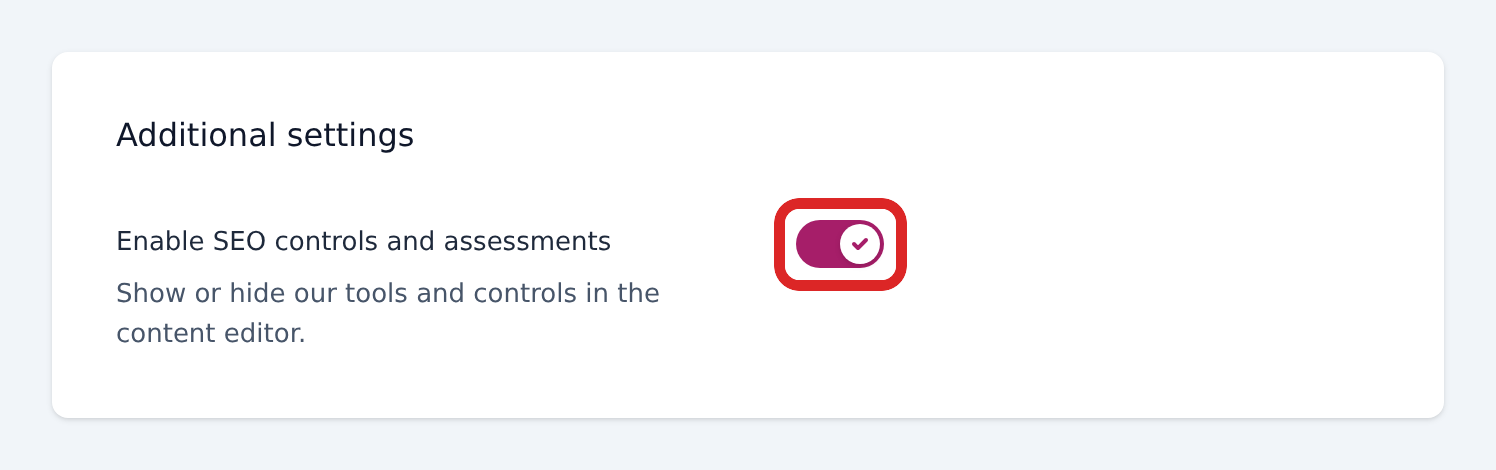
Yoast SEO shows its box on Views by default. To turn it back on:
- Go to Yoast SEO, then Settings.
- Under Content types, click Views.
- Under Additional settings, turn on Enable SEO controls and assessments.
- Click Save changes.
To keep a View out of search results instead, see Keeping Views and entries out of search engines. For a wider look at SEO and GravityView, read SEO for GravityView: The Ultimate Guide.