
How to change the separator in DataTables CSV exports
The CSV button on a DataTables View downloads a file with a comma between fields. A short PHP snippet changes the separator to a tab, a semicolon or another character, on every View or on one View.
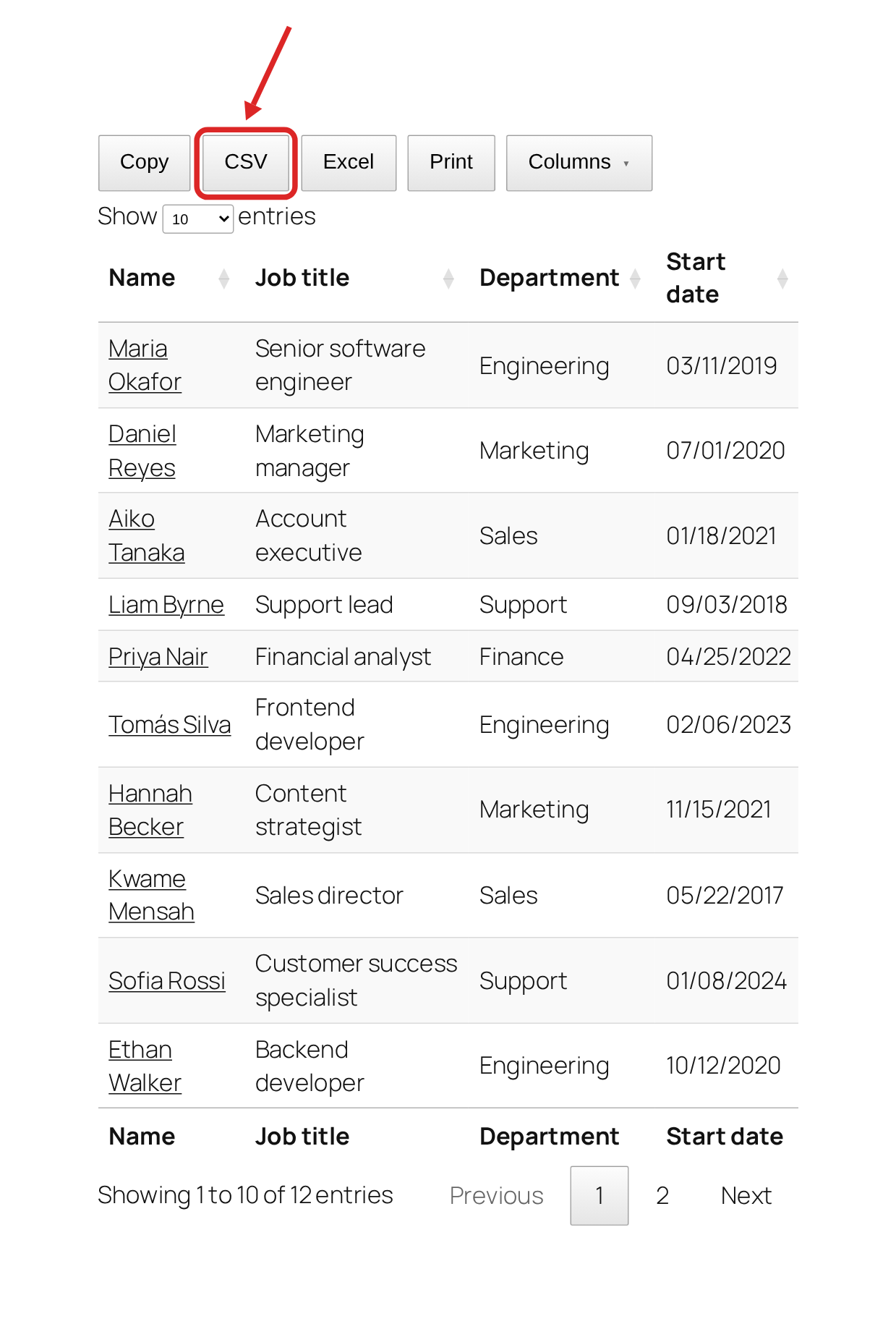
The snippets use the gravityview/datatables/button_csv filter, so they change only the CSV button. The View needs that button turned on, as Buttons (DataTables Setting) shows. They work in both processing modes, Ajax (Server-side) and Preloaded (Client-side).
Use a tab and save a TSV file #
This snippet puts a tab between fields and saves the file with a .tsv extension, on every DataTables View:
/**
 * Exports the DataTables CSV button's file with a tab between fields, as a .tsv file.
 *
 * @param array $button_config The CSV button's options.
 * @param int   $view_id       The ID of the View.
 *
 * @return array The changed options.
 */
add_filter( 'gravityview/datatables/button_csv', function ( $button_config, $view_id ) {
    $button_config['fieldSeparator'] = "\t";
    $button_config['extension']      = '.tsv';

    return $button_config;
}, 10, 2 );Note: The PHP examples on this page go in your site’s code. See Where to put code samples.
Keep "\t" in double quotes. In single quotes, PHP reads it as a backslash and the letter t.
Every value is wrapped in double quotes, so a value that contains a tab stays in one column.
Use a semicolon #
/**
 * Exports the DataTables CSV button's file with a semicolon between fields.
 *
 * @param array $button_config The CSV button's options.
 * @param int   $view_id       The ID of the View.
 *
 * @return array The changed options.
 */
add_filter( 'gravityview/datatables/button_csv', function ( $button_config, $view_id ) {
    $button_config['fieldSeparator'] = ';';

    return $button_config;
}, 10, 2 );The file keeps its .csv extension. For another character, such as |, put it between the quotes in place of the semicolon.
Change the separator on one View #
This version changes the CSV button of one View and leaves the comma on every other View.
/**
 * Exports one View's DataTables CSV file with a tab between fields, as a .tsv file.
 *
 * @param array $button_config The CSV button's options.
 * @param int   $view_id       The ID of the View.
 *
 * @return array The changed options.
 */
add_filter( 'gravityview/datatables/button_csv', function ( $button_config, $view_id ) {
    // Replace 123 with the ID of your View.
    if ( 123 !== (int) $view_id ) {
        return $button_config;
    }

    $button_config['fieldSeparator'] = "\t";
    $button_config['extension']      = '.tsv';

    return $button_config;
}, 10, 2 );A TSV file without code #
GravityView’s Export Link widget downloads a View’s entries as a CSV or a TSV file, and you choose which in the widget’s settings. Exporting entries as CSV or TSV from GravityView shows how to set it up.