
Getting started with Multiple Forms
Multiple Forms lets one View show entries from more than one Gravity Forms form. It combines forms in two ways:
- A join matches related entries across forms on a shared value, such as an employee ID, and shows them side by side in one row.
- A union stacks entries from several forms into one list, with one row per entry.
This article covers installing Multiple Forms and setting up a join. For unions, see Creating a union below and Using unions in Multiple Forms. The Joins vs unions page compares the two.
Note: Before you build on Multiple Forms, check its known limitations.
Multiple Forms is included with GravityView Pro and the GravityKit All Access Pass. It isn’t included with a standalone GravityView license.
Watch the video #
The video shows an earlier design of the join editor. The steps are the same.
Install Multiple Forms #
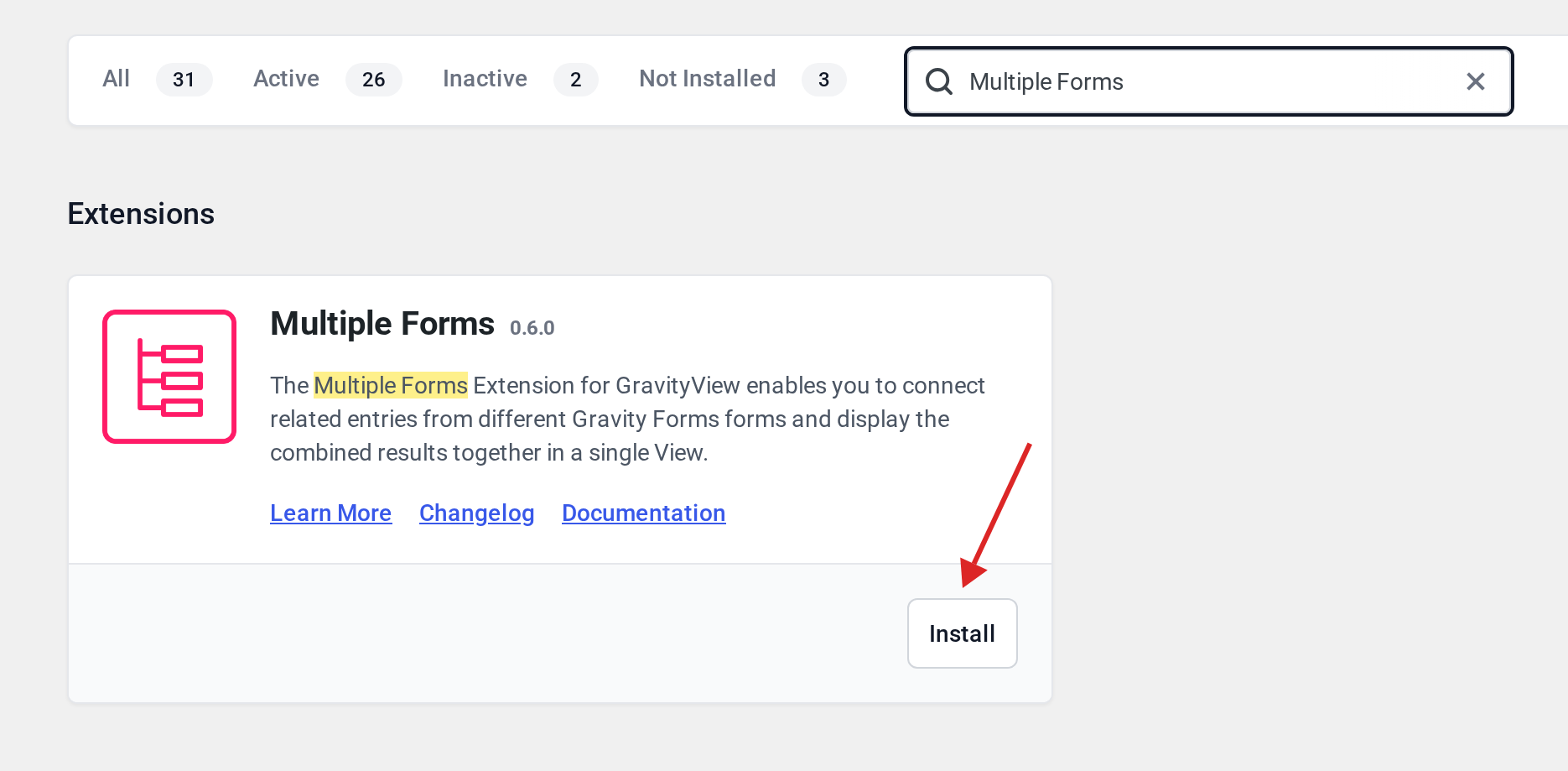
In your WordPress dashboard, go to GravityKit, then Manage Your Kit. Find Multiple Forms under Extensions, or search for it, and click Install.
How a join works #
A join starts from the View’s primary form, the form you choose in the Data Source box. Each entry in the primary form is matched with the entries in the joined form that hold the same value, such as the same employee ID.
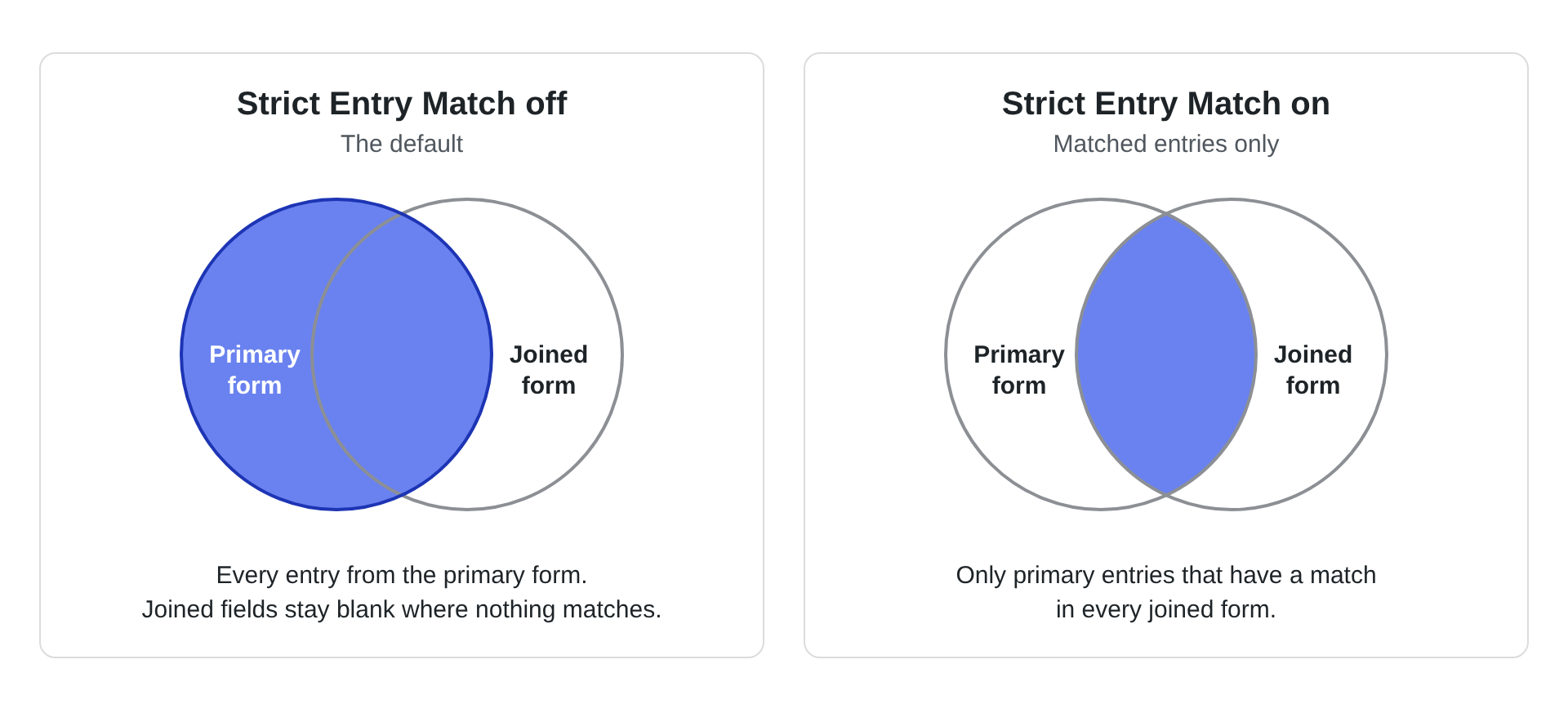
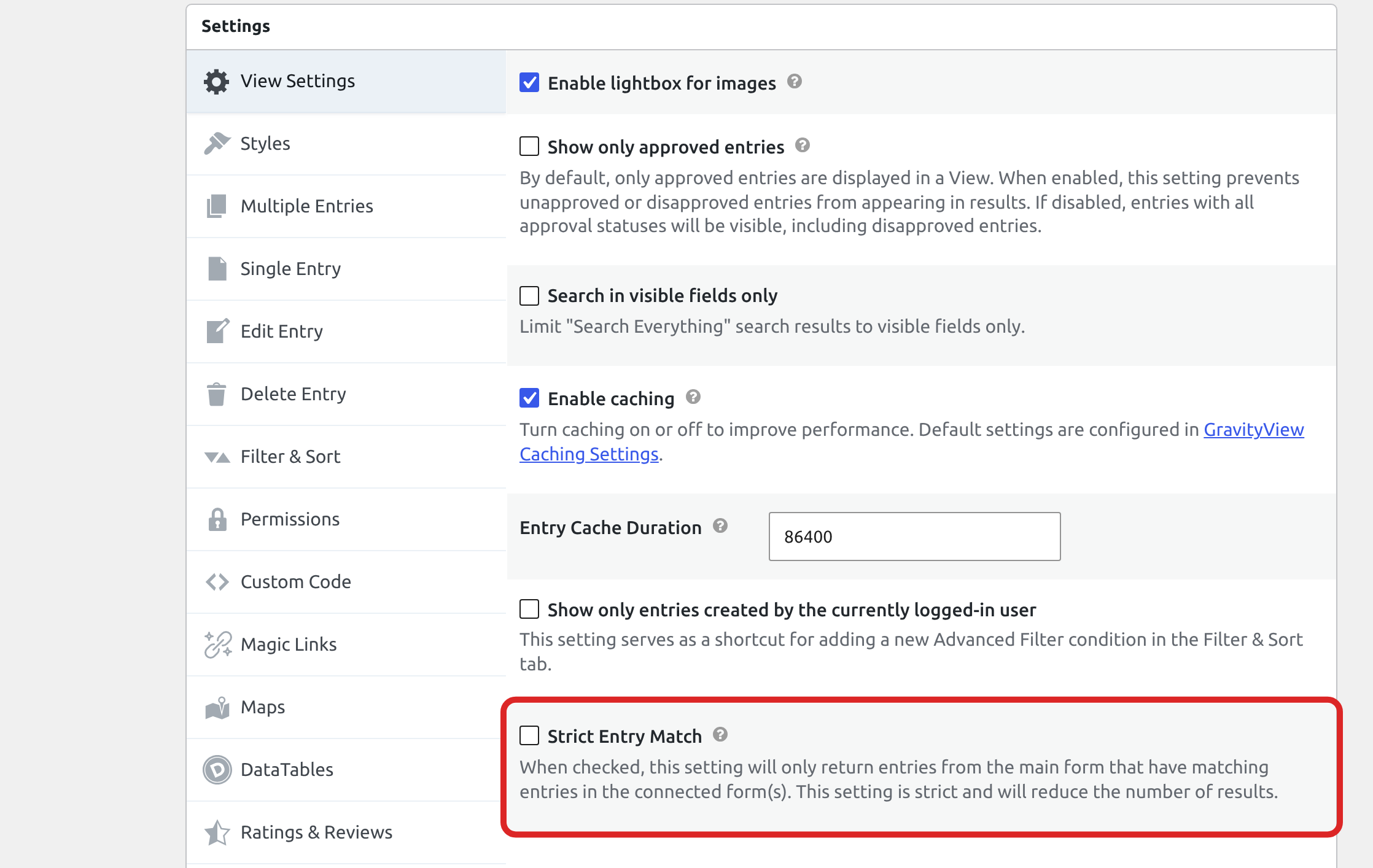
By default, the View shows every entry from the primary form, and the joined form’s fields stay blank where nothing matches. Turn on Strict Entry Match to show only the entries that have a match.
When one primary entry matches several entries in the joined form, the View shows one row for each match. Why does my View show the same entry more than once? explains this with an example.
Join two forms #
- Create a new View and give it a name.
- In the Data Source box, choose the primary form.
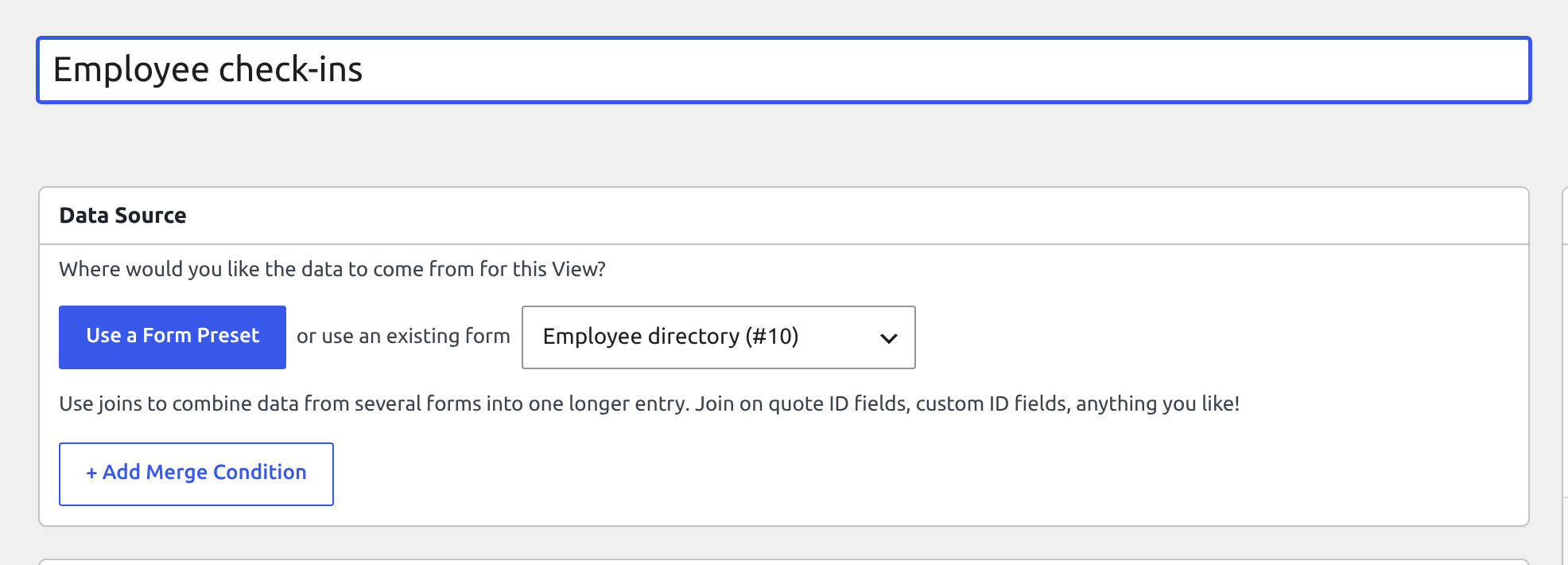
- Choose a View type.
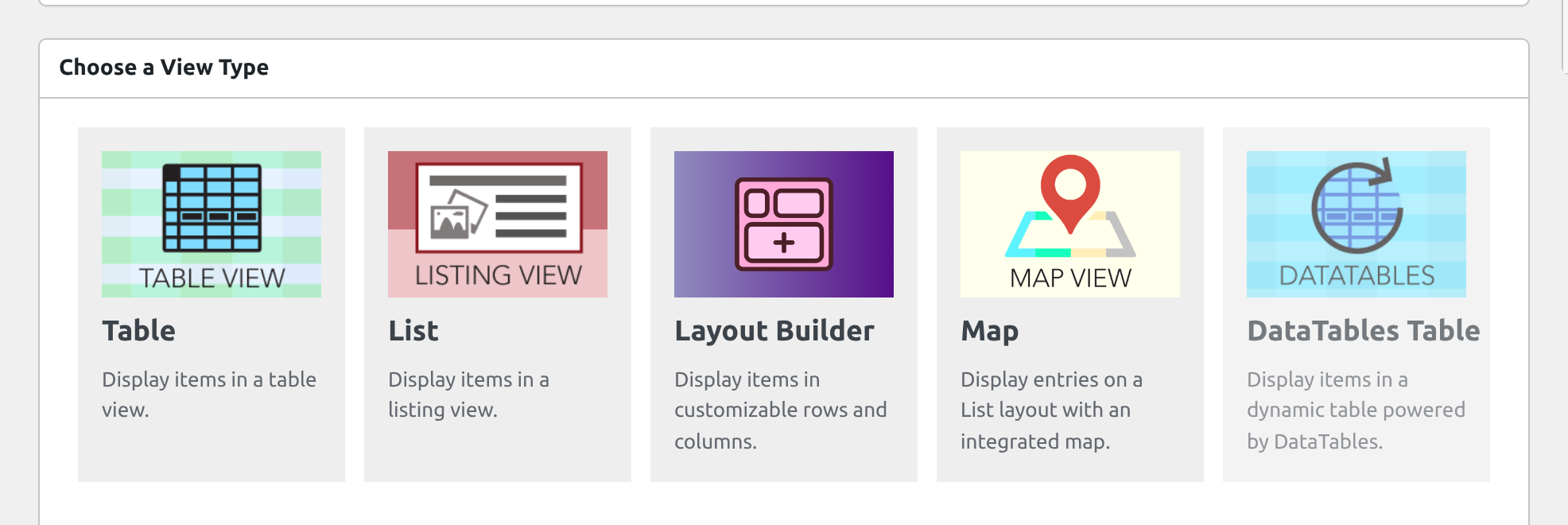
- Click + Add Merge Condition. The Merge Source box opens with Join selected.
- Click Select a form to join with and choose the second form.
- Under each form, choose the field that holds the same value in both, such as Employee ID.
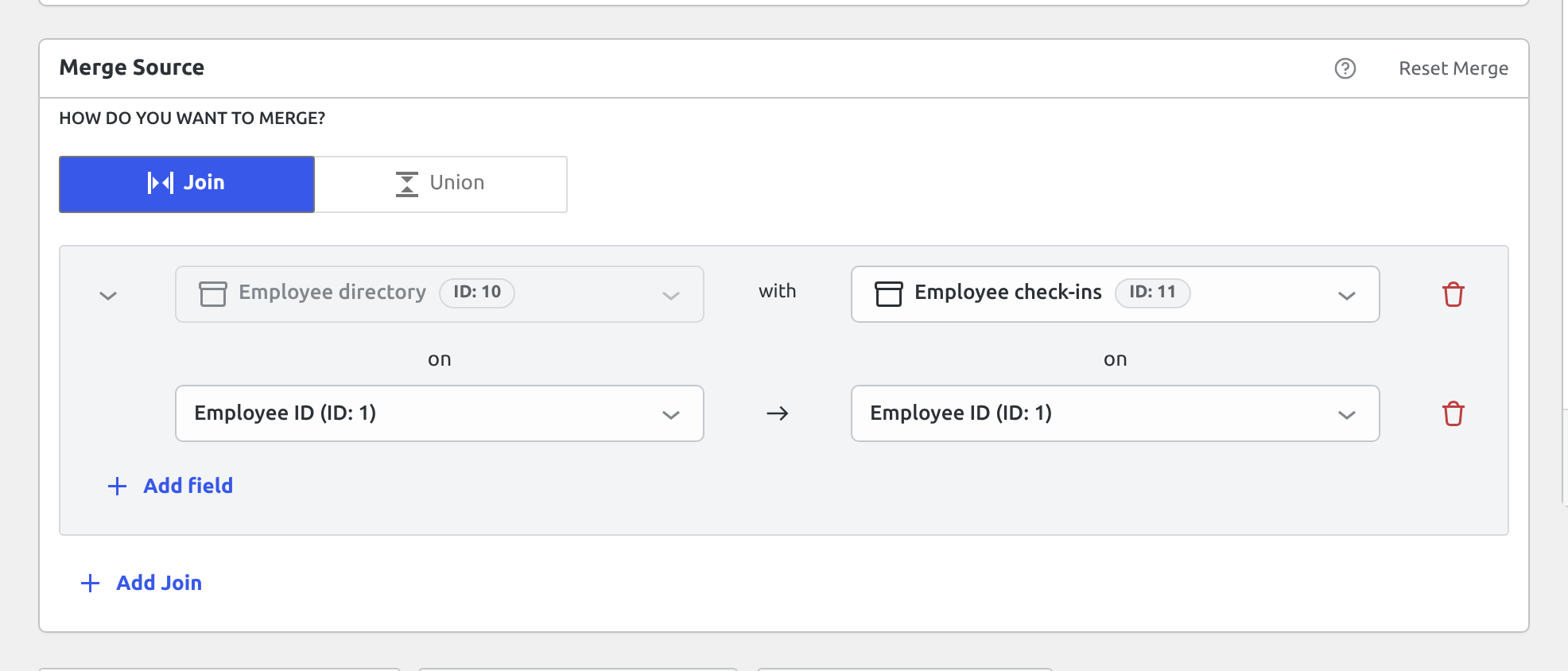
- Click Publish, or Update if the View was saved before.
Match on more than one field
To match on several fields at once, such as first and last name, click Add field in the join and choose another pair. Name and Address fields are listed by input, so first name and last name can be matched separately.
To join a third form, click Add Join.
Join on entry properties
Besides form fields, a join can match on Entry ID and User ID, and on Parent Entry ID while GP Nested Forms (Gravity Wiz) is active. User ID pairs entries created by the same logged-in user. Matching a parent form’s Entry ID with a child form’s Parent Entry ID joins GP Nested Forms entries, as How to join a Nested Forms parent form to its child form explains.
Add fields from each form #
Every layout tab has an Add Field from button for each form, such as Add Field from Employee check-ins. Add the fields you want from each form.
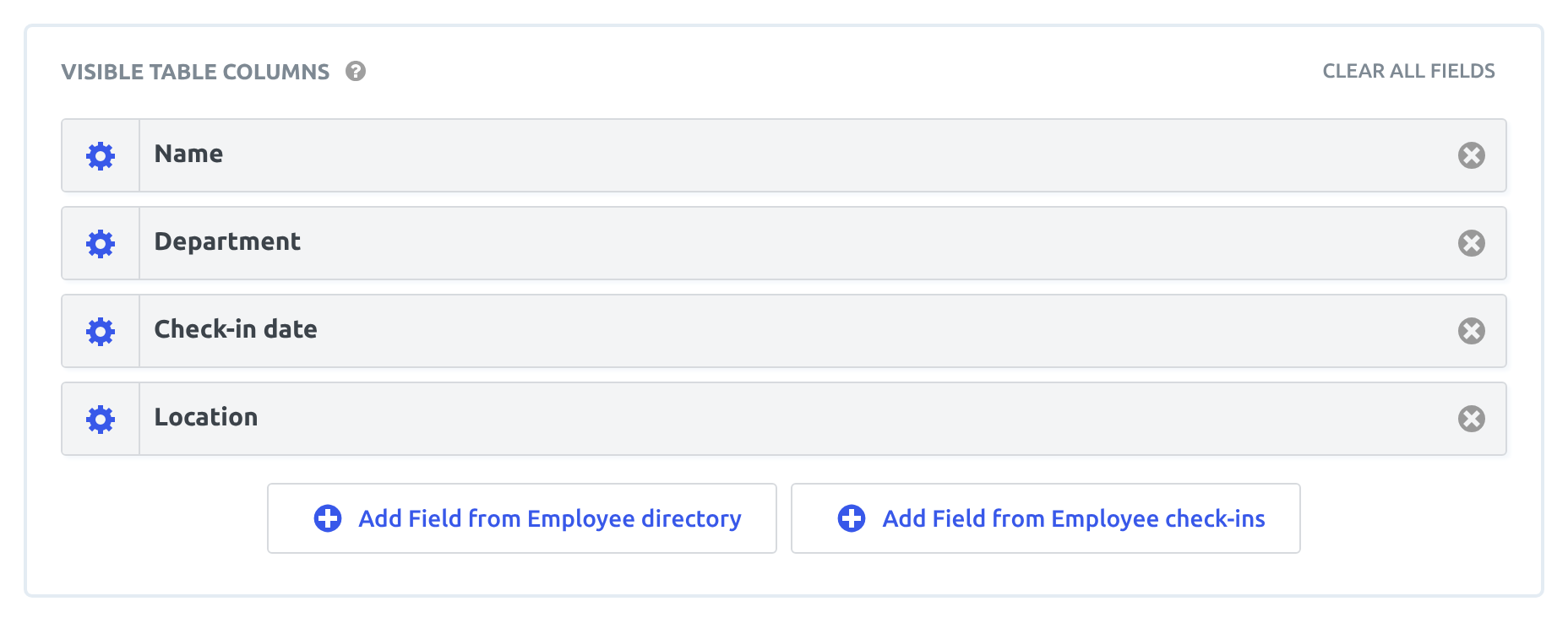
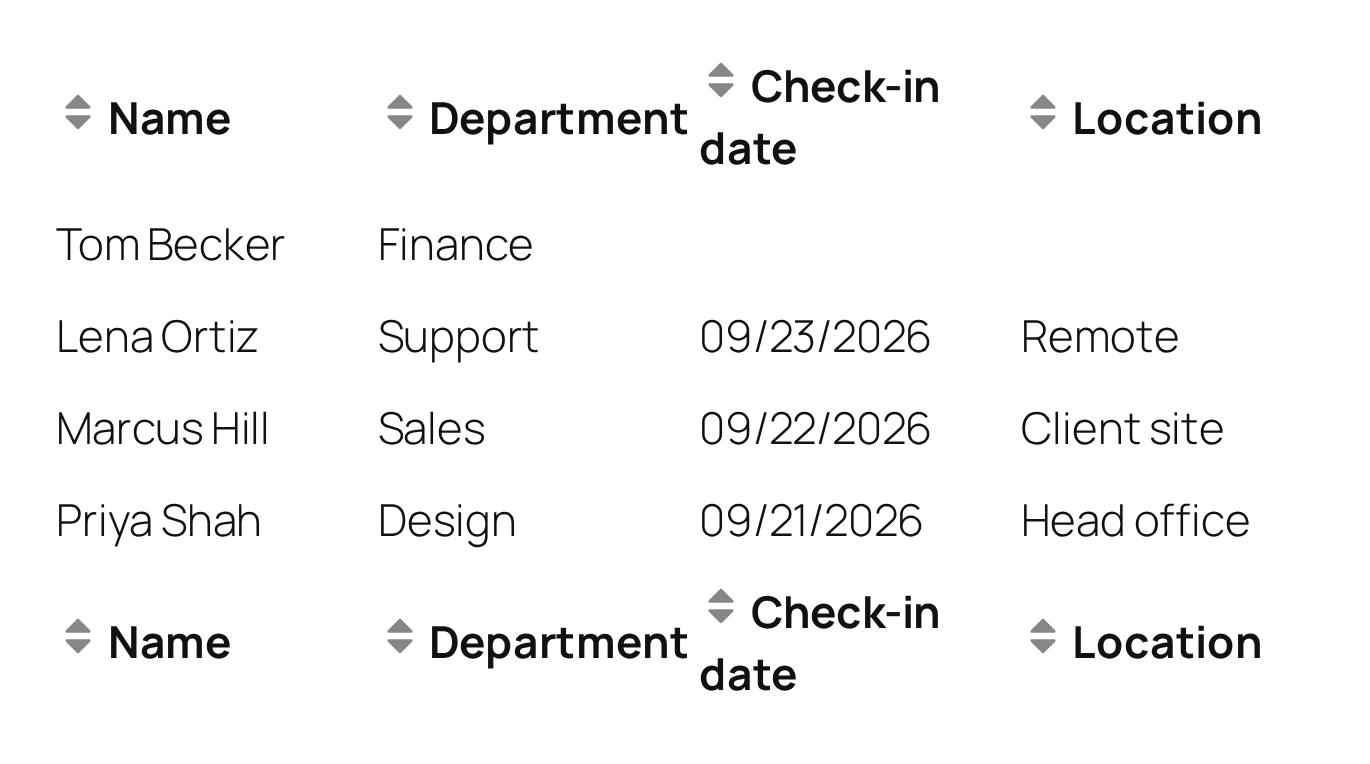
On the front end, each row shows an employee and their check-in. Tom Becker has no check-in yet, so his check-in columns are blank.
Note: To let people edit entries, add a Link to Edit Entry field from each form. Fields you add to the Edit Entry Layout tab with a form’s Add Field from button show on that form’s edit page; with the tab empty, each form’s edit page shows all of its fields. On GravityView 3.7.0 and older, leave the tab empty, as Known limitations of Multiple Forms explains.
If a field from the joined form stays blank #
Check these in order:
- Add the field with that form’s Add Field from button. A field added with the primary form’s button shows the primary entry’s value instead.
- Check that the row has a matching entry in the joined form. Turn on Strict Entry Match while testing to hide rows that have no match.
- Approve the joined entry, or uncheck Show only approved joined entries. While that setting is checked, GravityView treats an unapproved joined entry as no match.
- If you use a Custom Content field, add it with the joined form’s Add Field from button. GravityView then fills its merge tags, including
{entry_id}, from the joined entry.
For more, see Known limitations of Multiple Forms.
Sort by a field from the joined form #
In the Filter & Sort tab, the Sort by field list shows the joined form’s fields after the primary form’s. Each one starts with the form’s name and ID.
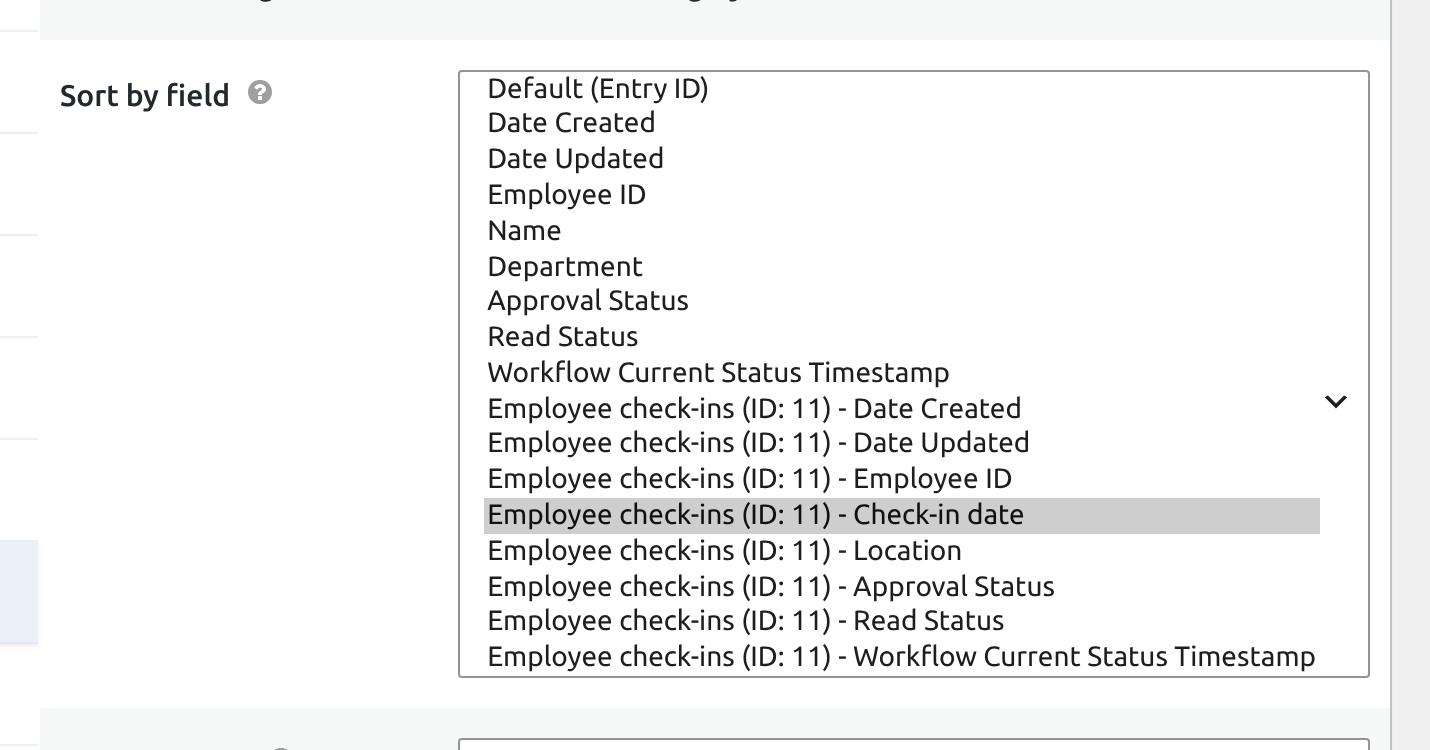
With Enable sorting by column checked, visitors can also sort by a joined column by clicking its header. Sorting ascending by a joined field lists the entries with no match first, because their joined fields are empty.
Show only entries with a match #
Check Strict Entry Match in the View Settings tab to show only the primary entries that have a match in every joined form. How the Strict Entry Match setting works shows the difference with examples.
Joined entries and approval #
When Show only approved entries is checked in the View Settings tab, another setting appears above Strict Entry Match: Show only approved joined entries. New Views have it checked. While it’s checked, a joined entry that isn’t approved counts as no match, so its fields stay blank. Uncheck it to show joined entries whatever their approval status.
Creating a union #
A union stacks entries from several forms into one View, with one row per entry. It doesn’t need a shared field, so it suits similar forms, such as in-person and virtual registrations for the same event. Unions need Multiple Forms 0.7.0 and GravityView 3.3.0 or newer.
To create a union, click + Add Merge Condition under the Data Source box and select Union.
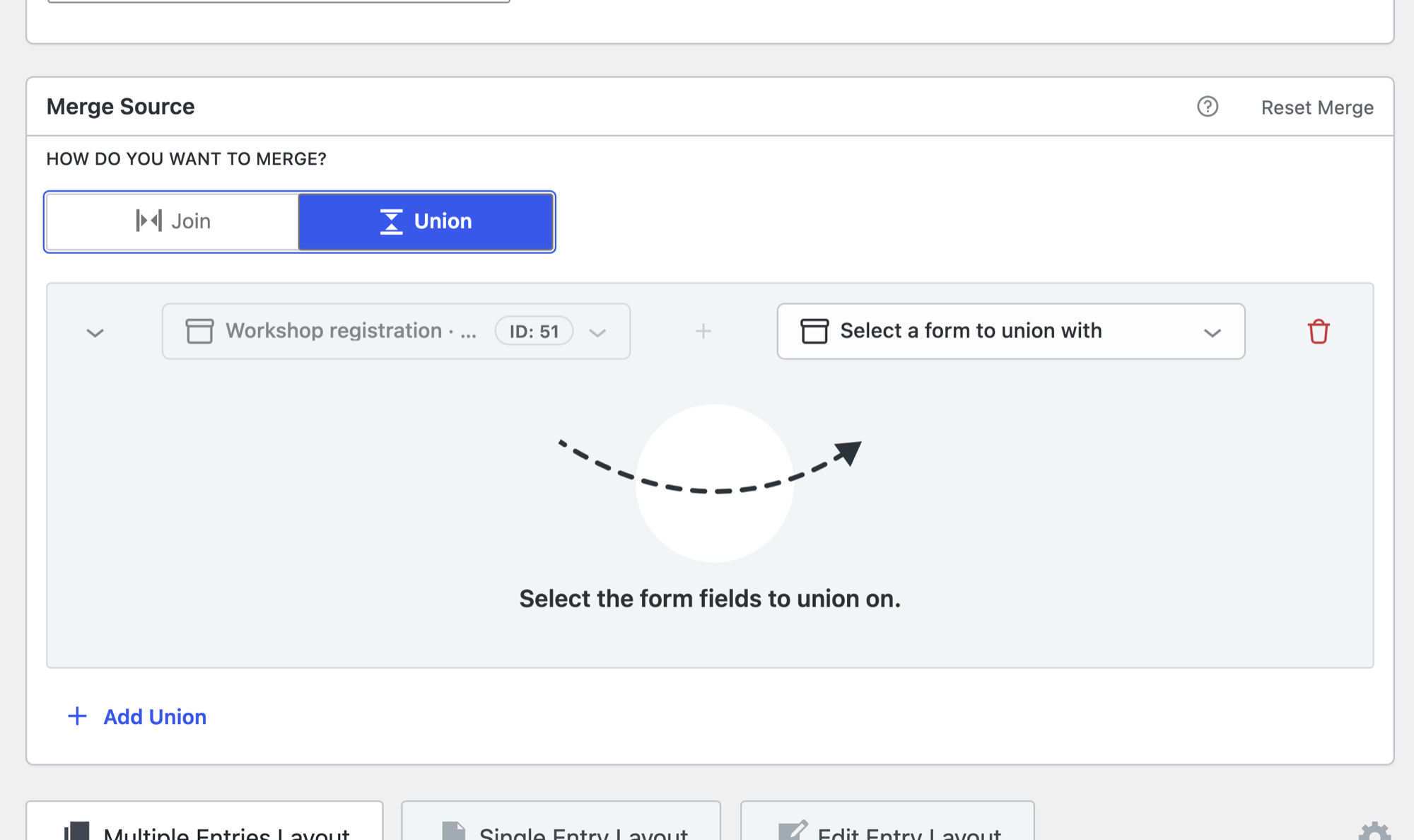
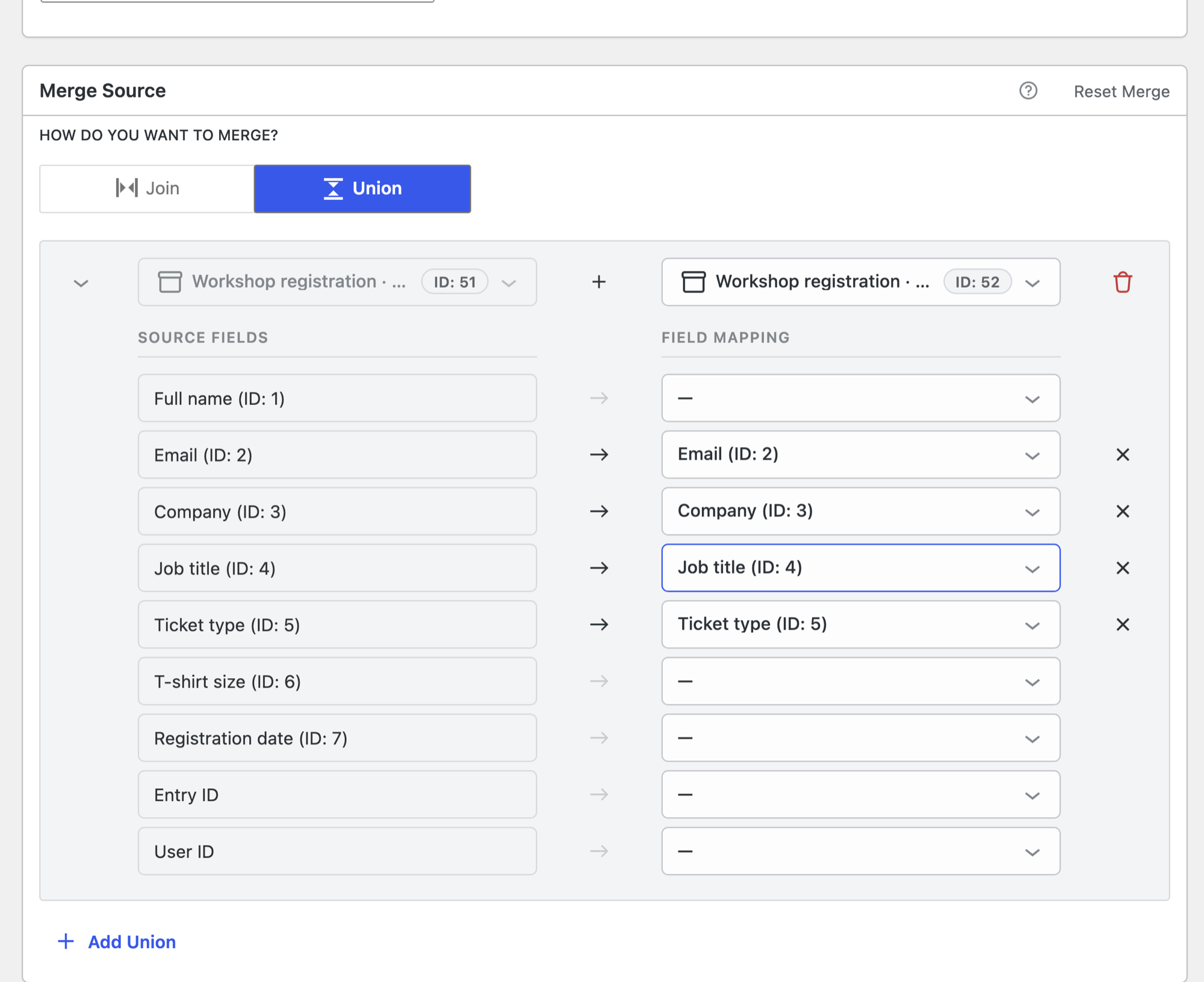
Then choose a form to combine and map its fields into the primary form’s columns. Fields with identical labels are mapped automatically.
For the full walkthrough, including searching, sorting, and limitations, read Using unions in Multiple Forms.

