
Showing images in DataTables PDF exports
A DataTables PDF export shows each image as its address, or as its alternative text when the image does not open in a lightbox. The snippet on this page puts the images themselves in the PDF, such as the logos or photos that a File Upload field shows. The steps below assume the View uses the DataTables layout and has Enable Buttons and PDF checked in the Buttons section of the DataTables tab, in the View’s Settings box.
Step 1: Add the snippet to the View #
- Edit the View.
- In the Settings box, click the Custom Code tab.
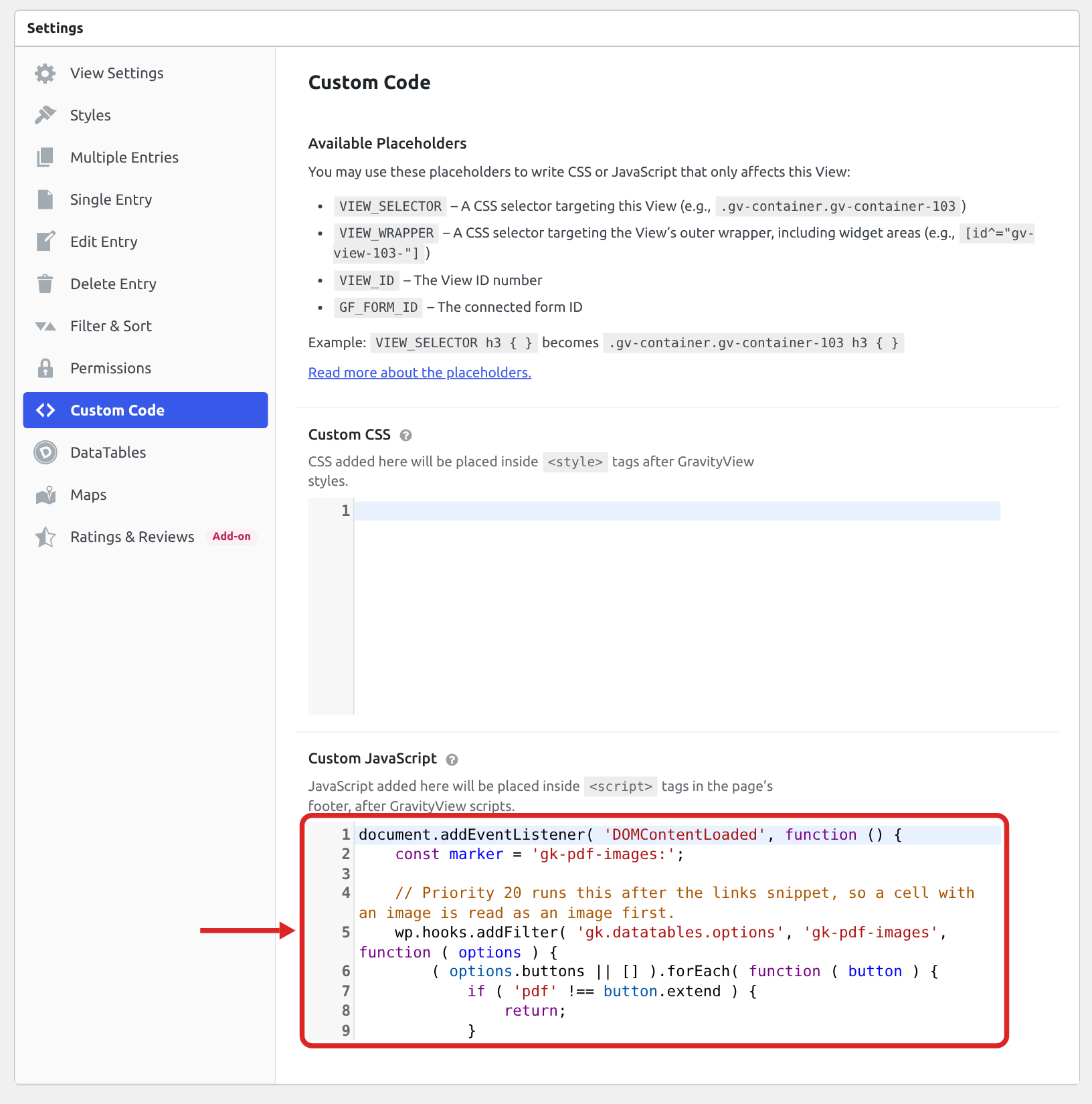
- Paste the snippet below into Custom JavaScript.
- Click Update.
document.addEventListener( 'DOMContentLoaded', function () {
    const marker = 'gk-pdf-images:';

    // Priority 20 runs this after the links snippet, so a cell with an image is read as an image first.
    wp.hooks.addFilter( 'gk.datatables.options', 'gk-pdf-images', function ( options ) {
        ( options.buttons || [] ).forEach( function ( button ) {
            if ( 'pdf' !== button.extend ) {
                return;
            }

            const formatBody = button.exportOptions.format.body;
            const previousCustomize = button.customize;

            // A cell with images is passed on as a list of image addresses.
            button.exportOptions.format.body = function ( data, row, column, node ) {
                const cell = new DOMParser().parseFromString( String( data ), 'text/html' );
                const sources = Array.from( cell.querySelectorAll( 'img[src]' ) ).map( function ( img ) {
                    return new URL( img.getAttribute( 'src' ), window.location.href ).href;
                } );

                if ( sources.length ) {
                    return marker + sources.join( ' ' );
                }

                return formatBody ? formatBody( data, row, column, node ) : data;
            };

            // The PDF library downloads each image when it builds the file.
            button.customize = function ( doc, config, dt ) {
                if ( previousCustomize ) {
                    previousCustomize( doc, config, dt );
                }

                doc.images = doc.images || {};

                doc.content.forEach( function ( block ) {
                    if ( ! block.table ) {
                        return;
                    }

                    // Keep each row on one page, so an image never lands on the page after its row.
                    block.table.dontBreakRows = true;

                    block.table.body.forEach( function ( row ) {
                        row.forEach( function ( cell ) {
                            if ( 'string' !== typeof cell.text || 0 !== cell.text.indexOf( marker ) ) {
                                return;
                            }

                            const sources = cell.text.slice( marker.length ).split( ' ' );

                            delete cell.text;

                            // Each image fits in a 100 by 100 point box and keeps its proportions.
                            cell.stack = sources.map( function ( src ) {
                                doc.images[ src ] = src;

                                return { image: src, fit: [ 100, 100 ], margin: [ 0, 2 ] };
                            } );
                        } );
                    } );
                } );
            };
        } );

        return options;
    }, 20 );
} );Note: Adding custom JavaScript to your Views explains how the Custom JavaScript field works.
Step 2: Export a PDF #
Open the page that shows the View and click PDF. Each image appears in its column, and the PDF holds every row of the table, including the rows the table shows on other pages.
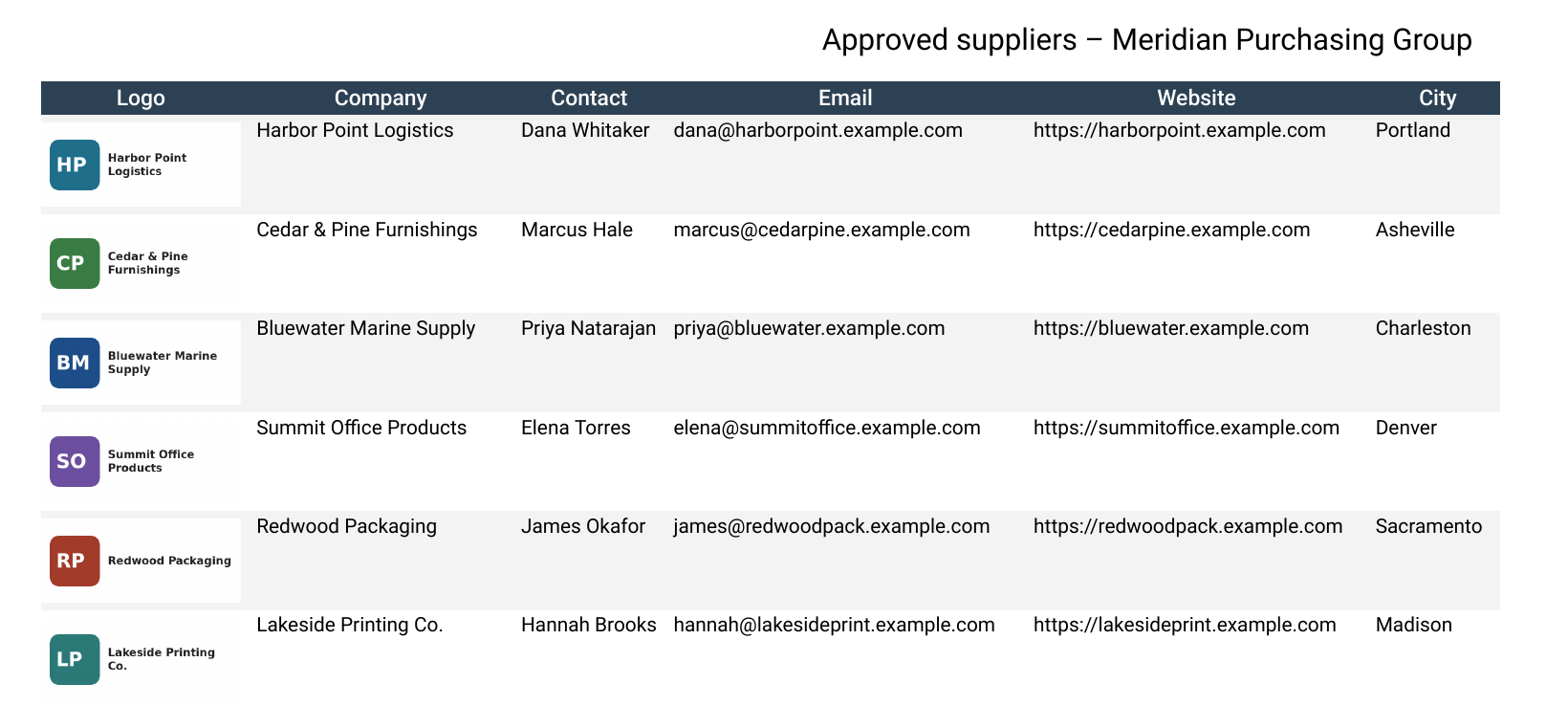
Image size #
Each image fits in a box 100 points wide and 100 points high and keeps its proportions. The box is set by fit: [ 100, 100 ] in the snippet, where the first number is the width and the second is the height, in points (a point is 1/72 of an inch).
Images that can go in the PDF #
- Only PNG and JPEG images work. One image in another format, such as WebP, stops the whole PDF from downloading.
- The images must be stored on the site that shows the View. The browser can block an image stored on another site, and then no PDF downloads.
Using image addresses that keep working #
GravityView shows uploaded images through secure download addresses that contain /gk-download/. Each address stops working one hour after GravityView creates it. If the page with the View has been open longer than that, reload it before you export, or the PDF may not download.
For images, you can use the file’s permanent address instead. Open the File Upload field’s settings and check Use Direct File Path for Media:. Anyone who has a direct address can open the file, so leave this setting off for files that should stay private. Using direct file paths for uploaded media in GravityView explains the difference.
Using this snippet with the other PDF snippets #
This snippet works together with the ones in Adding a company logo to DataTables PDF exports and Making links clickable in DataTables PDF exports. Paste them one after another in the same Custom JavaScript field, in any order.

