
Using the Connections Map
The Connections Map draws each connected View as a box and each link between two Views as an arrow. On it you can see where visitors start and who can open each View, and you can change a link without opening the View editor.
Connected Views is part of GravityView Pro.
To connect two Views, see Getting started with Connected Views.
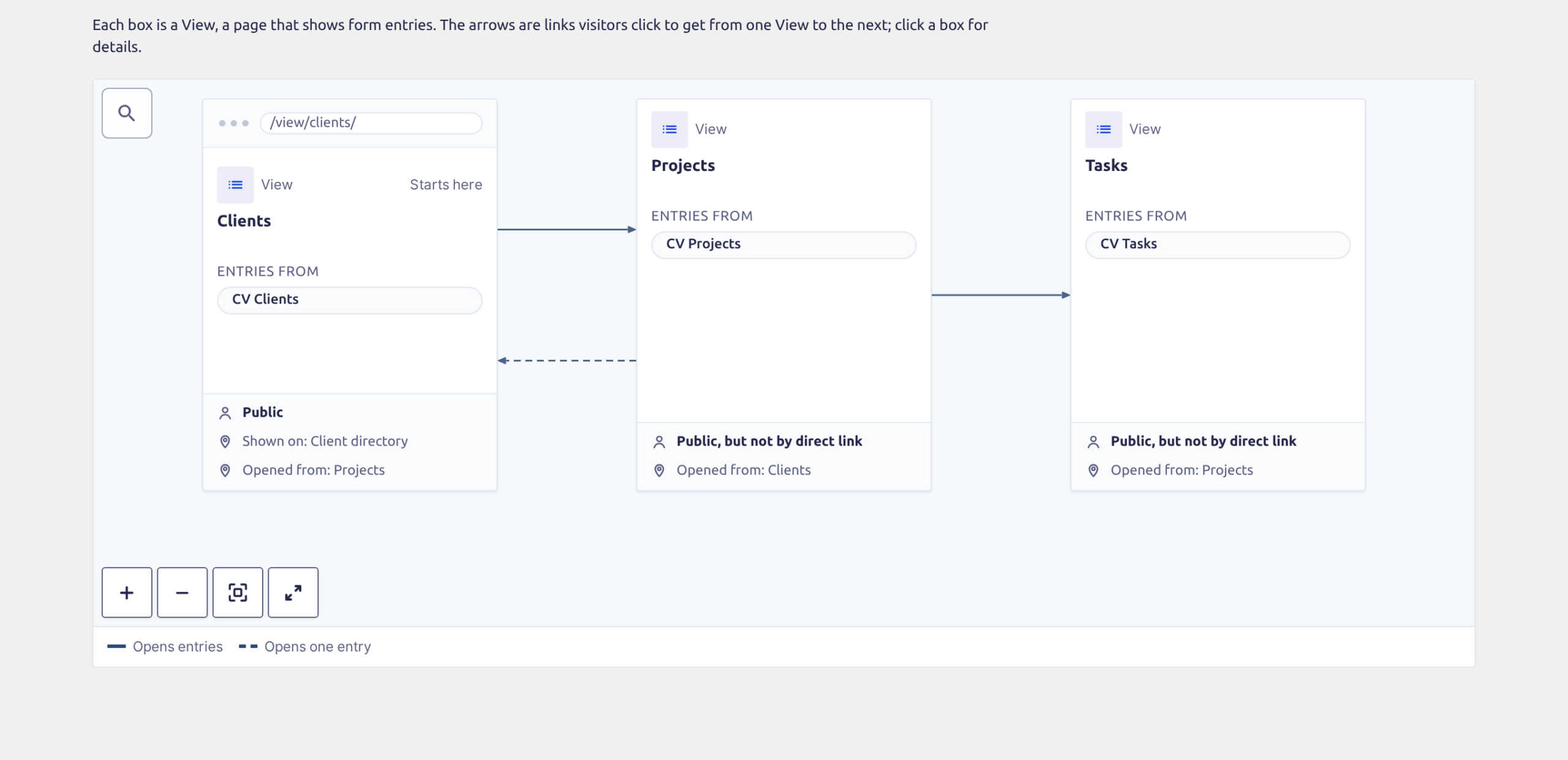
This guide uses a property company’s site as its example. Visitors start from a Clients View on a Client directory page and click through to each client’s projects in a Projects View. Each project then lists its tasks from a Tasks View.
Open the map #
The GravityKit menu has no item for the map. You open it from a View or from a form.
From the Views list
Go to GravityKit, then All Views, and click the icon after a connected View’s title. The map opens with that View selected and its details showing.
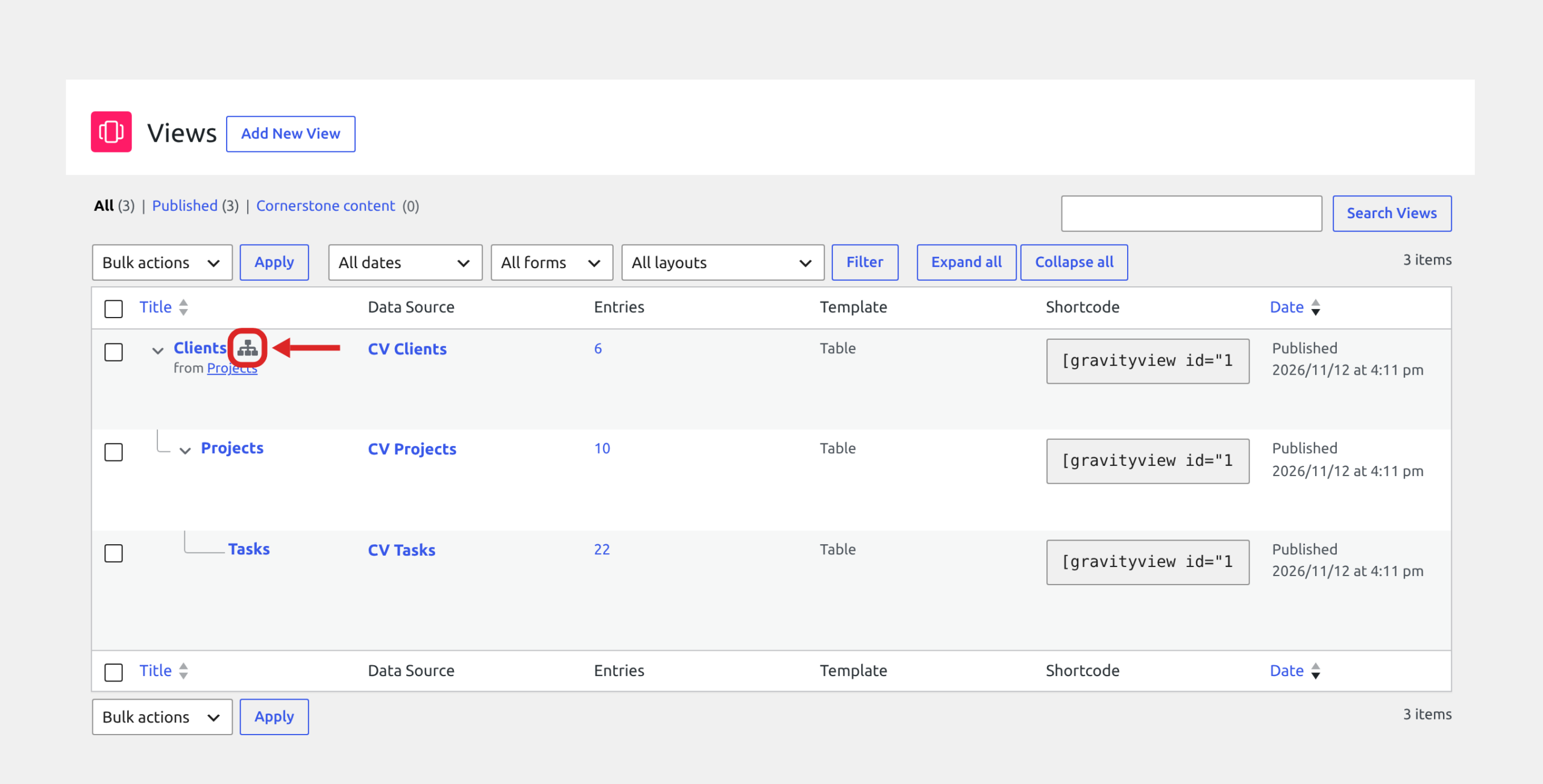
When the list nests connected Views under the View visitors start from, only that first View has the icon. Sort the list by Title to see the icon on every connected View.
From the form editor
Open a form in the form editor, hover over Connected Views in the toolbar, and click See connections. The map highlights the Views of that form, and a Back to button with the form’s name returns you to the form.
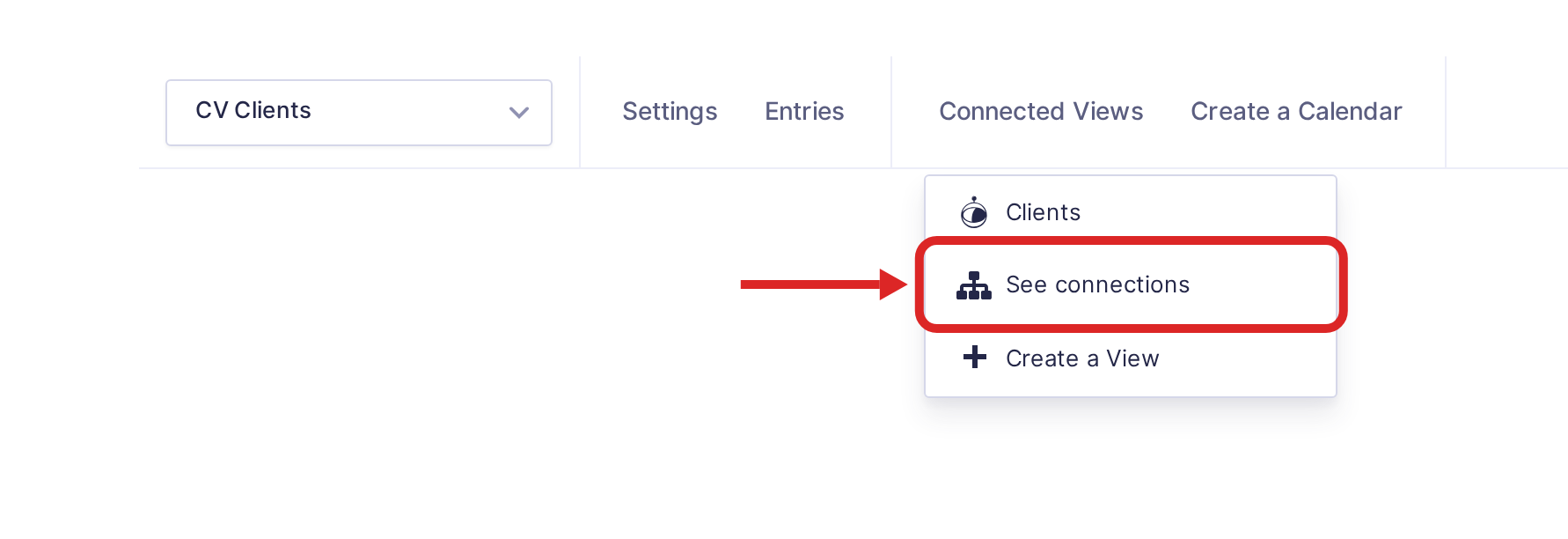
See connections is in the menu only when one of the form’s Views is connected.
From the Forms list
On the Forms list, hover over a form, then over Connected Views under its title, and click See connections. The map opens with the Views of that form highlighted, as it does from the form editor.
From the View editor
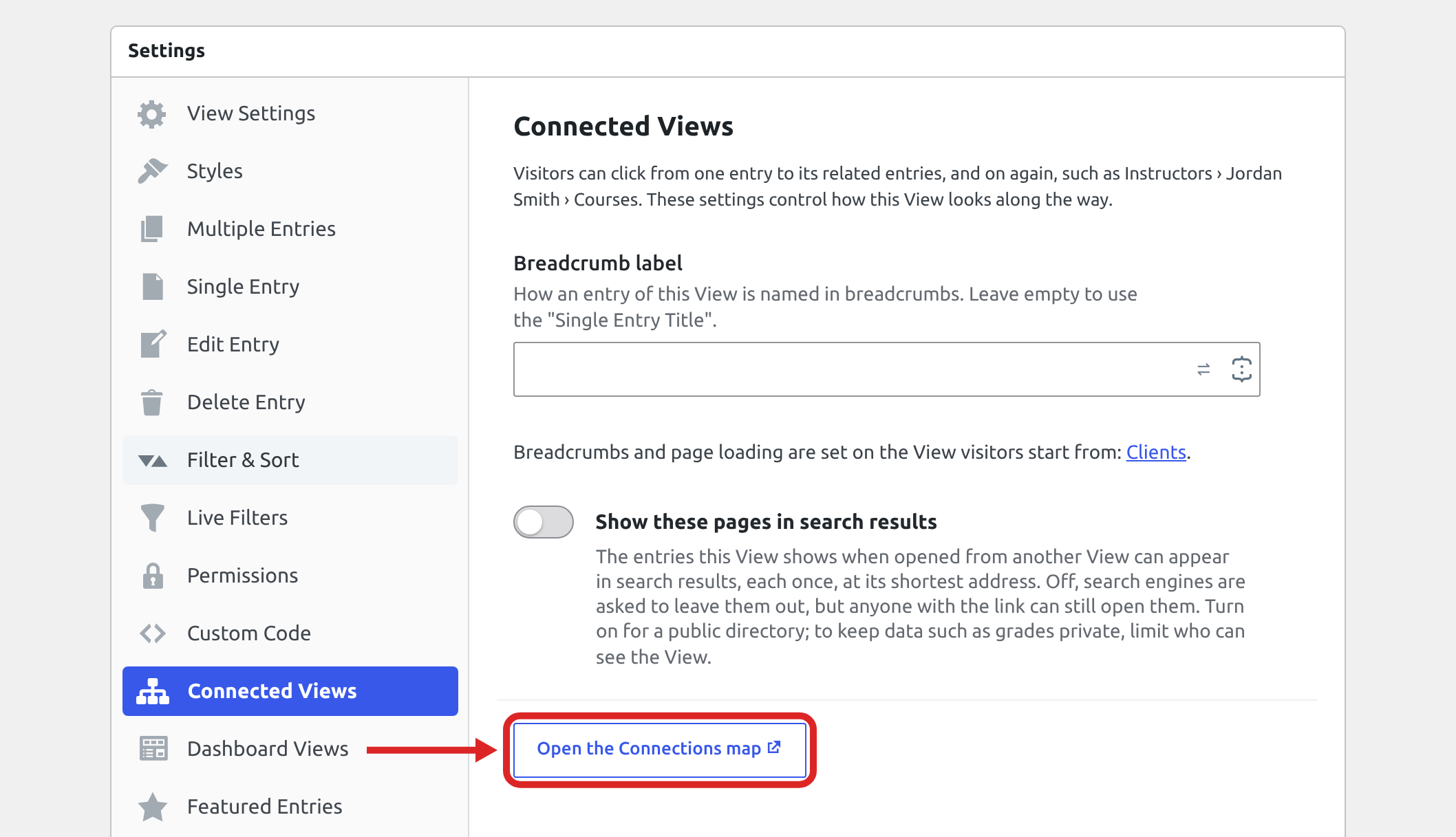
In the View editor, click the Connected Views tab in the Settings box, then click Open the Connections map. The map opens in a new browser tab with that View selected.
Read the map #
The cards above the map count the Views, Forms and Pages on it and list them by name. Click a View to open it in the View editor, a form to open the form editor, or a page to see it on your site. When something needs your attention, a fourth card lists the Views to check, as Fix a problem explains.
Each box is a View. When two or more Views on the map use the same form, that form gets its own box too, joined to each View by a dashed Uses entries line. A View’s box shows:
- The View’s own address, such as
/view/clients/, when visitors can open it there. - Starts here on the View visitors start from.
- The View’s title, and under Entries from, the form its entries come from.
- Who can open it: Public, or Public, but not by direct link for a View that visitors can’t open at its own address. It can also read Password protected, or, for a View most visitors can’t reach, Private, Not published or Not on a page.
- Shown on, with the page the View is on, and Opened from, with the View that visitors click through from.
The lines are the connections, as the legend under the map shows:
- A solid arrow (Opens entries) opens the matching entries in another View, or shows them inside an entry.
- A dashed arrow (Opens one entry) is a field that opens one entry in another View, such as the Client column in Projects.
- A dashed line (Uses entries) joins a form’s box to each View that shows its entries.
The buttons at the bottom left of the map change its size:
- Zoom in and Zoom out make the map larger or smaller.
- Fit to view fits the whole map in the frame, or the selected box when one is selected.
- Full window fills the browser window with the map. Exit full window, at the top right or the bottom left, takes you back.
To find a View or a form, click the magnifier at the top left and type its name. Choose a View to select its box. Choose a form to see how many entries it has and which Views use it.
See a View’s details #
Click a box to open the View’s details on the right of the map. Its arrows then show their labels.
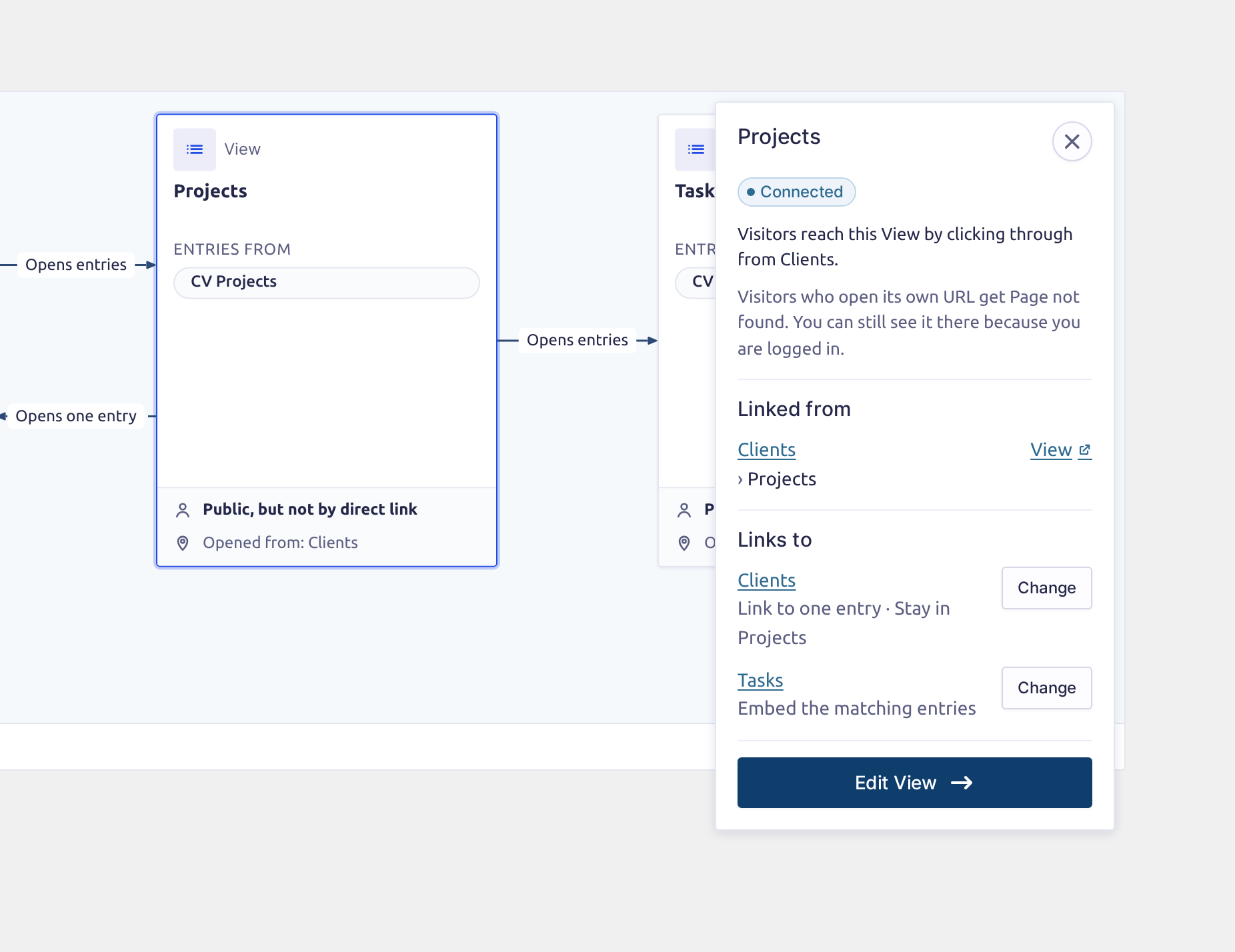
The details start with who can open the View:
- A Public View (its Direct Access setting is Public) reads Direct link on, with a line that says anyone with its URL can open it. The same line counts the pages it’s on and the Views that link to it.
- A View with Prevent Direct Access (its Direct Access setting is Embedded-Only) reads Direct link off. If it is on no page and visitors only reach it by clicking through, it reads Connected and names that View instead. Either way, visitors who open its own URL get Page not found.
- A View that isn’t published reads Not published.
The rest of the details is in these sections:
- Shown on: a Public View’s own URL and the pages it’s on, each page with View and Edit links.
- Linked from: the Views with links to this one. For a View visitors reach by clicking through, it shows the path, such as Clients › Projects, and View opens that path from its first page.
- Links to: each link in this View, what it does, and a Change button. The last View of a path reads “Nowhere. This is the end of the path.”
- Edit View, which opens the View in the View editor.
If a View has Enhanced Security turned on, the map doesn’t count a page whose shortcode is missing the right secret. The View then reads as being on no page.
Change a link #
- Click the box of the View that has the link.
- Under Links to, click Change next to the link. The Change link panel opens.
- In Opens, choose the View the link opens.
- In Link text, type the words visitors click. If you leave it empty, visitors see the words shown in gray, such as the field’s label. A link that shows the matching entries inside an entry has no Link text.
- Click Save.
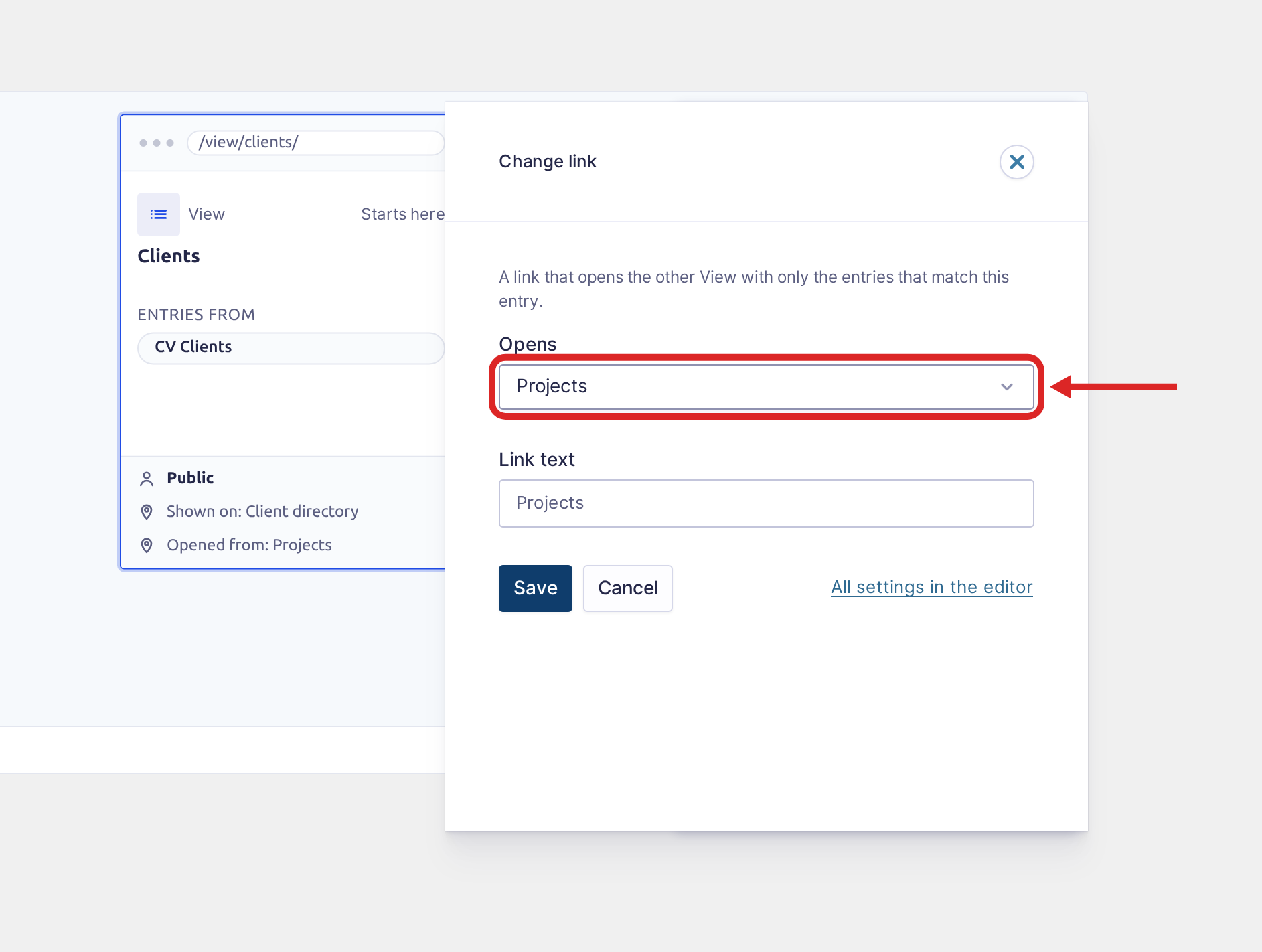
The change is saved at once, and a message at the bottom of the map confirms what the link now does.
If there is no Change button, the details say “The map can’t change links here. Change them in the View’s editor.” This happens when your WordPress doesn’t have the Abilities API, or an administrator turned off GravityView’s Patch View Field ability. Change the link in the View editor instead.
Cancel closes the panel without saving. If you changed something, it first asks “Discard your changes?”, with Discard and Keep editing.
For the link’s other settings, such as which entries it shows, click All settings in the editor. The View editor opens with that field’s settings open.
Remove a link #
The map can remove a link to one entry, such as the Client column in Projects:
- Click Change next to the link.
- In Opens, choose Nothing (remove the link). The panel says “This removes the link.”
- Click Save.
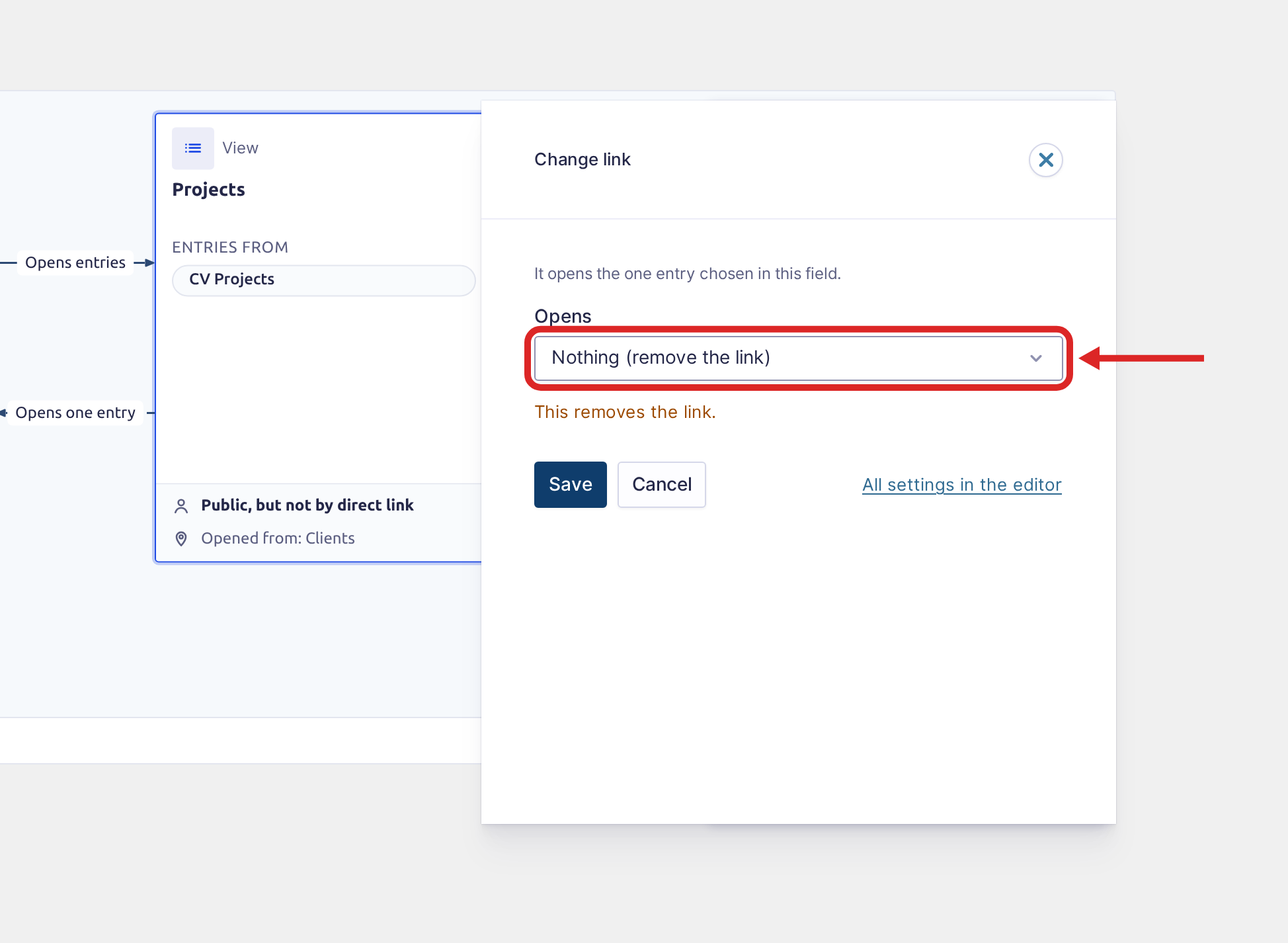
The arrow leaves the map. The field stays in the View as plain text, and its Link to setting in the View editor reads None (plain text).
The map can’t remove a link to the matching entries, or a list shown inside an entry: its Opens list has only Views. The link is a field in the View’s layout, and All settings in the editor opens that field in the View editor.
Fix a problem #
When a connection needs attention, the map adds a Problems card (Problem when there is one) and marks each View it names with an orange outline and an exclamation mark.
- Click the card’s title to list the problems under the cards.
- Click a View’s name in the list. The map selects its box, and the details repeat the problem at the top.
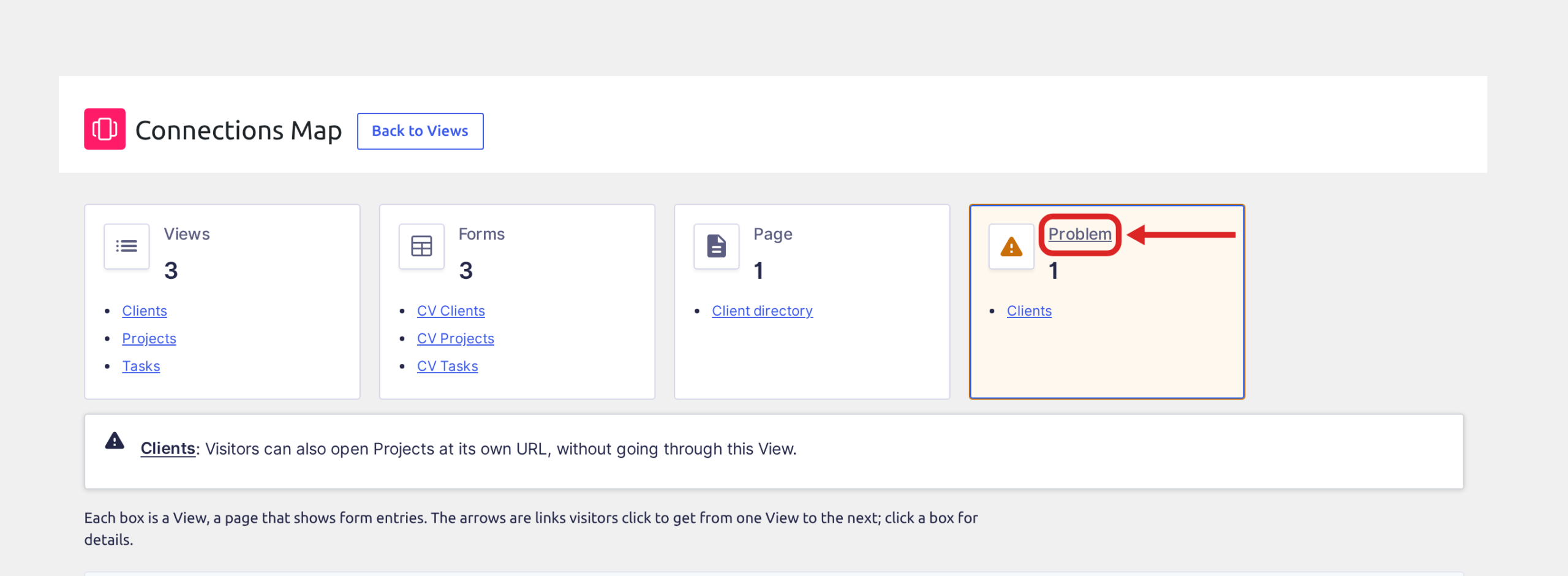
The map says what is wrong. You fix it in the View editor:
| What the map says | What to do |
|---|---|
| Visitors can also open Projects at its own URL, without going through this View. | The View the link opens is Public, so visitors can open it outside the path. Open that View and turn on Prevent Direct Access: in the Publish box, click Edit next to Direct Access, choose Embedded-Only, click OK and then Update. |
| Opens a View that is not published. On that View: Visitors can’t reach this View. | Publish the View the link opens. |
After the fix is saved, the map no longer lists the problem.
Views and forms with no connections #
A View with no connections has no icon in the Views list. Its Open the Connections map button still opens the map, with the note “This View has no connections, so it is not on the map.”
A form whose Views have no connections has no See connections in the form editor’s Connected Views menu. A form with no View shows only Create a View in place of that menu.

