
Making links clickable in DataTables PDF exports
In a DataTables PDF export, links are plain text and can’t be clicked. Each link shows its text, followed by its address in brackets when the two differ, for example Visit website (https://example.com). The snippet on this page turns each link into clickable text, whether it leads to a website, an email address, or an entry. The steps below assume the View uses the DataTables layout and has Enable Buttons and PDF checked in the Buttons section of the DataTables tab, in the View’s Settings box.
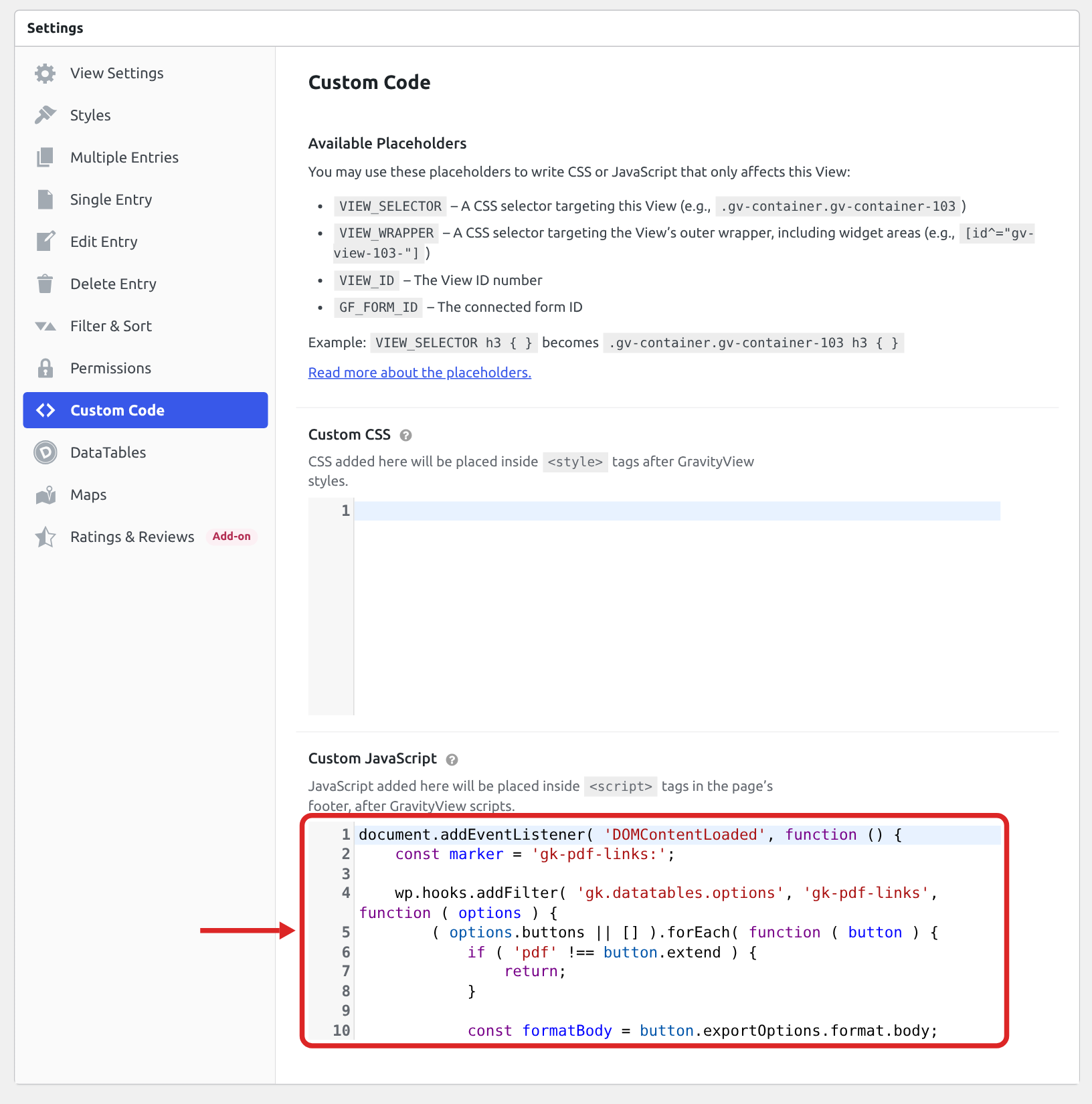
Step 1: Add the snippet to the View #
- Edit the View.
- In the Settings box, click the Custom Code tab.
- Paste the snippet below into Custom JavaScript.
- Click Update.
document.addEventListener( 'DOMContentLoaded', function () {
    const marker = 'gk-pdf-links:';

    wp.hooks.addFilter( 'gk.datatables.options', 'gk-pdf-links', function ( options ) {
        ( options.buttons || [] ).forEach( function ( button ) {
            if ( 'pdf' !== button.extend ) {
                return;
            }

            const formatBody = button.exportOptions.format.body;
            const previousCustomize = button.customize;

            // A cell with links is passed on as each link's text and address.
            button.exportOptions.format.body = function ( data, row, column, node ) {
                const cell = new DOMParser().parseFromString( String( data ), 'text/html' );
                const links = Array.from( cell.querySelectorAll( 'a[href]' ) )
                    .map( function ( link ) {
                        return {
                            text: link.textContent.trim(),
                            link: new URL( link.getAttribute( 'href' ), window.location.href ).href,
                        };
                    } )
                    .filter( function ( link ) {
                        return '' !== link.text;
                    } );

                let otherText = cell.body.textContent;

                links.forEach( function ( link ) {
                    otherText = otherText.replace( link.text, '' );
                } );

                // Only a cell that holds nothing but links changes; any other cell is exported as usual.
                if ( '' === otherText.trim() ) {
                    if ( links.length ) {
                        return marker + JSON.stringify( links );
                    }

                    // An image that opens in a lightbox is a link with no text: leave the cell empty.
                    if ( cell.querySelector( 'a[href] img' ) ) {
                        return '';
                    }
                }

                return formatBody ? formatBody( data, row, column, node ) : data;
            };

            button.customize = function ( doc, config, dt ) {
                if ( previousCustomize ) {
                    previousCustomize( doc, config, dt );
                }

                doc.styles.pdfLink = { color: '#1a5fb4', decoration: 'underline' };

                doc.content.forEach( function ( block ) {
                    if ( ! block.table ) {
                        return;
                    }

                    block.table.body.forEach( function ( row ) {
                        row.forEach( function ( cell ) {
                            if ( 'string' !== typeof cell.text || 0 !== cell.text.indexOf( marker ) ) {
                                return;
                            }

                            const links = JSON.parse( cell.text.slice( marker.length ) );

                            // Each link becomes clickable text; several links in one cell go on separate lines.
                            cell.text = [];

                            links.forEach( function ( link, index ) {
                                if ( index > 0 ) {
                                    cell.text.push( '\n' );
                                }

                                cell.text.push( { text: link.text, link: link.link, style: 'pdfLink' } );
                            } );
                        } );
                    } );
                } );
            };
        } );

        return options;
    } );
} );Note: Adding custom JavaScript to your Views explains how the Custom JavaScript field works.
Step 2: Export a PDF #
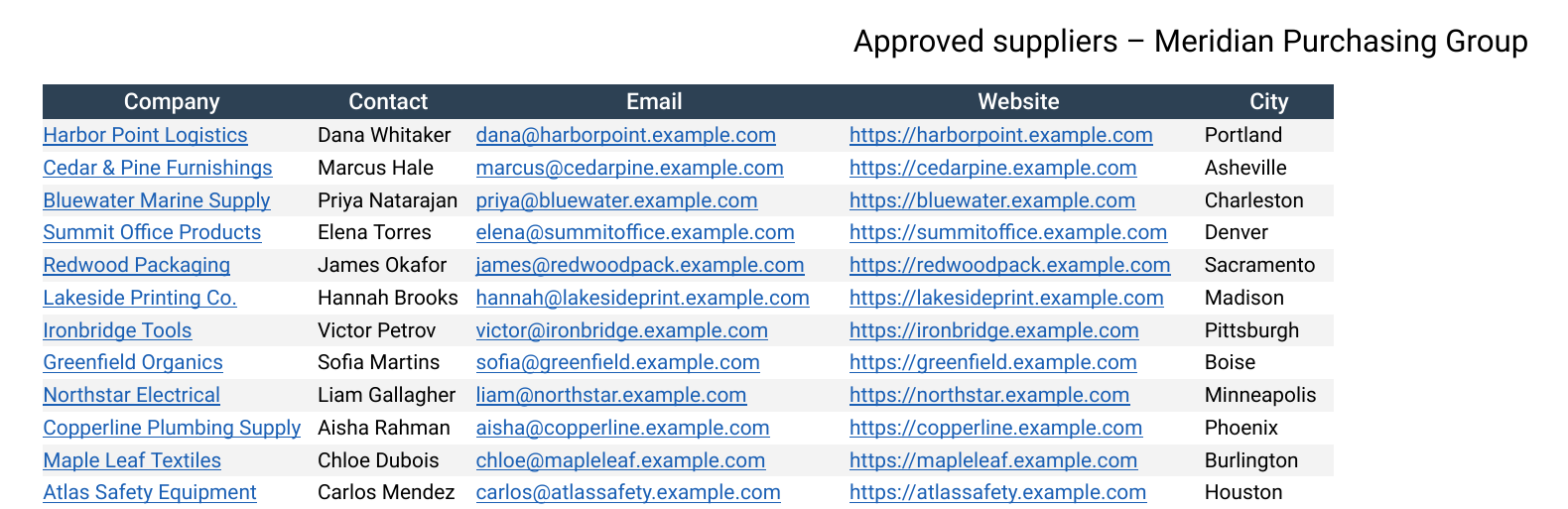
Open the page that shows the View and click PDF. The links are blue and underlined, and clicking one opens its address.
Cells the snippet changes #
- A link shows only its text. A Website field with Link Text set to
Visit websitereadsVisit websitein the PDF, and the address opens when it is clicked. - A cell with several links shows each one on its own line.
- A cell that holds other text besides its links keeps the usual export, with the addresses in brackets.
- An image that opens in a lightbox is a link without text, and the snippet leaves that cell empty. To show the image itself, add the snippet from Showing images in DataTables PDF exports.
Linking to files with addresses that keep working #
GravityView links uploaded files through secure download addresses that contain /gk-download/. Each address stops working one hour after GravityView creates it, so a link to an uploaded file in the PDF stops opening within the hour.
For images, PDFs, audio, and video, the PDF can link to the file’s permanent address instead. Open the File Upload field’s settings and check Use Direct File Path for Media:. Anyone who has a direct address can open the file, so leave this setting off for files that should stay private. Using direct file paths for uploaded media in GravityView explains the difference.
Using this snippet with the other PDF snippets #
This snippet works together with the ones in Adding a company logo to DataTables PDF exports and Showing images in DataTables PDF exports. Paste them one after another in the same Custom JavaScript field, in any order.

