

Multiple Forms: Searching entries
The Search Bar works on a View that combines forms with Multiple Forms. On a joined View, visitors can search the values of every joined form, and each search field can come from any of the forms. On a union View, one search field covers the matching field of every form.
Search a joined View #
The primary form is the form chosen in the Data Source box of the View editor. Search Everything searches its values and those of every joined form, including fields the View doesn’t show. In a View of service requests joined with a list of properties, a search for a property manager’s name lists the requests at that manager’s properties.
Add a search field from a joined form #
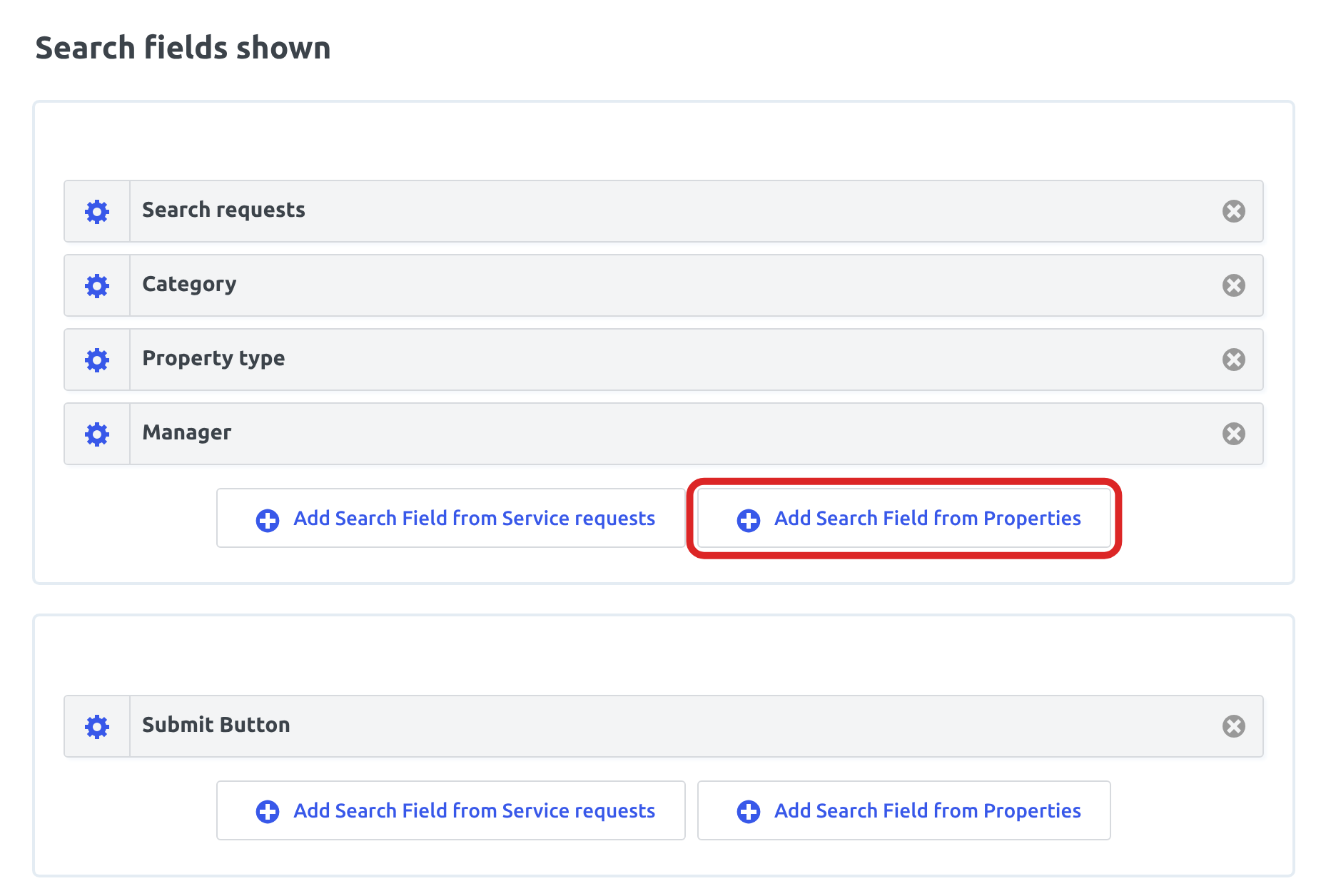
In the Search Bar Settings, each form has its own Add Search Field from button, followed by the form’s name.
- In the View editor, click the gear on the Search Bar widget to open Search Bar Settings.
- Click Add Search Field from followed by the joined form’s name, then pick the field.
- Close Search Bar Settings with its Close button, then click Update to save the View.
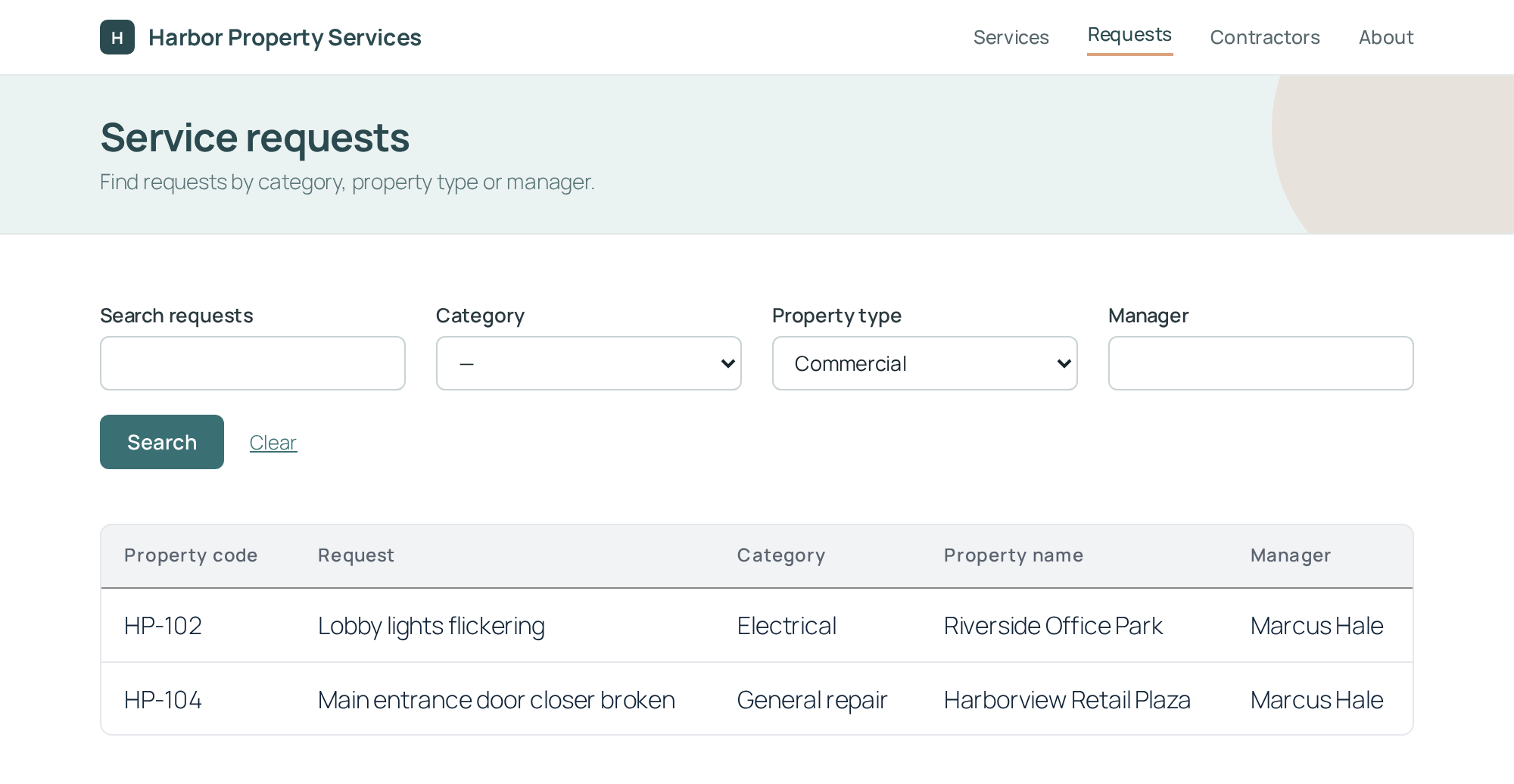
On the page, a search field from a joined form works like one from the primary form. With Search Mode set to Match All Fields, a row has to match every field the visitor fills in, whichever form each field comes from. Configuring the Search Bar widget explains the setting.
Filter a joined View with Live Filters #
Live Filters can use a joined form’s fields too. In the Live Filters area of the Multiple Entries layout, each form has its own Add Facet from button. Adding Live Filters to a View explains the sidebar and its settings.
Search a union View #
On a union View, each search field searches its mapped field in every form, and Search Everything finds values from every form. The Search Bar Settings offer the primary form’s fields only.
A drop-down search field lists the choices of the primary form’s field, so a choice that only an added form has isn’t in the list. Using unions in Multiple Forms explains how the fields are mapped.