
Advanced Filter shows no entries, or fewer than expected
When a View that uses Advanced Filter says “No entries match your request” or leaves out entries you expect, check these causes in order.
Check the conditions #
Edit the View and click the Filter & Sort tab in the Settings box. The conditions are under Advanced Filter.
- Inside a group, OR lists entries that match any of the conditions, and AND lists only entries that match all of them.
- Groups added with + AND must all match.
To find the condition that removes the entries, remove the conditions one at a time, click Update and reload the View after each change.
Check conditions on product choices #
A condition on a Product or Option field picked from the list saves the choice with its price, such as Senior|36. After the price changes, the View stops listing new entries for that choice. Changing or deleting choices in a form that already has entries shows how to write the condition so it matches every price.
Check what the field stores #
A condition compares the value saved in the database, which can differ from what the View and the entry show. The View then lists nothing, even though the value looks right on screen.
A Dynamic Lookup field that lists users shows the person’s name and saves their user ID. A condition comparing that field with {user:user_email} finds nothing, and one comparing it with {user:ID} works.
A field encrypted by another plugin can show its value on screen and hold encrypted text in the database, so a condition on it finds nothing. Filter on a field that isn’t encrypted.
Check the approval setting #
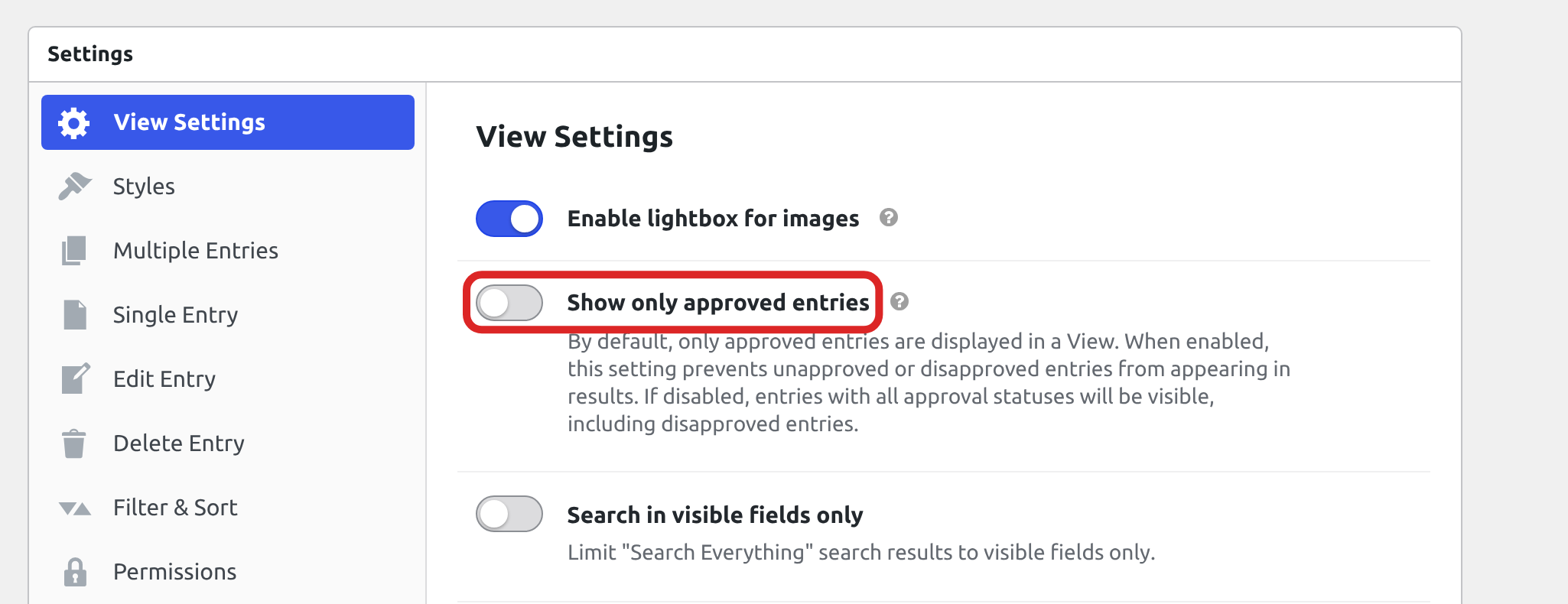
When Show only approved entries is on, the View lists only approved entries, whatever the filter says. The setting is on the View Settings tab of the Settings box. Filtering by entry approval status explains how approval and filters work together.
Check for database errors #
On a form with many entries, several conditions can make the database refuse the query. The View then shows no entries. To see the database’s message, install the Query Monitor plugin, open the View while signed in as an administrator, and click Database Errors in the Query Monitor panel. A message such as “The SELECT would examine more than MAX_JOIN_SIZE rows” means the database’s max_join_size limit stopped the query. Ask your host to raise that limit, or use fewer conditions.
Check for other plugins #
Advanced Filter adds its conditions to the database query that Gravity Forms builds. Another plugin that changes the same query can change the results. On a staging copy of your site, deactivate your other plugins one at a time and reload the View after each one. When the entries come back, the last plugin you deactivated is the cause.
If none of these explain the missing entries, contact our support team with the View’s address and a description of the entries you expect to see.

