
GravityView Pro
- Showing only paid entries: filtering a View by payment status
- (Advanced) What changed from 1.x to 2.0?
- Field Conditional Logic
- Field Conditional Logic doesn’t hide empty fields
- Filtered results are not showing
- Filtering a View using the Assignee field from Gravity Flow
- Filtering by entry approval status
- Filtering by the week of the year
- Filtering by user role
- Getting Started With the Advanced Filtering Extension
- How to show only entries created by the currently logged-in user
- How to show only entries from the current day, week, month, or year
- I can’t type in a relative date
- The :disabled_admin Merge Tag Modifier
- Using Advanced Filtering with Multiple Forms
- Why can’t I see the Fields dropdown?
- Controlling column widths and pinning columns in DataTables
- Fixing a DataTables View that shows “This table could not load” or stays on “Loading data…”
- Buttons (DataTables Setting)
- Changing the style of the export buttons in DataTables
- Customizing DataTables Options in GravityView
- DataTables Data Processing Mode (AJAX or Preloaded)
- DataTables Excel Export – How to display URLs
- DataTables Excel Export – How to remove HTML tags from the export
- DataTables Field Filters
- DataTables PDF Export – How to display images
- DataTables PDF Export – How to display links
- DataTables PDF Export – How to include a company logo
- DataTables Print – How to display images and URLs
- DataTables Setting: Save Table State
- DataTables Views can’t be displayed using echo do_shortcode functions
- DataTables: is it possible to exclude fields from printing?
- Enable Auto-Update (DataTables Setting)
- Getting Started With the DataTables Layout
- Grouping rows by common field values
- How to customize the “Loading data” text
- How to customize the “No matching records found” text
- How to customize the CSV field separator?
- How to customize the Excel export file name
- How to disable the “Loading data” message
- How to disable the DataTables search box
- How to Enable the Responsive Tables mode
- How to translate the DataTables script
- Is there a way to style the PDF on DataTables?
- Known limitations of the Responsive Tables mode of DataTables
- Multi-sorting columns in DataTables
- My column widths aren’t being respected when using Responsive Tables
- My DataTables View is not sorting properly
- Removing the striped background from DataTables
- Responsive (DataTables Setting)
- Scroller (DataTables Setting)
- The text inside a column is going out of the screen
- Why doesn’t my DataTables sort correctly?
- Getting Started With the Featured Entries Extension
- How do I change the design of a Featured entry?
- How to always display featured entries, regardless of search results
- How to feature an entry using PHP
- How to visually highlight featured entries in the Recent Entries widget
- Show only Featured Entries in the Recent Entries widget
- Enabling 3D maps in the Maps Layout
- My map won’t zoom in past a certain level
- Showing distance and sorting by distance in radius search results
- About custom map icons or markers
- About GravityView Maps geocoding
- Adding your Google Maps API Key into Divi
- Adding your Google Maps API Key into Premium Addons for Elementor
- Adding your Google Maps API Key into Ultimate Addons for Elementor
- Associating a custom map pin icon (marker) with a field value
- Can I use Maps to autocomplete addresses on my form?
- Configuring info boxes in GravityView Maps
- Enabling autocomplete for the Gravity Forms Address field
- Enabling the REST API access
- Error: Google Maps API warning: NoApiKeys
- Error: This page can’t load Google Maps correctly
- Filter the address field: gravityview/maps/marker/address
- Fixing a conflict with UberMenu plugin
- Getting started with the Maps Layout
- Google Maps Javascript API Error “RefererNotAllowedMapError”
- Granting Google Cloud Access to Support
- How can I make the marker link to open in a new tab?
- How can I pull the address from a field type that is not Address?
- How do I display only the Map? I don’t want to display the entries under the Map.
- How to enable and configure map marker clustering
- How to enable radius search
- How to hide map elements using CSS
- How to override geocoding coordinates
- How to show markers from multiple address fields on a map
- Is it possible to style the map?
- My map is gray and there are no entry markers
- Radius Search: Request Location
- Set Up Google Maps in GravityView Maps
- Support for OpenStreetMap or other map providers
- Using a latitude and longitude fields to position the map markers
- What are “Search as map moves” and “Redo search in map”?
- Why aren’t some of my entries showing up on the map?
- [Advanced] How to modify Ratings & Reviews entry comment titles
- Creating a review/voting system by embedding a form into a single entry (short)
- How to change the description of the Star Rating titles on hover
- How to disable email notifications for reviews
- How to Setup the Ratings & Reviews Extension
- Issue: GravityView Single Entry page only shows “Leave a Reply”
- Ratings & Reviews Anonymous Reviews
- Ratings & Reviews Hooks
- Ratings & Reviews Merge Tags
- Using unions in Multiple Forms
- Getting started with Multiple Forms
- How to join a Nested Forms parent form to its child form
- I don’t see the option to join multiple forms
- Known limitations of Multiple Forms
- Multiple Forms: How the “Strict Entry Match” setting works
- Multiple Forms: Searching entries
- Multiple Forms: Unions are now supported
- Using Advanced Filtering with Multiple Forms
- Why does my View show the same entry more than once?
- Home
- Docs
- GravityView Pro
- Maps Layout
- My map won’t zoom in past a certain level
My map won’t zoom in past a certain level
Estimated reading: < 1 minutes
Updated on October 9, 2026
If your map stays zoomed out on a large area, such as a whole country, and visitors can’t zoom in any closer, check the View’s Maximum Zoom. If it shows a low number, such as 3, the map can’t zoom in past that level:
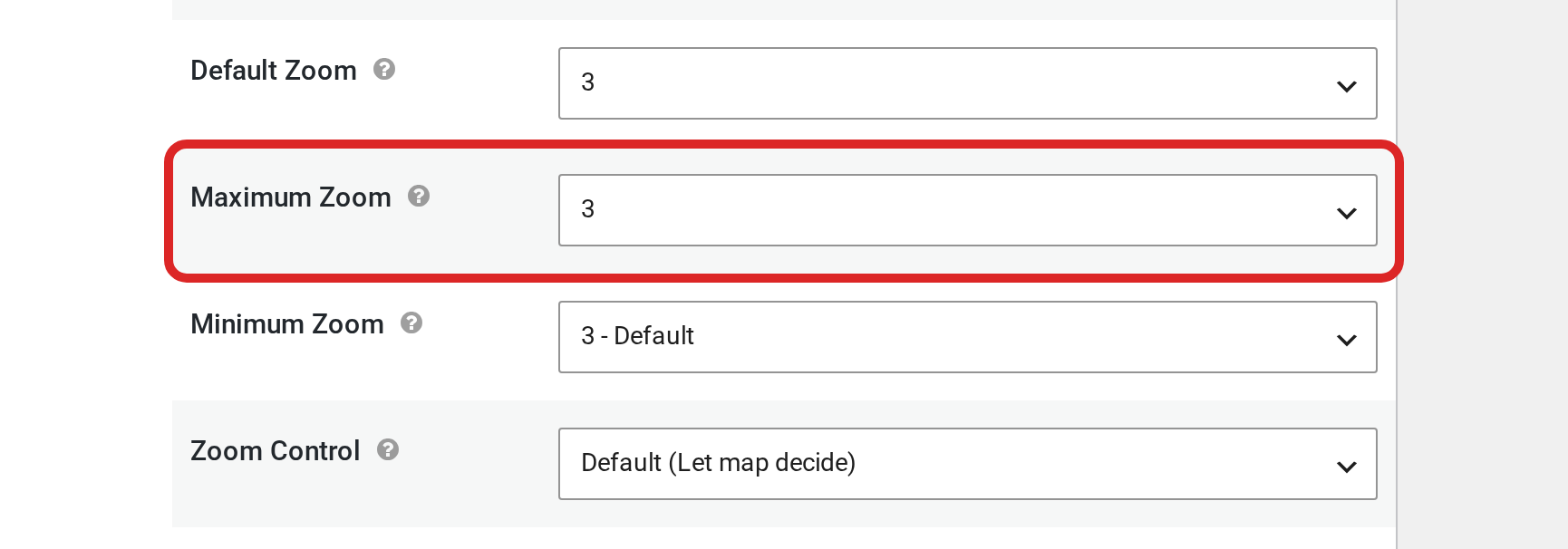
This can happen even if you chose No Maximum. Before GravityView Maps 3.11.0, the View editor changed Maximum Zoom to the Minimum Zoom value when the View was opened or a Minimum Zoom was picked, and saving the View kept that number. Version 3.11.0 stops the editor from doing this, but a View saved that way keeps its low Maximum Zoom until you change it.
Set the zoom levels again
- Update GravityView Maps to 3.11.0 or later first, so the editor keeps the setting you choose.
- Edit the View, scroll down to the Settings box, and click the Maps tab.
- Set Maximum Zoom to No Maximum to let visitors zoom in as far as the map allows, or choose the closest level they should reach, such as 21 – Street-Level.
- Check Default Zoom, which the editor may have lowered or cleared too. New Views start at 15 – Default.
- Click Update.

