Skip to content
GravityKit
Buy
Sign in
0 items
  • Plugins

    GravityKit All Access

    Our complete Kit of essential tools for extending and enhancing Gravity Forms—everything you need to build powerful web apps and workflows.

    Learn more
    • GravityView

      GravityView

      Bestseller

      Display Gravity Forms entries on the front-end of your site and build powerful web applications.

    • GravityImport

      GravityImport

      Trending

      Import entries from CSV files into Gravity Forms to transfer data, create new forms, or update existing entries.

    • GravityEdit

      GravityEdit

      Quickly edit Gravity Forms entries inline to save time, reduce clicks, and streamline your workflow.

    • GravityCharts

      GravityCharts

      Trending

      Turn Gravity Forms entries into interactive charts and graphs.

    • GravityActions

      GravityActions

      Update multiple Gravity Forms entries at once, send bulk emails, and streamline your workflow.

    • GravityCalendar

      GravityCalendar

      Turn Gravity Forms entries into dynamic calendars to showcase events, schedules, appointments, and more.

    • GravityExport

      GravityExport

      Export Gravity Forms entries to Excel, CSV, PDF, or Google Sheets, then share them with secure links or deliver them to cloud storage on a schedule.

    • GravityMath

      GravityMath

      Perform advanced calculations on Gravity Forms entries to display totals, averages, or build custom calculators.

    • GravityRevisions

      GravityRevisions

      Track, compare, and restore changes made to Gravity Forms forms and entries with a full version history.

    • GravityMigrate

      GravityMigrate

      Migrate all Gravity Forms data between sites, including forms, entries, settings, Views, feeds, and file uploads, and import forms from other form plugins.

    • GravityBoard

      GravityBoard

      Manage projects with collaborative project management. Coordinate with your team and streamline your workflows.

    • GravitySearch

      GravitySearch

      Search Gravity Forms entries across every form from one screen.

  • Ideal For

    • Nonprofits
    • Web Agencies
    • Education
    • Developers
    • Small Businesses
    • Startups
    Explore All Use Cases

    Case studies

    • Be There Local
    • Killer Shorts
    • West Fork Schools
    • Princeton University
    • BrightLeaf Giving
    • Jacksonville Port Authority
    • National Severe Storms Lab
    • Leadpal
    View All Case Studies
  • Resources

    • Blog
    • Case studies
    • Newsletter
    • GravityKit vs competitors
    • Live Demos
    • Documentation
    • Developer docs
    • GravityKit Academy

    Ultimate guides

    • How to use Gravity Forms
    • Editing Gravity Forms entries
    • Importing Gravity Forms entries
    • Exporting Gravity Forms entries
    • Displaying Gravity Forms entries
    • Gravity Forms conditional logic
    • Gravity Forms calculations
    View More Articles
  • Support
  • Pricing
  • Plugins

    • GravityView

      GravityView

      Bestseller

      Display Gravity Forms entries on the front-end of your site and build powerful web applications.

    • GravityImport

      GravityImport

      Trending

      Import entries from CSV files into Gravity Forms to transfer data, create new forms, or update existing entries.

    • GravityEdit

      GravityEdit

      Quickly edit Gravity Forms entries inline to save time, reduce clicks, and streamline your workflow.

    • GravityCharts

      GravityCharts

      Trending

      Turn Gravity Forms entries into interactive charts and graphs.

    • GravityActions

      GravityActions

      Update multiple Gravity Forms entries at once, send bulk emails, and streamline your workflow.

    • GravityCalendar

      GravityCalendar

      Turn Gravity Forms entries into dynamic calendars to showcase events, schedules, appointments, and more.

    • GravityExport

      GravityExport

      Export Gravity Forms entries to Excel, CSV, PDF, or Google Sheets, then share them with secure links or deliver them to cloud storage on a schedule.

    • GravityMath

      GravityMath

      Perform advanced calculations on Gravity Forms entries to display totals, averages, or build custom calculators.

    • GravityRevisions

      GravityRevisions

      Track, compare, and restore changes made to Gravity Forms forms and entries with a full version history.

    • GravityMigrate

      GravityMigrate

      Migrate all Gravity Forms data between sites, including forms, entries, settings, Views, feeds, and file uploads, and import forms from other form plugins.

    • GravityBoard

      GravityBoard

      Manage projects with collaborative project management. Coordinate with your team and streamline your workflows.

    • GravitySearch

      GravitySearch

      Search Gravity Forms entries across every form from one screen.

    View All Products

    GravityKit All Access

    Our complete Kit of essential tools for extending and enhancing Gravity Forms—everything you need to build powerful web apps and workflows.

    Learn more
  • Ideal For

    • Nonprofits
    • Web Agencies
    • Education
    • Developers
    • Small Businesses
    • Startups
    Explore All Use Cases

    Case studies

    • Be There Local
    • Killer Shorts
    • West Fork Schools
    • Princeton University
    • BrightLeaf Giving
    • Jacksonville Port Authority
    • National Severe Storms Lab
    • Leadpal
    View All Case Studies

    How to build...

    • Client Portal
    • AI-Built Directory
    • Conference Website
    • WordPress CRM
    • Admin Dashboard
    • Inventory Management
    • Vendor Portal
    • Document Library
    View All Guides
  • Resources

    • Blog
    • Case studies
    • Newsletter
    • GravityKit vs competitors
    • Live Demos
    • Documentation
    • Developer docs
    • GravityKit Academy

    ultimate guides

    • How to use Gravity Forms
    • Editing Gravity Forms entries
    • Importing Gravity Forms entries
    • Exporting Gravity Forms entries
    • Displaying Gravity Forms entries
    • Gravity Forms conditional logic
    • Gravity Forms calculations
    View More Articles
  • Support
  • Pricing
0 items

Search

Results appear automatically as you type.
Loading results…

results found matching

    Sign in
    Buy

    Docs

    • Docs Home

    Gravity Forms Add-Ons

    • GravityView
    • GravityActions
    • GravityBoard
    • GravityCalendar
    • GravityCharts
    • GravityEdit
    • GravityExport
    • GravityImport
    • GravityMath
    • GravityRevisions
    • GravitySearch
    • GF Widget for Elementor
    • GF Dynamic Lookup
    • GF Entry Tags
    • GF Event Field
    • GravityExport Lite
    • GF Zero Spam
    • GravityMigrate

    GravityView

    • Getting Started
    • View Setup
    • FAQ
    • Pre-Sale
    • Advanced
    • Common Problems
    • Customizing Your Views
    • Edit Entry
    • Entry Approval
    • Filter and Sort Results
    • Gravity Forms
    • Merge Tags
    • Roles and Capabilities
    • Search
    • Shortcodes
    • View Settings
    • WordPress Posts

    General Help

    • Account, Invoices, and Billing
    • License Related
    • Plugins and Settings
    • Agency accounts
    • Contact
    • Docs Home
    • Gravity Forms Add-Ons

      • GravityView
      • GravityActions
      • GravityBoard
      • GravityCalendar
      • GravityCharts
      • GravityEdit
      • GravityExport
      • GravityImport
      • GravityMath
      • GravityRevisions
      • GravitySearch
      • GF Widget for Elementor
      • GF Dynamic Lookup
      • GF Entry Tags
      • GF Event Field
      • GravityExport Lite
      • GF Zero Spam
      • GravityMigrate
    • GravityView

      • Getting Started
      • View Setup
      • FAQ
      • Pre-Sale
      • Advanced
      • Common Problems
      • Customizing Your Views
      • Edit Entry
      • Entry Approval
      • Filter and Sort Results
      • Gravity Forms
      • Merge Tags
      • Roles and Capabilities
      • Search
      • Shortcodes
      • View Settings
      • WordPress Posts
    • General Help

      • Account, Invoices, and Billing
      • License Related
      • Plugins and Settings
      • Agency accounts
    • Contact

    GravityView Pro

      • Showing only paid entries: filtering a View by payment status
      • (Advanced) What changed from 1.x to 2.0?
      • Field Conditional Logic
      • Field Conditional Logic doesn’t hide empty fields
      • Filtered results are not showing
      • Filtering a View using the Assignee field from Gravity Flow
      • Filtering by entry approval status
      • Filtering by the week of the year
      • Filtering by user role
      • Getting Started With the Advanced Filtering Extension
      • How to show only entries created by the currently logged-in user
      • How to show only entries from the current day, week, month, or year
      • I can’t type in a relative date
      • The :disabled_admin Merge Tag Modifier
      • Using Advanced Filtering with Multiple Forms
      • Why can’t I see the Fields dropdown?
      • Change the search parameter from “letter” to something else
      • Configuring the A-Z Filters Widget
      • The “Use this field to filter entries” setting
      • Dashboard Views: Deciding which fields to display
      • Dashboard Views: Display the View title
      • Dashboard Views: How to modify the menu icon
      • Dashboard Views: The included CSS Frameworks
      • Getting started with Dashboard Views
      • Controlling column widths and pinning columns in DataTables
      • Fixing a DataTables View that shows “This table could not load” or stays on “Loading data…”
      • Adding a company logo to DataTables PDF exports
      • Buttons (DataTables Setting)
      • Changing the style of the export buttons in DataTables
      • Customizing DataTables Options in GravityView
      • DataTables Data Processing Mode (AJAX or Preloaded)
      • DataTables Field Filters
      • DataTables Setting: Save Table State
      • DataTables: is it possible to exclude fields from printing?
      • Displaying a DataTables View from a theme template
      • Enable Auto-Update (DataTables Setting)
      • Getting Started With the DataTables Layout
      • Grouping rows by common field values
      • How to change the separator in DataTables CSV exports
      • How to customize the “Loading data” text
      • How to customize the “No matching records found” text
      • How to customize the Excel export file name
      • How to disable the “Loading data” message
      • How to disable the DataTables search box
      • How to Enable the Responsive Tables mode
      • How to translate the DataTables script
      • Is there a way to style the PDF on DataTables?
      • Known limitations of the Responsive Tables mode of DataTables
      • Making links clickable in DataTables PDF exports
      • Multi-sorting columns in DataTables
      • My column widths aren’t being respected when using Responsive Tables
      • My DataTables View is not sorting properly
      • Removing HTML tags from DataTables Excel exports
      • Removing the striped background from DataTables
      • Responsive (DataTables Setting)
      • Scroller (DataTables Setting)
      • Showing images and URLs in DataTables printouts
      • Showing images in DataTables PDF exports
      • Showing URLs in DataTables Excel exports
      • The text inside a column is going out of the screen
      • Why doesn’t my DataTables sort correctly?
      • DIY Layout: Remove the “Go back” link
      • DIY Version 2.2 changes to HTML output
      • Getting started with the DIY Layout
      • How do I add additional container tag default options?
      • Showing Before and After Content even when field is empty
      • Getting started with the Advanced Elementor Widget for GravityView
      • Understanding the “Show Debug Output” option
      • Getting Started With the Featured Entries Extension
      • How do I change the design of a Featured entry?
      • How to always display featured entries, regardless of search results
      • How to feature an entry using PHP
      • How to visually highlight featured entries in the Recent Entries widget
      • Show only Featured Entries in the Recent Entries widget
      • Allowing users to delete entries when using a Magic Link
      • Fields not appearing in Edit Entry when using Magic Links?
      • Getting Started with Magic Links
      • Magic Links Filters
      • Preserving Magic Links parameters on password-protected Views
      • The {gv_magic_link} Merge Tag
      • Enabling 3D maps in the Maps Layout
      • My map won’t zoom in past a certain level
      • Showing distance and sorting by distance in radius search results
      • About custom map icons or markers
      • About GravityView Maps geocoding
      • Adding your Google Maps API Key into Divi
      • Adding your Google Maps API Key into Premium Addons for Elementor
      • Adding your Google Maps API Key into Ultimate Addons for Elementor
      • Associating a custom map pin icon (marker) with a field value
      • Can I use Maps to autocomplete addresses on my form?
      • Configuring info boxes in GravityView Maps
      • Enabling autocomplete for the Gravity Forms Address field
      • Enabling the REST API access
      • Error: Google Maps API warning: NoApiKeys
      • Error: This page can’t load Google Maps correctly
      • Filter the address field: gravityview/maps/marker/address
      • Fixing a conflict with UberMenu plugin
      • Getting started with the Maps Layout
      • Google Maps Javascript API Error “RefererNotAllowedMapError”
      • Granting Google Cloud Access to Support
      • How can I make the marker link to open in a new tab?
      • How can I pull the address from a field type that is not Address?
      • How do I display only the Map? I don’t want to display the entries under the Map.
      • How to enable and configure map marker clustering
      • How to enable radius search
      • How to hide map elements using CSS
      • How to override geocoding coordinates
      • How to show markers from multiple address fields on a map
      • Is it possible to style the map?
      • My map is gray and there are no entry markers
      • Radius Search: Request Location
      • Setting up Google Maps API keys for GravityView Maps
      • Support for OpenStreetMap or other map providers
      • Using a latitude and longitude fields to position the map markers
      • What are “Search as map moves” and “Redo search in map”?
      • Why aren’t some of my entries showing up on the map?
      • [Advanced] How to modify Ratings & Reviews entry comment titles
      • Creating a review/voting system by embedding a form into a single entry (short)
      • How to change the description of the Star Rating titles on hover
      • How to disable email notifications for reviews
      • How to Setup the Ratings & Reviews Extension
      • Issue: GravityView Single Entry page only shows “Leave a Reply”
      • Ratings & Reviews Anonymous Reviews
      • Ratings & Reviews Hooks
      • Ratings & Reviews Merge Tags
      • Keeping Views with Prevent Direct Access out of XML sitemaps
      • Getting started with the Social Sharing & SEO extension
      • How to fix Open Graph meta tags for single entry pages when using the WordPress SEO plugin
      • Setting up SEO for Views with Yoast SEO
      • Setting up sharing buttons with JetPack
      • Getting started with PDF for GravityView
      • Using unions in Multiple Forms
      • Getting started with Multiple Forms
      • How to join a Nested Forms parent form to its child form
      • I don’t see the option to join multiple forms
      • Known limitations of Multiple Forms
      • Multiple Forms: How the “Strict Entry Match” setting works
      • Multiple Forms: Searching entries
      • Multiple Forms: Unions are now supported
      • Using Advanced Filtering with Multiple Forms
      • Why does my View show the same entry more than once?
    • Live Filters
    • Connected Views
    • Home
    • Docs
    • GravityView Pro
    • Magic Links
    • Getting Started with Magic Links

    Getting Started with Magic Links

    Estimated reading: 6 minutes

    Updated on October 13, 2026

    Magic Links enables people to edit an entry they submitted without logging in, through a secure link that expires. This guide covers setting it up and stopping a link that was already sent.

    Prefer to watch the video?

    Basic Setup #

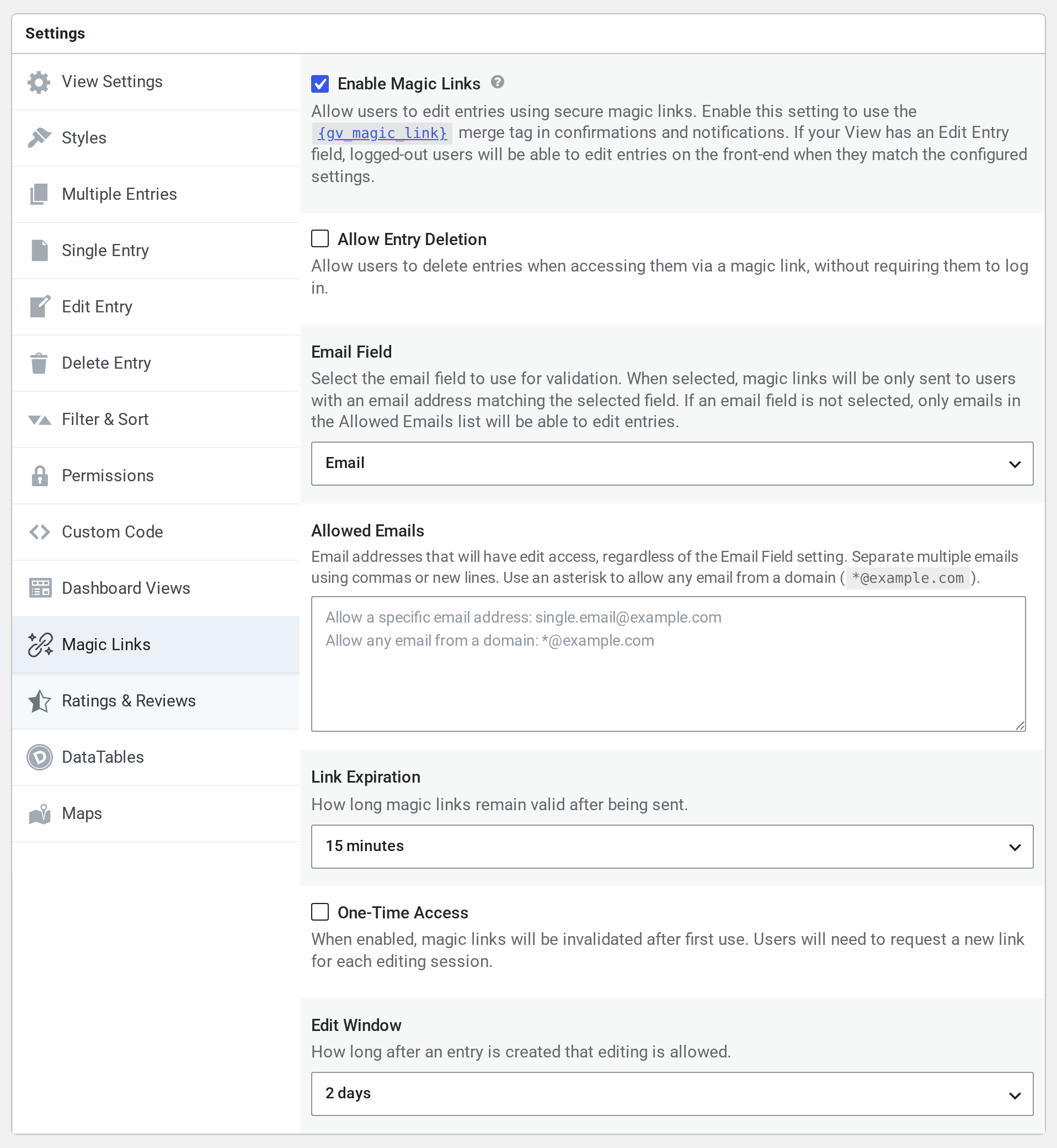
    Enable Magic Links for a View

    1. Edit your View.
    2. In the Settings box, click the Magic Links tab.
    3. Check Enable Magic Links.
    4. Under Email Field, select the field that holds the submitter’s email address. A link then works only while its address matches the one saved in the entry, or is in Allowed Emails.
    5. If someone else needs to edit every entry in the View, add their address to Allowed Emails. Separate addresses with commas or new lines, and use *@example.com to allow every address at a domain.
    6. Under Link Expiration, choose how long a link works after it’s created. The default is 15 minutes, and the longest choice is 12 hours. A change applies to new links only.
    7. Under Edit Window, choose how long after an entry is submitted it can be edited through a link. The default is 2 days, so links stop working for entries older than that. Choose a longer window or No time limit if people need to edit older entries.
    8. Save the View.
    The Magic Links tab of a View's Settings box, with Email Field set to Email, Link Expiration set to 15 minutes, and Edit Window set to 2 days

    Allow Entry Deletion and One-Time Access are off by default. Allow Entry Deletion lets someone with a link delete the entry, as described in Allowing users to delete entries when using a Magic Link. One-Time Access ends a link once it has been used to save an edit, so each edit needs a new link.

    Anyone who has a link can use it until it stops working. If you leave Email Field set to Don’t validate by email field, the address in a link doesn’t have to match the entry or Allowed Emails. Changing the entry’s address or Allowed Emails then doesn’t stop a link that was already sent. In Magic Links 1.3.0 and later, only addresses in Allowed Emails can then request a link from the View.

    Usage #

    Links for new and existing entries

    When someone submits the form, Magic Links creates a link for the new entry right away, so the {gv_magic_link} merge tag works in that form’s notifications and confirmation. This needs a valid address in the Email Field, or in the form’s first Email field with Don’t validate by email field. While the entry’s link hasn’t expired, the merge tag reuses it with the entry’s current email address. After it expires, the merge tag creates a new one. Each link expires after the View’s Link Expiration, counted from when it was created. When someone opens a link that has expired, the page shows a form where they can request a new one.

    Using Magic Links

    A magic link for editing opens the entry’s Edit Entry screen, on the View or on the page where the View is embedded. It can’t open the original form page. A magic link for deleting an entry removes it as soon as someone opens it. See Allowing users to delete entries when using a Magic Link.

    Magic Links can be used in multiple ways:

    Via Merge Tags

    Use the {gv_magic_link} merge tag in your form notifications or confirmations.

    Example: You can edit your entry here: {gv_magic_link view_id=123 text="Edit Entry"}

    Learn more about the merge tag in the merge tag documentation.

    From a View in GravityView

    • When the View shows an Edit Entry link, logged-out visitors see it too.
    • Clicking it opens a form that asks for their email address.
    • If the address matches the entry’s Email Field or is in Allowed Emails, and the entry is within the Edit Window, Magic Links emails a new link to it with the subject “Your link to edit an entry”.
    • The email is sent in the background, so on some servers it takes a few minutes to arrive.
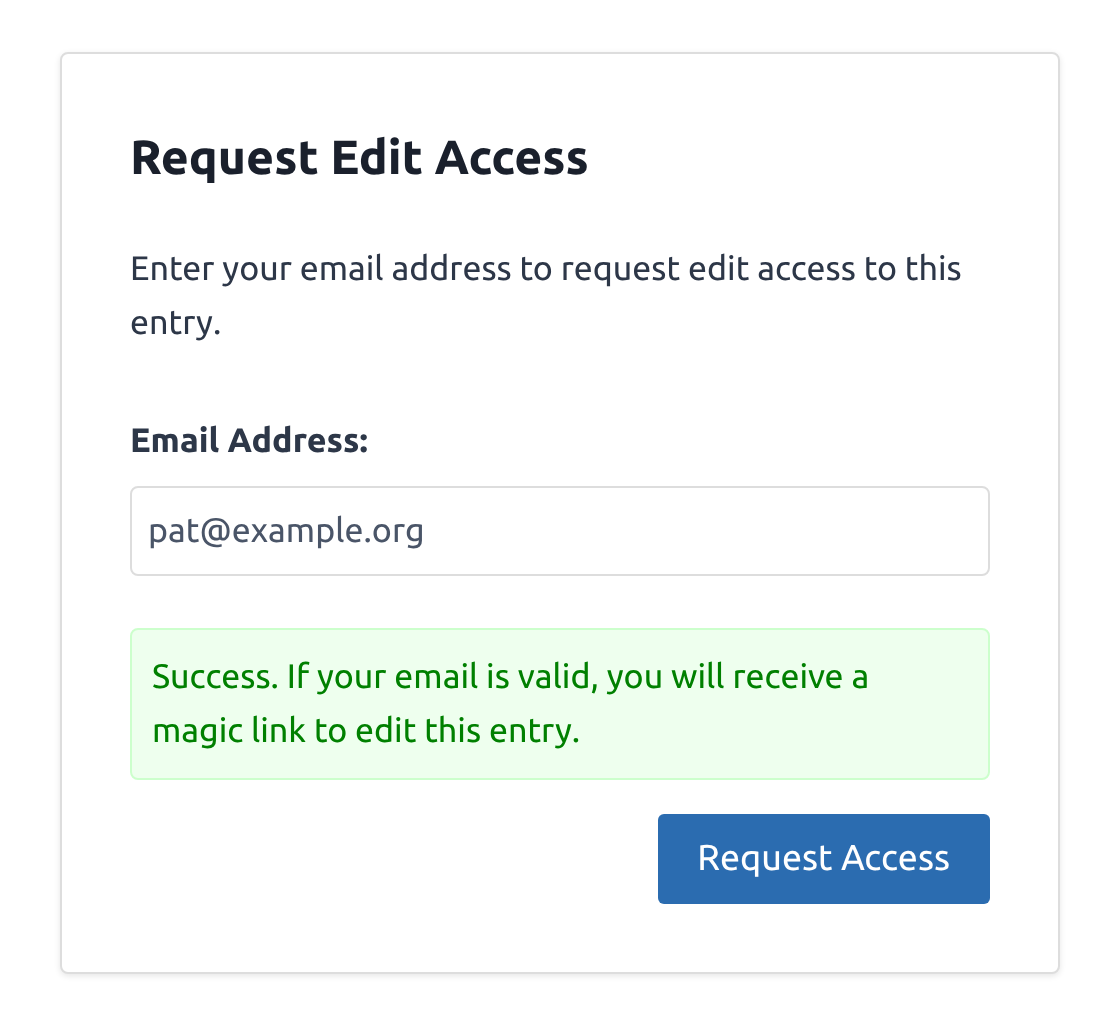
    The Request Edit Access form after a request, with the message: Success. If your email is valid, you will receive a magic link to edit this entry.

    Security Features #

    Magic Links includes several security measures:

    • Time-limited links (configurable per View)
    • Email verification
    • Secure hash generation
    • View-specific settings
    • The request form shows the same message whether or not an address matches

    Stopping a link that was already sent #

    Magic Links has no cancel button. Each of the following stops a link that was already sent, for example one that went to the wrong address:

    • If the entry’s email address is wrong, correct it. With an Email Field selected, a link made for the old address stops right away, unless that address is in Allowed Emails.
    • Request a new link from the View’s request form with an address that matches the entry’s Email Field or is in Allowed Emails. Only the newest link for an entry and View works, so the earlier one stops once the new link is created. Resending a notification that contains {gv_magic_link} doesn’t cancel an earlier link on its own.
    • Remove the address, and any *@ rule that covers it, from Allowed Emails, then save the View. With an Email Field selected, its links stop unless it’s also the address saved in the entry. With Don’t validate by email field, removing it doesn’t stop a link that was already sent.
    • With One-Time Access on, a link stops once it has been used to save an edit.
    • Once the entry is older than the Edit Window, its links stop working.
    • Unchecking Enable Magic Links and saving the View stops every link for the View at once. If you turn it back on, links that are still valid work again.

    Best Practices #

    1. Email Field Selection
      • Choose the most reliable email field in your form
    2. Expiration Settings
      • Set appropriate expiration times based on your needs
      • Consider the urgency of edits and security requirements
      • Start with a low expiration time and increase as needed

    Troubleshooting #

    Common issues and solutions:

    1. Links Not Working
      • Check if the email field is correctly configured
      • Verify the View’s Magic Links settings are enabled
      • Ensure the entry has a valid email address
      • Check the Edit Window: with the default of 2 days, links don’t work for entries submitted more than 2 days ago
      • Use the newest link, since requesting a new one stops the earlier links for that entry
    2. Links Expiring Too Quickly
      • Raise Link Expiration in the View settings, up to 12 hours
      • Consider your security requirements
    3. Email Not Received
      • Check your WordPress email settings
      • Verify the email address is correct in the entry
      • Check spam folders
      • Wait a few minutes, since the request form sends its email in the background
      • With Don’t validate by email field, the request form sends links only to addresses in Allowed Emails

    Still stuck? How can we help?

    How can we help?

    "*" indicates required fields

    This field is for validation purposes and should be left unchanged.
    Replies will go to this email.
    How can we help?*
    My pre-sale question is related to...*
    My WordPress skills are....*
    My Gravity Forms skills are...*
    You will be shown articles from our documentation.
    Vous pouvez nous écrire dans votre langue maternelle si c’est plus facile pour vous—nous nous occuperons de la traduction!
    Puedes escribirnos en tu idioma nativo si te resulta más fácil; ¡nosotros nos encargamos de la traducción!
    Sie können uns in Ihrer Muttersprache schreiben, wenn das für Sie einfacher ist – wir kümmern uns um die Übersetzung!
    U kunt ons in uw moedertaal schrijven als dat gemakkelijker voor u is — wij zorgen voor de vertaling!
    Du kan skrive til oss på ditt morsmål hvis det er enklere for deg — vi tar oss av oversettelsen!
    Du kan skriva till oss på ditt modersmål om det är lättare för dig — vi tar hand om översättningen!
    Você pode nos escrever em seu idioma nativo se for mais fácil para você — nós cuidaremos da tradução!
    Puoi scriverci nella tua lingua madre se ti è più facile — penseremo noi alla traduzione!
    Please provide as much detail as you're able; this helps us provide you with faster support.
    Drop files here or
    Accepted file types: jpg, jpeg, gif, png, tiff, pdf, bmp, zip, json, csv, xls, xlsx, Max. file size: 256 MB.
      Get better at Gravity Forms every Friday

      Was this page helpful?

      Table Of Contents
      • Basic Setup
      • Usage
      • Security Features
      • Stopping a link that was already sent
      • Best Practices
      • Troubleshooting
      GravityKit
      • How to Build It
      • GravityKit vs competitors
      • Pricing
      • Products
      • Our Team
      • Our Values
      • Work With Us
      • Partner Directory
      • Coupons
      Support
      • Support
      • Contact
      • Documentation
      • Scope of Support
      • Brand Guidelines
      • Brand Kit
      • Privacy Policy
      • Terms of Service (“Terms”)
      I am a...
      • Nonprofit
      • Web agency
      • Small business owner
      • Web developer
      • Educational institution
      • WordPress freelancer
      • Startup founder
      • One-person agency
      Get notified of updates.

      We’re constantly improving GravityKit. Fill out your email below and we’ll notify you anytime major updates drop.

      See past editions
      • Facebook
      • Twitter
      • Mastodon
      GravityKit is a Gravity Forms Certified Developer.

      Copyright © 2026, Katz Web Services, Inc.

      GravityKit and GravityView are registered trademarks of Katz Web Services, Inc.