
Setting up Google Maps API keys for GravityView Maps
GravityView Maps uses Google Maps to show entries on a map and to convert addresses into latitude and longitude, which is called geocoding. Both need API keys from Google Cloud, entered in the GravityView Maps settings.
Step 1: Create the two API keys #
- Maps Key (client side): loads and shows maps to your visitors. Visitors’ browsers can see this key.
- Geocoding Key (server side): converts addresses into coordinates. It stays on your server, out of visitors’ view.
To create the keys, follow Google’s instructions for getting an API key, or watch the video below.
Step 2: Set up each key in Google Cloud #
Maps Key
Required APIs |
|
Recommended restrictions |
|
Geocoding Key
Required API |
|
Recommended restrictions |
|
One key can do both jobs only when it has no application restrictions, by HTTP referrer or by IP address, and all three APIs are enabled:
- Maps JavaScript API
- Places API
- Geocoding API
A key with no restrictions is visible in the browser and works from any site, so anyone who copies it can use it on your account. We don’t recommend it.
Step 3: Add the keys to the GravityView Maps settings #
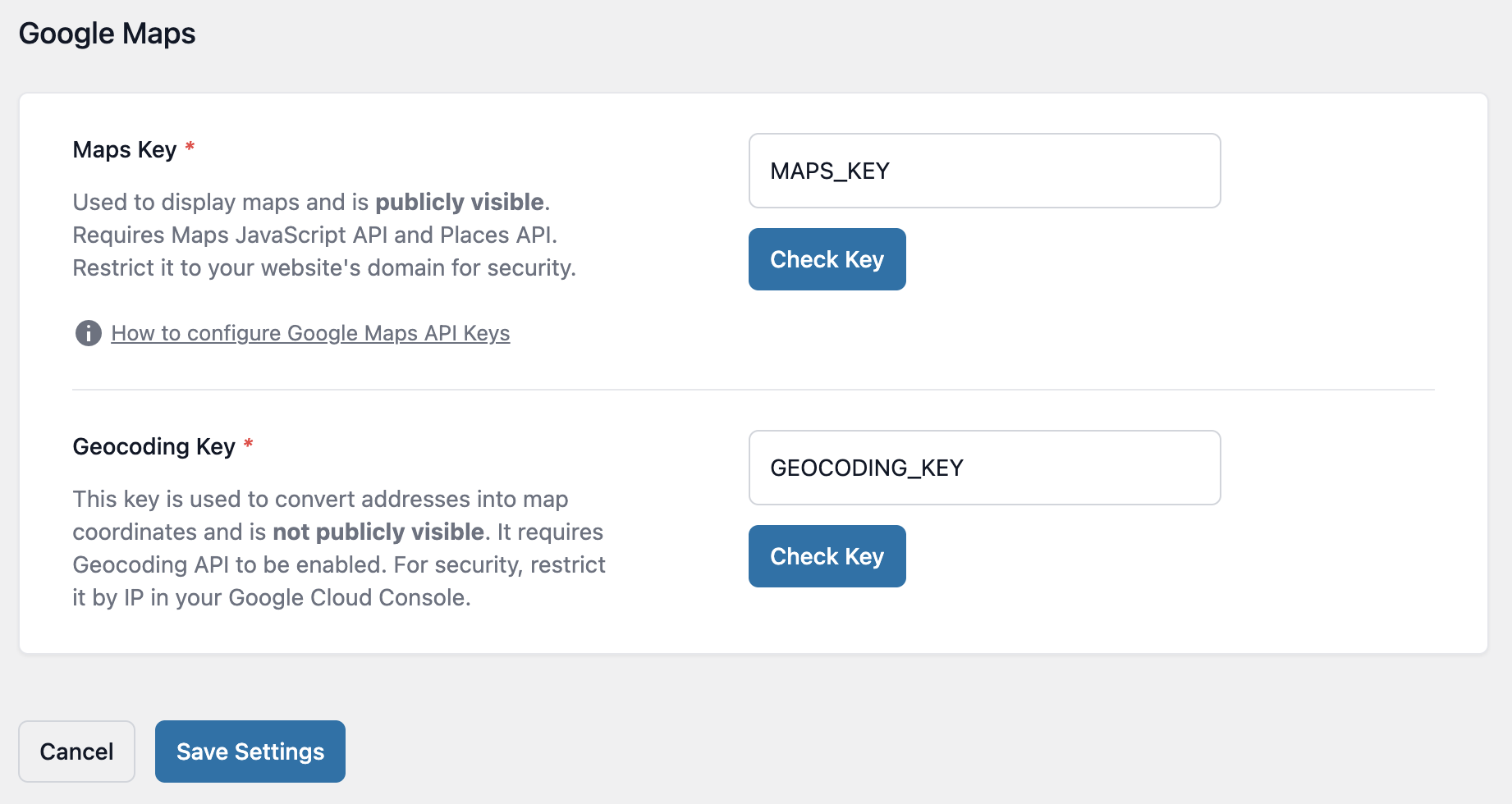
- In your WordPress dashboard, go to GravityKit, then Settings.
- In the settings menu, click GravityView Maps.
- Enter the Maps key in the Maps Key field and the Geocoding key in the Geocoding Key field.
- Click Check Key next to each field. The button appears once the field holds a key.
- Click Save Settings.
Step 4: Check the keys #
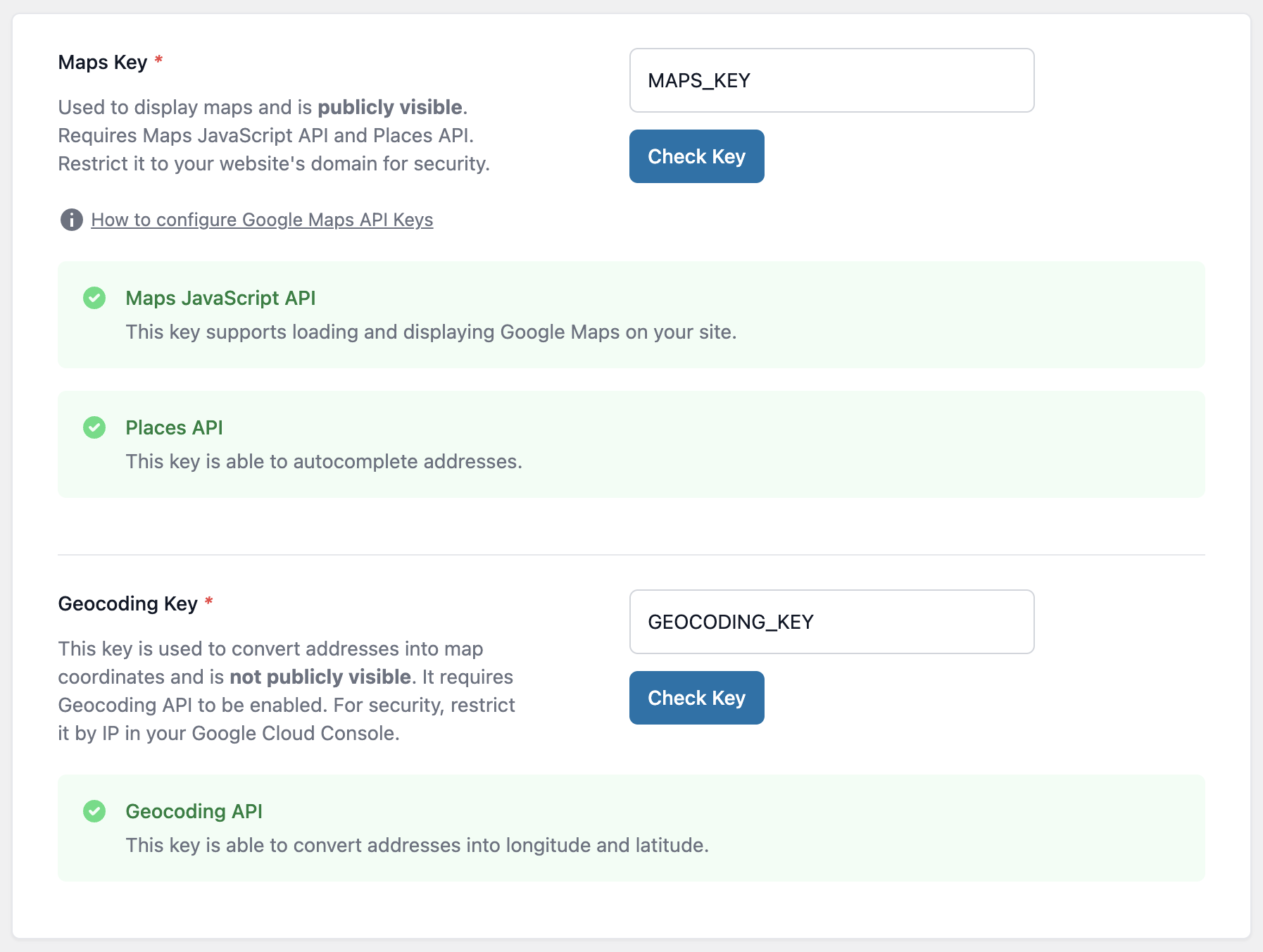
Check Key tests the key with Google.
For the Maps Key, it checks that:
- the Maps JavaScript API is enabled;
- the Places API is enabled;
- the key’s application restrictions allow your site.
For the Geocoding Key, it checks that:
- the Geocoding API is enabled;
- the key has no HTTP referrer restriction, which a request from your server can’t meet;
- the key’s IP address restriction allows your server;
- the key’s API restrictions include the Geocoding API.
Troubleshooting #
A map that shows “This page can’t load Google Maps correctly.” usually means Google Maps is loaded twice on the page, often by your theme or another plugin with its own key. The fix is in Error: This page can’t load Google Maps correctly.

