
Using Advanced Filtering with Multiple Forms
With the Advanced Filter Extension, filter conditions and field conditional logic on a View that joins forms with Multiple Forms can use the fields of every joined form as well as the primary form.
Note: Filtering by a joined form’s fields needs Multiple Forms 0.6.0 and Advanced Filter 4.3.0 or newer. Comparing a field with a joined form’s field needs Advanced Filter 4.7.0 or newer.
Prefer to watch the video?
Filter by a joined form’s field #
- Open the View and go to the Filter & Sort tab.
- Under Advanced Filter, click Add Condition.
- Choose the joined form in the first dropdown, then its field in the dropdown below it.
- Choose an operator and enter a value.
In this example, an Order Form View is joined with the Customer Registration Form on the Email field. The condition shows only the orders from customers whose city is New York.
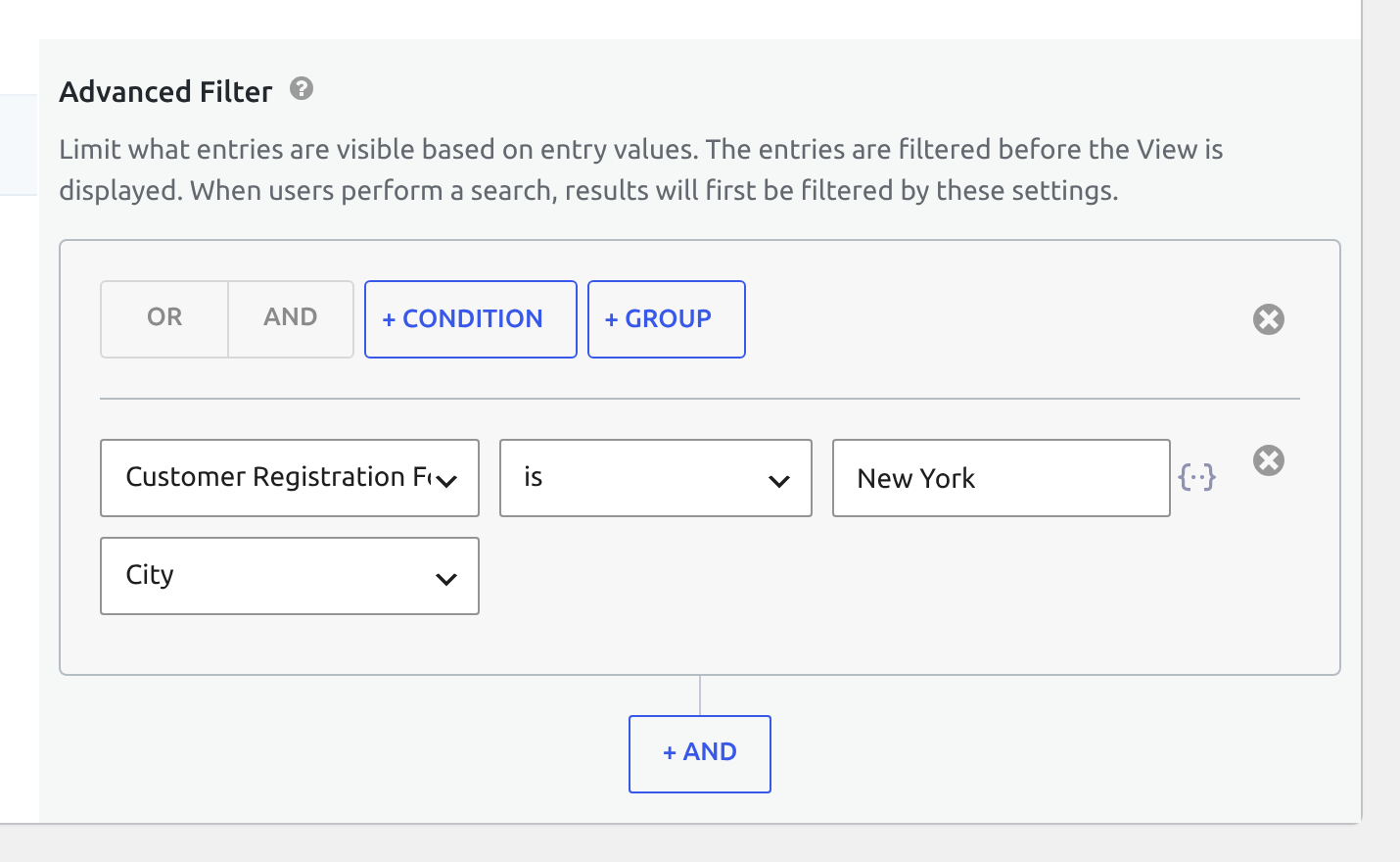
When you add, remove, or change a join, the forms and fields offered in conditions update to match.
What a joined form’s fields offer #
A joined form’s fields come with fewer choices than the primary form’s:
- The field list has the form’s own fields and a few entry properties, such as Entry ID and User ID. Entry details such as Date Created and Approval Status aren’t listed.
- The is empty and is not empty operators aren’t offered.
Show the entries with no match #
To show only the primary form’s entries that have no match in a joined form:
- In the View Settings tab, leave Strict Entry Match unchecked.
- In the Filter & Sort tab, add a condition on the field the join uses in the joined form.
- Set the operator to is and leave the value empty.
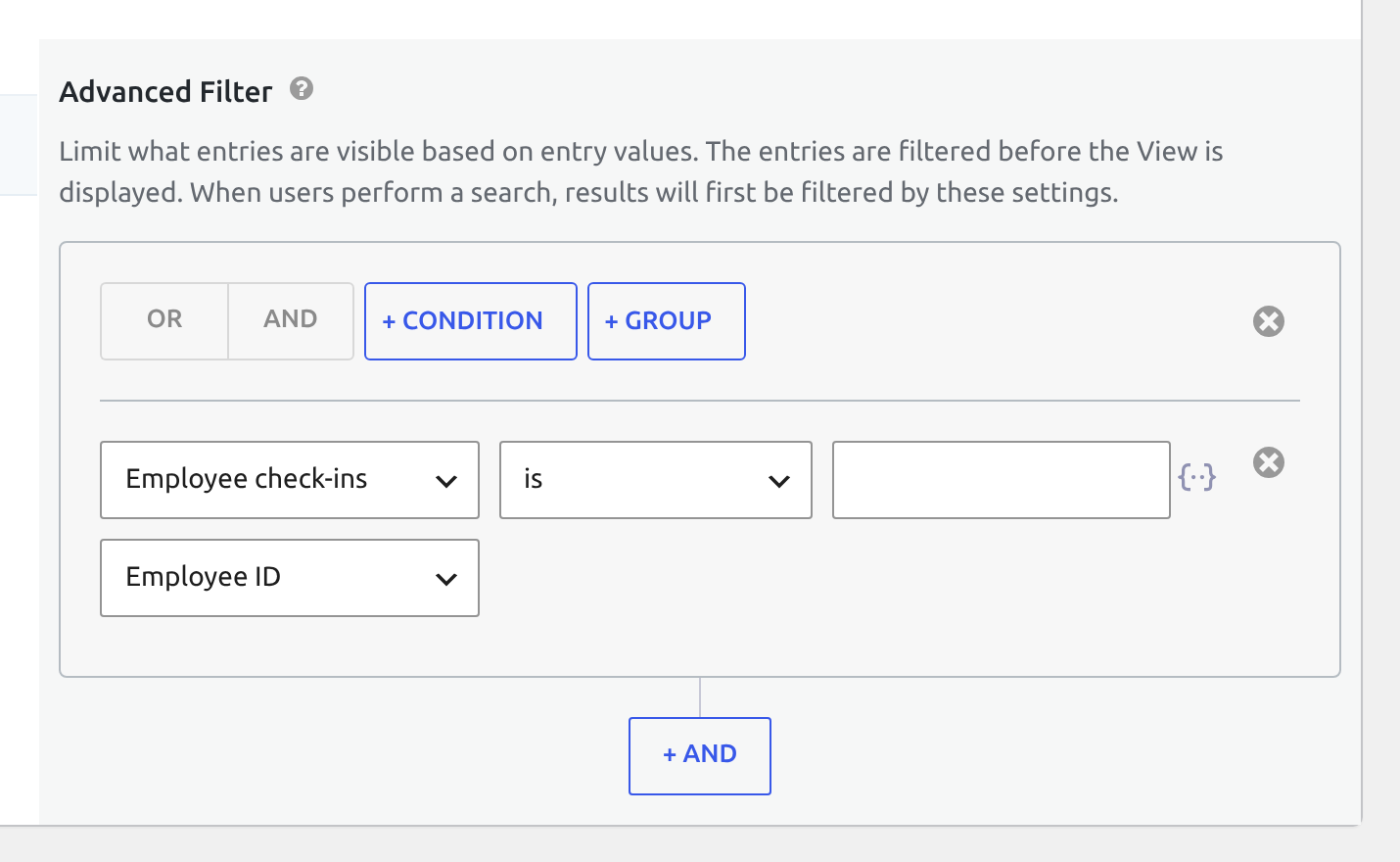
In the employee View from Getting Started With Multiple Forms, this condition leaves only Tom Becker, the one employee without a check-in.
Compare a field with a joined form’s field #
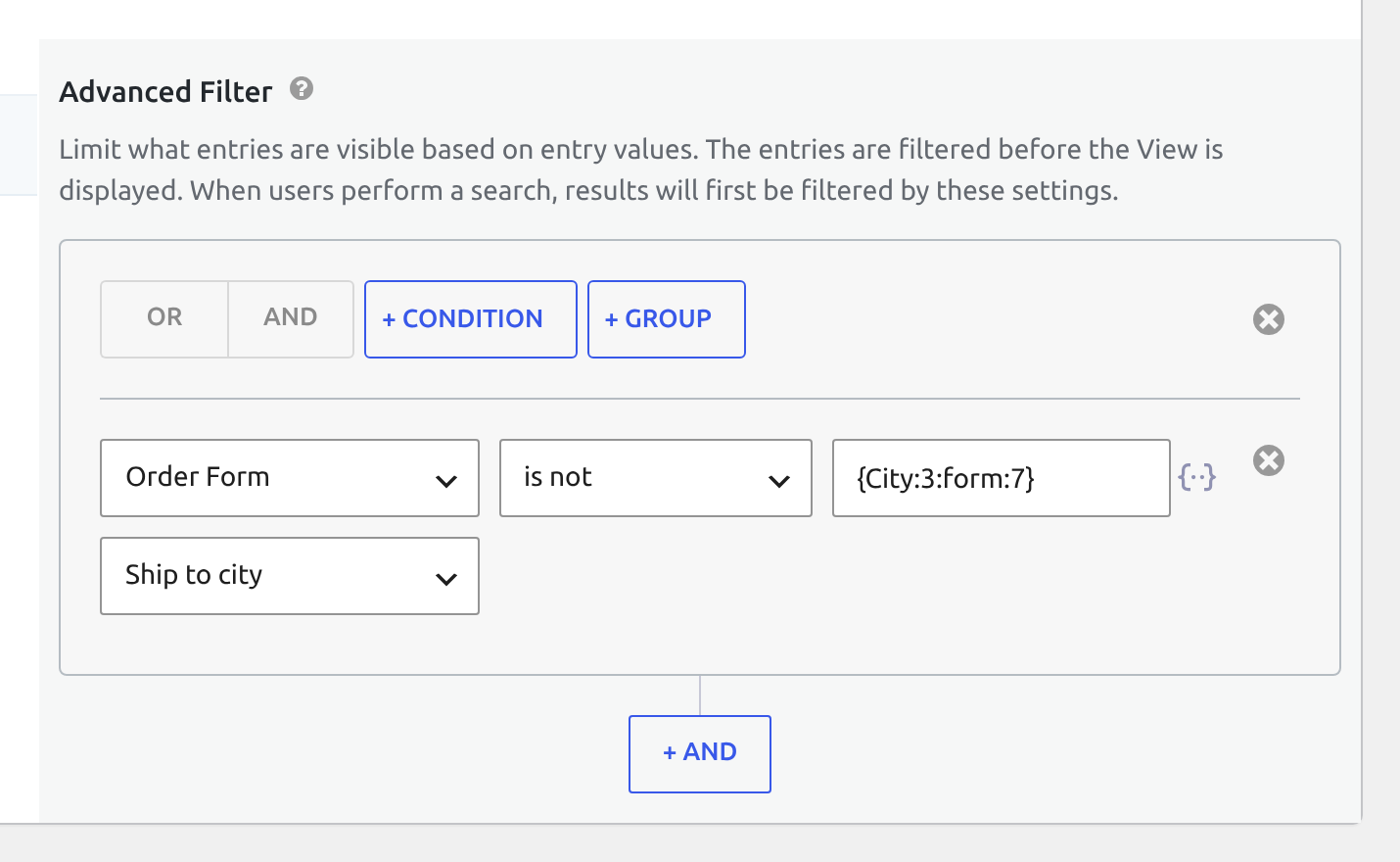
A condition’s value can be a merge tag from a joined form, written with the form: modifier and that form’s ID. For example, {City:3:form:7} is field 3 of form 7. Each entry is compared with its own joined entry.
In the orders View, a condition on Ship to city set to is not {City:3:form:7} shows the orders shipped somewhere other than the customer’s registered city.
Show or hide a field based on a joined form #
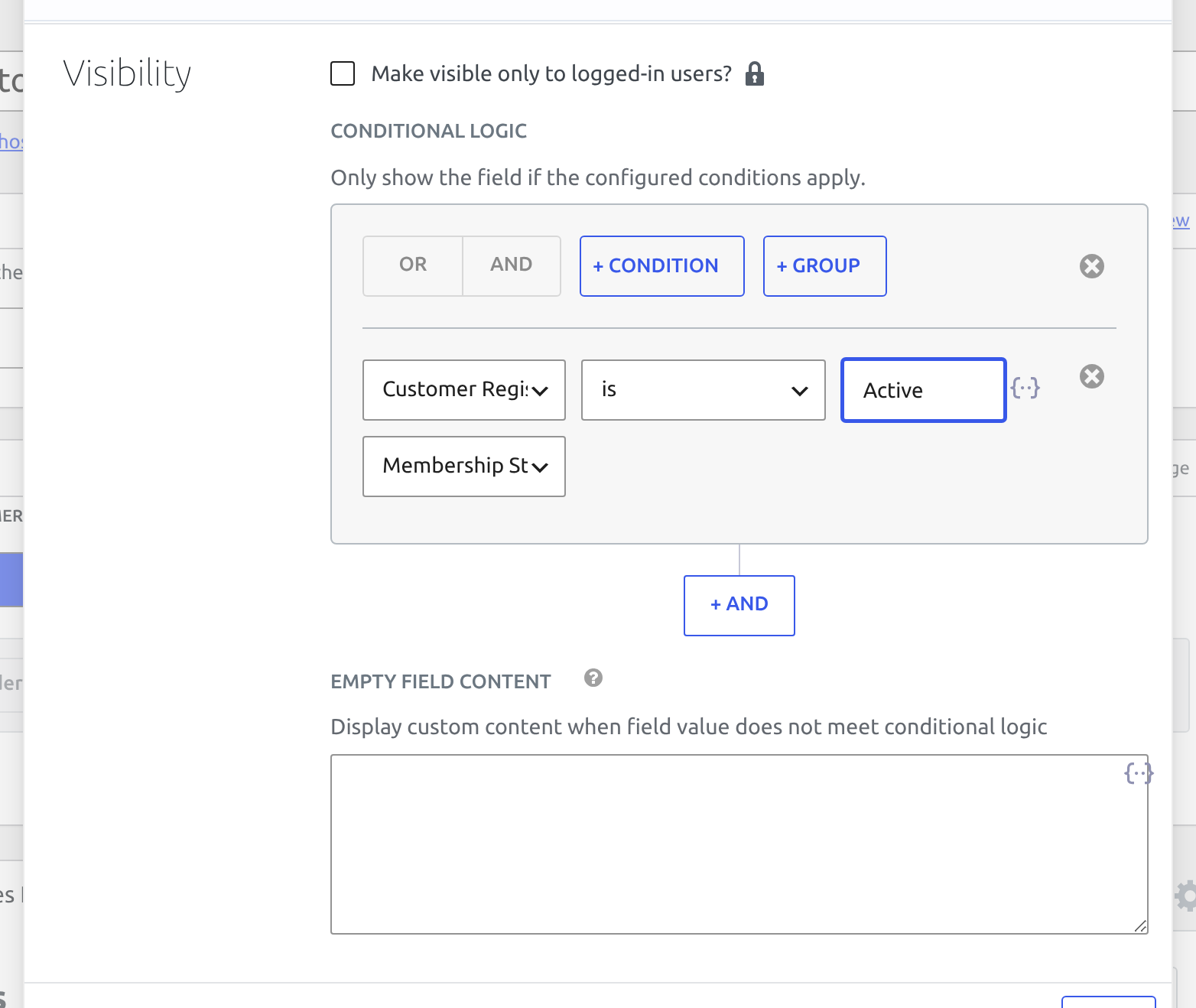
Field conditional logic has the same form dropdown. Open a field’s settings and add a condition in the Conditional Logic section under Visibility.
In the orders View, the Membership Level field from the Customer Registration Form shows only for customers whose Membership Status is Active.
Unions #
Choosing another form’s fields in a condition works on joins. On a union View, each row is a standalone entry, so conditions apply through the primary form’s mapped columns, and an added form’s own fields can’t be chosen. Using unions in Multiple Forms explains how unions work.

