
Keeping Views and entries out of search engines
A View that shows personal or internal data should stay out of search results. Prevent Direct Access blocks the View’s own URL and keeps it out of the sitemap WordPress generates. Entry pages on the page where you embed the View stay public, and a robots.txt rule asks search engines to skip them.
Block the View’s own URL #
Every View is a WordPress post with a URL of its own, /view/your-view-name/ by default, whether or not you link to it. To block that URL:
- Edit the View.
- In the Settings box, open the Permissions tab.
- Turn on Prevent Direct Access.
- Click Update.
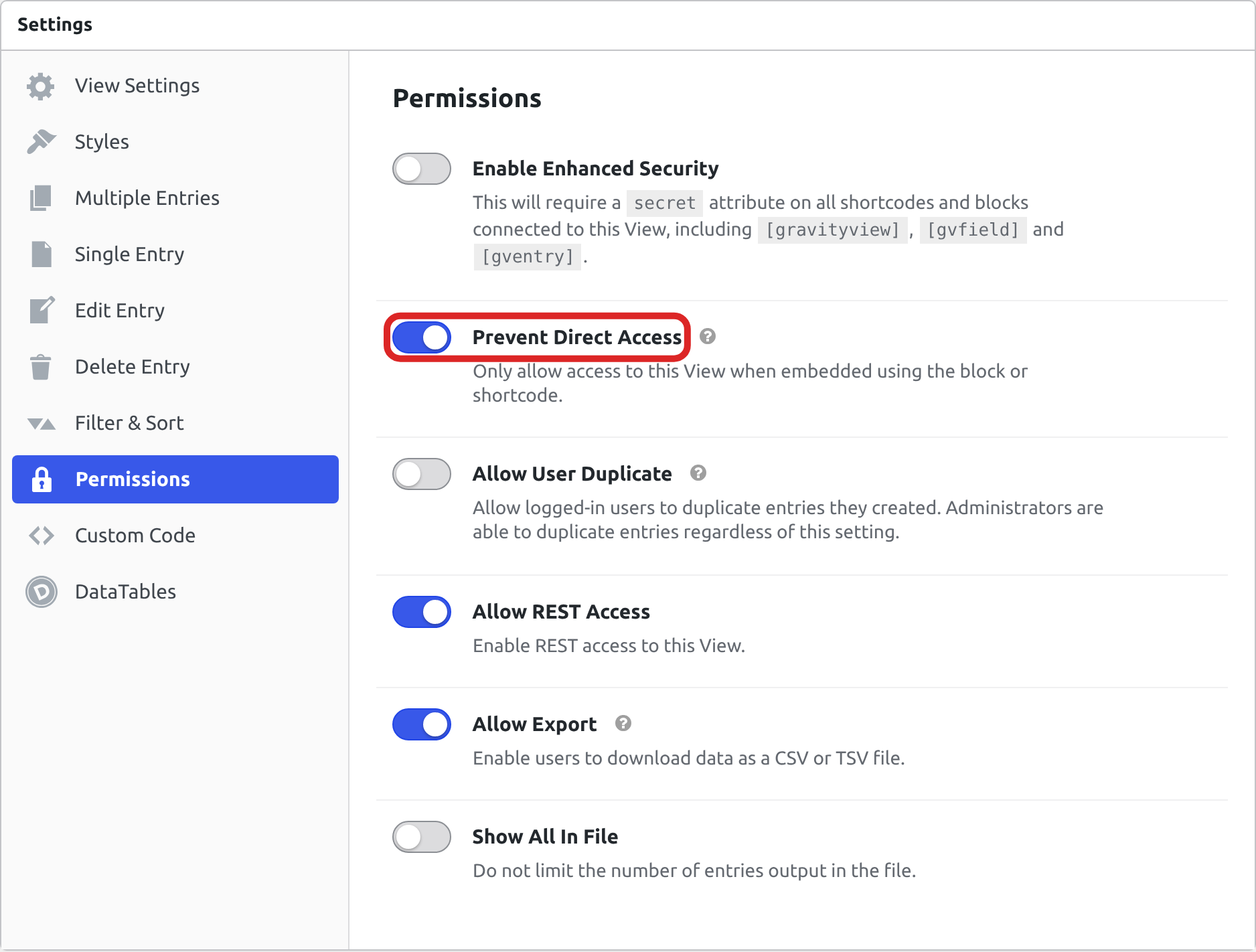
The View keeps working where you embed it with the GravityView block or the [gravityview] shortcode. At its own URL, visitors and search engines get your theme’s 404 page, the same as for an address that does not exist.
The setting closes the View’s other public routes too. Its REST API endpoints answer 403, its CSV and TSV export URLs answer 404, and WordPress’s oEmbed endpoint answers 404 for it. The Export Link widget is hidden from visitors on the embedding page as well, because their download would be refused.
The setting is per View, so a public directory on the same site is unaffected. With it on, visitors can open the View’s entries in a lightbox only on pages that embed the View.
Administrators and editors still see the View at its own URL while signed in, so check the setting from a private browser window.
Turning it on for every new View
To have Prevent Direct Access on for every View you create from now on, add this snippet:
add_filter( 'gravityview/view/settings/defaults', function ( $defaults ) {
    $defaults['embed_only']['value'] = true;

    return $defaults;
} );Existing Views keep the value they were saved with, so turn the setting on for each of them. Modifying the Default View Settings lists the other settings this filter can change.
Deciding in code instead
To block Views by your own rules instead of the setting, use the gravityview/view/output/direct filter. When your callback returns false, GravityView blocks the View’s own URL and the same routes the setting closes. This example blocks the View with ID 123:
add_filter( 'gravityview/view/output/direct', function ( $allowed, $view, $request ) {
    return $view && 123 === $view->ID ? false : $allowed;
}, 10, 3 );A View blocked here still displays where you embed it with the block or shortcode, and its lightbox links open the entry there. On any other page, a [gv_entry_link] lightbox link to one of its entries shows “The requested entry could not be found.” Administrators get the same message.
Older snippets use the gravityview_direct_access filter instead. It still blocks the View, but while WP_DEBUG is on, GravityView shows a deprecation notice on the WordPress Dashboard. Move the code to gravityview/view/output/direct, whose callback receives the View object in place of its ID. Deprecated and renamed hooks lists every renamed GravityView hook.
Read here how to add these code samples to your website: Where to put code samples.
Keep Views out of your sitemap #
An XML sitemap lists your site’s URLs for search engines, Views included, whether or not anything links to them. GravityView leaves Views with Prevent Direct Access on out of the sitemap WordPress generates.
When an SEO plugin generates your sitemap instead, install Social Sharing & SEO 3.4 or newer. It does the same for the sitemaps of Yoast SEO, Rank Math, All in One SEO, SEOPress, The SEO Framework, Slim SEO, Jetpack, and SmartCrawl. Without the extension, Yoast SEO keeps listing the View after its URL stops working.
A View can also stay public at its own URL and still be kept out of search results. In Yoast SEO, the setting for the Views content type does this for every View on the site:
- Go to Yoast SEO, then Settings.
- Under Content types, click Views.
- Turn off Show views in search results.
- Click Save changes.
Yoast then adds noindex to each View’s URL and the entry URLs under it, and drops Views from its sitemap. Pages that embed a View, and their entry pages, are not affected.
Ask crawlers not to fetch entry URLs #
An entry’s page has an address under the page that embeds the View, such as /volunteers/entry/12/, so it stays public when the View’s own URL is blocked. To ask search engines not to crawl entry pages, add these lines to the robots.txt file in your site’s root folder:
User-agent: *
Disallow: /*/entry/
Disallow: /entry/The second Disallow line covers a View embedded on your home page, whose entries are at /entry/12/. If you changed the Entry Endpoint in GravityView’s permalink settings, use your endpoint in place of entry. Customizing View URLs shows where that setting is.
When the root folder has no robots.txt file, WordPress generates one. A file you create replaces it, so first copy in the lines WordPress shows at /robots.txt on your site.
Warning: Search engines that follow robots.txt skip these pages, but anyone can still open them, and the file is public, so it shows the paths you want hidden. Google’s introduction to robots.txt says a blocked URL that other pages link to can still appear in its results, without a description. For data that must stay private, limit who can see the entries, for example by showing only entries created by the logged-in user.

