
Adding a company logo to DataTables PDF exports
A PDF exported from a DataTables View holds a title and the table, but no logo. The snippet on this page adds your logo to the top of the first page. The steps below assume the View uses the DataTables layout and has Enable Buttons and PDF checked in the Buttons section of the DataTables tab, in the View’s Settings box.
Step 1: Copy the address of your logo #
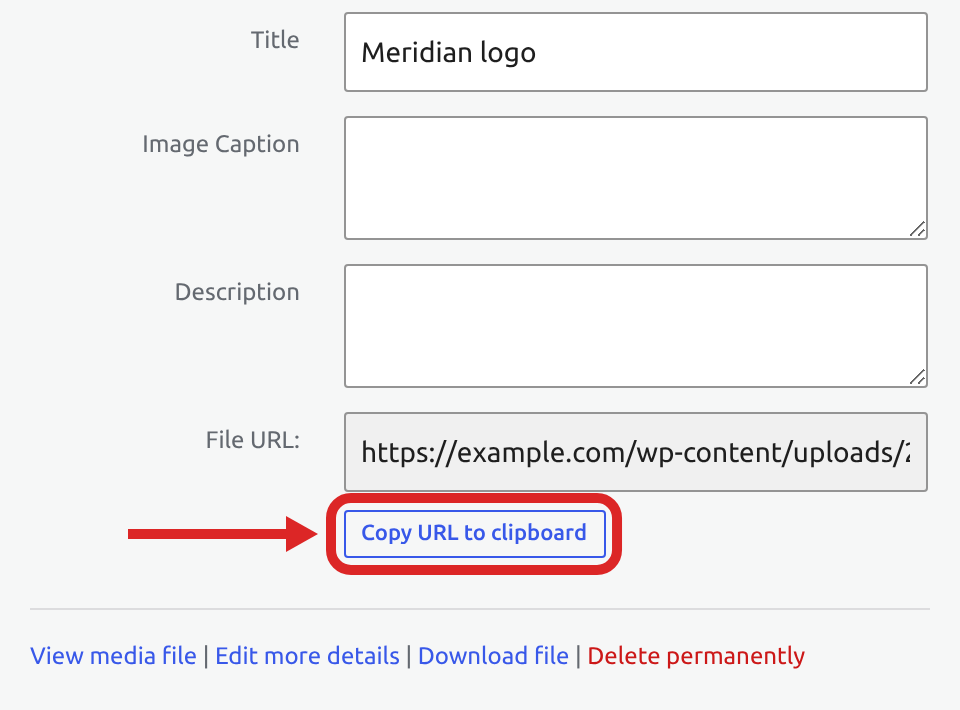
- Go to Media, then Library. If your logo is not there yet, click Add Media File and upload it as a PNG or JPEG file.
- Click the logo to open its Attachment details.
- Click Copy URL to clipboard.
Step 2: Add the snippet to the View #
- Edit the View.
- In the Settings box, click the Custom Code tab.
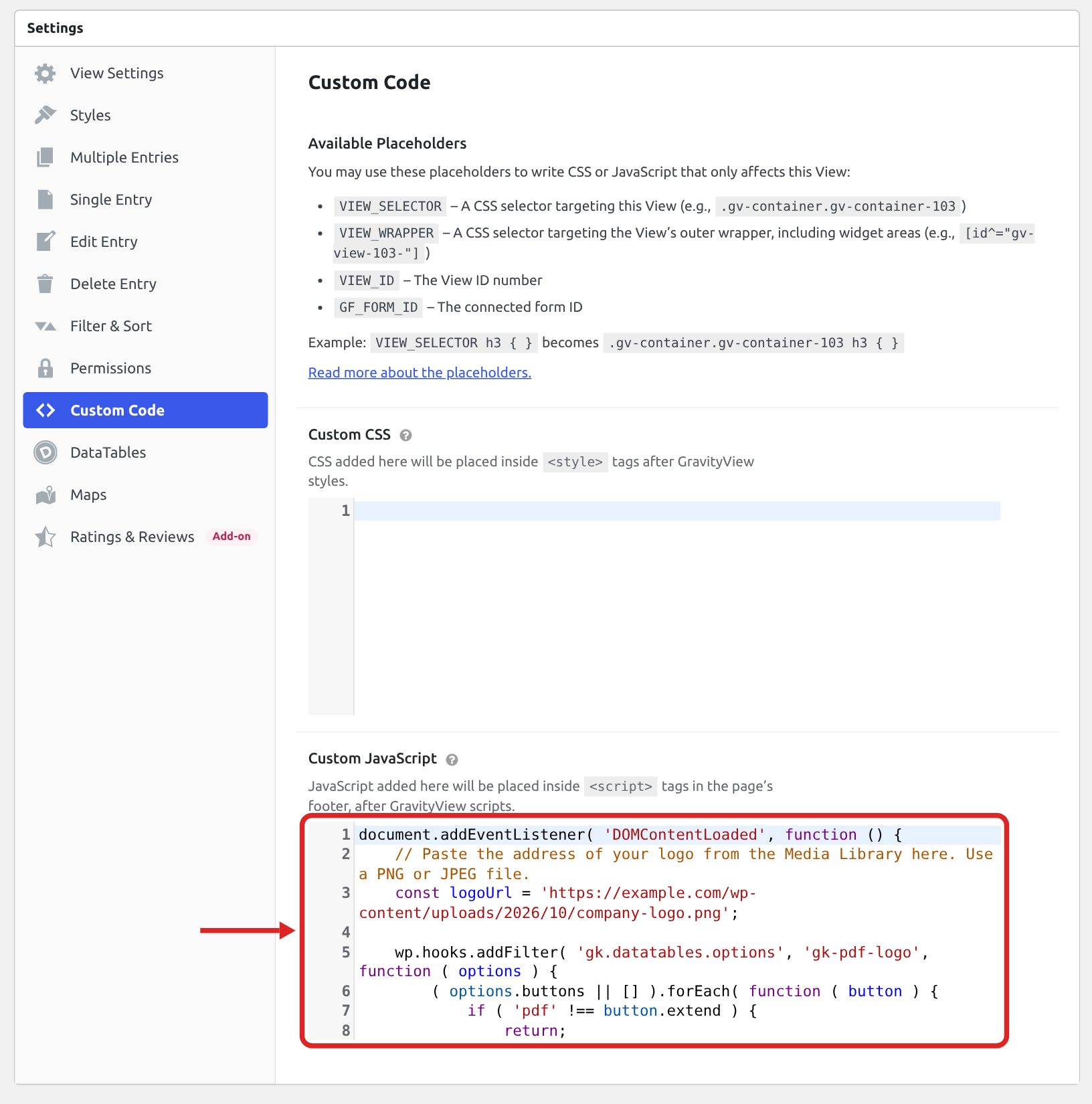
- Paste the snippet below into Custom JavaScript.
- In the line that starts with
const logoUrl, replace the example address with the address of your logo. Keep the quotes around it. - Click Update.
document.addEventListener( 'DOMContentLoaded', function () {
    // Paste the address of your logo from the Media Library here. Use a PNG or JPEG file.
    const logoUrl = 'https://example.com/wp-content/uploads/2026/10/company-logo.png';

    wp.hooks.addFilter( 'gk.datatables.options', 'gk-pdf-logo', function ( options ) {
        ( options.buttons || [] ).forEach( function ( button ) {
            if ( 'pdf' !== button.extend ) {
                return;
            }

            const previousCustomize = button.customize;

            button.customize = function ( doc, config, dt ) {
                if ( previousCustomize ) {
                    previousCustomize( doc, config, dt );
                }

                // The PDF library downloads the logo from this address when it builds the file.
                doc.images = doc.images || {};
                doc.images.companyLogo = logoUrl;

                // Add the logo at the top of the first page, 150 points wide.
                doc.content.unshift( {
                    image: 'companyLogo',
                    width: 150,
                    alignment: 'center',
                    margin: [ 0, 0, 0, 12 ],
                } );
            };
        } );

        return options;
    } );
} );Note: Adding custom JavaScript to your Views explains how the Custom JavaScript field works.
Step 3: Export a PDF #
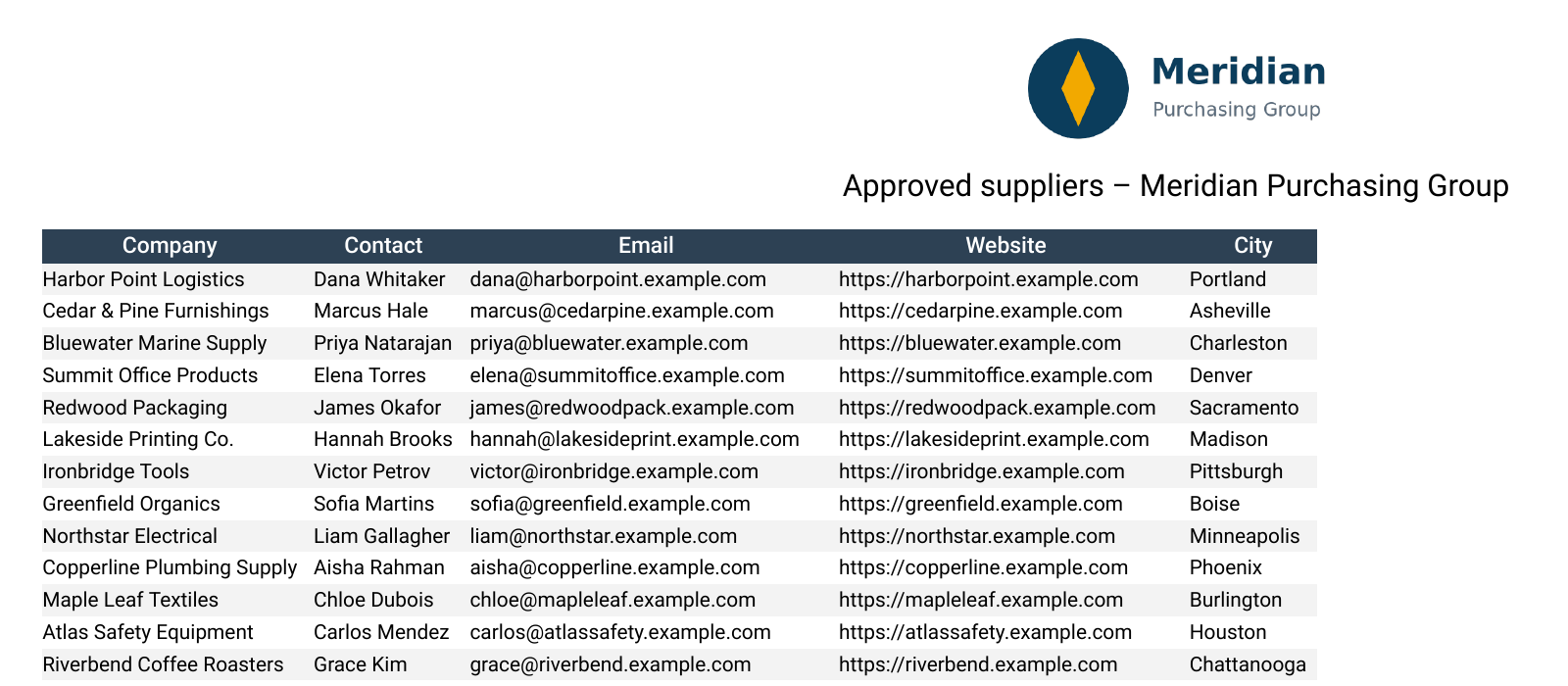
Open the page that shows the View and click PDF. The logo is centered at the top of the first page, above the title.
Changing the size and position of the logo #
width: 150is the width of the logo in points (a point is 1/72 of an inch). The height is set to match, so the logo keeps its proportions.alignmenttakes'left','center', or'right'.margin: [ 0, 0, 0, 12 ]is the space around the logo in points, in the order left, top, right, and bottom.- To place the logo under the title, change
doc.content.unshift( {todoc.content.splice( 1, 0, {.
If the PDF does not download #
- The logo must be a PNG or JPEG file. A logo in another format, such as WebP, stops the PDF from downloading.
- Use a logo from the Media Library of the site that shows the View. The browser can block a logo stored on another site, and then no PDF downloads.
Using this snippet with the other PDF snippets #
This snippet works together with the ones in Showing images in DataTables PDF exports and Making links clickable in DataTables PDF exports. Paste them one after another in the same Custom JavaScript field, in any order.

