
Getting started with the DIY Layout
The DIY Layout gives you control of the HTML around each field in a View: the tag that wraps the field’s value, and your own HTML before and after it. Your theme’s CSS, or the View’s Custom CSS, then gives the View its look.
Note: The DIY Layout is included with GravityView Pro and the GravityKit All Access Pass. It is not included with a standalone GravityView license.
Installing the DIY Layout #
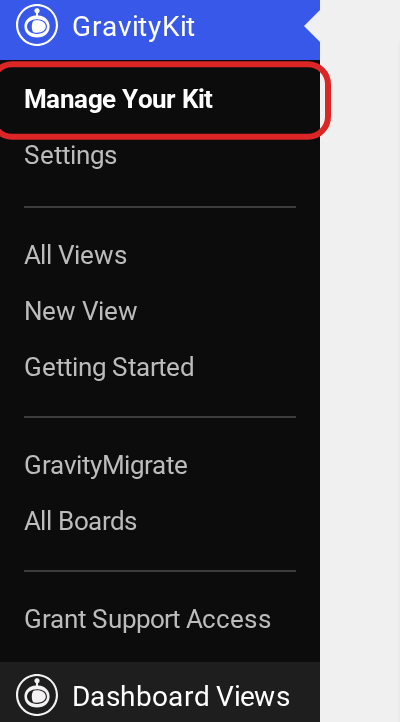
In WordPress, go to GravityKit, then Manage Your Kit.
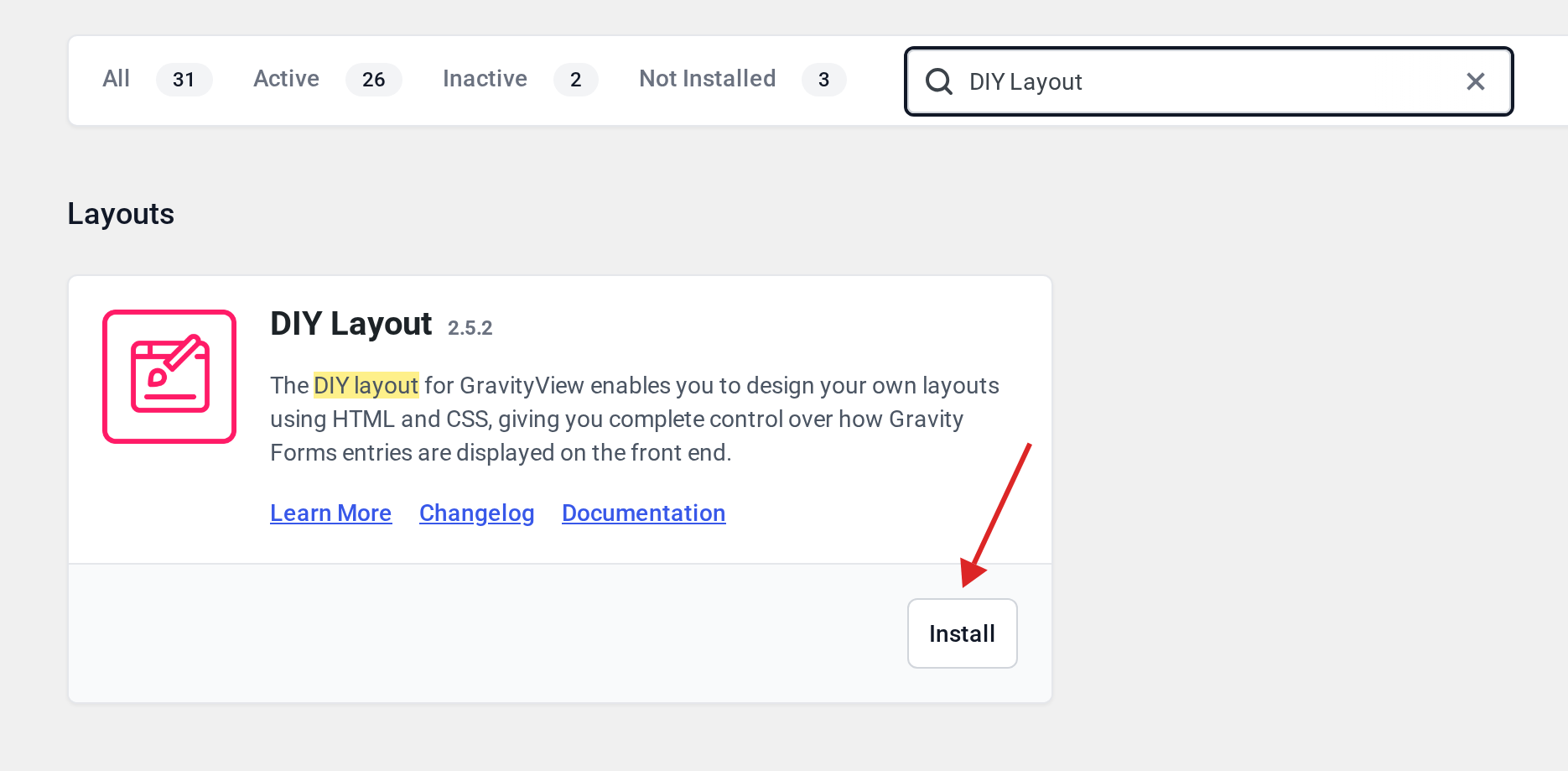
Find DIY Layout under Layouts and click Install. The search box at the top of the list finds it quickly.
Creating a View with the DIY Layout #
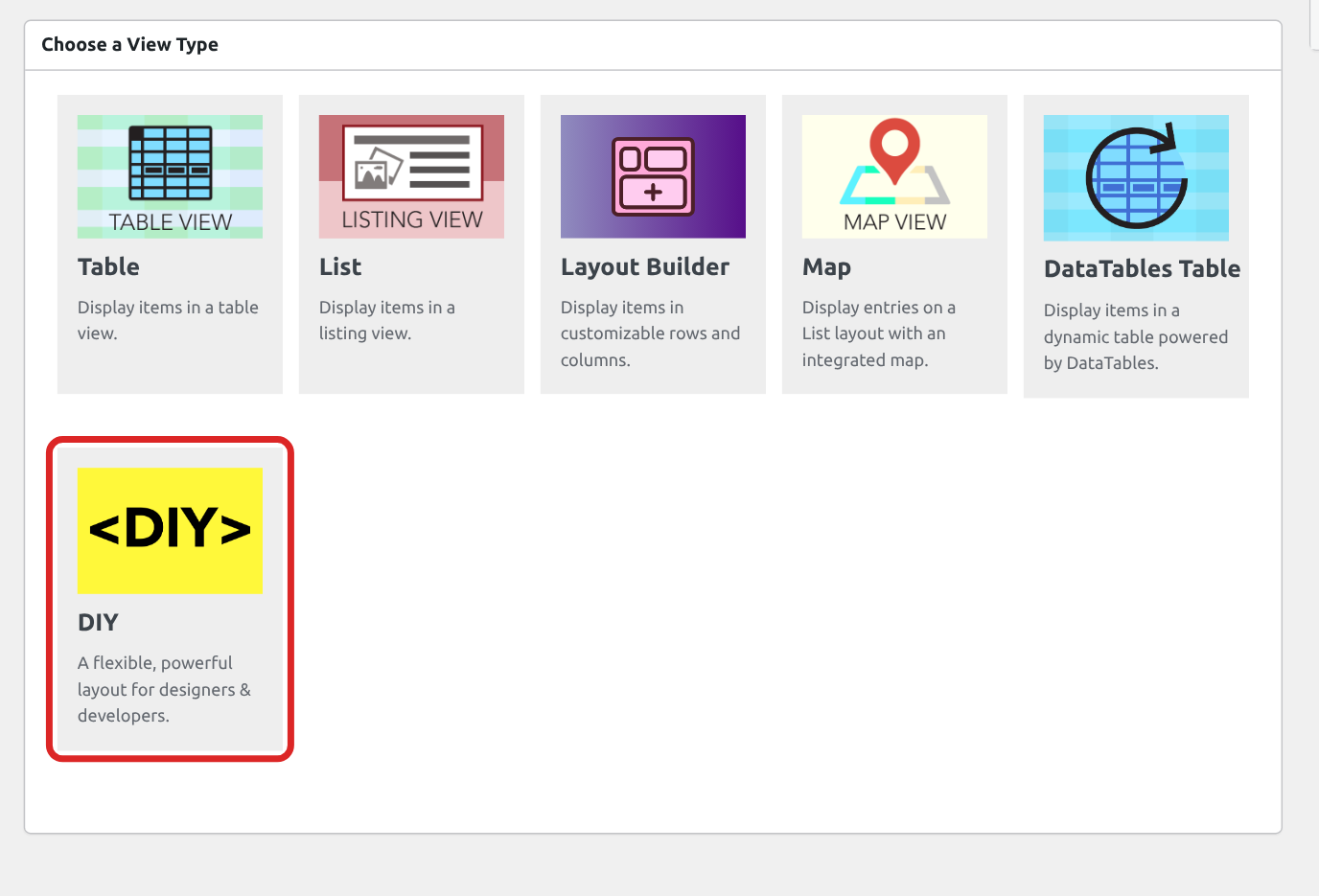
Go to GravityKit, then New View. Name the View, choose a form under Data Source, and select DIY under Choose a View Type.
Add fields as you would on any other layout. DIY prints no field labels on the page. Instead, each field has an Admin Label, which names the field in the View editor only.
Wrapping a field in your own HTML #
Open a field’s settings with the gear icon next to it. Under Display, three settings shape the field’s HTML:
- Before Output: HTML and merge tags printed before the field, outside the Container Tag.
- Container Tag: the HTML tag that wraps the field’s value, from DIV, BLOCKQUOTE, PRE, H1 to H4, and P, or None for no wrapper. An Address field also offers ADDRESS. The field’s Custom CSS Class goes on this tag.
- After Output: HTML and merge tags printed after the field, outside the Container Tag.
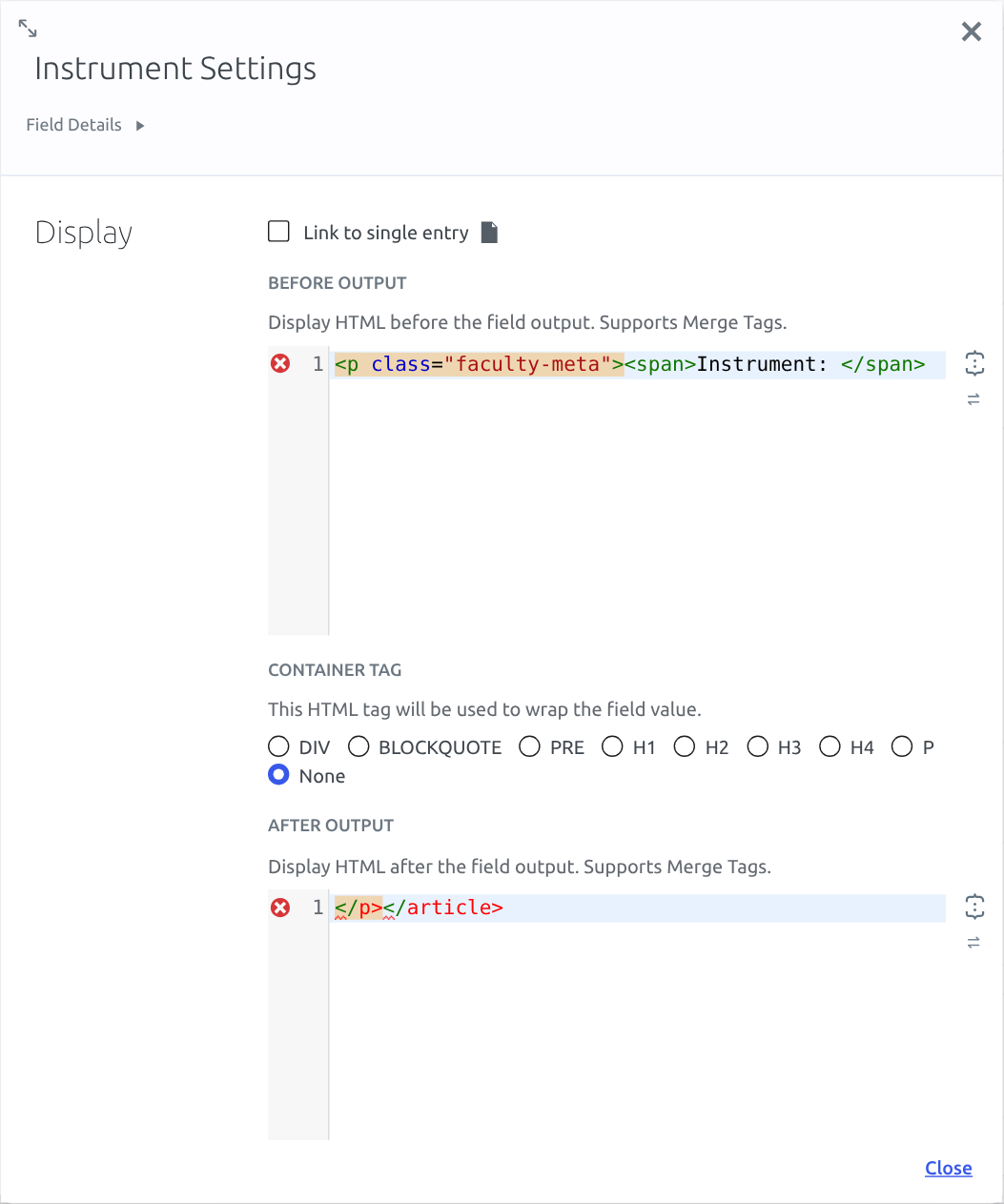
In this example, the Name field opens a card and the Instrument field closes it. The Name field has Before Output set to <article class="faculty-card">, Container Tag set to H3, and Custom CSS Class set to faculty-name. The Instrument field is set as shown above. Each entry then prints this HTML, with line breaks added here:
<article class="faculty-card">
  <h3 class="faculty-name gv-field-1-1">Maria Lindqvist</h3>
  <p class="faculty-meta"><span>Instrument: </span>Cello</p>
</article>On the Edit Entry tab, DIY adds only a Container Tag, and only to the Custom Content field.
What to watch for
- When a field is empty, its Before Output and After Output are left out too. If a card opens in one field and closes in another, an empty field leaves the card open, so put that HTML on fields that always have a value.
- Spaces at the start and end of Before Output and After Output are removed. To keep a space, put it inside a tag, as in
<span>Instrument: </span>. - Shortcodes in Before Output and After Output print as plain text. To place a shortcode, add a Custom Content field, which runs shortcodes and has its own Container Tag.
- When you type an opening tag such as
<div>into either box, the box adds the closing tag for you, and a typed</becomes</>. Delete what the box added, or paste your HTML in, which keeps it as written. - A tag opened in one box and closed in another gets a red mark in both boxes. The View still saves and prints the HTML as written.

