
Controlling column widths and pinning columns in DataTables
A DataTables View gives every column an equal-ish share of the table by default, sized to whatever the data happens to be. Three field settings let you take over: how wide a column is, whether it stays on screen while the table scrolls sideways, and how early it disappears on a narrow screen.
All three live in the same place. In the View editor, hover a field in Table Columns and click the gear icon.
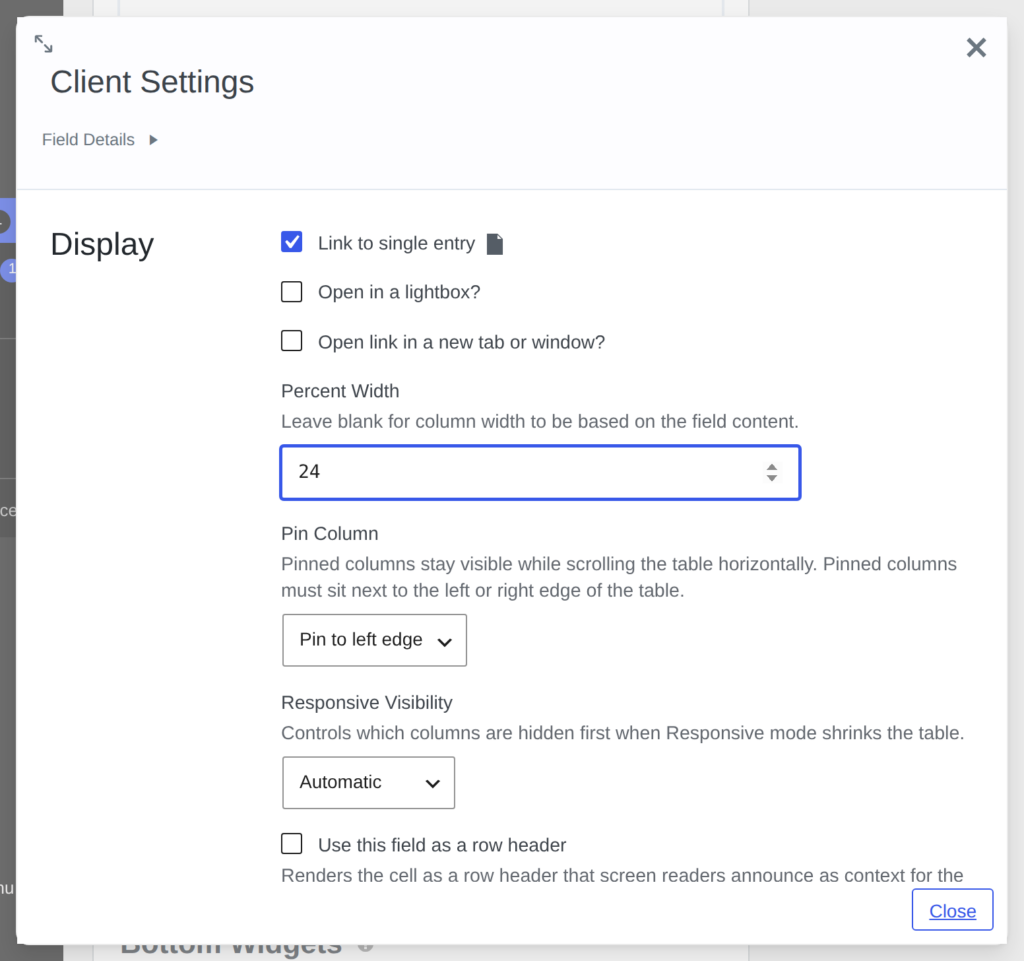
Percent Width #
Enter a number from 1 to 100. It is a share of the table, not a pixel measurement, so a column set to 25 aims for a quarter of the table’s width whatever the visitor’s screen size.
Leave a field blank and it sizes to its content. If you set widths on some columns and not others, the ones you left blank share whatever width is left over, evenly.
When your percentages do not add up to 100
- Under 100, with blank columns: the blank columns divide the remainder between them.
- Under 100, with no blank columns: your columns are scaled up proportionally to fill the table. The ratios you set are kept.
- Over 100: the same thing in reverse. Setting 60, 60 and 60 gives you three equal columns, because the ratios are what matter, not the total.
When a column is too narrow for what is in it
A Percent Width is the share of the table a column aims for, not a width it is held to, so you can ask for a column narrower than the values it holds. What happens then is decided by the Column Widths setting on the DataTables tab of the View settings, added in DataTables 3.13:
- Widen the table and scroll sideways (the default) keeps every value readable. Rather than splitting a date across two lines, the table widens itself enough to fit and the page scrolls sideways. Your ratios are unchanged: each column still takes its share, of a wider table.
- Keep the column at its set width holds your configured widths at any screen size, so your percentages are honored exactly, even when a wider value overlaps the next column.
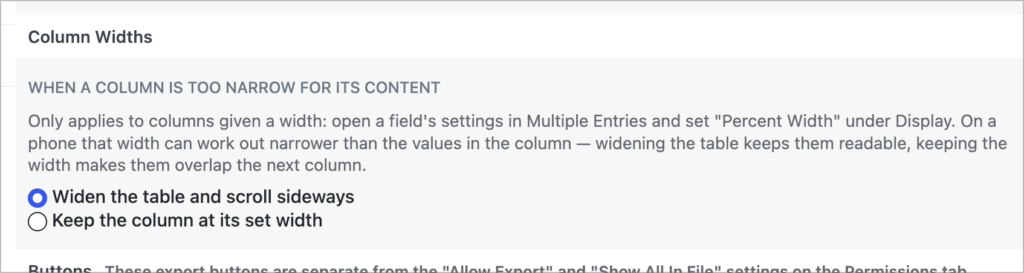
There is a limit to the widening. A single very long value, such as a full URL, is left to wrap instead, because widening the table enough to fit it would leave every other column mostly empty.
If you would rather a column never scrolled, give it a larger percentage, shorten what it displays, or switch Column Widths to “Keep the column at its set width”.
Pin Column #
Pinning keeps a column on screen while the rest of the table scrolls sideways, so the row you are reading stays identifiable. It is most useful on a name or reference column.

Choose Pin to left edge or Pin to right edge. You can pin several columns to the same edge, and you can pin to both edges at once.
A pinned column has to reach the edge of the table. Pinning the third of five columns to the left does nothing unless the first two are pinned as well, because there is no way to hold it in place without holding everything to its left. The View editor warns you when a pin cannot take effect.
Responsive Visibility #
This applies only when Responsive is enabled for the View. Responsive mode hides columns on narrow screens and moves them into an expandable row, and this setting decides the order columns are given up in.
- Automatic leaves the decision to the table.
- Hide first gives this column up before the others.
- Hide last keeps it as long as possible.
- Never hide keeps it on screen at every size.
Responsive and pinning do not combine. They solve the same problem in opposite ways: one hides columns to fit the screen, the other keeps the table wide and scrolls it. With Responsive enabled, a pinned column is treated as one to keep visible longest rather than one to freeze in place.
Things worth knowing #
- Widths apply to the table columns only. They do not affect the single entry page.
- A View with no widths set behaves exactly as it did before, sized to its content.
- Long unbroken values such as URLs wrap onto several lines rather than being cut off.
- Percent Width, Pin Column and Responsive Visibility require DataTables 3.11 or newer.
- The Column Widths setting requires DataTables 3.13 or newer.

