
How to Setup the Ratings & Reviews Extension
In this article, we’ll show you how to get set up with the Ratings & Reviews extension.
Prefer to Watch the Video?
Installing the Ratings and Reviews Extension #
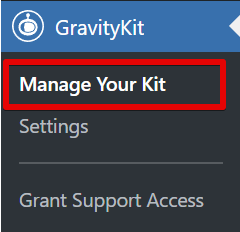
You can install the Ratings & Reviews extension from inside WordPress. First, hover over “GravityKit” and click on the “Manage Your Kit” link.
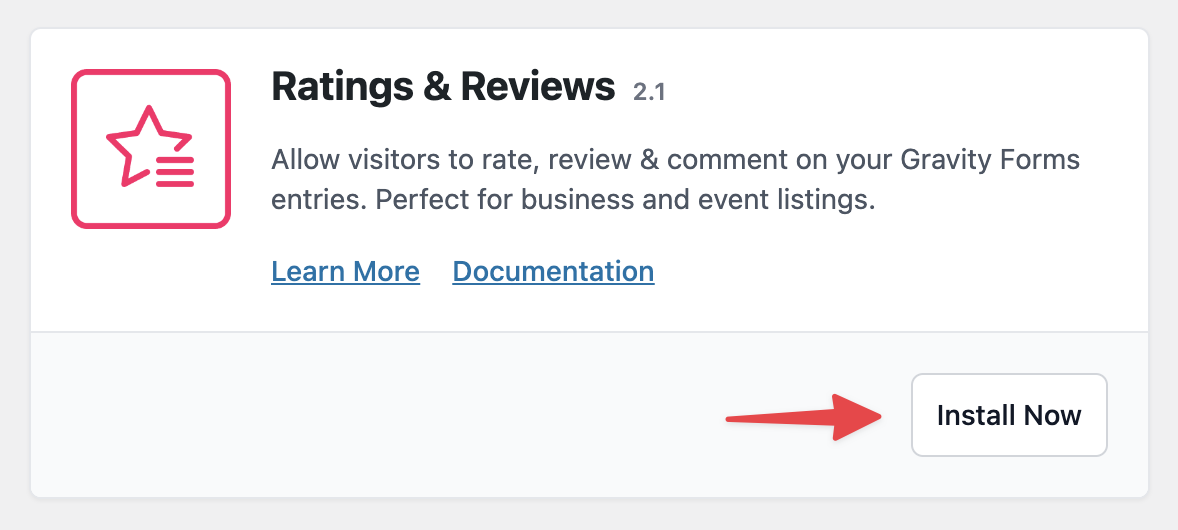
Now, scroll down to “Ratings & Reviews” (under “Extensions”) and click “Install Now”.
Allow WordPress Comments #
Ratings & Reviews uses the WordPress comment functionality, so for it to work correctly, you’ll need to enable comments in the WordPress settings.
To do this, hover over Settings in the left-hand menu and click Discussion. Now check the box that says, “Allow people to submit comments on new posts”.

Enable Reviews and Choose a Rating Type #
Open your View editor, scroll down to the View Settings and click on the Ratings & Reviews tab. To enable entry reviews, check the box that says “Enable entry reviews”.
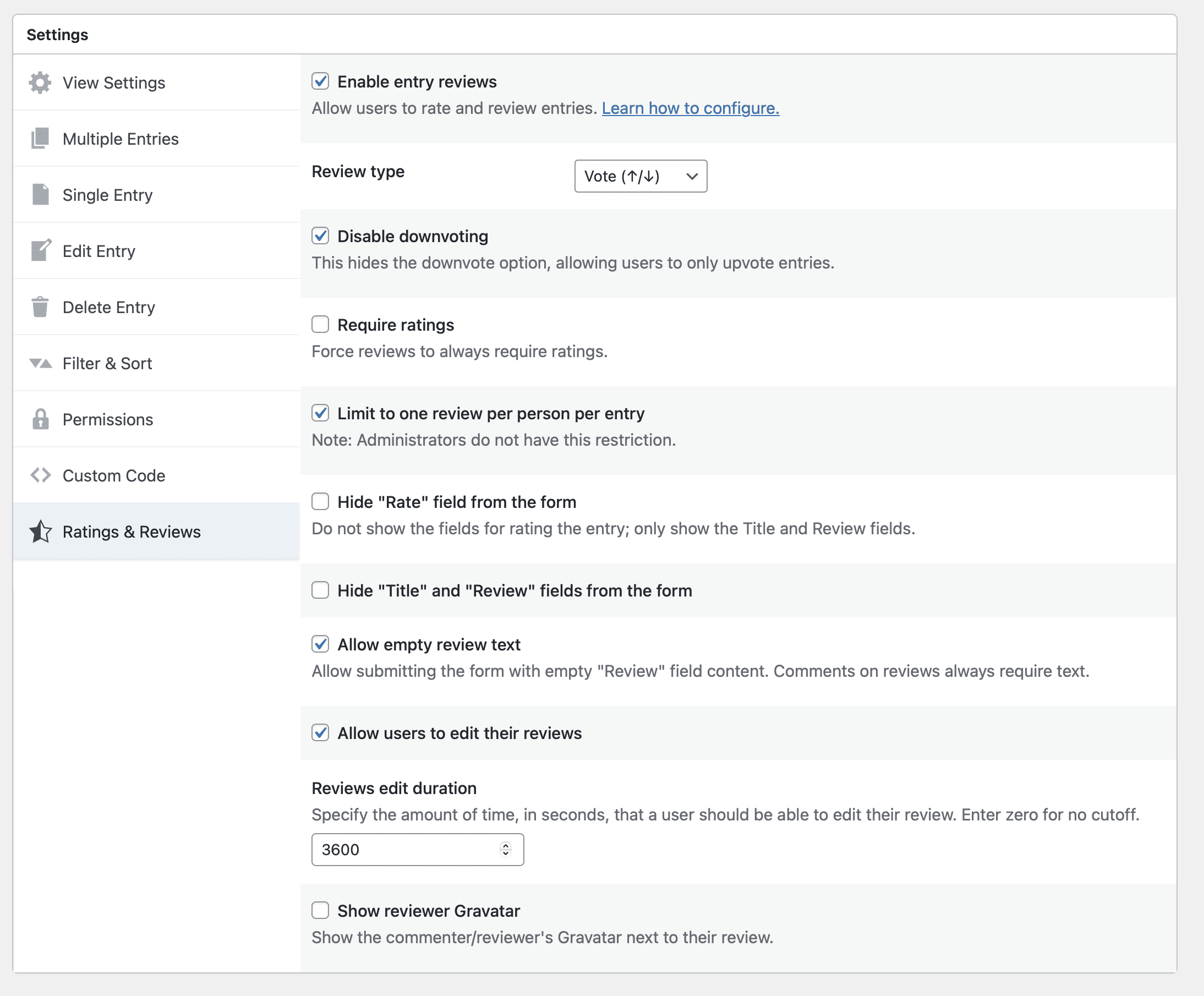
Now you can configure the remaining options:
| Setting Name | Description | Default |
|---|---|---|
| Review type | Switches the rating system between “5-Star Rating” or “Vote”. “Stars” shows a 5-star rating scale. “Vote” shows arrows for up-voting and down-voting. | 5-Star Rating |
| Disable downvoting | Shown when “Review type” is set to “Vote”. When enabled, hides the downvote option and only shows the option to upvote. | False |
| Require ratings | Forces reviews to always require ratings. | False |
| Limit to one review per person per entry | Limits a single person to one vote per entry. Note: Administrators are not bound by this limitation. | True |
| Hide ratings fields | Enabling this will hide the rating fields so users can only post text reviews. | |
| Hide title and description fields | Enabling this will hide the rating fields so users can only post text reviews. | |
| Allow empty review text | Note: enable this option when using “Vote” review type. | |
| Allow users to edit their reviews | Allows users to change their review or rating after submission. | False |
| Reviews edit duration | Specify the amount of time, in seconds, that a user should be able to edit their review. Enter zero for no cutoff. Some common values:
| 3600 (1 day) |
| Show reviewer Gravatar | Shows the commenter/reviewer’s Gravatar next to their review. | False |
When you’re done, you can start adding rating and review fields to your View layout.
Add Rating and Review Fields to Your View #
The Ratings & Reviews extension adds four new fields to GravityView:
- Rate Entry – Allows users to rate an entry on the Multiple Entries page.
- Stars Rating – Display the entry’s star rating (out of 5). This is an average of all the star ratings.
- Votes Rating – Display the entry’s aggregate up/down rating.
- Reviews Link – Display ratings and a link to review the entry.
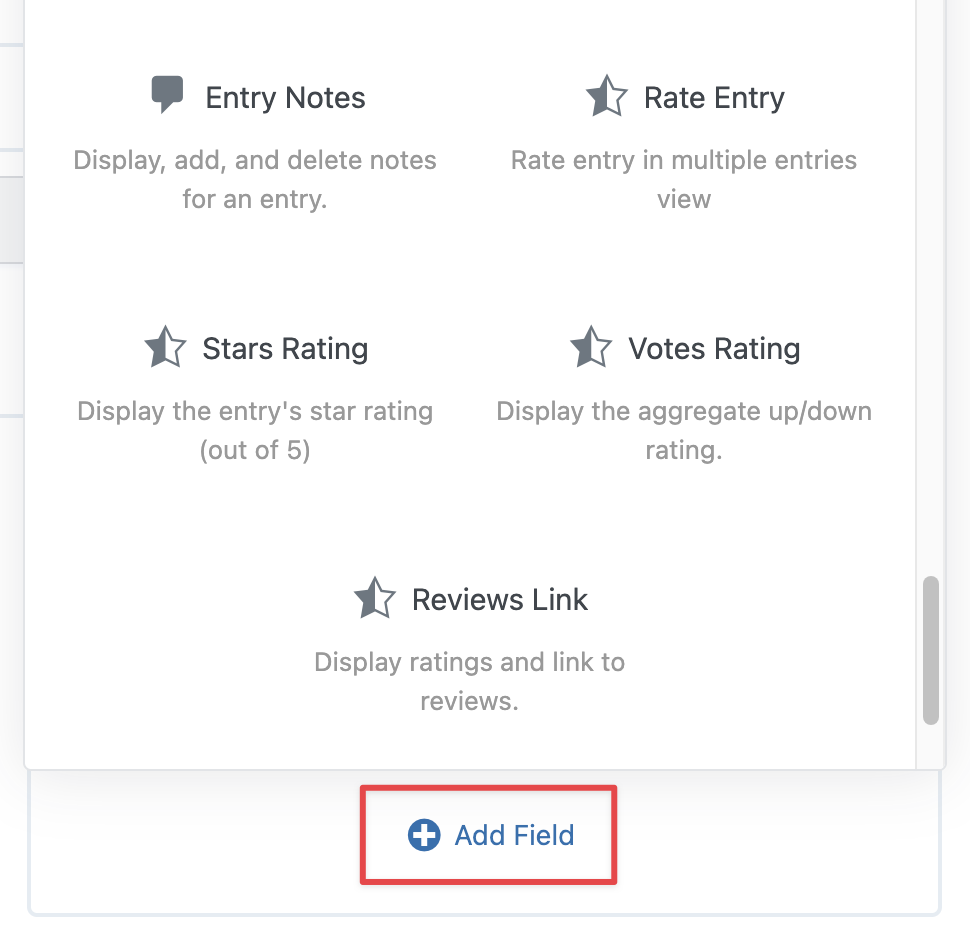
To add one of these fields to your View, simply click the “Add Field” button and select the field you want to add.
Now, on the Single Entry page, you’ll see a review form underneath the entry.
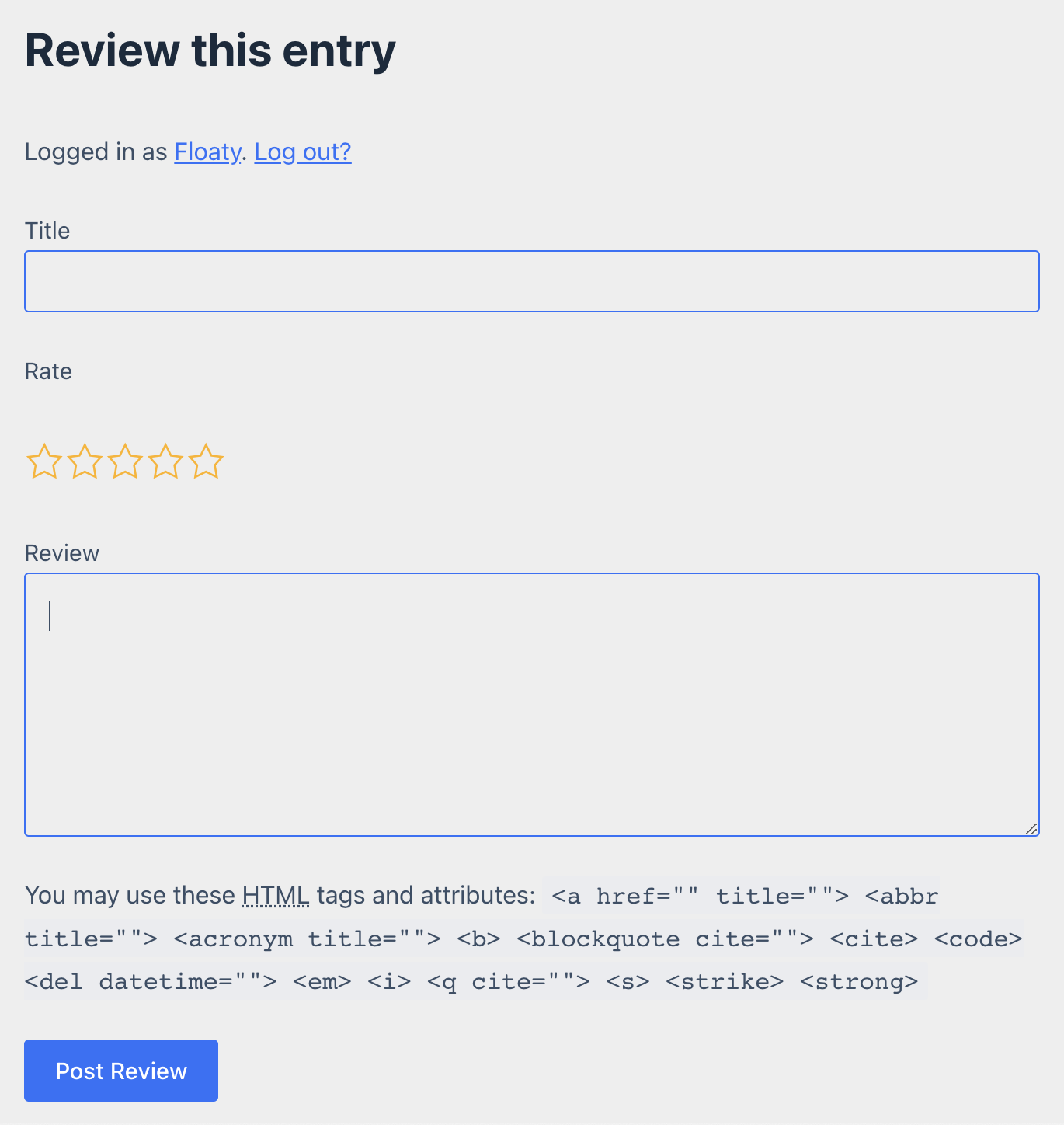
Reviews left by users will appear on the Single Entry page above the form.

That’s it!

