

Field Conditional Logic
Field Conditional Logic shows a field in a View only for the entries that meet the conditions you set. For every other entry, the field shows what you enter in Empty Field Content, such as a placeholder image, or stays empty.
Note: Field Conditional Logic is part of Advanced Filtering, which is built into GravityView Pro. To turn Advanced Filtering on or off, go to Plugins and click Features in the GravityView Pro row.
On a GravityView + Extensions (Legacy) license, Advanced Filtering is a separate plugin. About the “GravityView + Extensions (Legacy)” license shows how to install it.
You set the conditions in the field’s settings in the View editor, with no shortcode. To write conditions inside a field’s content instead, see Using the [gvlogic] shortcode.
Showing a placeholder when a field is empty #
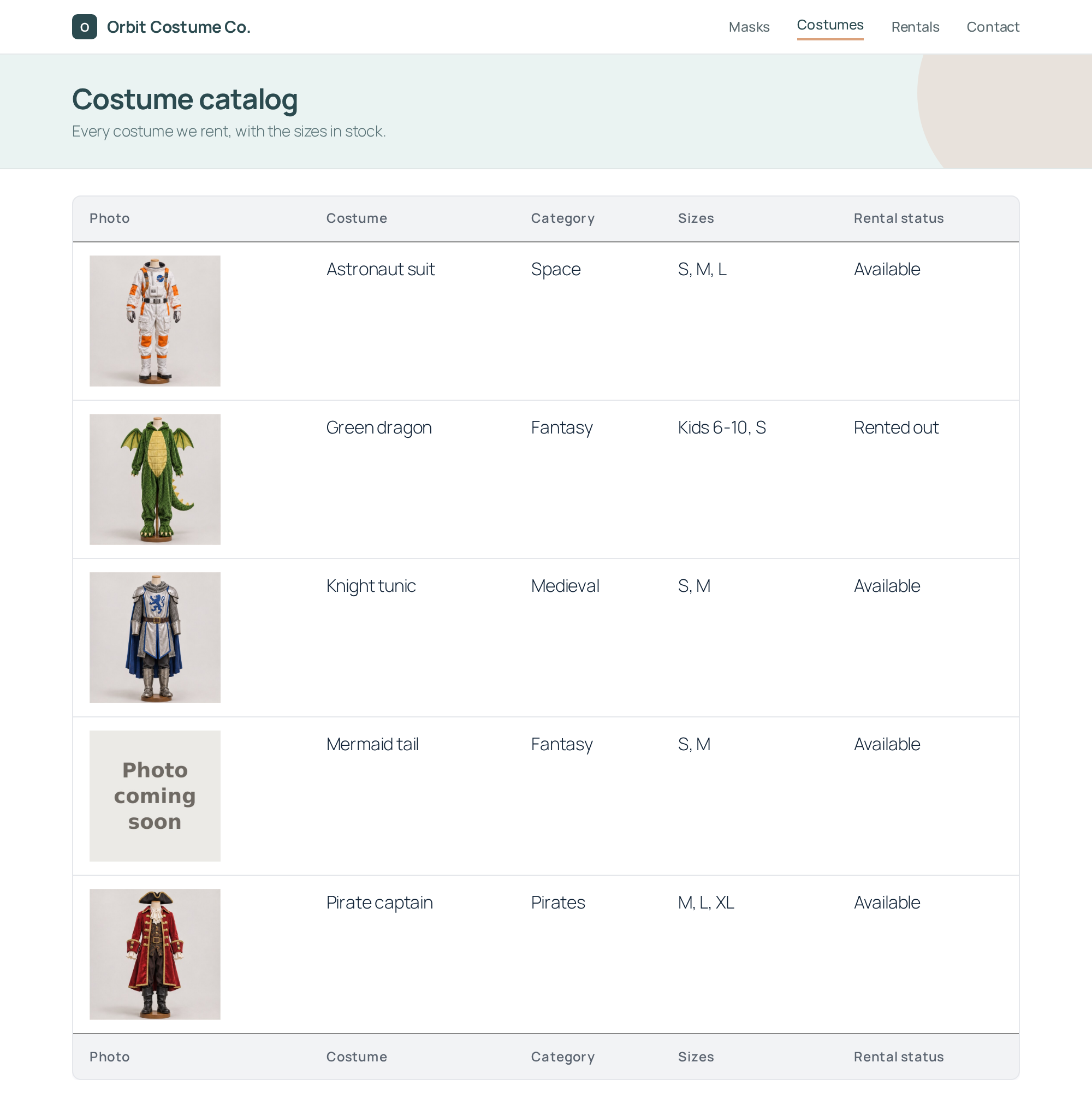
A costume rental shop lists its costumes in a table with a photo of each. One costume has no photo yet, and its cell should show a “Photo coming soon” image instead of a gap.
- Go to GravityKit, then All Views, and click your View’s title.
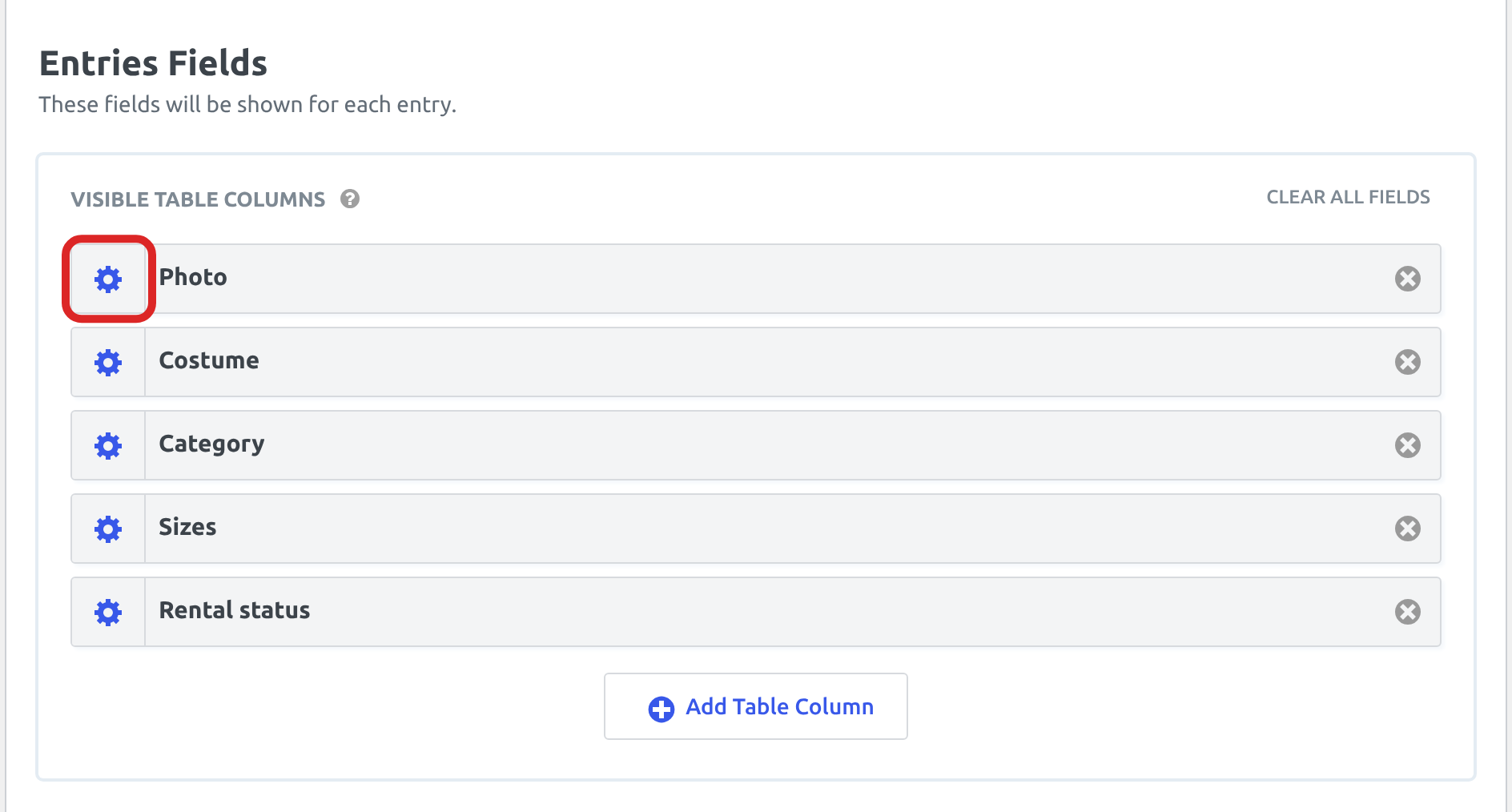
- In the layout, click the gear icon on the field, here Photo.
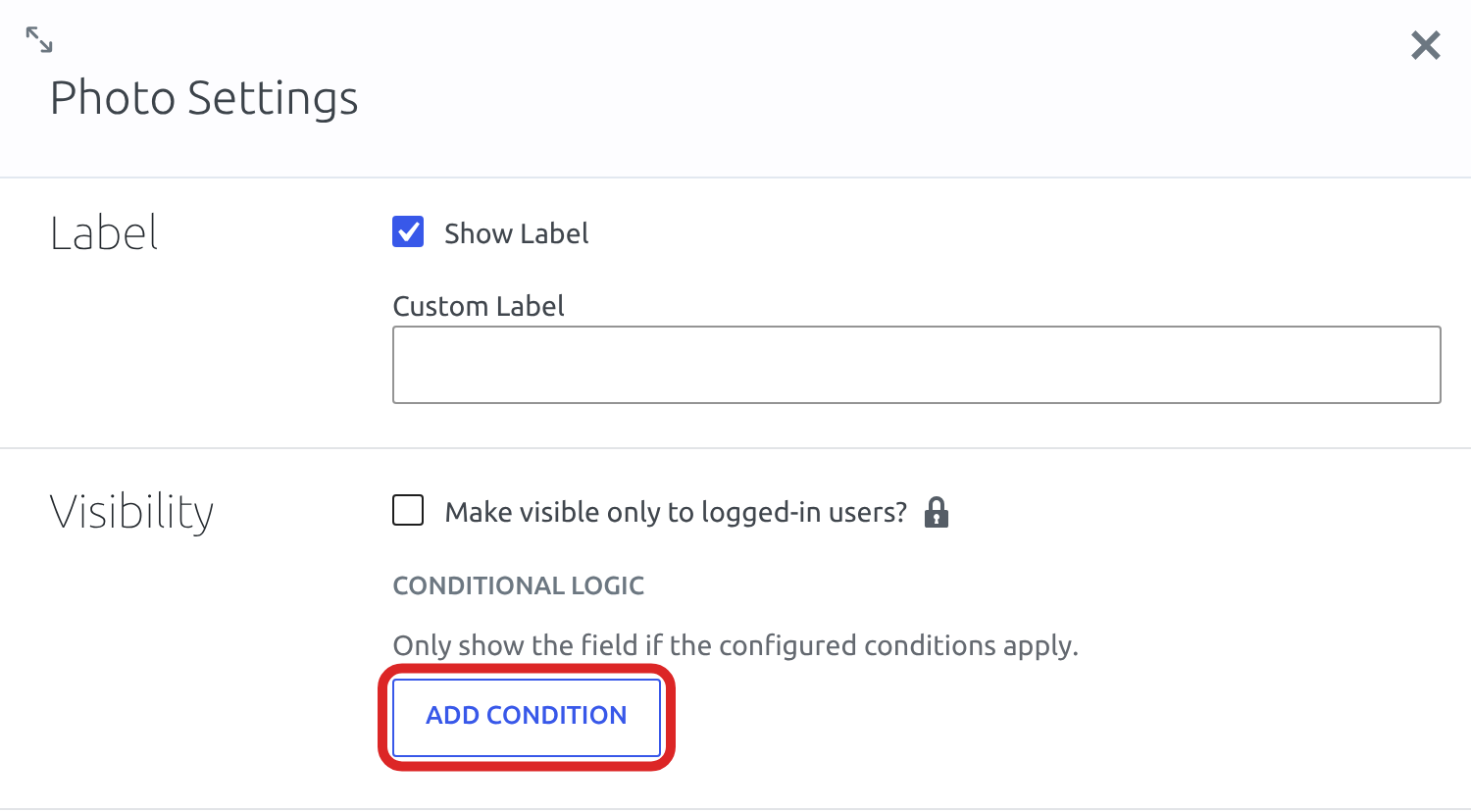
- In the field’s settings, under Visibility, click Add Condition.
- Choose the field and the comparison, here Photo and
is not empty. - In Empty Field Content, enter what entries without a photo show. This image tag shows a placeholder image. Replace the address with your own image’s:
<img src="https://example.com/wp-content/uploads/2026/11/photo-coming-soon.jpg"
     alt="Photo coming soon" width="120">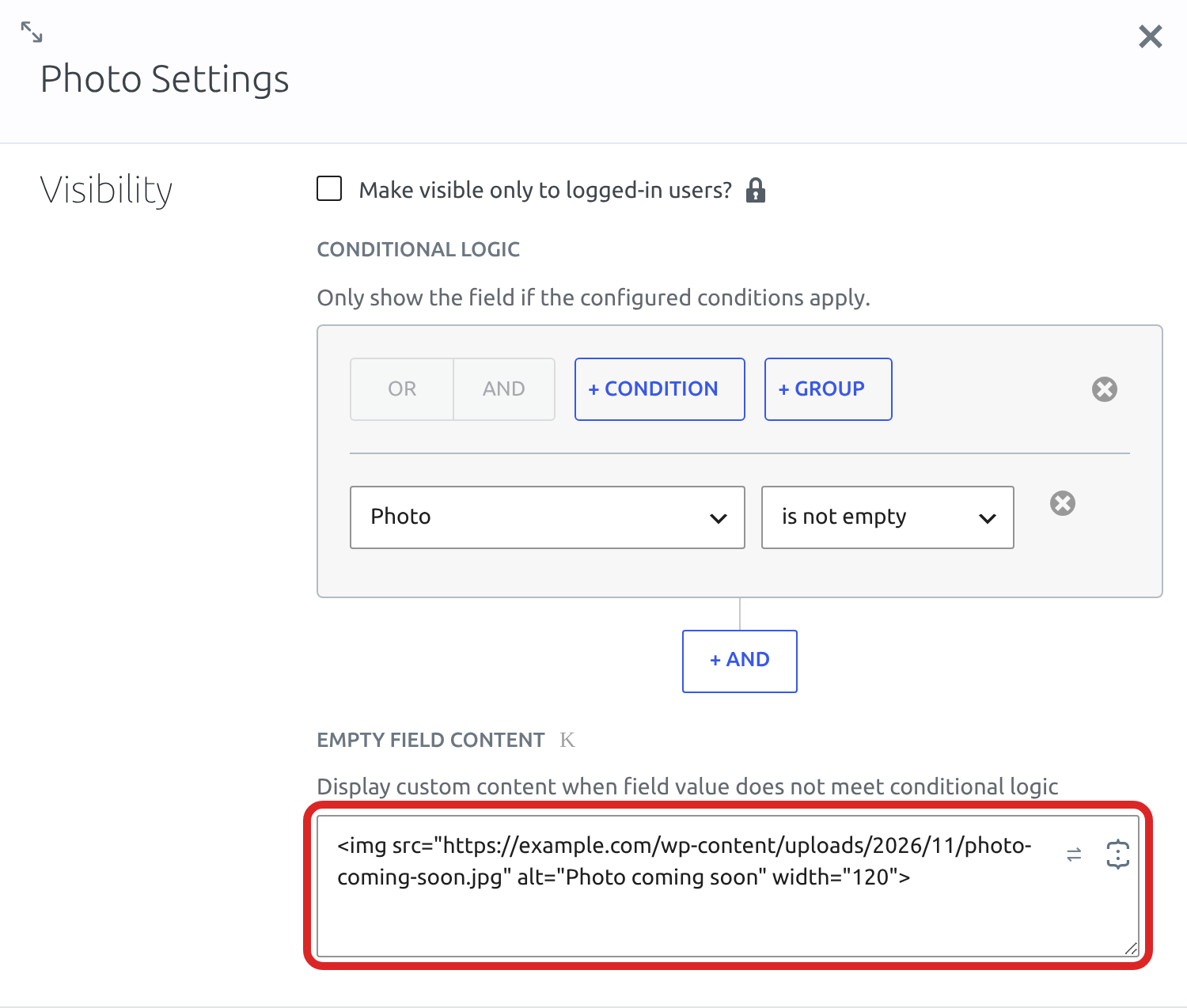
- Close the settings window and click Update to save the View.
Combining conditions #
Each condition compares a field of the entry, or a detail such as Entry Date or Current User Role, with a value. On a date, the value can be Today, Yesterday, Tomorrow, a Custom Date or a Custom Value.
Click + Condition to add another condition to the group. The OR and AND buttons at the top of the group decide how the conditions combine:
- AND: the entry must meet every condition in the group.
- OR: the entry must meet at least one of them. A group uses OR until you click AND.
With AND, Photo is not empty and Rental status is Available show the photo only for the costumes available to rent. Every other costume shows Empty Field Content. Getting started with Advanced Filtering explains groups, which work the same way here.
Entries stay in the View #
Field Conditional Logic changes what one field shows, and the entry stays in the View. When an entry doesn’t meet the conditions, its field is empty or shows Empty Field Content. To leave whole entries out of the View, add the condition to the Advanced Filter setting on the Filter & Sort tab of the View’s Settings box.
Custom Content fields have the same Conditional Logic setting. For a View that joins forms with Multiple Forms, see Using Advanced Filtering with Multiple Forms.