
How to enable radius search
Radius search finds the entries within a chosen distance of an address or of the visitor’s current location. The GravityView Maps Layout adds it to the Search Bar widget as the Geolocation Radius search field.
Before you start #
- If you have not set up the Maps Layout yet, start with Getting Started With the Maps Layout.
- Your View needs a Search Bar widget. To add one, see Configuring the Search Bar widget.
- The View must allow REST API access, or the Geolocation Radius field does not appear on the front end. See Enabling the REST API access.
Step 1: Add the Geolocation Radius search field #
- Edit your View.
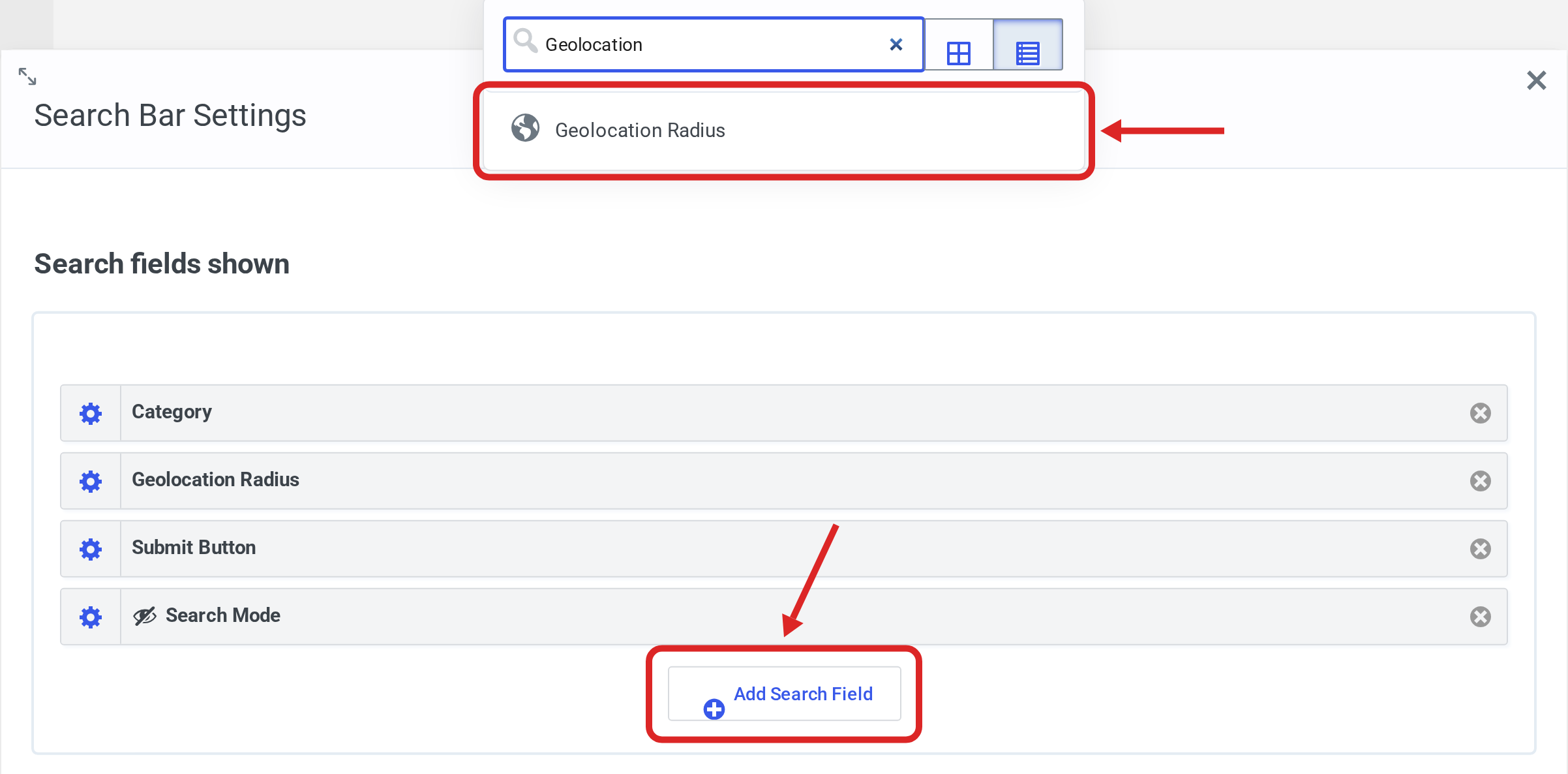
- Click the gear icon to the left of the Search Bar widget label to open Search Bar Settings.
- Under Search fields shown, click Add Search Field and choose Geolocation Radius.
- Close Search Bar Settings.
Step 2: Set the default radius and unit #
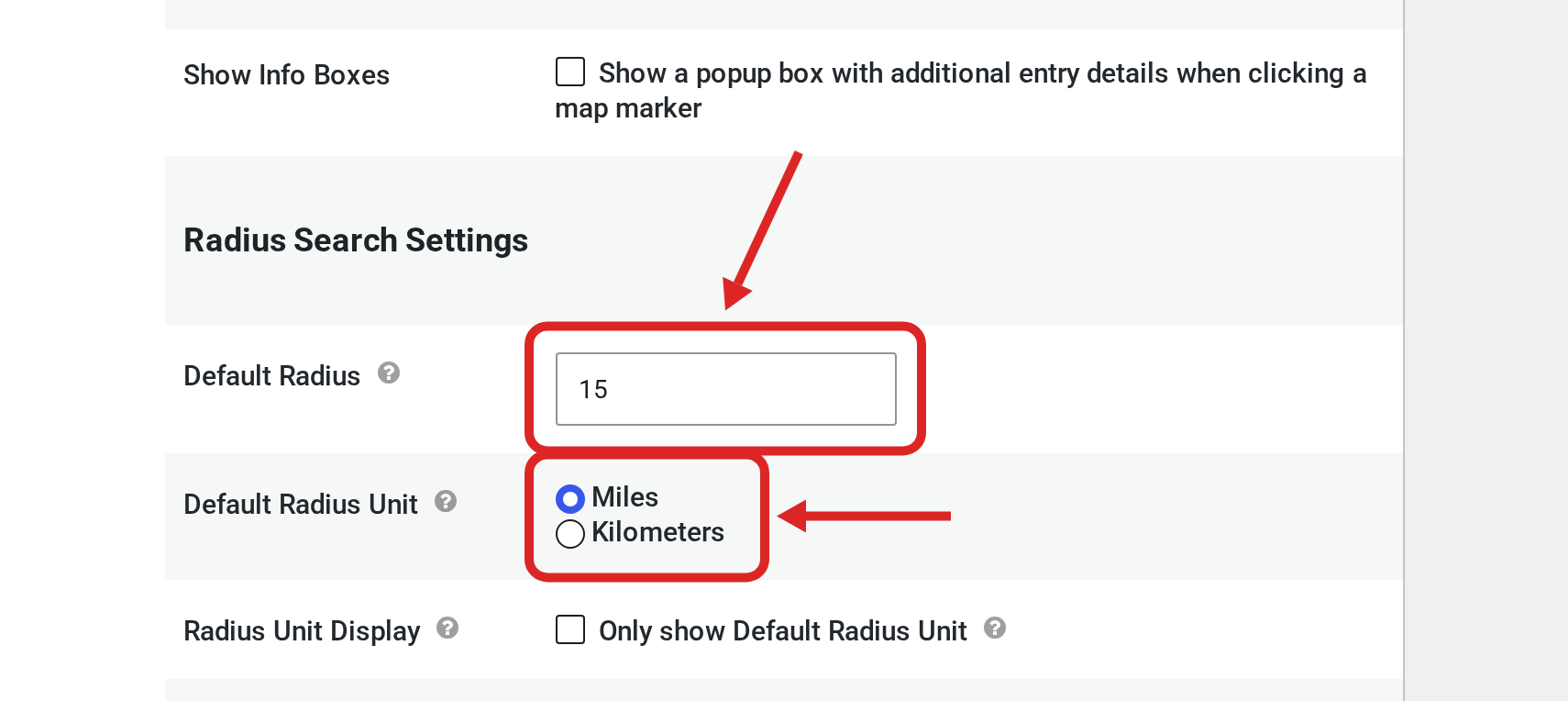
- Scroll to the Settings box and open its Maps tab.
- Under Radius Search Settings, set the Default Radius and the Default Radius Unit.
- Click Update.
Note: The radius list on the front end offers 1, 5, 10, 15, 20, 25, 50, 100, 250, 500 and 1000. Use one of these numbers for Default Radius. With any other number, nothing is preselected and the list shows 1.
Step 3: Search on the front end #
Open the View on the front end. The Geolocation Radius field has three inputs:
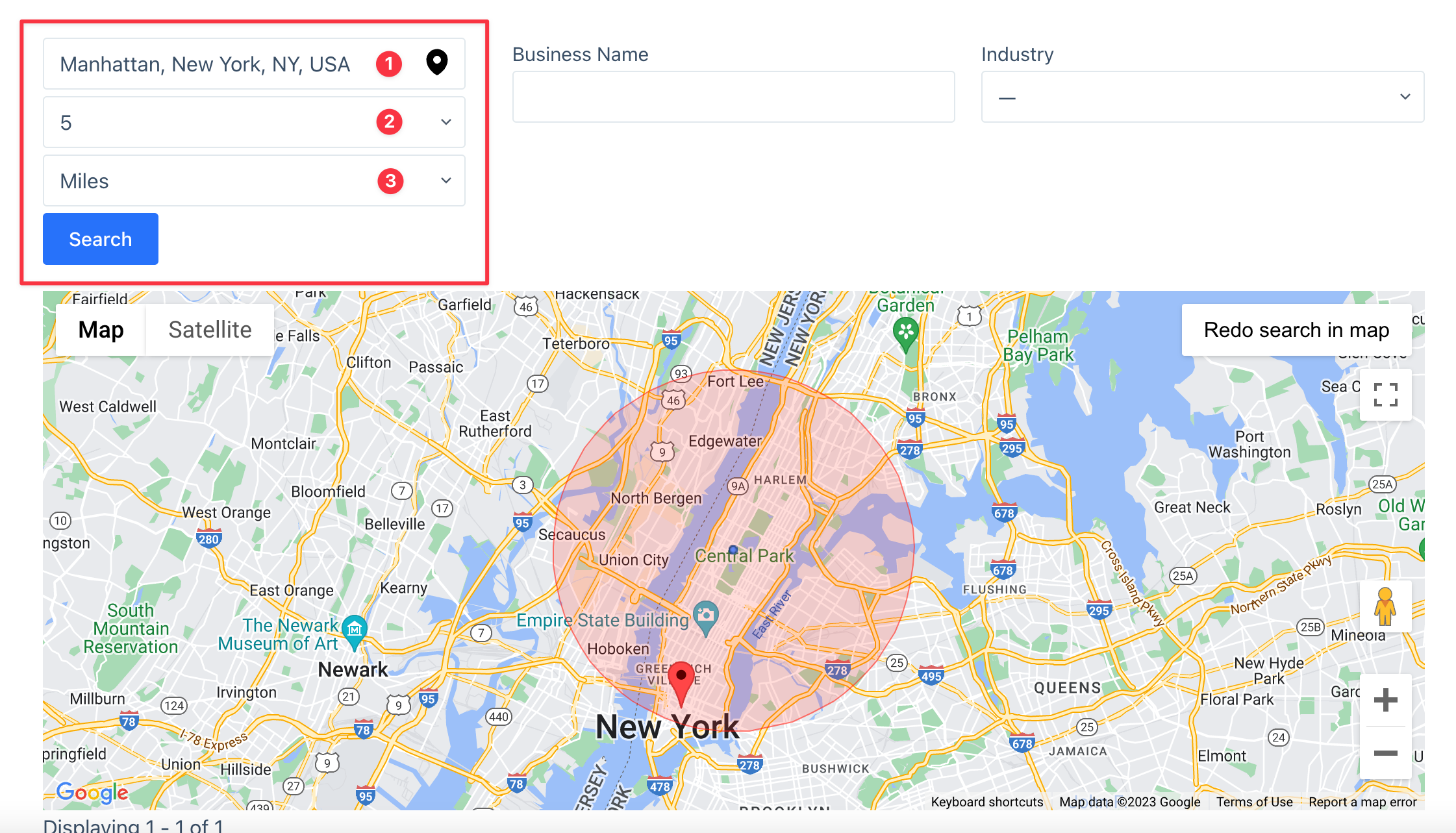
- Location: Start typing an address and choose one of the suggestions. To search around where you are, click the pin icon in the box instead; your browser asks for permission to share your location.
- Radius size: How far from the location to search.
- Radius unit: Miles or kilometers. When Only show Default Radius Unit is checked under Radius Search Settings, this list is hidden and the radius list shows the unit, as in “15 Miles”.
Click Search to list the entries within the radius.
Showing the distance to each entry #
The Distance field shows how far each entry is from the searched location, and a View setting lists the nearest entries first. See Showing distance and sorting by distance in radius search results.

