
Showing distance and sorting by distance in radius search results
With the GravityView Maps Layout, a View with a radius search can show how far each entry is from the searched location and list the nearest entries first.
Before you start #
- You need Maps 3.9.0 or newer and GravityView 2.57 or newer. With older versions, the Distance field and the distance sorting setting do not appear.
- Your View needs a working radius search. If you have not set one up, follow How to enable radius search first.
How distance is measured #
Distance is measured in a straight line between the searched location and the entry’s map position (“as the crow flies”). A route by road is usually longer than the distance shown.
The unit follows the search. A search in miles shows distances in miles (mi), and a search in kilometers shows them in kilometers (km).
Step 1: Show the distance for each entry #
- Edit your View and open the Multiple Entries Layout tab.
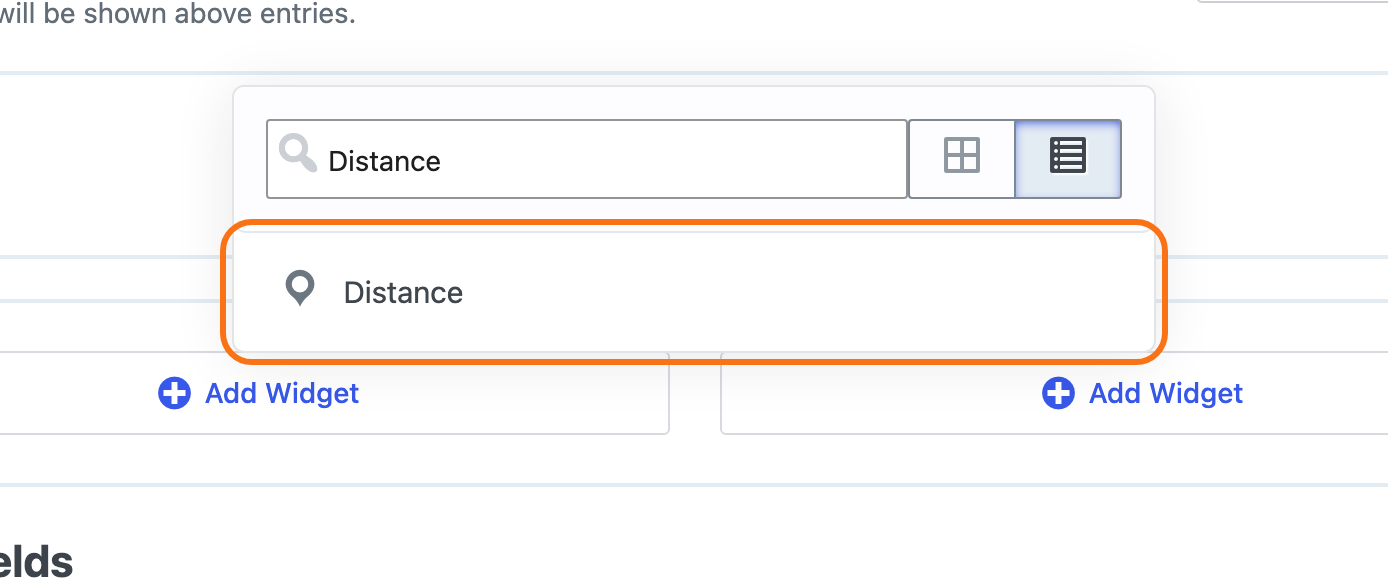
- In the area where the distance should appear, click Add Field (in a Table View, Add Table Column) and choose Distance.
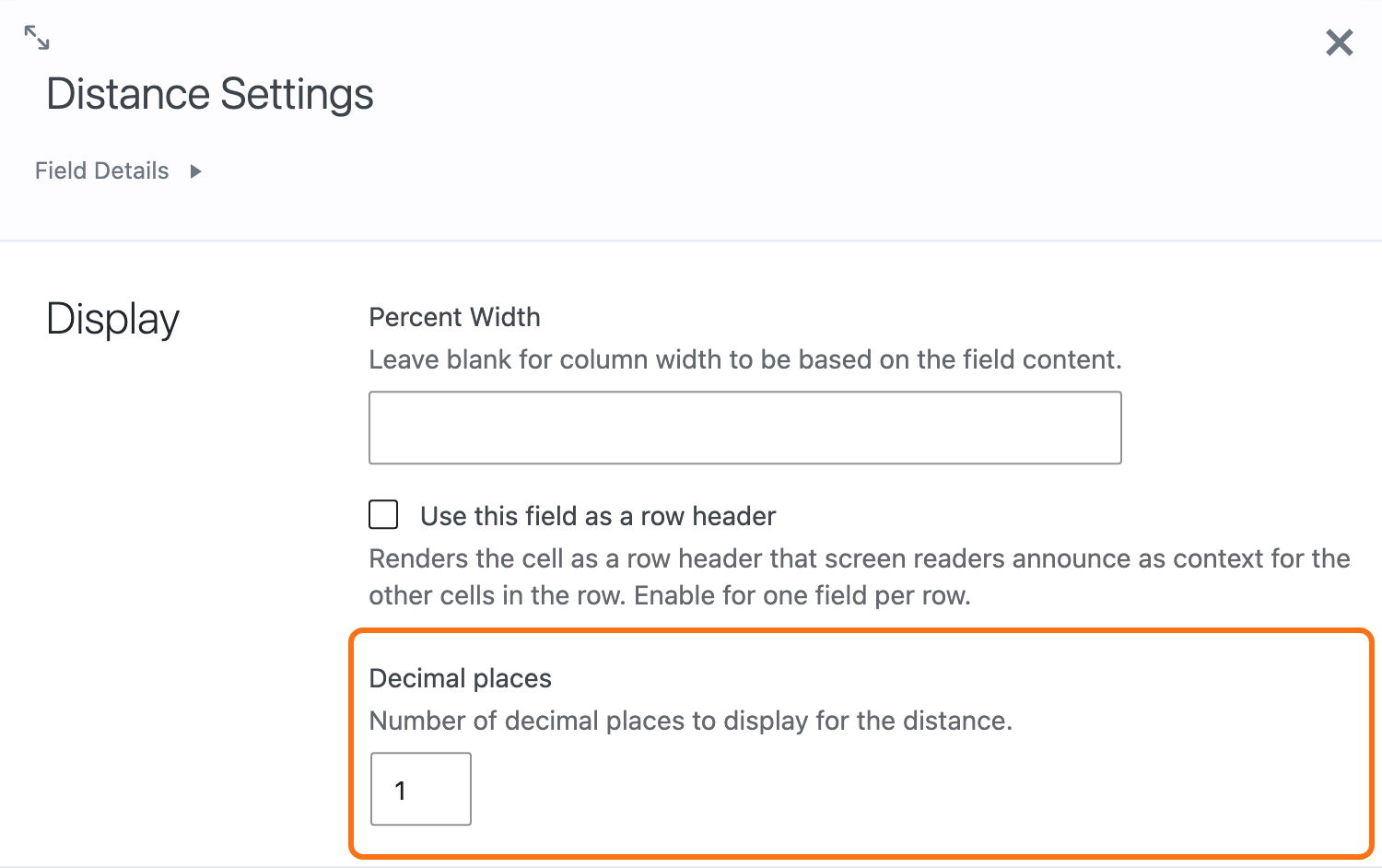
- Click the gear icon on the new field to open its settings. Set Decimal places to the number of digits to show after the decimal point, from 0 to 5. The default is 1.
- Click Update.
On the front end, each entry in a radius search now shows a value such as 2.4 mi or 12.0 km.
Note: The Distance field shows a value only during a radius search, and only the Multiple Entries layout offers it.
Step 2: Sort results by distance #
- Edit your View, scroll to the Settings box, and open its Maps tab.
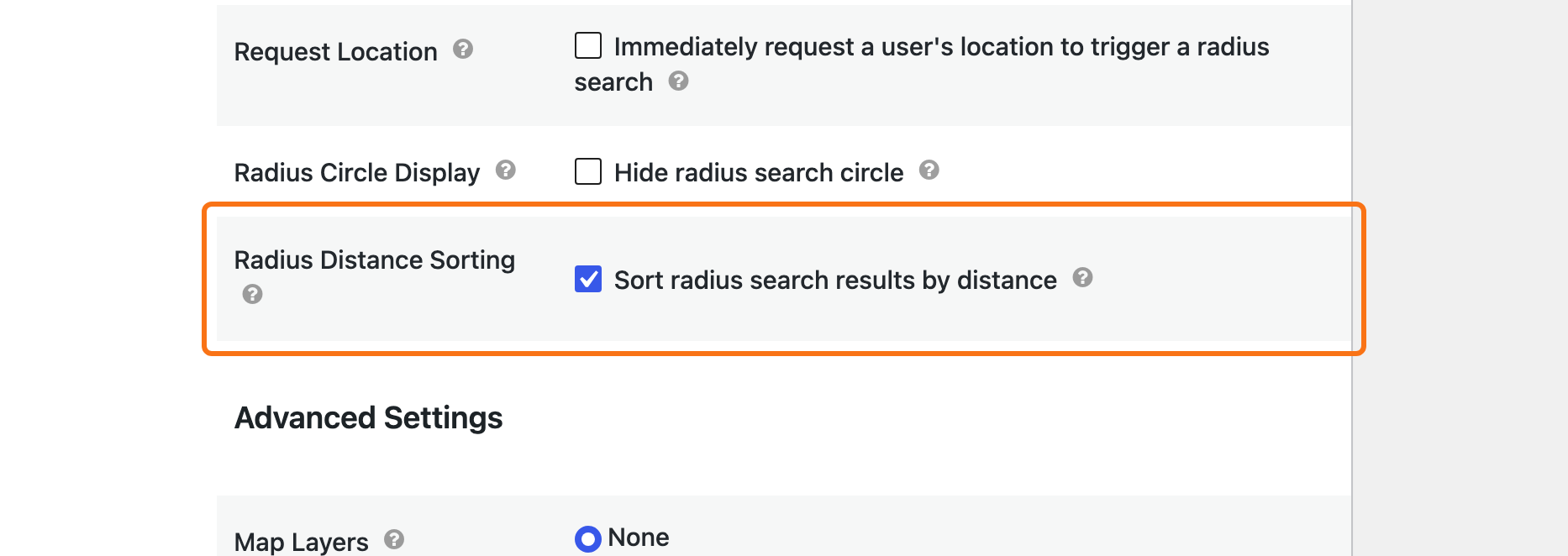
- Under Radius Search Settings, find Radius Distance Sorting and check Sort radius search results by distance.
- Click Update.
During a radius search, the nearest entries now come first, and the order continues across all pages of results. The View’s own sort order applies only to entries whose distances are exactly equal. Distances are compared before rounding, so two entries that both show 2.4 mi still appear nearest first. Without a radius search, the View keeps its normal sort order.
Common questions #
The Distance field or the sorting setting is missing
Both features need GravityView 2.57 or newer and Maps 3.9.0 or newer. With both plugins updated, look for the field in the Multiple Entries Layout tab, because the Single Entry layout does not offer it.
Changing how the distance looks
The gk/gravitymaps/fields/distance/output filter changes the text the field shows. This example adds the word “away” after every Distance field value on your site:
/**
 * Adds the word "away" after the Distance field value.
 *
 * @param string $output   The distance and its unit, for example "2.4 mi".
 * @param float  $distance The distance in the unit of the search.
 * @param string $unit     The unit of the search: "mi" or "km".
 *
 * @return string The text the Distance field shows.
 */
add_filter( 'gk/gravitymaps/fields/distance/output', function ( $output, $distance, $unit ) {
    return $output . ' away';
}, 10, 3 );Read here how to add these code samples to your website: Where to put code samples.
The filter’s parameters are listed on its developer documentation page.

