
Getting started with the Maps Layout
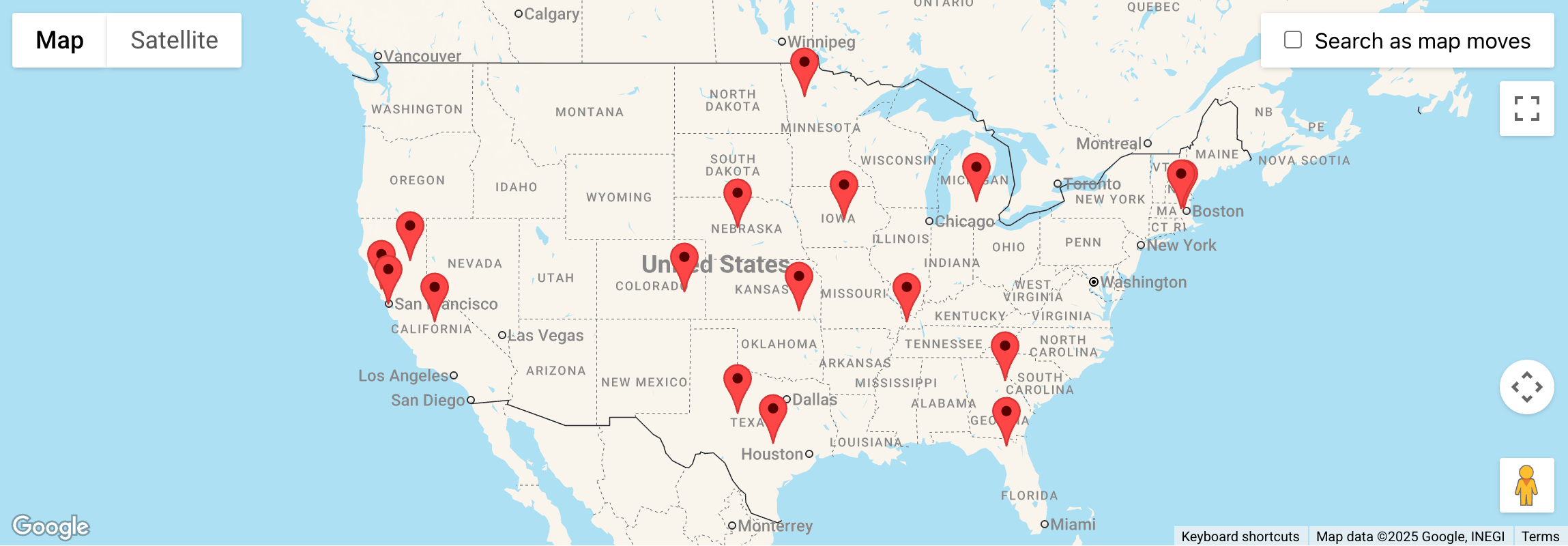
The Maps Layout shows a View’s entries as markers on a Google map, placed by each entry’s address.
Note: The Maps Layout is included with GravityView Pro and the GravityKit All Access Pass. It is not included with a standalone GravityView license.
Video walkthrough #
Installing the Maps Layout #
In WordPress, go to GravityKit, then Manage Your Kit. Find Maps Premium View under Layouts and click Install.
The map needs two Google Maps API keys: a Maps Key, which shows the map to visitors, and a Geocoding Key, which turns addresses into map positions.
Getting your Google Maps API keys #
Setting up Google Maps API keys for GravityView Maps explains how to create both keys in Google Cloud and which APIs each one needs.
Adding an Address field to your form #
To place entries on a map, your form needs an Address field. GravityView Maps geocodes each address, which turns it into a map position, and shows the entry as a marker.
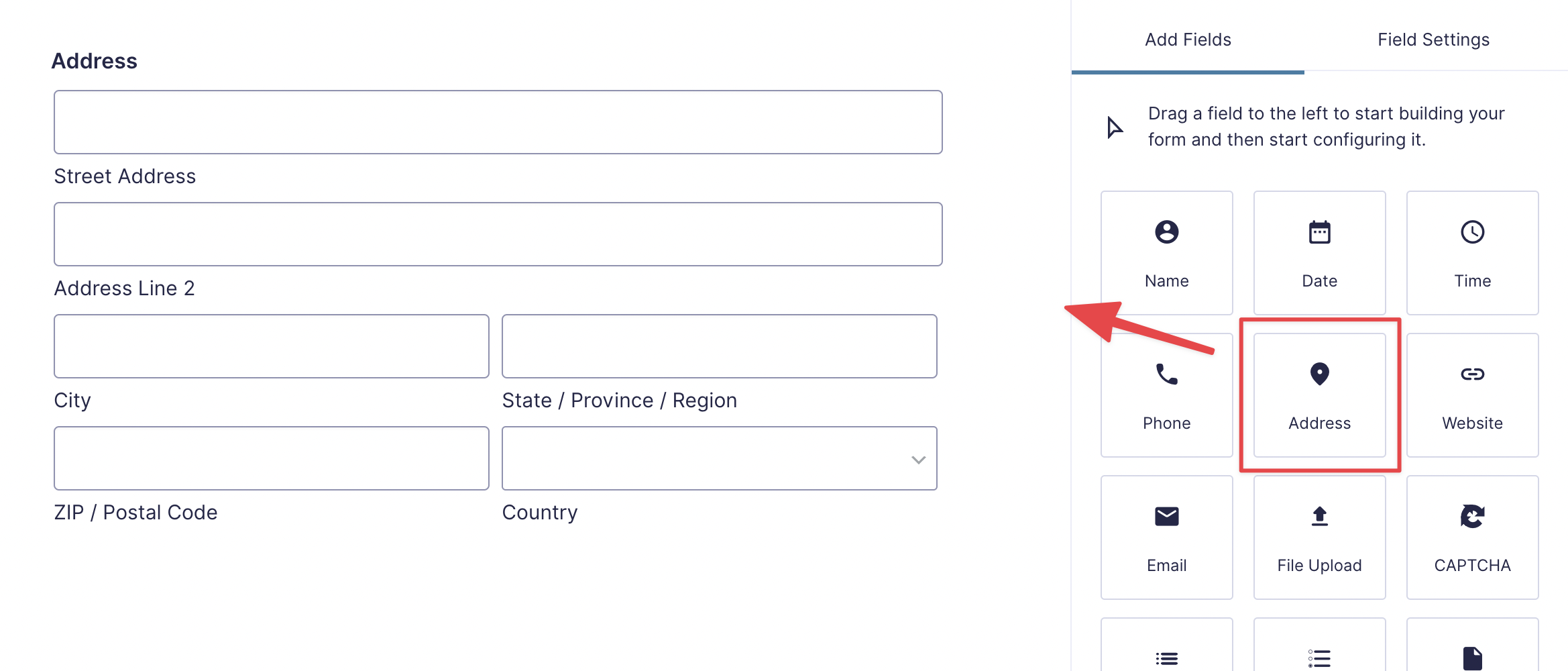
If the address is in another field type, such as Single Line Text, the Maps Layout can still use it once you change the Address Field setting, as How can I pull the address from a field type that is not Address? explains.
Entering your keys in GravityKit settings #
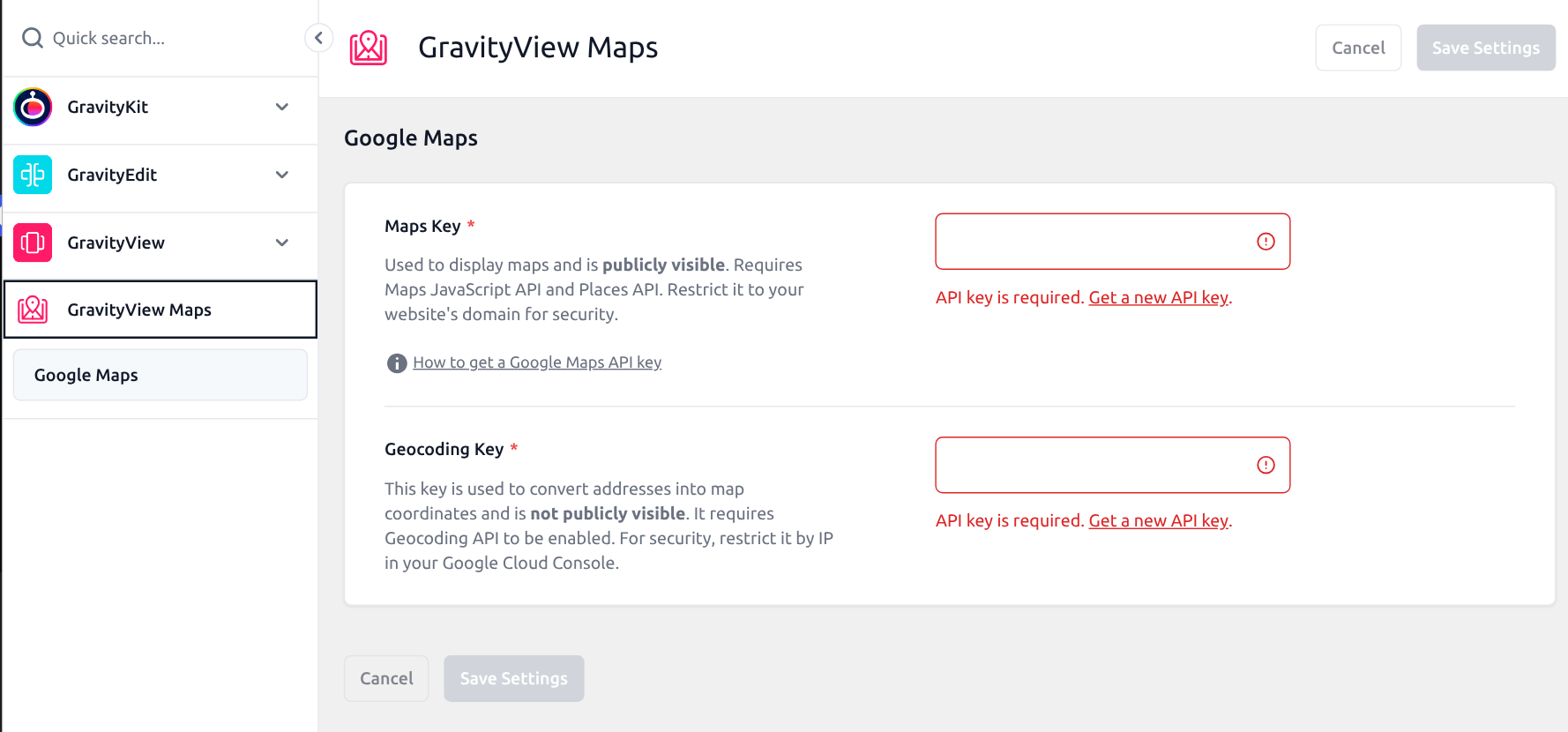
Go to GravityKit, then Settings, and open GravityView Maps. Enter your keys in Maps Key and Geocoding Key, then click Save Settings.
Creating a View with the Maps Layout #
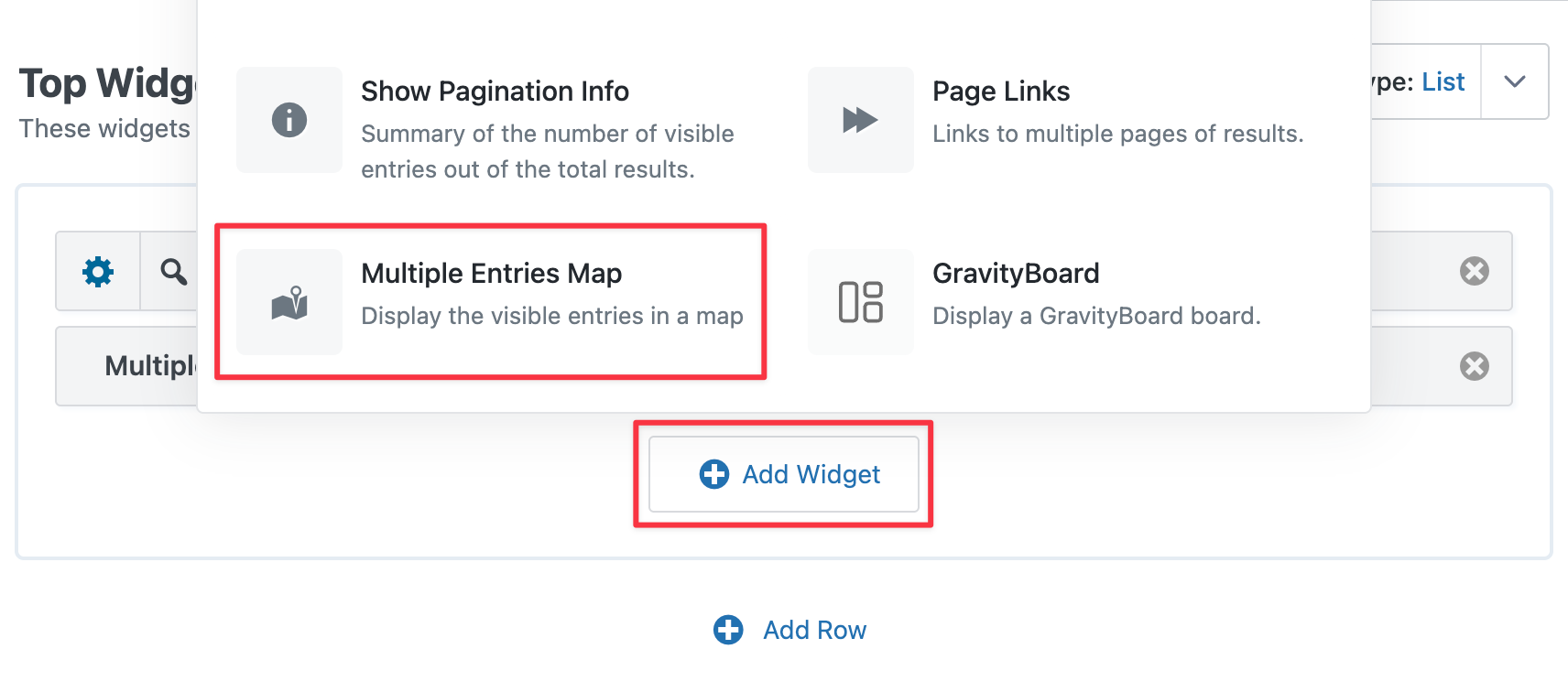
Go to GravityKit, then New View. Name the View, choose your form under Data Source, and select Map under Choose a View Type. To add a map to a View on another layout, such as Table, List, Layout Builder, DataTables, or DIY, add the Multiple Entries Map widget to it instead.
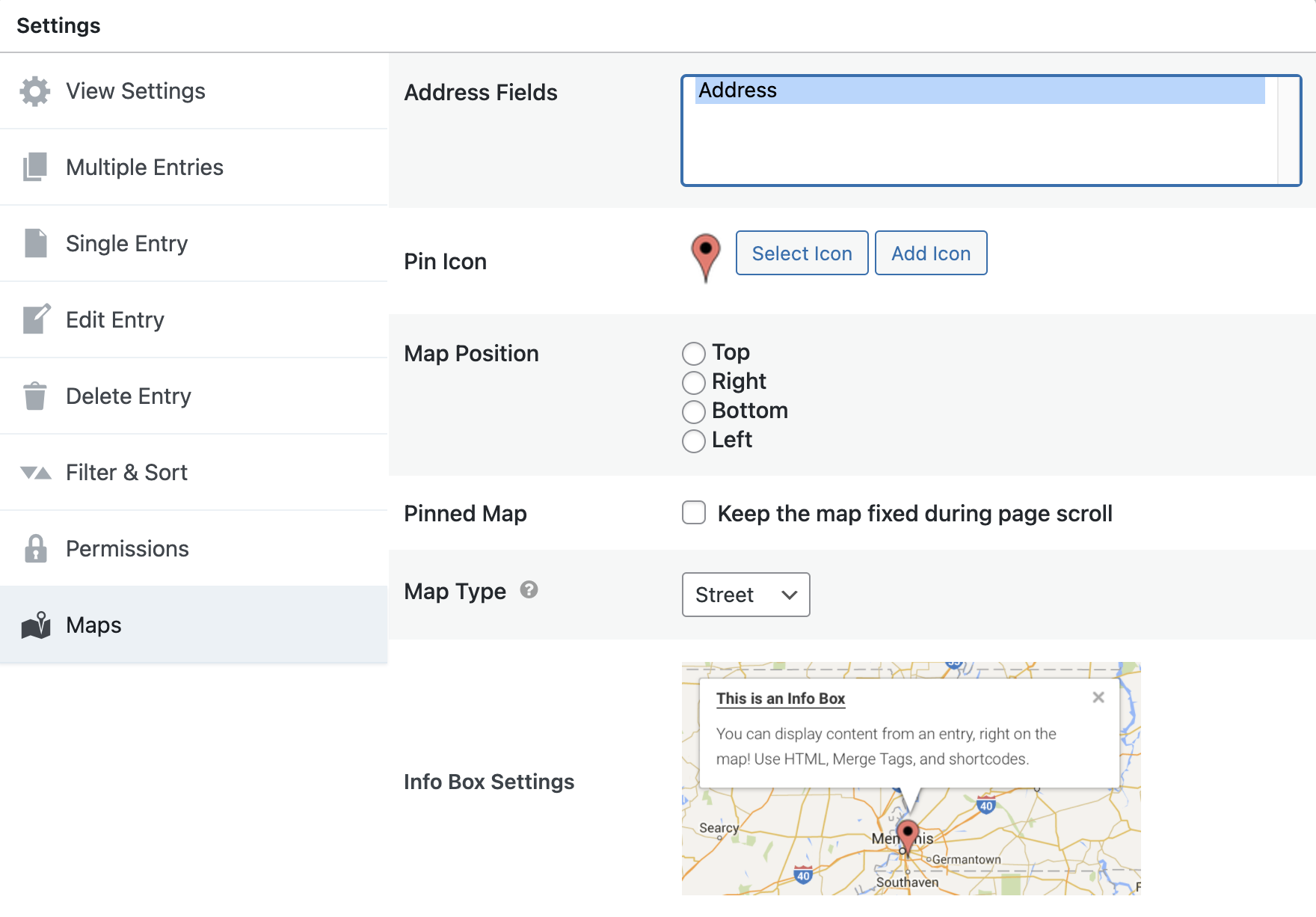
Add the fields to show with the map, then open the Maps tab under View Settings to choose the address field, the marker icon, the map’s position and type, and the info box.
Open the View on your site to see each entry as a marker on the map.
Troubleshooting #
If the map doesn’t look right, start with these:

