
How to show only entries created by the currently logged-in user
💡 New on Gravity Guide: an Advanced Filter extension course with step-by-step instructions and videos. Check it out ➡
If you want only to show entries created by the currently logged-in user, you can do that using GravityKit’s Advanced Filter Extension.
To show the entries created by a particular person (such as on that member’s page in a directory) rather than by whoever is viewing, you don’t need Advanced Filtering. Embed a second View on the member’s Single Entry page and filter it with Search field created_by, operator is, and value {created_by:ID}. See How to embed a View inside another View to show related entries.
Prefer to Watch the Video?
1. Find the Filter & Sort tab in the Settings panel inside the View editor #
It’s below the layout tabs.

⚠️The Advanced Filter section only shows up after installing the Advanced Filter extension. Learn how to Install, Activate, and Update GravityKit Plugins.
2. Click the Add Condition button #

3. In the Advanced Filter row, select “Created By”
Click on the “Any form field” dropdown and choose the option titled “Created By”. By default, the option is to limit only to entries created by the Currently Logged-in User.
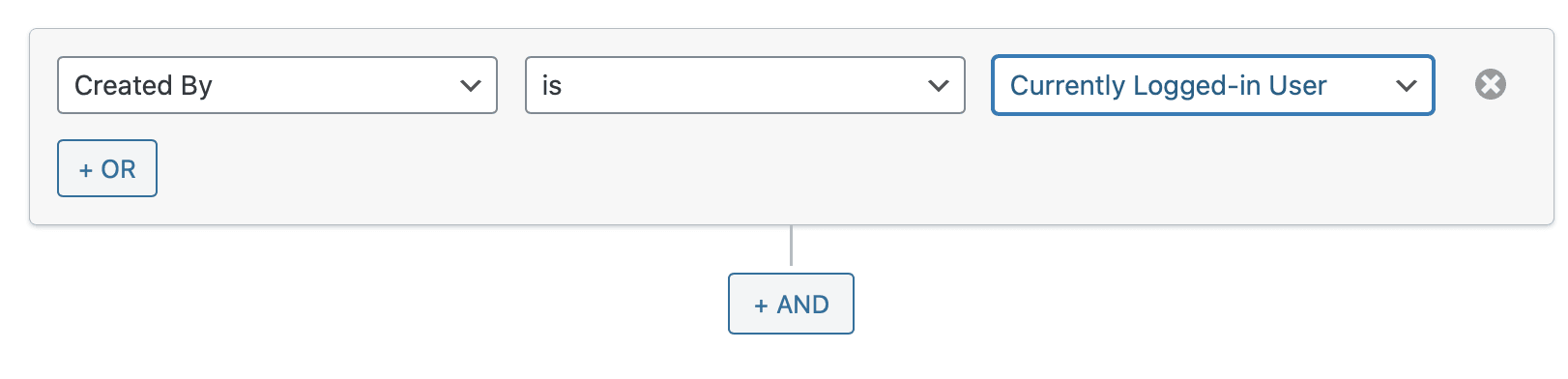
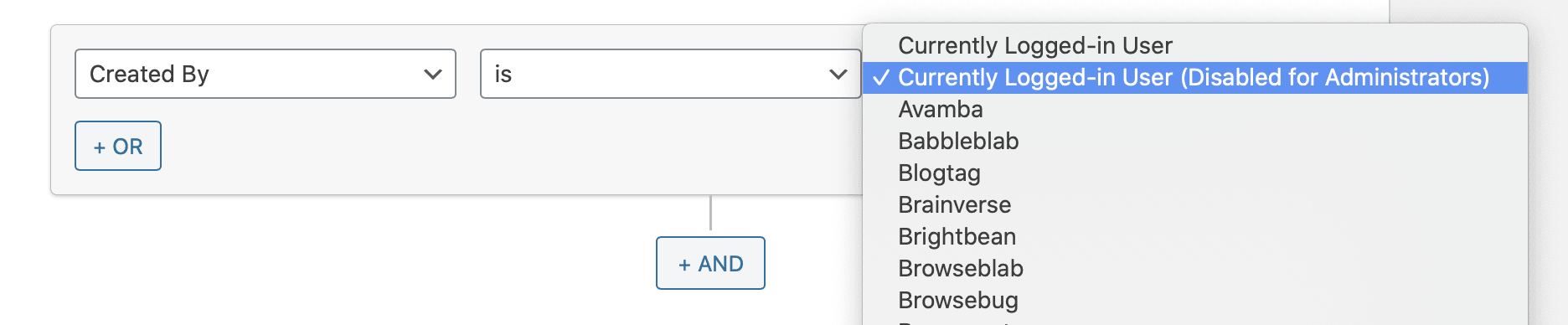
You can exclude Administrators* from being filtered. #
If you want Administrators to be able to see all entries, that’s possible too! Just select the next option: “Currently Logged-in User (disabled for Admins)”.
* Editors or custom roles with the following capabilities
manage_options, gravityforms_view_entries, gravityview_edit_others_entries are also included in this option. Read more about capabilities in GravityView.
Allowing a custom role to bypass the filter
For developers: the “disabled for Admins” option skips the filter for any user whose role includes one of the built-in capabilities manage_options, gravityforms_view_entries, or gravityview_edit_others_entries. To let a custom role or capability bypass the filter as well, add it to that list with the gk/query-filters/admin-capabilities filter. The filter receives the array of bypass capabilities, and (optionally) the form object as a second argument.
add_filter( 'gk/query-filters/admin-capabilities', function ( $capabilities ) {
    $capabilities[] = 'your_custom_capability';
    return $capabilities;
} );
Replace your_custom_capability with the capability granted by your role. Any logged-in user whose role includes that capability will then see all entries instead of only their own.
Don’t forget to save the View! #
For the filters to take effect, you will need to save the View. At the top of the screen in the “Publish” box, click the “Update” button:


