
Skip to content
GravityKit
Buy
Sign in
0 items
  • Plugins

    GravityKit All Access

    Our complete Kit of essential tools for extending and enhancing Gravity Forms—everything you need to build powerful web apps and workflows.

    Learn more
    • GravityView

      GravityView

      Bestseller

      Display Gravity Forms entries on the front-end of your site and build powerful web applications.

    • GravityImport

      GravityImport

      Trending

      Import entries from CSV files into Gravity Forms to transfer data, create new forms, or update existing entries.

    • GravityEdit

      GravityEdit

      Quickly edit Gravity Forms entries inline to save time, reduce clicks, and streamline your workflow.

    • GravityCharts

      GravityCharts

      Trending

      Turn Gravity Forms entries into interactive charts and graphs.

    • GravityActions

      GravityActions

      Update multiple Gravity Forms entries at once, send bulk emails, and streamline your workflow.

    • GravityCalendar

      GravityCalendar

      Turn Gravity Forms entries into dynamic calendars to showcase events, schedules, appointments, and more.

    • GravityExport

      GravityExport

      Export Gravity Forms entries to Excel, CSV, PDF, or Google Sheets, then share them with secure links or deliver them to cloud storage on a schedule.

    • GravityMath

      GravityMath

      Perform advanced calculations on Gravity Forms entries to display totals, averages, or build custom calculators.

    • GravityRevisions

      GravityRevisions

      Track, compare, and restore changes made to Gravity Forms forms and entries with a full version history.

    • GravityMigrate

      GravityMigrate

      Migrate all Gravity Forms data between sites, including forms, entries, settings, Views, feeds, and file uploads, and import forms from other form plugins.

    • GravityBoard

      GravityBoard

      Manage projects with collaborative project management. Coordinate with your team and streamline your workflows.

    • GravitySearch

      GravitySearch

      Search Gravity Forms entries across every form from one screen.

  • Ideal For

    • Nonprofits
    • Web Agencies
    • Education
    • Developers
    • Small Businesses
    • Startups
    Explore All Use Cases

    Case studies

    • Be There Local
    • Killer Shorts
    • West Fork Schools
    • Princeton University
    • BrightLeaf Giving
    • Jacksonville Port Authority
    • National Severe Storms Lab
    • Leadpal
    View All Case Studies
  • Resources

    • Blog
    • Case studies
    • Newsletter
    • GravityKit vs competitors
    • Live Demos
    • Documentation
    • Developer docs
    • GravityKit Academy

    Ultimate guides

    • How to use Gravity Forms
    • Editing Gravity Forms entries
    • Importing Gravity Forms entries
    • Exporting Gravity Forms entries
    • Displaying Gravity Forms entries
    • Gravity Forms conditional logic
    • Gravity Forms calculations
    View More Articles
  • Support
  • Pricing
  • Plugins

    • GravityView

      GravityView

      Bestseller

      Display Gravity Forms entries on the front-end of your site and build powerful web applications.

    • GravityImport

      GravityImport

      Trending

      Import entries from CSV files into Gravity Forms to transfer data, create new forms, or update existing entries.

    • GravityEdit

      GravityEdit

      Quickly edit Gravity Forms entries inline to save time, reduce clicks, and streamline your workflow.

    • GravityCharts

      GravityCharts

      Trending

      Turn Gravity Forms entries into interactive charts and graphs.

    • GravityActions

      GravityActions

      Update multiple Gravity Forms entries at once, send bulk emails, and streamline your workflow.

    • GravityCalendar

      GravityCalendar

      Turn Gravity Forms entries into dynamic calendars to showcase events, schedules, appointments, and more.

    • GravityExport

      GravityExport

      Export Gravity Forms entries to Excel, CSV, PDF, or Google Sheets, then share them with secure links or deliver them to cloud storage on a schedule.

    • GravityMath

      GravityMath

      Perform advanced calculations on Gravity Forms entries to display totals, averages, or build custom calculators.

    • GravityRevisions

      GravityRevisions

      Track, compare, and restore changes made to Gravity Forms forms and entries with a full version history.

    • GravityMigrate

      GravityMigrate

      Migrate all Gravity Forms data between sites, including forms, entries, settings, Views, feeds, and file uploads, and import forms from other form plugins.

    • GravityBoard

      GravityBoard

      Manage projects with collaborative project management. Coordinate with your team and streamline your workflows.

    • GravitySearch

      GravitySearch

      Search Gravity Forms entries across every form from one screen.

    View All Products

    GravityKit All Access

    Our complete Kit of essential tools for extending and enhancing Gravity Forms—everything you need to build powerful web apps and workflows.

    Learn more
  • Ideal For

    • Nonprofits
    • Web Agencies
    • Education
    • Developers
    • Small Businesses
    • Startups
    Explore All Use Cases

    Case studies

    • Be There Local
    • Killer Shorts
    • West Fork Schools
    • Princeton University
    • BrightLeaf Giving
    • Jacksonville Port Authority
    • National Severe Storms Lab
    • Leadpal
    View All Case Studies

    How to build...

    • Client Portal
    • AI-Built Directory
    • Conference Website
    • WordPress CRM
    • Admin Dashboard
    • Inventory Management
    • Vendor Portal
    • Document Library
    View All Guides
  • Resources

    • Blog
    • Case studies
    • Newsletter
    • GravityKit vs competitors
    • Live Demos
    • Documentation
    • Developer docs
    • GravityKit Academy

    ultimate guides

    • How to use Gravity Forms
    • Editing Gravity Forms entries
    • Importing Gravity Forms entries
    • Exporting Gravity Forms entries
    • Displaying Gravity Forms entries
    • Gravity Forms conditional logic
    • Gravity Forms calculations
    View More Articles
  • Support
  • Pricing
0 items

Search

Results appear automatically as you type.
Loading results…

results found matching

    Sign in
    Buy

    Docs

    • Docs Home

    Gravity Forms Add-Ons

    • GravityView
    • GravityActions
    • GravityBoard
    • GravityCalendar
    • GravityCharts
    • GravityEdit
    • GravityExport
    • GravityImport
    • GravityMath
    • GravityRevisions
    • GravitySearch
    • GF Widget for Elementor
    • GF Dynamic Lookup
    • GF Entry Tags
    • GF Event Field
    • GravityExport Lite
    • GF Zero Spam
    • GravityMigrate

    GravityView

    • Getting Started
    • View Setup
    • FAQ
    • Pre-Sale
    • Advanced
    • Common Problems
    • Customizing Your Views
    • Edit Entry
    • Entry Approval
    • Filter and Sort Results
    • Gravity Forms
    • Merge Tags
    • Roles and Capabilities
    • Search
    • Shortcodes
    • View Settings
    • WordPress Posts

    General Help

    • Account, Invoices, and Billing
    • License Related
    • Plugins and Settings
    • Agency accounts
    • Contact
    • Docs Home
    • Gravity Forms Add-Ons

      • GravityView
      • GravityActions
      • GravityBoard
      • GravityCalendar
      • GravityCharts
      • GravityEdit
      • GravityExport
      • GravityImport
      • GravityMath
      • GravityRevisions
      • GravitySearch
      • GF Widget for Elementor
      • GF Dynamic Lookup
      • GF Entry Tags
      • GF Event Field
      • GravityExport Lite
      • GF Zero Spam
      • GravityMigrate
    • GravityView

      • Getting Started
      • View Setup
      • FAQ
      • Pre-Sale
      • Advanced
      • Common Problems
      • Customizing Your Views
      • Edit Entry
      • Entry Approval
      • Filter and Sort Results
      • Gravity Forms
      • Merge Tags
      • Roles and Capabilities
      • Search
      • Shortcodes
      • View Settings
      • WordPress Posts
    • General Help

      • Account, Invoices, and Billing
      • License Related
      • Plugins and Settings
      • Agency accounts
    • Contact

    GravityView

      • Beginner guide: Merge Tags vs shortcodes
      • Getting Started: Setting up Your First View
      • Embedding Views in Divi, Beaver Builder, and Elementor
      • Frontend bulk actions in GravityView
      • How to show a single entry without the Multiple Entries page
      • “How To” Guides and Tutorials
      • Activating your license
      • Adding a Print button to the Single Entry page
      • Adding a View to a page using Visual Composer
      • Adding Views to WordPress menus
      • Changing the Single Entry view title
      • Comparing GravityView’s View Layouts
      • Configuring Delete Entry
      • Configuring the Edit Entry screen
      • Creating an image gallery (displaying images in a grid)
      • Duplicating a Gravity Forms entry from the backend of your site
      • Duplicating a Gravity Forms entry from the frontend of your site
      • Duplicating or copying a View
      • Dynamic Widget Placement
      • Embedding Single Entries in a Post or Page
      • Embedding Views, entries and fields using blocks
      • Enable Enhanced Security: the secret attribute for shortcodes
      • Getting Started: Adding Fields to the Multiple Entries and Single Entry Pages
      • Getting Started: Choosing a Form and a View Layout
      • Hiding the Approve/Reject Entry column
      • How to add a Gravity Forms widget to GravityView
      • How to add a PDF download link to your View
      • How to add a PDF download link to your View using Gravity PDF
      • How to embed a View inside another View to show related entries
      • Importing and Exporting configured Views
      • Installing GravityView
      • Linking to a Single Entry
      • Modifying the Default View Settings
      • Opening and editing entry details in a lightbox (modal/popup)
      • Redirecting to the Multiple Entries screen after editing an Entry
      • Removing Theme Navigation Links from Views
      • The Entry Notes field
      • The Layout Builder (how and when to use it)
      • The Recent Entries Widget
      • The View Settings Meta Box
      • The Views list on the dashboard
      • Understanding the “No Entries Behavior” setting in GravityView
      • User Edit: Allowing Users to Edit Their Own Entries
      • Using an Admin Label for Custom Content fields
      • Using the Custom Content Field
      • What Are Form Presets?
      • What are View widgets useful for?
      • Working with Field Labels (column headings)
      • Are Views responsive on mobile devices?
      • Beginner guide: Merge Tags vs shortcodes
      • Can I display multiple Views on the same page?
      • Can I duplicate an entry from a View?
      • Can I update a WordPress user account using GravityView?
      • Can I use GravityView to edit Custom Post Types?
      • Can we display entries from other websites?
      • Difference between using Custom Content as a Widget or as a Field
      • Does GravityView support GP Nested Forms (Gravity Wiz Perk)?
      • Does GravityView support Gutenberg?
      • Does GravityView support the Gravity Forms Dropbox add-on?
      • Does GravityView work with Ajax?
      • Does GravityView work with WooCommerce?
      • Does GravityView work with workflows made by Gravity Flow
      • Does my GravityKit subscription include Gravity Forms?
      • Does the Search Bar support operators like OR or AND?
      • How does GravityView know who can edit the entry?
      • How does GravityView work with Gravity Forms “Save and Continue”?
      • How To Display Full-Width Widgets in the Bottom Widget Area
      • Is Gravity Forms the same thing as GravityView?
      • Is GravityView compatible with WordPress Multisite?
      • Is it possible to display the field description on a View?
      • Is it possible to do date comparison with [gvlogic]?
      • Is it possible to edit Credit Card field data?
      • Is it possible to output the save and continue links from a form that hasn’t been submitted yet?
      • Is it possible to redirect the user to a specific page after deleting an entry?
      • Security false positive: StandalonePHPEnkoder.php
      • What are the existing layout options to create a View?
      • What is this “Grant Support Access” menu on GravityView?
      • Which Post Fields are editable?
      • Will GravityView stop working if I don’t renew?
      • Do I need to create an account before purchasing?
      • Can I create admin pages with GravityView?
      • Can I upgrade my license later?
      • Does GravityView Support Gravity Forms Survey Add-On?
      • Does GravityView support Gutenberg?
      • Is Gravity Forms the same thing as GravityView?
      • Is GravityView compatible with WordPress Multisite?
      • Is there a free trial for GravityView?
      • Which Gravity Forms license do I need?
      • Creating Views with AI using the GravityKit MCP
      • How to change where the Go Back link takes visitors
      • How to redirect members to their own profile entry after login
      • “Encrypt Email Address” is checked, but emails are still readable
      • “Claim Entry” functionality with GravityView and Gravity Flow
      • About GravityView Caching
      • About the gk_parent_entry_id and the gk_parent_form_id entry metas
      • Adding custom CSS classes and HTML IDs to Layout Builder rows
      • Calculating a person’s age based on a date field
      • Can I integrate with Paid Memberships Pro Membership Directory Add On?
      • Change the Delete Entry mode from “Delete” to “Trash”
      • Completely deleting GravityView
      • Customizing View URLs
      • Deleting all Views and uninstalling GravityView
      • Deprecated and renamed hooks
      • Disable the Custom Content code editor
      • Disable the unfiltered_html capability requirement in GravityView
      • Display a Gravity Forms form when no entry exists with [gventry]
      • Edit Entry: How to disable Gravity Forms User Registration feeds from being updated
      • Editing Product and Pricing Fields in Edit Entry
      • Enable Views to be hierarchical (parent/child)
      • Exporting all fields to CSV
      • Exporting entries as CSV or TSV from GravityView
      • Fine-tuning search results in GravityView with search modifiers
      • GDPR and GravityView
      • GravityView Hooks: Customizing the Output of a Field
      • GravityView: How to trigger feeds after editing an entry
      • Hidden fields and field visibility on Edit Entry
      • How do I filter by a specific entry ID?
      • How Gravity Forms records the user who created an entry
      • How GravityView Security Works
      • How to change what fields are searched by the Search Bar “Created By” text input.
      • How to Connect GravityView With Zapier Using Uncanny Automator
      • How to disable GravityView email encryption
      • How to disable the Support Port from loading
      • How to display all entries by default
      • How to display the true location of file uploads
      • How to enable logging and use WP Debug in GravityKit
      • How to filter entries by cookie value
      • How to get the ID of the entry on Edit Entry page?
      • How to hide the GravityKit menu
      • How to modify fancybox lightbox settings
      • How to navigate to an HTML anchor after search
      • How to override any translation in GravityView
      • How to require whole numbers in Gravity Forms’ Number field
      • How to search for a whole phrase
      • How to show checkbox fields as comma-separated instead of a bullet list
      • How to stop the Go Back link from clearing the search
      • How to track pageviews for entries using the [gv_pageviews] shortcode
      • How to use the gform_pre_render filter in Edit Entry
      • I want to translate GravityView (or another GravityKit add-on)!
      • Listing entries assigned to a specific user
      • Making calculations using the custom content field
      • Marking an entry “Unread” after it is edited
      • Modifying Search Bar inputs
      • Modifying the Default View Settings
      • Modifying the entries displayed in a View
      • Only show choices in the Search Bar that exist in entries
      • Optimizing Gravity Forms with custom indexes
      • Preserve the “sub-step” status in Gravity Flow when one or more assignees are changed in GravityView
      • Prevent GravityView from loading its CSS styles
      • REST API Endpoints
      • Restarting a Gravity Flow workflow after editing an entry in GravityView
      • Retrieve Entry Approval Status in GravityView
      • Setting page title for Entries
      • The GravityView plugin changelog
      • Translation string loading order
      • Use [gvlogic] to show (or hide) content anywhere on your site
      • Using direct file paths for uploaded media in GravityView
      • Using Gravity Forms gf_apply_filters() and gf_do_action() in Gravity Forms development
      • When to use Advanced Filtering vs Field Conditional Logic vs gvlogic
      • WordPress hooks (actions and filters) available for GravityView
      • ‘Bad Request’ or ‘Request Header Too Large’ Error When Editing Entries in GravityView
      • “Cheatin’ Uh?” message is displayed when editing a View
      • “Date Created” field is inaccurate
      • Add Field or Add Widget buttons aren’t working
      • Display issues with the Search Bar
      • During installation: “Warning: No such file or directory”
      • Enabling No-Conflict Mode
      • Exporting forms & Views from your site
      • Getting a 404 error when accessing CSV endpoint
      • GravityView Hooks: Customizing the Output of a Field
      • GravityView updates aren’t displaying
      • How to create a new entry based on existing Gravity Forms entry data
      • How to delete and re-install GravityView
      • How to disable Gravity Forms’ Secure File Download Location
      • I get this error when auto-updating the plugin: “Download failed. SSL peer certificate or SSH remote key was not OK”
      • Images on the View are upside down, rotated or flipped
      • Infinite loop recursion
      • Known issue: When editing entries that have conditional calculations, the result may be incorrect
      • Merge Tags aren’t visible
      • My theme is Divi and I can’t see the Search Bar
      • My View widgets are not showing up on my Divi theme
      • My Yoast Meta Box is blank
      • Only some users are listed in the Change Entry Creator dropdown
      • Pointing the [gv_entry_link] to a specific page
      • Price fields and numbers being sorted alphabetically, not numerically
      • Random sorting not working on WP Engine
      • Reasons for the “You are not allowed to view this content.” message
      • ReferenceError: gvGlobals is not defined
      • Removing Theme Navigation Links from Views
      • Reserved URL query parameters
      • Reserved URL Slugs
      • Sorting by Name isn’t working
      • Strange display issues inside the View editor
      • The “Update” button isn’t showing in Edit Entry
      • The GravityView settings menu isn’t visible
      • The Settings box is hidden
      • There are other plugin boxes on the Edit View screen
      • View widgets conflict with All in One SEO
      • Visual Composer and GravityView
      • What caching plugin do we recommend? WP Rocket.
      • Why can’t I edit my View?
      • Why is my View slow to load?
      • Why View entries may not be showing up
      • WPML and GravityView
      • You don’t have permission to edit this post.
      • Entries show in one column after updating GravityView
      • Making Table Views accessible to screen readers with row headers
      • [Deprecated] Using the FooBox Lightbox plugin instead of the default Thickbox
      • Adding a link to a column
      • Adding a percent sign (%) to a column
      • Adding Custom CSS classes to fields or widgets
      • Adding custom CSS to your Views
      • Adding custom JavaScript to your Views
      • Adding custom PHP code snippets to your website
      • Adding Disqus comments to Entries
      • Adding pagination to the Single Entry page
      • Adding RTL (right-to-left) text support to a field
      • Are Views responsive on mobile devices?
      • Can I disable the Map It link?
      • Changing image size on the Multiple Entries screen
      • Changing the “Entry Updated. Return to Entry” message
      • Changing the display size of images
      • Changing the Edit Entry page title
      • Changing the page size and orientation of DataTables PDF exports
      • Changing the Single Entry view title
      • Changing the View custom post type slug
      • Column widths and text wrapping in Table Views
      • Creating a leaderboard with GravityView
      • Custom single View template not displaying
      • Customizing emails sent by the Entry Notes field
      • Customizing View URLs
      • Disable Wrapping Images with a Link
      • Displaying a form if no entries exist on the View
      • Displaying a List View in a grid (two or more columns)
      • Displaying Edit Entry and Delete Entry links as icons
      • Displaying Fields conditionally
      • Displaying the text label (not the value) of a dropdown field
      • Displaying video, audio, and media links as a player using the Custom Content field
      • Enabling Custom CSS Classes for GravityView widgets
      • GravityView CSS guide
      • GravityView Hooks: Customizing the Output of a Field
      • Hiding the “No entries match your request” message
      • How to add row numbers to a View
      • How to change the View layout
      • How to Connect GravityView With Zapier Using Uncanny Automator
      • How to disable the sorting control on one table column?
      • How to display GravityView entries in a grid (or columns)
      • How to display uploaded files as links
      • How to rename the Update and Cancel buttons on the Edit Entry page
      • How to show checkbox fields as comma-separated instead of a bullet list
      • How to stop the Go Back link from clearing the search
      • Make “Map It” links open in a new window
      • Making your table scroll horizontally
      • Modifying Date, Time, or Entry Date field formats
      • Modifying Search Bar inputs
      • Modifying the “Map It” address link
      • Modifying the Default View Settings
      • Modifying the output of the Edit Entry form
      • Modifying the text displayed when there are no entries
      • Only show choices in the Search Bar that exist in entries
      • Overriding GravityView templates
      • Placing two fields side-by-side in the same column
      • Prevent GravityView from loading its CSS styles
      • Price fields and numbers being sorted alphabetically, not numerically
      • Redirecting to a newly-created Gravity Forms entry
      • Removing column headings from the bottom of the tables
      • Removing Theme Navigation Links from Views
      • Search: Changing the default option in a select (drop down) field
      • Shortening the displayed URL in a Website field
      • Show name fields as initials
      • Styling the Buttons on the Edit Entry Page
      • Styling the Search Bar widget
      • Supported Themes
      • The View Container <div>
      • Using Page Templates with GravityView
      • What are the existing layout options to create a View?
      • Editing rich text Paragraph fields with Edit Entry and GravityEdit
      • ‘Bad Request’ or ‘Request Header Too Large’ Error When Editing Entries in GravityView
      • Changing an entry’s creator from the GravityView Edit Entry page
      • Changing an entry’s creator on the Gravity Forms entry screen
      • Changing the “Entry Updated. Return to Entry” message
      • Changing the Edit Entry page title
      • Conditional Logic on the Edit Entry page
      • Configuring Delete Entry
      • Configuring the Edit Entry screen
      • Creating a View Editor role
      • Creating an “Edit Your Profile” link
      • Creating an Entry Moderator role
      • Disabling Conditional Logic on the Edit Entry page
      • Displaying Edit Entry and Delete Entry links as icons
      • Edit Entry: Multi-page form editing
      • Editing Product and Pricing Fields in Edit Entry
      • Embedding the Edit Entry form in a page or post
      • GravityView: How to trigger feeds after editing an entry
      • Hidden fields and field visibility on Edit Entry
      • Hiding the Confirm Email field on the Edit Entry page
      • How does GravityView know who can edit the entry?
      • How does GravityView work with Gravity Forms “Save and Continue”?
      • How to get the ID of the entry on Edit Entry page?
      • How to modify the settings for the Post Content edit field
      • How to prevent an approved entry from being edited
      • How to rename the Update and Cancel buttons on the Edit Entry page
      • How to use the gform_pre_render filter in Edit Entry
      • Known issue: When editing entries that have conditional calculations, the result may be incorrect
      • Marking an entry “Unread” after it is edited
      • Modifying the output of the Edit Entry form
      • Redirecting to the Multiple Entries screen after editing an Entry
      • Styling the Buttons on the Edit Entry Page
      • The “Update” button isn’t showing in Edit Entry
      • The Update button on the Edit Entry page is missing
      • Unapproving entries automatically after they’re edited
      • User Edit: Allowing Users to Edit Their Own Entries
      • View Settings: Enable Edit Locking in GravityView
      • View Settings: Redirect After Editing
      • Which Post Fields are editable?
      • (Advanced) How to update entry approval status using PHP
      • Can I add an additional status to the approval system?
      • Changing the “You are not allowed to view this content” text when an entry is pending approval
      • Changing the labels of the approval statuses
      • Entry Approval Merge Tags or how to approve an entry via email
      • Front-end entry approval
      • Getting Started: GravityView Entry Approval
      • Hiding the Approve/Reject Entry column
      • How to automatically approve an entry when submitting the form
      • How to prevent an approved entry from being edited
      • How to send email notifications when an entry is approved, disapproved, or the approval status has changed
      • Managing entry approval in the Gravity Forms Entries screen
      • Modifying the CSS of Front-end approval
      • The {approval_status} Merge Tag
      • Unapproving entries automatically after they’re edited
      • Creating an “Edit Your Profile” link
      • Enabling the table column sorting feature
      • Filtering entries by WordPress User Roles
      • Forcing numbers to sort properly
      • How do I filter by a specific entry ID?
      • How to display only entries created today
      • How to display the last submitted entry only
      • Listing entries assigned to a specific user
      • Making entries expire after a certain amount of time
      • Pre-filtering results on a View
      • Random sorting not working on WP Engine
      • Restricting View content to be members-only
      • Sort doesn’t work when using Gravity Forms encryption plugins
      • Sorting by multiple columns
      • Sorting results by field value
      • Using relative Start Dates and End Dates
      • View sorting isn’t working
      • Adding a Link to the Stripe Customer Portal in GravityView
      • Changing an entry’s creator on the Gravity Forms entry screen
      • Creating a review/voting system by embedding a form into a single entry
      • Disabling the Create a View menu
      • Displaying incomplete or partial entries
      • Duplicating a Gravity Forms entry from the backend of your site
      • File Uploads can’t be included in partial entries
      • How does GravityView work with Gravity Forms “Save and Continue”?
      • How to embed a form for each entry in a View
      • How to require whole numbers in Gravity Forms’ Number field
      • Known issue: When editing entries that have conditional calculations, the result may be incorrect
      • Passing a field value from the View to a form on another page
      • Showing inactive Entries
      • Sort doesn’t work when using Gravity Forms encryption plugins
      • Styling Gravity Forms
      • Using GFChart with GravityView
      • Using shortcodes inside Gravity Forms notifications
      • Why is my form creating WordPress posts?
      • Why you should avoid using List fields in your form
      • Displaying Fields conditionally
      • Entry Approval Merge Tags or how to approve an entry via email
      • GravityView merge tag modifiers
      • Merge Tags
      • Merge Tags aren’t visible
      • Removing the custom content when the merge tag is empty
      • Showing user details with the {created_by} and {user} merge tags
      • The {approval_status} Merge Tag
      • The {current_post} Merge Tag
      • The {date_created} merge tag
      • The {get} merge tag
      • The {gv_entry_link} Merge Tag
      • The {is_starred} Merge Tag
      • The {sequence} Merge Tag
      • Using the {get} Merge Tags with [gvlogic] to display a person's name in a Custom Content widget
      • Creating a View Editor role
      • Creating an Entry Moderator role
      • Filtering entries by WordPress User Roles
      • GravityView capabilities
      • How to hide the GravityKit menu
      • Modifying capabilities shown in the field “Only visible to…” dropdown
      • Why can’t I edit my View?
      • How to add a multi-select search input for drop-down fields
      • Adding pagination for results (next/previous page links)
      • Changing search form style from horizontal to vertical
      • Changing the format of the search widget’s date picker
      • Configuring the (WordPress) Search Widget
      • Configuring the Search Bar widget
      • Display issues with the Search Bar
      • Does the Search Bar support operators like OR or AND?
      • Fine-tuning search results in GravityView with search modifiers
      • How to hide results and only display them if a search is performed
      • How to search for a whole phrase
      • How to search for an exact match
      • How to stop the Go Back link from clearing the search
      • Linking to search results
      • Only show choices in the Search Bar that exist in entries
      • Search Bar: Why is the state input is showing as a text field?
      • Search: Changing the default option in a select (drop down) field
      • Turning off the Show Search Bar default search field
      • Using a range to search numeric fields
      • Using the Search Bar “Clear” button
      • An Overview of Shortcodes Added by GravityView
      • Displaying Fields conditionally
      • Embedding two shortcodes on the same post or page
      • Highlighting entries about to expire “today”
      • How can I display a list of my Views on my site?
      • How to conditionally display an image or a placeholder
      • How to highlight an entry from a specific date
      • How to prevent an approved entry from being edited
      • How to track pageviews for entries using the [gv_pageviews] shortcode
      • Pointing the [gv_entry_link] to a specific page
      • The [gv_entry_link] shortcode
      • Use [gvlogic] to show (or hide) content anywhere on your site
      • Using [gvlogic] and [gvlogic2] to create "AND" logic
      • Using shortcodes inside Gravity Forms notifications
      • Using the [gravityview] shortcode
      • Using the [gventry] Shortcode
      • Using the [gvfield] shortcode to embed single field values
      • Using the [gvlogic] shortcode
      • Using the {get} Merge Tags with [gvlogic] to display a person's name in a Custom Content widget
      • Widget shortcodes
      • Themes: styling your Views with Legacy or Vantage
      • Automatically marking Gravity Forms entries as “Read”
      • Exporting entries as CSV or TSV from GravityView
      • Keeping Views and entries out of search engines
      • Modifying the Default View Settings
      • The Prevent Direct Access setting
      • View Setting: Number of entries per page
      • View Settings: Custom Code
      • View Settings: Enable Edit Locking in GravityView
      • View Settings: Enable Lightbox for Images
      • View Settings: Redirect After Editing
      • Can I use GravityView to edit Custom Post Types?
      • How to modify the settings for the Post Content edit field
      • Post Image Meta information: Title, Caption and Description for the Post Image field
      • Removing Theme Navigation Links from Views
      • Which Post Fields are editable?
    • Home
    • Docs
    • GravityView
    • Search
    • Configuring the Search Bar widget

    Configuring the Search Bar widget

    Estimated reading: 6 minutes

    Updated on October 16, 2026

    The Search Bar widget lets visitors search and filter the entries in a View. You choose the fields it offers and how they are laid out, and you set whether a search must match every field or any of them.

    Adding a Search Bar widget #

    In the View editor, click Add Widget in one of the widget areas, such as Top Widgets, then choose Search Bar.
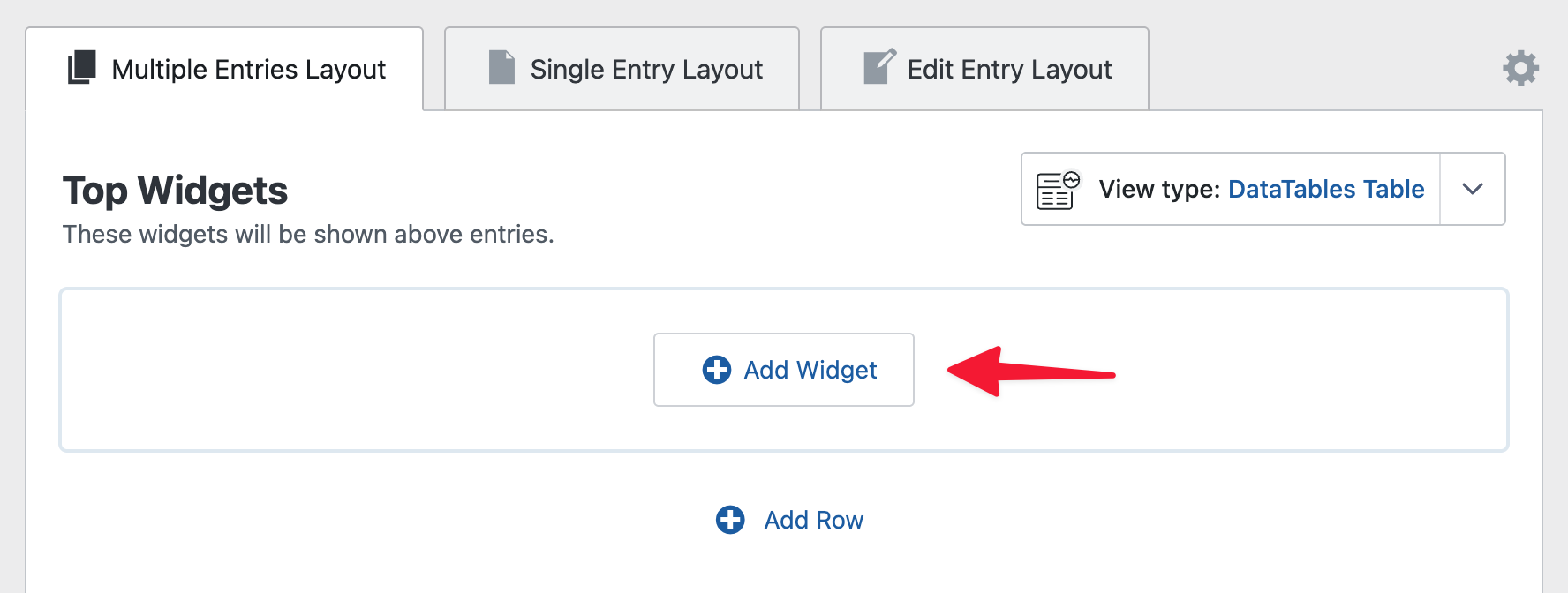
    A button labeled Add Widget in the GravityView editor

    To configure it, click the gear icon next to the Search Bar label. This opens Search Bar Settings. A new Search Bar has no fields until you add them.
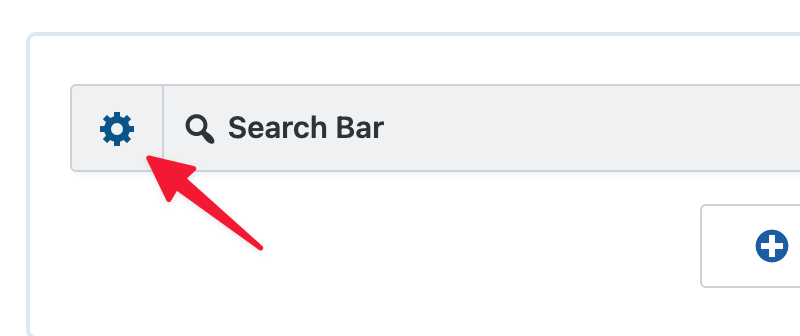
    An arrow pointing to a gear icon next to the Search Bar widget label

    Adding fields and designing the layout #

    In Search Bar Settings, search fields are placed in rows, and each row has one to four columns.

    • Click Add Row to add a row.
    • In a column, click Add Search Field and choose a field.

    Drag rows and fields to move them. Hovering over a row also shows its toolbar: the gear opens Row Settings, where you can give the row a custom CSS class or HTML ID, and the trash icon deletes the row.

    Note: Submit Button is a search field too, so you can put it in any column. Special search fields lists it with the other fields that are not part of your form.
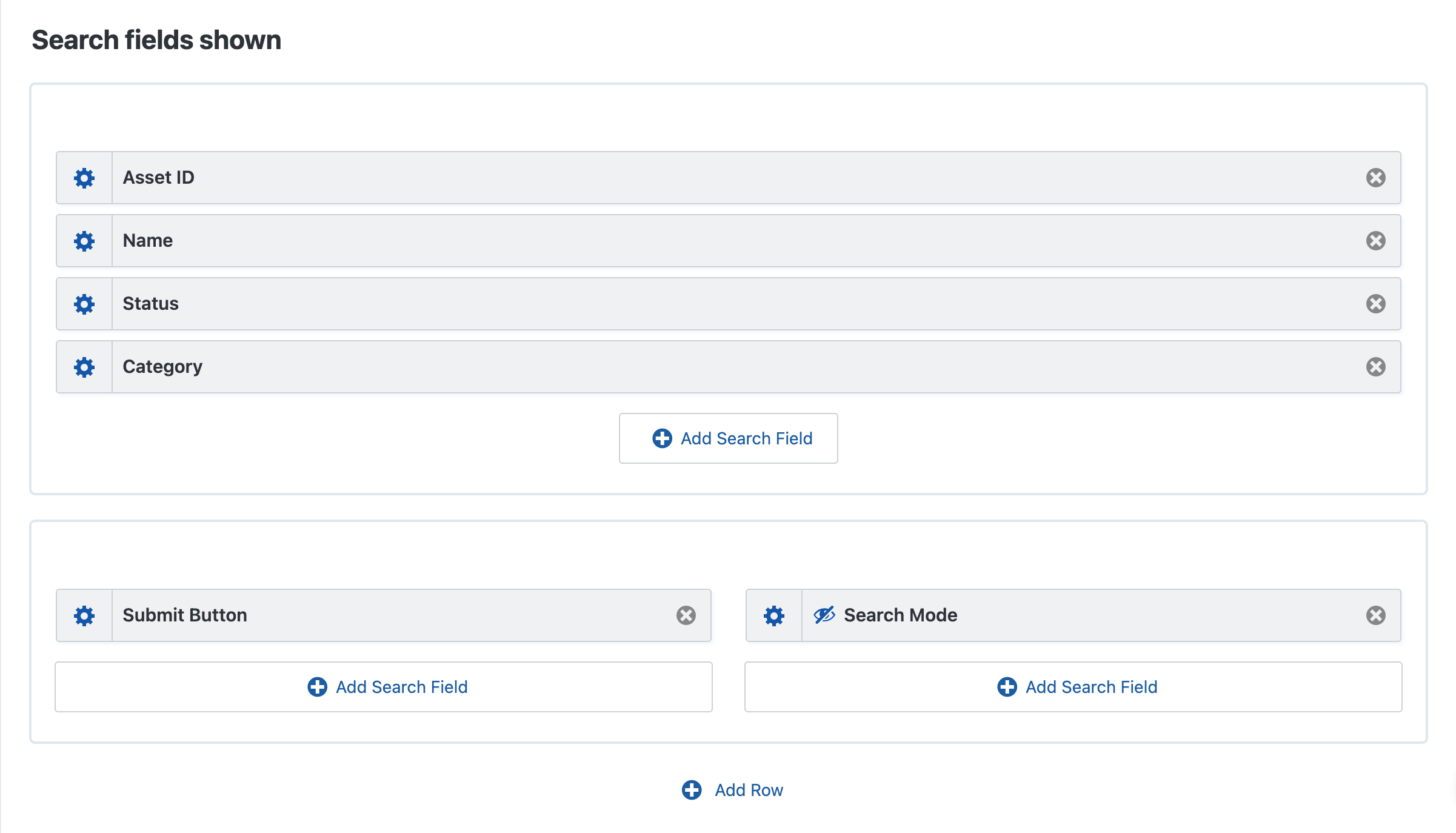
    Search Bar Settings with four search fields in a one-column row, and Submit Button and Search Mode in a two-column row below it

    Note: A second section, Advanced Search fields shown, holds fields that stay hidden until a visitor opens them. The Advanced search section below covers it.

    Column settings

    Hovering over a column shows a Clear all fields link, which removes the fields from that column, and a gear icon that opens Column Settings.
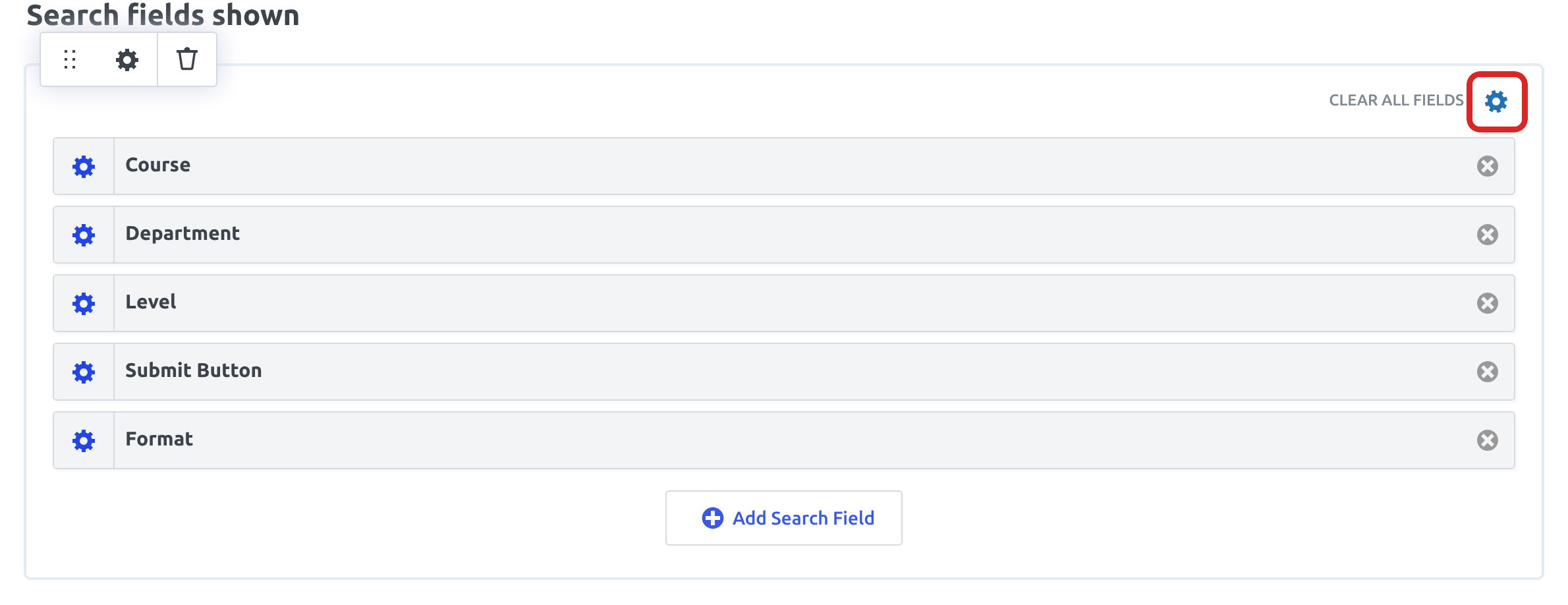
    A Search Bar row in Search Bar Settings on hover, with the row toolbar at the top left and the Clear all fields link and the column's gear icon at the top right, the gear outlined

    In Column Settings, Arrange Fields sets how the column’s fields are laid out on the page. Stacked (vertical), the default, puts each field on its own line. Side by side (horizontal) puts the fields next to each other, and they wrap onto a new line when the column runs out of room.
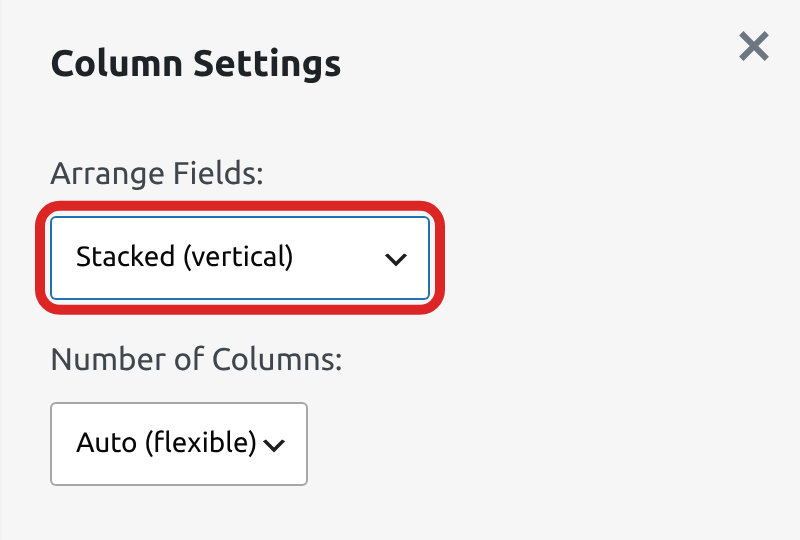
    The Column Settings panel with Arrange Fields set to Stacked (vertical), outlined, above Number of Columns

    Search field settings

    To change how a field works in the Search Bar, click the gear icon on the field.

    The options depend on the field type. A Drop Down field such as Department has Show Label, Custom Label, Input type, Pre-Filter Choices, Default Value, Make visible only to logged-in users?, and Custom CSS Class. Pre-Filter Choices affects security, so read Only show choices in the Search Bar that exist in entries before you turn it on.
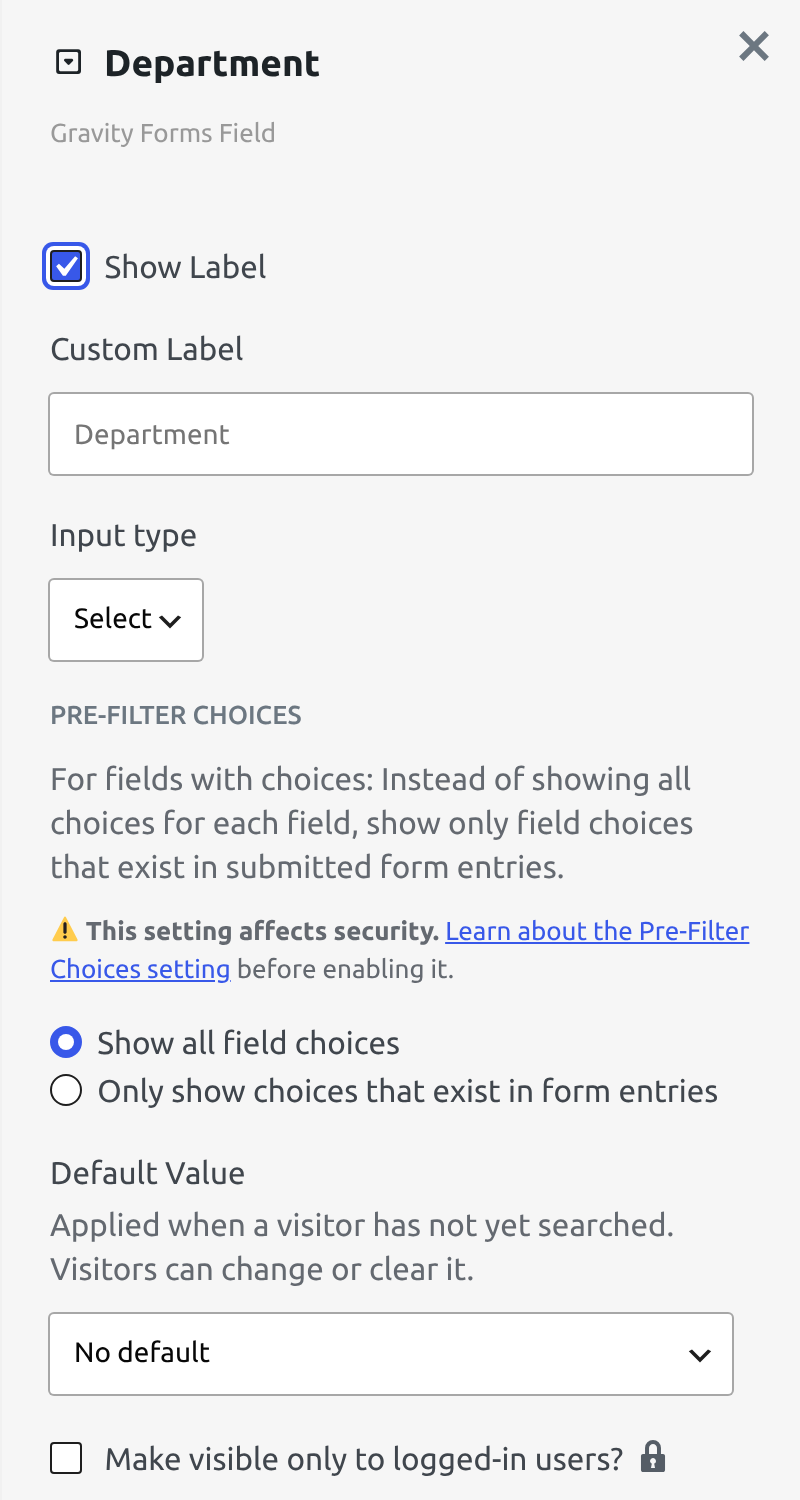
    The settings panel of the Department search field, with Show Label, Custom Label, Input type set to Select, Pre-Filter Choices, Default Value set to No default, and Make visible only to logged-in users?

    Setting a default value

    A search field can start with a value already chosen, so the View opens filtered and visitors see that value in the Search Bar.

    To set one, click the gear next to the field in Search Bar Settings, then fill in Default Value. A field with choices, such as a drop down or radio buttons, offers its choices in a list that starts with No default. A text field and Search Everything offer a text box. Submit Button, Search Mode, and Entry Date have no default value.
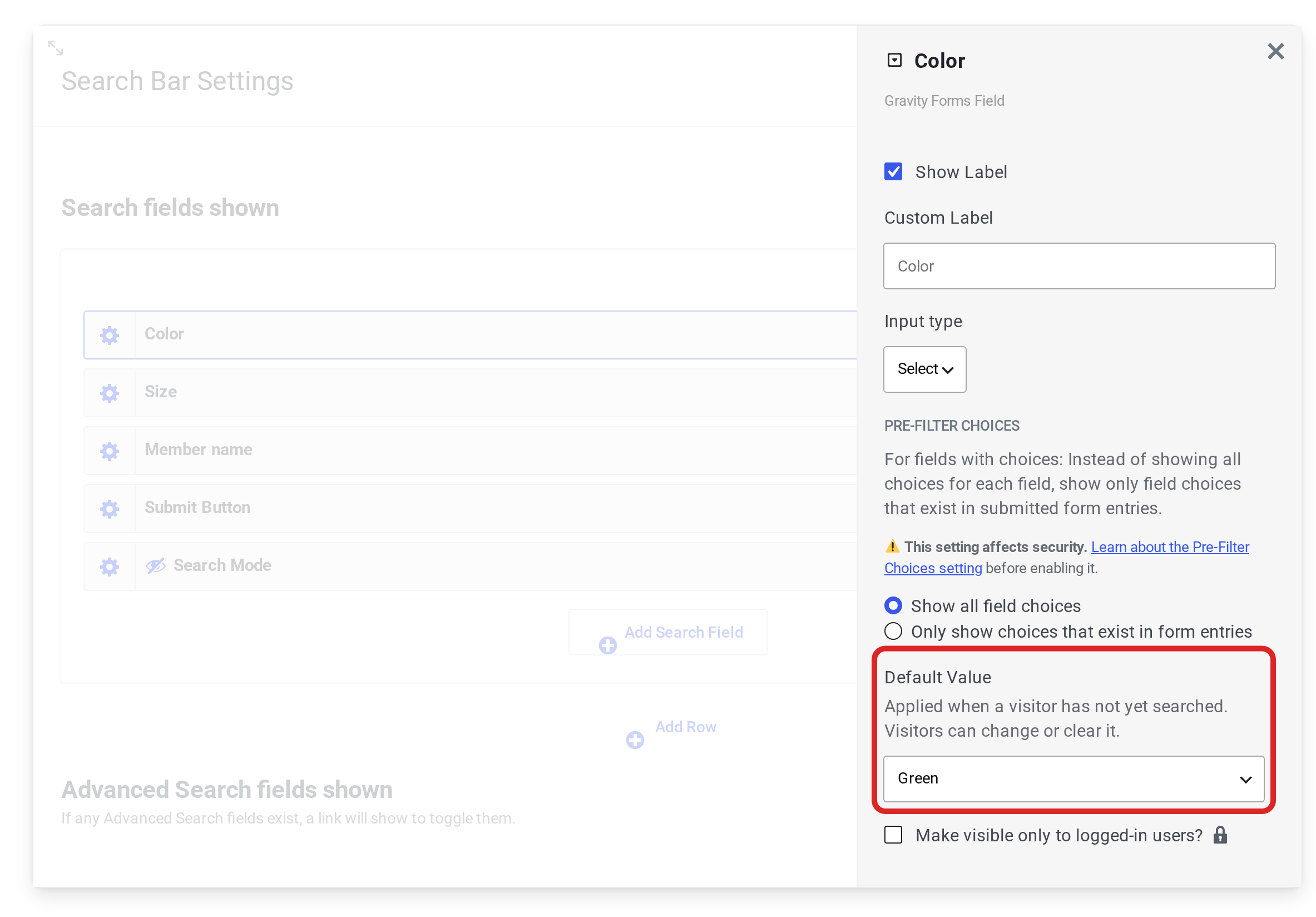
    The Color field's settings in Search Bar Settings, with Default Value set to Green

    When the View opens without a search, it lists only the entries that match the defaults. In the example below, Color shows Green and only the Green entries are listed. If you set defaults on more than one field, the Search Mode setting decides whether entries must match all of them or any of them. With Hide View data until search is performed turned on, the View stays empty until the visitor searches, even when fields have defaults.
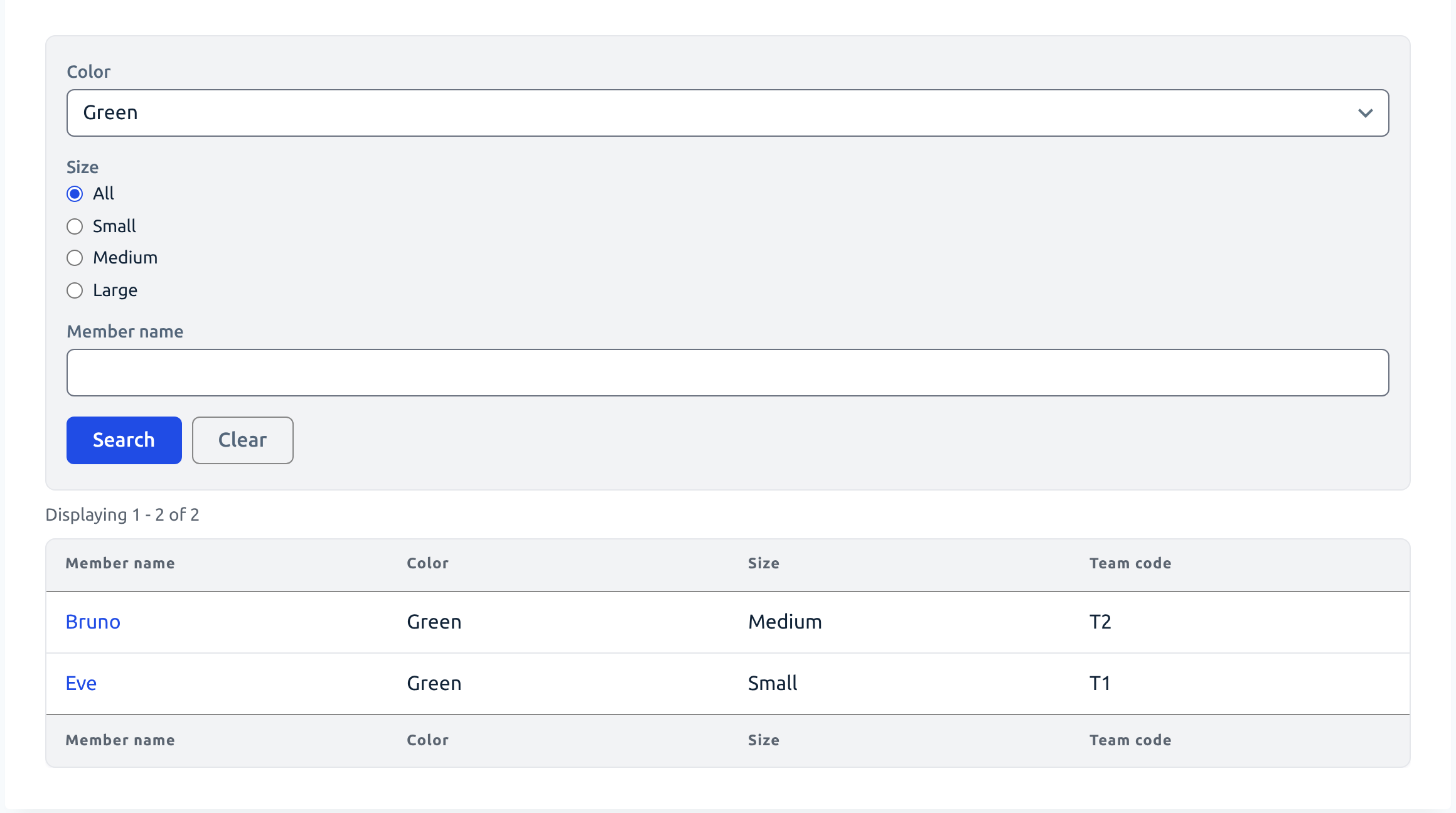
    The Search Bar on a visitor's first visit, with Color showing Green and only the two Green entries listed

    With Show Clear button turned on in the Submit Button settings, which it is by default, the Clear button shows from that first visit. A visitor can pick another value and search, empty a field and search to drop that filter, or click Clear to empty the Search Bar.

    Note: Defaults apply whenever the View opens without a search for it, including when a visitor comes back later. A search for this View in the address turns every default off, including on fields the search doesn’t use. If Color defaults to Green and someone shares a link that searches Member name for Alice, the link shows Alice’s entries in every color. Tracking information in a link, such as utm_source=newsletter, keeps the defaults.

    A field set to Make visible only to logged-in users? applies its default only for logged-in visitors. Pre-filtering results on a View covers the other ways to limit which entries a View shows.

    Supported search fields

    File Upload, Post Image, Post ID, and Section fields can’t be searched, so the Add Search Field list leaves them out. The list also has these entry details:

    • Entry Date: when the entry was submitted.
    • Entry ID: the entry’s number.
    • Entry Creator: the WordPress user who submitted the entry while logged in.
    • Is Starred and Is Read: whether the entry is starred or marked as read in Gravity Forms.
    • Approval Status: whether the entry is approved, disapproved, or unapproved. Learn more about entry approval.

    Special search fields

    Some fields in the list don’t come from your form:

    • Search Everything: one text box that searches all of an entry’s fields.
    • Submit Button: the button that runs the search. Its settings include Show Clear button.
    • Search Mode: sets whether a search must match all fields or any of them. See Search mode below.
    • Geolocation Radius: filters entries by their distance from a location. It comes with the GravityView Maps Layout. Learn more about radius search. To show each entry’s distance from the searched location or list the nearest entries first, see Showing distance and sorting by distance in radius search results.

    Field-specific behavior #

    The Input type setting lists the inputs a field can use, and they depend on the field type. A text field uses a text box. A Number field can also use a number range, and a Date field a date picker or a date range. Fields with choices can use Select, Radio, or Links, and Checkboxes and Multi Select fields can also use Checkbox or Select (multiple values). Modifying Search Bar inputs lists them all and shows how to add your own.

    A text box lists entries whose value contains the text, in any letter case, so lab finds Piano Lab. Select, Radio, and Links match the whole choice. To make a text search match a whole value, see How to search for an exact match.

    Letting visitors clear a radio button field

    Once visitors select a radio button in the Search Bar, they can’t deselect it. To let them clear the field, add a choice that has no value.

    1. Click the gear next to the field in Search Bar Settings, and set Input type to Radio. A radio button field from your form starts out as Select in the Search Bar, and the option in the next step appears only for Radio.
    2. Check Add a "no value" option.
    3. To change the choice’s text, fill in No Value Label. Left empty, the choice reads All.
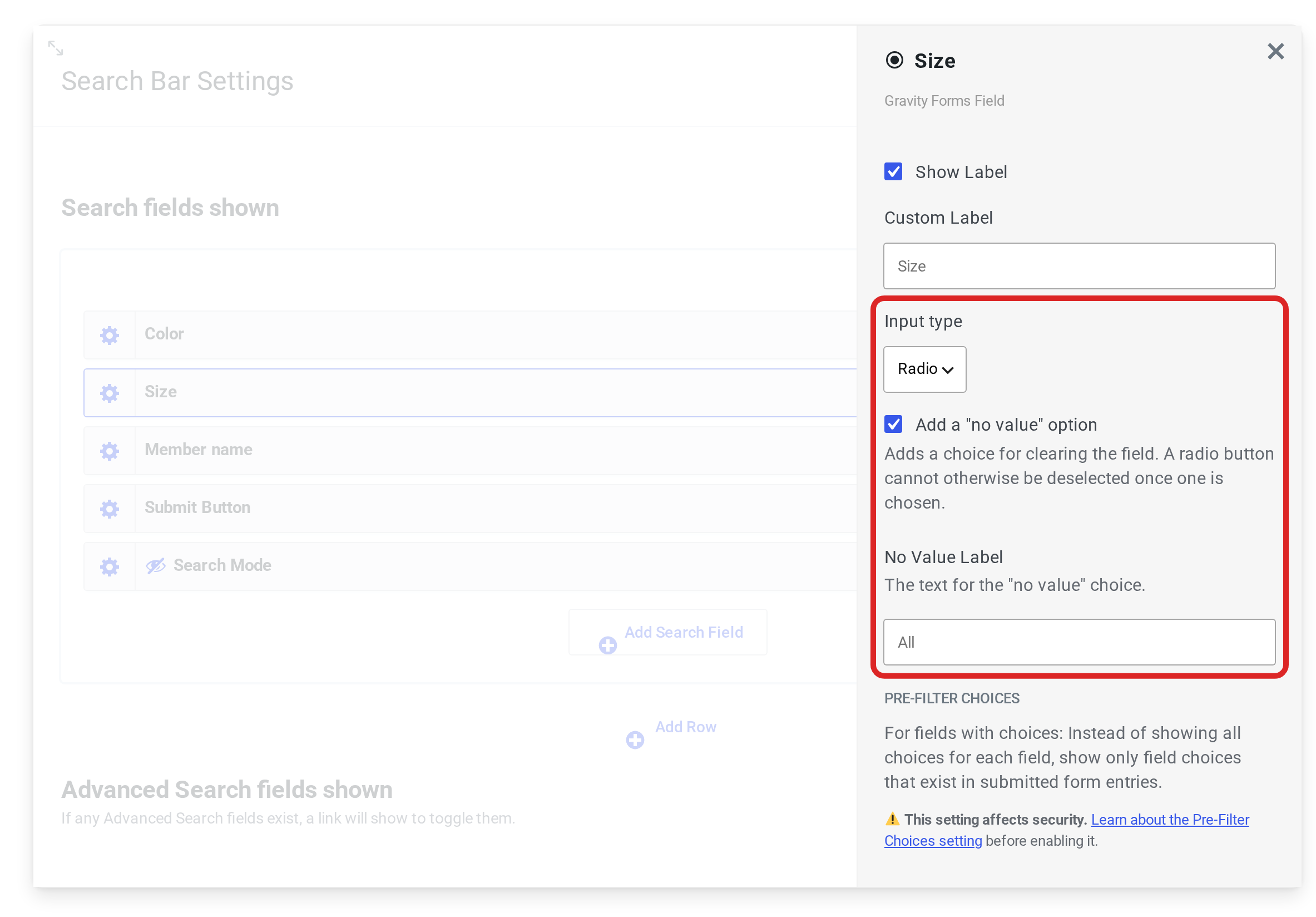
    The Size field's settings with Input type set to Radio, Add a "no value" option checked, and an empty No Value Label showing All as its placeholder

    The new choice comes first in the list. It’s selected whenever the field has no search value, such as on a first visit when the field has no default. When a visitor picks it and searches, the search stops filtering on that field, and entries with nothing in that field can show too.

    Search mode #

    When a search has values in more than one field, the search mode decides which entries are listed. A new Search Bar has no Search Mode field, and its searches match any field.

    • Match Any Fields: an entry is listed when at least one of the searched fields matches.
    • Match All Fields: an entry is listed only when every searched field matches. A field left empty is skipped, so a search for Piano in Department with an empty Course box lists every Piano course.

    To set the mode, add the Search Mode field and click its gear. Its Search Mode setting starts at Match All Fields. With Input type left at Hidden Field, the mode applies to every search and visitors don’t see it. With Radio, visitors choose Match Any Fields or Match All Fields in the Search Bar.

    Matching multiple values within a single field

    When a visitor picks more than one value in a Checkboxes or Multi Select field, the field matches entries that have any of those values. Match All Fields works between fields, so it still requires a match in each of the other searched fields.

    For example, picking Online and Evening in a Format field lists the courses that are online or in the evening. Adding Theory in Department with Match All Fields keeps only the Theory courses among them.

    Advanced search #

    Fields under Advanced Search fields shown in Search Bar Settings stay hidden on the page until a visitor clicks the Advanced Search link. Use it for filters most visitors don’t need.
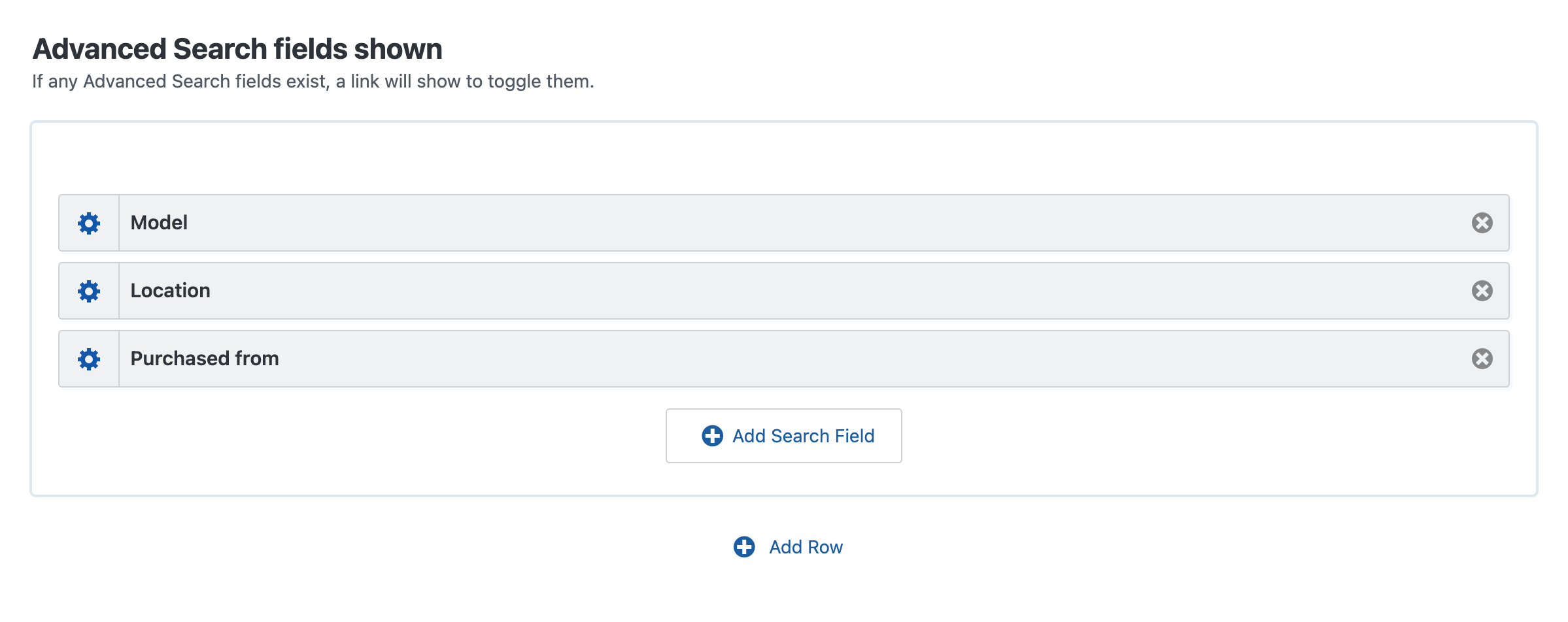
    The Advanced Search fields shown section of Search Bar Settings with the Model, Location, and Purchased from fields

    Once the visitor opens it, those fields work like the rest of the Search Bar. When a search uses one of them, the page loads with the section already open.
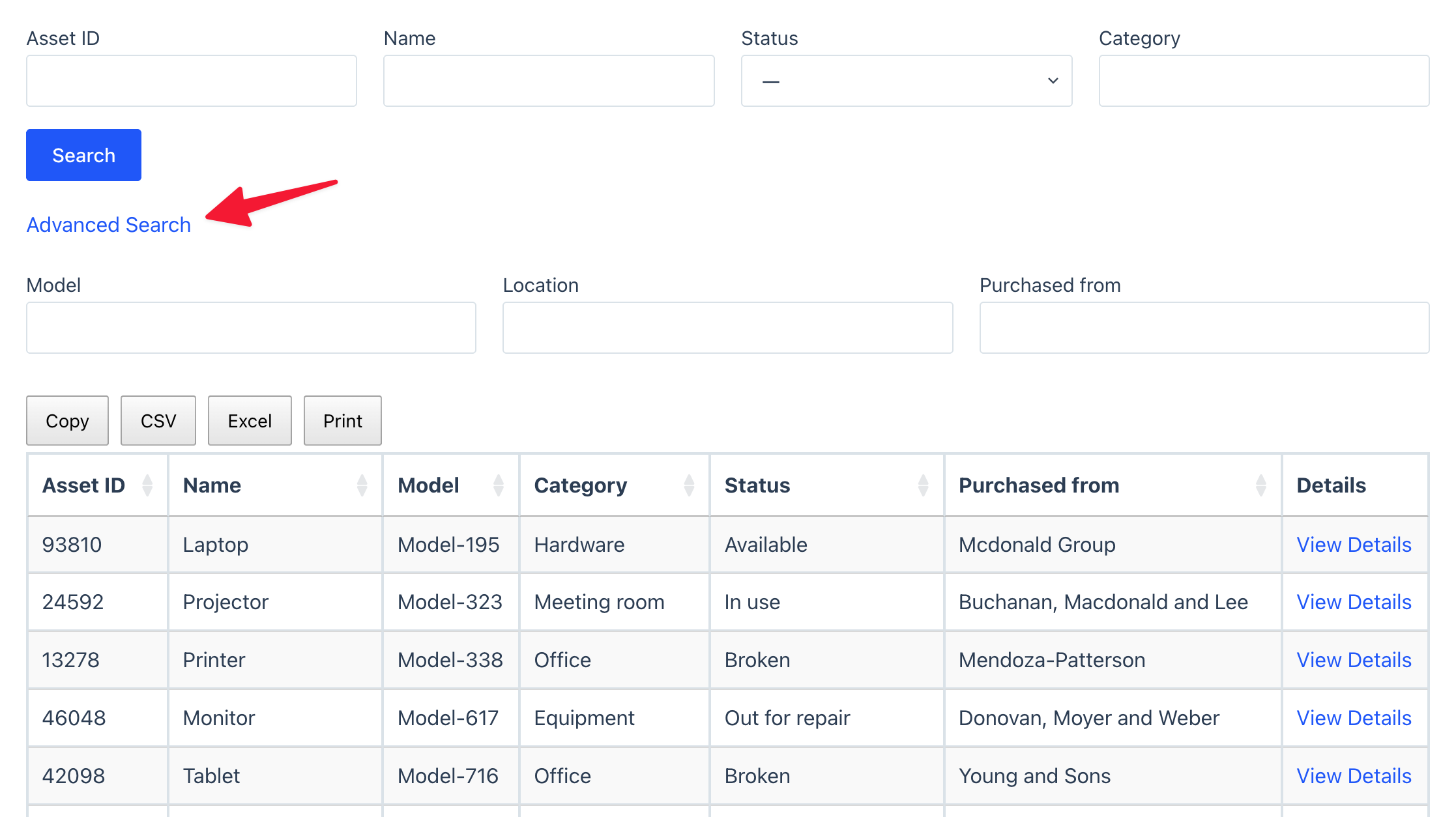

    A Search Bar on the page with the Advanced Search link opened, showing the Model, Location, and Purchased from fields above a table of entries
    Still stuck? How can we help?

    How can we help?

    "*" indicates required fields

    This field is for validation purposes and should be left unchanged.
    Replies will go to this email.
    How can we help?*
    My pre-sale question is related to...*
    My WordPress skills are....*
    My Gravity Forms skills are...*
    You will be shown articles from our documentation.
    Vous pouvez nous écrire dans votre langue maternelle si c’est plus facile pour vous—nous nous occuperons de la traduction!
    Puedes escribirnos en tu idioma nativo si te resulta más fácil; ¡nosotros nos encargamos de la traducción!
    Sie können uns in Ihrer Muttersprache schreiben, wenn das für Sie einfacher ist – wir kümmern uns um die Übersetzung!
    U kunt ons in uw moedertaal schrijven als dat gemakkelijker voor u is — wij zorgen voor de vertaling!
    Du kan skrive til oss på ditt morsmål hvis det er enklere for deg — vi tar oss av oversettelsen!
    Du kan skriva till oss på ditt modersmål om det är lättare för dig — vi tar hand om översättningen!
    Você pode nos escrever em seu idioma nativo se for mais fácil para você — nós cuidaremos da tradução!
    Puoi scriverci nella tua lingua madre se ti è più facile — penseremo noi alla traduzione!
    Please provide as much detail as you're able; this helps us provide you with faster support.
    Drop files here or
    Accepted file types: jpg, jpeg, gif, png, tiff, pdf, bmp, zip, json, csv, xls, xlsx, Max. file size: 256 MB.
      Get better at Gravity Forms every Friday

      Was this page helpful?

      Table Of Contents
      • Adding a Search Bar widget
      • Adding fields and designing the layout
      • Field-specific behavior
      • Search mode
      • Advanced search
      GravityKit
      • How to Build It
      • GravityKit vs competitors
      • Pricing
      • Products
      • Our Team
      • Our Values
      • Work With Us
      • Partner Directory
      • Coupons
      Support
      • Support
      • Contact
      • Documentation
      • Scope of Support
      • Brand Guidelines
      • Brand Kit
      • Privacy Policy
      • Terms of Service (“Terms”)
      I am a...
      • Nonprofit
      • Web agency
      • Small business owner
      • Web developer
      • Educational institution
      • WordPress freelancer
      • Startup founder
      • One-person agency
      Get notified of updates.

      We’re constantly improving GravityKit. Fill out your email below and we’ll notify you anytime major updates drop.

      See past editions
      • Facebook
      • Twitter
      • Mastodon
      GravityKit is a Gravity Forms Certified Developer.

      Copyright © 2026, Katz Web Services, Inc.

      GravityKit and GravityView are registered trademarks of Katz Web Services, Inc.
