
Editing rich text Paragraph fields with Edit Entry and GravityEdit
A Paragraph field in Gravity Forms can use a rich text editor, which gives people a toolbar for bold text, lists, and links. When the editor is on, GravityView Edit Entry and GravityEdit inline editing both show a formatting toolbar for that field, and your View can show that formatting.
Turn on the rich text editor #
GravityView and GravityEdit both use this setting from the form. The View has no rich text setting of its own.
- Go to Forms and edit your form.
- Click the Paragraph field.
- Open the Advanced tab of the field settings.
- Check Use the Rich Text Editor.
- Click Save Form.
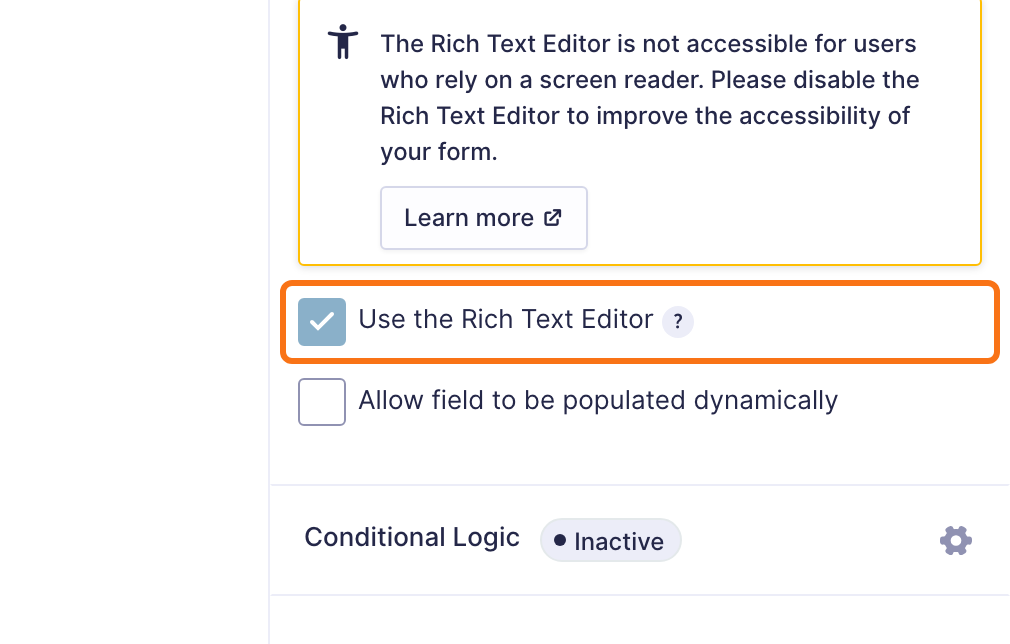
Accessibility: Gravity Forms warns that its rich text editor is not accessible to people who use a screen reader. If they need to fill in or edit this field, keep the editor off.
Editing in GravityView Edit Entry #
Edit Entry shows the same rich text editor and toolbar as your form, with the field’s current formatting loaded. GravityView saves the changes when you click Update.
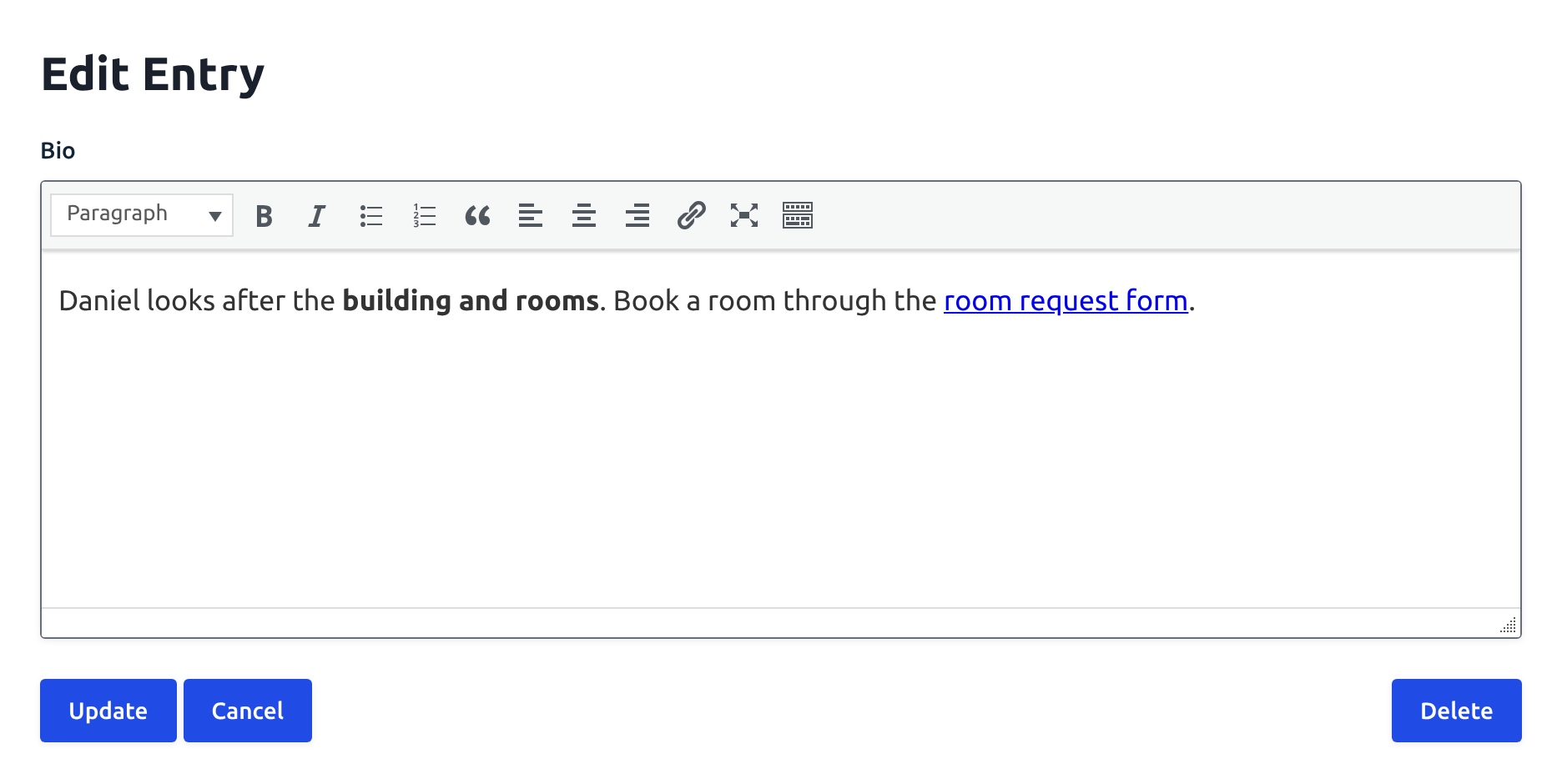
To set up Edit Entry, see Configuring the Edit Entry screen.
Editing inline with GravityEdit #
The rich text editor needs GravityEdit 2.11.0 or newer, and adding links in the popup editor needs GravityEdit 2.11.2 or newer. Turn on GravityEdit for the View as GravityEdit: How to Enable for GravityView Views describes. Then open the View with an account that can edit the entry, click Enable Inline Edit, and click a rich text Paragraph field to open it in the editor.
The toolbar has buttons for:
- Bold, italic, and underline
- Bulleted and numbered lists
- Quotes
- Adding and removing links
- Undo and redo
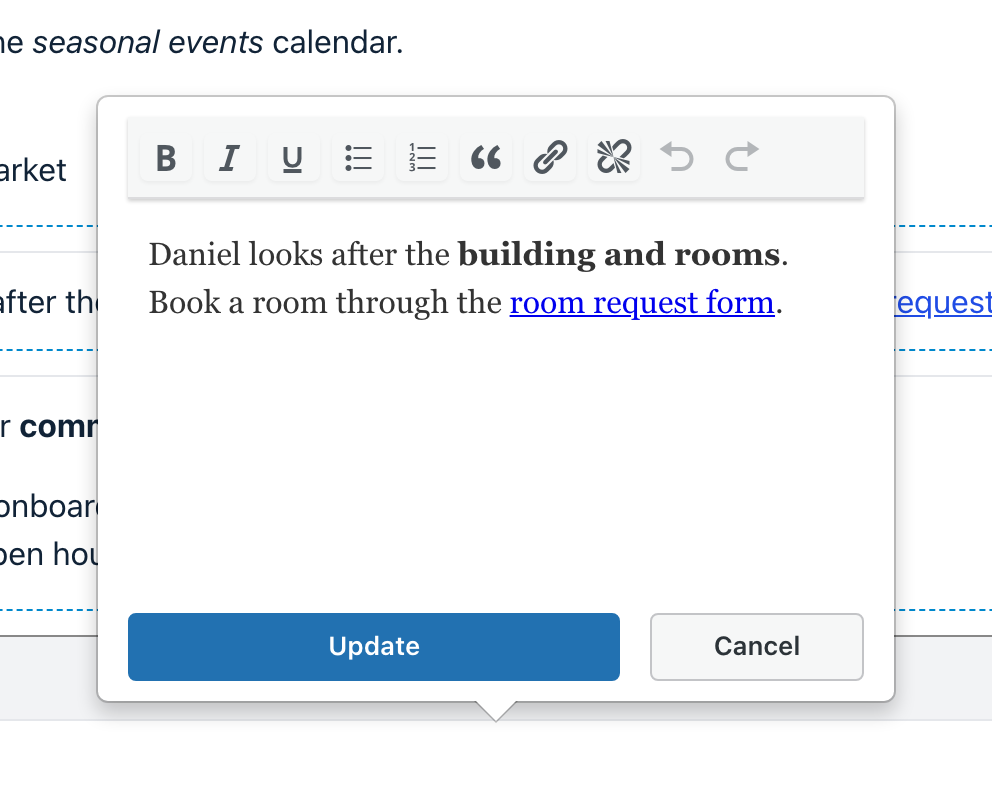
To save, click Update or press Cmd+Enter (Mac) or Ctrl+Enter (Windows). To close the editor without saving, click Cancel or press Esc. If you changed the text, GravityEdit asks before it discards your changes.
Clicking another editable field closes the open editor without saving and without asking, so click Update first.
Editing a whole column at once
In column edit mode, the cells of a rich text column stay closed until you click one. Edit one cell at a time and click Update before you open the next one. If another editor is open when you click a cell, that editor closes, and you click the cell again to open it.
Formatting that GravityEdit saves
GravityEdit saves the HTML that WordPress allows in post content, such as paragraphs, bold text, lists, and links. It removes the HTML tags and attributes that WordPress does not allow in post content, such as scripts.
If you turn the rich text editor off later, GravityEdit opens the field as a plain text box that shows the HTML tags. Saving the field then removes the tags and keeps the text and line breaks.
Note: If the field opens as a plain text box with HTML tags while the rich text editor is on, the WordPress editor did not load on that page. Another plugin that removes the editor can cause this. You can still edit the HTML in the box.
Showing the formatting in your View #
The View shows the formatting on the Multiple Entries and Single Entry pages while the field’s Display as HTML setting is checked, which is the default. To find the setting, click the gear icon on the Paragraph field in the View editor.
- With Display as HTML unchecked, the View shows the HTML tags as text.
- A number above zero in Maximum words shown shortens the text to that many words and removes its formatting, even when the text is already shorter. Leave it empty to keep the formatting.

