
How to enable logging and use WP Debug in GravityKit
When you report a problem, GravityKit support may ask you for a log. GravityKit keeps its own log of what plugins such as GravityView are doing. Its settings can also turn on the WordPress debug log, which records PHP errors and warnings from WordPress and every plugin and theme.
GravityKit logging #
- Go to GravityKit, then Settings, and click Logging.
- Turn on Enable Logging.
- Set Log Level to Debug (Everything + Technical Details), unless support asked for another level.
- Leave Log Type set to File.
- Click Save Settings.
- Repeat what you were doing when the problem happened.
- Open the Logging settings again and click log file to download the log.
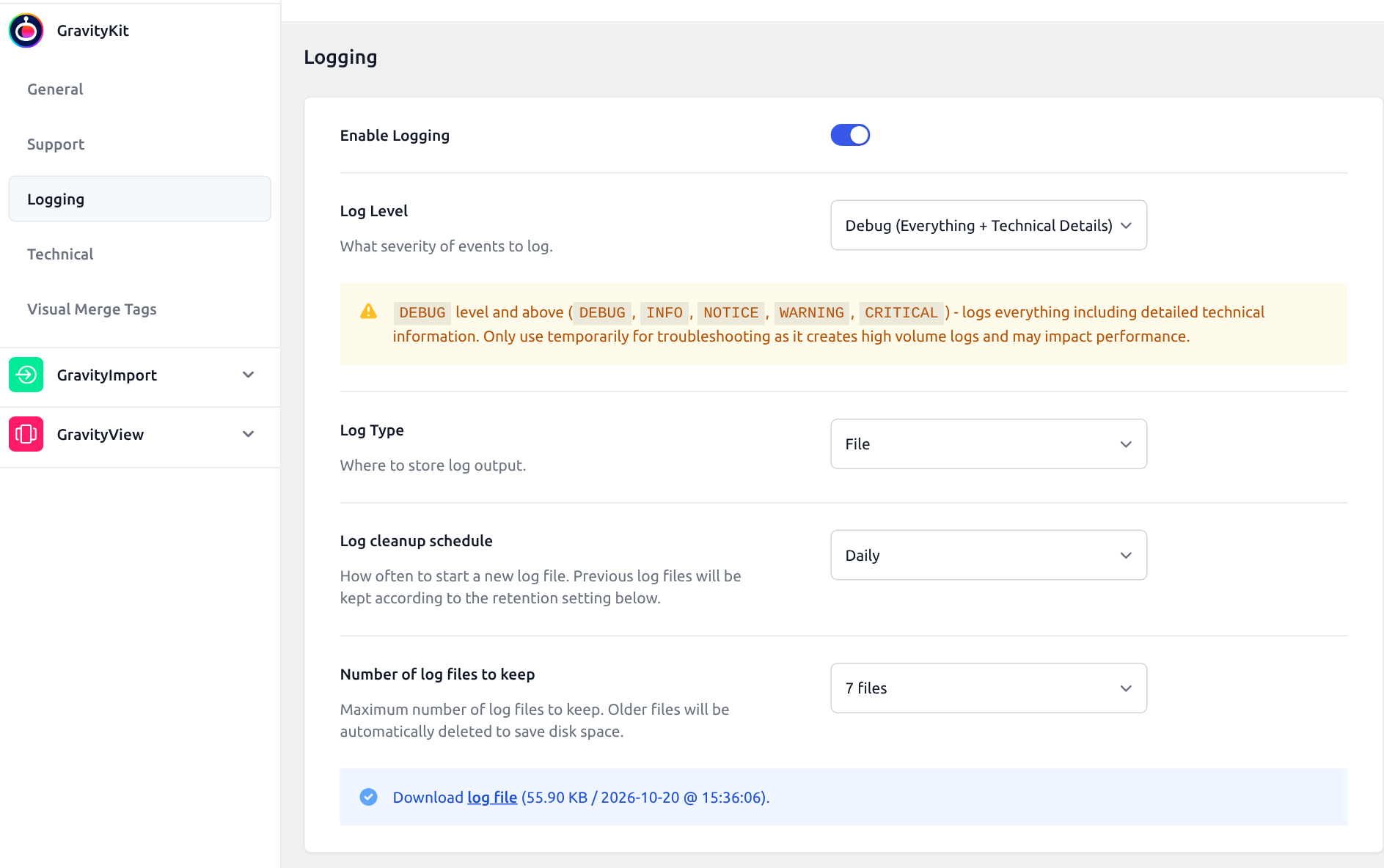
When the site has more than one log file, the settings list them under Log files:, one link per date, and mark the newest (current).
Attach the file to your support request. The download link only opens for users who can manage the site’s settings, such as administrators, so send the file itself.
Turn logging off when support has the file, because the Debug level records a lot and can slow the site down.
Warning: Turning logging off, or changing Log Type from File to another type, deletes every GravityKit log file. Download the file first.
Log levels
Each level records everything the one above it records, plus its own kind of message.
| Log Level | What it records |
|---|---|
| Minimal (Critical Issues Only) | Records critical failures only. |
| Standard (Problems & Errors) | Adds warnings and errors. This is the default. |
| Detailed (Including Notices) | Adds notices. |
| Verbose (All Activity) | Includes general information about what the plugins are doing. |
| Debug (Everything + Technical Details) | Records everything, including technical detail. Some messages support relies on appear only at this level, such as the reason a visitor sees “You are not allowed to view this content.” |
Log types
Log Type decides where the messages go, and only File gives you a file to send. Query Monitor sends them to the Query Monitor plugin, which must be installed. Chrome Logger sends them to the Chrome Logger extension for Google Chrome.
Log files
With File, the Log cleanup schedule sets how often a new file starts (Daily, Weekly, Monthly, or Yearly). The Number of log files to keep setting decides how many files stay before the oldest is deleted. The defaults are Daily and 7 files.
GravityKit saves its log files in wp-content/logs. Developers can change the folder with the gk/foundation/logger/log-path filter.
Logging handled by Gravity Forms
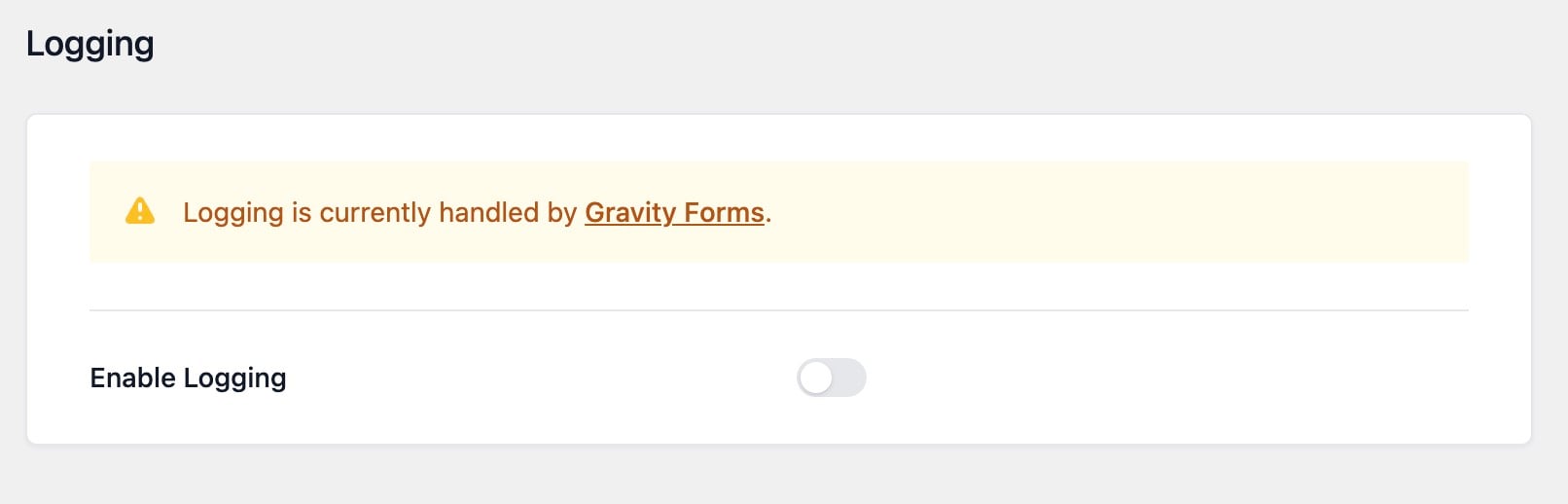
If Gravity Forms logging is on while GravityKit logging is off, the Logging section shows “Logging is currently handled by Gravity Forms.” GravityKit’s messages then go into the Gravity Forms log, under GravityKit on the Gravity Forms Logging settings page. To keep them in GravityKit’s own log, turn on Enable Logging.
WordPress debug log #
The WP Debug section of the GravityKit settings can turn the WordPress debug log on and off, and gives you a link to download it.
- Go to GravityKit, then Settings.
- Add
&wp_debug=1to the end of the page address in your browser and press Enter. - Click WP Debug.
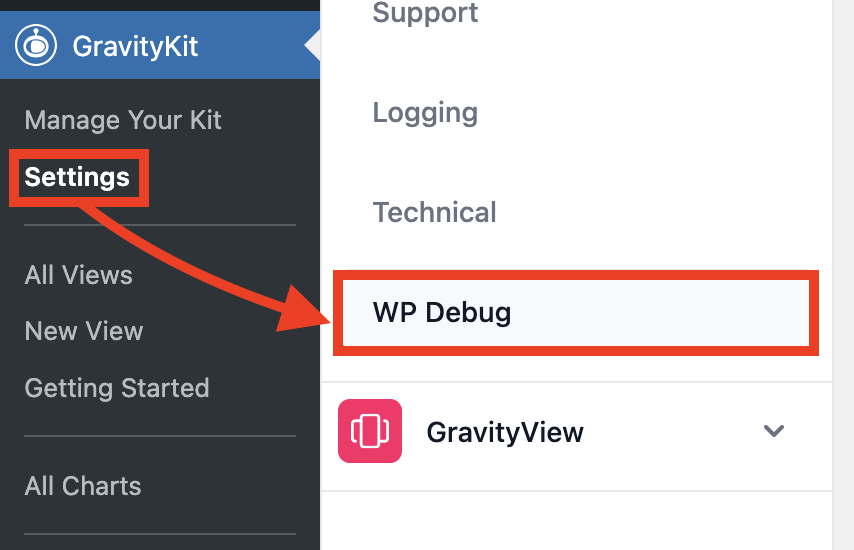
Only users who can manage the site’s settings, such as administrators, see WP Debug. On a multisite network, it shows only on the main site and only to network administrators. The section also shows without &wp_debug=1 when the GK_FOUNDATION_DEBUG constant is set to true in wp-config.php.
Turn on debug logging
If WordPress debugging is off and GravityKit can edit wp-config.php, the section has an Enable WordPress Debug Logging switch:
- Turn on Enable WordPress Debug Logging.
- Click Save Settings.
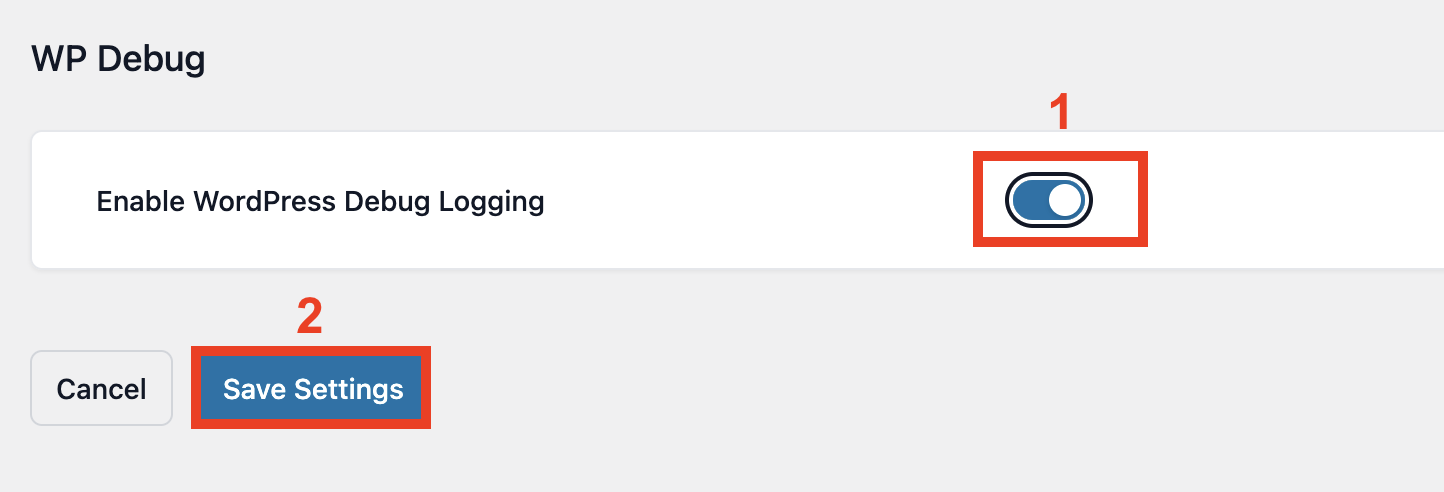
GravityKit comments out any WP_DEBUG, WP_DEBUG_DISPLAY, and WP_DEBUG_LOG lines in wp-config.php and adds its own. With them, errors go to wp-content/logs/gravitykit-wp-debug.log and are not shown on your site’s pages. GravityKit then checks that the site still loads and puts wp-config.php back if it does not.
Some hosts block a site’s requests to itself, so the check fails and the setting does not save. To skip the check, add this code:
// Skip the check GravityKit runs after it edits wp-config.php.
add_filter( 'gk/foundation/skip-site-health-check', '__return_true' );Read here how to add these code samples to your website: Where to put code samples.
If GravityKit cannot edit wp-config.php, the section says “The wp-config.php file is not writable. Debug settings cannot be modified.” You can then turn debugging on in the file yourself by following Debugging in WordPress.
Download the debug log
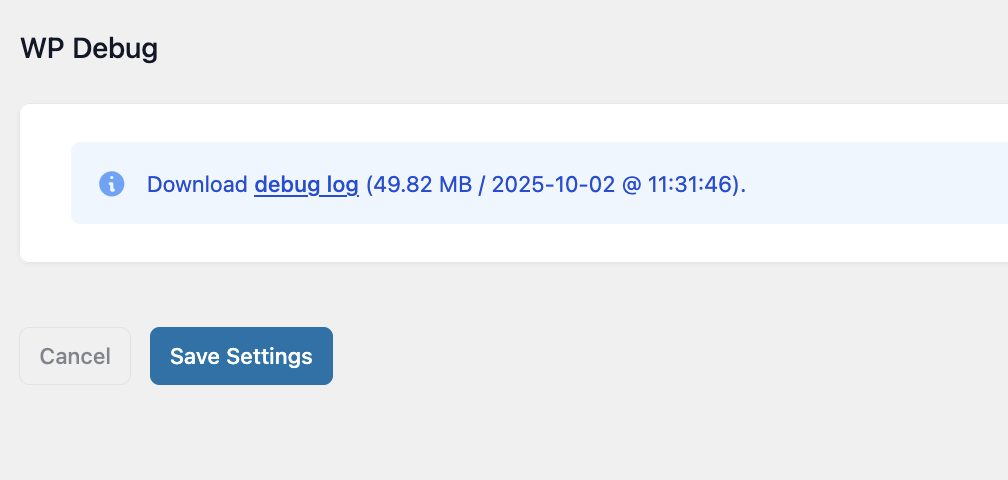
When WordPress debugging is on, the section shows a debug log link with the size and date of the file. Click it to download the log, then attach the file to your support request.
Turn off debug logging
Once support has the file, turn off Enable WordPress Debug Logging and click Save Settings. GravityKit removes its lines from wp-config.php, restores the lines it commented out, and deletes gravitykit-wp-debug.log. When you or your host turned debugging on in wp-config.php, the section has no switch, and GravityKit leaves those settings alone.

