
Restricting a View to logged-in users or user roles
Every View has an address of its own, whether or not you link to it. To keep a View’s entries to certain users, turn on Prevent Direct Access so people who can’t edit the View see it only where you embed it, then restrict the page that embeds it. Without Prevent Direct Access, restricting or redirecting the page leaves the View open at its own address.
Note: Restricting the page with Members keeps the View’s entries from visitors in GravityView 3.10.0 and newer, and for DataTables Views in DataTables 3.14.2 and newer.
Step 1: Turn on Prevent Direct Access #
- Edit the View.
- In the Settings box, open the Permissions tab.
- Turn on Prevent Direct Access.
- Click Update.
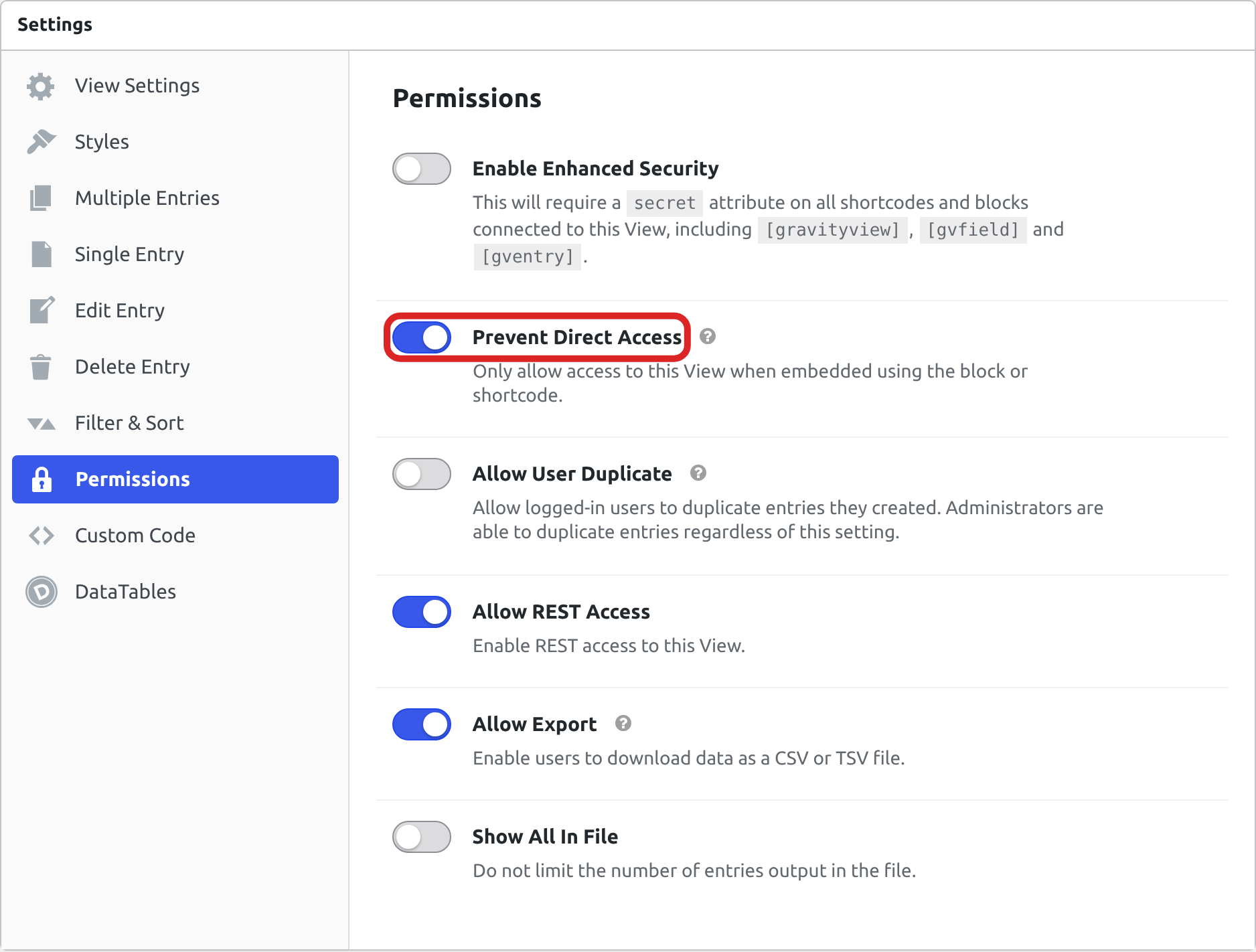
Visitors who open the View’s own address now get a page not found, and the View shows only on the pages where you embed it with the GravityView block or the [gravityview] shortcode. The Prevent Direct Access setting has the details.
Step 2: Restrict the page that embeds the View #
Embed the View on a page, then restrict the page in one of the ways below. The View’s entries load only for the people the page shows the View to.
With the Members plugin
The free Members plugin adds a Content Permissions (Members) panel to the page editor.
- Edit the page that embeds the View.
- In the sidebar’s Page tab, open Content Permissions (Members).
- Tick the roles that should see the page. Each change saves on its own.
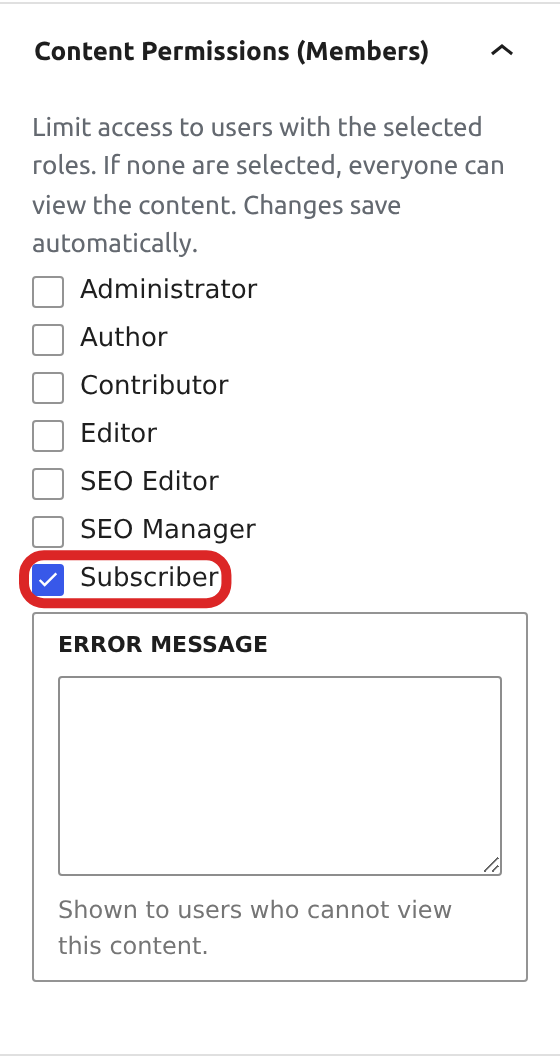
Visitors and users without one of those roles see Members’ message in place of the page content. Users who can edit the page, such as editors and administrators, always see it.
To restrict only the View and leave the rest of the page open, wrap its shortcode in a Members shortcode. This one shows the View to subscribers:
[members_access role="subscriber"]
    [gravityview id="47"]
[/members_access]Only users with that role see the View, so list editor and administrator as well if they should see it, as in role="subscriber,editor,administrator". To show the View to any logged-in user, use this one:
[members_logged_in]
    [gravityview id="47"]
[/members_logged_in]With WordPress’s own page settings
A page set to Private shows only to administrators and editors, and a password-protected page shows its content only after the visitor enters the password. The View on the page follows the same rule.
Restrict the View itself instead #
A View can also be restricted without a page, by setting the View itself to Private:
- Edit the View.
- In the Publish box, click Edit next to Visibility.
- Choose Private, click OK, then click Update.
A Private View shows only to administrators and editors, at its own address and on any page that embeds it. To let another role see Private Views, give the role the read_private_gravityviews capability. With Members:
- Go to Members, then Roles, and edit the role.
- Type
read_private_gravityviewsin the Filter capabilities box, tick Grant on its row, then click Update.
The capability covers every Private View on the site, so give it only to roles that should see all of them. GravityView capabilities lists the others.
Show some fields only to logged-in users #
To show a View to everyone and keep some of its fields to logged-in users, change those fields’ visibility:
- In the View editor, click the gear icon on the field.
- Under Visibility, tick Make visible only to logged-in users?
- In Make visible for, choose who sees the field: Any Logged-In User, Author Or Higher, Can View Gravity Forms Entries, Editor Or Higher, Can Edit Gravity Forms Entries, or Administrator.
- Click Close, then Update.
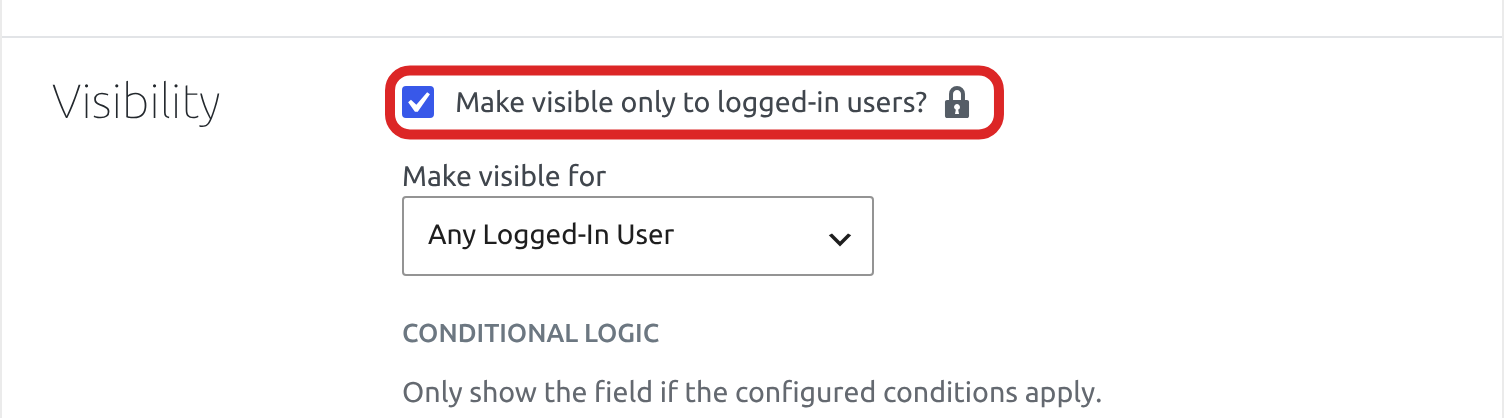
Everyone else sees the View without that field, and in a table its column is left out. To add other choices, see adding capabilities to the Make visible for list.