
Using a range to search numeric fields
The Search Bar in GravityView can search a number field by a range, so visitors find entries between a lowest and a highest value: listings priced from $400,000 to $800,000, or students who scored between 80 and 100. GravityView offers two range inputs:
- Slider: visitors drag one or two handles along a track, or type in the boxes below it. The two ends of the track come from the View’s own entries, so visitors see the real lowest and highest values before they search.
- Number range: two boxes, a minimum and a maximum, that visitors fill in.
Both run the same search, so the same values return the same entries.
Which fields support a range search #
The two inputs work with these field types:
| Field | Slider | Number range |
|---|---|---|
| Number | Yes | Yes |
| Quantity | Yes | Yes |
| Total | Yes | Yes |
| Payment Amount | Yes | Yes |
| Product (user-defined price) | No | Yes |
Method 1: Range slider #
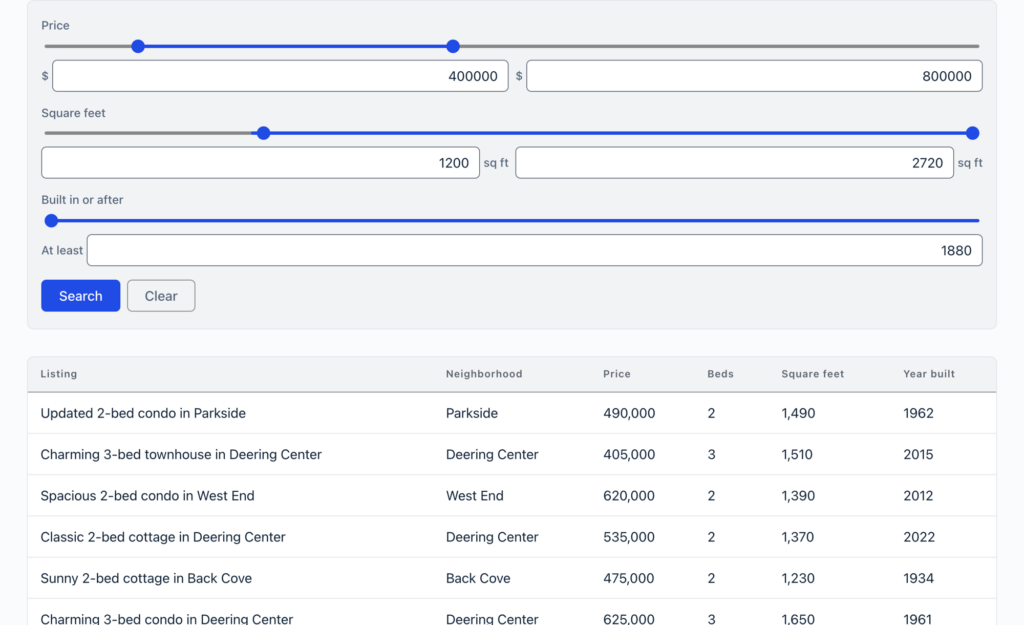
The slider shows a track for each field, with handles visitors drag to set the range.
Step 1: Add a number field to the Search Bar
- Open your View and find the Search Bar widget. If the View doesn’t have one yet, see Configuring the Search Bar.
- Click the gear icon on the Search Bar widget to open Search Bar Settings.
- Click Add Search Field and choose a supported field, such as a Number field.
Step 2: Set the input type to Slider
- Click the gear icon next to the field in Search Bar Settings.
- Set Input type to Slider.
- Minimum and maximum: two handles, for a search such as “between $400,000 and $800,000”.
- Minimum only: one handle labeled At least.
- Maximum only: one handle labeled Up to.
- Click Update to save the View.
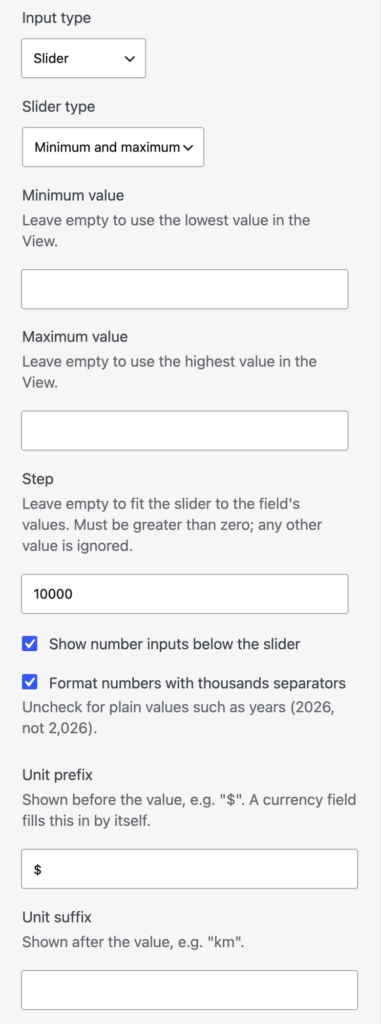
The slider works with no other changes. The settings below are optional.
Step 3: Adjust the slider settings (optional)
| Setting | What it does |
|---|---|
| Minimum value | The lowest value on the track. Leave it empty to use the lowest value in the View. |
| Maximum value | The highest value on the track. Leave it empty to use the highest value in the View. |
| Step | How far a handle moves at a time, for example 10000 for prices or 0.5 for ratings. Leave it empty to fit the step to the field’s values. The step must be greater than zero; any other value is ignored. |
| Show number inputs below the slider | Shows a box under each handle where visitors can type a value. It’s on by default. When it’s off, the values show as text under the track. |
| Format numbers with thousands separators | Shows 2,720 instead of 2720 in the values shown as text under the track. It’s on by default. Turn it off for values such as years, so 2026 doesn’t show as 2,026. The number boxes always show plain numbers. |
| Unit prefix | Text shown before each value, such as $. A currency field fills this in on its own. |
| Unit suffix | Text shown after each value, such as km or sq ft. |
Minimum value is hidden when the slider type is Maximum only, and Maximum value is hidden when it’s Minimum only. With one handle, the other end of the track always comes from the View’s entries.
The slider has no Default Value setting. It opens at the two ends of the track, and the View lists every entry until the visitor searches.
How the slider behaves for visitors
- The track spans only the entries the visitor can see. If a View shows each user only their own entries, each user’s slider runs from the lowest to the highest of their own values.
- Visitors can search with the keyboard. Tab to a handle and press the arrow keys to move it one step, or hold Shift to move it about a tenth of the track. The arrow keys also work in the number boxes.
- The slider fits at phone width, with no sideways scrolling.
- A View with no entries shows two plain number boxes in place of the slider, because there are no values to build the track from. The slider appears once the View has entries.
- The searched values stay in the page address, for example
filter_2[min]=400000&filter_2[max]=800000, so visitors can bookmark or share a search. See Linking to a search.
Using more than one slider
When the Search Bar has several fields, its Search Mode decides how they combine. A new Search Bar matches any field, so a search for a price range and a minimum size lists every entry in the price range plus every entry over that size. To list only the entries that match every slider, add the Search Mode field to the Search Bar and set it to Match All Fields. See Search mode for details.
Method 2: Number range #
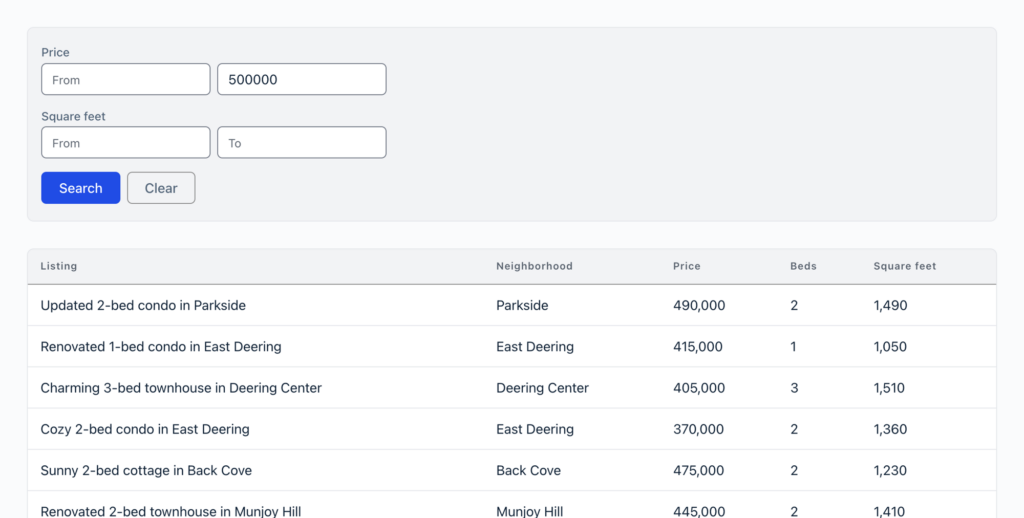
The Number range input shows two boxes, From and To, for each field. Use it for Product fields with a user-defined price, which can’t use the slider, or when you’d rather visitors type exact values.
Step 1: Set the input type to Number range
- Add a supported field to the Search Bar, as in Method 1, Step 1.
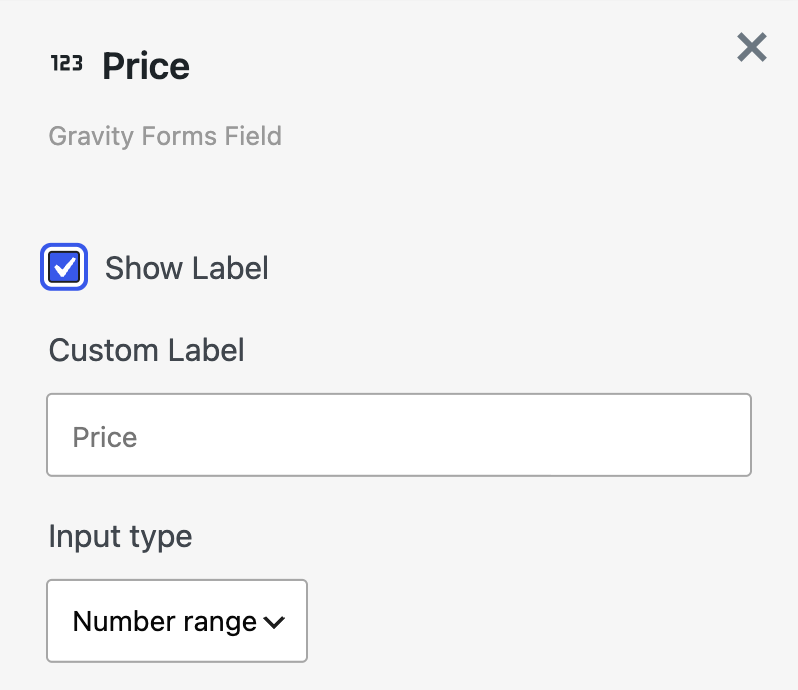
- Click the gear icon next to the field in Search Bar Settings and set Input type to Number range.
- Click Update and open your View.
How the number range behaves for visitors
The boxes support decimals and, by default, go up or down by 1 when visitors use the keyboard or the arrows in the box.
A visitor can fill in only one box. Leaving From empty lists the entries at or below the To value, and leaving To empty lists the entries at or above the From value.
Watch the video demo
Customizing the number step increment
To change how far the Number range boxes move with each step (for example, to allow increments of 0.5), use the gk/gravityview/search/number-range/step filter:
/**
 * Sets the step of the Number range boxes in the Search Bar.
 *
 * @param string $step The step. Defaults to '1' for Quantity fields and 'any' for other fields.
 *
 * @return string The new step.
 */
add_filter( 'gk/gravityview/search/number-range/step', function ( $step ) {
	return '0.5';
} );
The slider has its own Step setting, described in Method 1, Step 3.