

Unapproving entries automatically after they’re edited
The Unapprove Entries After Edit setting resets an entry to Unapproved when someone who can’t moderate entries saves it through Edit Entry. GravityView has no pending copy of the edit: the new values are saved to the entry straight away. On a View with Show only approved entries on, the whole entry leaves the View until someone approves it again.
Warning: While the entry waits, nobody can see the last approved version. On a View showing only approved entries, the person who edited it sees “You are not allowed to view this content.” right after saving, and can’t open or edit the entry again until it’s approved. Their changes are saved.
Turn on the setting #
- Edit your View and find the Settings box.
- Click the Edit Entry tab.
- Turn on Allow User Edit, then Unapprove Entries After Edit.
- Click Update.
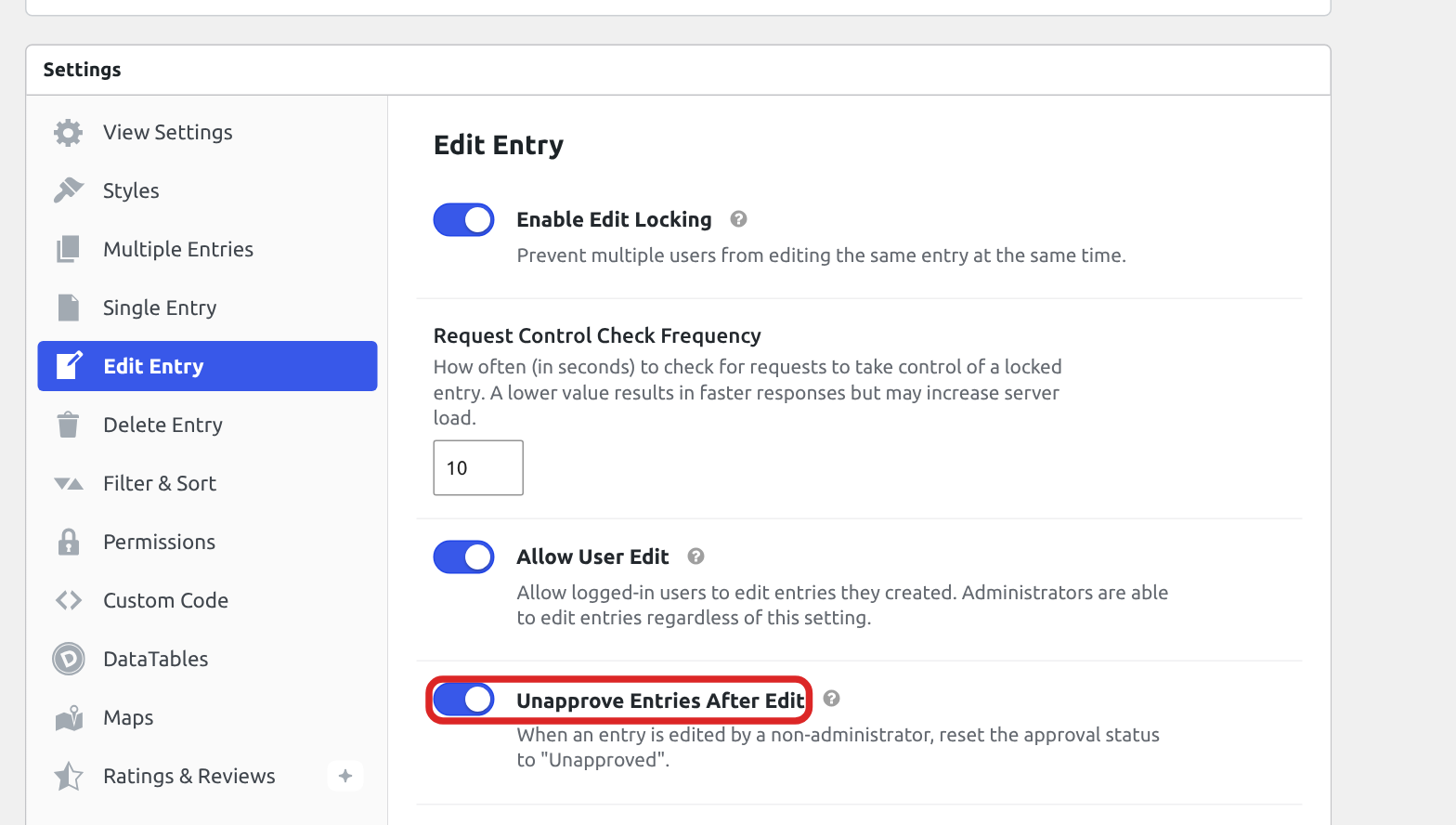
The setting belongs to each View. An edit made through a View with the setting off leaves the status as it is.
Edits that reset the status #
- The reset applies to anyone without the
gravityview_moderate_entriescapability, such as Subscribers and Authors. Administrators and Editors have it by default, so their edits leave the status as it is. - Every save counts, including clicking Update without changing anything.
- A Disapproved entry goes back to Unapproved too.
- Only saves through Edit Entry count. Editing an entry on the Gravity Forms Entries screen doesn’t reset it, and neither does inline editing with GravityEdit.
A reset adds this note to the entry and sends any notification set to the GravityView - Entry approval is reset event, so you can email yourself when an entry needs review. How to send email notifications when an entry is approved covers the setup. To get an email for every edit, whether or not it resets the status, see How to send or skip a notification when an entry is edited.
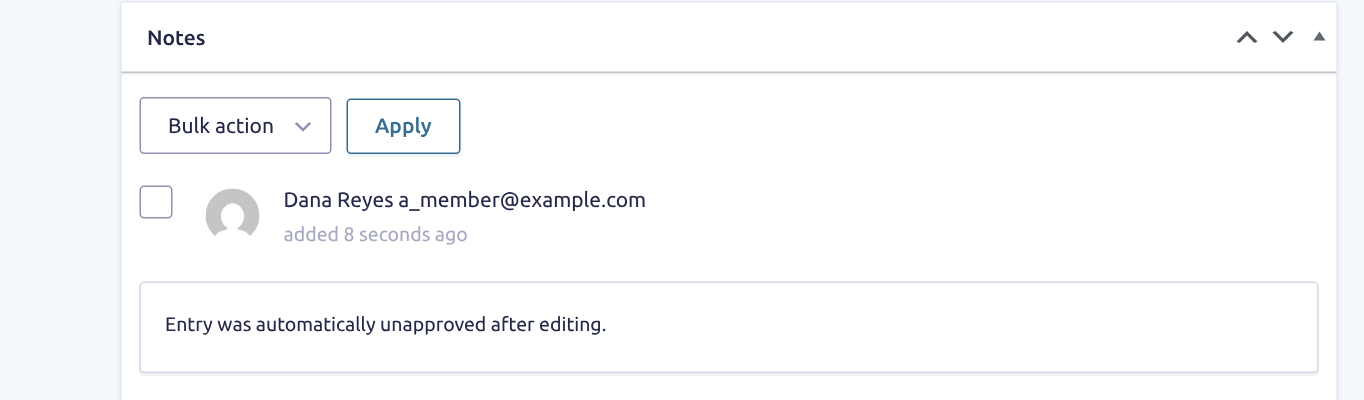
While the entry waits for approval #
On a View with Show only approved entries on:
- Visitors and the person who edited no longer see the entry in the list. Its single entry page and its edit link show “You are not allowed to view this content.”
- Administrators and Editors still see it if Show all entries to administrators is on, so they can approve it from the View.
- Once it’s approved again, everyone sees the new values.

To reword that message, see Changing the “You are not allowed to view this content” text. To approve the entry again, use the Entries screen or the Approve Entries field in a View.
On a View with Show only approved entries off, the entry stays visible with its new values, whatever its status.
Forms with the Approve/Reject field #
Warning: The reset changes the status and leaves the Approve/Reject field as it was. If someone then edits the entry on the Entries screen and clicks Update, the status changes to match the field, without anyone reviewing the edit. A checked field makes the entry Approved, and an empty field makes it Disapproved. Approve or disapprove these entries with the approval icon instead.
Putting the Approve/Reject field on the Edit Entry layout doesn’t turn the setting off. When someone who can’t moderate entries saves the entry with the field checked, the status still resets to Unapproved.
Unapprove only when certain fields change #
To let some edits go straight through, use the gravityview/approve_entries/autounapprove/status filter. It runs when the setting is about to reset an entry, and returning false leaves the status alone. This code compares chosen fields with the copy of the entry that gform_after_update_entry passes, and keeps the status when none of them changed. The setting must stay on.
/**
 * Unapprove an edited entry only when a chosen field changes.
 *
 * gform_after_update_entry passes a copy of the entry from before the edit,
 * and it runs just before GravityView resets the status.
 */
$gk_watched_fields = array(
    123 => array( '1.3', '1.6', '3', '5' ), // Form ID => the field IDs to watch.
);
$gk_entry_before_edit = null;

add_action( 'gform_after_update_entry', function ( $form, $entry_id, $original_entry ) use ( &$gk_entry_before_edit ) {
    $gk_entry_before_edit = $original_entry;
}, 10, 3 );

add_filter( 'gravityview/approve_entries/autounapprove/status', function ( $status, $form, $entry_id ) use ( &$gk_entry_before_edit, $gk_watched_fields ) {
    if ( empty( $gk_watched_fields[ $form['id'] ] ) || ! is_array( $gk_entry_before_edit ) ) {
        return $status;
    }

    $entry_after_edit = GFAPI::get_entry( $entry_id );

    foreach ( $gk_watched_fields[ $form['id'] ] as $field_id ) {
        if ( (string) rgar( $gk_entry_before_edit, $field_id ) !== (string) rgar( $entry_after_edit, $field_id ) ) {
            return $status;
        }
    }

    return false; // No watched field changed, so the entry keeps its status.
}, 10, 3 );Note: Not sure where to add this code? See Adding custom PHP code snippets to your website.
For example, a member directory can hold back a photo or bio change for review while availability updates go straight through. A change to a watched field still removes the whole entry from the View until it’s approved again.
List the IDs from the Field Settings panel of the form editor:
- Single-input fields use the field ID, such as
'3'. For a File Upload field, any change to the file counts, including removing it. - Fields with several inputs need each input you care about. In a Name field with ID 1, the first name is
'1.3'and the last name is'1.6'.
Some saves change a stored value when nobody edited it, and the code counts that as a change. On entries created through code, phone numbers, line breaks, rich text, and Address country values can be rewritten the first time they’re saved through Edit Entry.
Nested Forms
With a Nested Forms field (GP Nested Forms by Gravity Wiz), a child entry saves as soon as its pop-up closes. The parent keeps its status until someone clicks Update, and then the setting resets it, even if only child entries changed.
List only the parent’s own fields in the code above, and child entry changes leave the parent approved. To unapprove the parent when a child entry is added, also list the Nested Form field’s ID. Editing or deleting a child entry doesn’t change what the code compares, so those stay approved either way.
Unapprove edits made by administrators and editors #
By default, their edits leave the status as it is. This code resets it for them too, on Views with the setting turned on. It leaves everyone else to the setting, so it works alongside the code for chosen fields: other users follow that code, and administrators and editors reset the entry on every save, whichever field changed.
/**
 * Unapprove entries edited by administrators and editors too, on any View with
 * Unapprove Entries After Edit turned on.
 *
 * Everyone else is left to the setting, so this works alongside the code above.
 *
 * @param array  $form      The form.
 * @param string $entry_id  The ID of the entry that was edited.
 * @param object $edit      The Edit Entry screen. Not used here.
 * @param object $view_data The View being edited.
 */
add_action( 'gravityview/edit_entry/after_update', function ( $form, $entry_id, $edit, $view_data ) {
    $view_ids = array_keys( $view_data->get_views() );

    if ( GVCommon::has_cap( 'gravityview_moderate_entries' ) && GVCommon::get_template_setting( $view_ids[0], 'unapprove_edit' ) ) {
        GravityView_Entry_Approval::update_approved( $entry_id, GravityView_Entry_Approval_Status::UNAPPROVED, $form['id'] );
    }
}, 20, 4 );Note: Not sure where to add this code? See Adding custom PHP code snippets to your website.
On a form with the Approve/Reject field, this reset also clears the field, so the next edit on the Entries screen makes the entry Disapproved.
Unapprove inline edits #
Inline edits with GravityEdit save the new value and don’t trigger this setting. To reset the status on those edits too, add this code:
/**
 * Unapprove an entry when someone who can't moderate entries edits it with GravityEdit.
 *
 * Replace 123 with your form ID.
 *
 * @param bool|WP_Error $result  The result of the inline edit.
 * @param array         $entry   The entry.
 * @param int           $form_id The form ID.
 *
 * @return bool|WP_Error The same result.
 */
add_filter( 'gravityview-inline-edit/entry-updated', function ( $result, $entry, $form_id ) {
    if ( 123 === (int) $form_id && ! is_wp_error( $result ) && ! GVCommon::has_cap( 'gravityview_moderate_entries' ) ) {
        GravityView_Entry_Approval::update_approved( $entry['id'], GravityView_Entry_Approval_Status::UNAPPROVED, $form_id );
    }

    return $result;
}, 10, 3 );Note: Not sure where to add this code? See Adding custom PHP code snippets to your website.
Keep the entry visible and review edits afterward #
Turn the setting off if listings must stay visible while you review. With GravityRevisions, you can get an email when an entry changes, then restore the old values from the entry’s Entry Revisions box. The edit is live from the moment it’s saved.