

How to embed a form for each entry in a View
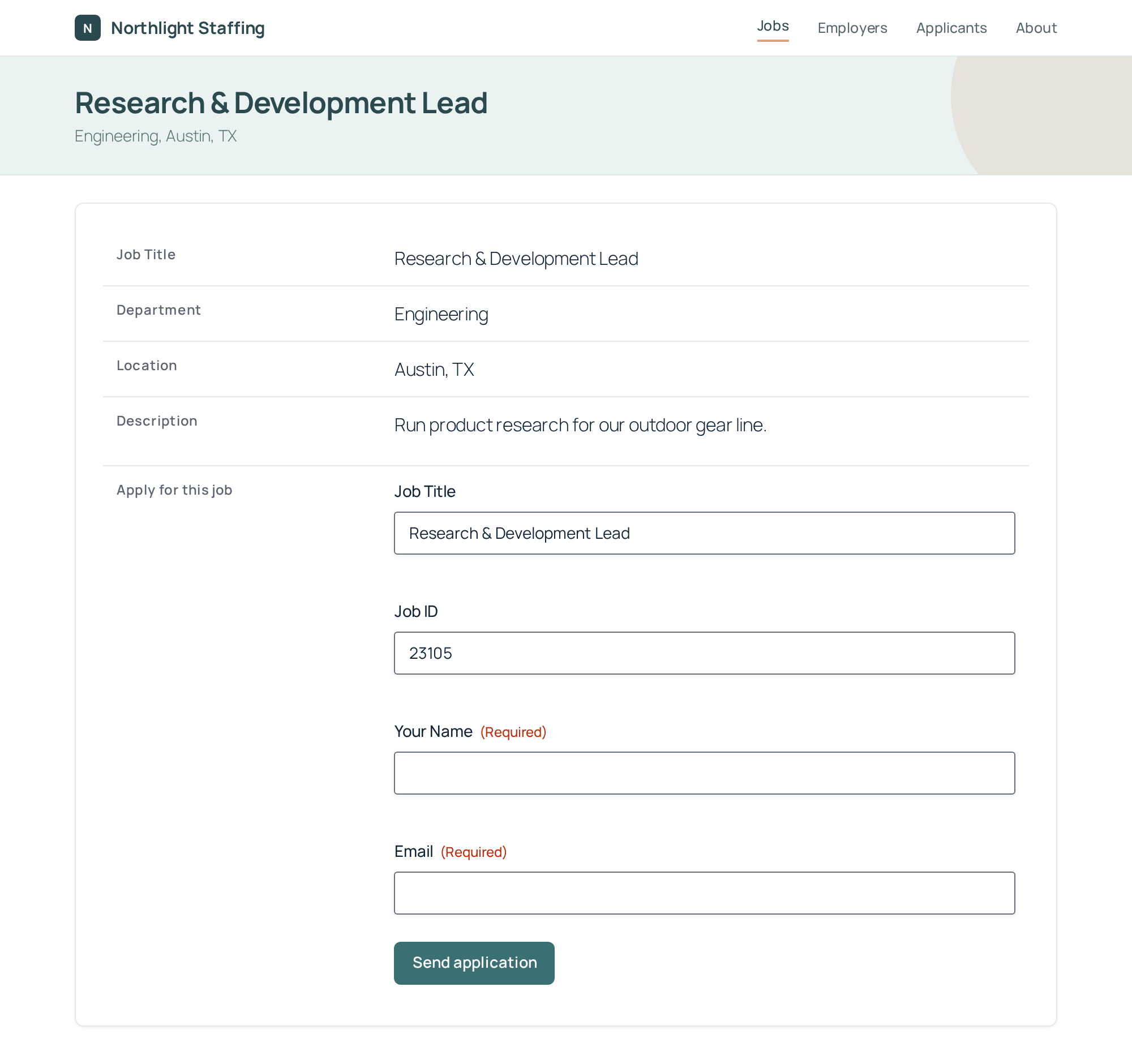
Add the Gravity Forms field to a View to show a form on each entry’s page, or on every entry in the list. The form can open with some of its fields already filled in from the entry. On a job board, for example, the application form below each job already has the job’s title and ID.
To open the form on a page of its own instead, see Passing a field value from the View to a form on another page.
Step 1: Add the Gravity Forms field to the View #
- Edit your View and open the Single Entry Layout tab.
- Click Add Field (in a table layout, the button is Add Table Column).
- Type
Gravity Formsin the filter box and click Gravity Forms.
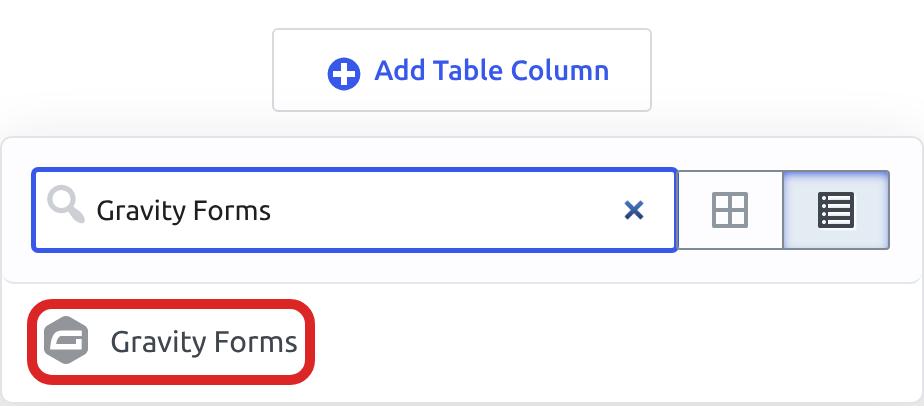
Then click the field’s gear icon and choose the form in Form to display.
Show form title?, Show form description?, and Enable AJAX start out checked. In this example the title and description are turned off, so the job page shows only the form’s fields.
Step 2: Let the form’s fields accept values #
Edit the form you’re embedding. For each field that the entry should fill in:
- Click the field to open its settings.
- Open the Advanced section.
- Check Allow field to be populated dynamically.
- Enter a Parameter Name, such as
job_title.
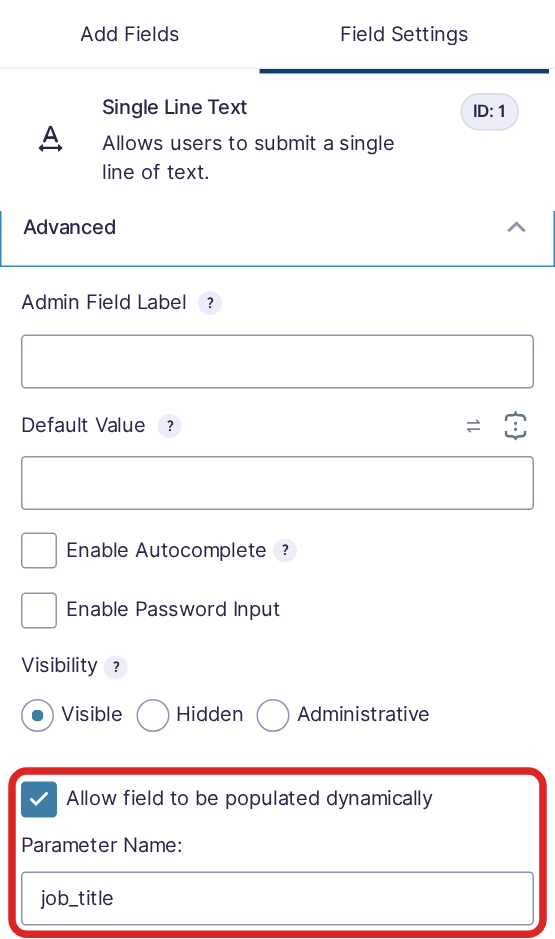
Save the form. In this example, the Job Title field uses job_title and the Job ID field uses job_id. Gravity Forms’ own guide to the setting is Using dynamic population.
Step 3: Fill the fields from the entry #
Back in the View, open the Gravity Forms field’s settings and enter the values in Field value parameters:
job_title={Job Title:1}&job_id={entry_id}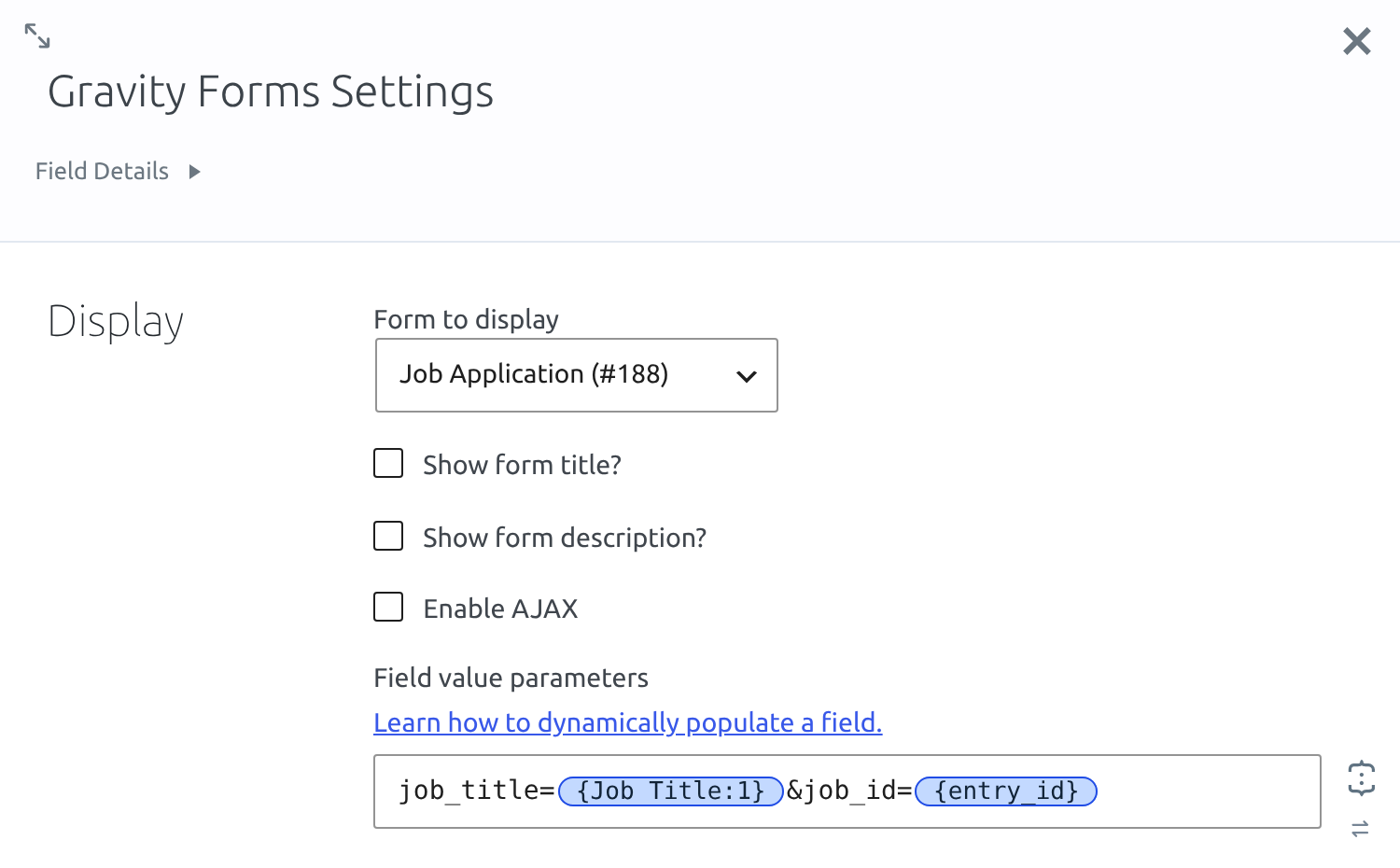
- Each value is written as
parameter_name=merge tag, and&separates one value from the next. - The name before each
=must match the field’s Parameter Name from Step 2, including upper and lower case. {Job Title:1}is the entry’s Job Title field (field ID 1), and{entry_id}is the entry’s ID.
To pick a merge tag from a list, click the Insert merge tag icon to the right of the box. It inserts only the merge tag, so type the parameter name and = before it.
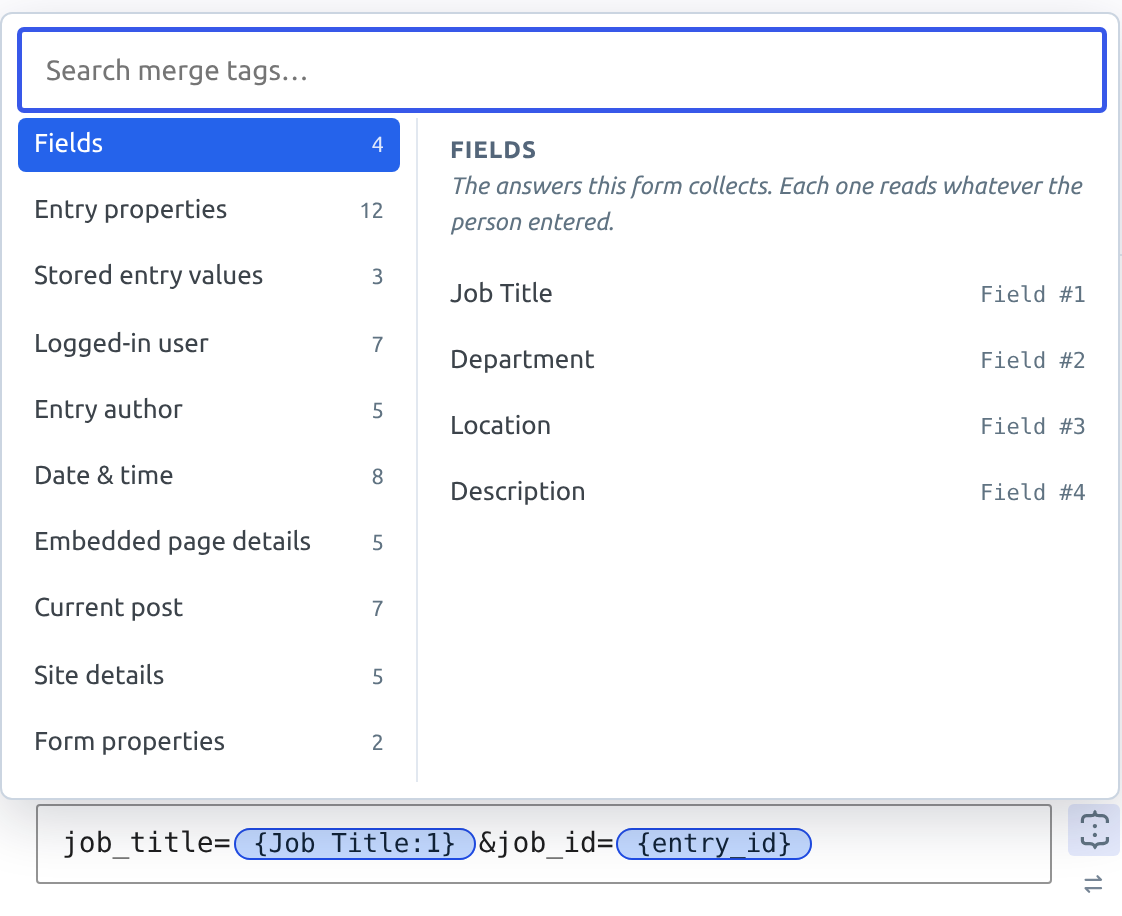
Leave :urlencode off here. GravityView reads the parameter names first and fills in the merge tags after, so a value with & arrives whole. With :urlencode, a job titled “Research & Development Lead” shows up in the form as “Research+%26+Development+Lead”. Add :urlencode only to links you build yourself.
Merge tags for the logged-in user work too. This fills an Email field whose Parameter Name is user_email with the email address of the person viewing the page:
job_title={Job Title:1}&job_id={entry_id}&user_email={user:user_email}For visitors who aren’t logged in, the Email field stays empty.
Save the View. On each entry’s page, the form opens with those fields filled in:
Show the form on every entry in the list #
Add the Gravity Forms field on the Multiple Entries Layout tab, with the same settings. Each entry in the list gets its own copy of the form, filled in from that entry. When someone sends one of them, the confirmation message replaces that entry’s form, and the other forms stay as they are.
A full form on every row makes the list long. To show a link to the form instead, see Passing a field value from the View to a form on another page.
Connect each submission to its entry #
Every entry sent through the Gravity Forms field is saved with two extra values: gk_parent_entry_id, the ID of the entry the form was shown on, and gk_parent_form_id, the ID of the form the View shows. An application sent from the Warehouse Shift Lead job, for example, keeps that job’s entry ID. Parent Entry ID and Parent Form ID covers these values.
Troubleshooting #
The form shows, but the fields are empty
- Check that Allow field to be populated dynamically is turned on for each field, and that the form was saved.
- Compare each name in Field value parameters with the field’s Parameter Name. They must match exactly, including upper and lower case.
- If the entry’s own field is empty, the form field stays empty too.
A form field shows a merge tag
A merge tag with a wrong field ID, such as {Job Title:9}, or with no field ID, such as {Job Title}, goes into the form field as typed. So does text without curly braces, such as Job Title:1. Pick the field with the Insert merge tag icon to get the right merge tag.
A form field shows %26 or + signs
The merge tag has :urlencode. Remove it from Field value parameters.