
Configuring Delete Entry
Delete Entry lets users delete entries from the front end of your site, with a Delete button on the Edit Entry screen and a Delete Entry link you can add to a View’s layout.
Let users delete their own entries #
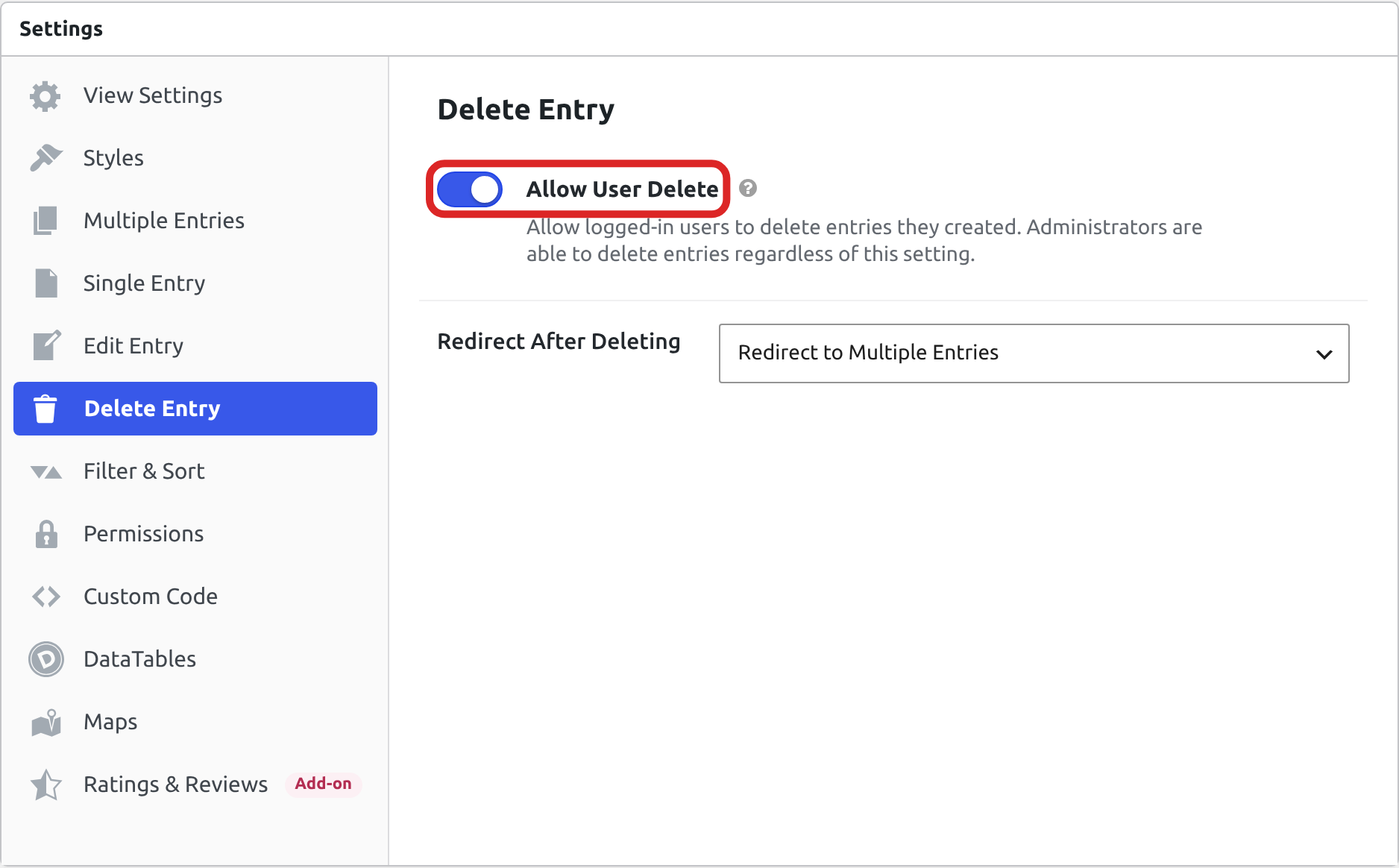
- Edit your View and scroll down to the Settings box.
- Click the Delete Entry tab.
- Turn on Allow User Delete.
- Click Update.
The person who created an entry now sees a Delete button next to Update and Cancel on the Edit Entry screen. They reach that screen only when Allow User Edit is on as well, on the Edit Entry tab of the same box. Configuring the Edit Entry screen covers that setting.
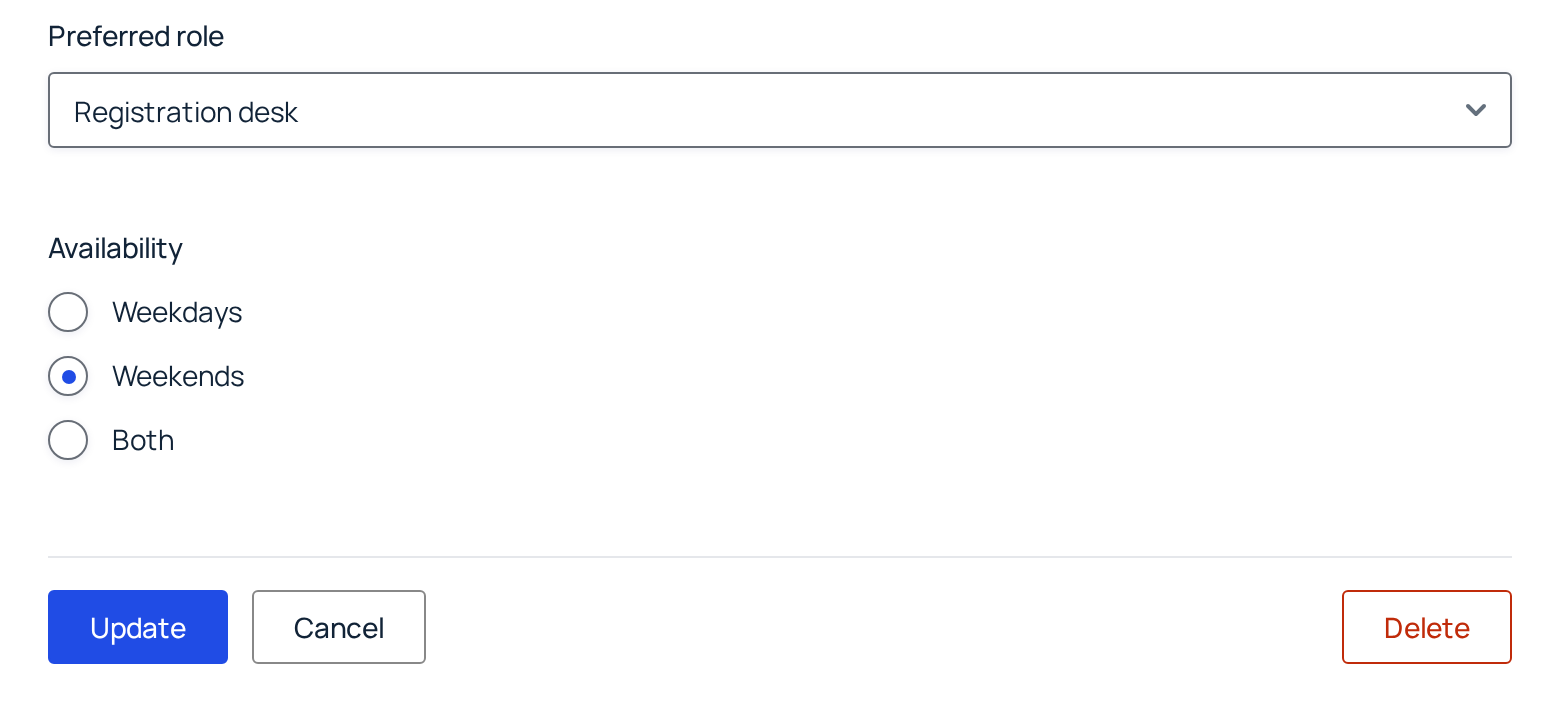
Delete Link Text, on the Edit Entry tab, sets the button’s label. It can include merge tags, such as the entry’s first name.
Users who can delete entries #
- Administrators and editors can delete any entry the View shows, with Allow User Delete on or off. GravityView gives the Editor role the
gravityview_delete_others_entriescapability. - A signed-in user can delete the entries they created when Allow User Delete is on.
- Other users, and visitors who are not signed in, see no Delete button and no Delete Entry link.
Add a Delete Entry link to a layout #
The Delete Entry field puts a delete link in the Multiple Entries layout or on the Single Entry page.
- In the View editor, open the Multiple Entries Layout or Single Entry Layout tab.
- Click Add Field, or Add Table Column in a table layout, and choose Delete Entry.
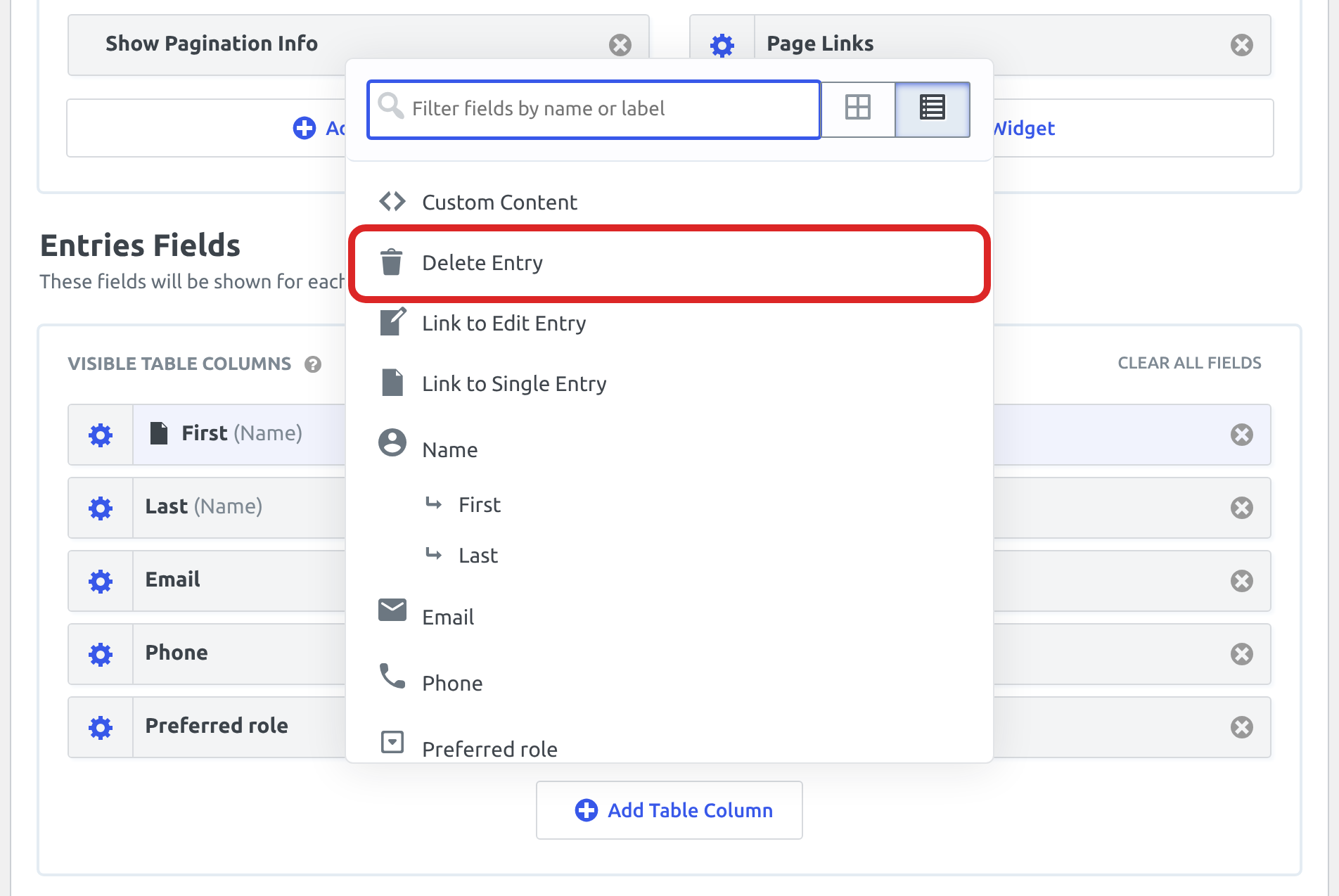
- Click the gear icon on the Delete Entry field to open its settings.
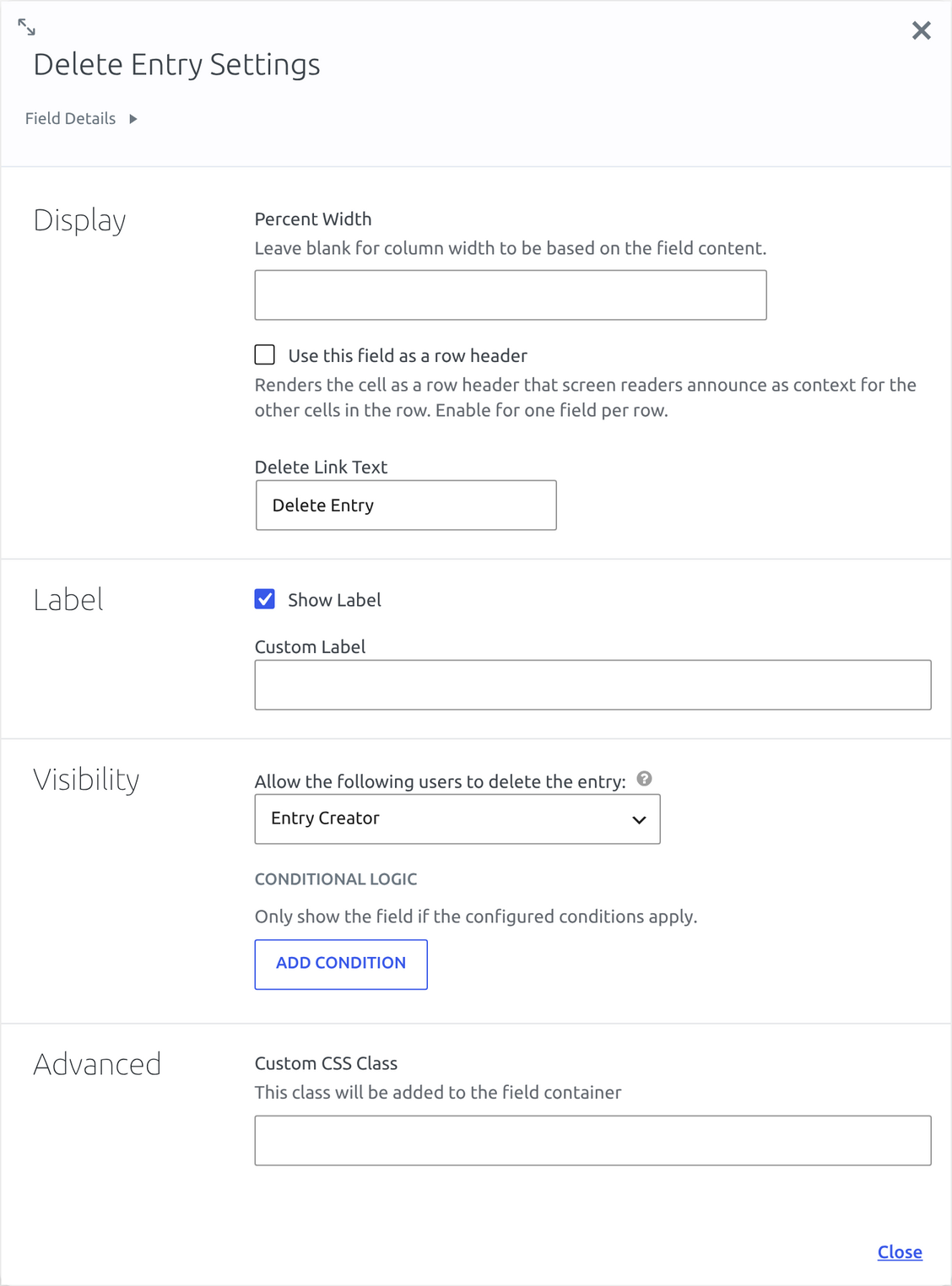
These settings control the link:
- Delete Link Text is the text of the link. The default is “Delete Entry”.
- Show Label and Custom Label set the field’s label, which a table layout uses as the column heading.
- Keep Allow the following users to delete the entry at Entry Creator. The people who see the link are the ones listed under “Users who can delete entries” above.
- Conditional Logic shows the link only for entries that match the conditions you set. It comes with the Advanced Filtering extension, and Field Conditional Logic explains how to set it up.
- Click Update to save the View.
With Allow User Delete on, a signed-in user who is not an administrator or editor sees the link only on the entries they created:
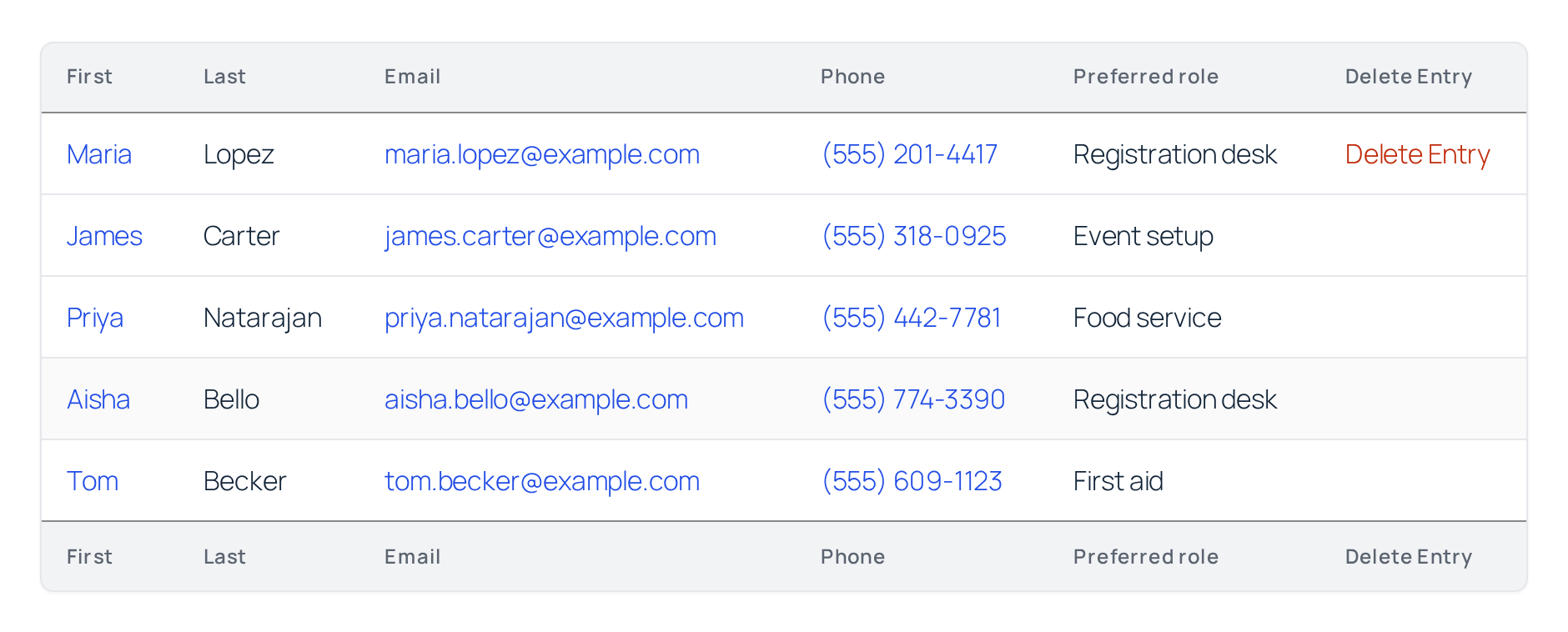
To place a delete link somewhere else, such as on a page or in a Custom Content field, use the [gv_entry_link] shortcode with action="delete". The [gv_entry_link] shortcode has examples.
When a user deletes an entry #
When someone clicks Delete or a Delete Entry link, the browser asks “Are you sure you want to delete this entry? This cannot be undone.” The entry is deleted only after they confirm.
GravityView deletes the entry permanently. To move deleted entries to the Gravity Forms trash, see Change the Delete Entry mode from “Delete” to “Trash”.
Redirect After Deleting, on the Delete Entry tab, decides where the user goes next:
- Redirect to Multiple Entries (the default) takes them to the View’s list of entries, which shows “The entry was successfully deleted.”
- Redirect to URL takes them to the address in Delete Entry Redirect URL. The address can include merge tags from the deleted entry, such as
{entry_id}.
To send an email when an entry is deleted, add a notification to the form and set its Event to GravityView – Entry is deleted. Merge tags in the notification are filled in from the deleted entry.
Show the Delete button only when Allow User Delete is on #
Users who can delete any entry see the Delete button on the Edit Entry screen even when Allow User Delete is off. These are users who have one of the capabilities gravityforms_delete_entries, gravityview_delete_others_entries, gform_full_access, or gravityview_full_access, which includes administrators and editors.
To show the button only on Views where Allow User Delete is on, for every user, add this code to your site:
/**
 * Show the Delete button on the Edit Entry screen only when the View's
 * "Allow User Delete" setting is on, for every user, administrators included.
 *
 * @param bool  $show_delete_button Whether the Delete button is shown. Default: true.
 * @param array $form               The Gravity Forms form.
 * @param array $entry              The Gravity Forms entry.
 * @param int   $view_id            The View ID.
 * @param int   $post_id            The ID of the page the View is embedded in. May be the View ID.
 *
 * @return bool Whether the Delete button is shown.
 */
add_filter( 'gk/gravityview/delete-entry/show-delete-button', function ( $show_delete_button, $form, $entry, $view_id, $post_id ) {
    $view = \GV\View::by_id( $view_id );

    if ( ! $view ) {
        return $show_delete_button;
    }

    if ( empty( $view->settings->get( 'user_delete' ) ) ) {
        return false;
    }

    return $show_delete_button;
}, 10, 5 );Note: Where to put code samples explains how to add this code to your site.
The code hides only the button on the Edit Entry screen. A Delete Entry field in the layout still shows its link to administrators and editors. The filter and its parameters are listed in the developer docs under gk/gravityview/delete-entry/show-delete-button.

