
Adding custom CSS to your Views
Every View has a Custom CSS field. CSS you enter there loads only on pages that show that View. Placeholders such as VIEW_SELECTOR stand in for the View’s own selectors, so a rule can target this one View without you looking up its ID.
Before you start #
Saving the Custom CSS field requires the WordPress unfiltered_html capability:
- On a single site, Administrators and Editors have it.
- On a multisite network, only Super Admins have it.
- If
DISALLOW_UNFILTERED_HTMLis set inwp-config.php, no one has it.
When a user without this capability updates a View (for example, a site Administrator on a multisite network), GravityView keeps the CSS that was already saved and ignores their changes to the field.
Add CSS to a View #
- Edit your View.
- In the Settings box, click the Custom Code tab.
- Enter your CSS in the Custom CSS field.
- Click Update, or Publish for a new View.
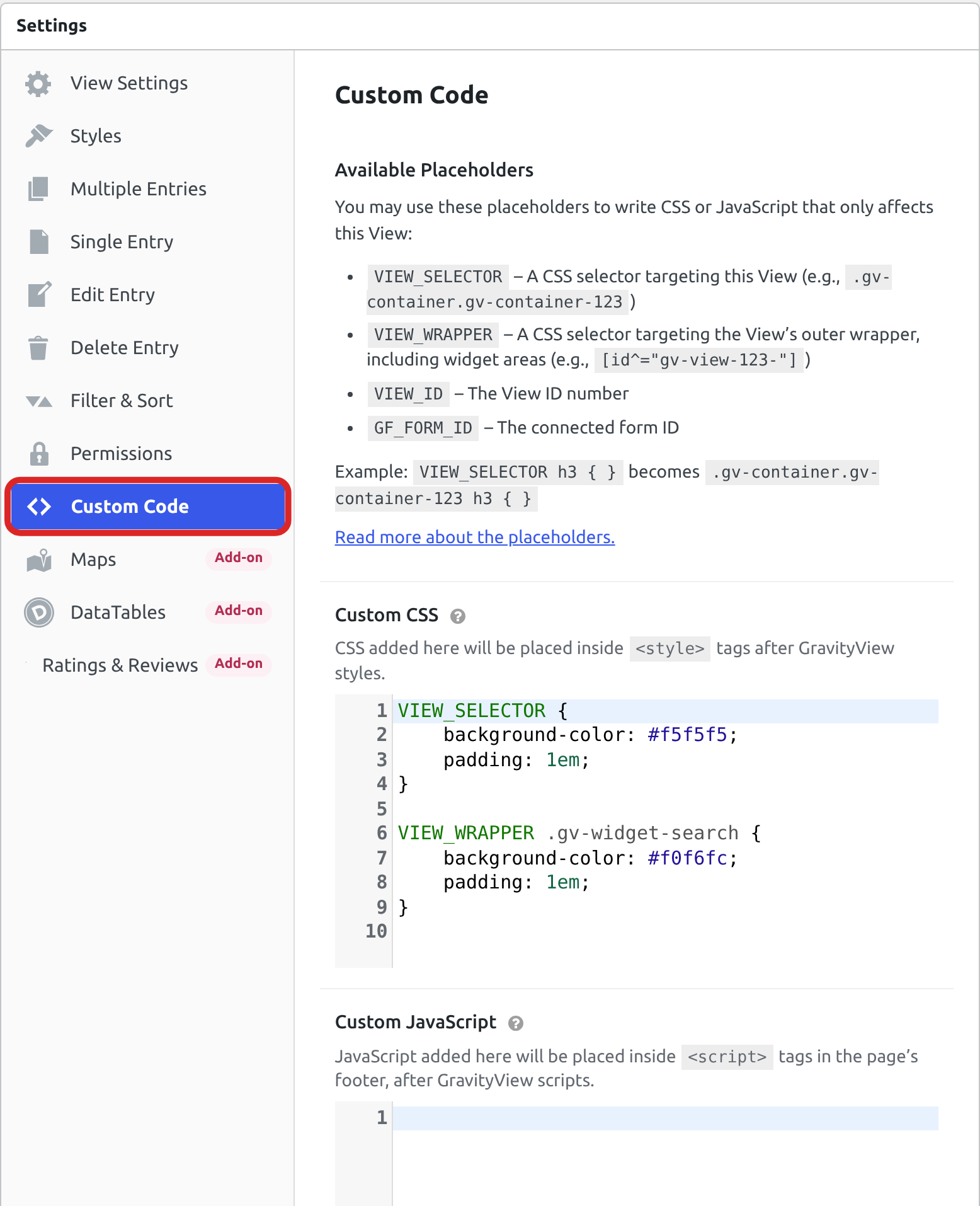
GravityView prints your CSS after its own stylesheets, the layout’s stylesheet included, so your rule wins over a GravityView rule that is just as specific. On a Vantage View, GravityView also gives each of your rules extra weight, so they win over the Vantage stylesheet too. The exception is the colors and borders of buttons such as Update on the Edit Entry page, which Vantage sets with !important. Change those with the button design tokens, such as --gv-button-bg.
Available placeholders #
GravityView replaces four placeholders before it prints your CSS. The examples below use a View with the ID 123, connected to form 5.
| Placeholder | Replaced with | Example |
|---|---|---|
VIEW_SELECTOR | A selector for the View’s container, the element that holds the entries. | .gv-container.gv-container-123 |
VIEW_WRAPPER | A selector for the View’s outer wrapper. It holds the container and the widgets above and below it, such as the Search Bar. | [id^="gv-view-123-"] |
VIEW_ID | The View ID. | 123 |
GF_FORM_ID | The ID of the View’s main form. Joined forms are not included. If the View has no form, the placeholder is left as written. | 5 |
Follow these rules when you use them:
- Type each placeholder in capital letters.
view_selectoris not replaced. - Keep the placeholder apart from the text around it. A letter, number, underscore (
_), hyphen (-) or period (.) directly before or after it stops the replacement. For that reason,#gv-view-VIEW_ID-1,#gform_wrapper_GF_FORM_IDandVIEW_SELECTOR.my-classare left as written. A space, a colon,#or>next to it is fine:VIEW_SELECTOR:hoverandVIEW_SELECTOR > .gv-entriesboth work.
A stand-alone number rarely fits into a CSS selector, so VIEW_ID and GF_FORM_ID are more useful in the Custom JavaScript field. See Adding custom JavaScript to your Views.
Style the View’s container with VIEW_SELECTOR #
VIEW_SELECTOR matches the container and everything inside it. This rule gives the container a light gray background:
VIEW_SELECTOR {
    background-color: #f5f5f5;
    padding: 1em;
}This rule colors the column headings of a Table View:
VIEW_SELECTOR {
    --gv-color-header-bg: #333;
}

VIEW_SELECTOR th,
VIEW_SELECTOR th .gv-field-label {
    background-color: #333;
    color: #fff;
}Each heading’s text is in a field label, and the Vantage theme gives field labels a color of their own, so the rule names the label as well. The first part sets a design token, a CSS custom property that Vantage uses for the background of its heading row.
The GravityView CSS design tokens reference lists every token and what it controls.
Style widgets with VIEW_WRAPPER #
The Search Bar and the other widgets are inside the wrapper but outside the container, so VIEW_SELECTOR does not reach them. Target them with VIEW_WRAPPER:
VIEW_WRAPPER .gv-widget-search {
    background-color: #f0f6fc;
    padding: 1em;
}Single Entry pages have no wrapper, so a VIEW_WRAPPER rule does not apply there. Use VIEW_SELECTOR for rules that must also work on Single Entry pages.
Style one copy of a View that appears twice #
When a page shows the same View more than once, each copy’s wrapper gets its own ID: gv-view-123-1 for the first copy on the page, gv-view-123-2 for the second, and so on. VIEW_ID next to a hyphen is not replaced, so type the View ID yourself. Start the selector with VIEW_WRAPPER and it works on Legacy and Vantage Views alike.
This rule hides the Search Bar on the second copy of View 123:
VIEW_WRAPPER#gv-view-123-2 .gv-widget-search {
    display: none;
}Rules without a placeholder on Legacy and Vantage Views #
A View’s theme decides what happens to a rule that uses neither VIEW_SELECTOR nor VIEW_WRAPPER. You choose the theme on the Styles tab, as described in Themes: styling your Views with Legacy or Vantage.
On a Legacy View, GravityView prints the rule exactly as you wrote it. The rule applies to every matching element on the page, other Views and your theme’s elements included.
On a Vantage View, GravityView rewrites each selector so it matches only inside this View, or the View’s container itself, and gives it extra weight. This rule changes the field labels of this View only:
.gv-field-label {
    text-transform: uppercase;
}That change has side effects on Vantage Views:
- A rule for an element outside the View, such as
bodyor your theme’s header, no longer matches anything. Put that CSS in your theme instead. - A wrapper ID you type by hand, such as
#gv-view-123-1, stops matching. Use theVIEW_WRAPPER#gv-view-123-1form shown above. @importlines are removed. The rest of your CSS still applies.
Pages your CSS reaches #
The CSS loads on every page of the View: Multiple Entries, Single Entry and Edit Entry. Whether a rule matches depends on how it is written:
| Rule written with | Multiple Entries | Single Entry | Edit Entry |
|---|---|---|---|
VIEW_SELECTOR | Yes | Yes | Yes |
VIEW_WRAPPER | Yes | No, the page has no wrapper | Yes |
| No placeholder, Legacy View | Yes, on the whole page | Yes, on the whole page | Yes, on the whole page |
| No placeholder, Vantage View | Yes, inside the View | Yes, inside the container | Yes, inside the View |
A View shown inside another View, such as through a [gravityview] shortcode in a Custom Content field, loads its own Custom CSS too.
Add your own placeholders #
Developers can add placeholders with the gk/gravityview/custom-code/placeholders filter. Custom placeholders follow the same rules as the built-in ones. This example adds a SITE_NAME placeholder:
/**
 * Adds a SITE_NAME placeholder to Custom CSS and Custom JavaScript.
 *
 * @param array    $placeholders Placeholder => replacement value pairs.
 * @param \GV\View $view         The View being rendered.
 * @param string   $content      The CSS or JavaScript before replacement.
 *
 * @return array The placeholders, with SITE_NAME added.
 */
add_filter( 'gk/gravityview/custom-code/placeholders', function( $placeholders, $view, $content ) {
    $placeholders['SITE_NAME'] = get_bloginfo( 'name' );
    return $placeholders;
}, 10, 3 );Read here how to add these code samples to your website: Where to put code samples.
If you remove the gv-container classes with the gravityview/render/container/class filter, VIEW_SELECTOR no longer matches your View. Use VIEW_WRAPPER instead.

