
The [gv_entry_link] shortcode
You can place [gv_entry_link] on any post or page, or inside a View, to link to one entry. The link opens the entry’s Single Entry page by default, and the action attribute turns it into an edit or delete link.
Note: Edit and delete links appear only for users who may edit or delete that entry. Administrators, and other users who can edit or delete every entry in Gravity Forms, always see them. The person who created the entry sees the edit link when the View has Allow User Edit turned on, and the delete link when it has Allow User Delete turned on. Everyone else sees nothing where the shortcode is.
Shortcode attributes #
| Attribute | What it does | Default |
|---|---|---|
view_id | The ID of the View that shows the entry. Required outside a View. | The View the shortcode is in |
entry_id | The ID of the entry. first and last pick the entry at the top or the bottom of the View’s list, in the View’s sort order. Required outside a View. | The entry the shortcode is in |
action | read links to the Single Entry page, edit links to Edit Entry, and delete deletes the entry. | read |
secret | The View’s secret. Required when the View has Enable Enhanced Security turned on, unless the shortcode is inside that View. | None |
post_id | The ID of a page or post that embeds the View. The entry then opens on that page. | The View’s own address |
lightbox | true opens the entry, or its Edit Entry form, in a lightbox. Delete links ignore it. | Off |
return | html returns a link, and url returns only the link’s address. | html |
link_atts | HTML attributes for the link, as name=value pairs joined by &. Ignored when return is url. | None |
field_values | Query parameters for the link’s address, as name=value pairs joined by &. | None |
Attribute values can contain the {get} merge tag. For example, entry_id="{get:member}" takes the entry ID from the page address, as in ?member=123.
Examples #
The examples use a View with the ID 2, an entry with the ID 123, and abc123 as the View’s secret. Replace each one with your own. Enable Enhanced Security: the secret attribute for shortcodes shows where to copy a View’s secret. A View without Enhanced Security needs no secret.
Link to an entry
Put the link text between the opening and closing tags:
[gv_entry_link entry_id="123" view_id="2" secret="abc123"]View profile[/gv_entry_link]The shortcode returns this link:
<a href="https://example.com/view/team-directory/entry/123/">View profile</a>Without link text, end the shortcode with /] instead of a closing tag. The link then reads View Details, Edit Entry, or Delete Entry, depending on action.
[gv_entry_link entry_id="123" view_id="2" secret="abc123" /]Link to edit an entry
Set action="edit" to open the entry in Edit Entry:
[gv_entry_link action="edit" entry_id="123" view_id="2" secret="abc123"]Edit profile[/gv_entry_link]Link to delete an entry
Set action="delete":
[gv_entry_link action="delete" entry_id="123" view_id="2" secret="abc123"]Remove profile[/gv_entry_link]When the user clicks the link, the browser asks them to confirm: “Are you sure you want to delete this entry? This cannot be undone.” The entry is deleted only after they confirm. The View’s Redirect After Deleting setting then decides where they go. By default, they go to the View’s list of entries, which shows “The entry was successfully deleted.”
Use the shortcode inside a View
In a View’s Custom Content field, the shortcode links to the entry that the field belongs to, so it needs no view_id, entry_id, or secret. This adds an edit link to each entry the user may edit:
[gv_entry_link action="edit"]Edit profile[/gv_entry_link]Creating an “Edit Your Profile” link uses this to give each user a link to their own profile.
Open the entry on the page that embeds the View
By default, the link goes to the View’s own address (/view/…). When the View is embedded on a page, set post_id to that page’s ID so the entry opens there:
[gv_entry_link entry_id="123" view_id="2" post_id="45" secret="abc123" /]The link now points to the page:
<a href="https://example.com/members/entry/123/">View Details</a>The page ID is the number after post= in the address bar while you edit the page. Inside a View that is embedded on a page, add post_id as well, so the shortcode’s links open on that page like the View’s own links do.
Link to the first or last entry
Set entry_id to first to link to the entry at the top of the View’s list, or to last for the entry at the bottom. Both follow the View’s sort order. In a View with no sort order set, the newest entry is at the top:
[gv_entry_link entry_id="first" view_id="2" secret="abc123"]Meet our newest member[/gv_entry_link]Open the entry in a lightbox
Add lightbox="true" to open the entry in a lightbox over the current page:
[gv_entry_link entry_id="123" view_id="2" lightbox="true" secret="abc123"]View profile[/gv_entry_link]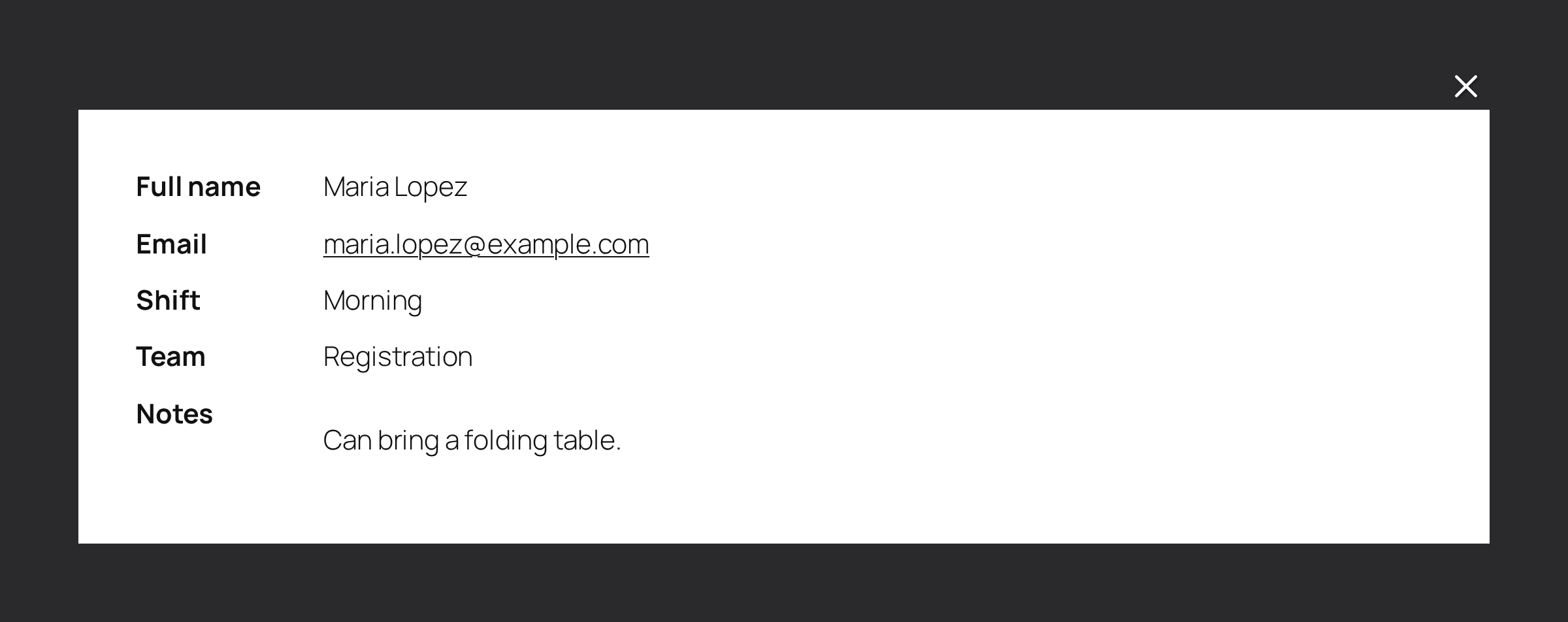
With action="edit", the Edit Entry form opens in the lightbox:
[gv_entry_link action="edit" entry_id="123" view_id="2" lightbox="true" secret="abc123"]Edit profile[/gv_entry_link]When the View has Prevent Direct Access checked, the lightbox opens the entry and its Edit Entry form only on a page that embeds the View. On other pages, visitors see “The requested entry could not be found.” in the lightbox. Administrators still see the entry. To link to it from another page, leave out lightbox and set post_id to the page that embeds the View.
To open a View’s own entry links in a lightbox, see Opening and editing entry details in a lightbox.
Open the link in a new tab
Use link_atts to add HTML attributes to the link, such as target=_blank to open it in a new tab:
[gv_entry_link entry_id="123" view_id="2" link_atts="target=_blank" secret="abc123" /]The shortcode adds rel="noopener noreferrer" to the link as well:
<a href="https://example.com/view/team-directory/entry/123/" rel="noopener noreferrer" target="_blank">View Details</a>Join more than one attribute with &. This link also gets the class button:
[gv_entry_link entry_id="123" view_id="2" link_atts="target=_blank&class=button" secret="abc123" /]Return only the address
With return="url", the shortcode returns the address without a link around it:
[gv_entry_link action="edit" entry_id="123" view_id="2" return="url" secret="abc123" /]The result looks like this:
https://example.com/view/team-directory/entry/123/?edit=4f1c9a2b7e&gvid=2The edit value is a security code made for the signed-in user.
Add values to the address
Use field_values to add query parameters to the link’s address:
[gv_entry_link entry_id="123" view_id="2" field_values="first-name=Maria" secret="abc123" /]It returns:
<a href="https://example.com/view/team-directory/entry/123/?first-name=Maria">View Details</a>On the Single Entry page, the {get} merge tag shows the value. For a worked example, see how to display a person’s name with the {get} merge tag.
Fill empty fields in Edit Entry
With action="edit", field_values fills empty fields in the Edit Entry form:
- In the form editor, select the field and open the Advanced tab of its settings.
- Turn on Allow field to be populated dynamically and enter a Parameter Name, such as
department.
Then use the parameter names in field_values:
[gv_entry_link action="edit" entry_id="123" view_id="2" field_values="department=Sales&office=Berlin" secret="abc123"]Complete your profile[/gv_entry_link]A field that already holds a value keeps it. Gravity Forms explains parameter names in Dynamically Populating a Field.
When the link does not appear #
The shortcode shows nothing when:
- the user may not edit or delete the entry (edit and delete links only);
- the View has Enhanced Security turned on and
secretis missing or wrong; view_idorentry_idis missing and the shortcode is not inside a View;- no entry has the ID in
entry_id.
For a missing or wrong secret, users who can edit forms in Gravity Forms, which by default means administrators, see this message in its place, with the View’s secret:
The [gv_entry_link] shortcode is missing or has an invalid "secret" attribute. Update the shortcode with the following attribute:
secret="abc123"
The older edit and delete shortcodes #
[gv_edit_entry_link] works like [gv_entry_link action="edit"], and [gv_delete_entry_link] works like [gv_entry_link action="delete"]. They take the same attributes and still work, so pages that use them need no change.

