
Understanding the “No Entries Behavior” setting in GravityView
Control exactly what happens when your View has no entries to display with four distinct behavior options.
Overview #
The No Entries Behavior setting determines what visitors see when a View contains no entries. This occurs when:
- The connected form has no entries at all
- View filters (configured in the View editor) exclude all existing entries
- All entries are unapproved (when approval is required)
- User-specific View filters exclude all entries
- Date-based View filters exclude all entries
Note: This is different from the “No Search Results” message, which appears when a visitor performs a front-end search that returns no results. The No Entries Behavior applies when the View itself has no entries to display, regardless of search.
Behavior options #
GravityView offers four different behaviors when no entries are available:
Option 1: Show a Message (Default)
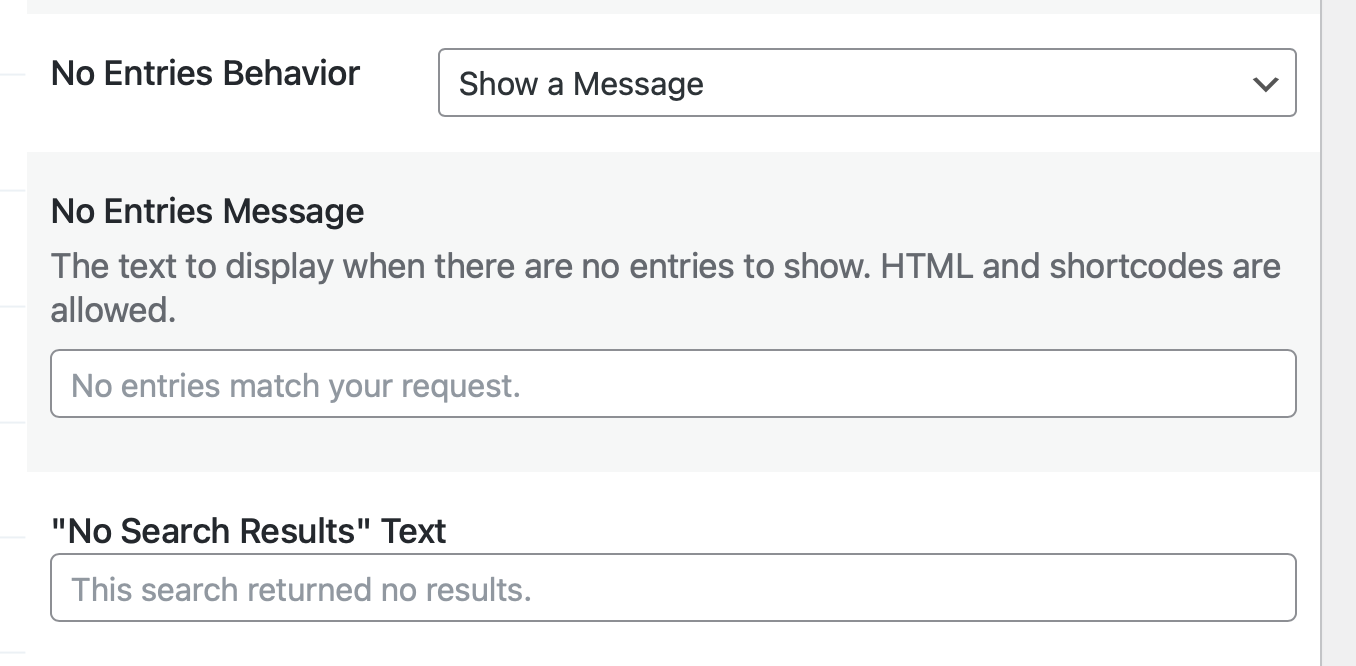
What happens: Displays a customizable text message where the View would normally appear.
Default message: “No entries match your request.”
Configuration options:
- No Entries Message: Customize the message text
- Supports HTML and shortcodes (except in DataTables layout)
- Can include links, formatting, or dynamic content (except in DataTables layout)
Note: In the DataTables layout, HTML is sanitized and displays as plain text. Use simple text messages without HTML formatting when using DataTables.
Best for:
- Providing helpful context about why no entries appear
- Including instructions for visitors
- Linking to submission forms or other pages
- Explaining filter or search requirements
Example messages:
- “No events scheduled for this month. Check back soon!”
- “No entries have been submitted yet. Be the first to submit an entry.” (DataTables-safe)
- “You haven’t submitted any entries yet. Create your first entry here.” (HTML for other layouts)
- “No data available.” (Simple text for DataTables)
Option 2: Display a Form
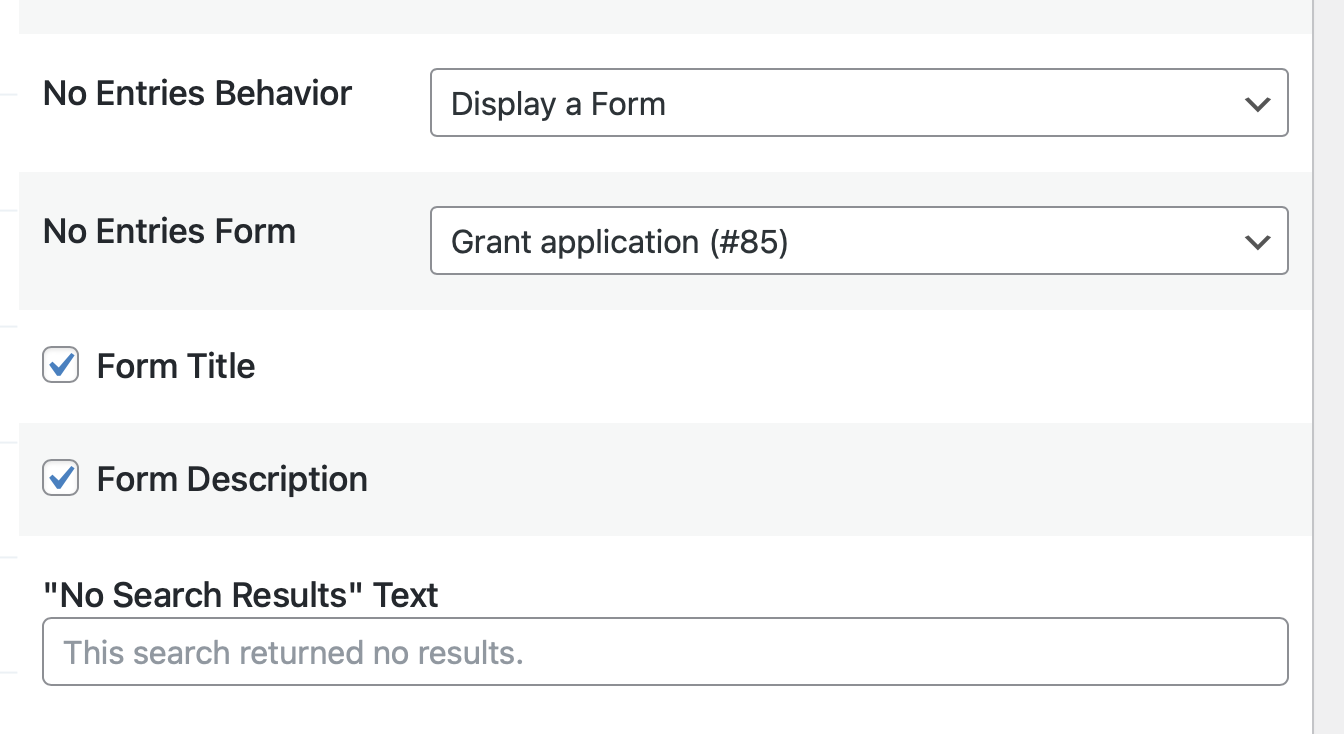
What happens: Shows a Gravity Forms form in place of the empty View.
Configuration options:
- No Entries Form: Select which form to display
- Form Title: Show or hide the form title
- Form Description: Show or hide the form description
Best for:
- New directories needing initial content
- Encouraging submissions when the form is empty
- Views with restrictive filters that exclude current entries
- User dashboards for first-time visitors
How it works:
- Instead of empty results, the selected form appears
- Visitors can submit entries directly
- After submission, if the entry matches View criteria, it displays immediately
- The form remains available for additional submissions
Use cases:
- Business directory: “Be the first to list your business!”
- Job board: “No jobs in this category. Post one now!”
- Event calendar: “No upcoming events. Submit yours!”
Option 3: Redirect to URL
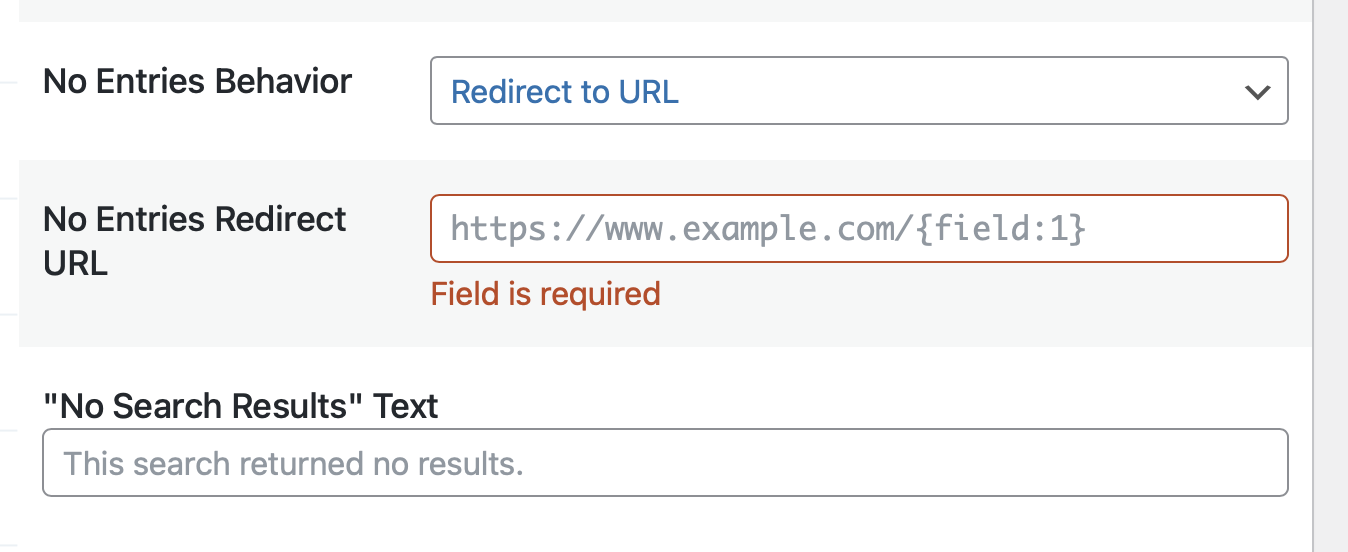
What happens: Automatically redirects visitors to a specified URL when no entries exist.
Configuration options:
- No Entries Redirect URL: The destination URL
- Supports merge tags for dynamic redirects
- Can include URL parameters
Best for:
- Sending users to dedicated submission pages
- Redirecting to related content
- Creating custom “no entries” landing pages
- Handling filtered Views that currently show nothing
Dynamic redirect examples:
https://site.com/submit-form/https://site.com/search/?query={search_query}https://site.com/category/{field:category}/submit/
Use cases:
- Redirect from empty forms to submission pages
- Send logged-out users to registration when no entries exist
- Direct to category-specific submission forms
- Route to help documentation when View filters exclude everything
Option 4: Hide the View
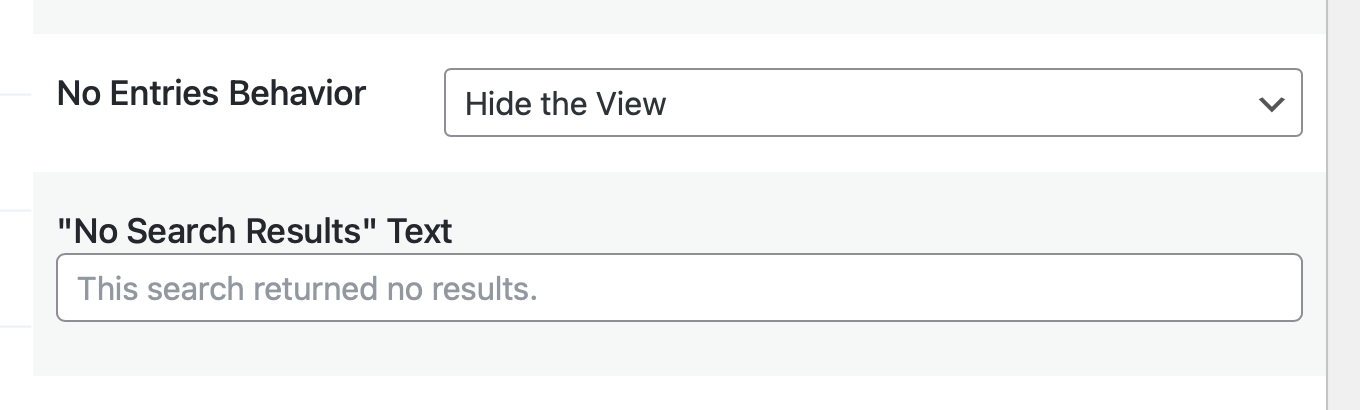
What happens: The entire View is completely hidden using CSS when no entries exist. There is no message, form, or indication that a View exists.
When hiding the View, the empty View is still rendered in HTML, but hidden using CSS.
Configuration options: None.
Best for:
- Clean page layouts when content isn’t available
- Conditional content display
- Member-only sections that hide when empty
- Avoiding confusion when filters exclude everything
What visitors see:
- Nothing; the View is hidden with CSS
- Page continues as if View wasn’t embedded
- Other page content remains visible
- No indication that a View exists on the page
Use cases:
- User dashboards that only show when data exists
- Filtered Views that disappear when no matches
- Seasonal content that hides when not relevant
- Progressive disclosure interfaces
Choosing the right behavior #
Decision matrix
| Scenario | Recommended Option | Why |
|---|---|---|
| Brand new form (no entries) | Display a Form | Encourages initial content creation |
| View filters exclude all entries | Show a Message | Explains the filtering situation |
| User-specific empty View | Display a Form | Prompts users to create their first entry |
| Date filter shows no current entries | Redirect to URL | Takes users to relevant submission page |
| Optional content section | Hide the View | Maintains clean layout when not needed |
| Temporary maintenance | Show a Message | Informs visitors about the situation |
Implementation examples #
Example 1: Job board
- No Entries Behavior: Display a Form
- Form: “Post a Job”
- Form Title: ✓ Enabled
- Form Description: ✓ Enabled
Result: Empty job categories show the job posting form.
Example 2: Member directory
- No Entries Behavior: Show a Message
- Message (Table/List layouts):
No members found matching your criteria. <a href="https://example.com/join">Become a member</a> - Message (DataTables layout):
No members found. Visit example.com/join to become a member.
Result: Helpful message with action links (HTML works in Table/List, plain text for DataTables).
Example 3: Event calendar
- No Entries Behavior: Redirect to URL
- URL:
https://example.com/submit-event/ - Result: Empty date ranges redirect to event submission with date pre-filled.
Key distinction: No Entries vs. No Search Results #
No Entries Behavior:
- Applies when the form has no entries OR View filters exclude all entries
- Configured in View Settings > Multiple Entries tab
- Controls what happens when the View itself is empty
- Works before any visitor interaction
No Search Results:
- Applies when a visitor performs a front-end search that returns nothing
- Configured separately with “No Search Results Text” setting
- Only appears after a search is performed
- Different message for a different scenario
- HTML is also sanitized in DataTables layout (displays as plain text)
Advanced: Layout-specific rendering #
How “Display a Form” renders in each layout
The form display behavior and HTML structure varies significantly between layouts:
DataTables layout
- Container:
div.gv-datatables-form-container - Behavior: View and search widgets are completely hidden
- Rendering: Form displays standalone without View interface
- Search visibility: Hidden when form is displayed
<div class="gv-datatables-form-container">
    <!-- Form renders here -->
</div>Table layout
- Container:
.gv-container-no-results table.gv-table-view tbody td.gv-no-results.gv-no-results-form - Behavior: Form renders inside table structure
- Search visibility: Search widgets remain visible
<div class="gv-container-no-results">
    <table class="gv-table-view">
        <tbody>
            <td class="gv-no-results gv-no-results-form">
                <!-- Form renders here -->
            </td>
        </tbody>
    </table>
</div>List layout
- Container:
div.gv-container-no-results div.gv-no-results.gv-no-results-form .gv-list-view-title - Behavior: Form renders within list view structure
- Search visibility: Search widgets remain visible
<div class="gv-container-no-results">
    <div class="gv-no-results gv-no-results-form">
        <div class="gv-list-view-title">
            <!-- Form renders here -->
        </div>
    </div>
</div>DIY layout
- Container:
div.gv-container-no-results div.gv-no-results - Behavior: Simple container structure
- Search visibility: Search widgets remain visible
<div class="gv-container-no-results">
    <div class="gv-no-results">
        <!-- Form renders here -->
    </div>
</div>CSS targeting for custom styling
Based on the layout-specific containers, you can target forms with CSS:
/* DataTables specific */
.gv-datatables-form-container form { }

/* Table layout specific */
.gv-table-view td.gv-no-results-form form { }

/* List layout specific */
.gv-no-results-form .gv-list-view-title form { }

/* DIY layout specific */
.gv-container-no-results .gv-no-results form { }

/* All layouts except DataTables */
.gv-container-no-results form { }Developer considerations
DataTables uniqueness:
- Only layout that hides the entire View interface
- Provides cleanest form-only experience
- Requires separate styling from other layouts
- Search functionality completely disabled
Other layouts:
- Maintain View structure even when empty
- Allow searching even when showing form
- Form inherits View’s styling context
- Better for maintaining consistent UI

