
How to embed a View inside another View to show related entries
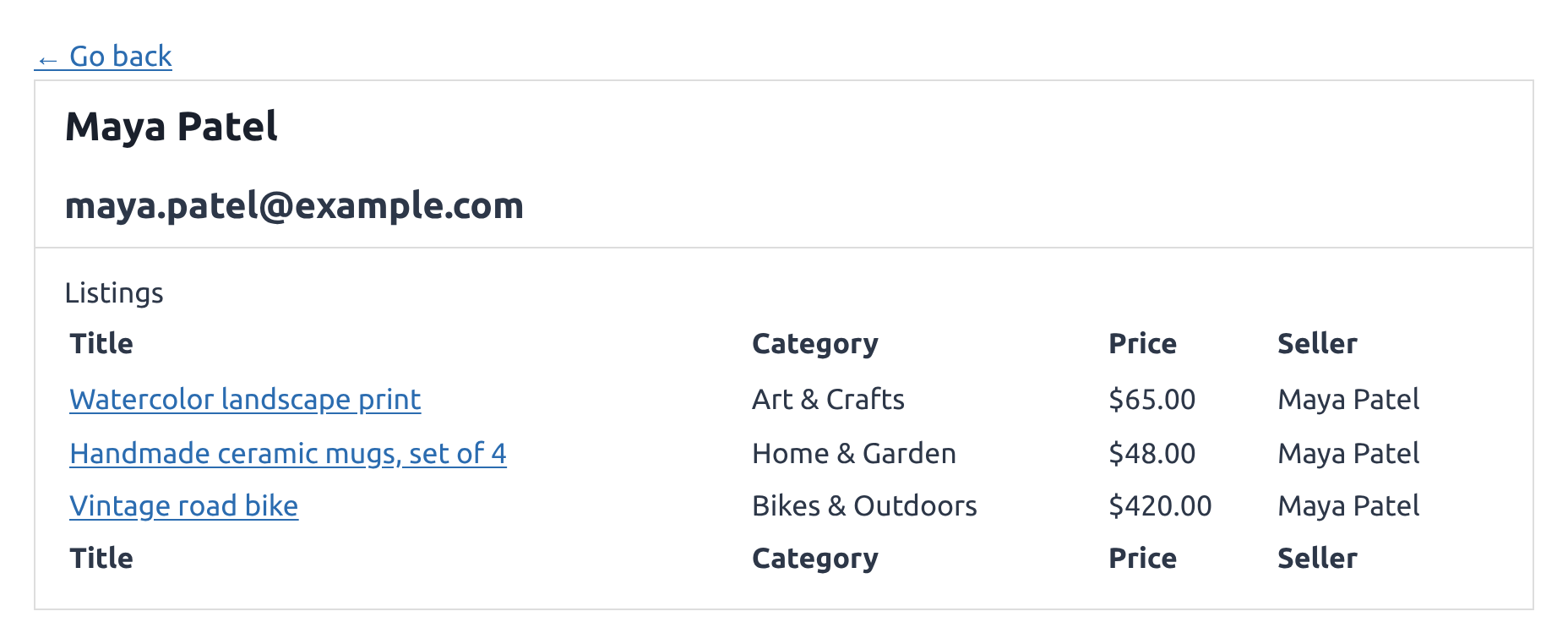
The GravityView View field shows a second View on another View’s Single Entry page and filters it by values from the entry on that page. A member’s page can list the items that member posted, and an organization’s page can list its contacts. The field is available in GravityView 2.19 and later.
Add the field #
Before you start, create the View you want to embed. Build it on the form that holds the related entries, and put the fields you want to list in its Multiple Entries Layout, which is the layout shown inside the other View.
- Edit the View whose Single Entry page should show the related entries, and click the Single Entry Layout tab.
- Click Add Field and choose GravityView View. On a Table layout, the button reads Add Table Column.
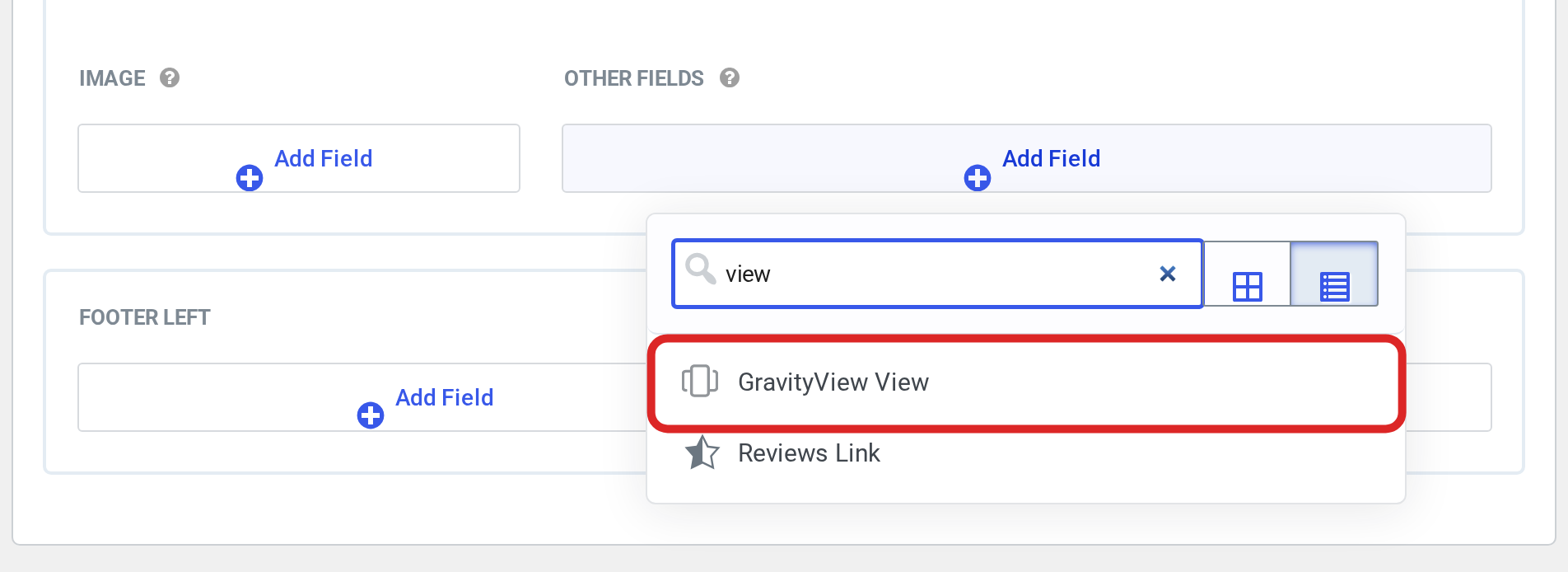
- Click the gear icon on the new field. Under View to embed, choose the View you created.

- In the Advanced section, fill in Search field, Search operator and Search value. The next three sections give the values for the most common setups.
- Click Update to save the View.
Show the entries created by the person on the page #
Use this when the View lists people, such as members or staff, and each person’s entry was created by their own WordPress user account. In the field’s Advanced settings, enter:
- Search field:
created_by - Search operator: is
- Search value:
{created_by:ID}
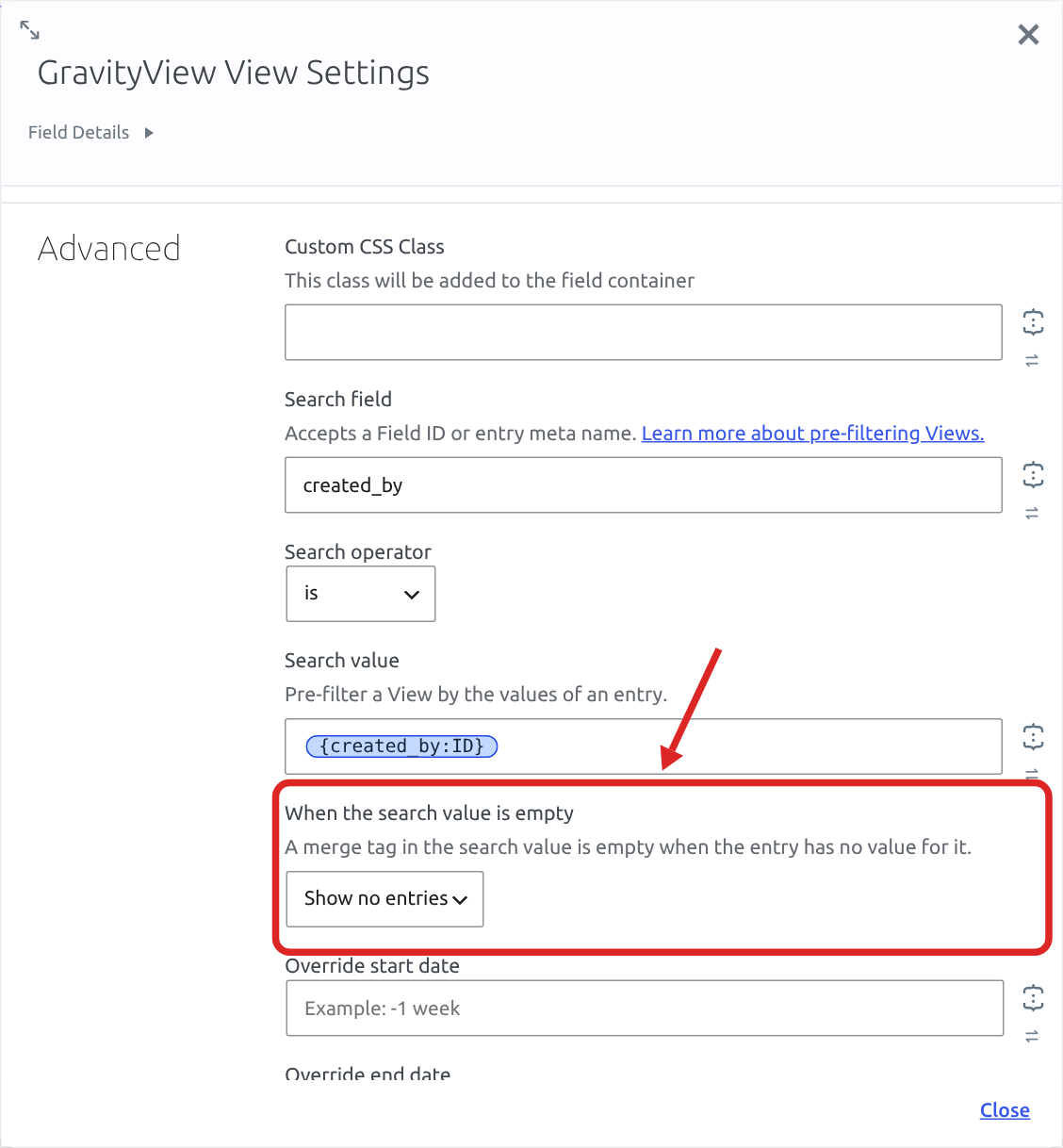
{created_by:ID} is the user ID of whoever created the entry on the page, so each person’s page lists only the entries they created.
How Gravity Forms records the user who created an entry explains when an entry gets a creator and how to set one.
Show entries that share a value with the entry on the page #
Use this when the related entries store a value from the outer entry, such as a Contacts form whose Organization field holds the organization’s name. Enter:
- Search field: the ID of the field in the embedded View’s form, for example
4. - Search operator: is
- Search value: the merge tag of the matching field in the outer entry, for example
{Organization Name:1}. The merge tag button beside the box lists the outer form’s fields.
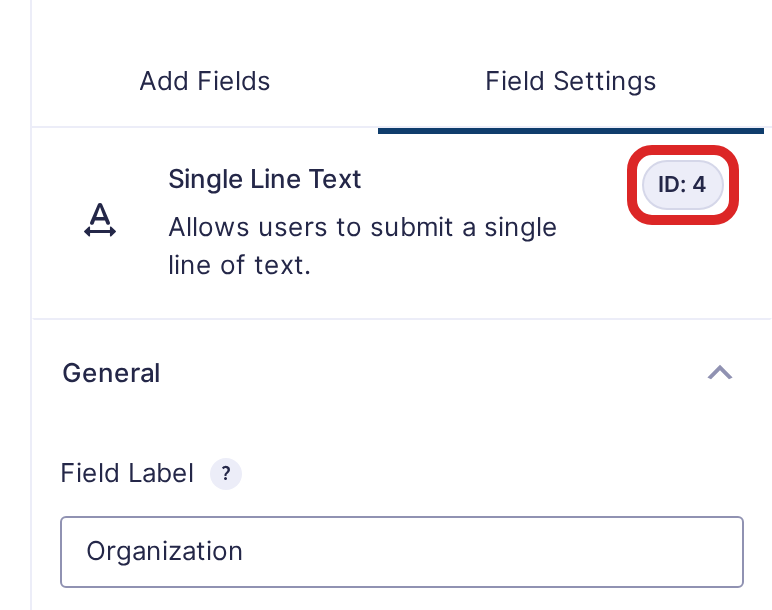
To find a field’s ID, open the form in the Gravity Forms form editor and click the field. The ID shows at the top of the Field Settings panel.
Each organization’s page then lists only the contacts whose Organization field matches its name.
Show entries submitted from the Single Entry page #
People can add related entries through a form embedded on the same Single Entry page with the Gravity Forms field, as described in How to embed a form for each entry in a View. Each entry submitted that way stores the ID of the entry it came from. Filter on it with:
- Search field:
gk_parent_entry_id - Search operator: is
- Search value:
{entry_id}
Only entries submitted through that embedded form are listed, because entries added anywhere else don’t store the parent entry’s ID. About the gk_parent_entry_id and the gk_parent_form_id entry metas has more on how it’s stored.
Field settings #
| Setting | What it does |
|---|---|
| View to embed | The View shown on the Single Entry page. The View you’re editing isn’t listed. |
| Search field | The field ID or entry property the embedded View filters on, such as 4, 1.3 or created_by. |
| Search operator | How the value is compared. Use is for an exact match, is not to leave matching entries out, or contains to match part of the text. Starts with and ends with match the start or end of the text, like treats % as any text, and in takes several values separated by commas (these four need GravityView 3.8.0 or newer). When the Search field is a Dynamic Lookup field that allows multiple selections, is lists every entry that has the value among its choices. |
| Search value | The value to match. Merge tags are filled in from the entry on the page. A merge tag with no value for that entry lists no entries, unless the next setting says otherwise (GravityView 3.8.0 or newer; older versions list every entry). |
| When the search value is empty | Appears once the Search value holds a merge tag. Choose Show no entries (the default) or Show all entries for an entry that has no value for the tag. With the is not operator, an empty value lists every entry either way. |
| Override start date and Override end date | Show only entries created after or before a date. Relative dates such as -1 week and tomorrow work. |
| Override page size | How many entries the embedded View shows: 10, 25, 50 or 100. Use View setting keeps the embedded View’s own number. |
Settings the embedded View keeps #
The embedded View keeps its own sort order, its Show only approved entries setting and its page size. It shows no widgets, so there is no Search Bar and no page links: when there are more entries than the page size, only the first page shows. Raise Override page size if the list gets cut off.
Links in the embedded View open each entry on the embedded View’s own page.

