
Letting a role edit and delete other users’ entries in one View
GravityView lets a user edit an entry on the front end when they created it and the View allows it, or when their role may edit every entry on the site (How does GravityView know who can edit the entry?). Some sites need something in between, such as a facilities manager who edits and deletes the requests other people submitted, in one View, without access to the Gravity Forms Entries screen or to other Views. A short code snippet gives one role that access.
The capabilities in Creating an Entry Moderator role work on every View and form on the site, so use them when the role should edit everything.
Before you start #
- Add a Link to Edit Entry field to the View’s Multiple Entries or Single Entry layout. To let the role delete entries too, add a Delete Entry field.
- Note the View’s ID. It’s the number in the Embed Shortcode in the Publish box of the View editor, such as
123in[gravityview id="123"]. - Note the role’s slug, the name WordPress uses for the role in code, such as
authorfor the Author role.
Add the snippet #
Replace 123 with your View’s ID and facilities_manager with your role’s slug.
/**
 * Lets one role edit and delete every entry that one View shows them.
 *
 * @param bool       $allowed Whether the current user can edit (or delete) the entry.
 * @param array      $entry   The Gravity Forms entry.
 * @param int|string $view_id The ID of the View the link belongs to.
 *
 * @return bool
 */
$gk_view_role_access = function ( $allowed, $entry, $view_id ) {

    $allowed_view_id = 123;                  // The ID of your View.
    $allowed_role    = 'facilities_manager'; // The slug of your role.

    // Leave other Views and other users as they are.
    if ( (int) $view_id !== $allowed_view_id || ! in_array( $allowed_role, (array) wp_get_current_user()->roles, true ) ) {
        return $allowed;
    }

    // Allow only the entries this View shows the user.
    $view = \GV\View::by_id( $view_id );

    if ( ! $view || is_wp_error( GVCommon::check_entry_display( $entry, $view ) ) ) {
        return $allowed;
    }

    return true;
};

add_filter( 'gravityview/edit_entry/user_can_edit_entry', $gk_view_role_access, 10, 3 );
add_filter( 'gk/gravityview/delete-entry/can-delete', $gk_view_role_access, 10, 3 );Note: Adding custom PHP code snippets to your website explains where to put this code.
To let the role edit without deleting, remove the last line.
What the role can do #
Signed in with the role, a user sees the Edit Entry and Delete Entry links on every entry the View shows them, and can edit and delete those entries. The View’s Allow User Edit and Allow User Delete settings can stay off, because they only cover the entries a user created. If the View has GravityEdit’s Enable Inline Edit turned on, the role can also edit the View’s entries in place.
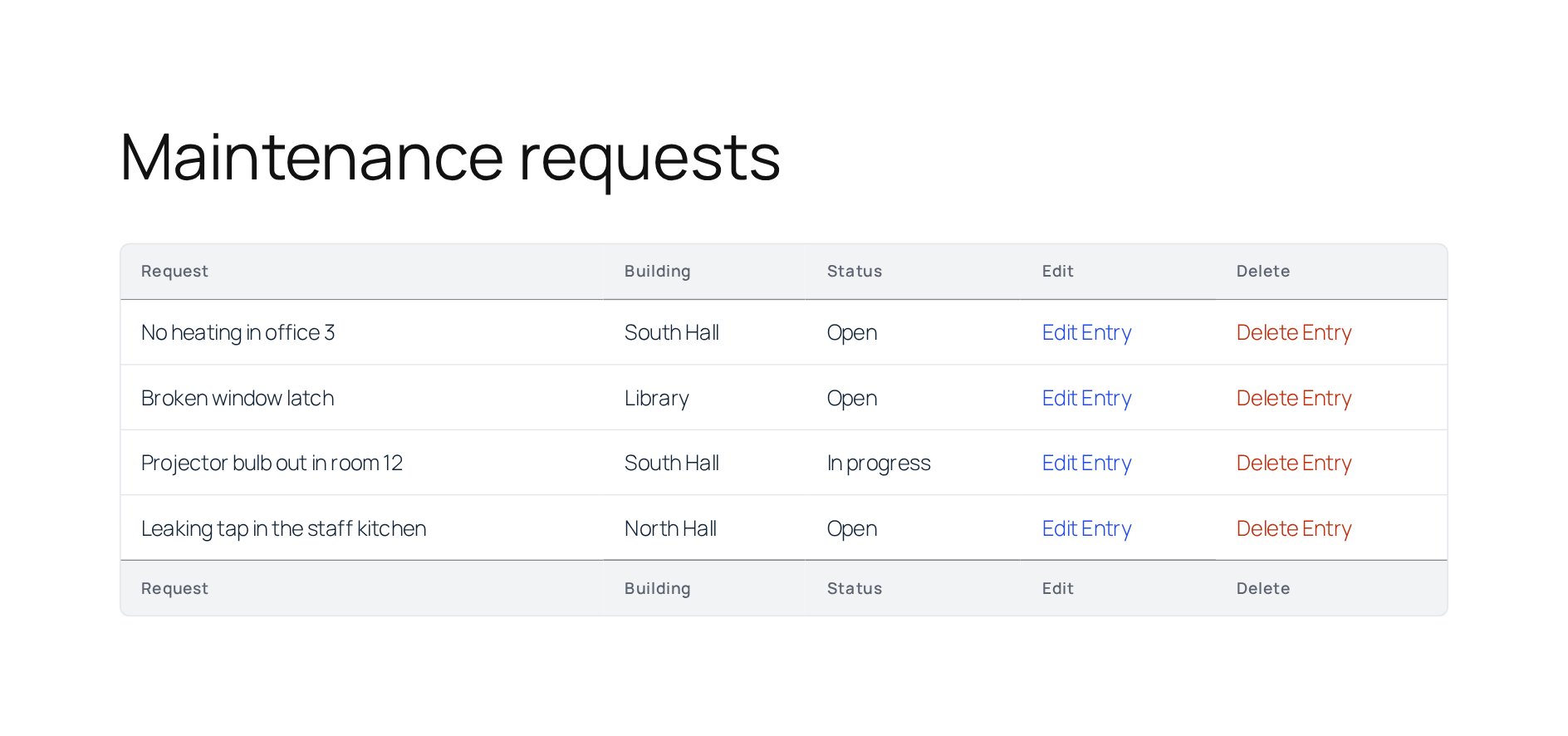
Other roles keep their usual permissions, and in other Views the role has no more rights than before.
The check against the View keeps editing and deleting to the entries the View lists for that user. An Edit link to any other entry of the form shows “You do not have permission to edit this entry.” A Delete link shows “There was an error deleting the entry: You do not have permission to delete this entry.” and the entry stays.
When an edit removes the entry from the View #
If an edit changes a value the View filters on, the entry leaves the View. For example, a View that hides requests with the status Done no longer shows a request once its status is set to Done. GravityView saves the change, and the Edit Entry screen then shows “You do not have permission to edit this entry.” in place of the confirmation, because the entry is no longer in the View. The View’s page shows the updated list.
Deleting entries #
Deleting an entry through the View removes it for good. To move deleted entries to the trash, where an administrator can restore them, use the filter in Change the Delete Entry mode from “Delete” to “Trash”.
The two filters in the snippet are documented on the developer site: gravityview/edit_entry/user_can_edit_entry and gk/gravityview/delete-entry/can-delete.

