
Moving from separate extensions to GravityView Pro
Extensions and layouts that you installed as separate plugins, such as DataTables or Advanced Filtering, stay on your site after you update to GravityView Pro. The active ones keep working.
GravityView Pro has the same features built in. When you’re ready, a review in Manage Your Kit removes the separate plugins, and the built-in copies run with the same settings.
Note: If the license at the top of Manage Your Kit is GravityView + Extensions (Legacy), the extensions and layouts stay separate plugins. See About the “GravityView + Extensions (Legacy)” license.
What your site shows after the update #
GravityView Pro never runs two copies of a feature:
- While a separate plugin is active, it runs instead of the built-in copy.
- If it is installed but inactive, GravityView Pro runs its built-in copy.
If you kept a separate plugin inactive because you don’t use its feature, turn that feature off as Turning a feature on or off shows.
On the Plugins screen, GravityView is now listed as GravityView Pro. The row of each separate extension or layout starts with “Included in GravityView Pro.” and says whether that copy is running or not in use.
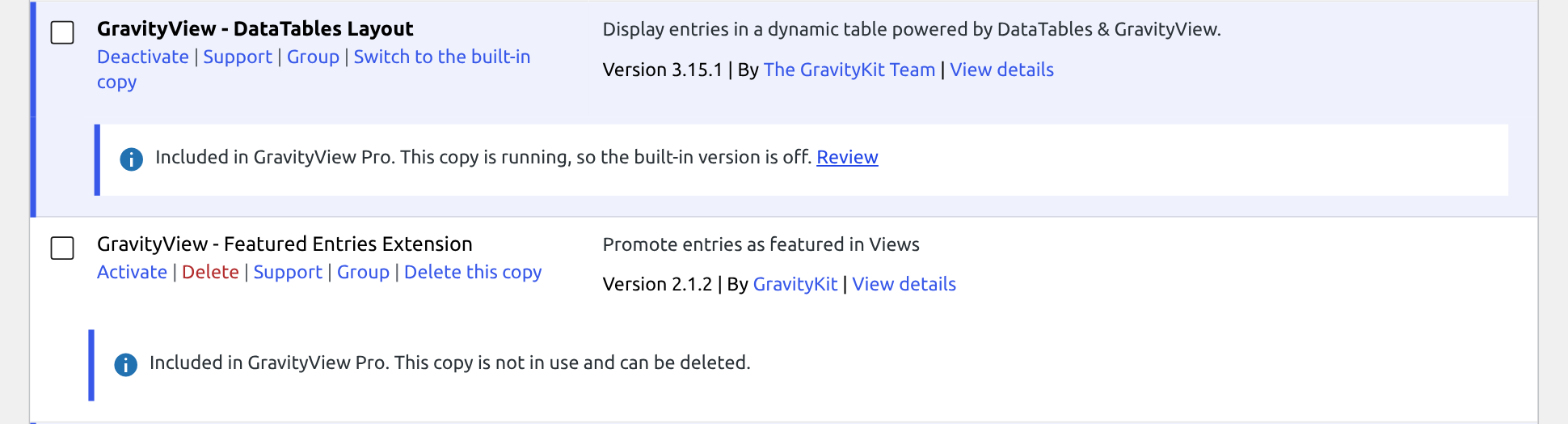
When you deactivate a separate plugin, GravityView Pro switches to its built-in copy of that feature, and a notice on the next screen says so.
Removing the separate extensions #
You can remove all the separate plugins from Manage Your Kit in one step, without deactivating or deleting them one by one:
- Go to GravityKit, then Manage Your Kit, and click Review next to “GravityView Pro includes products you have installed separately.” The Products included in GravityView Pro window opens with each separate plugin on your site, its version and the built-in version. Every plugin starts ticked.

- Click Remove selected. The number on the button is how many plugins are ticked.
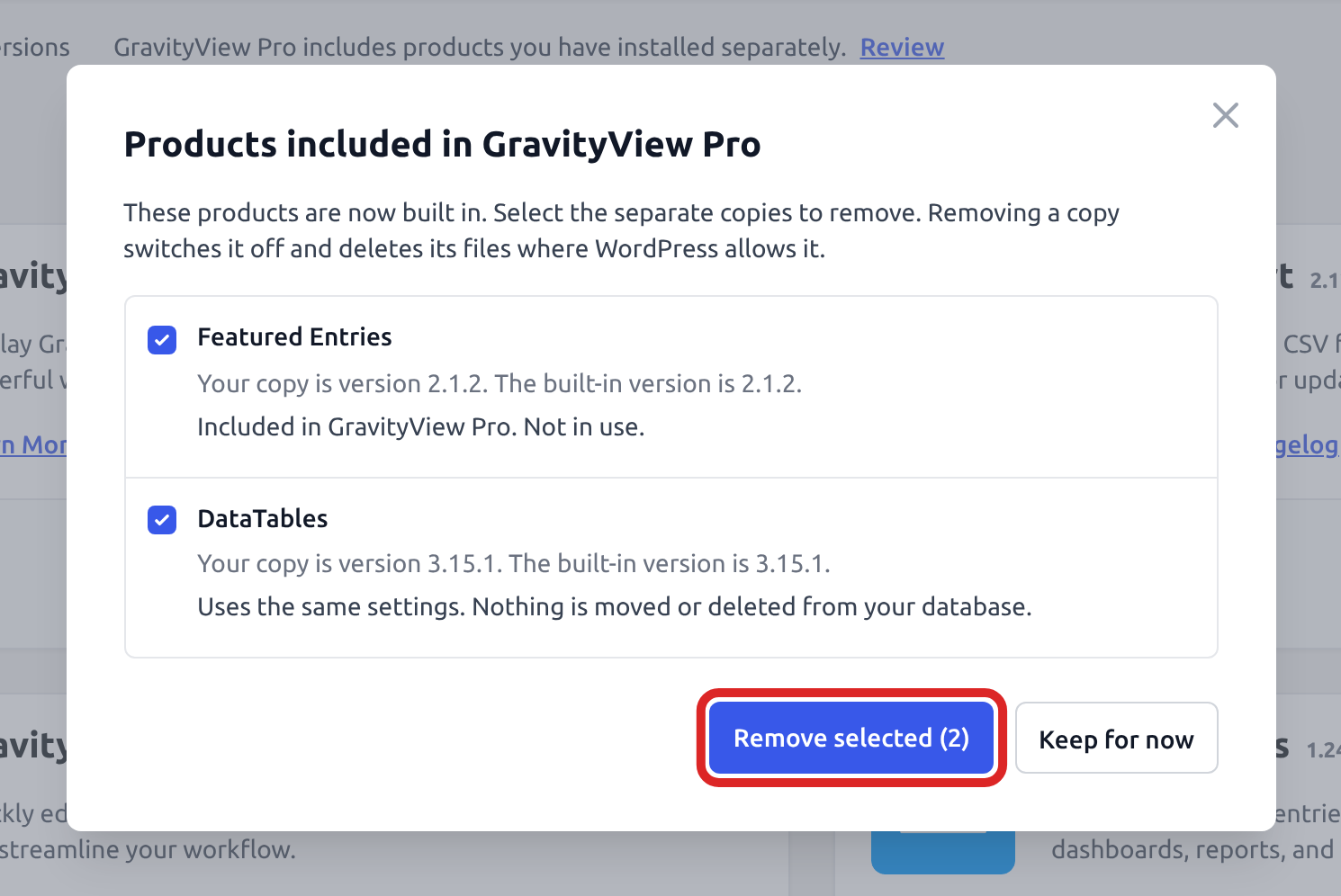
- When each plugin you ticked says Removed, click Close.
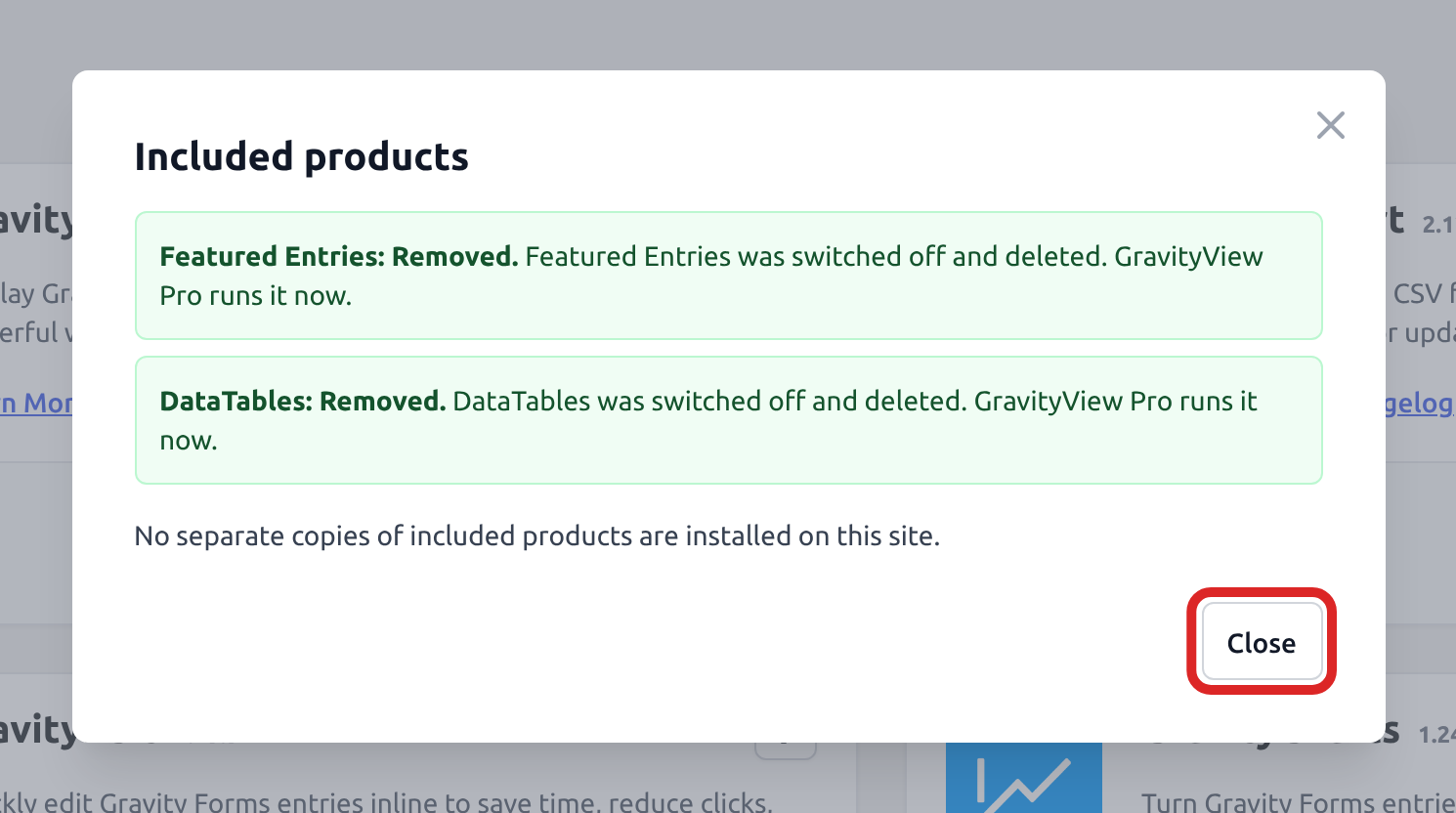
Removing a plugin deactivates it if it was active and deletes its files, where WordPress allows it. Your Views, their settings and your entries stay in the database, and the built-in copies use the same settings.
In the review window, an inactive plugin says “Not in use.” That plugin isn’t running its feature, so removing it only deletes its files.
To remove one plugin at a time, click the link in its row on the Plugins screen. The link deletes the plugin at once, without asking first, and its name depends on whether the plugin is active:
- Switch to the built-in copy on an active plugin. GravityView Pro runs the feature from then on.
- Delete this copy on an inactive plugin. The feature keeps running from the built-in copy.
Dynamic Lookup, Entry Tags and Event Field #
Dynamic Lookup, Entry Tags and Event Field are free plugins for Gravity Forms, and GravityView Pro includes them too. If their plugins are on your site, they work like the extensions:
- The Plugins screen lists them as Gravity Forms Dynamic Lookup, Gravity Forms Entry Tags and Gravity Forms Event Field, with the same “Included in GravityView Pro.” line.
- The Features screen has a row for each. The separate plugin runs only while it is active.
- The review in Manage Your Kit lists them with the extensions and layouts.
Once their plugins are inactive or removed, the Lookup, Entry Tags and Event fields in your forms run from the built-in copies.
Turning a feature on or off #
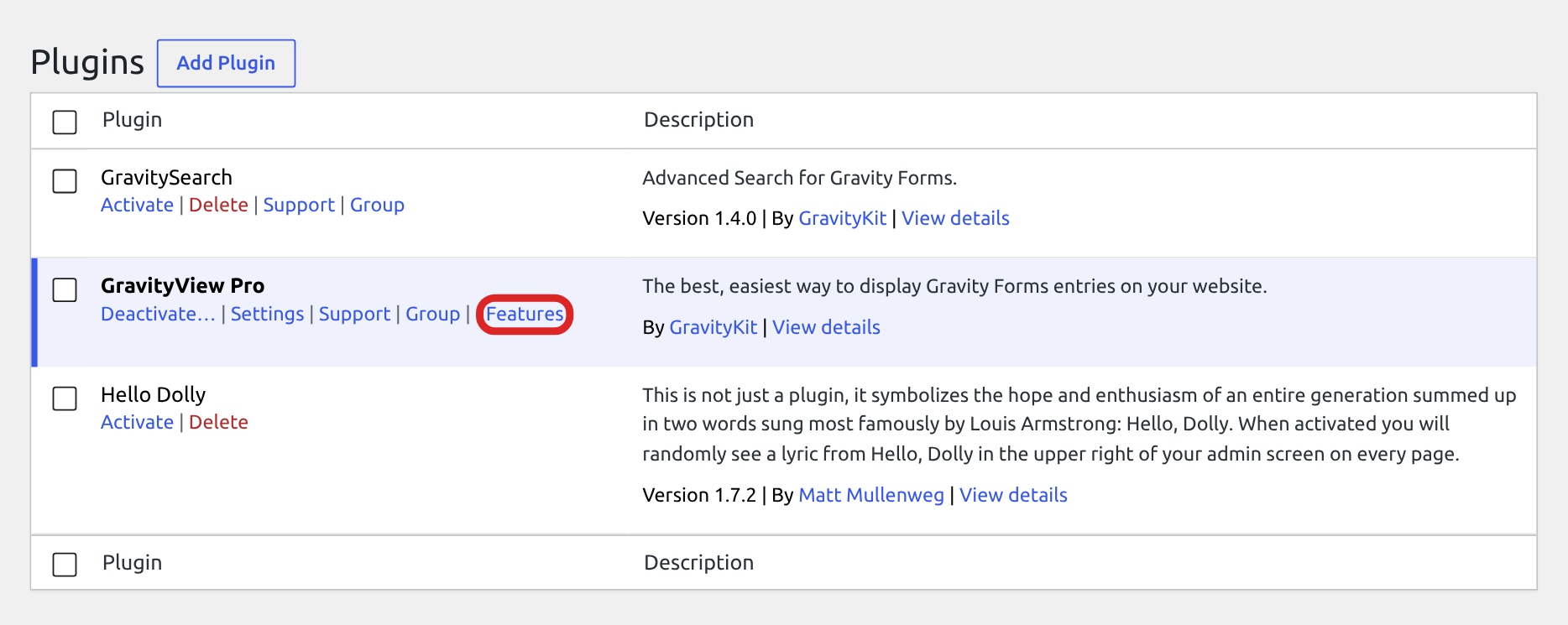
The Features screen lists the features built into GravityView Pro and what runs each one. It has no menu item. To open it, go to Plugins and click Features in the GravityView Pro row.
The Runs from column shows one of these:
- Built into GravityView: GravityView Pro runs the feature.
- “The separate DataTables product”, with each feature’s own name: the separate plugin is active and runs the feature.
- Off: nothing runs the feature. The Why column says why.
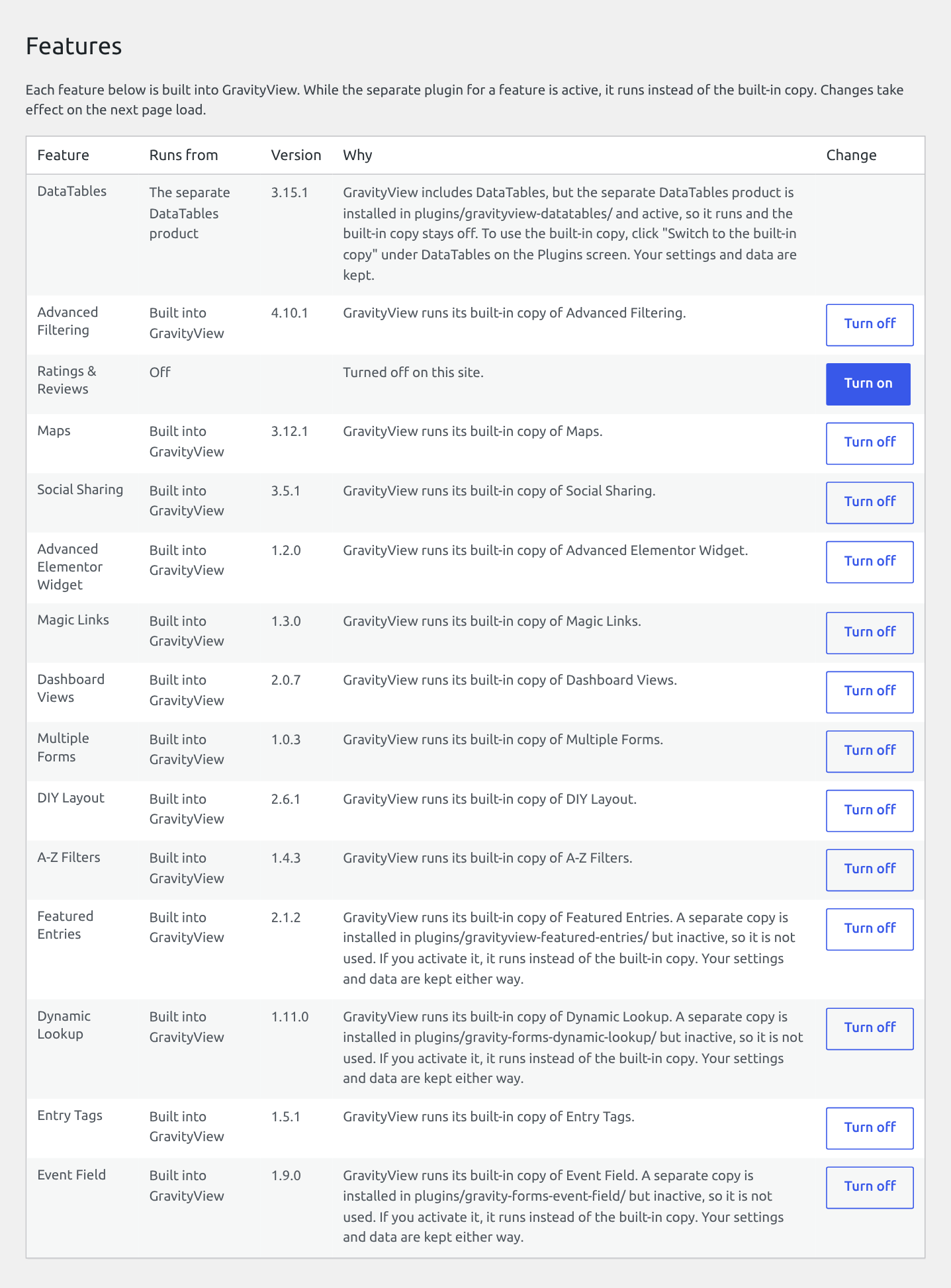
To change a feature, click Turn off or Turn on in its row. The change applies on the next page load. A feature whose separate plugin is active has no button until you deactivate or remove that plugin.
After Turn off, the screen says, for example, “A-Z Filters is turned off. Its settings and data stay in the database.”
Ratings & Reviews starts off #
Ratings & Reviews is the one built-in feature that starts off. To use it, click Turn on in its row on the Features screen. Until then, the Ratings & Reviews tab in a View’s Settings box says “Ratings & Reviews is turned off in GravityView.”
If your site had the separate Ratings & Reviews plugin, check the Ratings & Reviews row on the Features screen after the review. If Runs from says Off, click Turn on.

