
Getting started with the Advanced Elementor Widget for GravityView
The Advanced Elementor Widget, a GravityView Pro extension, adds a Style tab to the GravityView widget in Elementor. There you set the View’s colors, spacing and fonts for each layout and screen size. Without the extension, the widget embeds a View with no style settings of its own; see Embedding Views in Divi, Beaver Builder, and Elementor.
Before you start #
You need GravityView, Elementor (free or Pro) and the Advanced Elementor Widget, all active on the site. The widget is listed under GravityKit, then Manage Your Kit. You also need a View; Setting up your first View shows how to create one.
In this video, Casey embeds and styles a View in Elementor:
Adding a View to a page #
Step 1: Open the page in Elementor
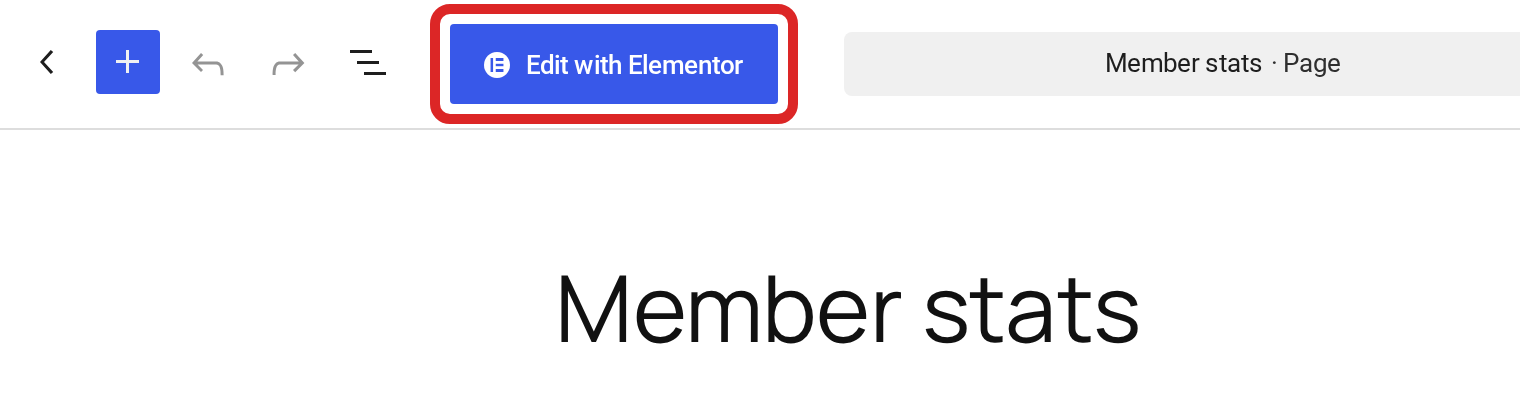
Create or edit a page and click Edit with Elementor.
Step 2: Add the GravityView widget
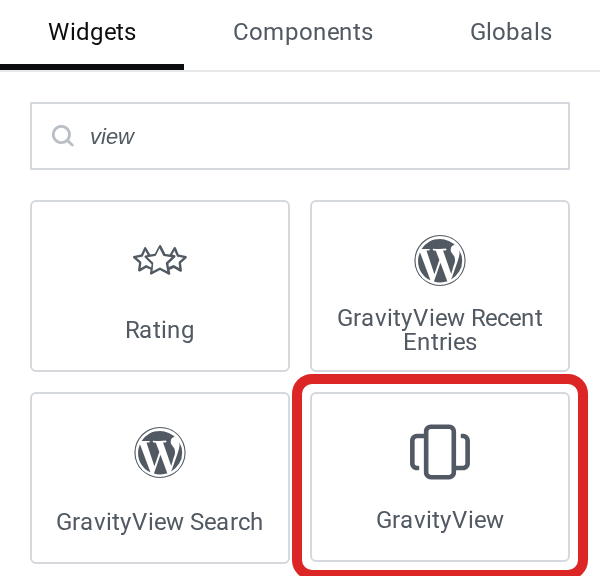
In the widget panel, search for view and drag the GravityView widget onto the page.
Step 3: Choose the View
Choose the View under Select View. Views with the DataTables layout are not in the list, because the widget doesn’t support them yet.
Step 4: Change View settings for this page (optional)
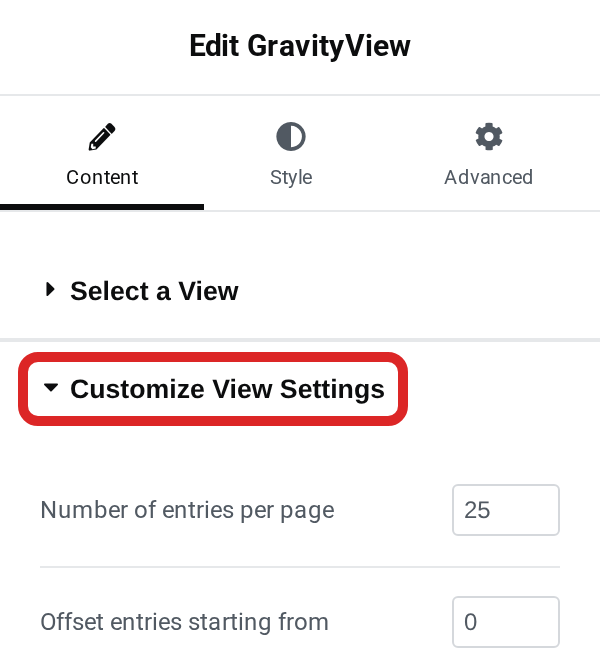
Under Customize View Settings, on the Content tab, you can change some of the View’s settings for this page only: the page size and offset, the lightbox, what shows when there are no entries, the sort order, the date filter, the theme and grid, the search, and the back link label.
Styling the View #
Select the Style tab. Its sections follow the View’s layout. A Table View has Table Container, Table Header, Table Rows, Table Cells, Table Footer, Field Values, Search and Pagination. A List View has List Container, List Entry Loop and one section per zone, such as Zone: Title.
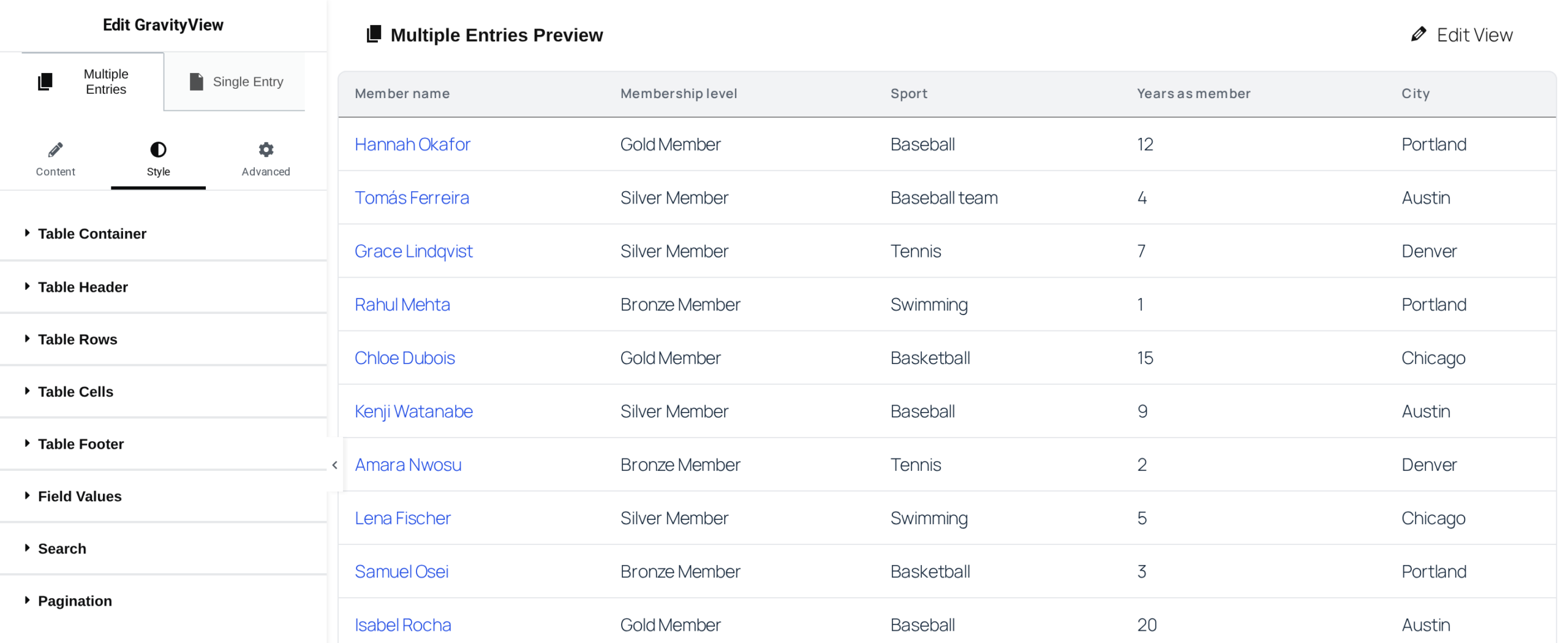
The Multiple Entries and Single Entry tabs at the top of the panel switch the sections and the preview between the list of entries and the single entry page.
Hover over a section to highlight what it styles in the preview, or click part of the View in the preview to open its section.
To color the text of the entries, use Value Text Color under Field Values. Container Text Color reaches only text without a color of its own, so the cells and headings of a Vantage table keep their theme colors.
Color and typography settings can use Elementor’s global colors and fonts.
Different styles for tablets and phones
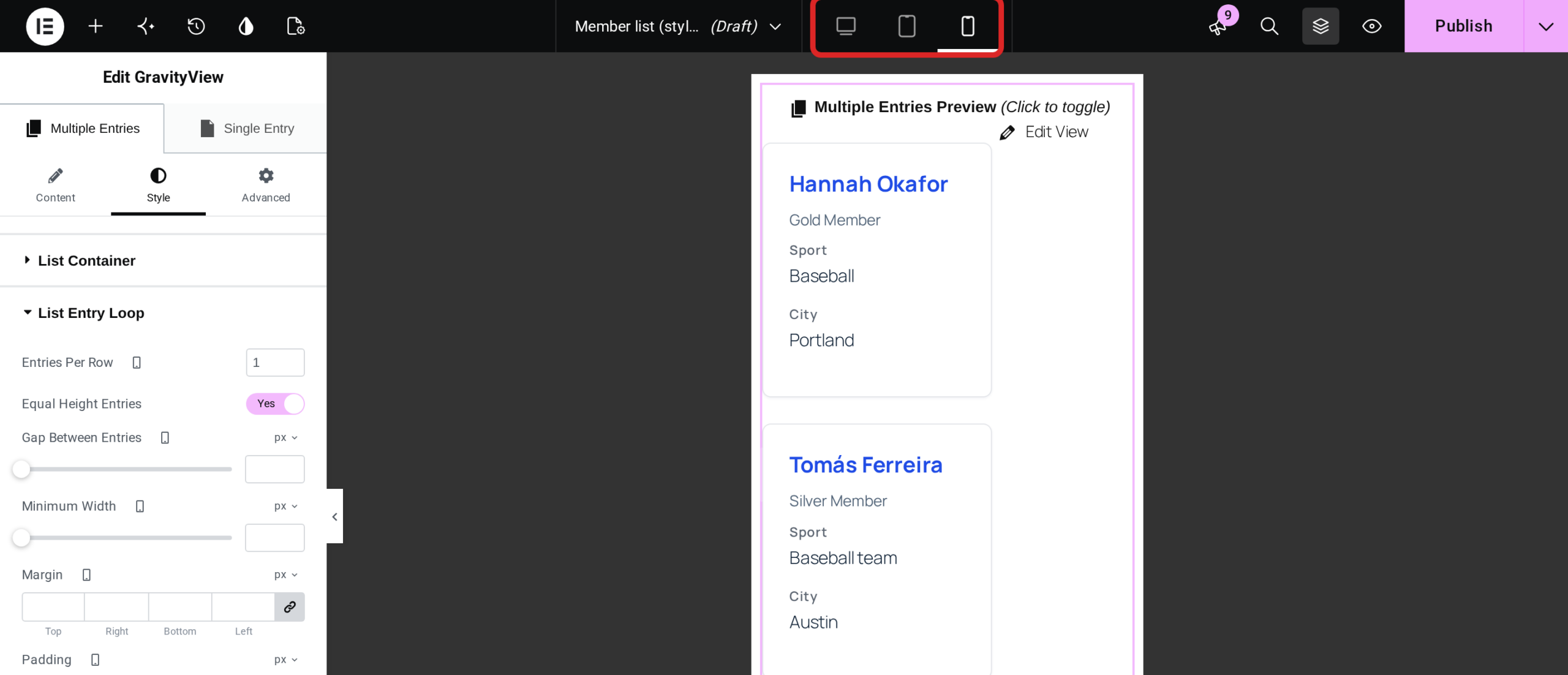
Settings with a screen icon next to their name can hold a value per device. Pick the device at the top of Elementor, then change the setting. For example, set Entries Per Row under List Entry Loop to 1 for phones.
Layouts #
The Style tab has sections for the Table, List, Layout Builder and DIY layouts. Views with the DataTables layout can’t be chosen in the widget yet.

