
Joins and unions: two ways to combine entries from multiple forms in one View
If you collect information through more than one Gravity Forms form and want to see it all in one View, you can use the Multiple Forms extension. However, there are two ways to put your data together. They solve different problems, and picking the right one takes about ten seconds once you have seen them side by side.

The short version
A join makes each row wider by adding columns from a second form. A union makes the list longer by adding rows from a second form. Use a join when two forms hold information about the same person or thing. Use a union when two forms collect the same kind of information separately.
Is your form data stuck on the Gravity Forms entries screen?
Most people arrive here with one of these two situations. Find the one that sounds like yours.
You need a join
Two forms record different things about the same person or item, and both hold a value you can match on, like an email address or an ID. You want them side by side.
you need a union
Several forms collect the same kind of entry, maybe one per location, per intake or per year. You want every entry in one list, each on its own row.
What a join does
A join looks for entries that share a value and lines them up on the same row. The result is a wider row: your primary form’s columns, plus the columns from the form you joined.
In this example, a Members form holds each member’s ID and name, and a Membership renewal form records which plan they renewed on. Both forms collect the member’s ID, so a join can match them. Every row now shows who the member is and what they are on, even though the two answers came from two separate submissions.
Use a join when
- Two forms describe the same person or thing, like a registration and a feedback survey
- Both forms collect a value you can match on, like an email address, an order number or a member ID
- You want one row per person, with columns from both forms
One thing to expect: if a single entry matches several entries in the other form, you get one row per match. A member with three renewals appears three times, once per renewal. That is usually what you want, and if it is not, you can join on multiple fields for stricter matching.
What a union does
A union does not try to match anything. It takes complete entries from each form and stacks them into a single list, one row per entry, lining up the fields that mean the same thing.
Here, one form takes registrations online and another records the ones that came in on paper. Nothing connects an online registration to a paper one, and nothing should. They are separate people who signed up two different ways, and a union simply puts them in the same list so you can read, search and sort them together.
Use a union when
- Several forms collect the same kind of entry, split by location, season, team or intake
- Your forms have no shared field, and there is no reason they should
- You want a single list, with every entry keeping its own row
Your forms do not need identical field names. Fields with the same label line up automatically, and you can map differently named fields, like “Full name” and “Attendee name”, into the same column. If one form has no equivalent for a column, that form’s rows simply show an empty value there.
Joins and unions side by side
| Join | Union | |
|---|---|---|
| What it adds | Columns | Rows |
| Shape of the result | Each row gets wider | The list gets longer |
| Shared field needed | Yes, that is what it matches on | No |
| Rows per entry | One row per match, so an entry can repeat | One row per entry, always |
| Best for | Forms about the same person or thing | Forms collecting the same kind of data |
Pro Tip
If you already know SQL: these behave like their database counterparts. A join matches rows across tables on a shared key and widens the result, the way INNER JOIN or LEFT JOIN does. A union appends one result set to another, the way UNION ALL does. Multiple Forms keeps every row rather than removing duplicates.
How to set this up in GravityView
Both options live in the same place. In the View editor, open the Data Source box and click + Add Merge Condition, then choose whether you want a join or a union.
Note: this requires the Multiple Forms extension, which is included in GravityView Pro and All Access. Unions arrived in Multiple Forms 0.7.0 and need GravityView 3.3 or newer.
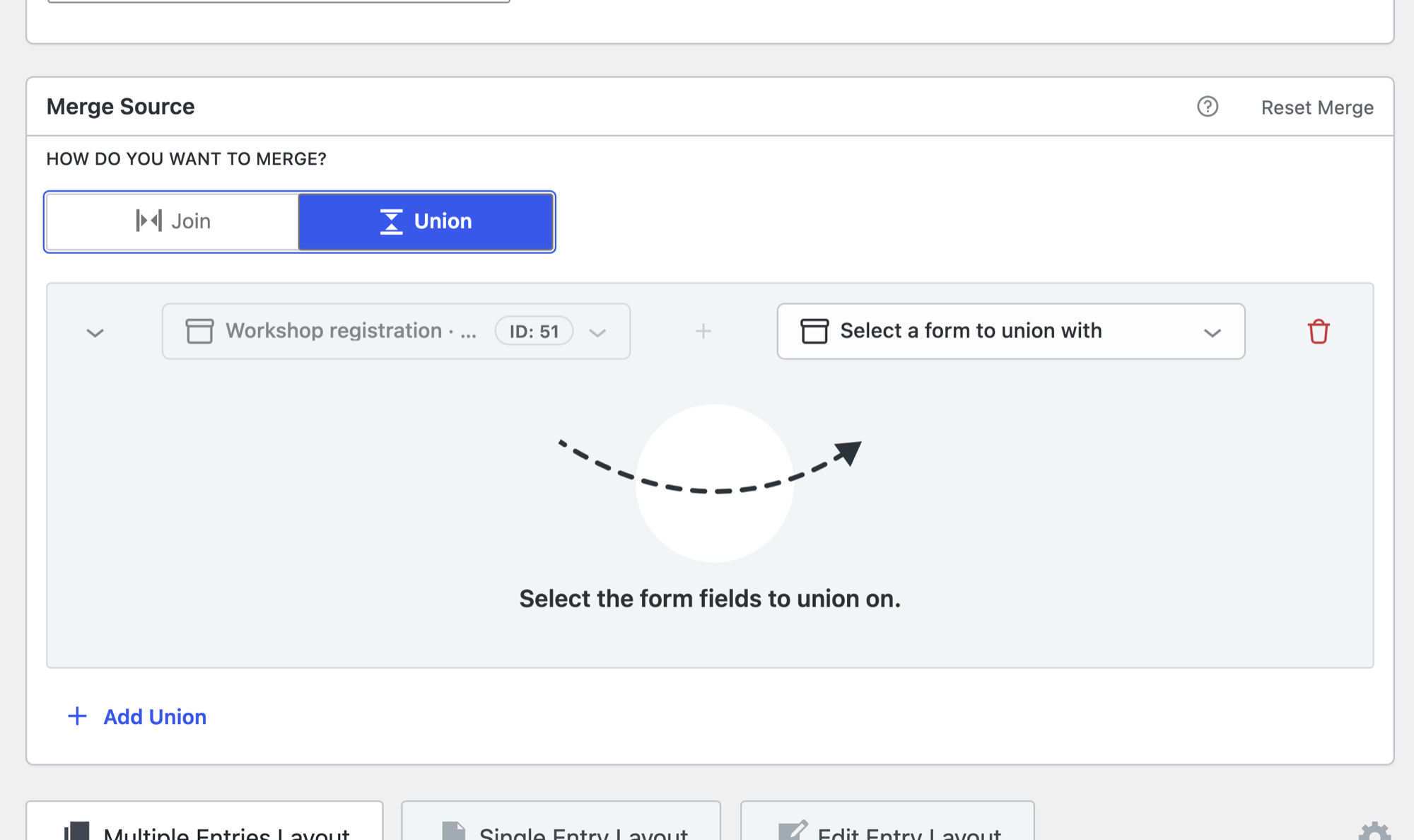
For step by step instructions, read Getting started with Multiple Forms for joins and Using unions in Multiple Forms for unions, or follow the full walkthrough in how to combine and display data from multiple Gravity Forms.