
Buttons (DataTables Setting)
The Buttons setting puts a row of buttons above a DataTables View, so visitors can copy, download or print the entries in the table.
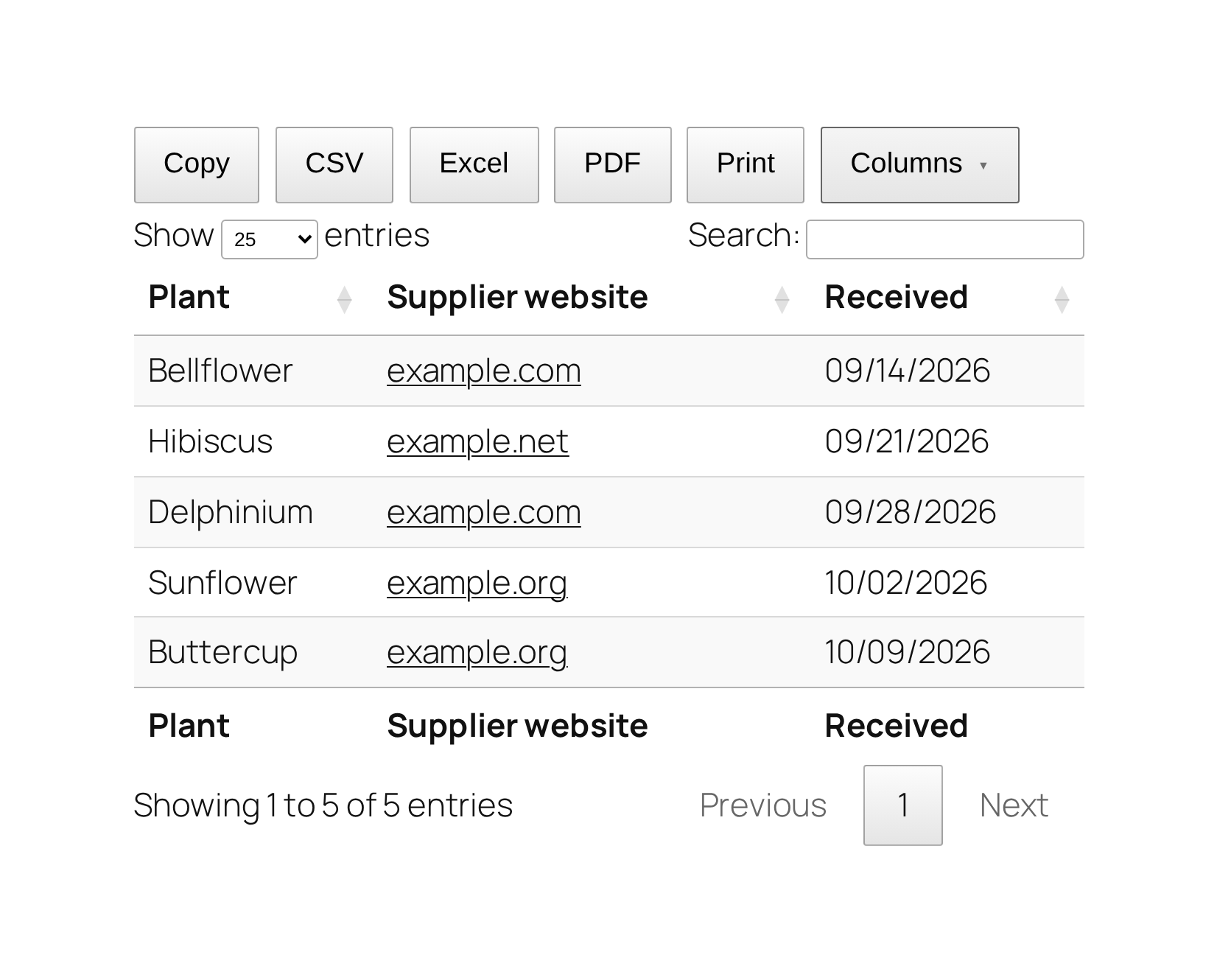
Choose the buttons #
- Edit your View.
- In the Settings box, click the DataTables tab.
- Under Buttons, make sure Enable Buttons is checked, then check each button you want.
- Click Update.
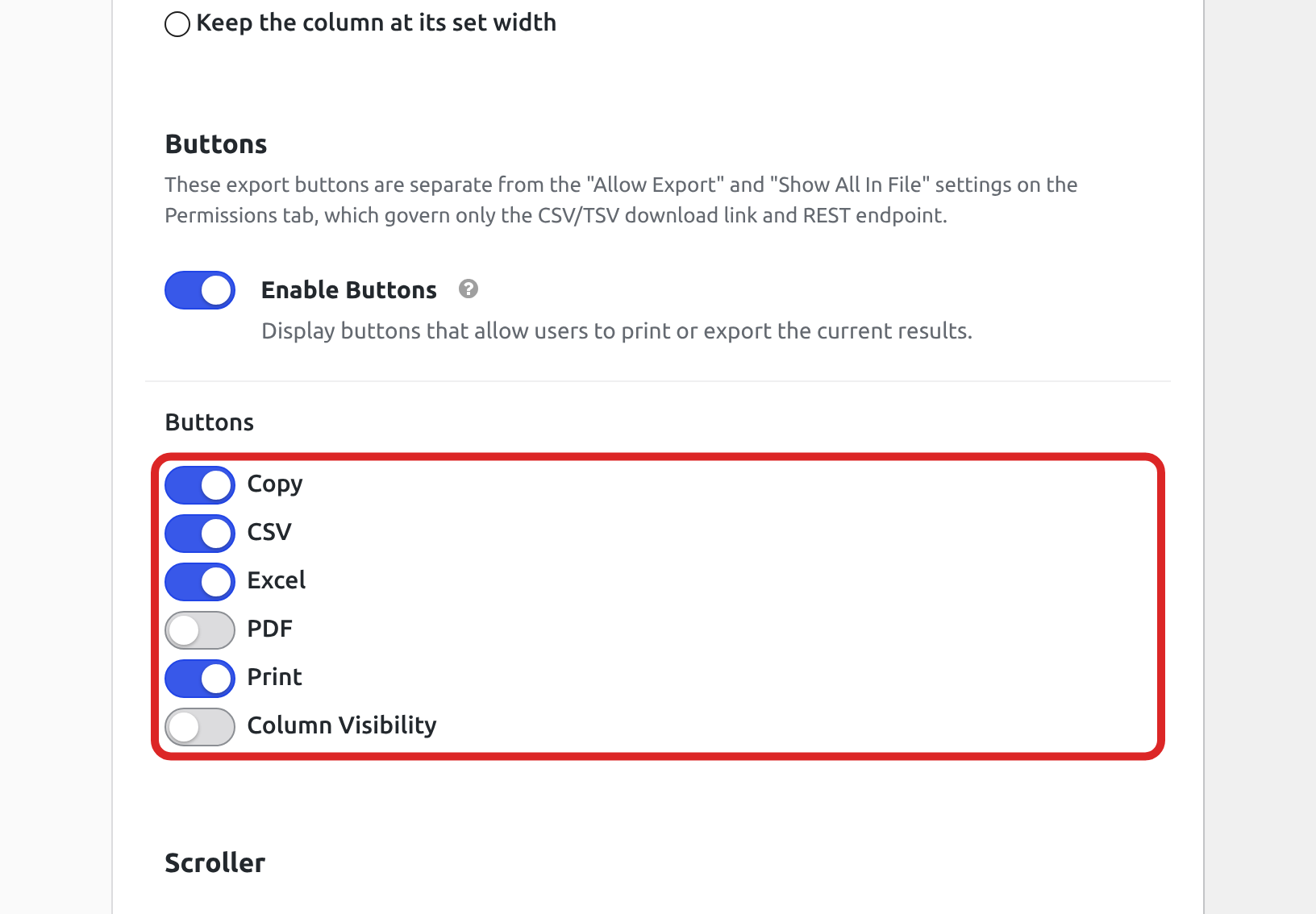
A new View has Copy, CSV and Print turned on. Excel, PDF and Column Visibility stay off until you turn them on.
The buttons on the page #
| Button | What it does |
|---|---|
| Copy | Copies the entries to the clipboard and shows how many rows it copied. |
| CSV | Downloads a CSV file named after the page title. |
| Excel | Downloads an Excel file named after the page title, with the title in the first row. |
| Downloads a PDF on wide A3 pages, with the page title at the top. | |
| Shows the table in a new window and opens your browser’s print dialog. | |
| Columns | Lists the table’s columns, so visitors can hide or show each one. The button is called Column Visibility in the settings. |
Entries and columns in the files #
The buttons copy, download and print every entry that matches the current search, filters and sorting, including entries on other pages of the table. Columns a visitor hides with Columns stay out.
Each cell holds plain text, and a link keeps its address in parentheses after its text. Showing URLs in DataTables Excel exports lists what each kind of column holds, and Showing images and URLs in DataTables printouts shows how to print images. For PDF files, see Adding a company logo to DataTables PDF exports, Showing images in DataTables PDF exports and Making links clickable in DataTables PDF exports.
In the Ajax (Server-side) processing mode, a button handles up to 1,000 entries. When more entries match, the table shows “There are too many rows to export at once. Refine your search and try again.” and no file is made. The Preloaded (Client-side) mode has no such limit. Developers can change the limit, or turn it off, with the gk/gravityview/datatables/export/max-rows filter.
Buttons and the Permissions tab #
These buttons work apart from the Allow Export and Show All In File settings on the Permissions tab. Those two settings control the View’s CSV and TSV download link, which Exporting entries as CSV or TSV from GravityView explains.

