
Published
•
Updated
9 nonprofit apps you can build with Gravity Forms and GravityKit
Nine apps nonprofits build on WordPress from Gravity Forms data: volunteer databases, member directories, client portals, donation pages, grant review and more.

Nonprofits on WordPress use GravityKit to turn the forms they already run into working tools: volunteer databases, member directories, client portals, and grant review queues. If your organization collects anything through Gravity Forms, you already have the data every one of these is built from.
Support Redditch launched its volunteer service with six services, each backed by its own form and View, and added new ones the same day a need came up. The Global Campaign for Peace Education has grown to more than 380 coalition members in every world region on a site built this way. Think:Kids at Massachusetts General Hospital lists 98 certified practitioners on a map, and when one of them moves or changes their details, they update their own listing.
The data in builds like these doesn’t go anywhere new. Gravity Forms stores entries in your organization’s own WordPress database, and GravityKit builds the front end on top of that same data. There’s no per-seat price for every volunteer, board member, or case worker who needs access, and when a form needs a new question, staff can add it without calling a developer. Tony Jenkins at GCPE puts it this way: “GravityKit allows us to be proficient, accomplishing more with less.”
Here are nine things nonprofits build from the form data they already collect, each linked to a full walkthrough.
What is GravityKit?
GravityKit is a suite of no-code add-ons that turn Gravity Forms into an app builder for WordPress.
- Front-end display – GravityView turns entries into tables, lists, grids, maps, calendars, and DataTables, with a search bar, sorting, and per-user filtering.
- The rest of the kit – GravityEdit for inline editing, GravityImport and GravityExport for getting data in and out, GravityCharts for graphs, GravityBoard for kanban, GravityCalendar for events, GravityMath for calculations, and more!
- Self-hosted – Entries stay in your own WordPress database. No third-party service and no per-seat pricing.
- Developer surface – Hooks, filters, a REST API, template overrides, and an MCP server.
1. Find the right volunteer without digging through a spreadsheet
Volunteer details tend to live in a sign-up sheet and a long trail of emails. When a delivery run needs someone who can drive and lives nearby, finding them means scrolling, filtering, and asking around.
A volunteer database turns every sign-up into a row staff can search and filter by the details that matter when you’re filling a shift, such as skills, location, or how much time someone can give. Each volunteer gets a profile page with their photo and details, and an edit link lets them keep their own information current. GravityView builds the database straight from your volunteer form.
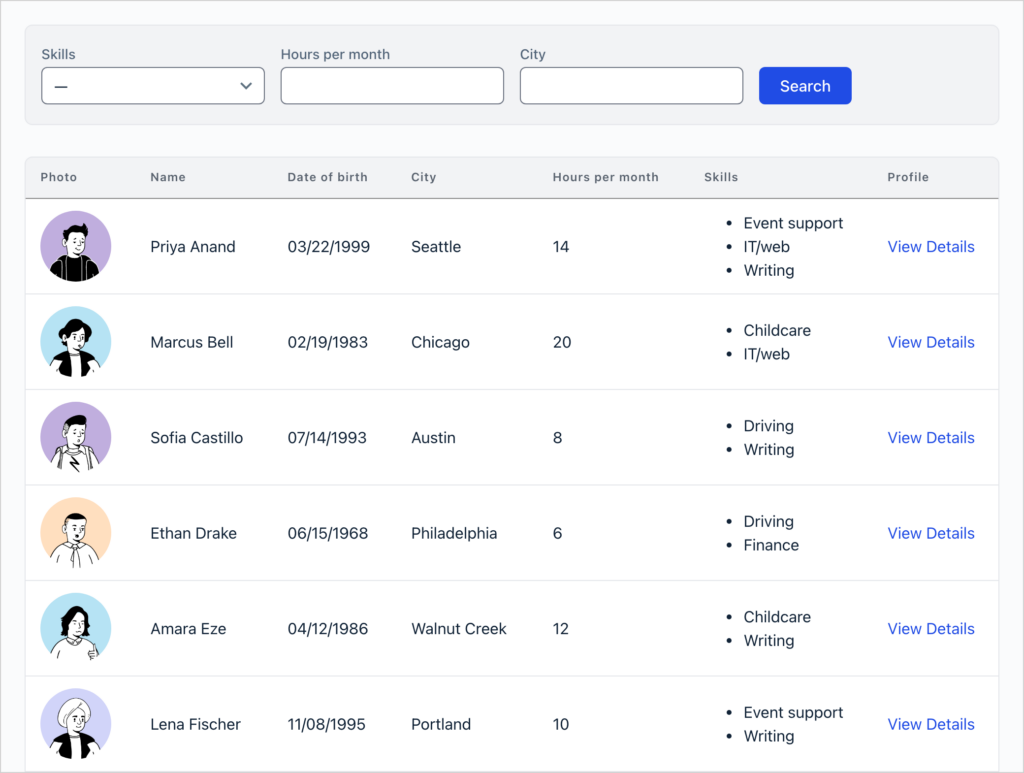
Volunteer records hold dates of birth and home addresses, so the walkthrough’s last step limits the database to logged-in staff.
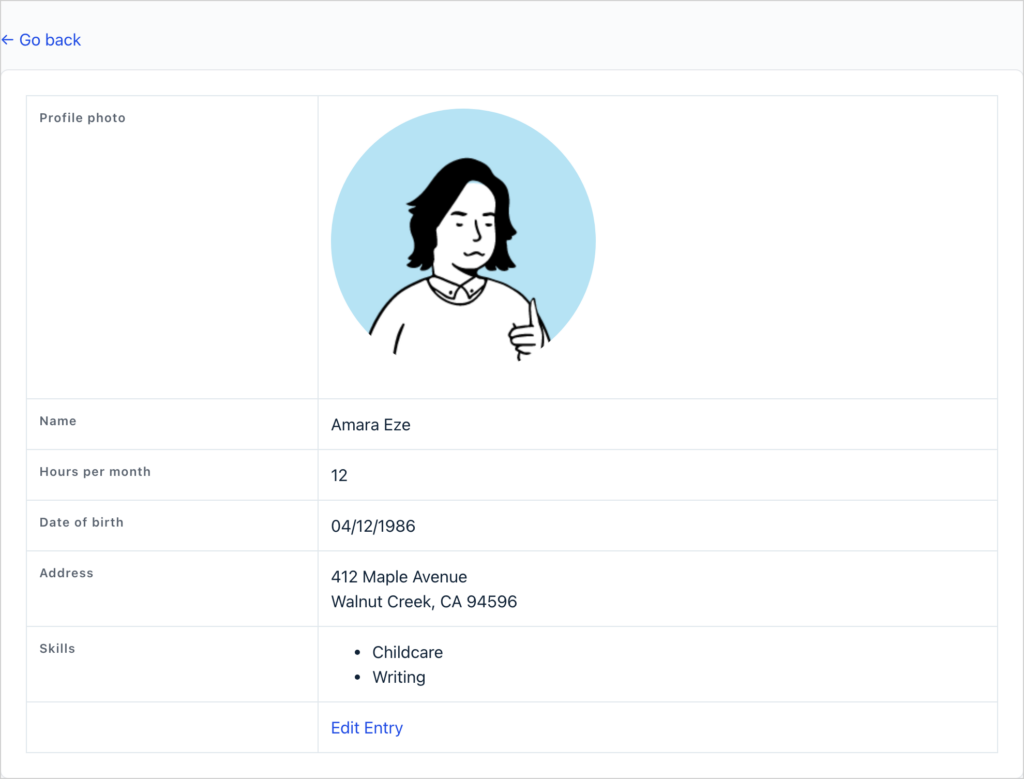
The build: a registration form collects each volunteer’s details, such as their skills, address, and the hours they can give. A GravityView Table View lists everyone with a search bar on the fields you choose, and each volunteer’s page doubles as a profile they can edit from the front end.
Read the walkthrough: How to build a volunteer management system on WordPress without code.
Real-world example: Mike Rouse set up Support Redditch to connect volunteers with people who needed help, with a separate form and View for each service.
Installing Gravity Forms and GravityView is straightforward: plugin, license activation, and away you go!
2. Run a member directory that members keep up to date
Member directories change all the time. When every new photo, job title, or phone number goes through one staff member, the directory falls behind.
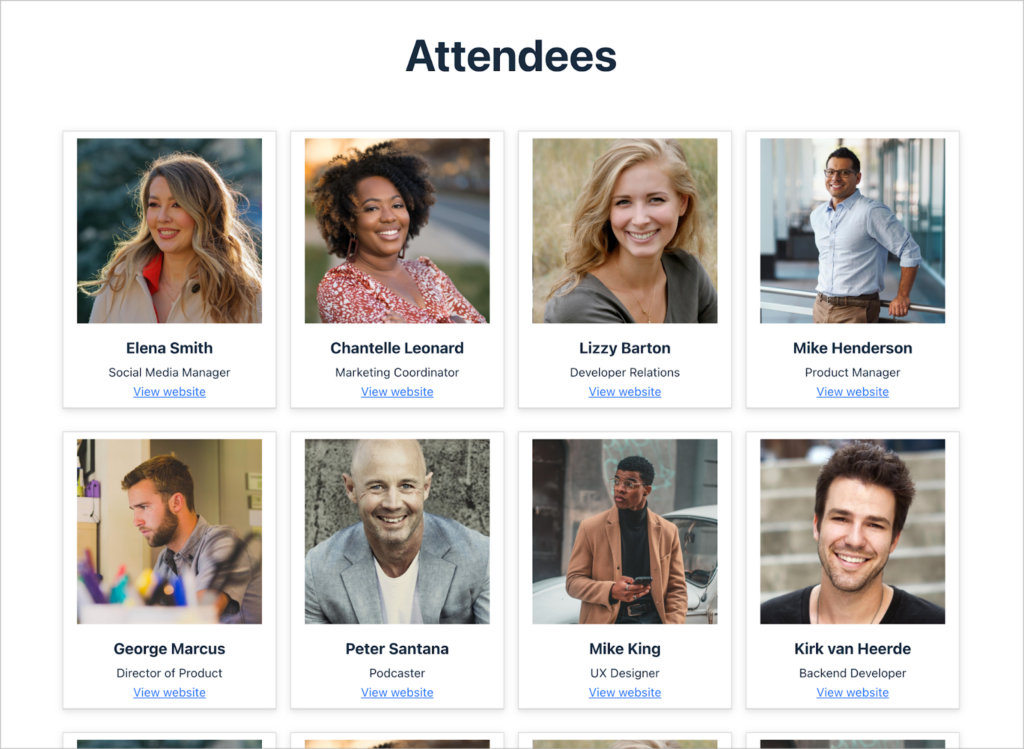
A directory fed by a form lets members keep their own listing current. Each member fills in a profile form once, and the directory shows everyone as searchable cards with photos. Each card links to a profile page with an edit link, so the member it belongs to can update it.
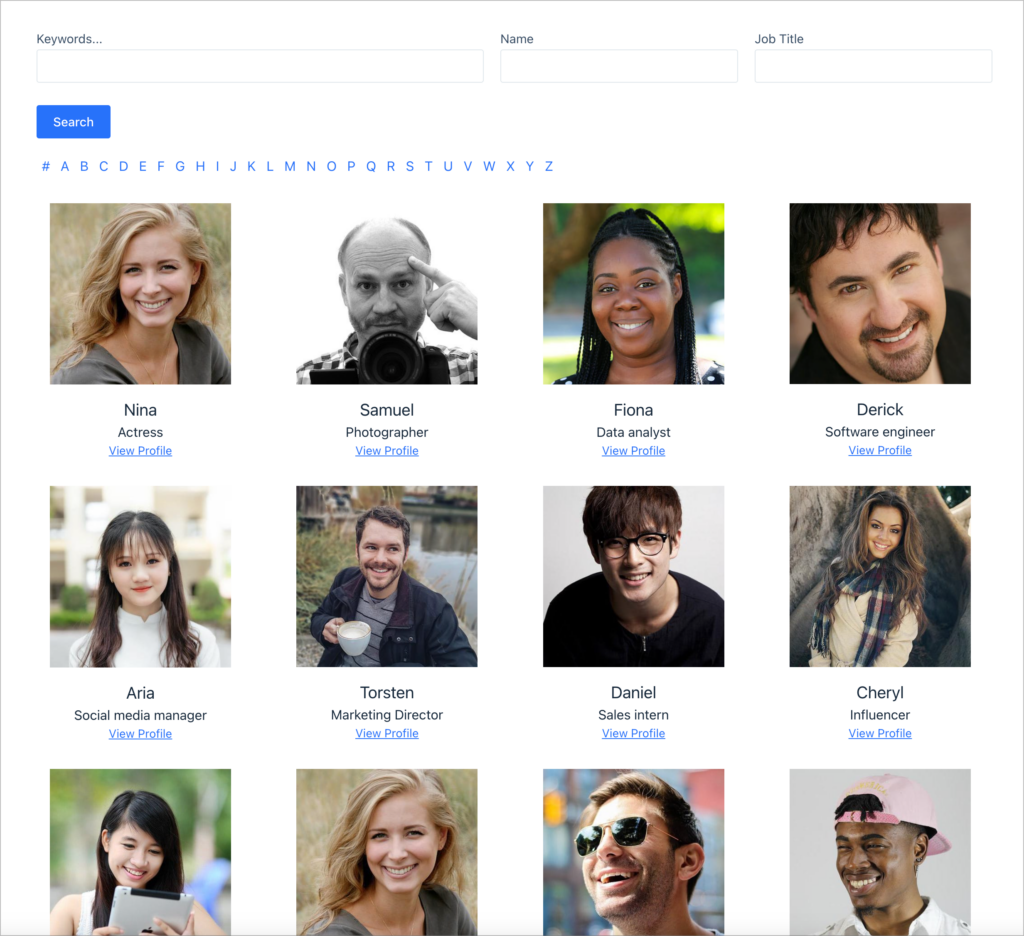
Want someone to check changes before they go live? Turn on entry approval and new listings wait for a yes.
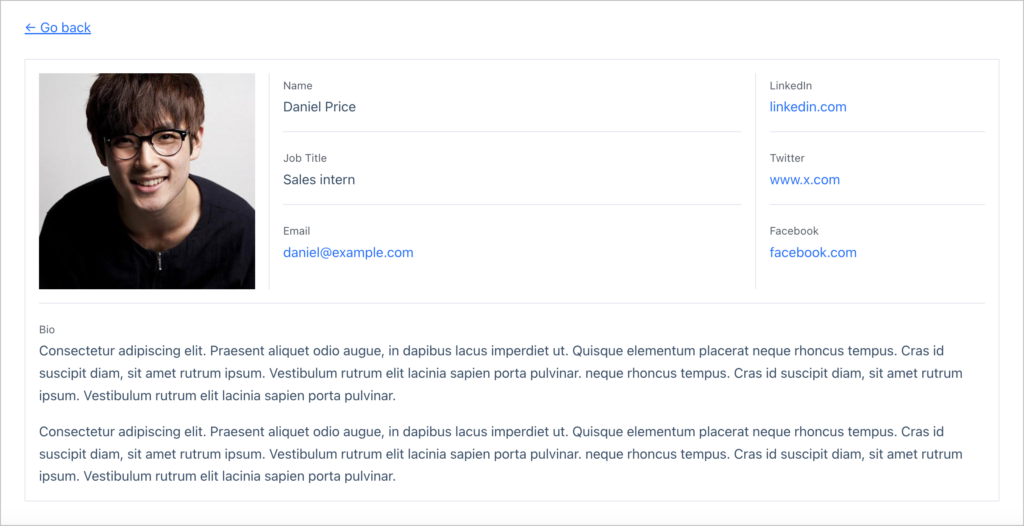
The build: a profile form collects name, email, job title, bio, and photo. A GravityView View shows everyone as searchable cards, each linked to a profile page, and front-end editing lets members update their own entry.
Read the walkthrough: How to build a member directory on WordPress without code, or try the live demo.
Real-world example: Bet Hannon’s agency builds member directories for nonprofits such as Hearts on Fire, a network of spiritual directors and retreat leaders. In its paid directories, a member appears as soon as they pay and drops off automatically when their membership lapses.
We love that GravityView makes it possible for individual members to edit their entry for the directory form/membership info.
3. Give the people you serve a portal of their own
When someone asks your organization for help, the follow-up usually happens by phone and email. They send documents as attachments and call to ask whether there’s any news, and a staff member looks it up each time.
A client portal gives each person one place to log in. They see their profile, every request they’ve made and where it stands, and they can upload the documents a case worker asks for. Case workers update each request from a staff dashboard, and the client gets an email when something changes. GravityView Pro makes sure each client sees only their own information.
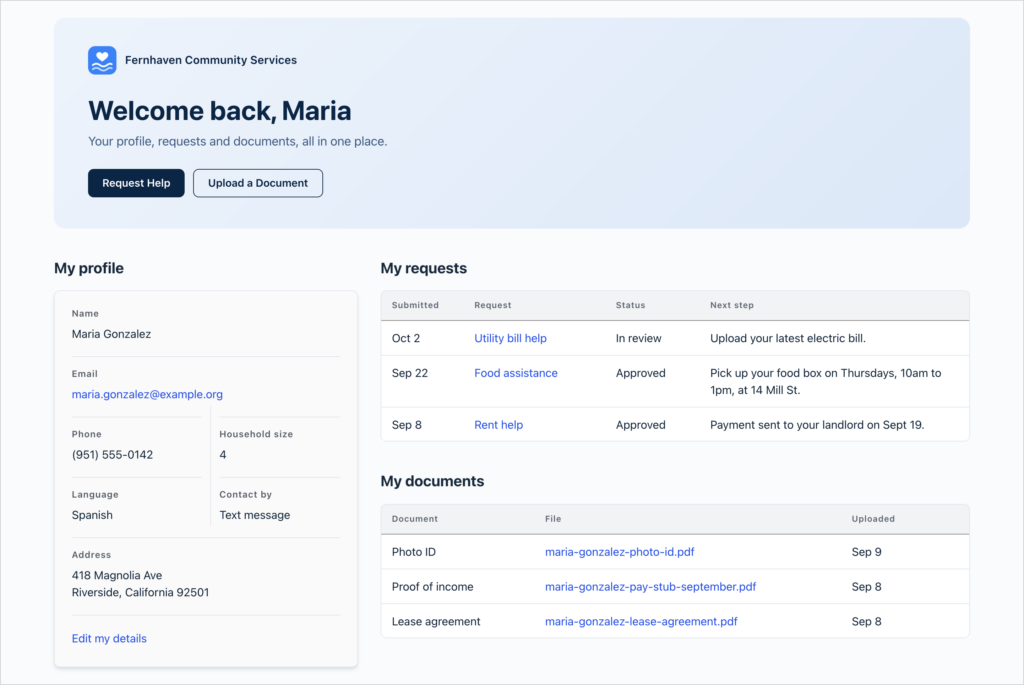
The portal is built in sections, so you can add more later, like appointment booking or a resource library, without rebuilding the rest.
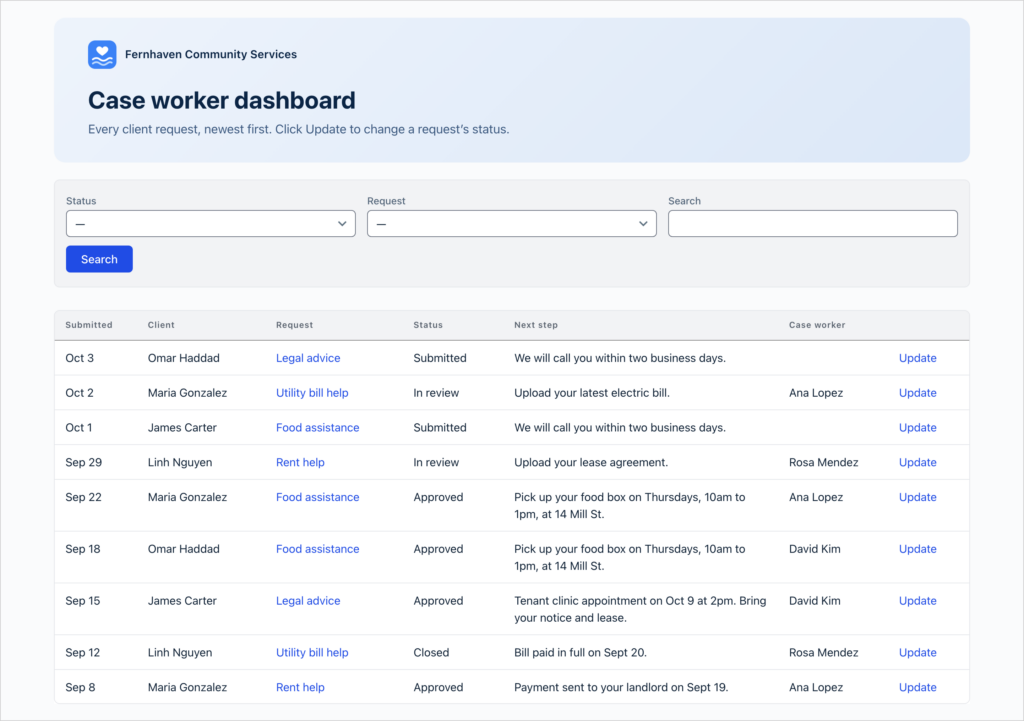
The build: a sign-up form creates an account for each client with the Gravity Forms User Registration Add-On. Help request and document forms include staff-only Status and Next step fields. On one account page, three GravityView Pro Views show each logged-in client only their own profile, requests, and documents. A fourth View gives case workers every request, with an Update link that emails the client each time something changes.
Read the walkthrough: How to build a WordPress client portal with Gravity Forms.
4. Put your services, chapters, or members on a map
A list of addresses doesn’t tell anyone which location is closest to them. A map does, especially when visitors can search by distance.
A map directory takes the address on each listing, plots it on a Google Map, and adds a radius search, so visitors can find every listing within a few miles of where they are. Each marker opens an info box with the listing’s details.
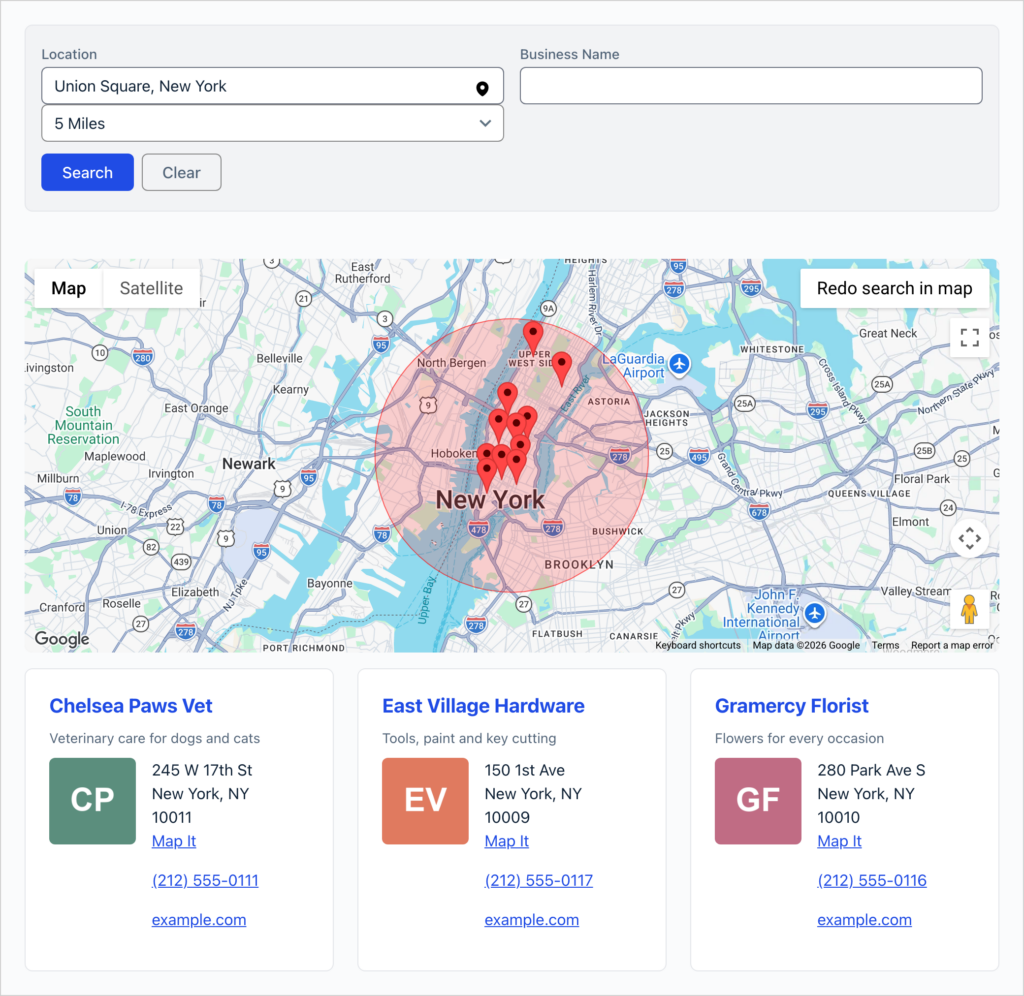
The build: a listing form collects each location’s name, summary, and address. A GravityView Pro List View with the Maps layout plots every address on a Google Map automatically, with info boxes on each marker and a radius search above the listings. You’ll need a Google Maps API key.
Read the walkthrough: How to build a Gravity Forms geolocation directory, or try the live demo.
Real-world example: Think:Kids runs its Certified Community map this way. New members submit a form and appear on the map once a staff member approves them.
We no longer have to enter map coordinates, update their information manually, or create pins on the map.
5. Show a running total next to your donation form
A donation form on its own gives the next donor no sign that anyone else has given. Seeing the total grow, and the names of the people behind it, is part of what gets someone to give.
Put a table of recent gifts and the total raised beside your donation form, and every new donation updates both. If you’d rather check each gift before it appears, turn on approval and donations wait for a yes.
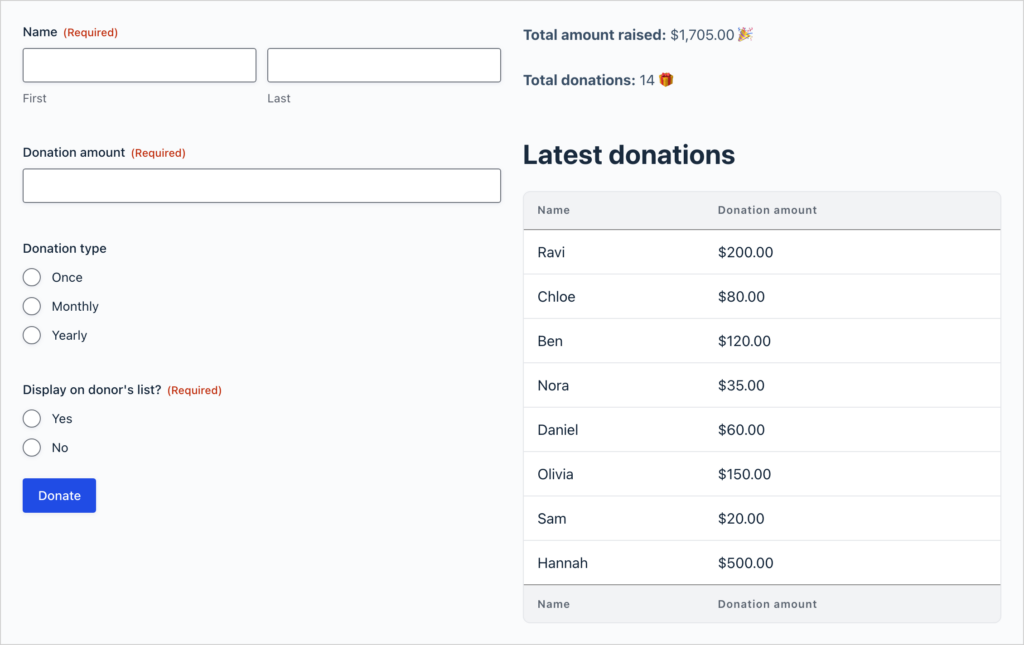
The build: a donation form takes payments through a Gravity Forms payment add-on such as Stripe or PayPal. A GravityView Table View lists donor names and amounts, and a GravityMath shortcode shows the total raised. A Columns block puts the form and the donations side by side.
Read the walkthrough: Collect and display donations on your website using Gravity Forms and GravityView, or try the live demo.
6. Track fundraising on a dashboard your board can check any time
When a board member asks how a campaign is going, the answer usually means an export from the payment processor and an evening in a spreadsheet.
A fundraising dashboard reads the donation entries directly. The total raised and the number of donations sit at the top, charts show money raised and donations by month, and a table of the latest gifts runs underneath. It updates with every donation, so the answer is always one link away.
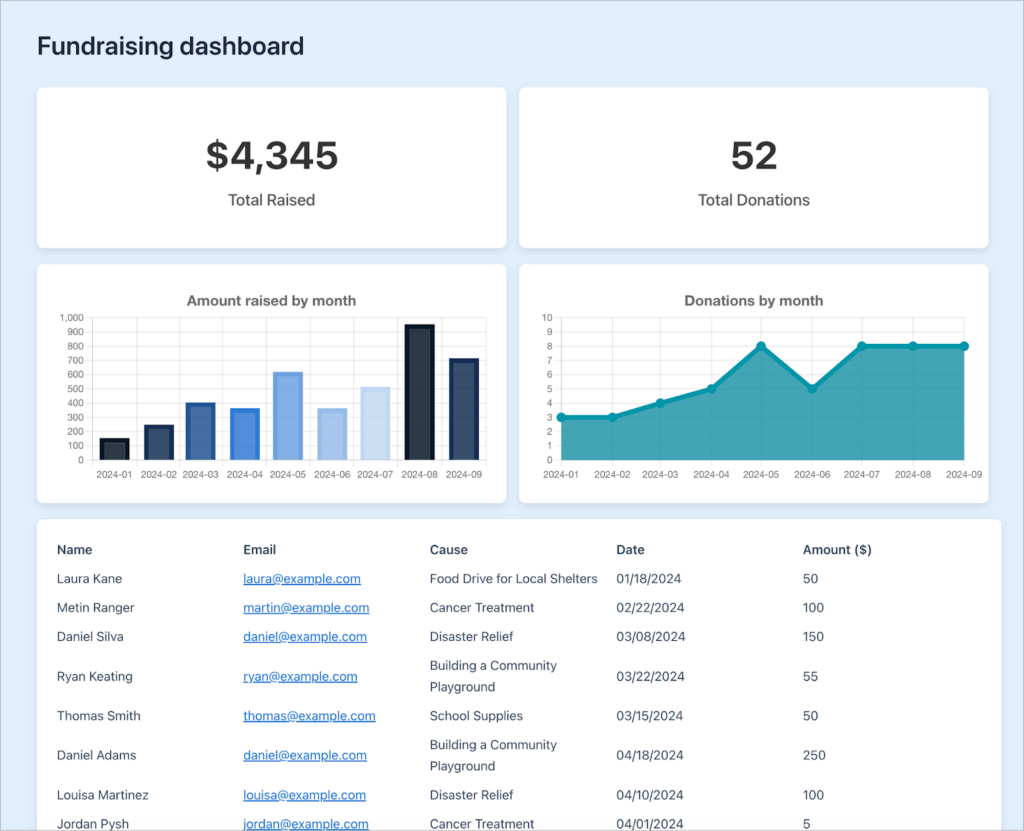
Keep it in the WordPress admin with Dashboard Views, so donor names never reach the front end.
The build: the Gravity Forms donation form template collects each gift, and a GravityView Table View lists the latest donations. Two GravityCharts charts of amount raised and donations by month sit in the same View, above the table, with GravityMath totals at the top. Because the charts and the table are one View, searching or filtering it updates both at once.
Read the walkthrough: How to create a fundraising dashboard on WordPress for your nonprofit or charity, or try the live demo.
7. Review grant applications without the email chain
Foundations and grant programs run the same loop every round. Applications arrive, staff check them, a board decides, and applicants write in to ask where things stand. Run by email, every step means forwarding attachments and updating a spreadsheet.
An application review system gives each group a screen of its own. Applicants log in to see their submissions and the status of each one. Reviewers get a searchable dashboard with notes on every application, and board members make the final call with one click.

Reviewers’ comments are saved as entry notes, so the board sees the full discussion on each application before it votes.
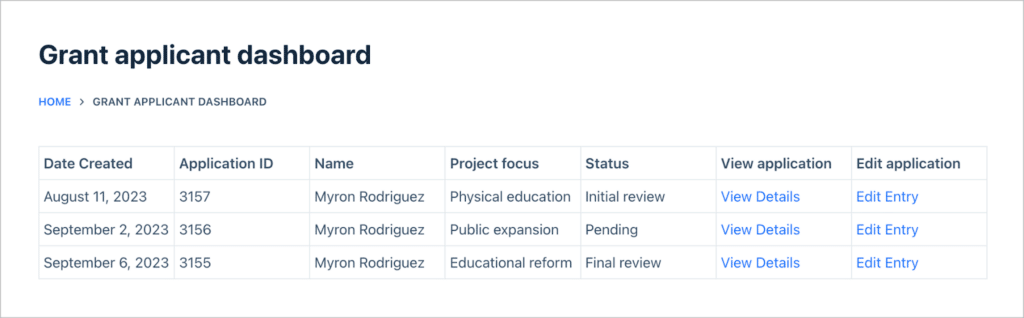
The build: an application form includes a hidden Status field. One GravityView Pro Table View is the applicant dashboard, filtered so each applicant sees only their own submissions. A second is the reviewer dashboard, with a search bar, the Entry Notes field for comments, and GravityView’s built-in entry approval for the board’s decision.
Read the walkthrough: How to build an application review system, or try the live demo.
Real-world example: 43Folders built the grant system for the Larry L. Hillblom Foundation, where the application form runs to more than 100 questions and board members review applications from their own dashboard. In Norway, Mediebruket builds application systems for financial institutions and nonprofits, on more than 20 client sites with over 25,000 registered users between them.
8. Take sign-ups for workshops and training sessions that update themselves
Every new workshop, training, or volunteer orientation usually means editing the registration form by hand, and an out-of-date form means someone signs up for a session that’s no longer running.
Here, organizers add each session through one form, and the sessions appear in a public list with a page for each. The registration form pulls the current sessions in as checkboxes, so a new workshop shows up there the moment it’s submitted. A second View can show everyone who’s registered.

Prefer a month calendar? The event registration calendar tutorial shows events on a calendar with GravityCalendar, and links each one to its sign-up form.
The build: a session form collects the speaker, title, time, and description. A GravityView View lists the sessions with a search bar, and the registration form’s checkboxes come from those entries through the free Gravity Forms Dynamic Lookup plugin.
Read the walkthrough: How to build a dynamic event registration system on WordPress without code.
Real-world example: Web Pro Geeks built Sensory Safe’s directory of sensory-friendly events with GravityKit, where they manage nearly 1,000 events.
9. Run petitions on your own site
Sending supporters to a petition website hands their names and email addresses to someone else. Hosting the petition yourself keeps the list with you, and gives supporters a page on your own site to share.
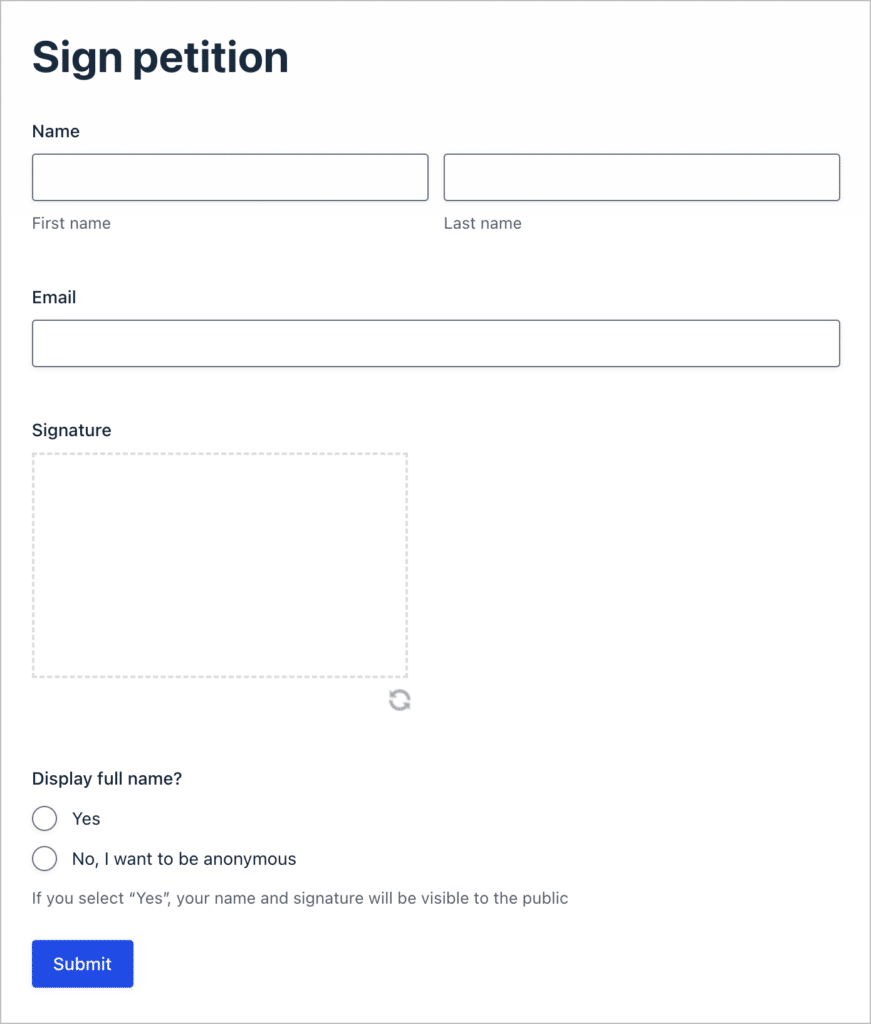
A petition form collects each signature with a signature pad, and a table shows everyone who has signed, numbered in order. Signers can choose to show their name or appear as “Anonymous”. Entry approval lets you check each signature before it appears.
Want only the total? A GravityMath shortcode can show the number of signatures instead of the list.
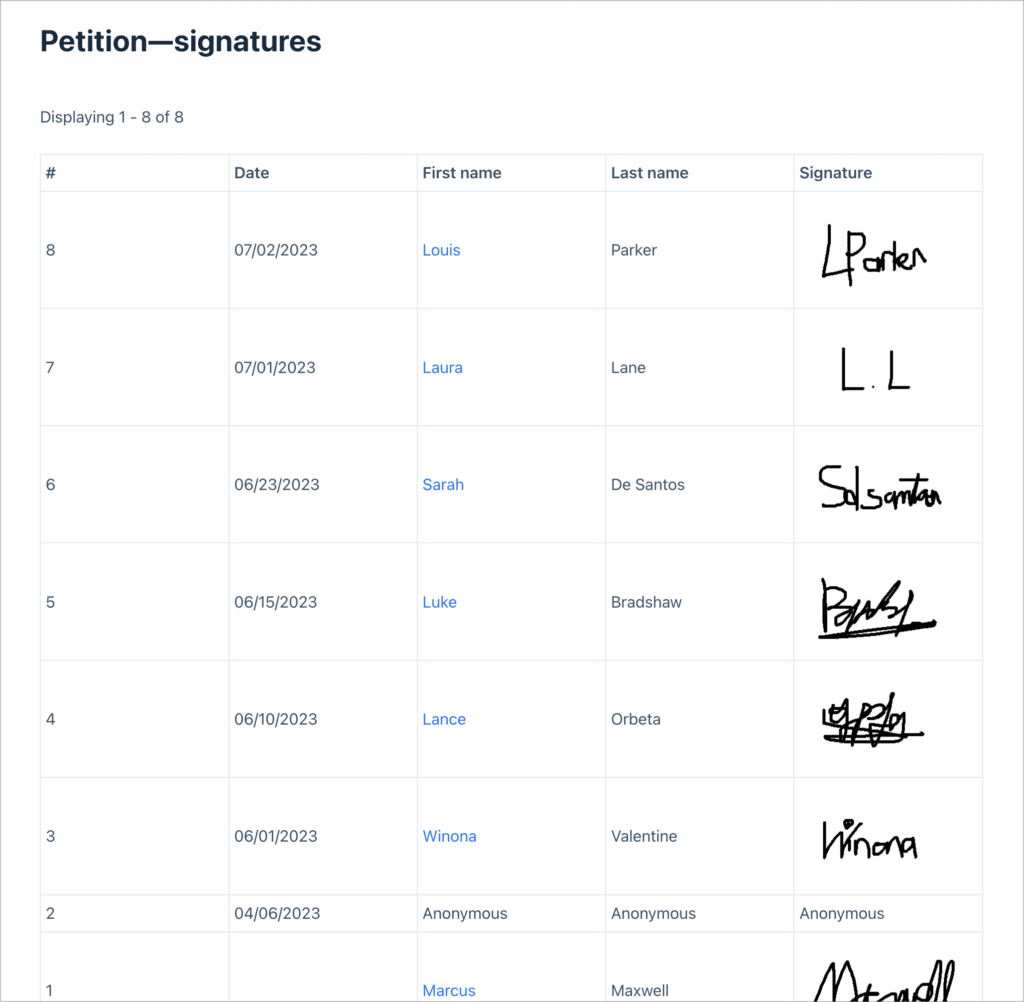
The build: the petition form collects name, email, a signature with the Gravity Forms Signature Add-On, and whether to show the signer’s name. A GravityView Table View lists the signatures with a running number, and only approved signatures appear.
Read the walkthrough: How to create an online petition with Gravity Forms.
Real-world example: HappyTree IT built the site for Wir Machen Wien, a campaign for a greener Vienna, where members post their own events, petitions, and resources from the front end.
Or describe it and let your AI assistant build it
Every build above is drag-and-drop, but somebody still has to do the dragging. If the staff member or volunteer who looks after your site already works in Claude, ChatGPT, or another AI tool, the GravityKit MCP removes that step. New to MCP? Start with what a WordPress MCP server is.
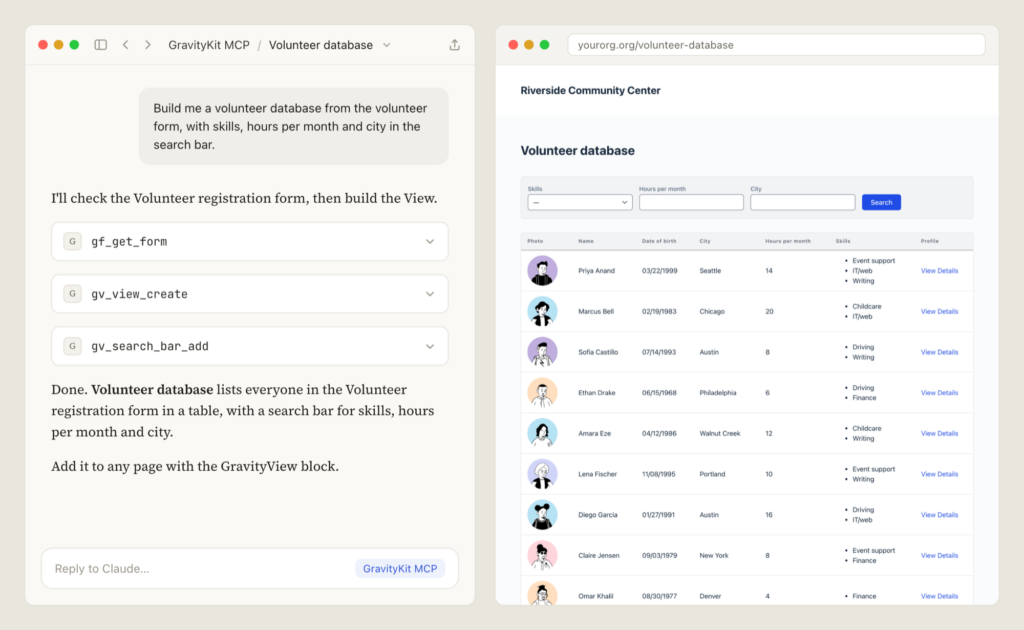
Connect it and the assistant can read your forms and entries, then create and configure Views for you. You can watch it build a searchable directory from a chat. “Build me a volunteer database from the volunteer form, with skills, hours per month and city in the search bar” becomes a prompt rather than an afternoon.
We wrote up 10 things you can ask AI to do with Gravity Forms, with prompts to get you started.
Where to start
Browse our live demos to see these builds working, or spin up your own demo site with every GravityKit plugin preloaded and try it free for 7 days. For more on how nonprofits use GravityKit, see GravityKit for nonprofits, or apply for 50% off annual plans.
Get better at Gravity Forms, one email a week
New GravityKit releases, practical Gravity Forms tutorials, and subscriber-only discounts. One short email every week, unsubscribe anytime.
More articles
9 nonprofit apps you can build with Gravity Forms and GravityKit
Nine apps nonprofits build on WordPress from Gravity Forms data: volunteer databases, member directories, client portals, donation pages, grant review and more.
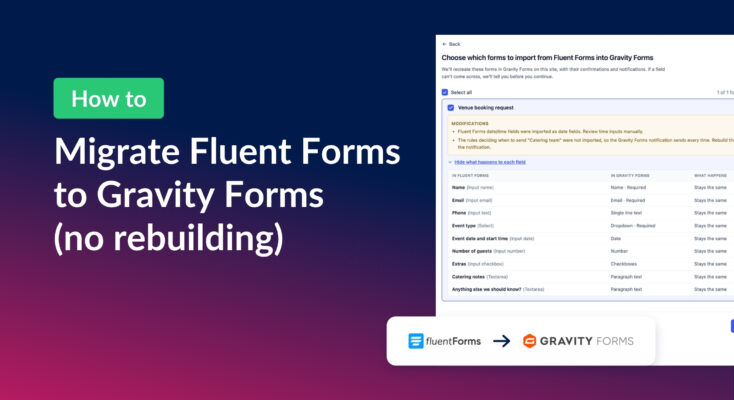
How to migrate from Fluent Forms to Gravity Forms without rebuilding your forms
Move your Fluent Forms forms into Gravity Forms with GravityMigrate, then bring your entries across with GravityImport. Every step was tested on the free version of Fluent Forms.
Launch Log: AI-built boards, inline Entry Tags editing, and Views kept on uninstall
This week: AI-built GravityBoard boards, inline Entry Tags editing in Views, Views kept when GravityView is deleted, and security fixes we recommend installing.