
What else is new in GravityView 3.0
GravityView 3.0 was a big release, and the new Vantage theme, AI-built Views, page builder support, and front-end bulk actions got most of the attention.
This article covers everything else: the smaller upgrades that make Views nicer to build and easier to use every day. You’ll find a much smarter Search Bar for dates, revision history so you can roll back a View, an editor that respects your work when you change layouts, and more flexible pagination.
Note: Every feature below is part of GravityView 3.0. If you don’t see one, update GravityView to the latest version from GravityKit > Manage Your Kit.
Smarter date searching in the Search Bar #
Date searches got the biggest upgrade. When you add a Date field to your Search Bar widget, visitors now get a faster, friendlier way to filter entries by date.
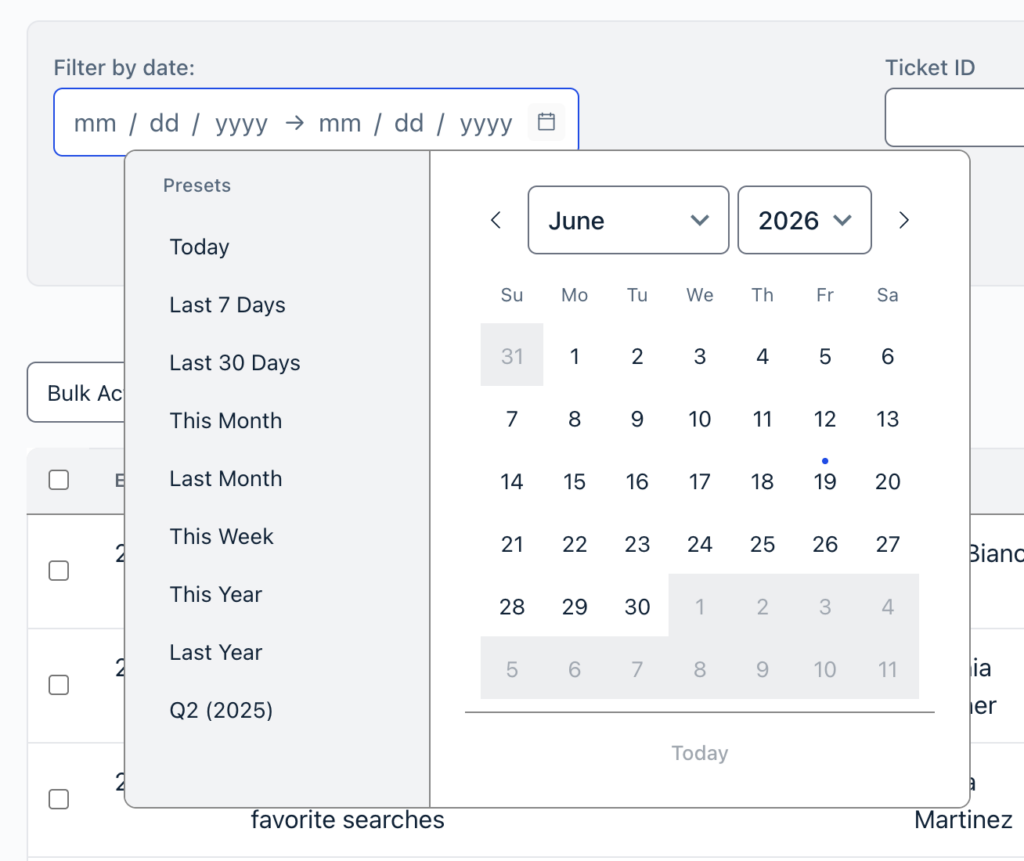
One-click date range presets
Searching a date range no longer means picking two dates by hand. The date range picker now includes ready-made presets, so a visitor can jump to a common range in one click. GravityView adds these presets on top of the standard ones (Today, Last 7 Days, Last 30 Days, This Month, Last Month):
- This Week
- This Year
- Last Year
- The last four completed quarters, labelled by quarter and year (for example, Q1 (2026))
Separate or combined date pickers
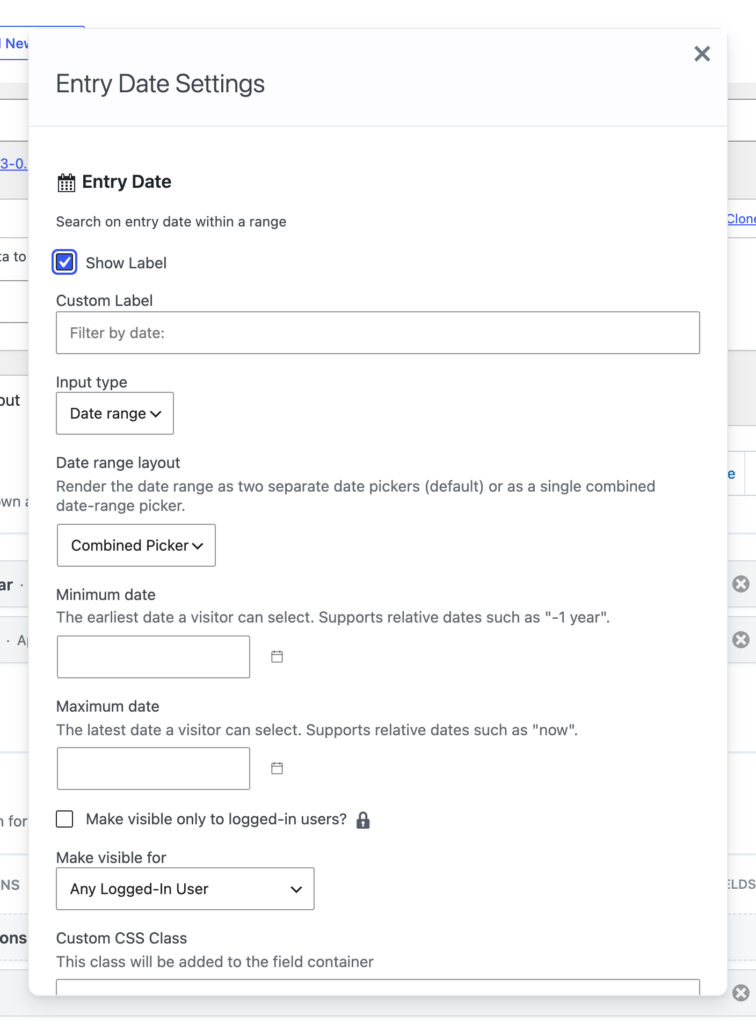
Each Date search field has a new Date range layout setting that controls how the range search looks on the front end:
- Separate Pickers (default) shows two date fields side by side, one for the start date and one for the end date.
- Combined Picker shows a single date range picker, where the visitor selects the start and end of the range in one calendar (this is where the presets above appear).
Pick whichever fits your layout and audience.
Minimum and maximum date limits
You can also limit which dates a visitor is allowed to choose. Each Date search field now has Minimum date and Maximum date settings:
- Minimum date sets the earliest selectable date.
- Maximum date sets the latest selectable date.
Both accept an absolute date (such as 2026-01-31) or a relative date (such as -1 year or now). Relative dates are handy for rolling windows, for example setting the maximum to now so visitors can’t search into the future.
A modern, accessible date picker
The whole date picker has been rebuilt. GravityView 3.0 replaces the old jQuery UI datepicker with a modern, accessible picker that’s used consistently across the Search Bar and the View editor. Visitors can type a date into clearly separated month, day, and year inputs or pick one from a keyboard-navigable calendar, which is easier to use with assistive technology.
Revision history for Views #
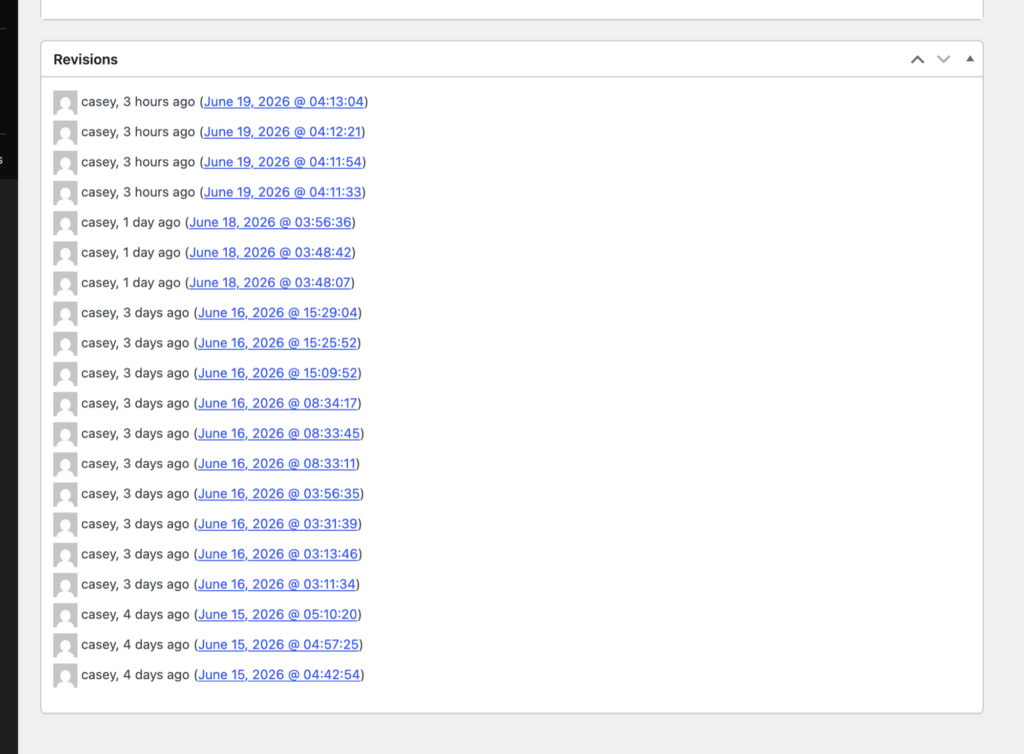
Views now keep a revision history, just like posts and pages. Every time you save a View, GravityView records a snapshot of its fields, widgets, search configuration, and layout settings, so you have a trail you can review and undo.
In the Edit View screen, the Revisions box lists every saved version of the View. The Publish box also shows the revision count with a Browse revisions link that opens the comparison screen.
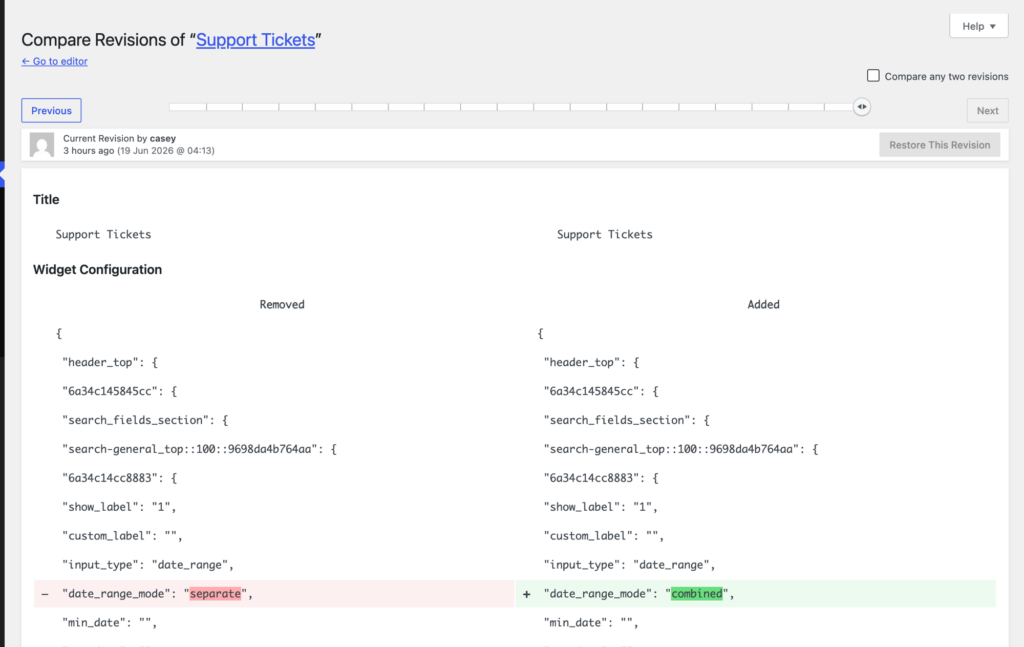
On the comparison screen, you can move between revisions and see exactly what changed, including changes to your field and widget configuration. To go back, click Restore This Revision. GravityView restores that snapshot in one step, so an unwanted change or an accidental save is easy to reverse.
A friendlier View editor #
Several editor improvements remove small frustrations from building Views.
Switching layouts keeps your fields
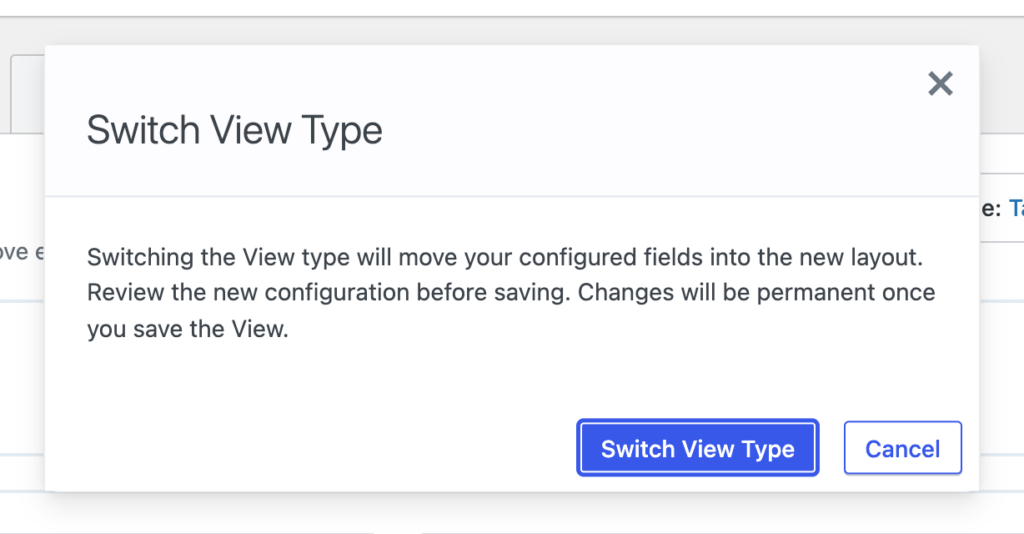
Previously, changing a View’s layout (for example, from Table to Layout Builder) reset your field configuration, and you had to set everything up again. In GravityView 3.0, switching layouts carries your configured fields over to the new layout instead of clearing them. GravityView confirms the switch first, so you can review the new configuration before you save, and try a different View type without losing your work.
New Views start with fields already in place
When you create a new View, the editor now pre-fills sensible default fields for every layout type, not just the Table and DataTables layouts. Whichever layout you choose for a brand-new View, you’ll start with relevant fields already added, ready to adjust, rather than an empty configuration.
A faster block editor
If you embed Views with the block editor, it now loads significantly faster on sites that have many Views. There’s nothing to configure; it’s simply quicker to open the editor and insert a View.
More flexible pagination #
The Page Links widget adds the page navigation that appears above or below your entries, and it’s more flexible in 3.0.
Choose how page links appear
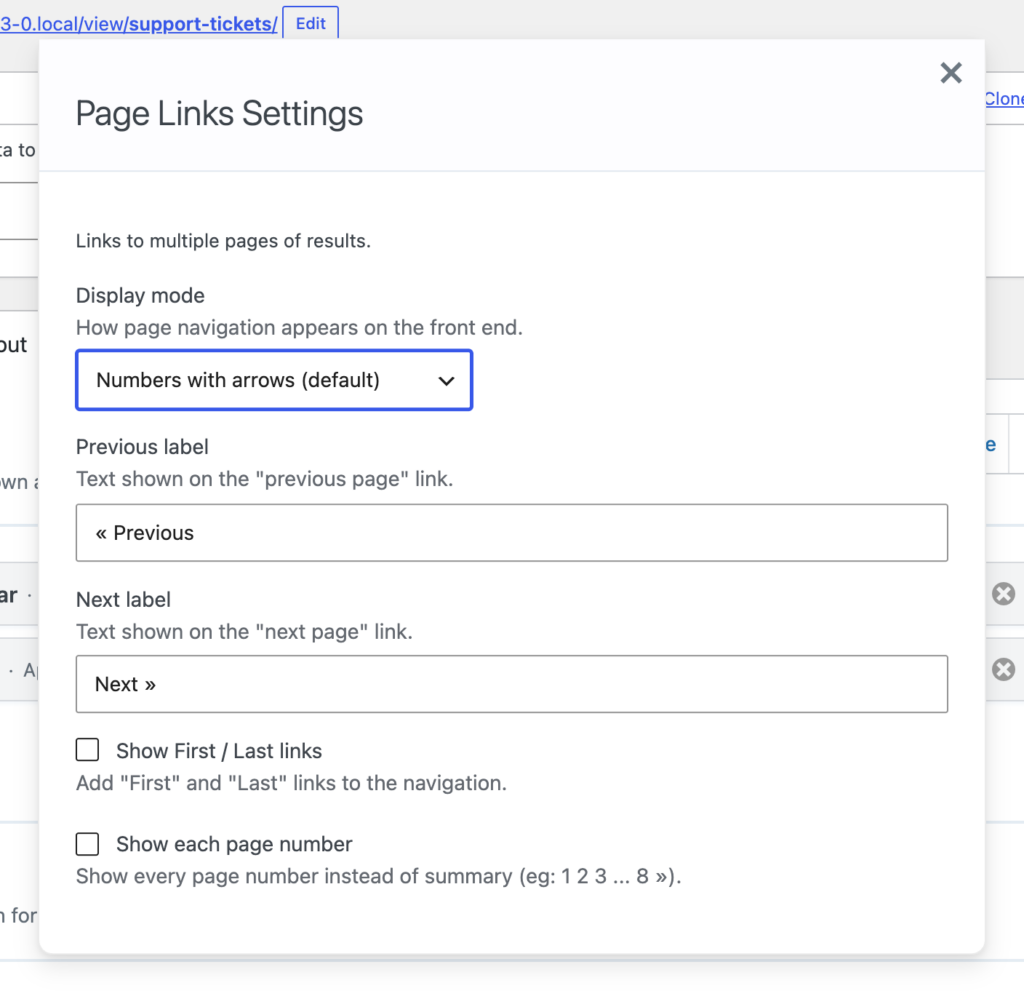
The Page Links widget has a new Display mode setting that controls how page navigation looks on the front end, with three options:
- Numbers with arrows (default, the same look as before)
- Numbers with Previous / Next labels
- Previous / Next only
Choose Previous / Next only for a clean, minimal pager, or keep numbered pages when visitors need to jump around a large result set.
Independent pagination for multiple Views
If you place more than one View on the same page, each View can now keep its own page position instead of all of them sharing a single page number. Paging through one View no longer moves the others. GravityView always respects a per-View page parameter when it’s present; developers who want the pagination links themselves generated per View can enable that with the gk/gravityview/pagination/scoped-keys filter.

