
Update your invoice with company name, address, or VAT number
Your GravityKit invoices can show your company name, address and VAT number. Save them once as your default invoice details, and every invoice that doesn’t have its own billing details uses them, renewals and past invoices included. To change one invoice only, update that invoice.
Save your default invoice details #
- Sign in to your GravityKit account and click Billing.
- Click the Invoice Details tab.
- Fill in Company, Billing Name, the address fields and Tax/VAT Number.
- Click Update.
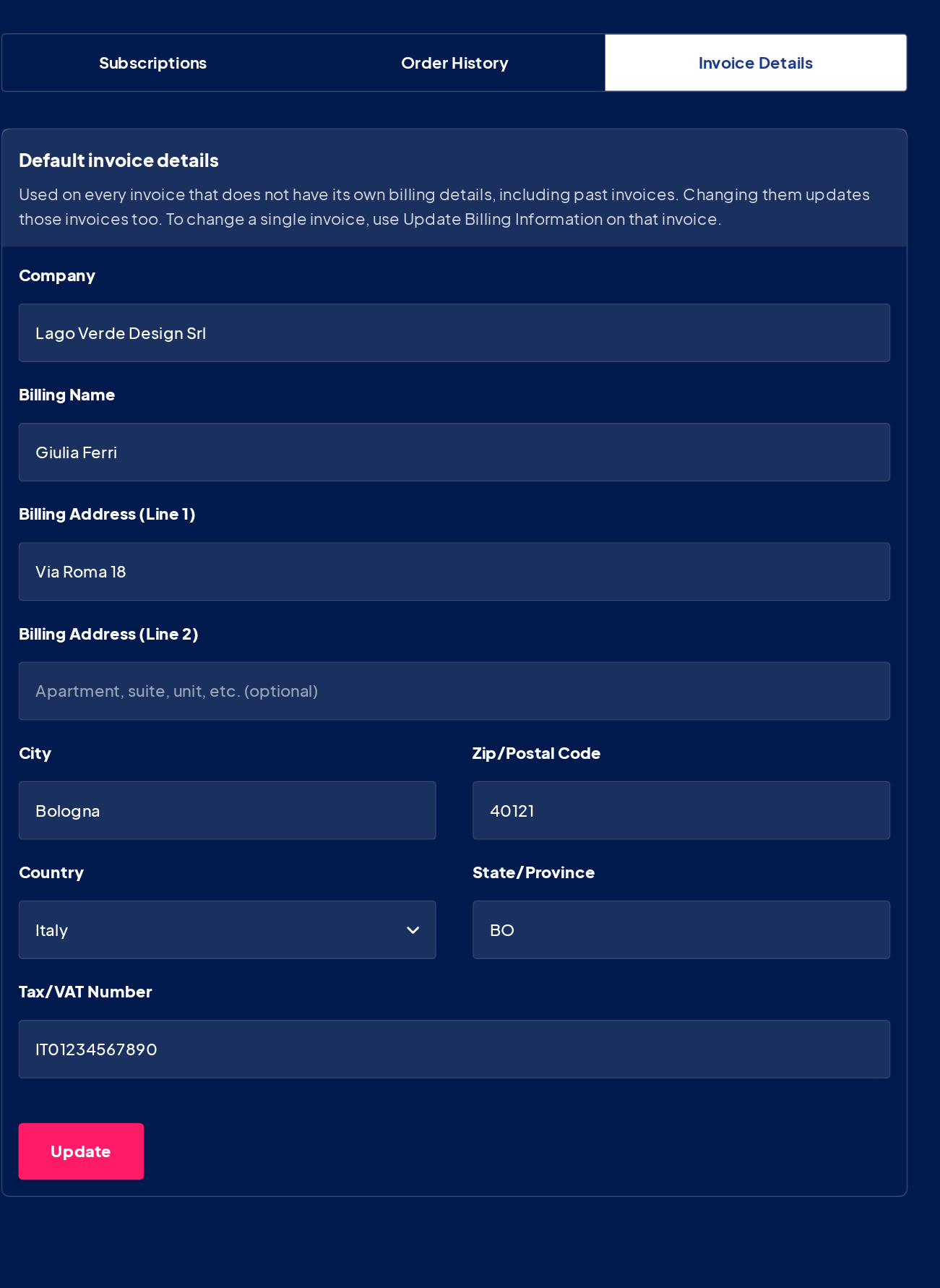
If you change your default details later, every invoice that uses them changes too. An invoice that uses them shows a note at the top:
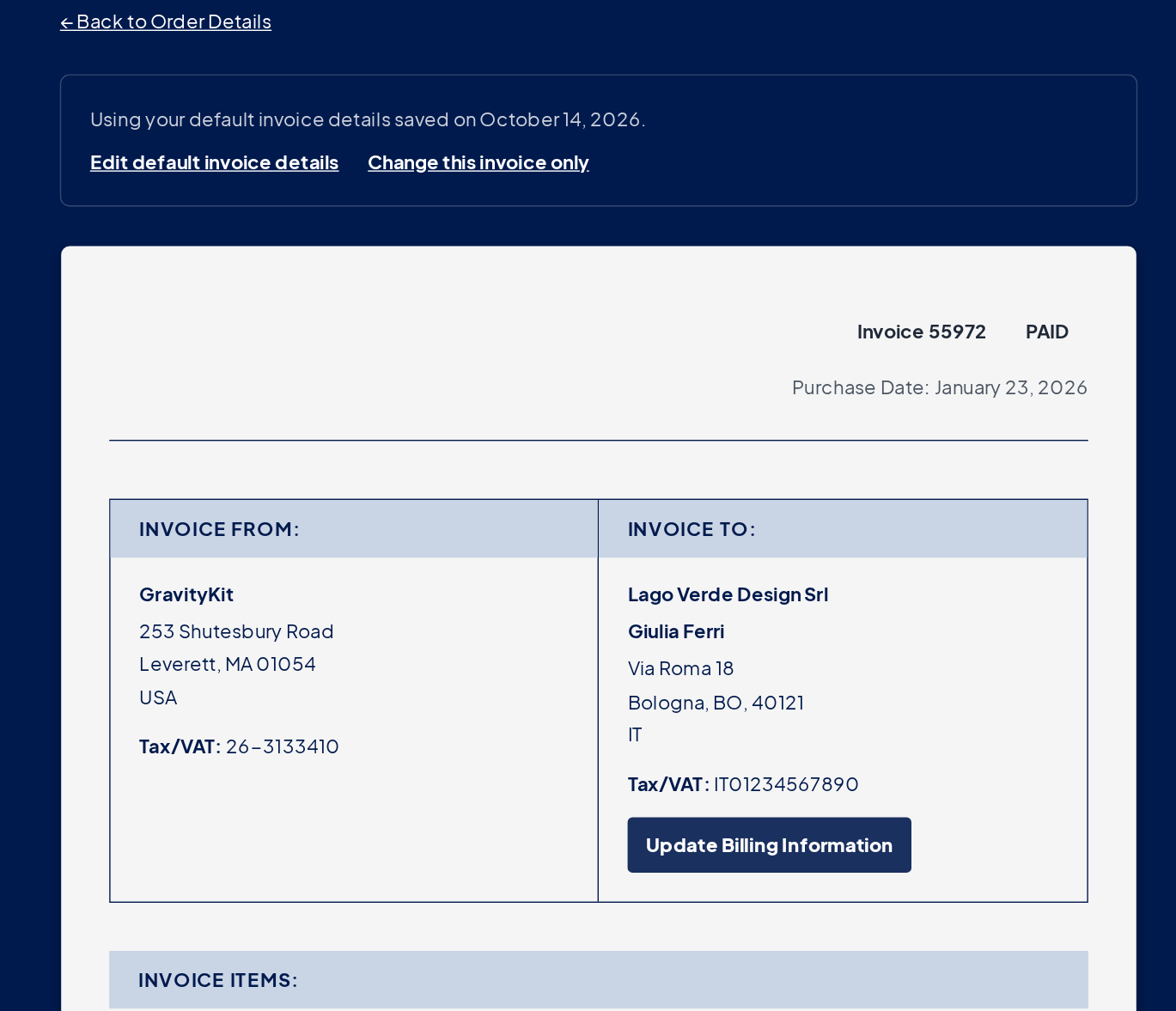
Note: When an invoice’s own billing address is in a different country from your default details, your default company and VAT number are left off that invoice, and the note at the top says why. To add them, change that invoice as described below.
Change a single invoice #
- On the Billing page, click the Order History tab.
- Next to the order, click Invoice.
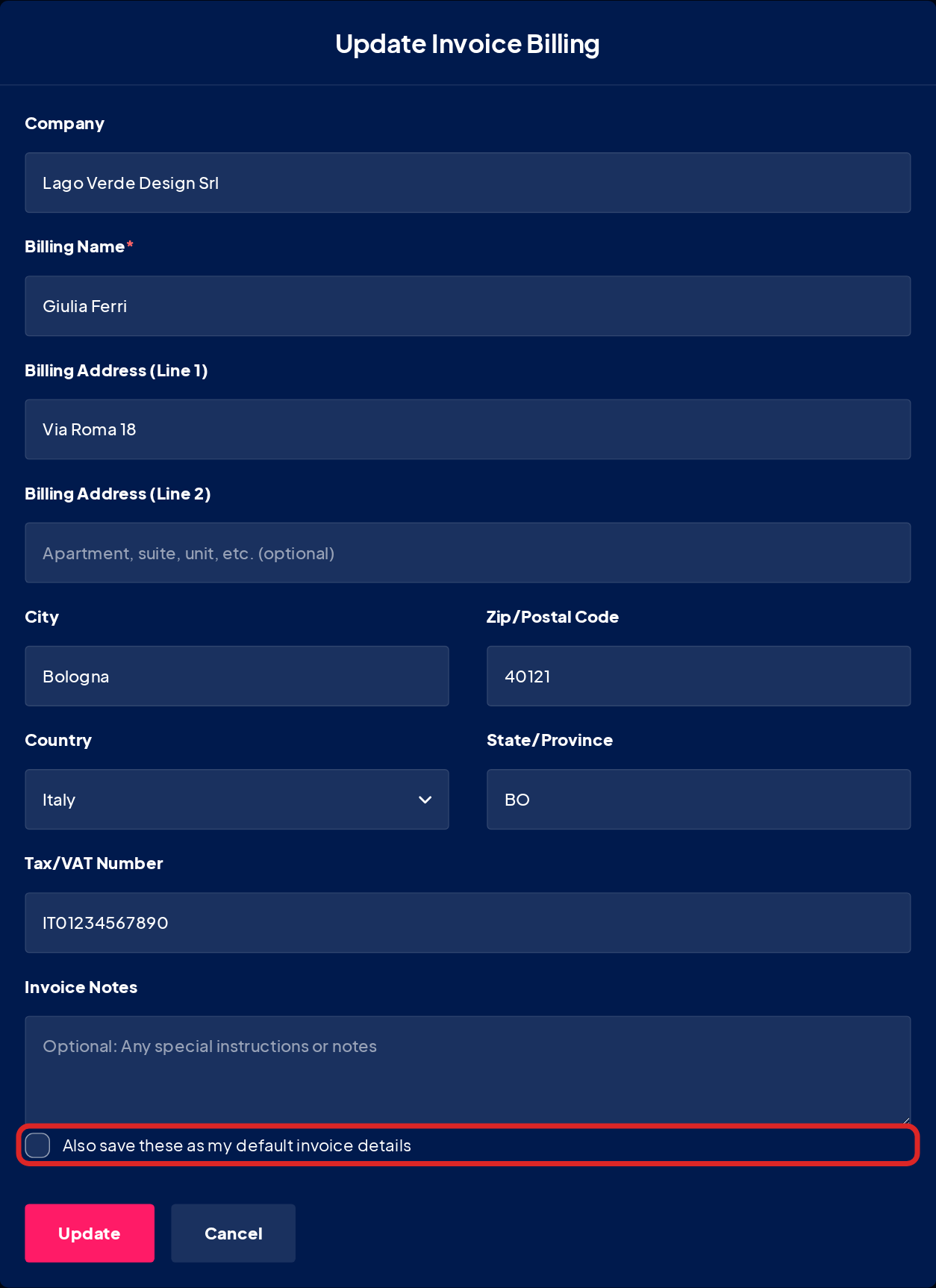
- Click Update Billing Information.
- Change the details. Invoice Notes adds a note to this invoice.
- To use the same details on your other invoices too, check Also save these as my default invoice details.
- Click Update.
To get a copy, click Download Invoice on the invoice page. Downloading a copy of your invoice has the details.

