
Multisite and GravityKit licenses
On a WordPress Multisite network, you activate a GravityKit license either network-wide from the Network Admin or for one site from that site’s dashboard. Where you activate it decides which sites the license covers and how many of its activations it uses.
Network-wide and per-site licenses #
| Network-wide | Per-site | |
|---|---|---|
| Where you activate it | The Network Admin | The site’s own dashboard |
| Who can activate it | Network administrators (users with the Super Admin role) | The site’s administrators and network administrators |
| Activations used | One for the whole network | One for each site you activate it on |
| Sites it covers | Every site on the network, including sites you add later | Only the site you activate it on |
| Lets you network-activate paid products | Yes | No |
In the Licenses box, a network-wide license carries a Network badge next to its status. Licenses that were active on the network before GravityKit added per-site licensing are network-wide too, so they show the same badge.
Each site counts by its own address, whether the network uses subdomains (site1.example.com) or subfolders (example.com/site1). Sites on a local or development address don’t use an activation. See Development websites and GravityKit licenses for the addresses that qualify.
Activate a license for the whole network #
- In the Network Admin, go to GravityKit, then Manage Your Kit.
- In the Licenses box, enter your license key and click Activate License. If the key field is hidden, click Enter a license key manually first.
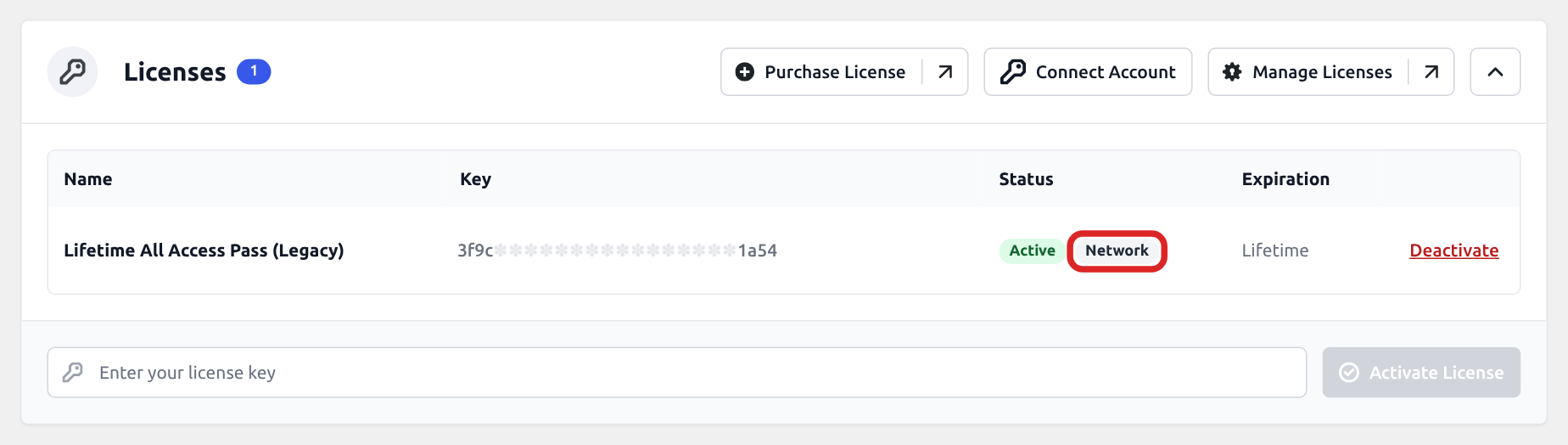
The Network Admin’s Licenses box lists network-wide licenses only, and a license activated for a single site appears in that site’s Licenses box.
Note: The GravityKit menu appears in the Network Admin when a GravityKit product is network-activated or active on the main site.
If the key is already active on individual sites, deactivate it on each of those sites before you activate it network-wide. A network-wide activation doesn’t free the per-site activations, and once the key is network-wide, those sites can no longer release them. If you already activated it network-wide, free those sites in your GravityKit account: on the Licenses page, click the × next to each site’s address on the license.
Activate a license for one site #
- On the site’s dashboard, go to GravityKit, then Manage Your Kit.
- In the Licenses box, enter your license key and click Activate License. If the key field is hidden, click Enter a license key manually first.
If the key is already saved on the site and shows Not Activated for This Site or Not Activated, click Activate on its row.
When the license has no activations left, activation fails with the message “Activation limit reached. You can manage your activated sites from your GravityKit account or contact support.” In your GravityKit account, you can deactivate a site you no longer use to free its activation.
A key that is active network-wide already covers every site. Entering it on a single site stops with the message “This license is already active for the entire network and is managed by the network administrator.”
Network-wide licenses on individual sites #
Site administrators don’t see network-wide licenses in their site’s Licenses box. A site that only a network-wide license covers can therefore show No Licenses Activated while its products are licensed.
Network administrators who open a site’s Manage Your Kit page see the network-wide licenses there, with Managed by network admin in place of Deactivate.
Products that a network administrator network-activated show a Network Active switch on each site, and only a network administrator can change it. Site administrators get no unlicensed warnings for those products.
Site administrators can activate a product on their own site only when the network lets them manage plugins. To allow it, go to Settings, then Network Settings in the Network Admin, check Plugins under Enable administration menus, and click Save Changes.
Network-activating paid products #
In the Network Admin’s Manage Your Kit, a paid product offers Network Activate only when a network-wide license covers it. Without one, its card offers I have a license key and Buy Now in place of that button. Free products aren’t affected, and a paid product can still be activated on individual sites.
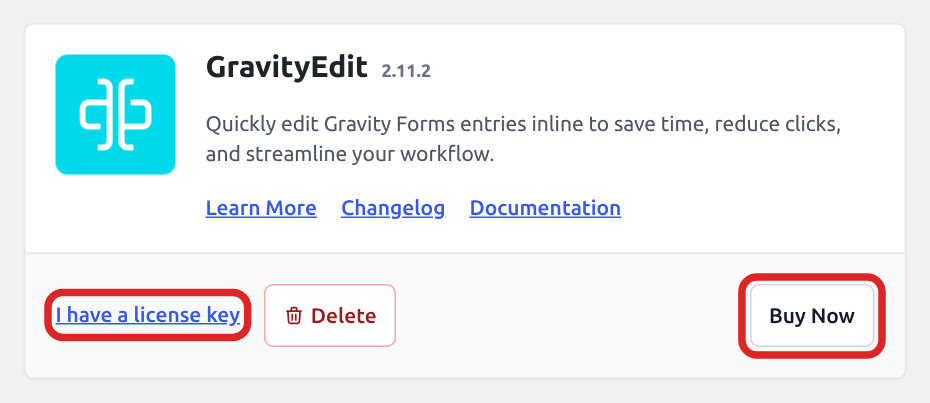
When a GravityKit product is network-activated or active on the main site, the network Plugins page applies the same rule. There, the paid product’s link reads Network Activate… and opens Manage Your Kit.
A product that is already network-activated without a network-wide license is marked Unlicensed product in the Network Admin’s Manage Your Kit.
Installing and updating products #
To update a paid product, you need a license that is active for the site you update from, or a network-wide license when you update from the Network Admin. A key that is saved but not activated doesn’t count, and the product shows License required to update in place of the Update button.
Network administrators can install and update GravityKit products from a site’s Manage Your Kit page as well as from the Network Admin. A product installed from a site’s page is activated on that site only.
Account connections on a network #
A network administrator can connect the whole network to a GravityKit account from the Network Admin’s Manage Your Kit page. Licenses activated through that connection are network-wide, so each one uses a single activation and covers every site.
A site administrator can connect their own site from that site’s Manage Your Kit page. Licenses activated through a site connection cover only that site, and each one uses an activation for it.
The network connection and each site connection are independent, so disconnecting one leaves the others in place. Site administrators don’t see the network connection.
A license that is active network-wide can’t be activated or deactivated through a site’s connection. When the network connection activates a license that a site connection on the network was already using, that site’s activation is freed.
Managing your licenses walks through connecting, and Managing connected sites covers day-to-day tasks on a connected site.
License keys set in wp-config.php #
On a Multisite network, keys you define with the GRAVITYKIT_LICENSES constant in wp-config.php are network-wide. They appear in the Network Admin’s Licenses box with Set in wp-config.php in place of Deactivate, so you change or remove them in wp-config.php. Hard-coding your license key shows how to define the constant.
Activate licenses with WP-CLI #
On a Multisite network, wp gk licenses activate takes a --scope argument:
wp gk licenses activate <license-key> --url=<site-url> --scope=siteUse --scope=site to activate the license for the site in --url, or --scope=network to activate it network-wide. The command requires --url in both cases. Without --scope, it activates the license network-wide and prints a warning. See Managing GravityKit products and licenses with WP-CLI for the full command reference.
Was this page helpful?


- Network-wide and per-site licenses
- Activate a license for the whole network
- Activate a license for one site
- Network-wide licenses on individual sites
- Network-activating paid products
- Installing and updating products
- Account connections on a network
- License keys set in wp-config.php
- Activate licenses with WP-CLI