
Your GravityKit Account page
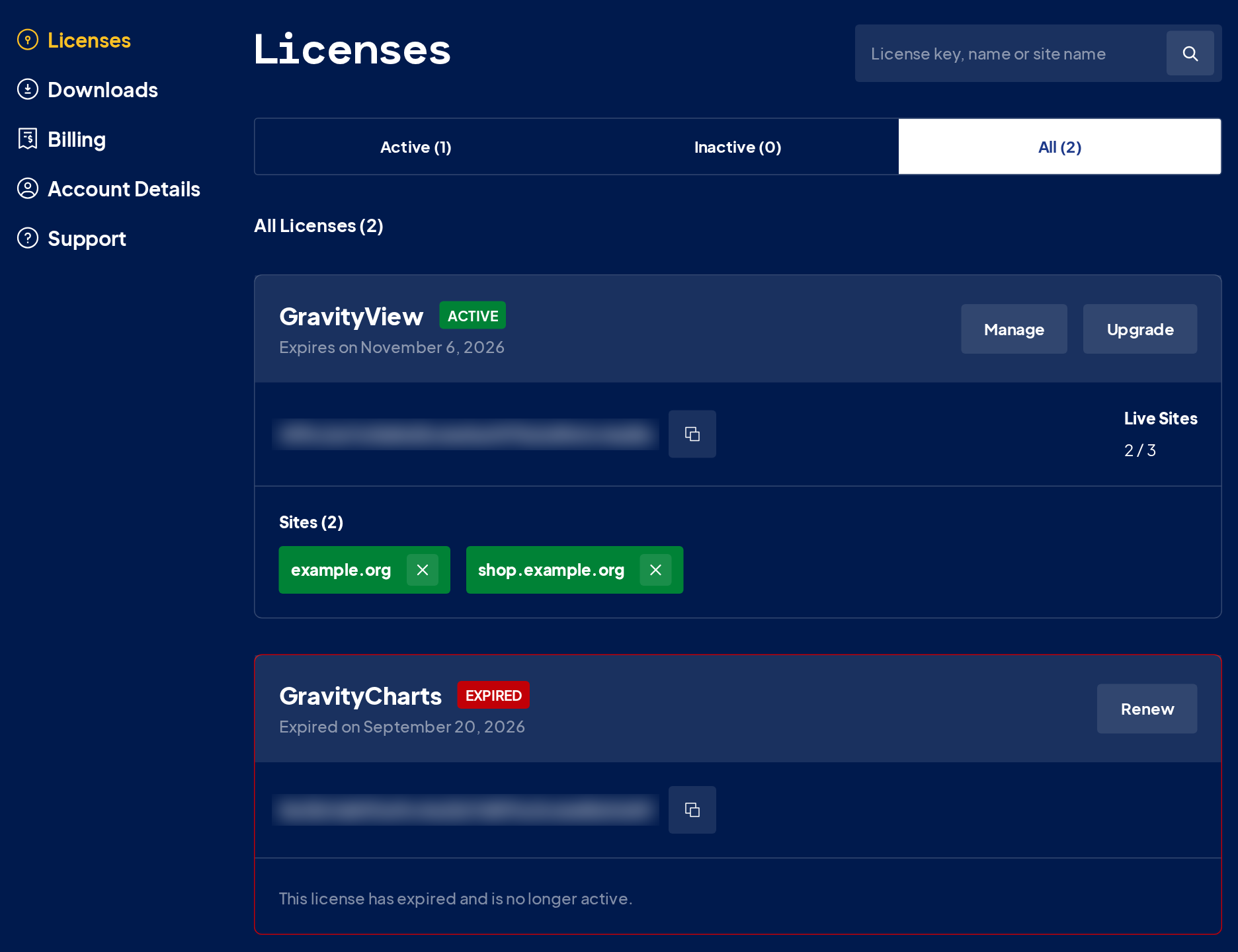
Your GravityKit account opens on the Licenses page. Each license shows its key, its status, and its expiration date, or that it never expires. An active license also lists the sites it’s active on. The menu on the left also has Downloads, Billing, Account Details, and Support.
Find your license key #
Each license shows its key with a copy button next to it. The tabs above the list show Active, Inactive, or All licenses. An expired license appears only under All.
To activate the license on a site, we recommend connecting the site to your account, as described in Connect your GravityKit account. To use the key instead, follow Enter a license key manually.
A license marked Managed by belongs to the agency named there, so its upgrades and renewals go through that agency.
Manage active sites #
When an active license is used on at least one live site, Live Sites shows how many live sites use it, out of the number of sites it allows. Sites with a development address, such as mysite.local, are listed too but don’t count toward that limit, as explained in Development websites and GravityKit licenses.
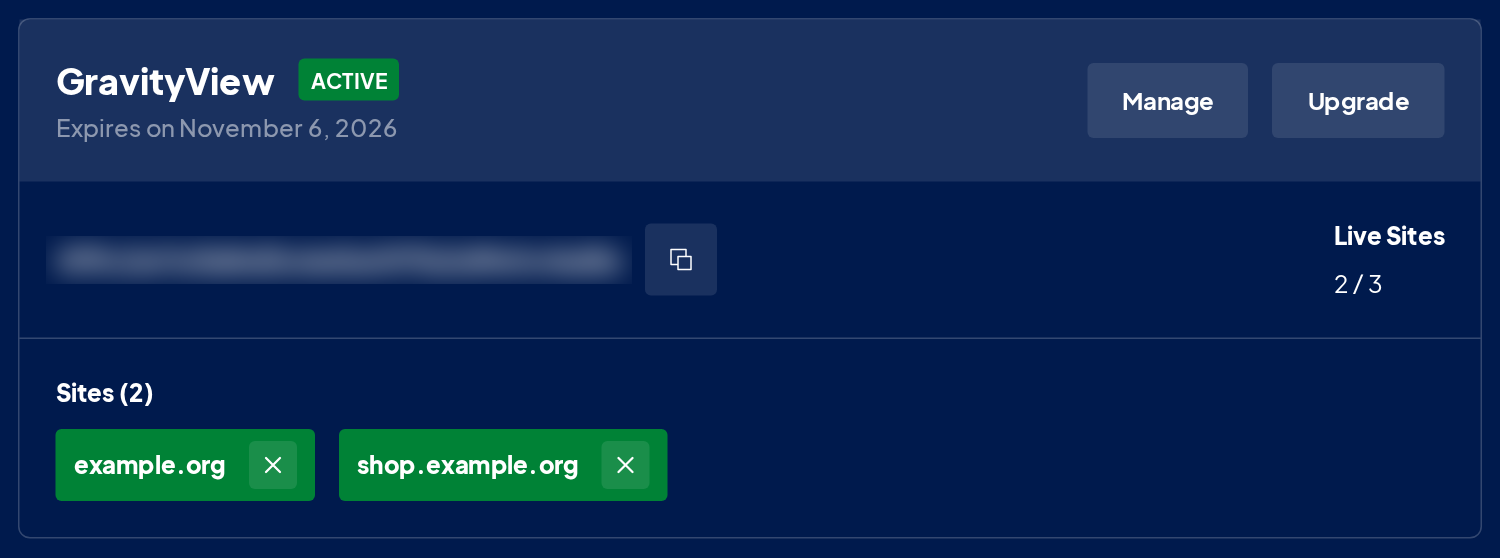
To deactivate the license on a site, click the × next to the site and confirm. The site stops using the license, and deactivating a live site frees a place for another site.
The card lists up to five sites. Manage opens the full list, with a View Site link for each site.
You can also deactivate a license in WordPress. On that site, go to GravityKit, then Manage Your Kit, and click Deactivate next to the license. On a connected site with View only access, deactivate it from your account instead.
Upgrading your license #
When an upgrade is available, the license card shows an Upgrade button. It opens the license’s upgrade offers, such as more sites for the same product, lifetime options, and the All Access Pass. See Upgrading your license for the steps and the pricing.
Renew your license #
When a license expires, its card shows Expired and, when the license can be renewed, a Renew button. Renewing your license explains what happens when you renew, and how to renew before the license expires.
Downloads, billing, and account details #
- The Downloads page lists the plugins you can download, free ones included. Each plugin with an available version has a Download button, and when there are several versions, you can pick one first, as described in How to download and install an older version of a GravityKit plugin.
- The Billing page has your subscriptions and your order history, with an invoice for each order. See Downloading a copy of your invoice and Turning off auto-renew subscriptions.
- On the Account Details page, you can change your name, email address, newsletter subscription, and password.
- The Support page offers an AI assistant for quick answers and a form to contact the support team.

