
Published
•
Updated
10 school apps you can build with Gravity Forms and GravityKit
Ten apps schools and universities build on Gravity Forms without custom code: application review, enrollment, student portals, report cards, libraries, calendars, and more. Walkthroughs for each.

Schools and universities use GravityKit to turn the forms they already run into working tools: application review queues, student registration databases, library catalogs and staff directories. If your school collects anything through Gravity Forms, you already have the data every one of these is built from.
Princeton’s music department kept roughly 400 students and 60 instructors in a single Google Sheet each semester until they moved it into GravityView. The IU School of Medicine retired a custom SQL database entirely. At New Mexico State University, the provost’s office counts about ten internal projects built this way.
The data in builds like these doesn’t go anywhere new. Gravity Forms stores entries in your school’s own WordPress database, and GravityKit builds the front end on top of that same data. For a lot of schools, that can be the difference between a quick build and a privacy review plus a purchase order for yet another vendor. It also means there’s no per-seat price for every member of staff who needs to see the data.
If you’re shopping for plugins rather than builds, start with the 9 best WordPress plugins for schools and eLearning. Here are ten things schools build from the form data they already collect, each linked to a full walkthrough.
What is GravityKit?
GravityKit is a suite of no-code add-ons that turn Gravity Forms into an app builder for WordPress.
- Front-end display – GravityView turns entries into tables, lists, grids, maps, calendars, and DataTables, with a search bar, sorting, and per-user filtering.
- The rest of the kit – GravityEdit for inline editing, GravityImport and GravityExport for getting data in and out, GravityCharts for graphs, GravityBoard for kanban, GravityCalendar for events, GravityMath for calculations, and more!
- Self-hosted – Entries stay in your own WordPress database. No third-party service and no per-seat pricing.
- Developer surface – Hooks, filters, a REST API, template overrides, and an MCP server.
1. Review admissions, scholarship and grant applications in one place
Admissions, scholarships, research grants, awards: every application process follows the same steps. Submissions come in, a committee reads and scores them, someone records a decision, and an email goes out. Run by hand, that means forwarding emails around, keeping a shared spreadsheet up to date and copying every decision back out to applicants.
Applicants also write in to ask where their application stands, and someone has to look it up.
An application review system gives both sides a screen of their own. Applicants log in and see their own submissions and where each one has got to. The committee gets a searchable reviewer dashboard with notes on every application, a status field and the ability to approve or reject each one. GravityView handles both dashboards, and GravityView Pro makes sure each applicant sees only their own applications.
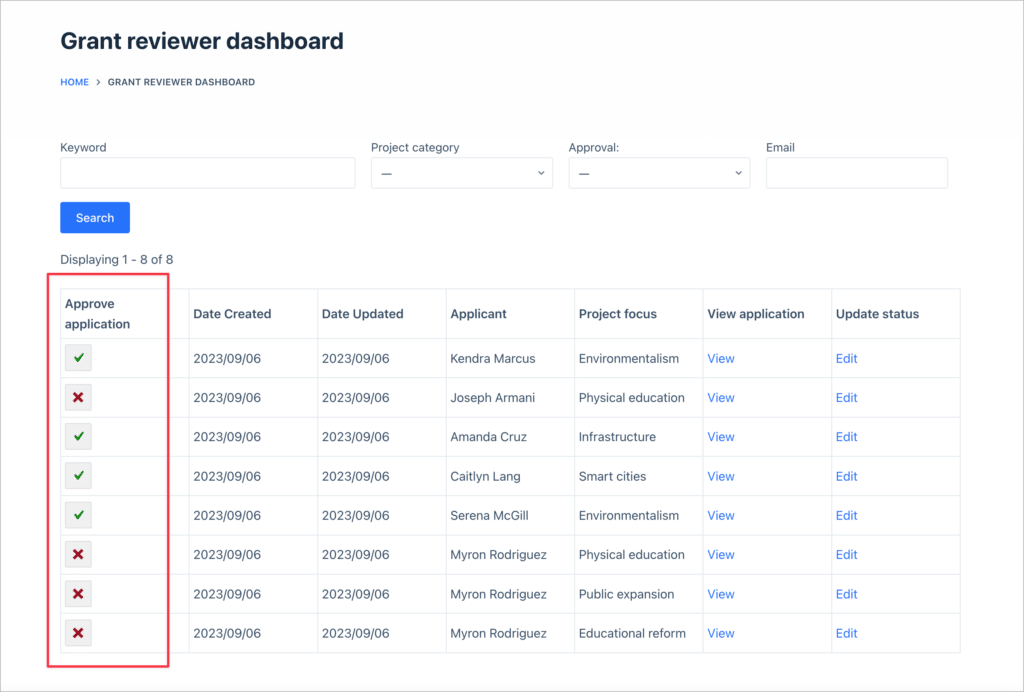
The build: create an application form with a hidden Status field. One Table View is the applicant dashboard, filtered so each applicant sees only their own submissions. A second is the reviewer dashboard, with a search bar, the Entry Notes field for the committee’s comments, and GravityView’s built-in entry approval, so the committee can approve or reject each application in one click. Requires GravityView Pro.
Read the walkthrough: How to build an application review system, or try the live demo.
Real-world example: Michael Kastler at 43Folders built grant application management for the Larry L. Hillblom Foundation, which funds medical research.
2. Enroll students without the paper packet
Plenty of schools already take registrations online. What’s often missing is the next step: one place where staff can look up a student’s details, and a way for families to update them without calling the office.
Put registration on your own site and both come built in. Each submission becomes a row in a searchable student database that staff can filter by name, department or email, and each student gets a profile page they can update themselves. With the Gravity Forms User Registration Add-On, every registration can also create a WordPress account for the student.
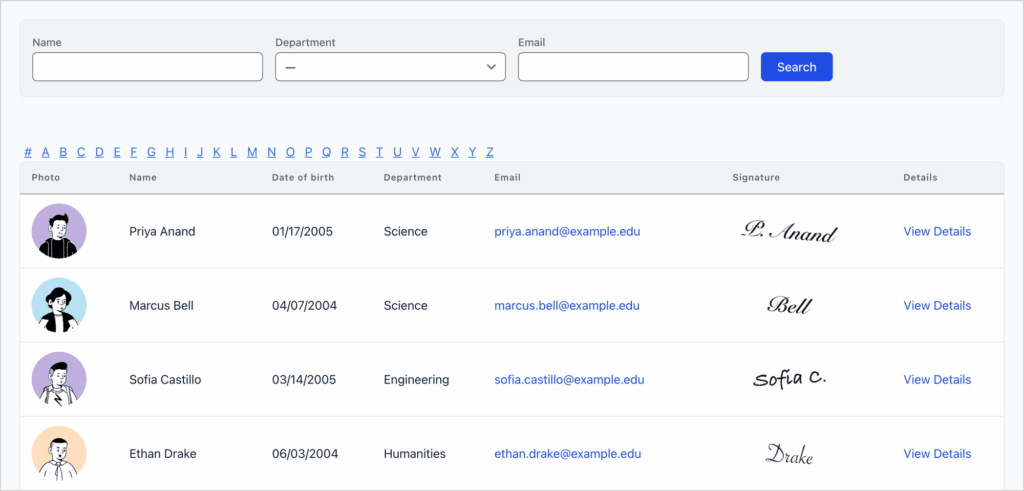
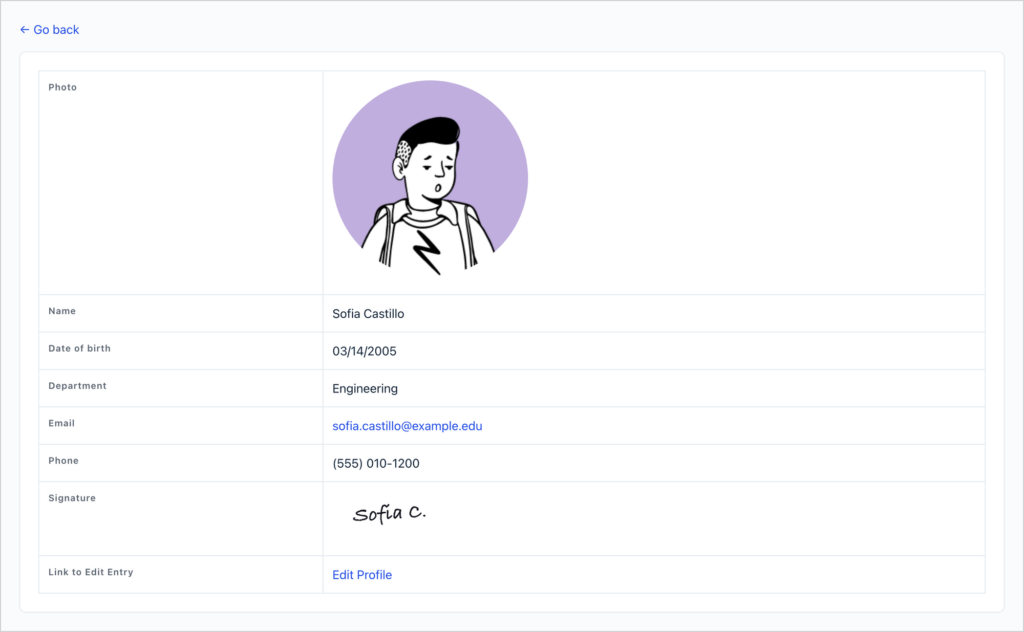
The build: the registration form collects name, photo, date of birth, email, phone, department and a signature. A Table View lists the students with a search bar, and each student’s page doubles as a profile they can edit from the front end. The View is restricted to logged-in staff. Works with GravityView.
Read the walkthrough: How to build a student registration system on WordPress.
Real-world example: Cory Robbins at West Fork School District runs returning-student registration on GravityView, with a family dashboard and a GravityExport sync to the district’s student information system. It is now in its third year.
GravityKit has saved me countless hours of work, provided incalculable inspiration, and made a much higher quality of product the standard for our district tools.
3. Give students one place to hand in work and see their grades
Assignments often arrive by email, and grades and feedback go back the same way. It works, but students can’t see everything they’ve handed in, and teachers have to keep track of what’s still waiting to be marked.
A student portal gives each side its own view of one form. Students upload their work and see only their own submissions, grades and feedback. Teachers see every submission, grade it from the front end and let the student know by email when it’s done.
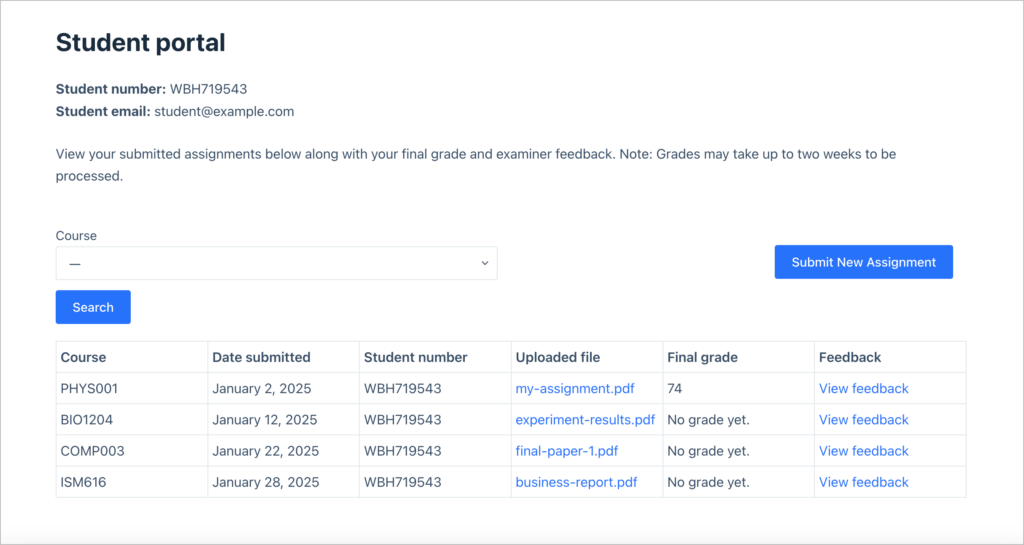
The teacher’s portal relabels GravityView’s approval statuses as “Awaiting grade”, “Grade given” and “Rejected”, so marking an assignment is the same click as approving an entry.
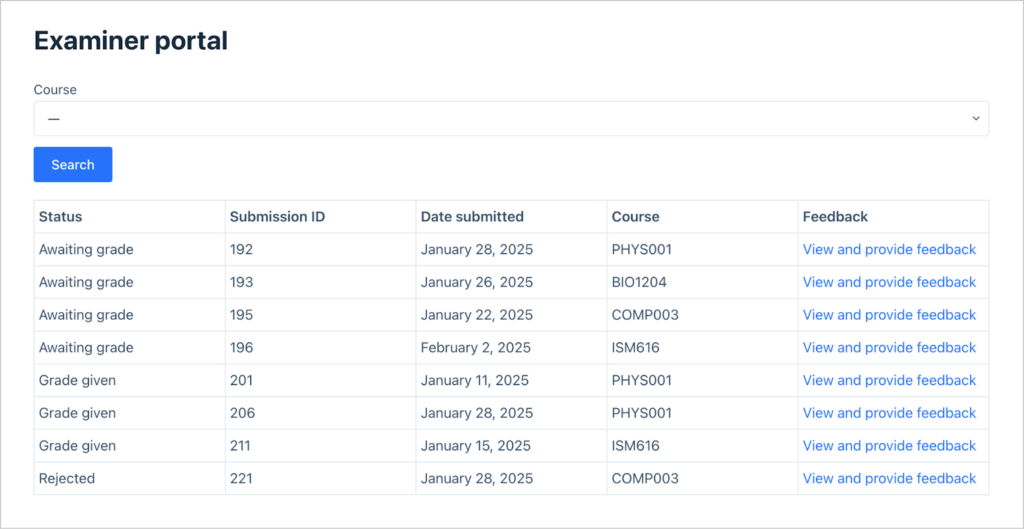
The build: students upload their work through a form. A Table View filtered to each student’s own entries is their portal, with teacher feedback on each submission’s page. A second Table View shows teachers every submission and lets them add the grade from the front end, and a notification emails the student once it’s graded. Requires GravityView Pro.
Read the walkthrough: How to build a student portal for assignment submissions, or try the live demo.
Real-world example: Michael D. Langley at Princeton’s Department of Music built a faculty portal where instructors see the students assigned to them and their audition videos.
I can’t tell you how much I love GravityView and what it has allowed us to do.
4. Share report cards online, with a PDF for every student
Most schools already write report cards on a computer, then print them or attach them to emails one family at a time. Putting them online saves that step, and students can find last year’s report as easily as this one.
An online report card system lets teachers enter each report once. Students log in and see only their own report cards, one per school year or term, and can download any of them as a PDF with the school’s logo at the top.
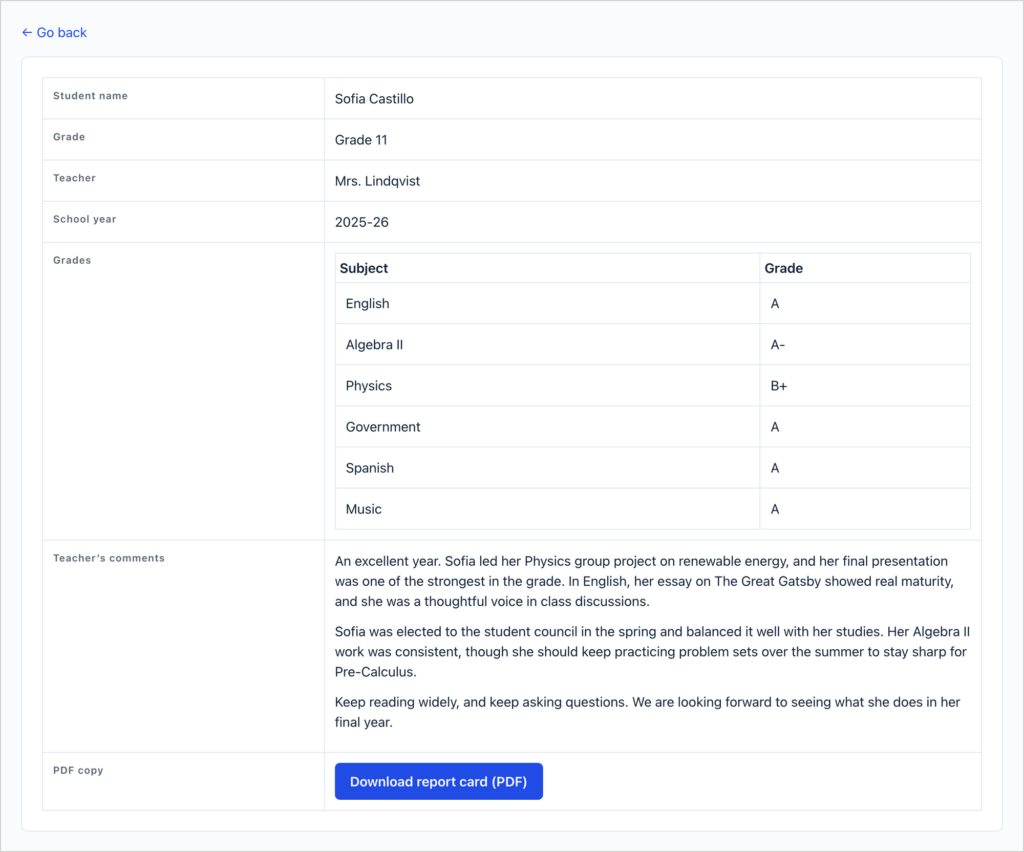
Each report is matched to the student’s email address, so two students with the same name never see each other’s grades.
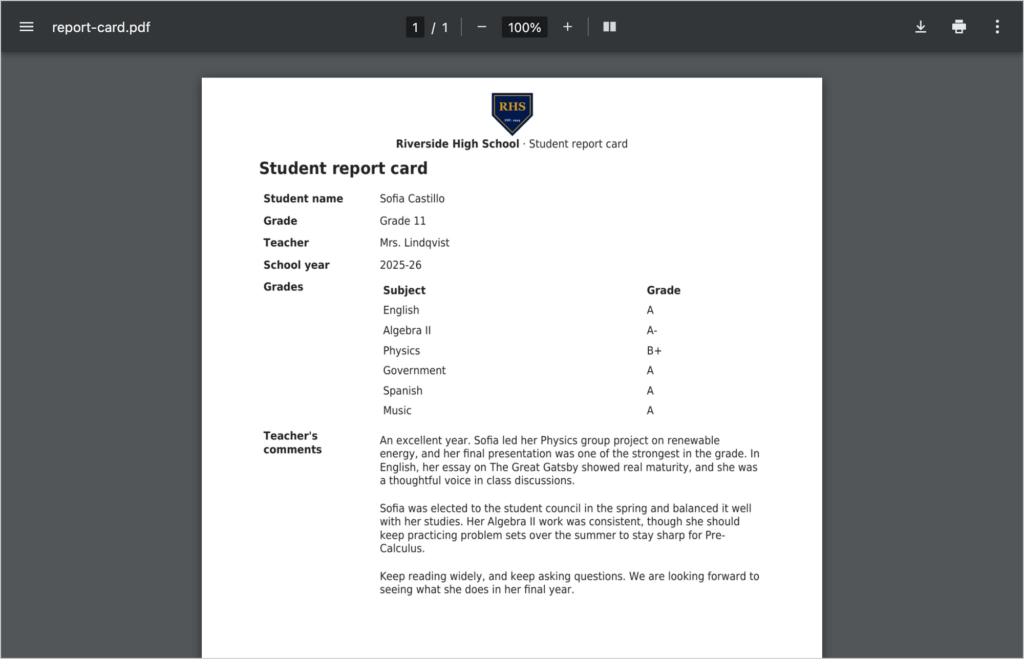
The build: teachers fill in a form with the student’s name and email, grade, teacher, school year, a list of subjects and grades, and comments. A Table View filtered to each student’s own reports lists them, and each report’s page has a download button from PDF for GravityView. Requires GravityView Pro and PDF for GravityView, which is sold separately.
Read the walkthrough: How to create student report cards using GravityView (with PDF export!).
5. Put the library catalog online
Many school libraries keep their catalog in a spreadsheet, or in a system that only works from inside the library. Putting it online lets students and staff search it from anywhere.
An online library turns each resource into an entry with a cover, authors, subject tags and a file or link. Visitors search by keyword, title, author, type or tag, and every book or report gets its own page with Read Online and Download buttons.
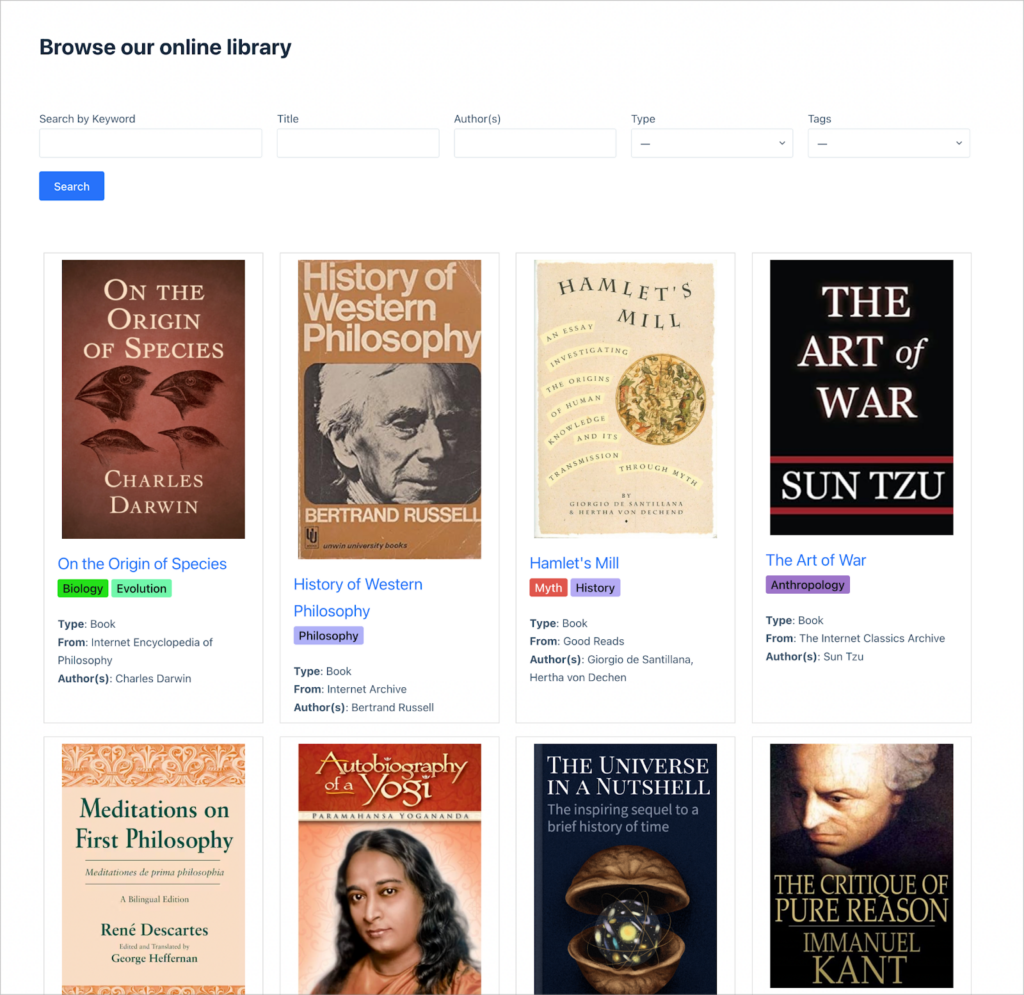
Bring an existing catalog across in one go: GravityImport loads a CSV export straight into the form’s entries.
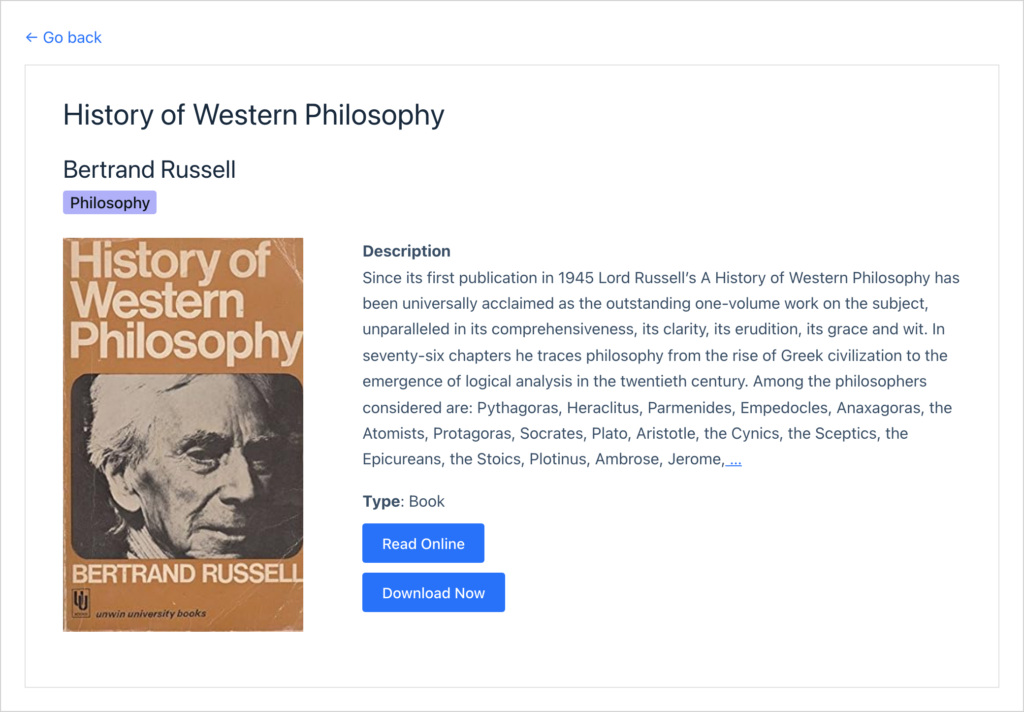
The build: librarians add resources through a form, with subject tags from the free Gravity Forms Entry Tags plugin. A List View shows each resource with its cover and tags, a search bar filters the catalog, and each resource’s page has Read Online and Download buttons. Works with GravityView and the free Entry Tags plugin.
Read the walkthrough: How to build an online library on WordPress with no code, or try the live demo.
Real-world example: web developer Rochelle Victor built a school information system that includes an online library with reservation rules. It’s one of “more than a dozen interconnected applications inside a single WordPress site”.
6. Keep handbooks, policies and course materials where people can find them
Handbooks, policies and course materials change every year, and older copies tend to linger in shared drives and inboxes. A single library makes it obvious which version is current.
A document library puts every file in one searchable table with a download button on each row. Each document also gets a detail page, where authorized staff can replace the file with a new version or leave internal notes about it.
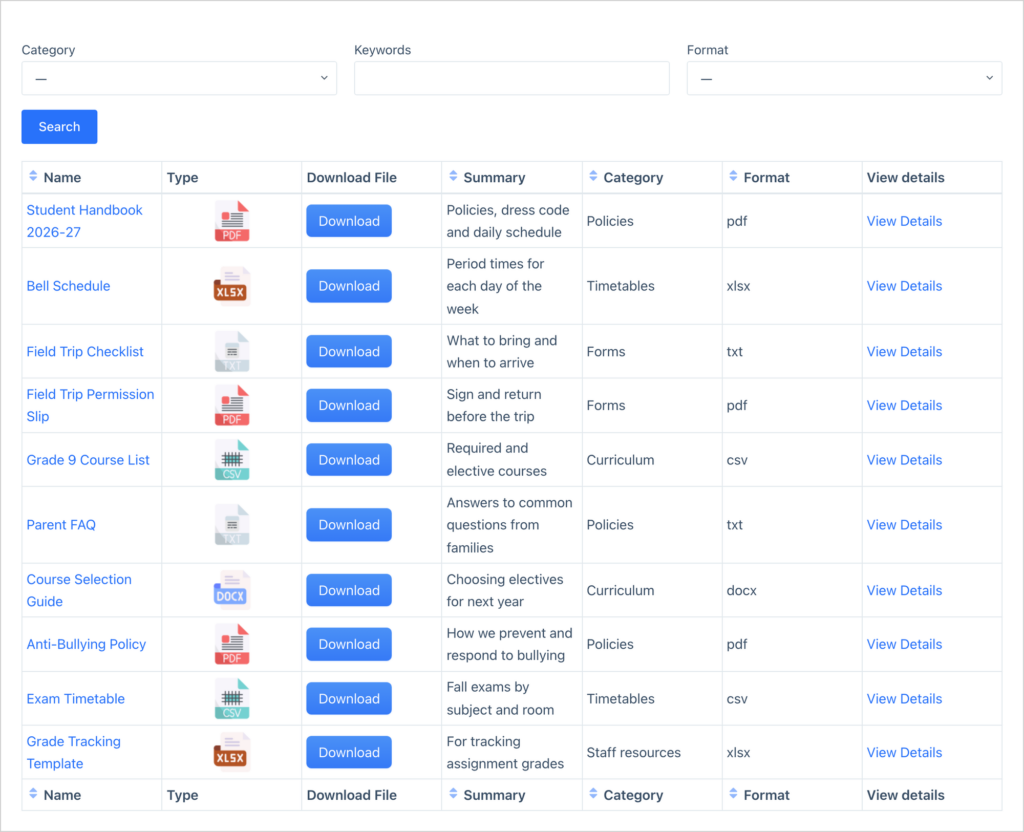
Uploading a new version is a front-end edit, so the person who owns a policy can update it themselves, without a web request or an admin account.
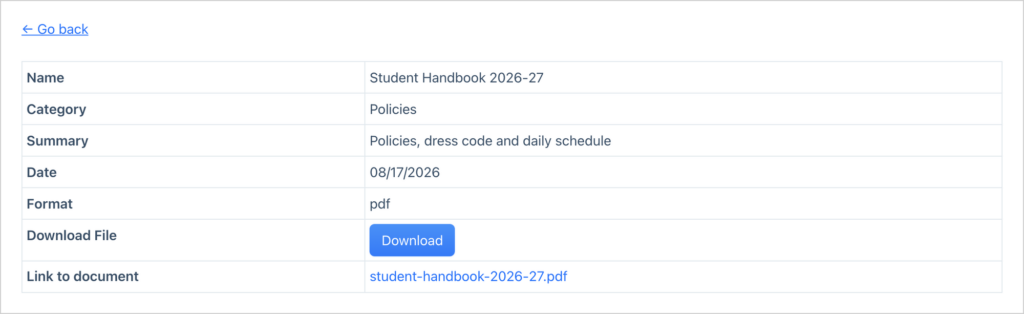
The build: an upload form collects the file with a description, category and date. A View lists the documents with a search bar and a download button on each row, and each document’s page lets authorized staff replace the file or add internal notes. The walkthrough uses the DataTables layout from GravityView Pro; the standard Table layout works with GravityView.
Read the walkthrough: How to build a WordPress document library, or try the live demo.
7. Publish a peer-reviewed journal from a submission form
Departments that want to publish student and faculty research often assume they need a dedicated journal platform. For many of them, the job is simpler: take submissions, have reviewers approve them, publish the approved ones.
Researchers submit papers through a form. Reviewers approve or reject them from a private dashboard, and authors get an email when a paper is accepted. Approved papers appear in a searchable public journal, each with its own page and a download button.
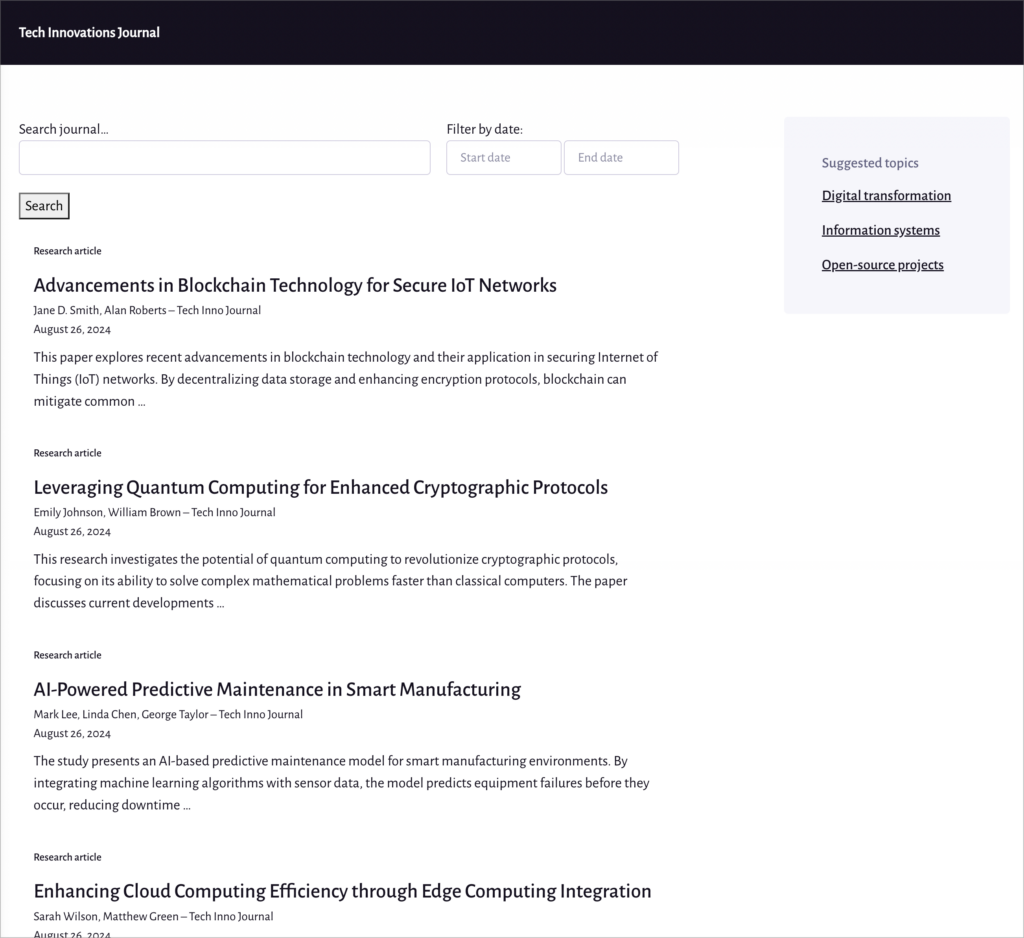
The public journal only shows approved entries, so a paper appears the moment a reviewer approves it and never before.
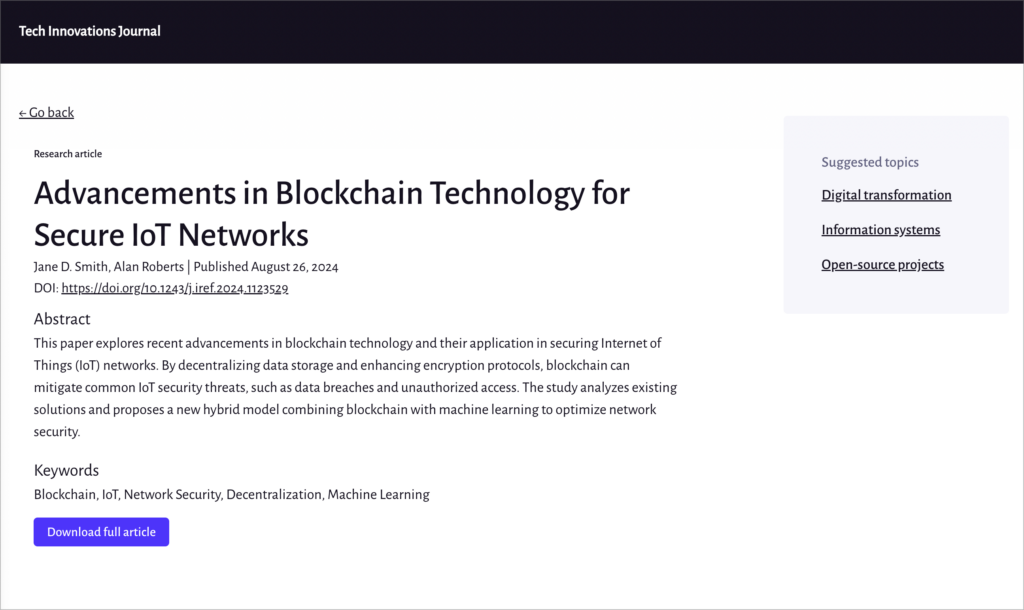
The build: researchers submit papers through a form. Reviewers approve or reject them in a private dashboard, and an email notification goes to the authors when a paper is accepted. The public journal lists the approved papers with a search bar, and each paper’s page has a download button. Requires GravityView Pro.
Read the walkthrough: How to create your own academic journal on WordPress.
8. Build a staff and faculty directory people keep up to date themselves
Staff directories change every term. When every update goes through one person on the web team, the directory can fall a little behind.
A directory fed by a form lets people keep their own entry current. Each person fills in a profile form once, and the directory shows everyone as searchable cards with photos and job titles. Each card links to a profile page with an edit link, so the person it belongs to can update it.
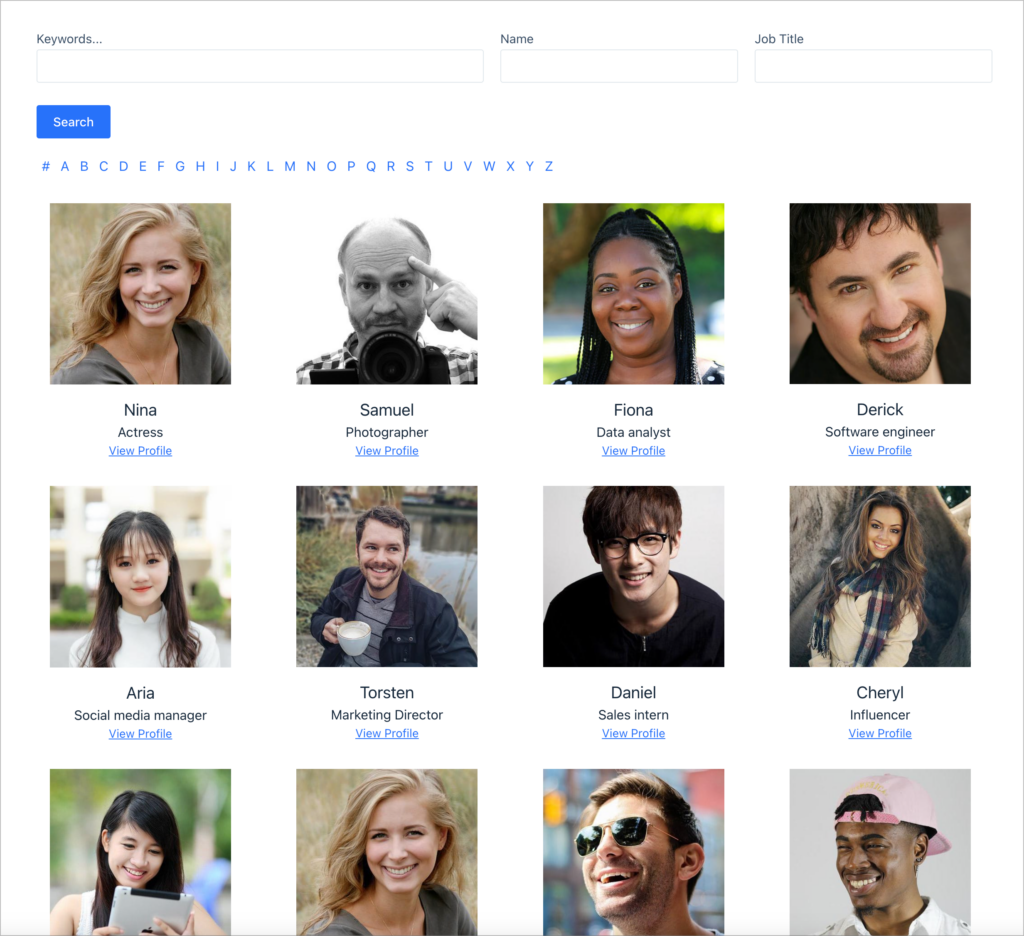
Want someone to check changes before they go live? Turn on entry approval and new profiles wait for a yes.
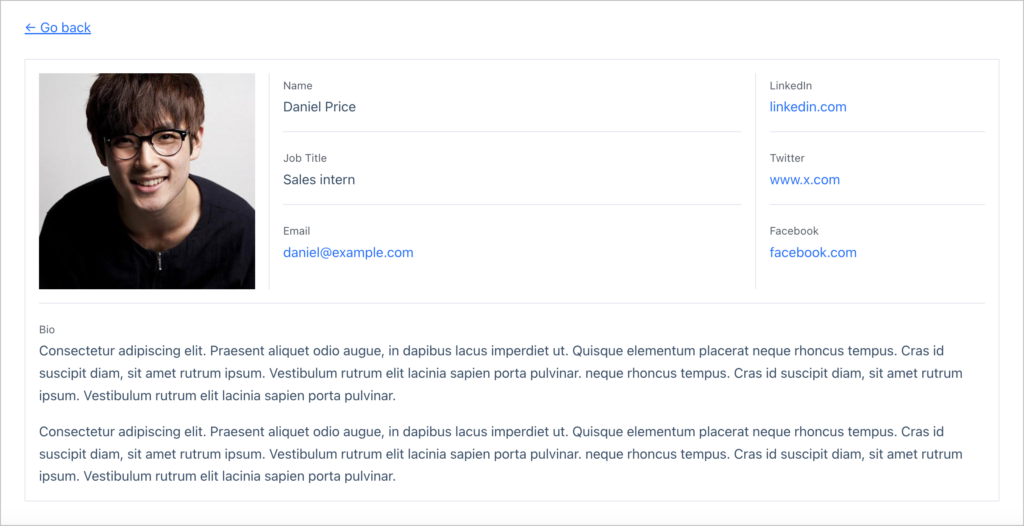
The build: a profile form collects name, email, job title, bio and photo. A View shows everyone as searchable cards, each linked to a profile page, and front-end editing lets people update their own profile. Works with GravityView.
Read the walkthrough: How to build a member directory on WordPress without code, or try the live demo.
Real-world example: Adam Cavotta in the provost’s office at New Mexico State University runs the university’s academic advisor directory on GravityView.
Once we had GravityView we realized how many situations existed where we could use it to solve problems.
The National Severe Storms Laboratory, part of NOAA, runs its public staff directory the same way, and staff update their own profiles without admin access.
9. Publish the school calendar and take sign-ups for each event
School events usually live in more than one place: a calendar on the website, a PDF for families and a separate sign-up form. Keeping them in step takes work.
A calendar built on form entries keeps them together. Staff add events through a form, and the ones marked for the website appear on a month calendar. Each event gets its own page, with a “Register for this event” link that opens the sign-up form with the event already filled in.
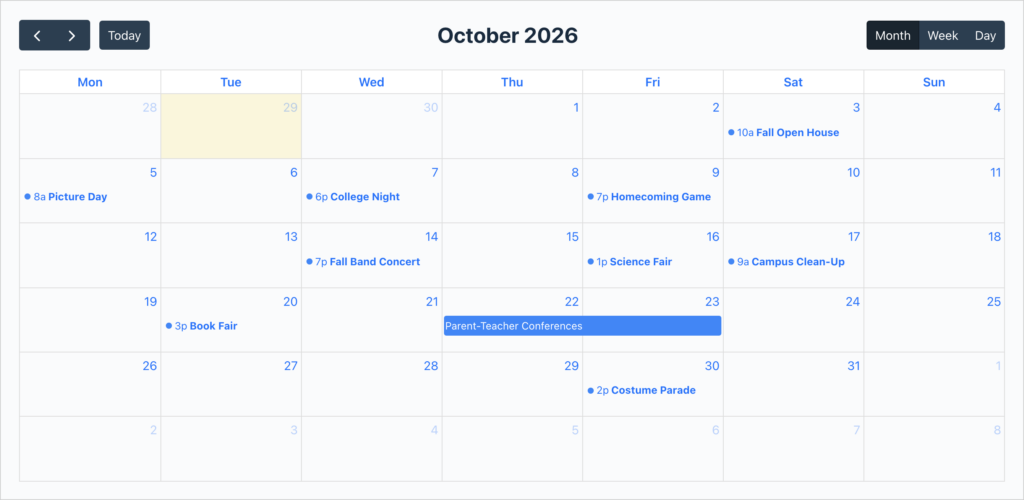
Families can subscribe to the calendar in Google Calendar or Apple Calendar, so new events show up on their phones without anyone emailing a PDF.
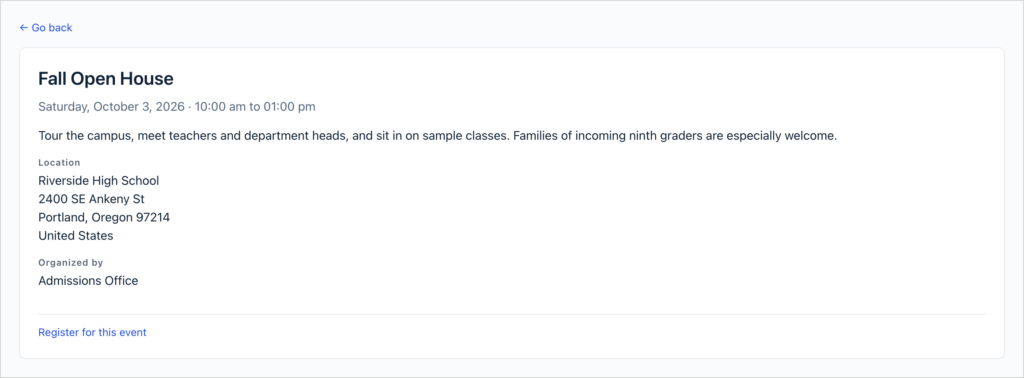
The build: an Events form collects the details, with dates from the free Gravity Forms Event Field and a checkbox for events that belong on the website. GravityCalendar shows those events on a month calendar and links each one to its own page, where a link opens the sign-up form with the event already filled in. Requires GravityView and GravityCalendar.
Read the walkthrough: How to build a Gravity Forms event registration calendar, or try the GravityCalendar demo.
Running an open house where families pick several sessions at once? Dynamic event registration lists every session as a checkbox on one form, and new sessions appear there automatically.
10. Advertise teaching and staff vacancies on your own site
Most vacancies go up on job sites, and that’s where plenty of candidates find them. A job board on your own site gives every open role a permanent home and a link you can share anywhere.
Departments post roles through a form. Candidates search by keyword, type and location, and each role has its own page where they can apply.
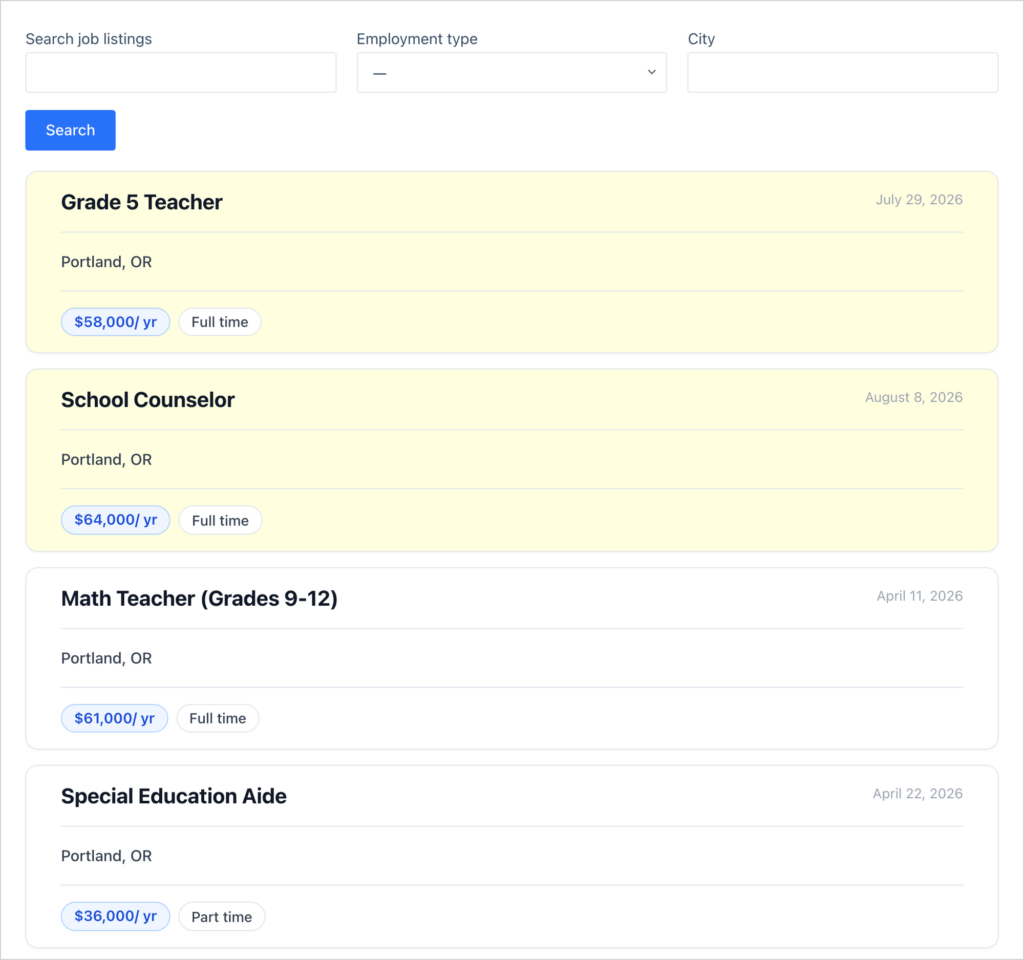
The tutorial publishes every posting straight away. If departments post their own roles, turn on “Show only approved entries” so HR sees each one first.
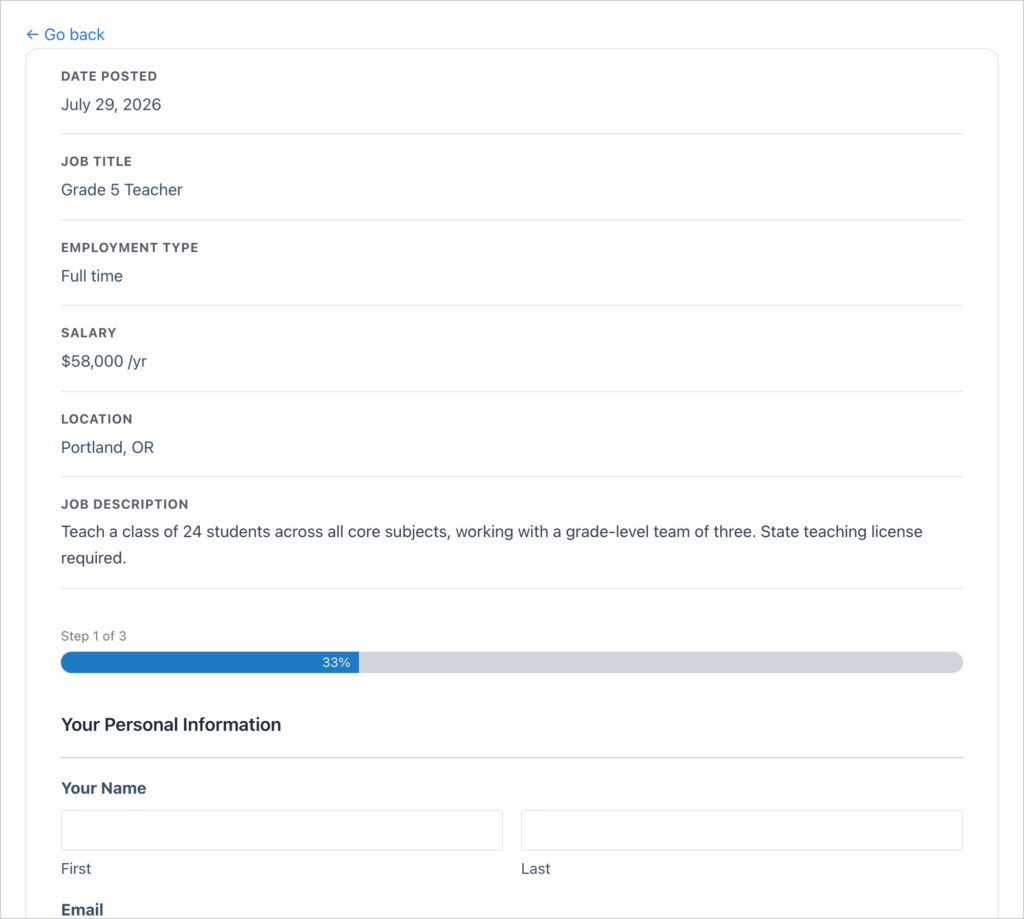
The build: roles are posted through a form with the title, type, location and description. A View lists them with a search bar, and each role’s page is where candidates apply. Works with GravityView. To move candidates through the hiring stages, add GravityBoard and follow the applicant tracking tutorial.
Read the walkthrough: How to build a WordPress job board, or try the live demo.
Real-world example: West Fork School District built FlowPoint, a district-wide forms hub and job board, on “over a dozen GravityKit products”, with GravityBoard handling hiring and onboarding.
Or describe it and let your AI assistant build it
Every build above is drag-and-drop, but somebody still has to do the dragging. If your school’s web or IT person already works in Claude, ChatGPT or another AI tool, the GravityKit MCP removes that step.
Connect it and the assistant can read your forms and entries, then create and configure Views for you. “Build me a staff directory from the staff form, with photo, name and department, and a search bar on department” becomes a prompt rather than an afternoon.
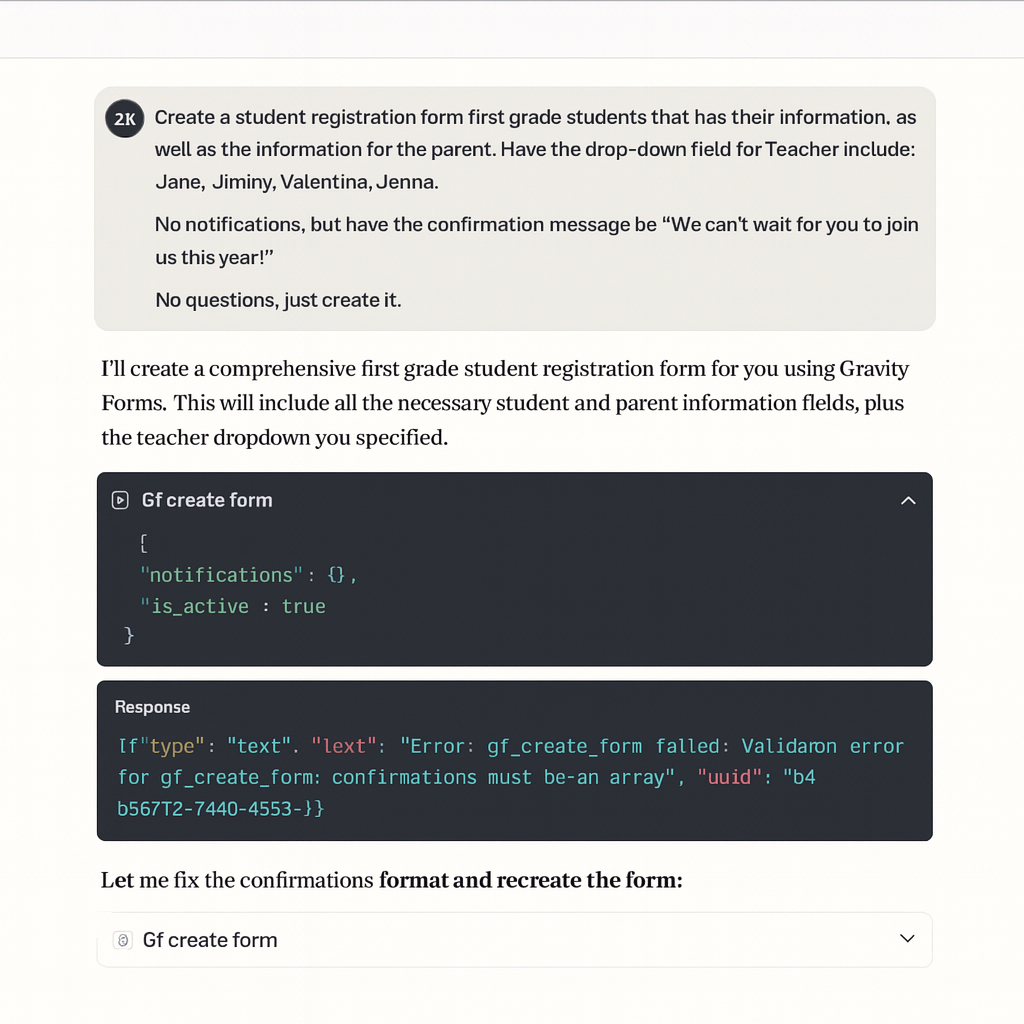
We wrote up 10 things you can ask AI to do with Gravity Forms, with prompts to get you started.
Where to start
If you’re new to GravityKit, start with the staff directory. It runs on GravityView, and everyone at your school uses it from day one.
Browse our live demos to see these builds working, or spin up your own demo site with every GravityKit plugin preloaded and try it free for 7 days. If your school or university is a registered nonprofit, you can apply for 50% off annual plans. For more on how schools use GravityKit, see GravityKit for education.

Get better at Gravity Forms, one email a week
New GravityKit releases, practical Gravity Forms tutorials, and subscriber-only discounts. One short email every week, unsubscribe anytime.
More articles
10 school apps you can build with Gravity Forms and GravityKit
Ten apps schools and universities build on Gravity Forms without custom code: application review, enrollment, student portals, report cards, libraries, calendars, and more. Walkthroughs for each.

Launch Log: Search Bar default values, Multiple Forms 1.0, and a keyboard-friendly GravityBoard
GravityView adds Search Bar default values, Multiple Forms reaches 1.0 with joined-form search, and GravityBoard gets keyboard, security, and performance fixes.

Launch Log: AI-assisted migrations and a stronger Prevent Direct Access setting
GravityMigrate can now hand a whole migration to an AI assistant, GravityKit MCP installs into Claude Desktop in one click, and GravityView tightens the Prevent Direct Access setting.