
The “This download does not match what GravityKit published” message
GravityKit checks each plugin download against the file we published before WordPress installs it. When the two don’t match, GravityKit stops the update and WordPress shows this message:
“This download does not match what GravityKit published, so it was not installed. Wait a few minutes and try again. If it still fails, contact GravityKit support.”
The message appears under the plugin on the Plugins page, at the top of Manage Your Kit, and on the Updates screen, after “An error occurred while updating” and the plugin’s name. Nothing was installed, so the site keeps running the version it had.
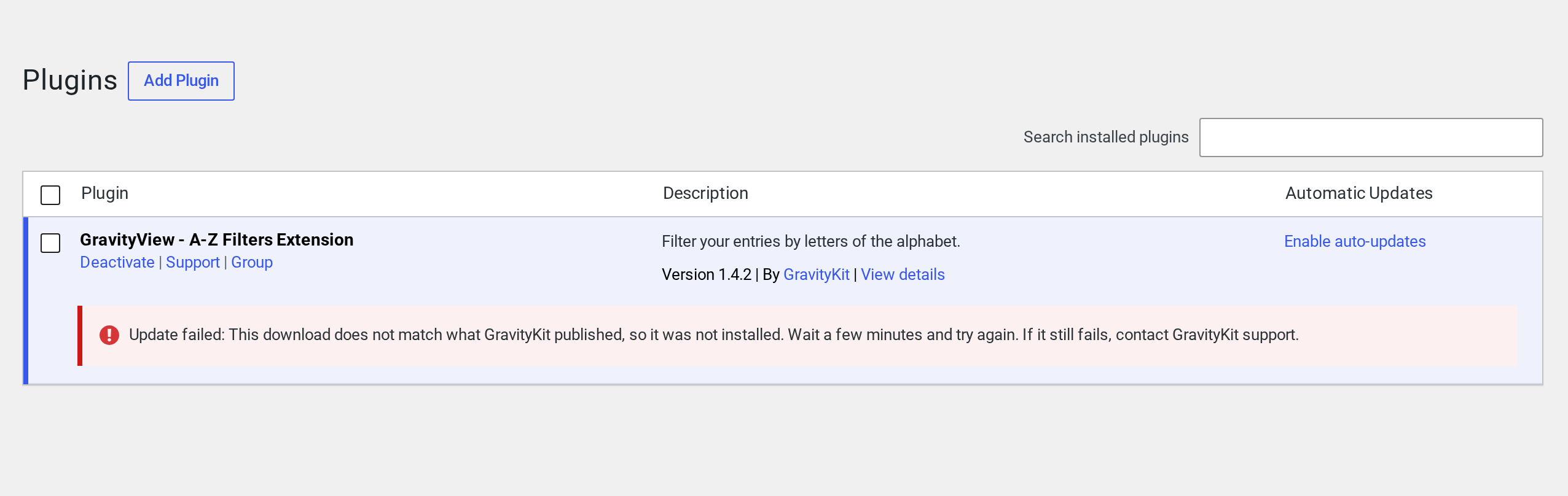
Sites with an older copy of the update check show the earlier wording of the same message:
“This download does not match what we published. Often a network glitch — retry once. If it fails again, stop and contact GravityKit support.”
Each GravityKit plugin includes a copy of the update check, and the site uses the newest copy among its GravityKit plugins. The update that brings the new check still runs on the old one, so it can show the earlier wording, and Step 1 gets it through. Sites in a language other than English can keep the earlier wording until the new one is translated.
Step 1: Refresh the product details and update again #
Retrying the update right away fails the same way. The update has to be checked against current product details, and Refresh downloads them.
- In your WordPress dashboard, go to GravityKit, then Manage Your Kit.
- Click Refresh next to the page title and wait for the list of products to load again.
- Update the plugin again, from Manage Your Kit or from the Plugins page.
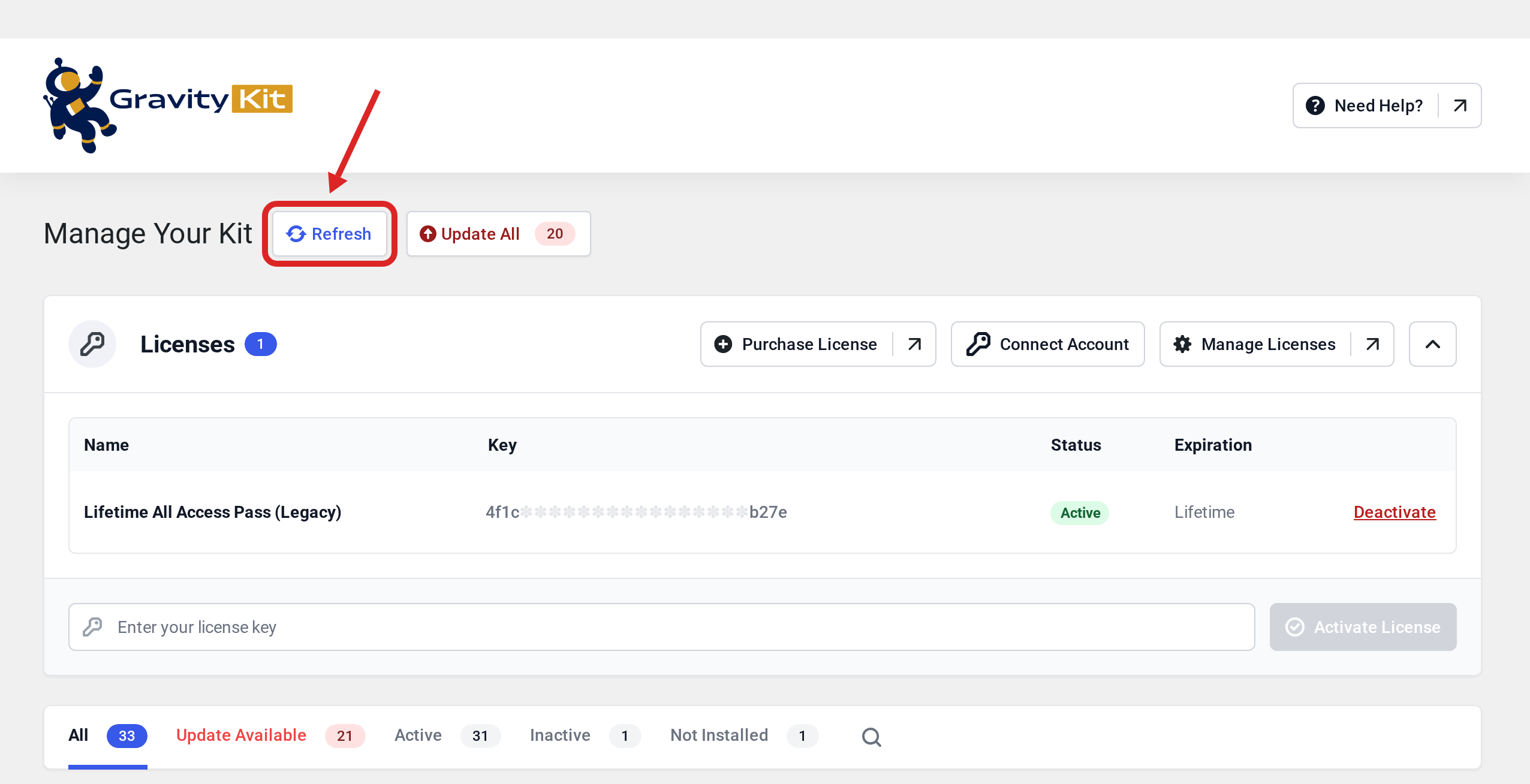
If the update fails again, wait a few minutes, click Refresh once more and run the update again.
Step 2: Install the update by hand #
If the update still fails, install the new version from its ZIP file. A plugin you upload yourself skips this check, so download it only from your GravityKit account.
- Sign in to your GravityKit account, open Downloads and click Download next to the plugin.
- In WordPress, go to Plugins, then Add Plugin, and click Upload Plugin.
- Choose the ZIP file and click Install Now.
- WordPress says the plugin is already installed. Click Replace current with uploaded.
WordPress replaces the plugin’s files and keeps its settings and your entries. Installing standalone plugins shows the Downloads page, and How to download and install an older version of a GravityKit plugin shows the Replace current with uploaded screen.
Step 3: Contact support #
If the message comes back on every update, or you can’t install the plugin by hand, contact our support team. Tell us the site address, the plugin and the version you were installing, and which wording of the message you saw.

