Skip to content
GravityKit
Buy
Sign in
0 items
  • Plugins

    GravityKit All Access

    Our complete Kit of essential tools for extending and enhancing Gravity Forms—everything you need to build powerful web apps and workflows.

    Learn more
    • GravityView

      GravityView

      Bestseller

      Display Gravity Forms entries on the front-end of your site and build powerful web applications.

    • GravityImport

      GravityImport

      Trending

      Import entries from CSV files into Gravity Forms to transfer data, create new forms, or update existing entries.

    • GravityEdit

      GravityEdit

      Quickly edit Gravity Forms entries inline to save time, reduce clicks, and streamline your workflow.

    • GravityCharts

      GravityCharts

      Trending

      Turn Gravity Forms entries into interactive charts and graphs.

    • GravityActions

      GravityActions

      Update multiple Gravity Forms entries at once, send bulk emails, and streamline your workflow.

    • GravityCalendar

      GravityCalendar

      Turn Gravity Forms entries into dynamic calendars to showcase events, schedules, appointments, and more.

    • GravityExport

      GravityExport

      Export Gravity Forms entries to Excel, CSV, or PDF and share them instantly with secure download links.

    • GravityMath

      GravityMath

      Perform advanced calculations on Gravity Forms entries to display totals, averages, or build custom calculators.

    • GravityRevisions

      GravityRevisions

      Track, compare, and restore changes made to Gravity Forms forms and entries with a full version history.

    • GravityMigrate

      GravityMigrate

      Migrate all Gravity Forms data, including forms, entries, Views, feeds, uploads, and more.

    • GravityBoard

      GravityBoard

      Manage projects with collaborative project management. Coordinate with your team and streamline your workflows.

    • GravitySearch

      GravitySearch

      Search Gravity Forms entries across every form from one screen.

  • Ideal For

    • Nonprofits
    • Web Agencies
    • Education
    • Developers
    • Small Businesses
    • Startups
    Explore All Use Cases

    Case studies

    • West Fork Schools
    • Princeton University
    • BrightLeaf Giving
    • Jacksonville Port Authority
    • National Severe Storms Lab
    • Leadpal
    • Mediebruket
    • Dragonfly
    View All Case Studies
  • Resources

    • Blog
    • Case studies
    • GravityKit vs competitors
    • Live Demos
    • Documentation
    • Developer docs
    • GravityKit Academy
    • GravityKit Live!

    Ultimate guides

    • How to use Gravity Forms
    • Editing Gravity Forms entries
    • Importing Gravity Forms entries
    • Exporting Gravity Forms entries
    • Displaying Gravity Forms entries
    • Gravity Forms conditional logic
    • Gravity Forms calculations
    View More Articles
  • Plugins

    • GravityView

      GravityView

      Bestseller

      Display Gravity Forms entries on the front-end of your site and build powerful web applications.

    • GravityImport

      GravityImport

      Trending

      Import entries from CSV files into Gravity Forms to transfer data, create new forms, or update existing entries.

    • GravityEdit

      GravityEdit

      Quickly edit Gravity Forms entries inline to save time, reduce clicks, and streamline your workflow.

    • GravityCharts

      GravityCharts

      Trending

      Turn Gravity Forms entries into interactive charts and graphs.

    • GravityActions

      GravityActions

      Update multiple Gravity Forms entries at once, send bulk emails, and streamline your workflow.

    • GravityCalendar

      GravityCalendar

      Turn Gravity Forms entries into dynamic calendars to showcase events, schedules, appointments, and more.

    • GravityExport

      GravityExport

      Export Gravity Forms entries to Excel, CSV, or PDF and share them instantly with secure download links.

    • GravityMath

      GravityMath

      Perform advanced calculations on Gravity Forms entries to display totals, averages, or build custom calculators.

    • GravityRevisions

      GravityRevisions

      Track, compare, and restore changes made to Gravity Forms forms and entries with a full version history.

    • GravityMigrate

      GravityMigrate

      Migrate all Gravity Forms data, including forms, entries, Views, feeds, uploads, and more.

    • GravityBoard

      GravityBoard

      Manage projects with collaborative project management. Coordinate with your team and streamline your workflows.

    • GravitySearch

      GravitySearch

      Search Gravity Forms entries across every form from one screen.

    GravityKit All Access

    Our complete Kit of essential tools for extending and enhancing Gravity Forms—everything you need to build powerful web apps and workflows.

    Learn more
  • Ideal For

    • Nonprofits
    • Web Agencies
    • Education
    • Developers
    • Small Businesses
    • Startups
    Explore All Use Cases

    Case studies

    • West Fork Schools
    • Princeton University
    • BrightLeaf Giving
    • Jacksonville Port Authority
    • National Severe Storms Lab
    • Leadpal
    • Mediebruket
    • Dragonfly
    View All Case Studies

    How to build...

    • Property Management
    • Product Catalog
    • Fundraising Dashboard
    • Real Estate Directory
    • Document Library
    • Academic Journal
    • Volunteer Management
    • Meal Tracker
    View All Guides
  • Resources

    • Blog
    • Case studies
    • GravityKit vs competitors
    • Live Demos
    • Documentation
    • Developer docs
    • GravityKit Academy
    • GravityKit Live!

    ultimate guides

    • How to use Gravity Forms
    • Editing Gravity Forms entries
    • Importing Gravity Forms entries
    • Exporting Gravity Forms entries
    • Displaying Gravity Forms entries
    • Gravity Forms conditional logic
    • Gravity Forms calculations
    View More Articles
  • Support
  • Pricing
0 items

Search

Results appear automatically as you type.
Loading results…

results found matching

    Sign in
    Buy

    Docs

    • Docs Home

    Gravity Forms Add-Ons

    • GravityView
    • GravityActions
    • GravityBoard
    • GravityCalendar
    • GravityCharts
    • GravityEdit
    • GravityExport
    • GravityImport
    • GravityMath
    • GravityMigrate
    • GravityRevisions
    • GravitySearch
    • GF Widget for Elementor
    • GF Dynamic Lookup
    • GF Entry Tags
    • GF Event Field
    • GravityExport Lite
    • GF Zero Spam

    GravityView

    • Getting Started
    • View Setup
    • FAQ
    • Pre-Sale
    • Advanced
    • Common Problems
    • Customizing Your Views
    • Edit Entry
    • Entry Approval
    • Filter and Sort Results
    • Gravity Forms
    • Merge Tags
    • Roles and Capabilities
    • Search
    • Shortcodes
    • View Settings
    • WordPress Posts

    General Help

    • Account, Invoices, and Billing
    • License Related
    • Plugins and Settings
    • Contact
    • Docs Home
    • Gravity Forms Add-Ons

      • GravityView
      • GravityActions
      • GravityBoard
      • GravityCalendar
      • GravityCharts
      • GravityEdit
      • GravityExport
      • GravityImport
      • GravityMath
      • GravityMigrate
      • GravityRevisions
      • GravitySearch
      • GF Widget for Elementor
      • GF Dynamic Lookup
      • GF Entry Tags
      • GF Event Field
      • GravityExport Lite
      • GF Zero Spam
    • GravityView

      • Getting Started
      • View Setup
      • FAQ
      • Pre-Sale
      • Advanced
      • Common Problems
      • Customizing Your Views
      • Edit Entry
      • Entry Approval
      • Filter and Sort Results
      • Gravity Forms
      • Merge Tags
      • Roles and Capabilities
      • Search
      • Shortcodes
      • View Settings
      • WordPress Posts
    • General Help

      • Account, Invoices, and Billing
      • License Related
      • Plugins and Settings
    • Contact

    General Help

      • Downloading a copy of your invoice
      • GravityKit W-9 Form (Tax ID)
      • Invoice information is incorrect
      • Nonprofit pricing
      • Refunds
      • Transferring your license
      • Turning off auto-renew subscriptions
      • Understanding Time-Based Proration for License Upgrades
      • Update your invoice with company name, address, or VAT number
      • Upgrading your license
      • Your GravityKit Account page
      • Managing Connected Sites
      • About the “GravityView + Extensions (Legacy)” license
      • Can’t deactivate license key
      • Development websites and GravityKit licenses
      • Downgrading your license
      • Granting GravityKit Support Access to Your Website
      • GravityKit pricing updates FAQ
      • Hard-coding your license key
      • Is PDF for GravityView included in All Access?
      • Managing GravityKit Products and Licenses via WP-CLI
      • Managing Your Licenses
      • Multisite and GravityKit Licenses
      • Products show as unlicensed
      • The license key keeps disappearing
      • Transferring your license
      • Upgrading your license
      • GravityKit code signing: technical overview
      • How to Get the Most Out of GravityKit Support
      • How to hide the “Function _load_textdomain_just_in_time was called incorrectly” notice
      • How To Import App Templates to Your Site
      • If you see a “This link has expired” or “Are you sure you want to do this?” message when installing a plugin
      • Installing standalone plugins
      • Installing, Activating, and Updating GravityKit Plugins
      • Locating and Updating Settings for GravityKit Products
      • Managing GravityKit Products and Licenses via WP-CLI
      • The “Download failed. Unauthorized” message
    • Home
    • Docs
    • General Help
    • License Related
    • Managing Connected Sites

    Managing Connected Sites

    Estimated reading: 5 minutes

    Updated on July 23, 2026

    When a WordPress site is connected to your GravityKit account, you can manage its licenses from whichever side is more convenient: the site’s own Licenses screen, or the Connected Sites page in your GravityKit account. This article covers both, along with migrating, disconnecting, and troubleshooting a connected site.

    To connect a site in the first place, see Managing Your Licenses.

    Manage licenses on a connected site #

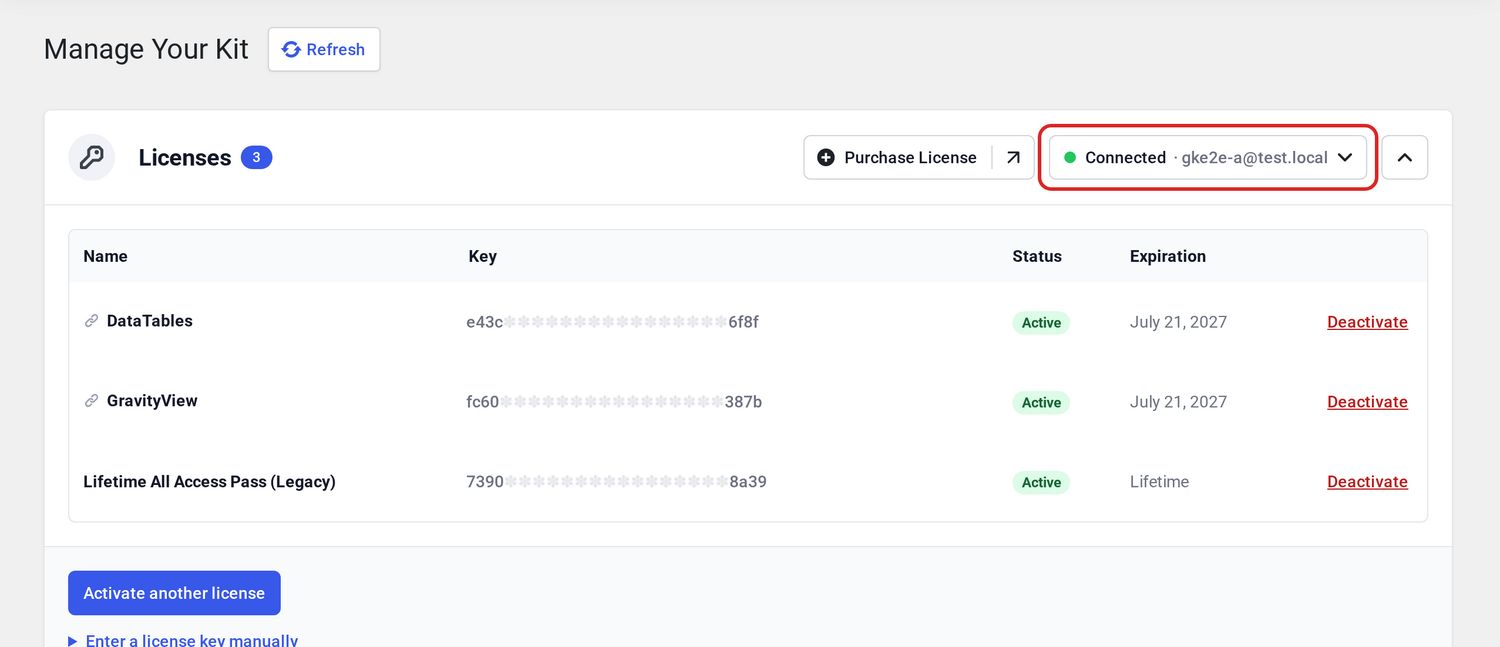
    When the site is connected, the Licenses section under GravityKit > Manage Your Kit displays a Connected status and the email address of the linked GravityKit account.

    Licenses section showing the Connected status with the linked account email and the active license table

    Depending on the site’s access level, an administrator can:

    • Review licenses that are active on the site.
    • Activate another available license with the Activate another license button.
    • Deactivate an account-managed license.
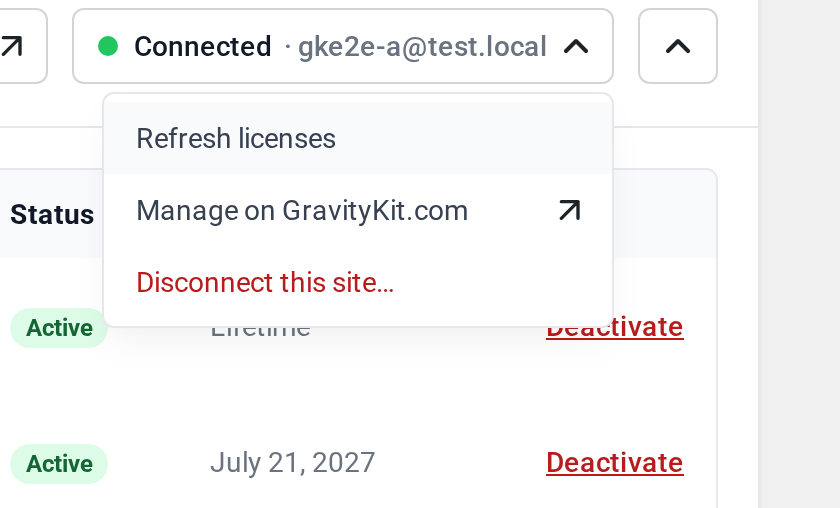
    • Open the connection menu (click the Connected status) to refresh the license list, open the site’s management page on GravityKit.com, or disconnect the site.
    • Enter a license key manually.
    Connection menu with Refresh licenses, Manage on GravityKit.com, and Disconnect this site options

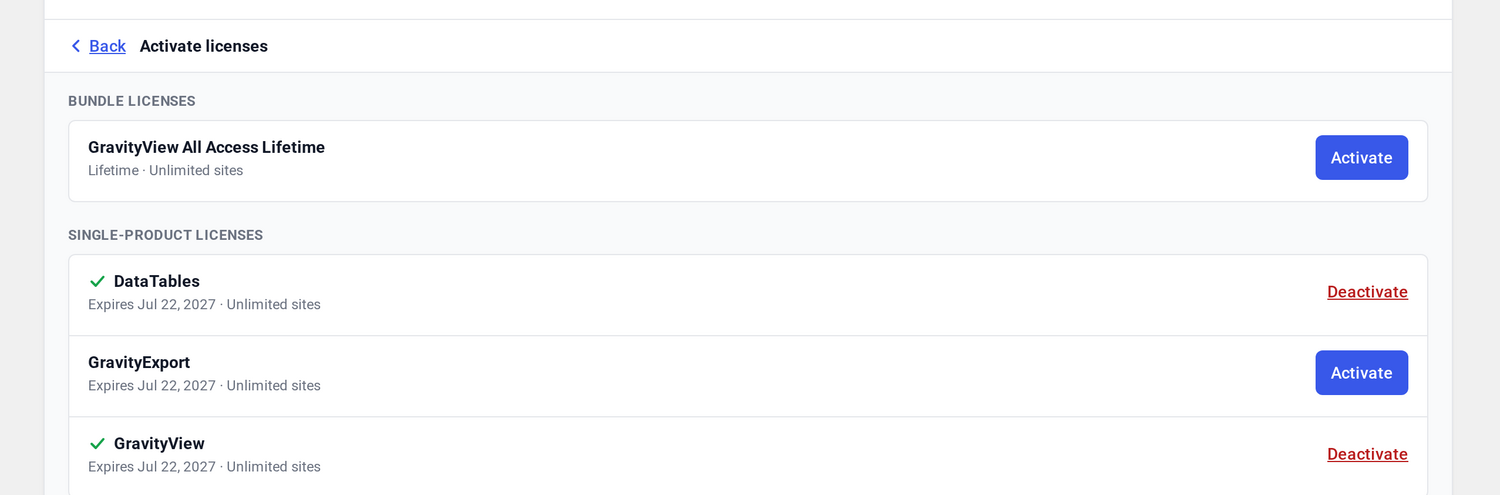
    The Activate another license button lists the licenses available to the site, grouped into bundle and single-product licenses. Licenses that are already active stay in the list so you can deactivate them from the same place.

    Activate licenses list grouped into bundle and single-product licenses with Activate and Deactivate actions

    The Manage column explains why a license cannot be deactivated from the current screen. For example, a license may be managed by the network administrator, set in wp-config.php, managed via the connected account, or unavailable because the site’s access is view-only.

    Manage connected sites from your GravityKit account #

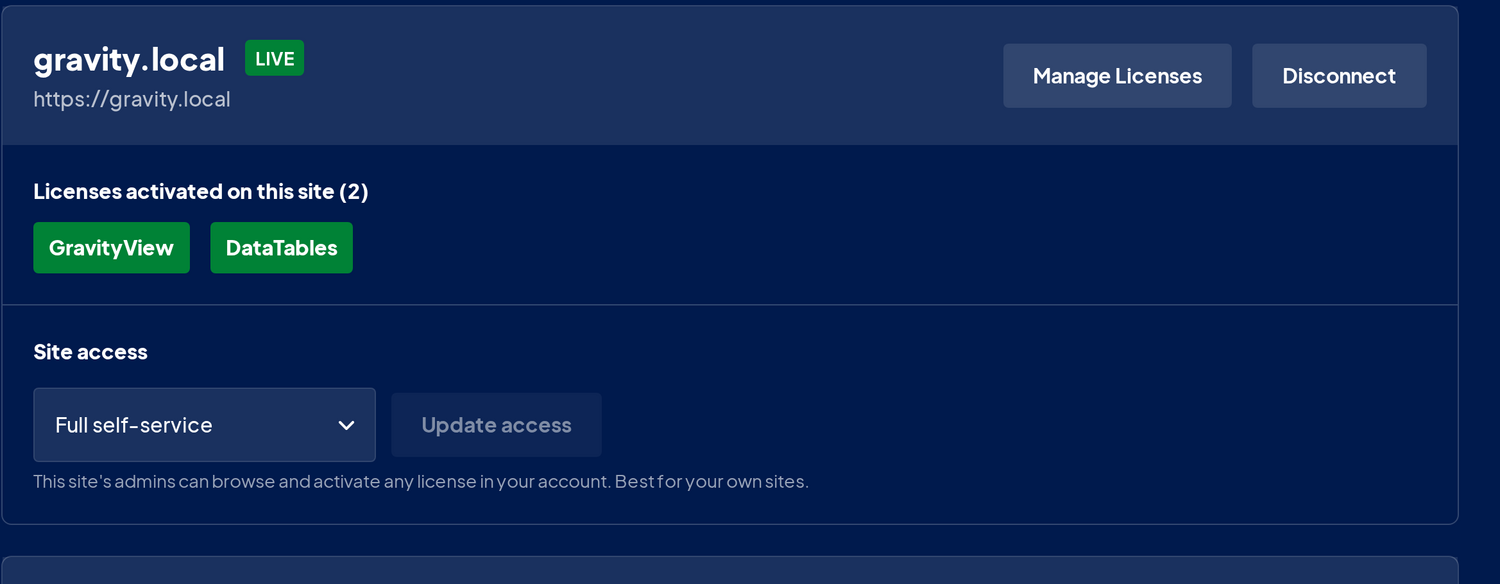
    Open Connected Sites in your GravityKit account to manage every site linked to the account.

    Connected site entry showing the Live status, activated licenses, Site access setting, and Manage Licenses and Disconnect buttons

    For each connected site, you can:

    • See whether the site is Live, Idle, or Disconnected.
    • See which licenses are active on the site.
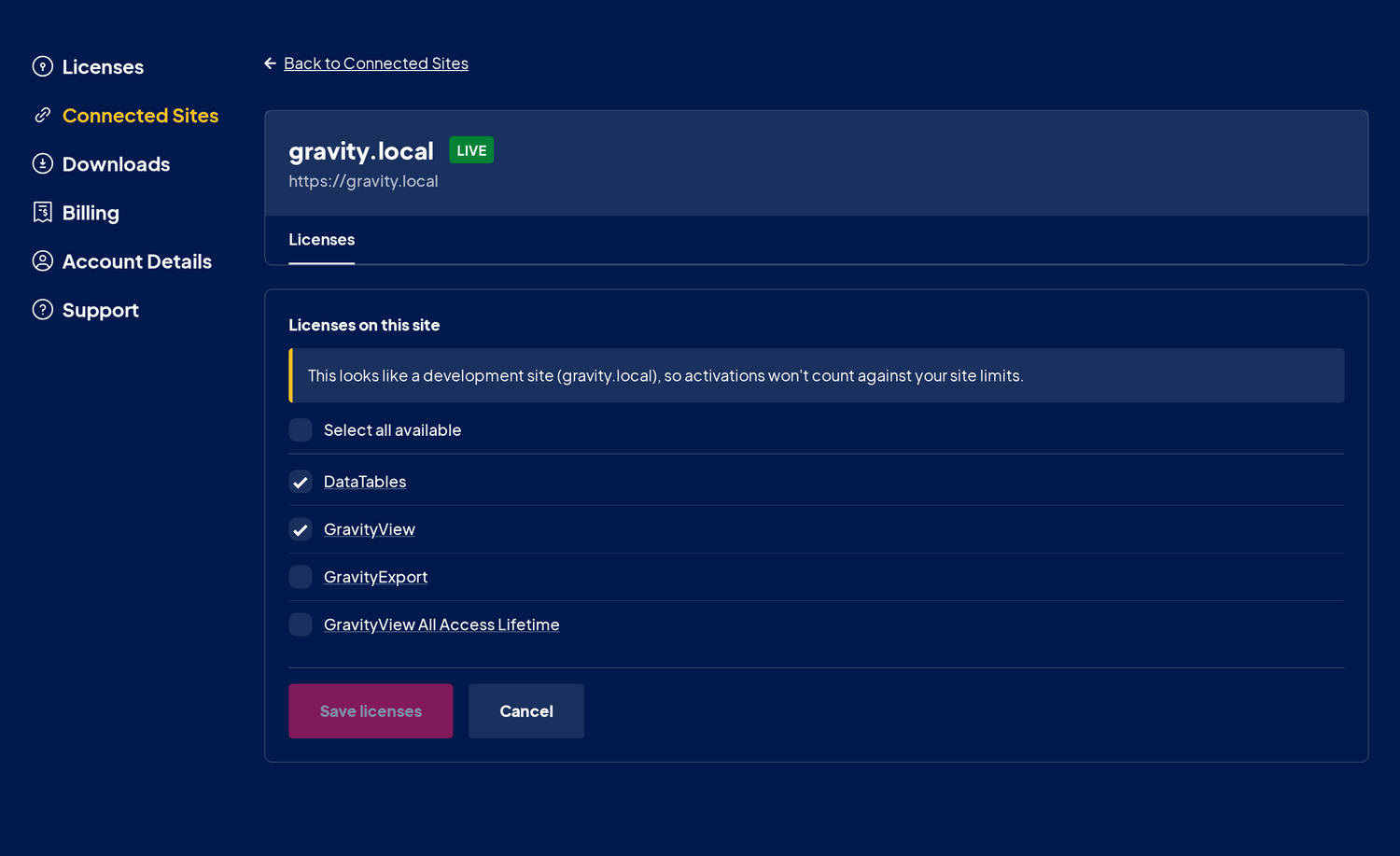
    • Open Manage Licenses to activate or deactivate licenses for that site.
    • Change the site’s access level.
    • Disconnect the site and deactivate licenses managed through the connection.
    Manage Licenses page for a connected site with the license selection list and Save licenses button

    The Current tab contains connected sites. The Past tab contains sites that were disconnected. If you no longer need a disconnected site’s record, you can remove it permanently from the Past tab.

    A site that has stored data in your account also shows a Storage section on its entry, where you can download that data or permanently delete it.

    If a license is assigned to a site but its activation was removed elsewhere, the account identifies it as Allocated, not active. You can either reactivate the license or remove the site’s access to it.

    Note: Deactivate is reversible and frees the activation for use elsewhere. Remove access also prevents the connected site’s administrators from reactivating that license until you assign it to the site again.

    Move or migrate a connected site #

    When you migrate a site to another server or change its URL, you do not need to copy and reactivate each license key individually.

    1. Complete the site migration.
    2. On the migrated site, go to GravityKit > Manage Your Kit.
    3. Click Reconnect. If the migrated copy no longer contains a recognizable connection, click Connect Account instead.
    4. Sign in to the same GravityKit account and approve the connection.
    5. Confirm the licenses selected for the site and complete the connection.

    The licenses previously managed through the account connection are restored together on the migrated site; you do not need to reactivate each one separately. Reconnecting also replaces an unusable connection if the site’s security keys changed during the migration.

    Note: If the old site remains online at a different URL, review its activations under Connected Sites and disconnect it when it is no longer needed.

    Disconnect a site #

    You can disconnect a site from either location:

    • In WordPress, open GravityKit > Manage Your Kit, open the connection menu, and choose Disconnect this site.
    • In your GravityKit account, open Connected Sites, find the site, and click Disconnect.
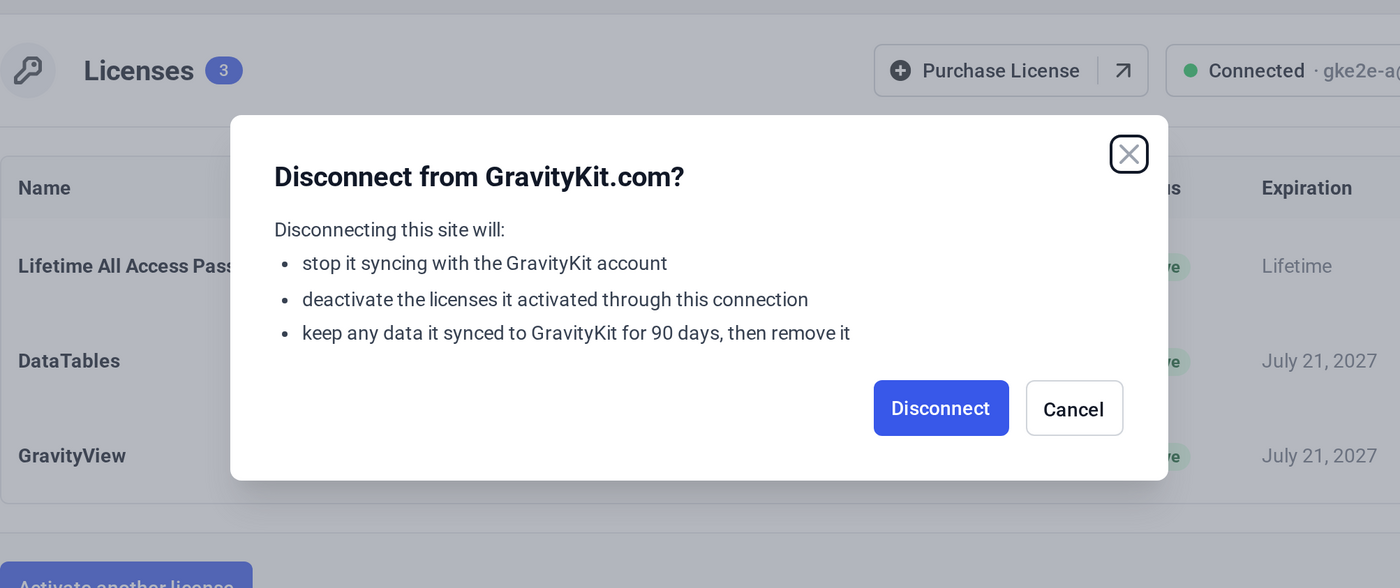
    Disconnect confirmation dialog listing what disconnecting the site will do

    Disconnecting normally:

    • Stops the site from syncing licenses with your account.
    • Deactivates licenses that were activated or adopted through the connection.
    • Leaves licenses that were entered manually and not adopted by the connection unchanged.
    • Does not delete your GravityKit account, license keys, plugins, settings, entries, or other site content. Settings the site stored in your account are kept for 90 days after you disconnect, then removed.

    If WordPress cannot reach GravityKit.com while you disconnect, the local connection is removed, but some remote activations may remain. Review the site under Connected Sites in your account and deactivate them there if necessary.

    If a broken or already-disconnected connection remains in WordPress, the connection menu also provides Remove connection. This removes the leftover connection information from that WordPress site so you can start again.

    Connection statuses and troubleshooting #

    Connected. The site is communicating normally with GravityKit.com. Use Refresh licenses in the connection menu if a recent change made in your account is not yet visible in WordPress.

    Attention needed. The site has been unable to reach GravityKit.com for an extended period. Licenses that are already active continue working. Retry the connection; if the problem persists, check whether the site can make outbound HTTPS requests to GravityKit.com.

    Disconnected. The connection can no longer be used. The notice on the Licenses screen identifies the likely cause and provides a Reconnect button. Common causes include:

    Notice saying the license data could not be unlocked, with a Reconnect button and a manual entry fallback
    • The site was disconnected from the GravityKit account.
    • The site’s security keys changed, so its saved licensing data can no longer be unlocked.
    • A response from GravityKit.com could not be verified, so syncing was paused for safety.

    Reconnect the site to establish a new secure connection and restore its account-managed licenses. The previously active licenses come pre-selected on the authorization screen. Licenses you entered manually are not restored by reconnecting; re-enter their keys to reactivate them.

    If security-key rotation is a recurring issue, define a stable GRAVITYKIT_SECRET_KEY constant in wp-config.php. See The license key keeps disappearing for details.

    Still stuck? How can we help?

    How can we help?

    "*" indicates required fields

    This field is for validation purposes and should be left unchanged.
    Replies will go to this email.
    How can we help?*
    My pre-sale question is related to...*
    My WordPress skills are....*
    My Gravity Forms skills are...*
    You will be shown articles from our documentation.
    Vous pouvez nous écrire dans votre langue maternelle si c’est plus facile pour vous—nous nous occuperons de la traduction!
    Puedes escribirnos en tu idioma nativo si te resulta más fácil; ¡nosotros nos encargamos de la traducción!
    Sie können uns in Ihrer Muttersprache schreiben, wenn das für Sie einfacher ist – wir kümmern uns um die Übersetzung!
    U kunt ons in uw moedertaal schrijven als dat gemakkelijker voor u is — wij zorgen voor de vertaling!
    Du kan skrive til oss på ditt morsmål hvis det er enklere for deg — vi tar oss av oversettelsen!
    Du kan skriva till oss på ditt modersmål om det är lättare för dig — vi tar hand om översättningen!
    Você pode nos escrever em seu idioma nativo se for mais fácil para você — nós cuidaremos da tradução!
    Puoi scriverci nella tua lingua madre se ti è più facile — penseremo noi alla traduzione!
    Please provide as much detail as you're able; this helps us provide you with faster support.
    Drop files here or
    Accepted file types: jpg, jpeg, gif, png, tiff, pdf, bmp, zip, json, csv, xls, xlsx, Max. file size: 256 MB.
      Stay informed?

      Was this page helpful?

      Table Of Contents
      • Manage licenses on a connected site
      • Manage connected sites from your GravityKit account
      • Move or migrate a connected site
      • Disconnect a site
      • Connection statuses and troubleshooting
      GravityKit
      • How to Build It
      • GravityKit vs competitors
      • Pricing
      • Products
      • Our Team
      • Our Values
      • Work With Us
      • Coupons
      Support
      • Support
      • Contact
      • Documentation
      • Scope of Support
      • Brand Guidelines
      • Privacy Policy
      • Terms of Service (“Terms”)
      I am a...
      • Nonprofit
      • Web agency
      • Small business owner
      • Web developer
      • Educational institution
      • WordPress freelancer
      • Startup founder
      • One-person agency
      Get notified of updates.

      We’re constantly improving GravityKit. Fill out your email below and we’ll notify you anytime major updates drop.

      • Facebook
      • Twitter
      • Mastodon
      GravityKit is a Gravity Forms Certified Developer.

      Copyright © 2026, Katz Web Services, Inc.

      GravityKit and GravityView are registered trademarks of Katz Web Services, Inc.

      Birthday cake with 12 candles

      It’s GravityKit’s 12th birthday!

      Celebrate by taking 30% off Lifetime All Access.

      Shop the Sale