
Published
•
Updated
9 client apps you can build with Gravity Forms and GravityKit
Nine client apps agencies build on Gravity Forms without custom code: portals, dashboards, directories, CRMs, boards, and more. Walkthroughs for each.

WordPress agencies, solo studios and freelancers use GravityKit to turn their clients’ form submissions into working tools: client portals, member directories, admin dashboards, application review queues. If you already manage Gravity Forms sites for clients, you are sitting on the data every one of these is built from.
Philip Levine at South Florida Web Advisors runs directories and data systems like these across hundreds of client websites. Web Pro Geeks built a searchable event directory for a client, with public submissions and bulk CSV imports. Dragonfly rebuilt a decade-old talent database their production team now uses to find and allocate freelancers. 43Folders built a grant application management system.
The common thread is that the data was already there. Gravity Forms collects and stores it reliably. What it does not ship is a front end for it, and that is the part GravityKit adds, without a custom post type, a set of queries, or a template layer to maintain through the next five WordPress releases.
Here are nine of those builds, each linked to a full walkthrough.
What is GravityKit?
GravityKit is a suite of no-code add-ons that turn Gravity Forms into an app builder for WordPress.
- Front-end display – GravityView turns entries into tables, lists, grids, maps, calendars, and DataTables, with a search bar, sorting, and per-user filtering.
- The rest of the kit – GravityEdit for inline editing, GravityImport and GravityExport for getting data in and out, GravityCharts for graphs, GravityBoard for kanban, GravityCalendar for events, GravityMath for calculations, and more!
- Self-hosted – Entries stay in the client’s own WordPress database. No third-party service and no per-seat pricing.
- Developer surface – Hooks, filters, a REST API, template overrides, and an MCP server.
1. Give your client’s customers a portal instead of an inbox
Anyone who submits a form on your client’s site loses sight of it the moment they hit send. Applicants, members and customers fill something in, then email to ask what happened to it, or to ask for another copy of a document they were already sent. Those emails land on your client, and the ones your client cannot answer land on you.
A portal gives them a login instead. Each person signs in and sees only their own records: what they submitted and where it got to, the files attached to it, the invoices raised against it. GravityView handles the display and the per-user filtering, so nobody sees anybody else’s.
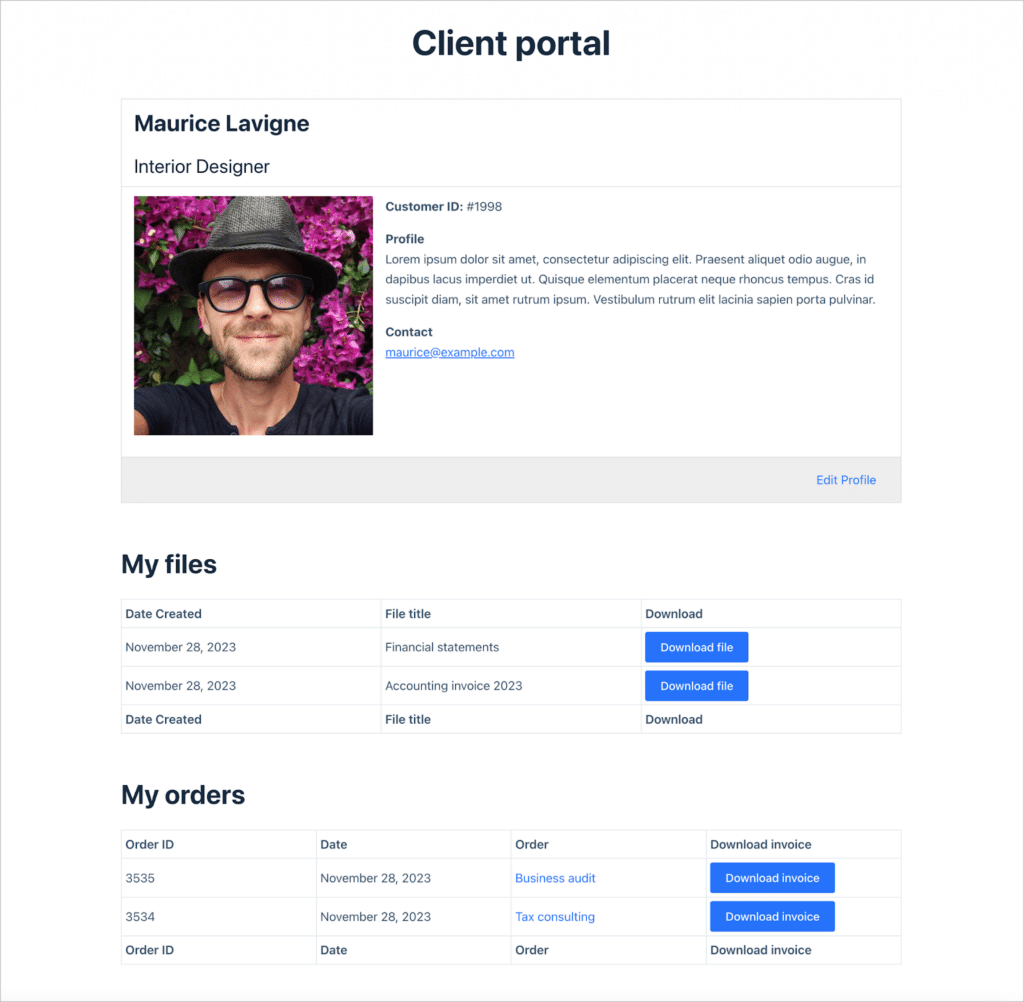
The same View configuration covers a customer portal, an applicant portal, a vendor portal, or a members’ area. What changes is the filter behind it, which is what makes this the easiest build on the list to reuse on the next client.
The build: accounts come from the Gravity Forms User Registration Add-On. In GravityView, set the Advanced Filter to Created By is Currently Logged-in User so each person sees only their own records. The Single Entry layout holds the detail view, and the Edit Entry layout decides which fields they are allowed to change. Requires GravityView Pro.
Read the walkthrough: How to build a client portal on WordPress using GravityView.
Real-world example: Philip Levine at South Florida Web Advisors runs this pattern across hundreds of websites for 150+ clients.
2. Hand over a dashboard they can read without you
Clients ask for “a report” and usually mean “a number I can look at on Monday.” What they get instead is a CSV you export by hand, or a Google Sheet that you rebuild every month.
Dashboard Views in GravityView Pro put those numbers inside wp-admin, on the dashboard the client already logs into. Entries, counts, and charts render on a screen you configure once, with role-based access so the finance department and the front-desk staff see different things.
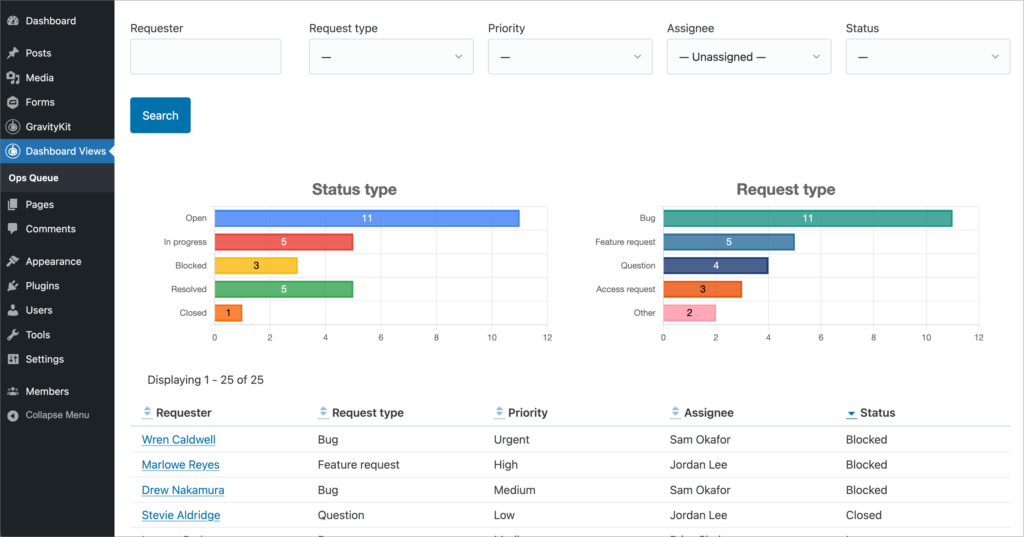
Pair it with GravityCharts and the monthly summary becomes a live chart rather than a screenshot pasted into an email. Because it renders from the entries directly, it is never out of date, and there is no export step for anyone to forget.
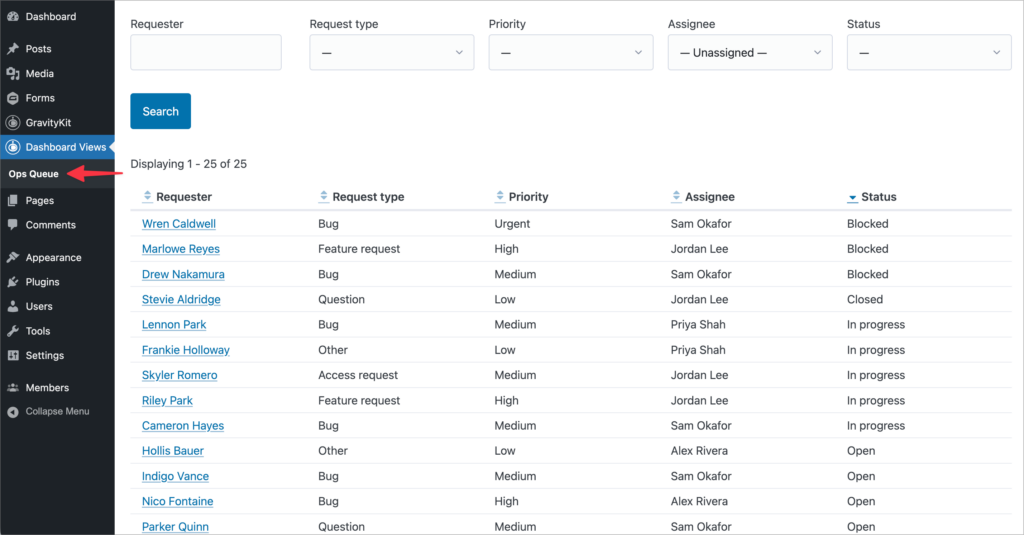
A dashboard inside wp-admin is ideal if the client needs an internal page that is locked down, but it means the client needs a WordPress login to access it. If they will not log in at all, simply build the equivalent dashboard on the front end.
The build: build a table View linked to your client’s form(s). Drag the fields they need to see into the Multiple Entries table, set the default sort order, and add a Search Bar so they can search and filter across fields. In the Dashboard Views settings, choose a top-level menu placement, give it a label, and switch on the internal-only toggle. For charts, add one or more GravityCharts feeds and embed them in the View using the widget.
Read the walkthrough: How to build an internal admin dashboard on WordPress without code.
Real-world example: Yuli at Deja Vu Studio built this for doctors and manufacturers.
3. Replace the CRM seat the client is renting
Plenty of small clients pay monthly, per user, for a CRM they use as a contact list. The contacts arrive through a form on their own website, get pushed out to a third-party service, then have to be synced back whenever anyone wants to see them alongside anything else on the site.
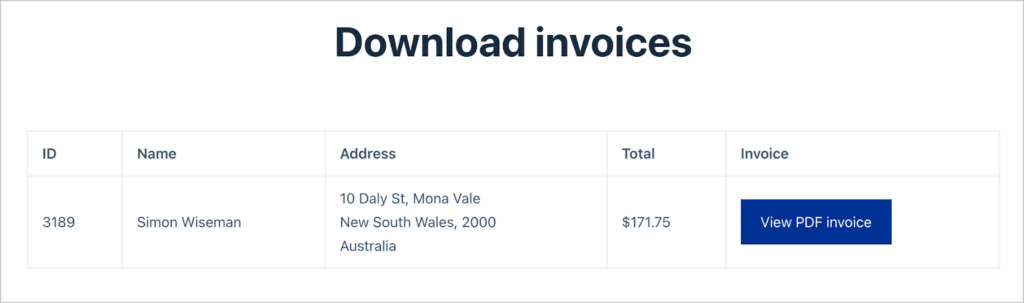
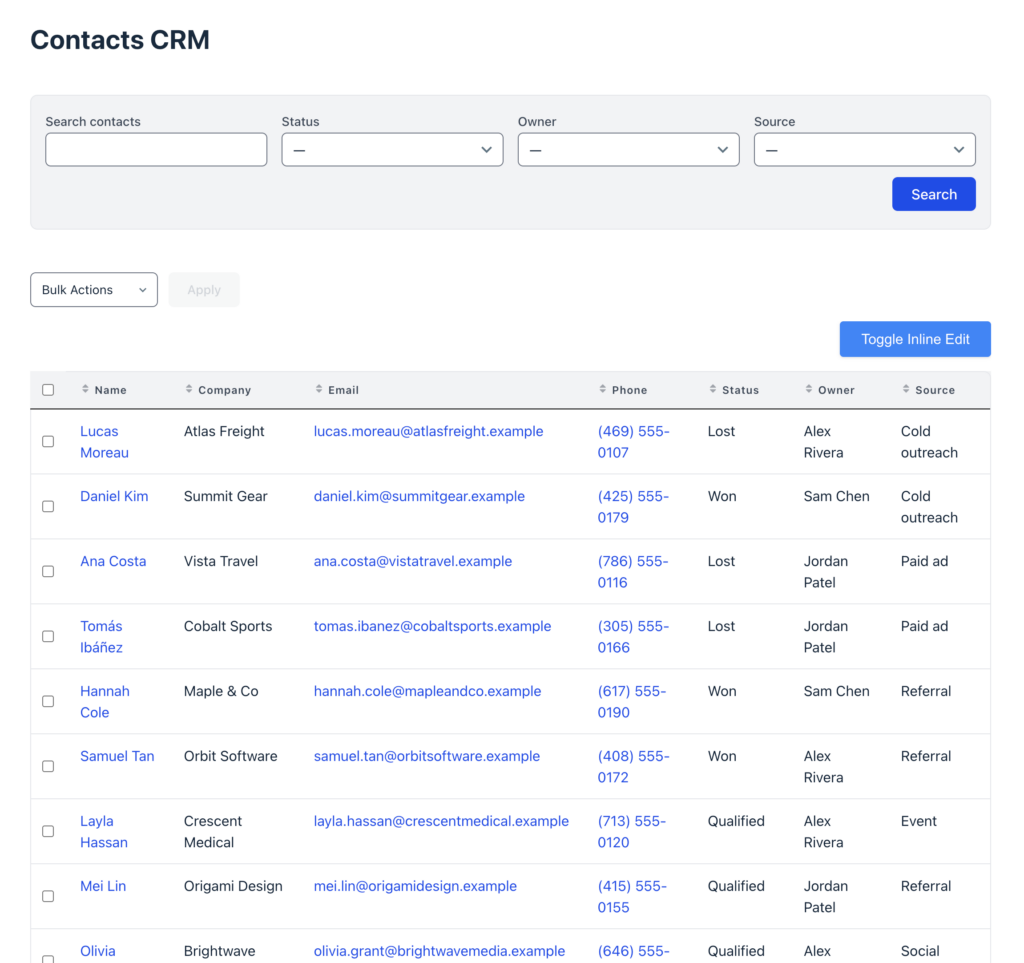
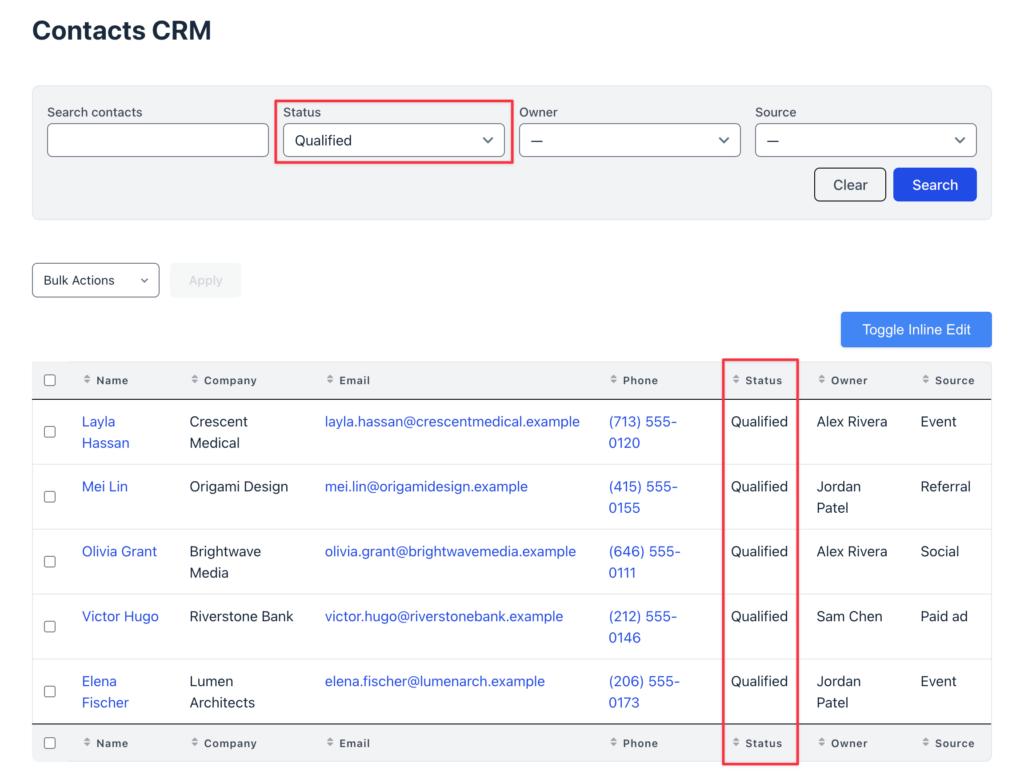
If the data starts in Gravity Forms, it can stay there. GravityView gives you the list, the single-record view, a search bar for finding contacts quickly, Entry Notes for internal notes, and a front-end Bulk Actions widget for bulk updating records or downloading files. GravityEdit makes fields editable in place, so updating a phone number does not mean opening the entry editor.
The cost comparison is easy to make, so make it. Add up what the client pays per seat per month, multiply by twelve, and set it against a one-time build on infrastructure that they already own.
Where this is not the right call: if the client needs pipeline automation, sequenced email, or call logging, a real CRM is a real CRM. This shape suits a contact database that has outgrown a spreadsheet but has not yet earned a subscription.
The build: create a Contacts form with Name, Email, Phone, Company, Source, Status, and Owner. Create a table View and add those fields as columns. Then, add a search bar widget, add a Bulk Actions widget, add an Entry Notes field for internal notes and comments, and configure the Single and Edit Entry layouts.
Read the walkthrough: How to build a WordPress CRM without code.
Real-world example: Dragonfly, a London video production company, replaced a decade-old talent microsite with a searchable front end their production team uses to find and allocate freelancers.
4. Ship a directory the client maintains themselves
Directories are the most requested build on this list: members, locations, vendors, staff, events. They are also the build clients are most likely to come back and ask you to update.
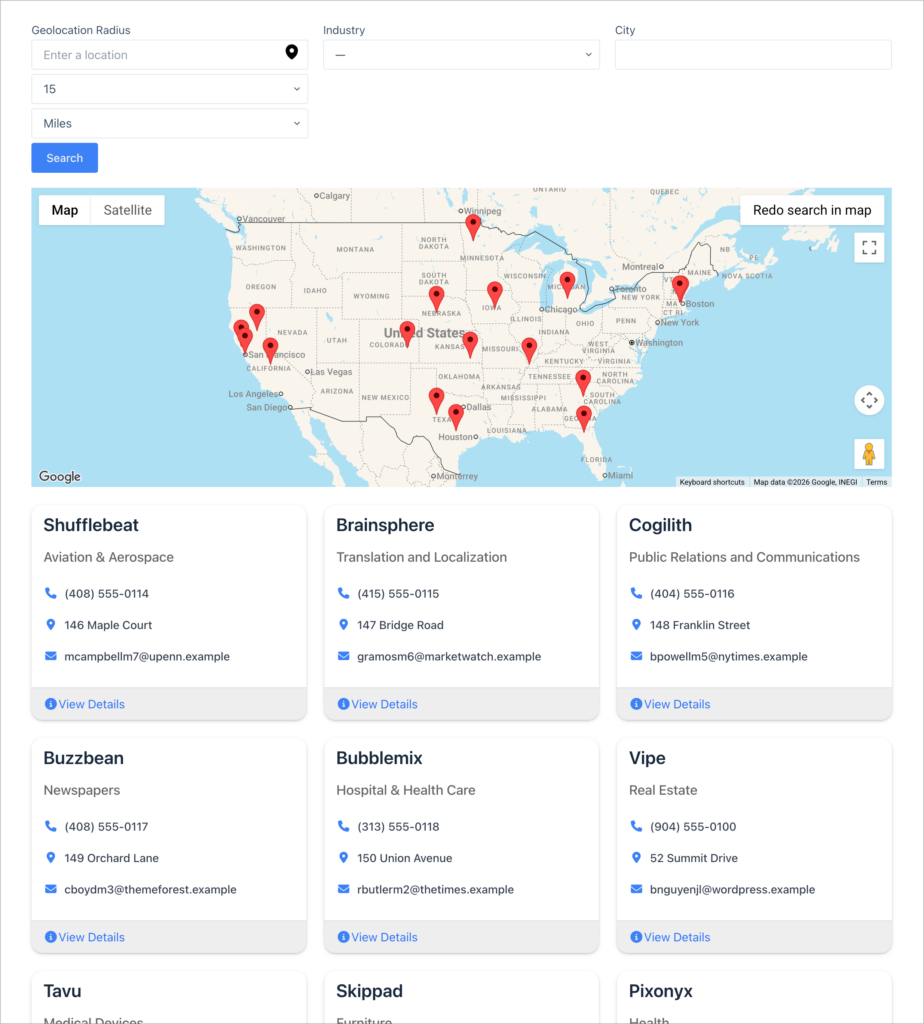
The fix is a directory fed by a Gravity Forms form: the people whose details are in it submit and update their own records. GravityView renders the entries as a searchable list, table, or grid, with a search bar visitors can actually use. The Maps layout in GravityView Pro puts them on a map when location matters.
GravityView’s Entry Approval feature is what makes a self-service directory safe to hand over. The client reviews a submission before it appears publicly, so nothing goes live unseen.
The build: create a new View using the List or Layout Builder layouts. Connect it to your submission form and decide which fields to display on the main listing page. If your form includes an Address field, add a Map widget to display entries as markers on a Google Map. Add a search bar widget with a geolocation search input, and configure the Single and Edit Entry layouts.
Read the walkthrough: How to build a member directory on WordPress without code, or How to build a business directory with Gravity Forms.
Real-world example: Web Pro Geeks built an accessible event directory for a client, with submissions, search by location and event type, and bulk CSV imports.
5. Turn an application pile into a review system
Grants, scholarships, job applications, loan requests, conference abstracts, award nominations. The shape is identical every time: a lot of submissions arrive, a small panel has to read them, somebody records a decision, and an email goes out.
Clients usually run this in a shared inbox and a spreadsheet, and it usually goes wrong in the same two places, which are version control on the spreadsheet and knowing who has reviewed what.
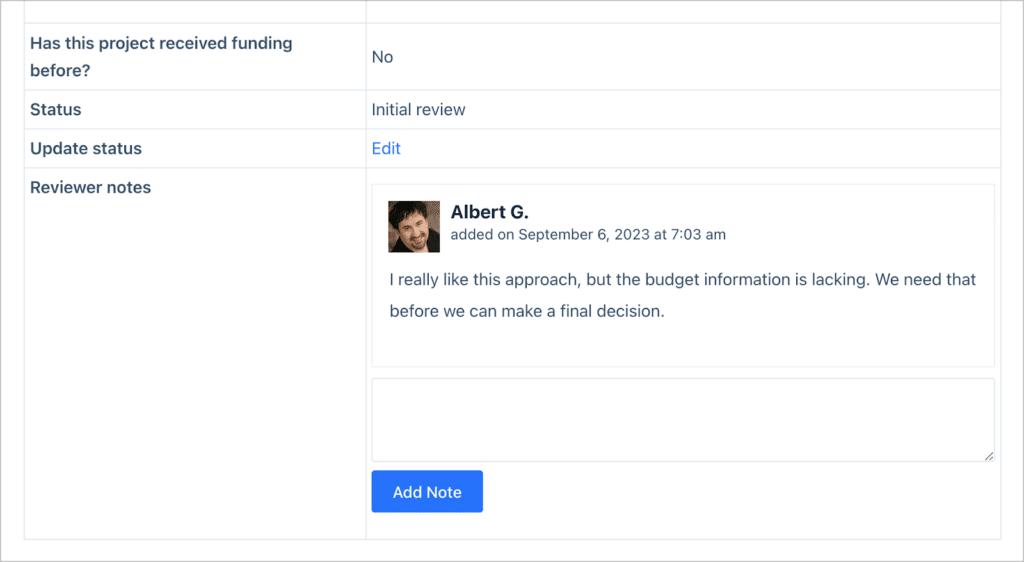
GravityView puts the submissions in front of reviewers on the front end. Advanced Filtering in GravityView Pro scopes each reviewer to the applications they are assigned. GravityEdit lets them record a score or a note without leaving the list, and entry approval carries the decision through to a notification.
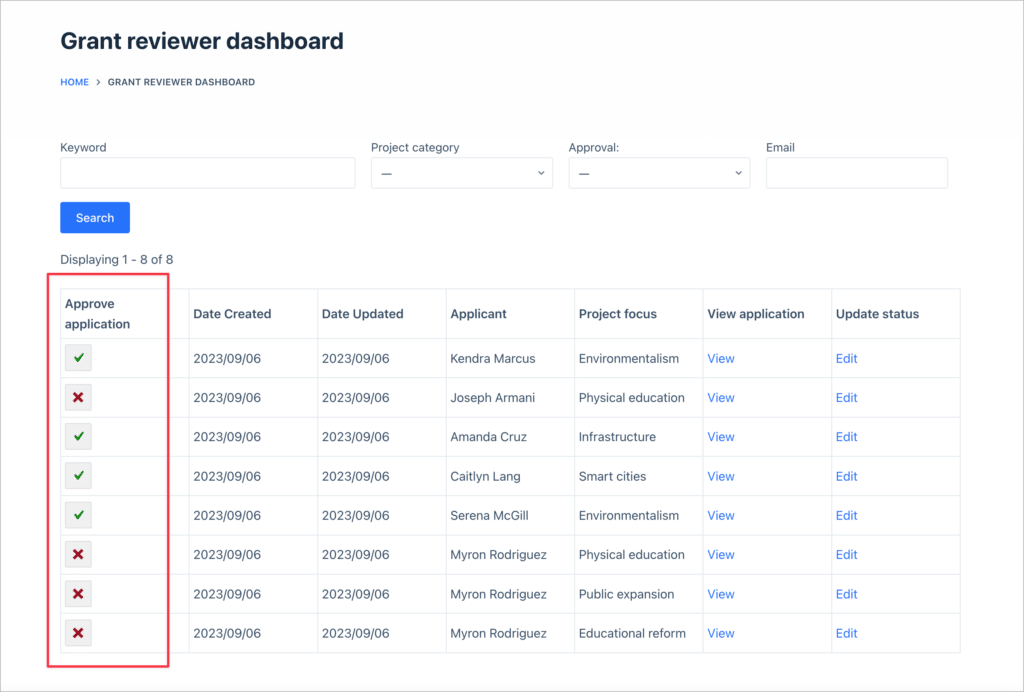
Agencies get asked for this more often than they expect, because every membership organization, university department, and foundation has a version of it.
The build: add a hidden Status drop-down to the application form with the stages you use, such as Submitted, Under review, Approved, and Rejected. Build a reviewer View with an approval column, and use the Advanced Filter to scope reviewers to their assigned applications. Add the Entry Notes field so the panel can leave internal notes and comments. On the Edit Entry layout, add the Status field alone, so reviewers can update the decision without altering the application.
Read the walkthrough: How to build an application review system.
Real-world example: Michael Kastler at 43Folders built a grant application management system for his nonprofit client, and Mediebruket builds similar systems for banks taking loan applications.
6. Automate the monthly report so you stop rebuilding it
This one is about your margin rather than your client’s deliverable, which is why it is on the list.
Somewhere in your month is a recurring job where you log into a client site, export entries, tidy the columns, and email the file to somebody for analysis or review. It takes twenty minutes, it happens across every retainer you hold, and it is invisible on every invoice.
GravityExport runs that export on a schedule and delivers it to Dropbox, FTP, or local storage without anyone logging in. Set the filter once, choose daily, weekly, or monthly, and the file arrives where the client already looks for it.
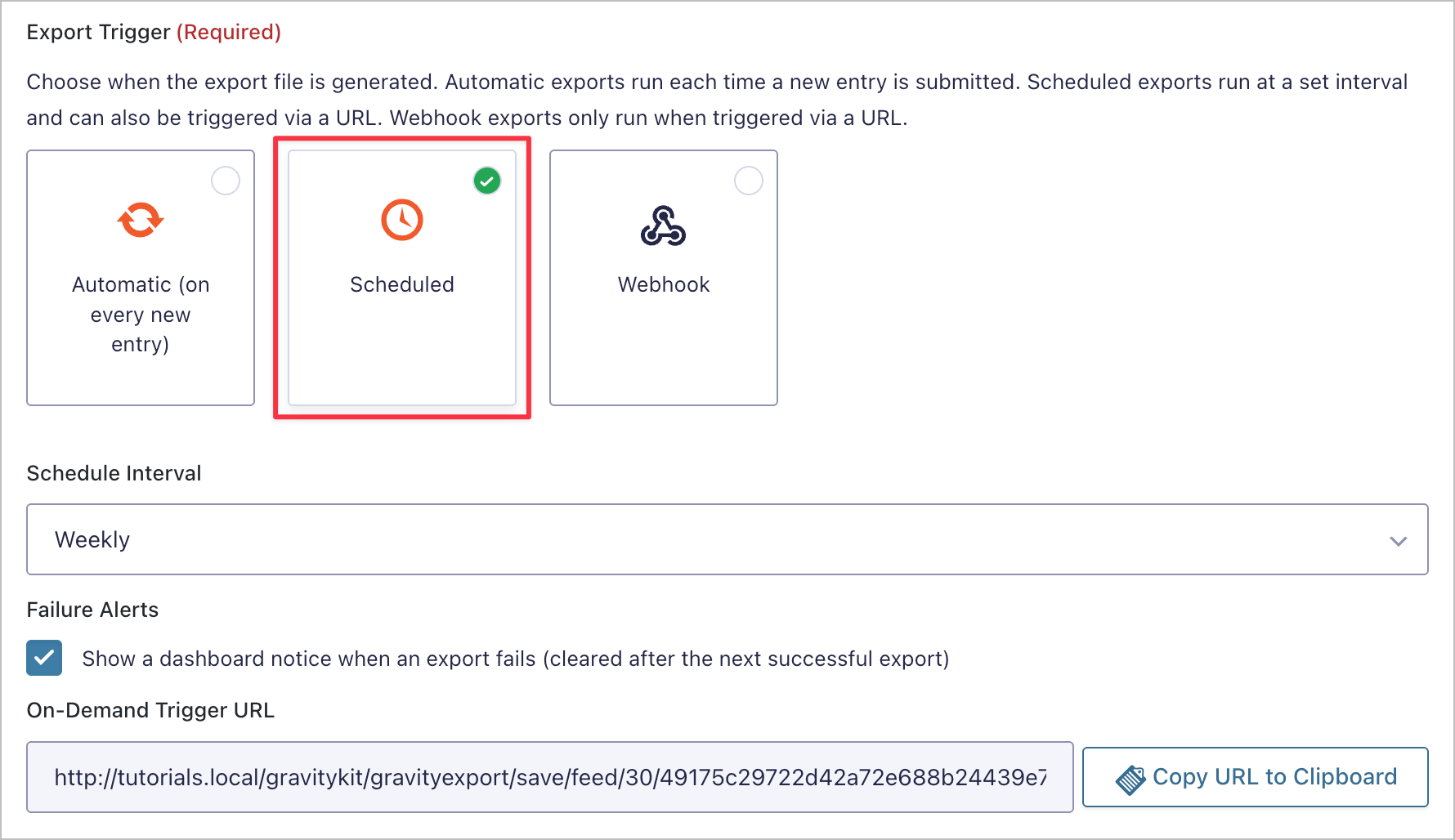
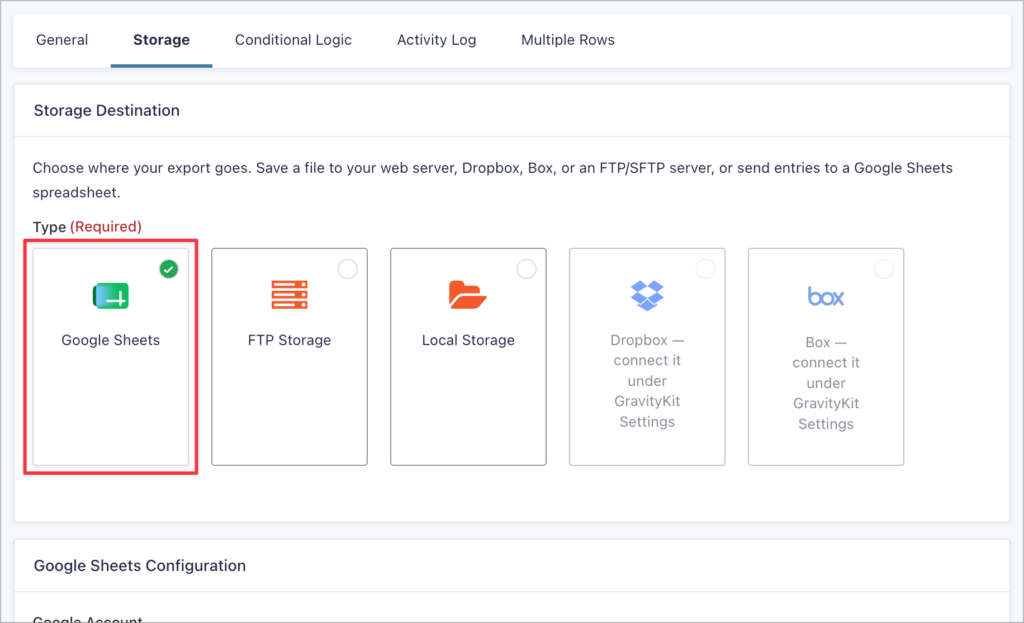
If the client lives in a spreadsheet, GravityExport can sync entries straight to a Google Sheet instead, keeping the sheet up to date as new submissions arrive rather than dropping a new file each time.
The filter is what turns an export into a report. Scope it to last month’s entries, or one status, or the four columns the client actually reads. This is also the easiest item here to retrofit onto sites you delivered years ago, because it needs no front-end work at all.
The build: create a GravityExport Save feed. Use Export Filters to choose the columns the client actually reads, set the Export Trigger to Scheduled and pick an interval, then use the Conditional Logic tab to limit the file to a window such as the past week. File Settings controls the format and a dynamic filename built from merge tags. The Storage tab sends it to local storage, FTP, Google Sheets, Box, or Dropbox.
Read the walkthrough: How to schedule recurring exports in Gravity Forms.
7. Track projects without another seat per client
Every client who wants a project tracker wants roughly the same one: a board, a set of statuses, an owner per card, and a due date. What they do not want is another monthly subscription, and what you do not want is administering yet another tool on their behalf.
GravityBoard turns Gravity Forms entries into a drag-and-drop board, so a submission becomes a card and moving the card updates the entry. Cards carry assignees, labels, due dates, attachments, and a comment thread, so the work and the conversation about it stay together.
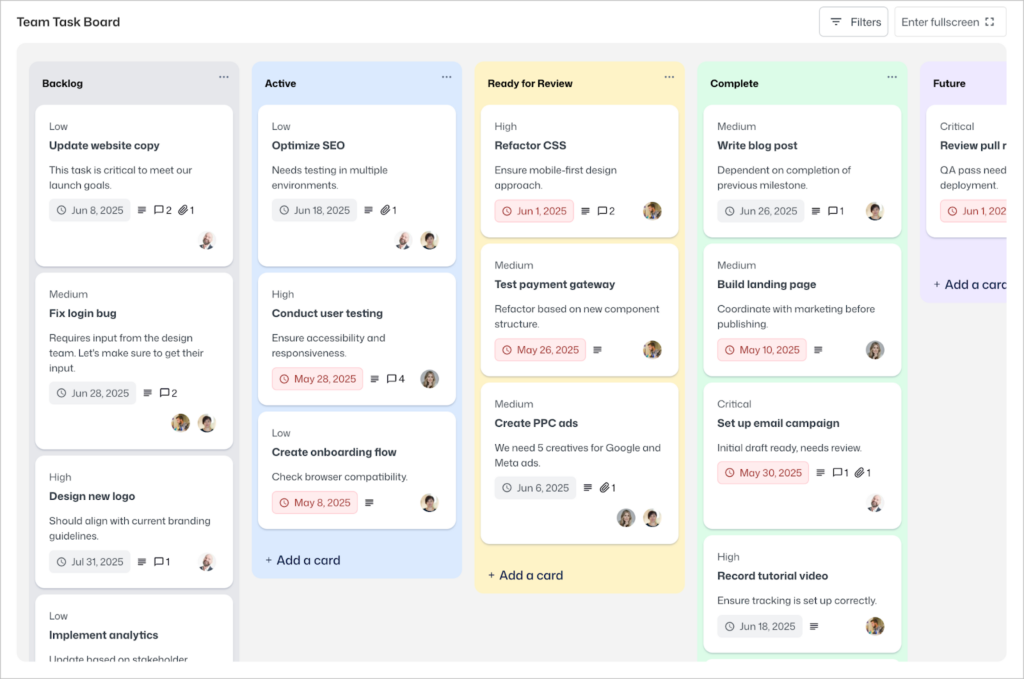
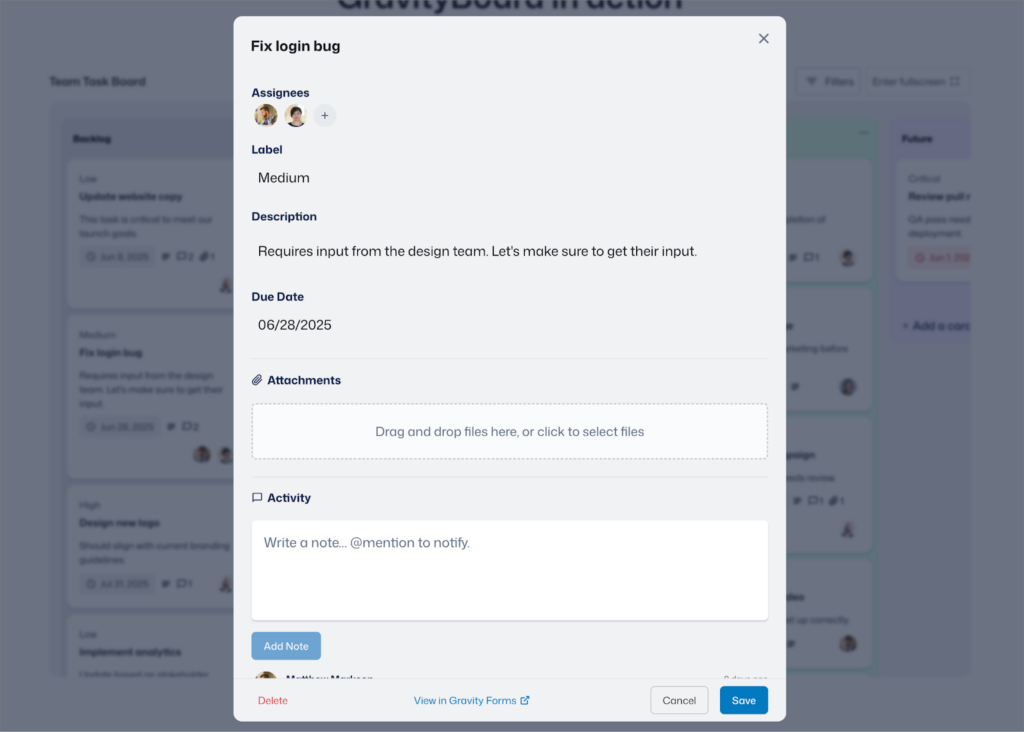
Because it runs on the client’s own site, permissions follow WordPress roles you already understand, and there is no seat count to renegotiate when the client’s team grows. Configure it once and reuse the pattern on every retainer.
Be straight with clients about the ceiling. This is a board with statuses, owners, and dates. If they need dependencies, resource leveling, or burndown charts, they need a project management tool. Most clients asking for a tracker do not.
The build: start with a form that includes a “Status” field. Create a GravityBoard feed and use Field Mapping to connect the status field to lanes, plus assignees and due date. Set who can move cards on the Permissions tab, and add a Gravity Forms notification that fires when status changes.
Read the walkthrough: How to build a project management system on WordPress, or the lighter task management system.
8. Put their support desk on the site you already manage
At some point every client forwards you a support email that was never meant for you. Their customer wrote to the wrong address, or to the only address on the website, which is often yours.
A ticket system fixes the routing. A Gravity Forms form takes the request, GravityView shows the queue to whoever handles it, and the customer gets a front-end view of their own tickets and their status.
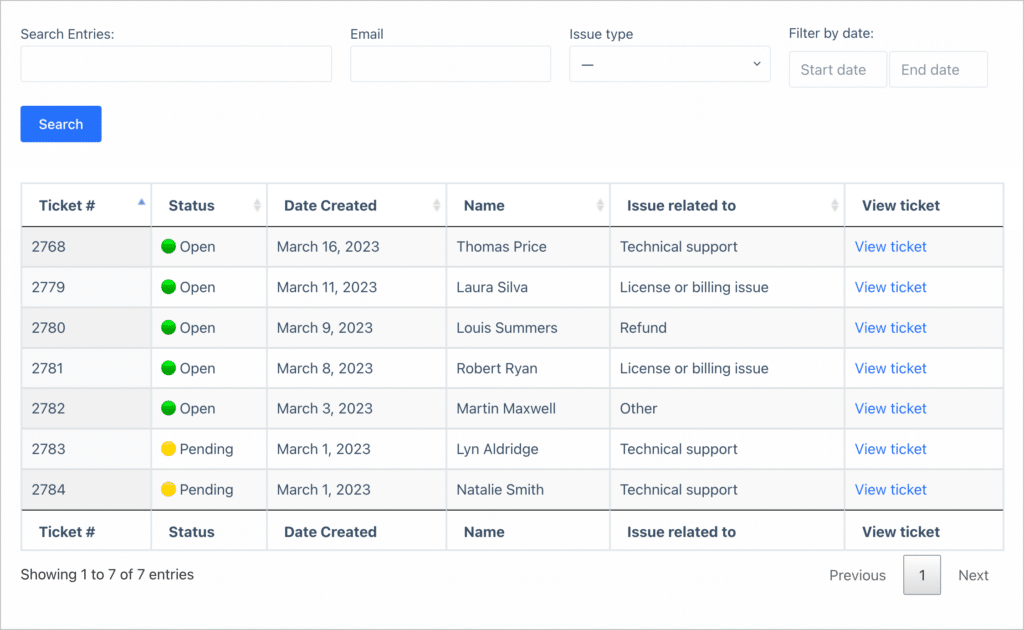
The starting point is usually already there. Most client sites have a contact form collecting these requests as entries right now, with no way to work through them. You are adding a queue to data the site has been storing all along, which makes this one of the quickest builds to demonstrate.
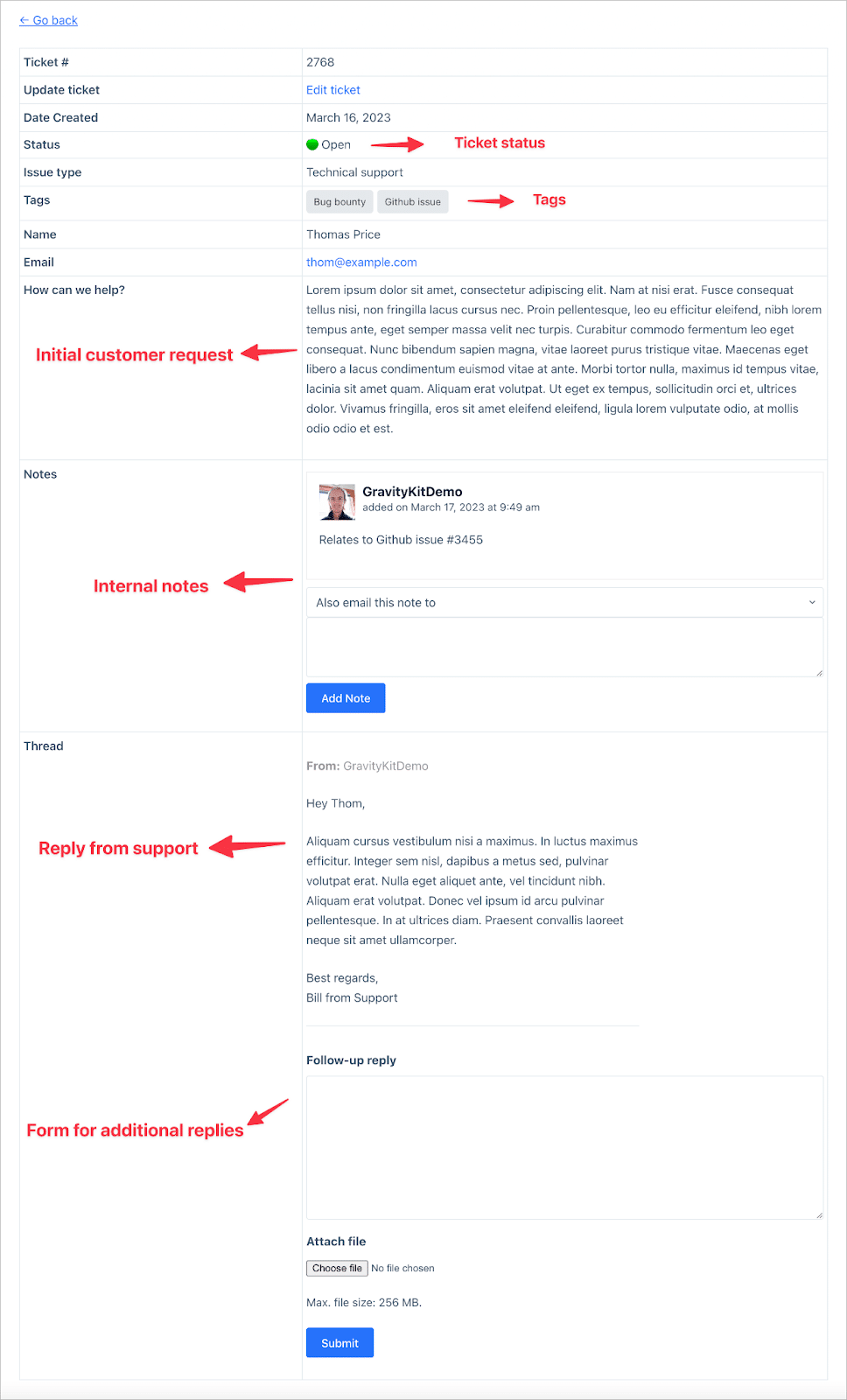
It will not replace a full help desk for a client with a support team and SLAs. For the far more common case, one person answering everything out of a shared inbox, it turns an unstructured pile into a queue with an owner and a status.
The build: you’ll need one form for support requests (with a hidden field for status) and one table View to serve as the main ticket dashboard. Entry Notes allow for internal notes and comments, while a second embedded form and View keep the reply thread inside each ticket. Customers get their own dashboard where they can see their own tickets with statuses and replies.
Read the walkthrough: How to build a support ticket system on WordPress without code.
9. Replace the shared Dropbox link with a document library
Policies, price lists, spec sheets, meeting minutes, brand assets: these important documents often live in a Google Drive folder somebody shared once.
Upload documents through a Gravity Forms form and display the result with GravityView. You get a browsable library with categories, filters, file-type icons, and a search bar, restricted to logged-in users or a specific role where it needs to be.
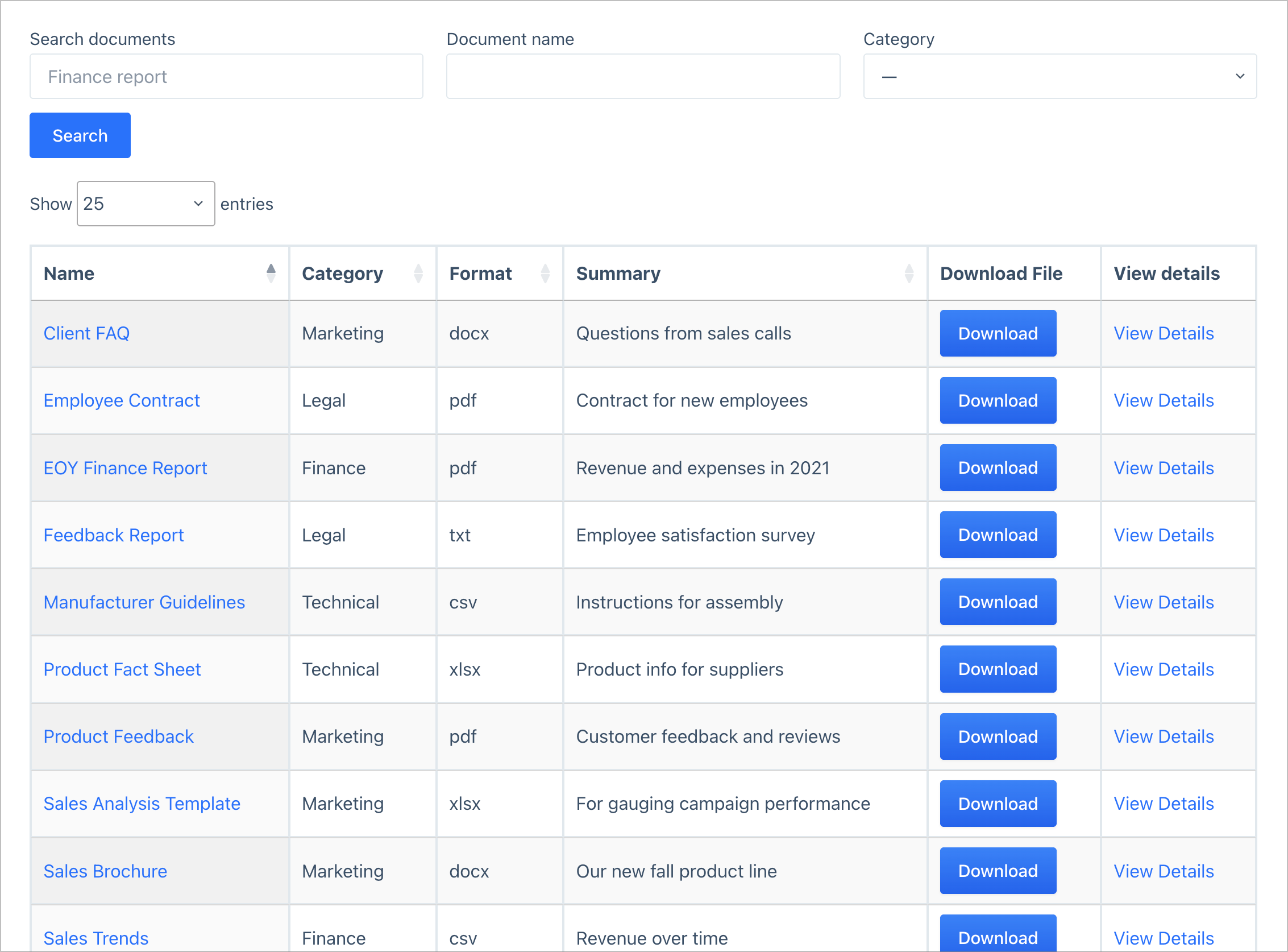
Permissions are the practical advantage over a shared folder. Access follows the WordPress accounts the client already manages, rather than a share link that outlives whoever it was sent to.
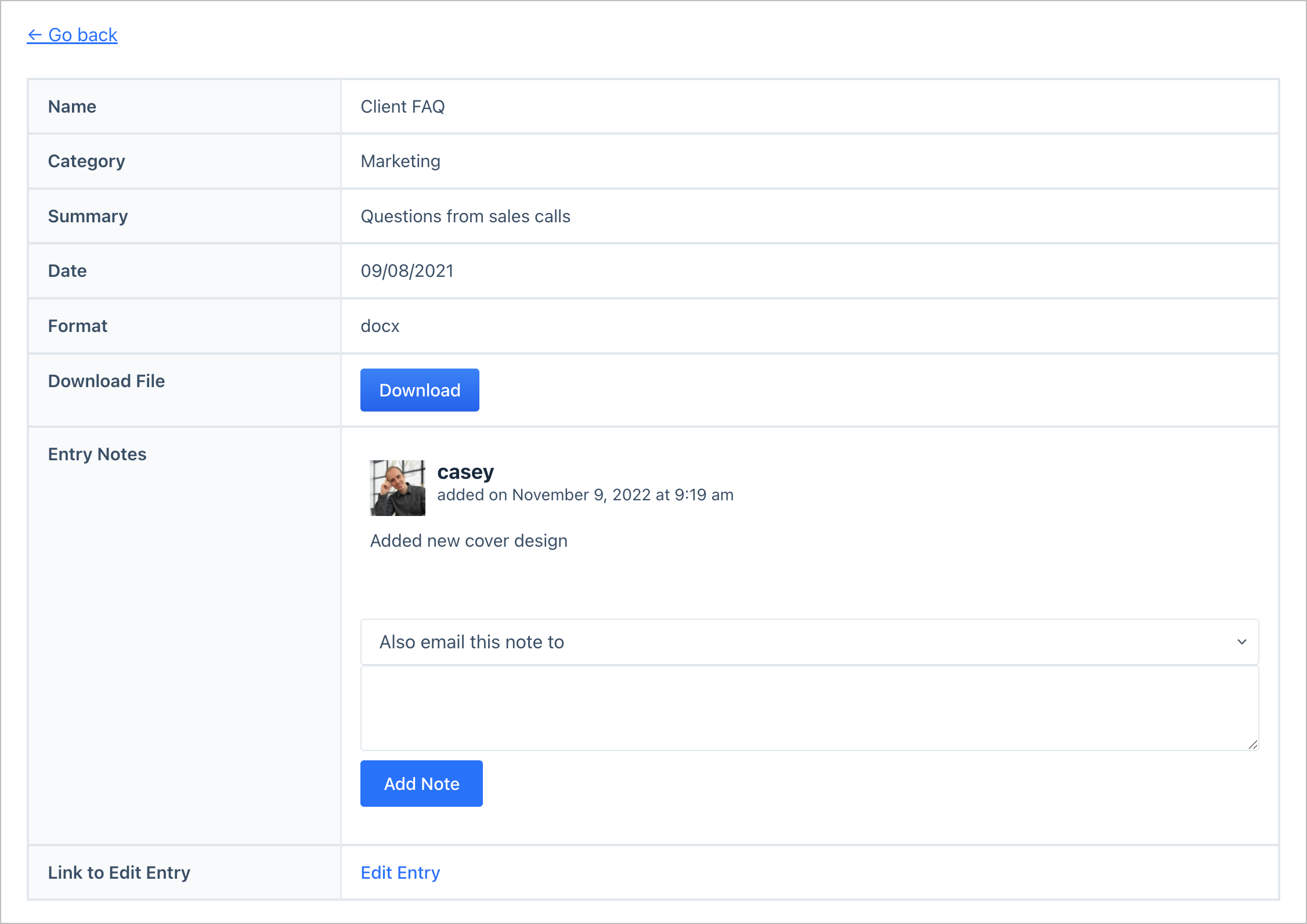
Uploading a new version is a form submission, so the client can easily update the library themselves.
The build: a Document Upload form with a File Upload field alongside Category, Format, and Summary. Set that form as the data source and choose the DataTables Table View type. Add Name, Category, Format, Summary, and a download link as columns, then put a Search Bar widget above the table. The Single Entry layout gives each document a detail page for notes.
Read the walkthrough: How to build a WordPress document library.
Or describe it and let your agent build it
Every build above is drag-and-drop, but you still have to do the dragging. The GravityKit MCP removes that step for anyone already working in Claude, ChatGPT, or another AI tool.
Connect it and your agent can read the client’s forms and entries, then create and configure Views for you. “Build me a searchable directory from the members form, with photo, name, and region, and a search bar on region” becomes a prompt rather than an afternoon. It is also useful before the build, when you want to know what is actually in a client’s data before you quote on it.
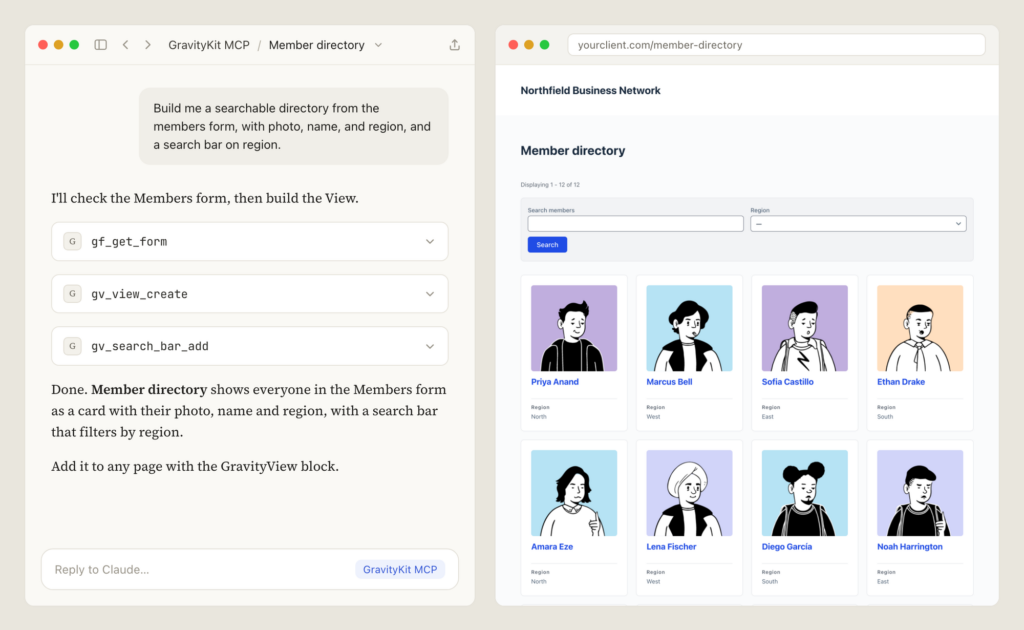
We wrote up 10 things you can ask AI to do with Gravity Forms with prompts to get you started.
Where to start
If you’re new to GravityKit, start with our live demos. You can also spin up your own demo site, with all our plugins preloaded, so you can play around with things for free for 7 days! Alternatively, learn more about GravityKit for agencies.

Get better at Gravity Forms, one email a week
New GravityKit releases, practical Gravity Forms tutorials, and subscriber-only discounts. One short email every week, unsubscribe anytime.
More articles

Launch Log: AI-built boards, inline Entry Tags editing, and Views kept on uninstall
This week: AI-built GravityBoard boards, inline Entry Tags editing in Views, Views kept when GravityView is deleted, and security fixes we recommend installing.
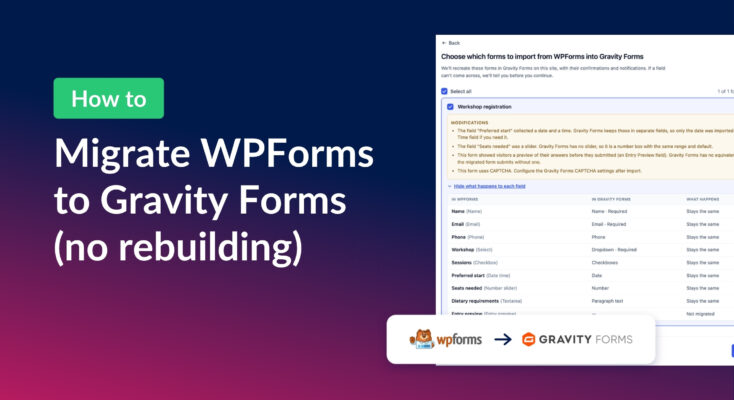
How to migrate from WPForms to Gravity Forms without rebuilding your forms
Move your WPForms forms into Gravity Forms with GravityMigrate, keeping their fields, conditional logic, confirmations, and notifications. Then bring your entries across with GravityImport.

Launch Log: Search Everything matches what fields show, steadier map searches, and security updates
GravityView’s Search Everything now matches the names fields display, and GravityView, Maps, GravityCalendar, and Dynamic Lookup get important security fixes.