
Importing List fields into existing forms
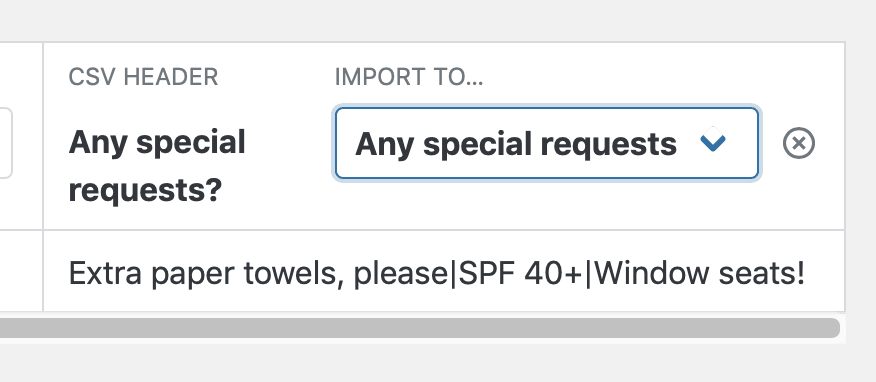
For single-column List fields (default): #
Select the List field from the “Import To…” dropdown list:
For multiple-column List fields: #
When Gravity Forms exports list fields, each row of the field will be a separate column in the CSV. If your list field has 100 rows, there will be 100 columns in the exported CSV!
GravityImport makes this simple:
1. Find the CSV Header of the List field you want to import
2. Select the List field from the “Import To…” drop down options
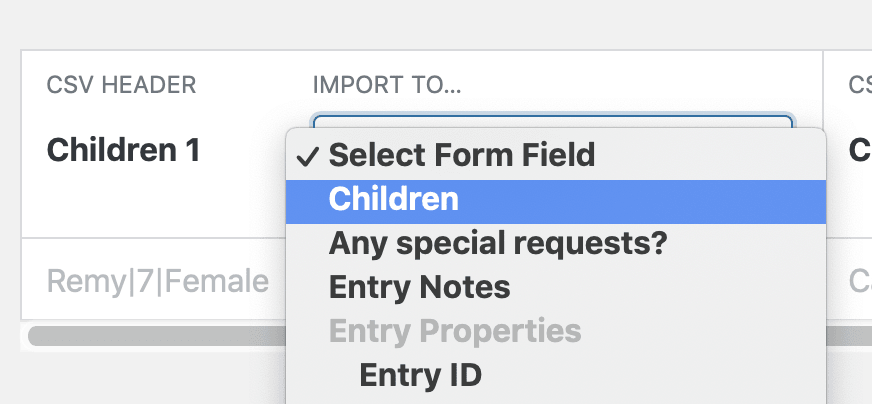
3. Confirm that the auto-detected rows are correct
GravityImport will look for other rows so that you only have to do this once per List field.
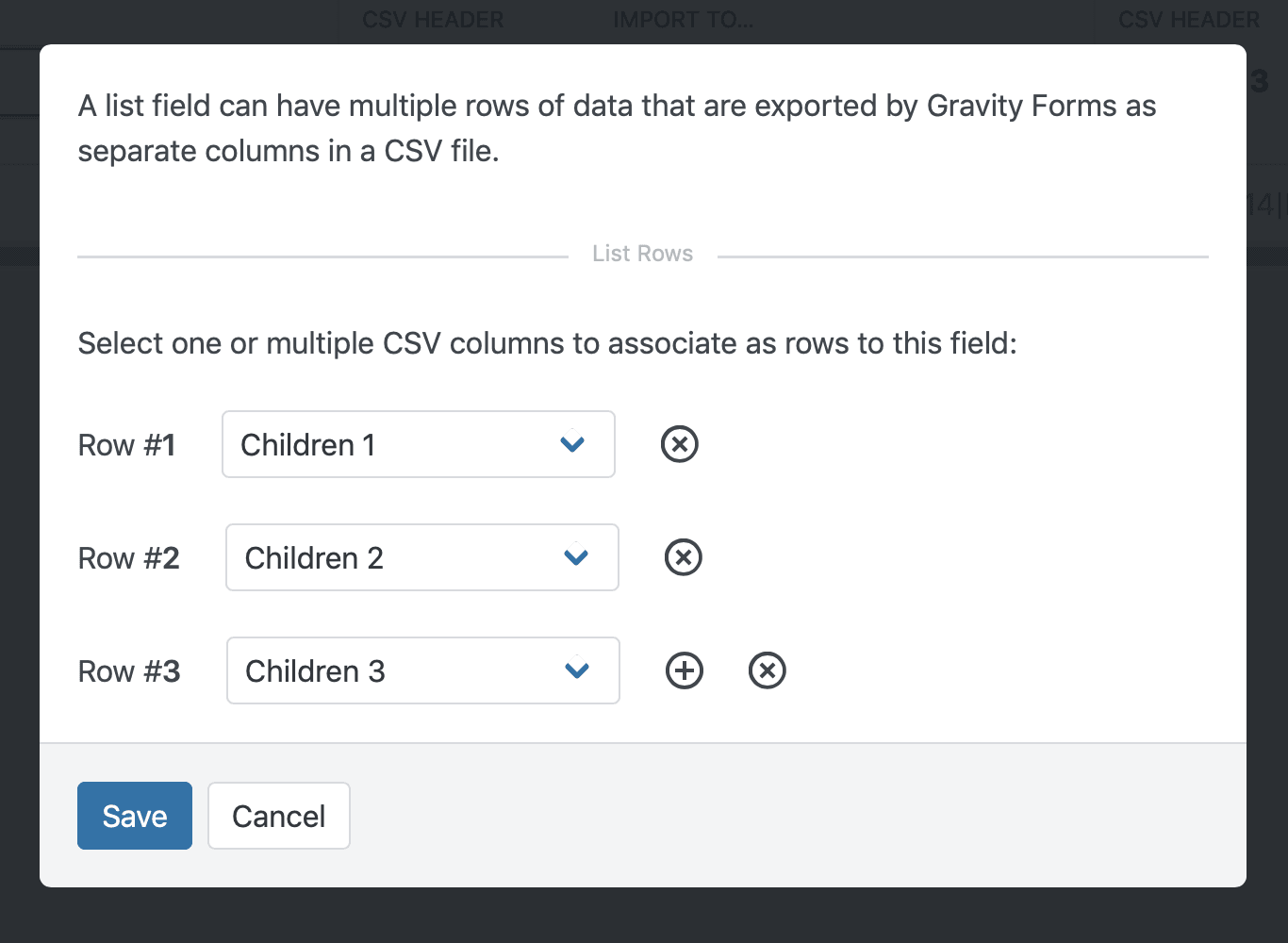
4. Click Save
You will now see that the columns you have defined are already set to import into the same List field. You can tell this because they have the word “Mapped” before the field name:
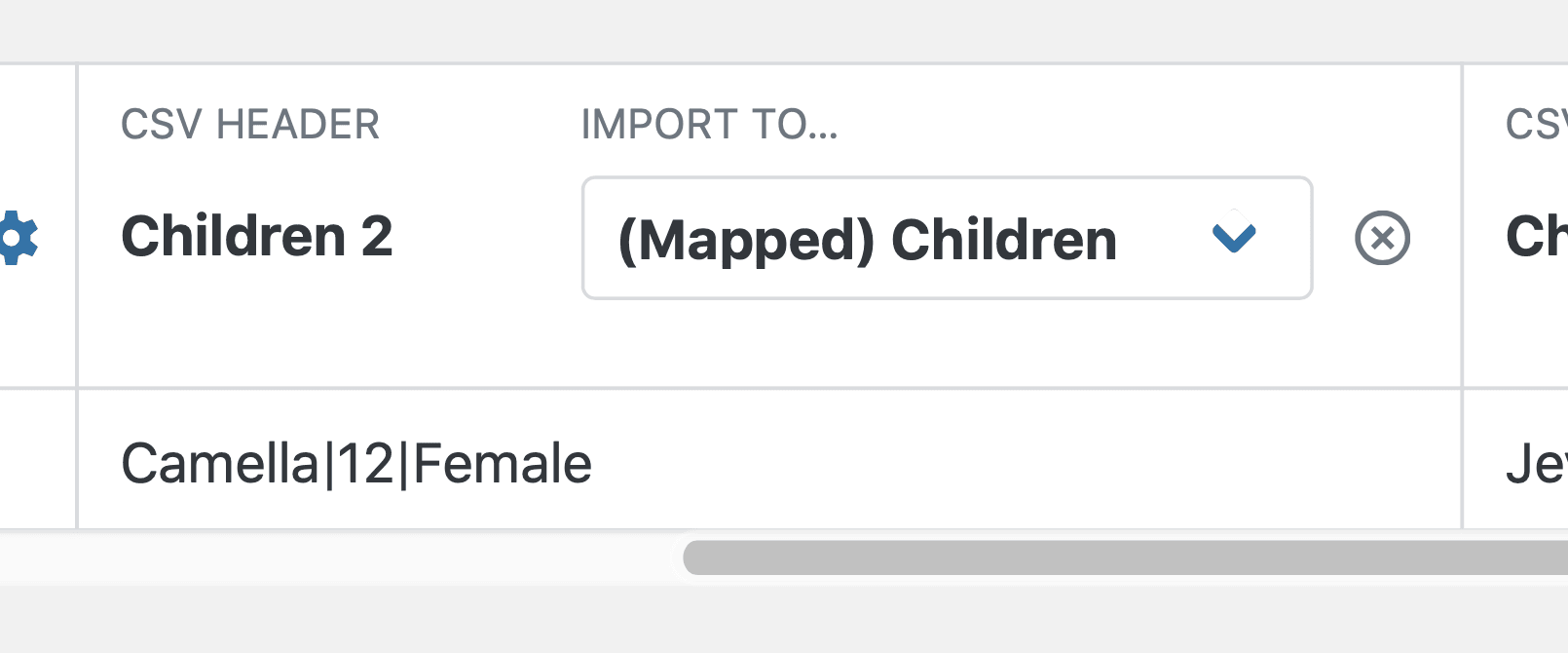
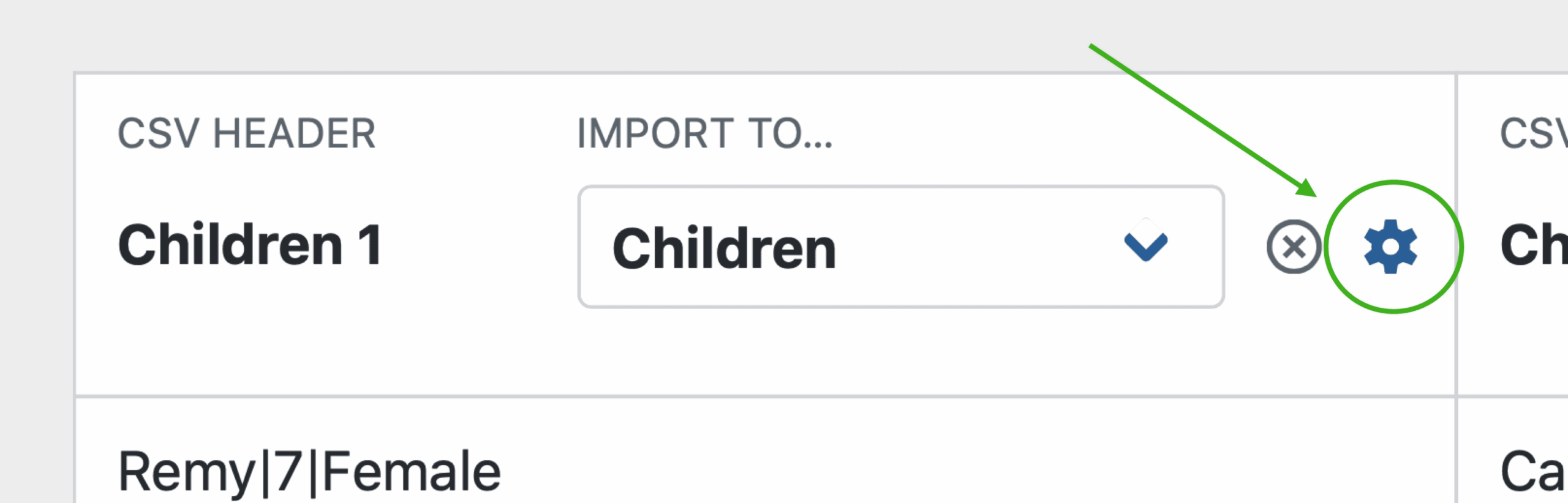
You can change the configuration of the list field by clicking on the gear icon next to the column.
Tip: Gravity Forms can also export List fields as JSON, and GravityImport imports those JSON-formatted values directly into a single column. See Exporting List fields as JSON.

