
How to trigger notifications for imported entries
When GravityImport creates entries, your form’s notifications are not sent automatically. That’s usually what you want: importing thousands of rows shouldn’t trigger thousands of emails. When you do want them, there are two ways: send notifications while the import runs, or resend them afterwards from the entries list. This article covers both.
Send notifications during the import #
Enable the Email Notifications option on the wizard’s Configure stage before you start the import. The form’s active notifications are then sent for each imported record. See Configure import options for the other options on that screen.

Resend notifications after the import #
Already ran the import without notifications? Gravity Forms can send them afterwards using the Resend Notifications bulk action on the entries list.
1. Open the form’s entries
Go to Forms, then Forms, hover over the form you imported into, and click Entries.
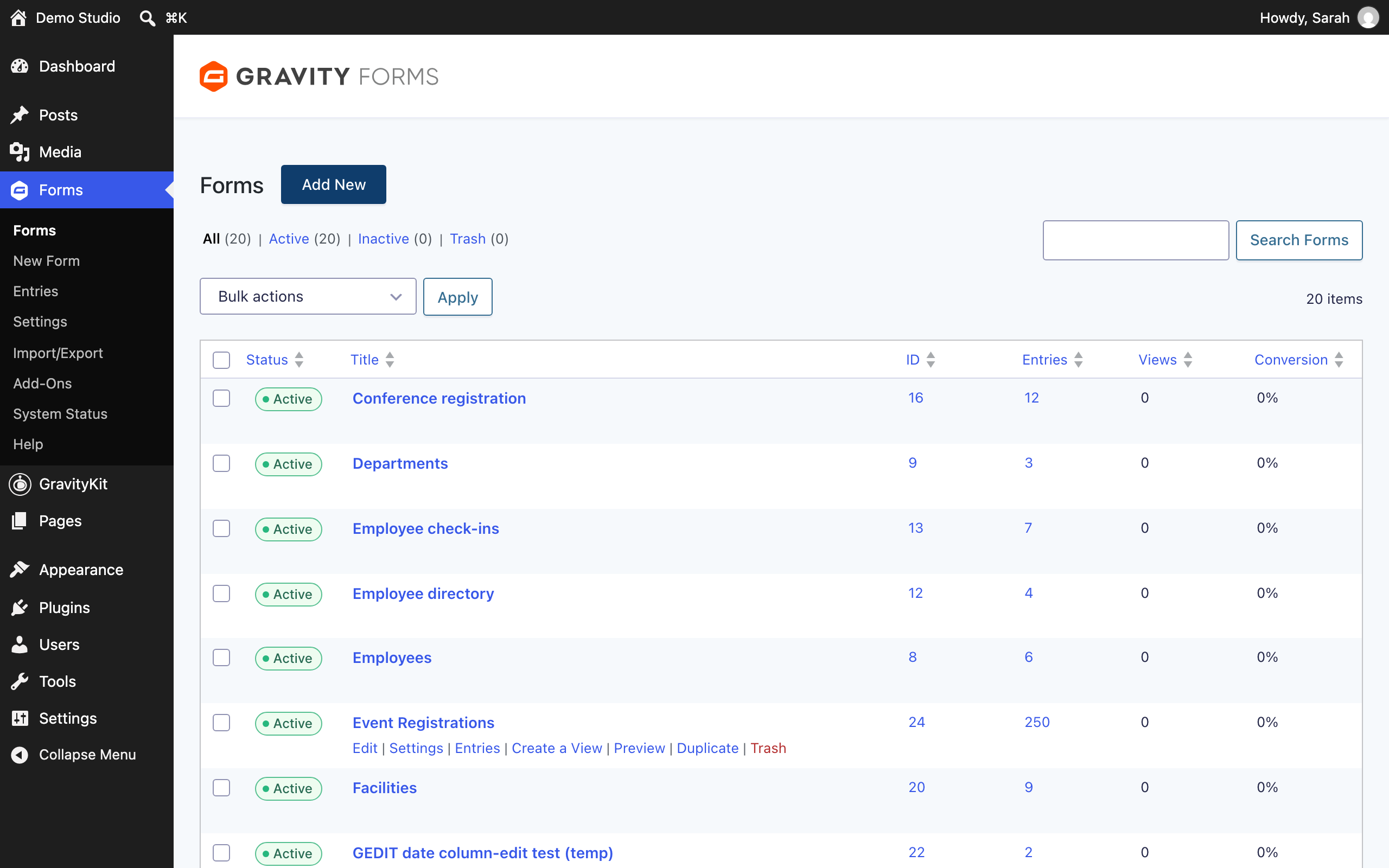
2. Select the entries on the page
Tick the checkbox in the header row of the entries table. Every entry on the current page is selected, and a notice shows how many.
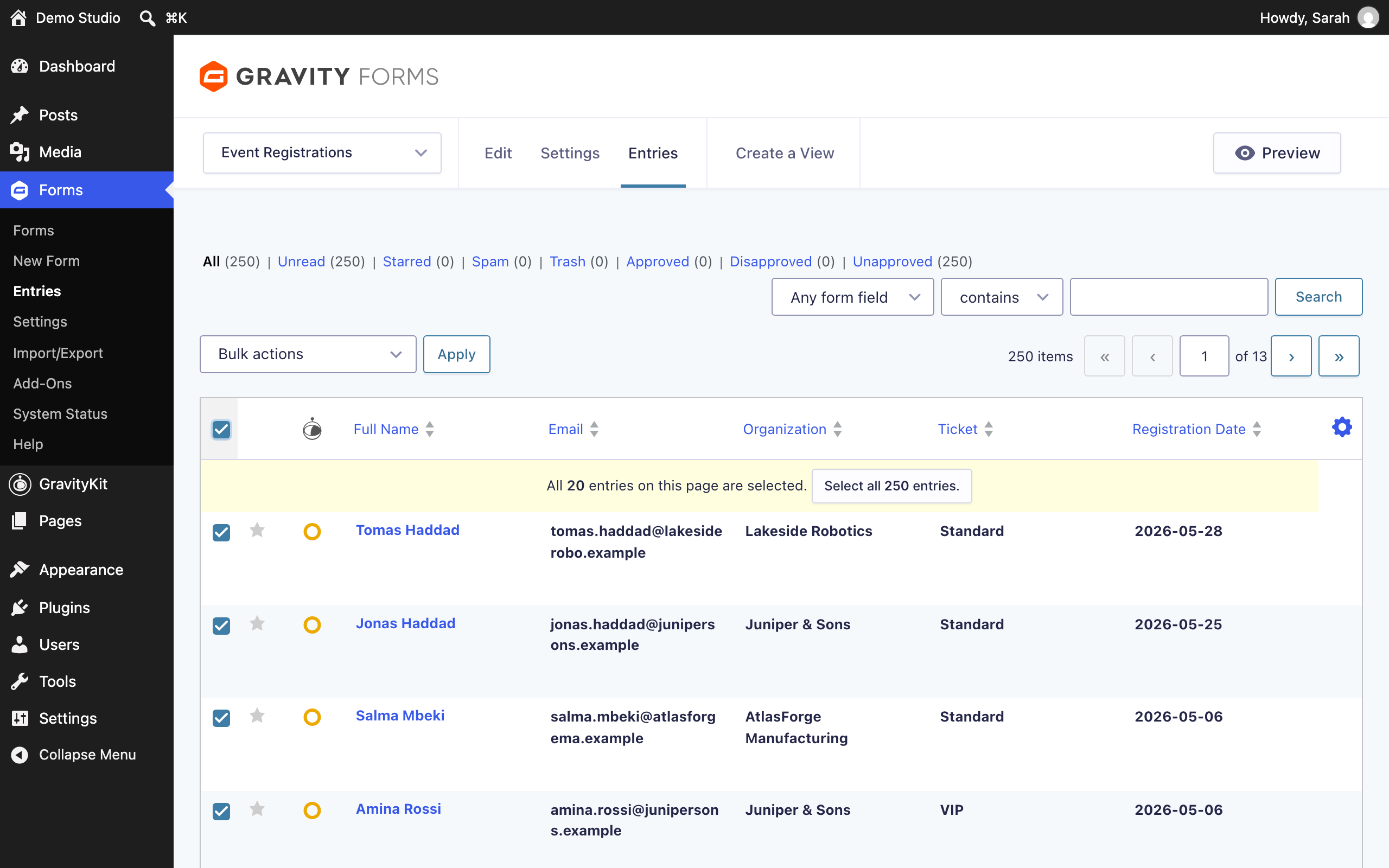
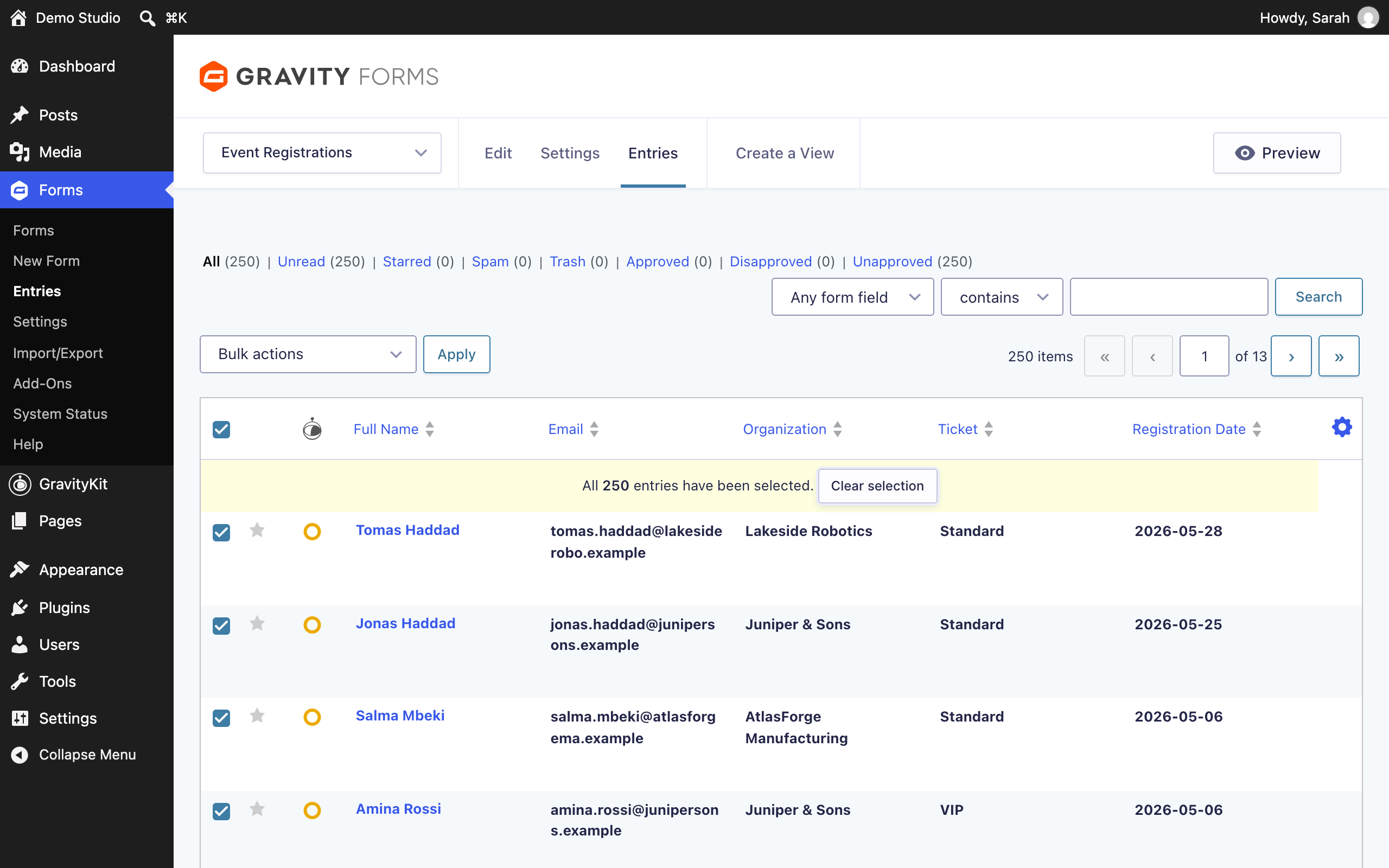
3. Extend the selection to every page
To include the entries on every page, click Select all entries in the notice. If you don’t see it, everything is already selected.
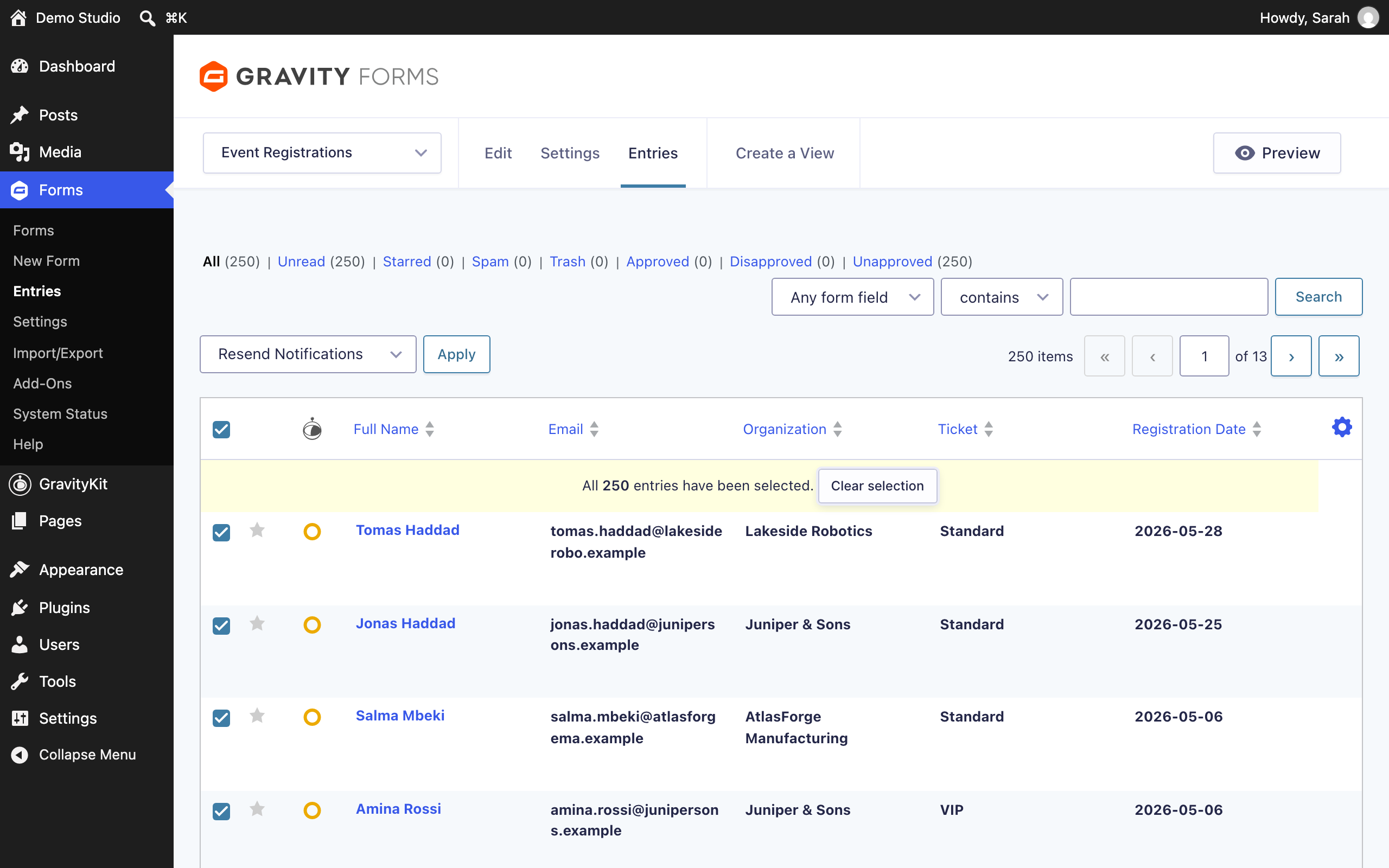
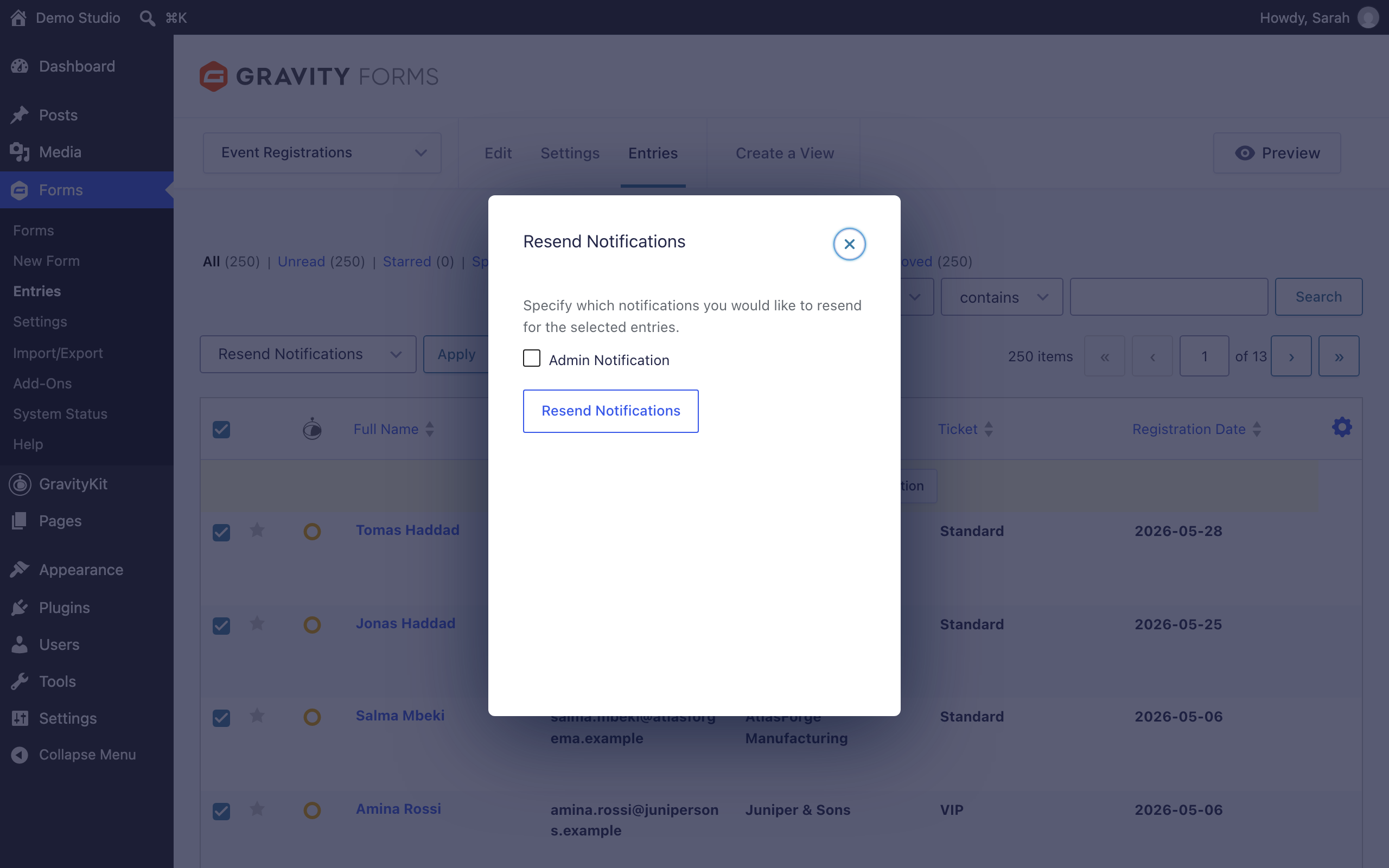
4. Choose Resend Notifications
Open the Bulk actions dropdown above the table and choose Resend Notifications.
5. Apply and pick the notifications to send
Click Apply. A dialog asks which of the form’s notifications to resend for the selected entries. Tick the ones you want, then click Resend Notifications. Each selected entry receives the chosen notifications.
Note: notifications with conditional logic are only sent to entries that meet the conditions, so it’s safe to resend to a broad selection.

